
Microsoft Entra B2B Collaboration — part of the Entra External Identities feature set — lets you invite people from outside your tenant (partners, vendors, contractors) to access specific apps and resources without creating internal accounts for them. Authentication is handled by their own organisation or identity provider; your tenant only handles authorisation. Visitor pass, not a new staff badge.
This guide walks the full lifecycle: invite, accept, license, harden with Conditional Access, control who can invite, and (when relevant) promote a guest to an internal member. Tenant in the examples is ezaz2281.onmicrosoft.com. Everything here works on Entra ID Free; the Conditional Access section needs P1.
What B2B actually does
When you invite an external user:
- A Guest user object is created in your tenant.
- UPN is set to
username_outlook.com#EXT#@ezaz2281.onmicrosoft.com— the#EXT#tag is the marker that this identity is federated, not local. - Microsoft mails the invitation to the external address.
- The user clicks Accept. Identity field updates to reflect their real home identity (Microsoft Account, Google, partner tenant).
- Admin assigns licenses or app access.
- When the guest tries to use a resource, the auth round-trip goes to their identity provider. Once authenticated, your tenant decides what they can do.
Critical implication: no password is stored in your tenant. You can’t reset their password (their home org owns it). What you control is what they can access and how.
Prerequisites
| Requirement | Detail |
|---|---|
| License | Entra ID Free for invitations. P1 for Conditional Access on guests. |
| Admin role | Global Admin or User Admin can invite. Guest Inviter role for non-admins. |
| External Collaboration Settings | Enabled (default). |
Step 1 — check External Collaboration Settings
- entra.microsoft.com as Global Admin.
- Identity > External Identities > External Collaboration Settings.
- Confirm Guest Invite Settings — default is Anyone in the organization can invite guest users including guests and non-admins.
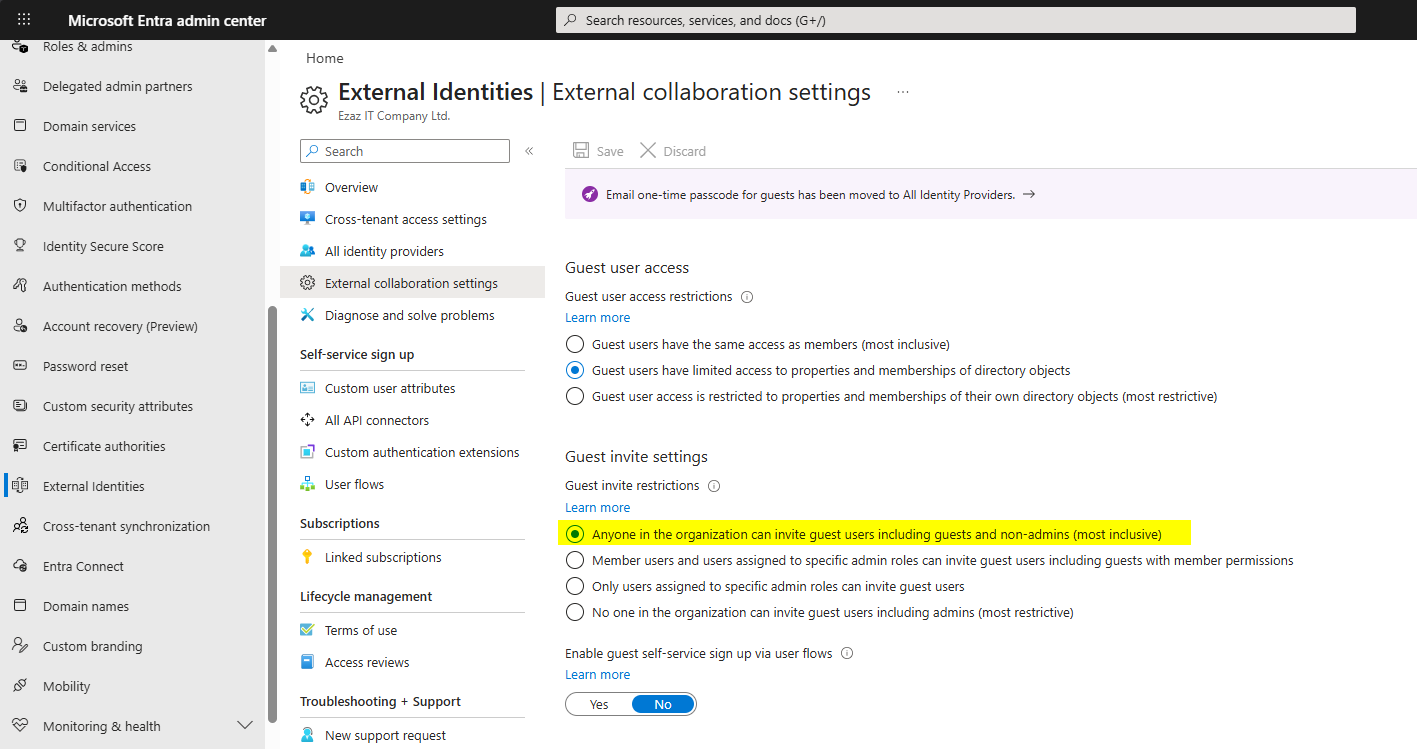
If the default doesn’t suit your risk posture, jump to Step 8 below for how to tighten it.
Step 2 — invite a guest as admin
- Users > All Users > New User > Invite External User.
- Display Name (e.g. Concepts User), Email (e.g.
conceptsuser@outlook.com), optional first / last name. - Personal Message — brief note the guest sees in the invitation email.
- Next > Properties — set Usage Location (required before assigning licenses later).
- Next > Assignments — optionally add to a group or assign a role now.
- Next > Review + Invite > Invite.
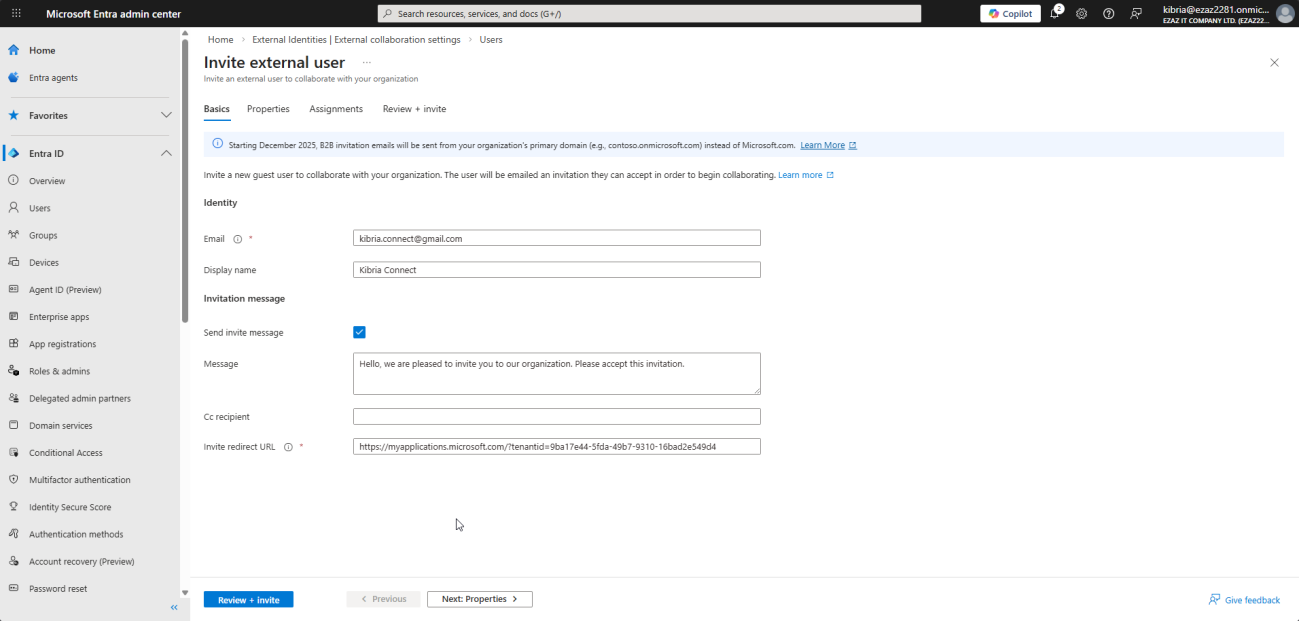

What happens immediately
- Guest account created with User Type = Guest.
- Microsoft mails the invitation to the address you provided.
- B2B Invitation Status = Pending Acceptance.
- Identities field still shows
ezaz2281.onmicrosoft.com— this updates when they accept.
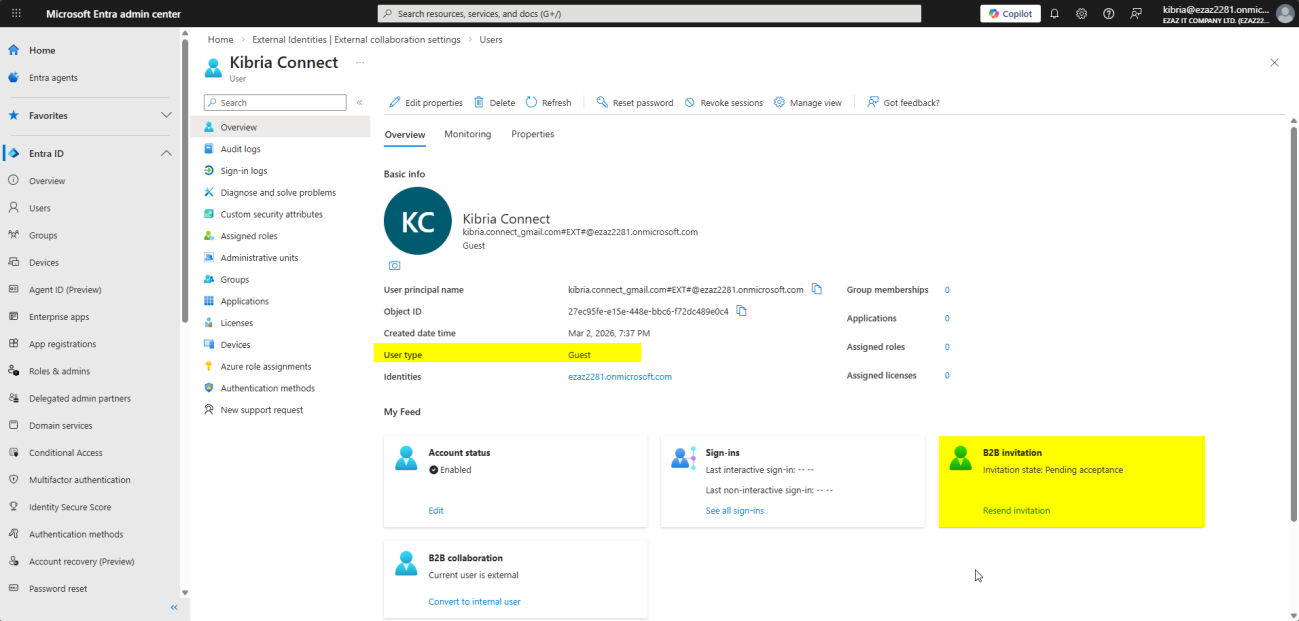
Invitations don’t expire. You can resend from the user’s profile if they lost the email.
Step 3 — let non-admins invite via My Groups
For team-led collaboration, group owners can invite guests through myapps.microsoft.com without involving IT each time:
- Group owner opens myapps.microsoft.com, signs in as themselves.
- My Groups > Groups I Own > pick the group.
- … menu > Add Member.
- Type the external email. The system recognises it as external and offers Member or Group Owner. Choose Member.
- Optional invitation message > Add.
Same invitation email gets sent. Same accept flow.
Step 4 — the guest accepts
Microsoft Account (Outlook.com)
- Open the email from Microsoft Invitations on behalf of [Your Org].
- Click Accept Invitation.
- Permissions Requested > Accept.
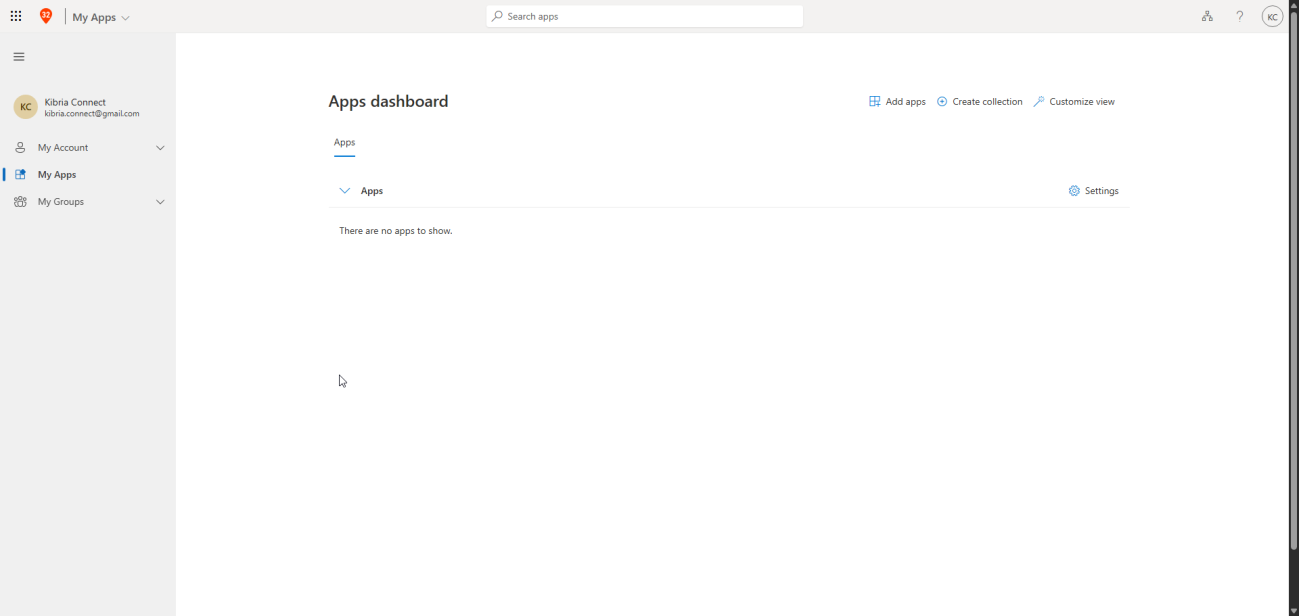
- Lands in My Apps. There are no apps to show if you haven’t assigned anything yet — expected.
Gmail / Google account
- Same email, click Accept Invitation.
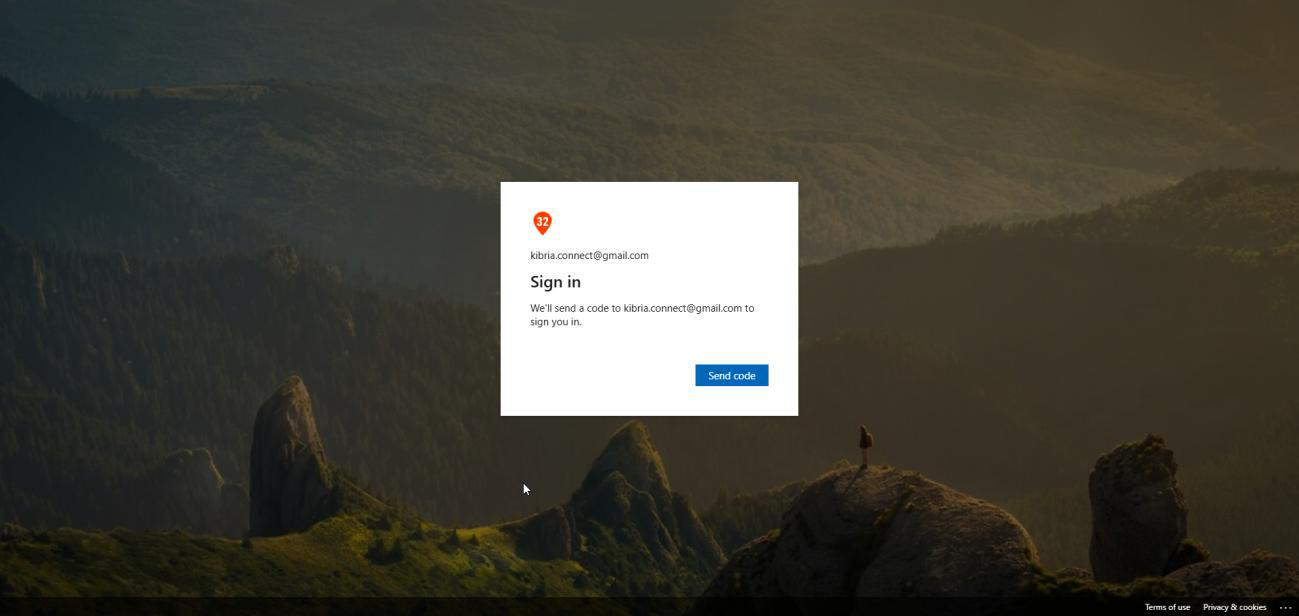
- Google steps in for identity verification — click Send Code.
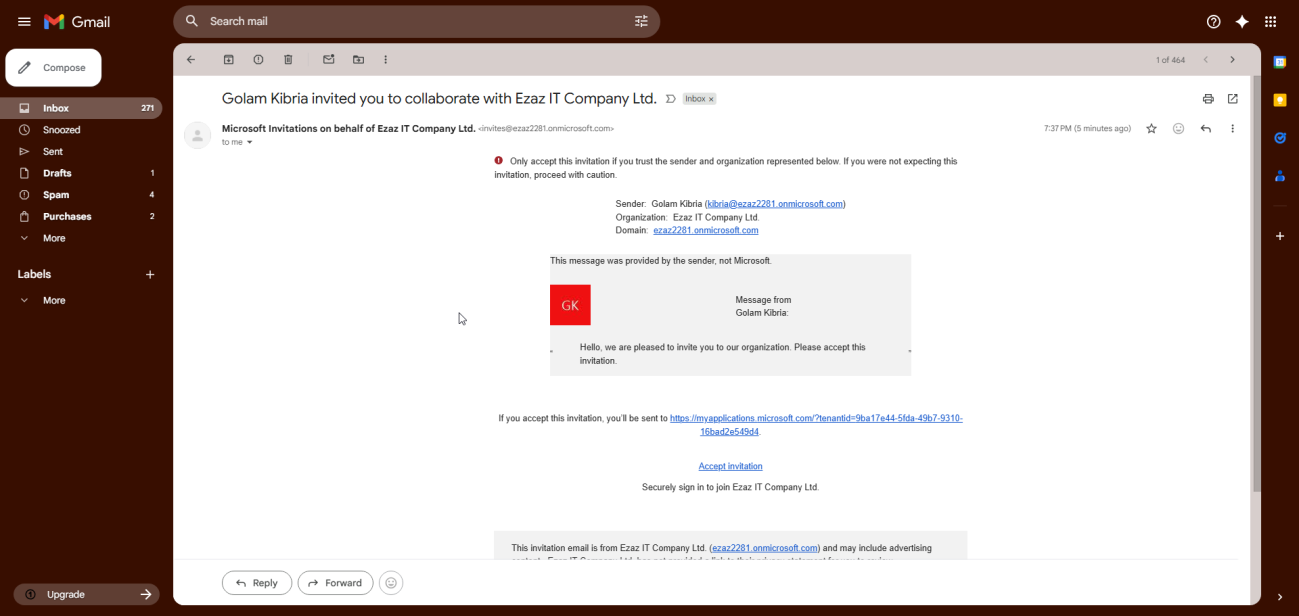
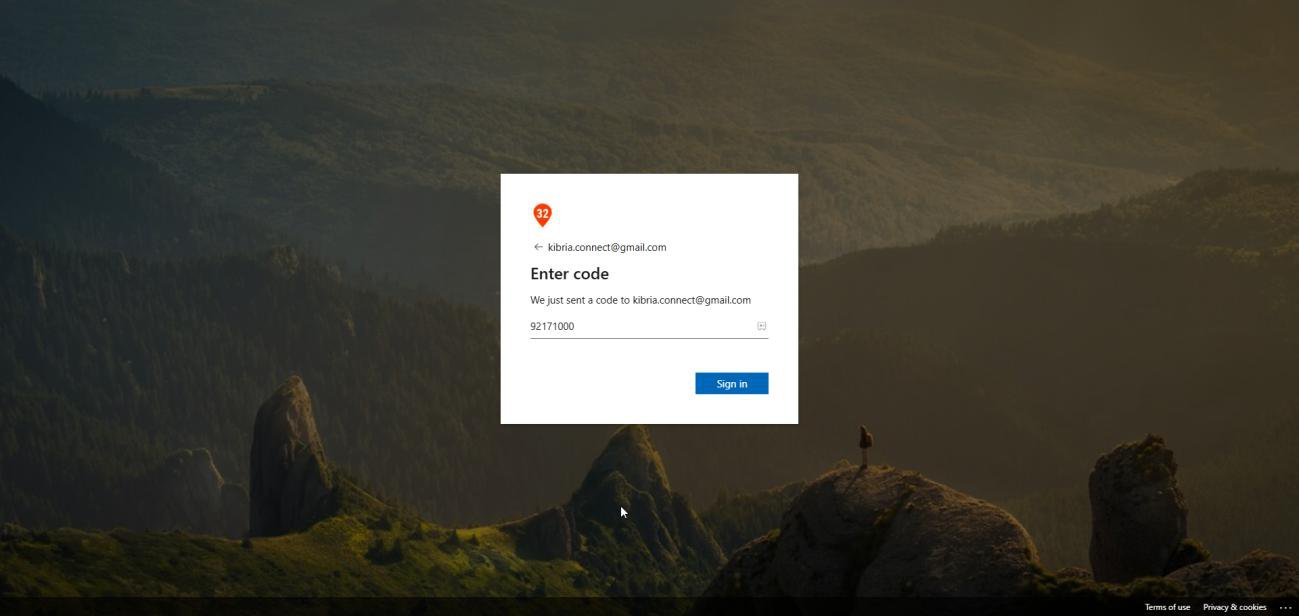
- OTP arrives in Gmail. Copy, paste back into the verification page, click Sign In.
- Accept permissions.
- Lands in My Apps.
What changes after acceptance
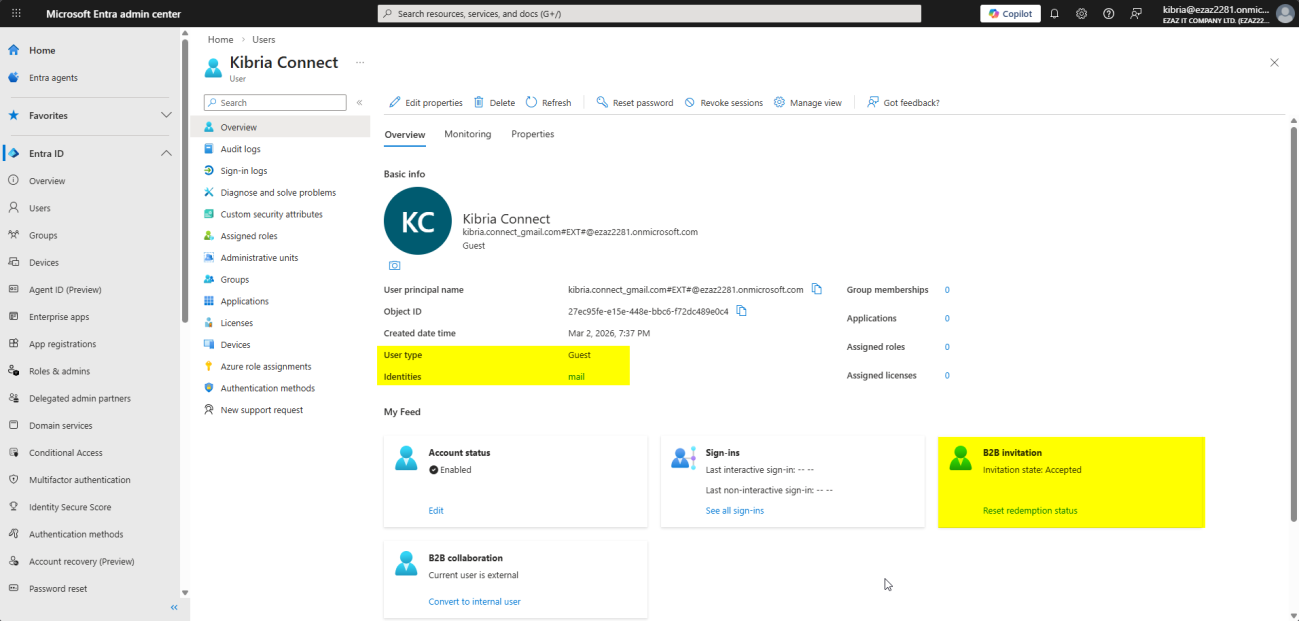
- B2B Invitation Status: Accepted.
- Identities: Microsoft Account for Outlook users, Google or partner tenant name otherwise.
- User Type still shows Guest (correct).
Step 5 — assign licenses or app access
Acceptance alone gives the guest no apps. Assign deliberately:
- Users > All Users > click the guest.
- Left rail > Licenses > Assignments.
- Tick the SKU (e.g. Microsoft 365 Business Standard) > Save.
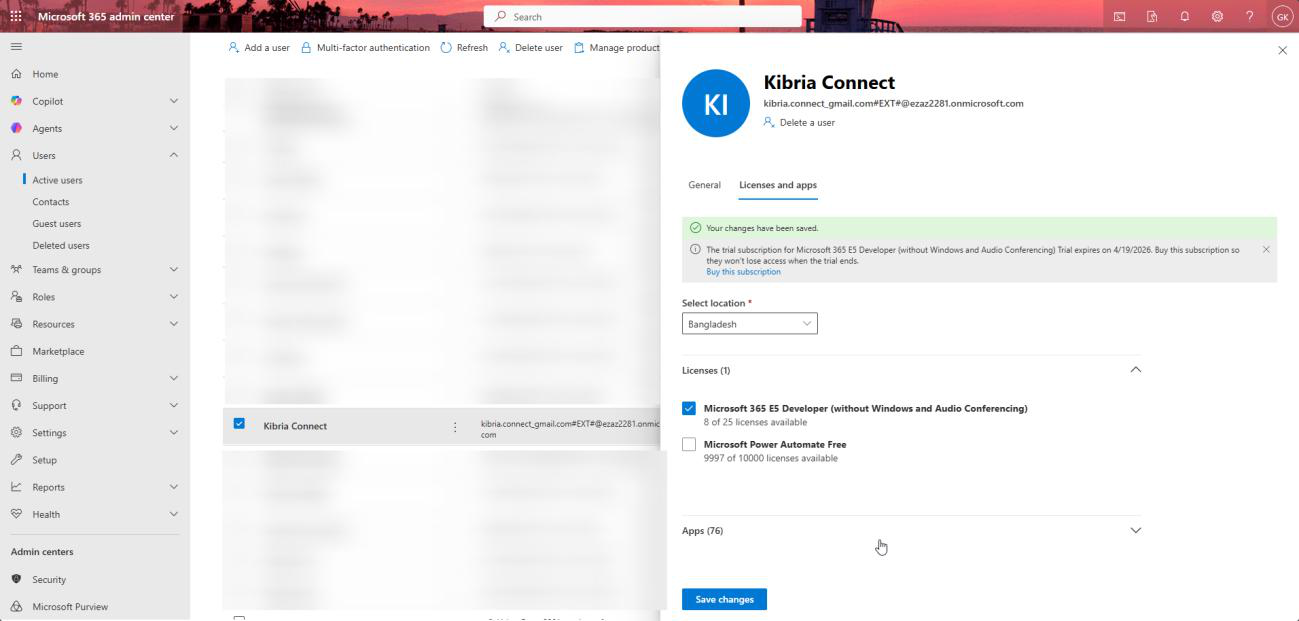
Guest can now sign in at portal.office.com using their external credentials and see what the license entitles. Reminder: their password lives at home, not here.
Step 6 — require MFA on guests via Conditional Access
Guests are external by definition — you have no idea what device hygiene or password practices they have. Always wrap them in MFA.
- entra.microsoft.com > Security > Conditional Access.
- New Policy. Name: MFA for Guest Users.
- Users or Workload Identities > Select users and groups > tick Guest or external users.
- Cloud Apps or Actions > Select Apps > add Office 365 and Microsoft Azure Management.
- Grant > Grant Access > tick Require multi-factor authentication.
- Enable Policy: On > Create.
Next time the guest opens an app, after their home auth completes they get the standard MFA prompt and walk through enrollment if needed.
Requires Entra ID P1. Free tier can invite guests but can’t apply CA to them.
Step 7 — how guests sign in (the part that confuses Gmail users)
Microsoft Account guest
Easiest case. They go to myapps.microsoft.com, type their Outlook email, type their Outlook password, done.
Non-Microsoft account guest (Gmail, Yahoo, etc.)
If a Gmail user types jane@gmail.com directly at myapps.microsoft.com, they get We couldn’t find an account with that username. That’s expected — Microsoft can’t resolve the address to a tenant without help.
Correct path:
- myapps.microsoft.com > click Sign-in options at the bottom.
- Sign in to an organization.
- Type the host tenant’s domain:
ezaz2281.onmicrosoft.com> Next.

ezaz2281.onmicrosoft.com.- Microsoft sign-in page appears. Click Use another account > type the Gmail address.
- System routes through Email OTP — code arrives at the Gmail address.
- Paste code > Sign In > accept permissions > My Apps.

The shortcut
The accept-invitation link from the original email handles all of this routing automatically. Tell guests to bookmark My Apps after first sign-in so they don’t have to repeat the common-endpoint dance.
Step 8 — restrict who can invite guests
| Level | Who can invite |
|---|---|
| 1 (default) | Anyone in the org — including existing guests and non-admins |
| 2 | Only Global Admin, User Admin, and Guest Inviter role holders |
| 3 | Nobody, including admins. B2B invitations completely off. |
Change it: External Identities > External Collaboration Settings > Guest Invite Settings > pick the radio you want > Save.
Delegate the right to specific users via the Guest Inviter role
- Users > the user (e.g. Kibria).
- Assigned Roles > Add Assignments.
- Search Guest Inviter > Add.
From now on only that user (and Global Admins) can invite. Anyone else trying gets User invitation failed — insufficient privileges to complete the operation.
With P1/P2 you can attach the Guest Inviter role to a security group instead of individual users — manage by group membership at scale.
Step 9 — convert a guest to an internal member
The contractor who used to be a guest is now joining as an employee. Or a merger means external partner accounts should become internal. You can promote in place without losing groups or permissions.
What conversion changes
- User Type: Guest → Member
- New UPN inside your tenant domain (e.g.
kibria.connect@ezaz2281.onmicrosoft.com) - New password set in your tenant (they now authenticate against you, not their home org)
- All existing group memberships and permissions preserved
Requirements
- User Administrator role minimum
- Guest must already have accepted the original invitation
- Account must be externally-authenticated — on-prem-AD-synced accounts can’t be converted this way
Procedure
- Users > All Users > Add Filter > User Type = Guest to find them quickly.
- Open the user. Confirm B2B Invitation Status = Accepted.
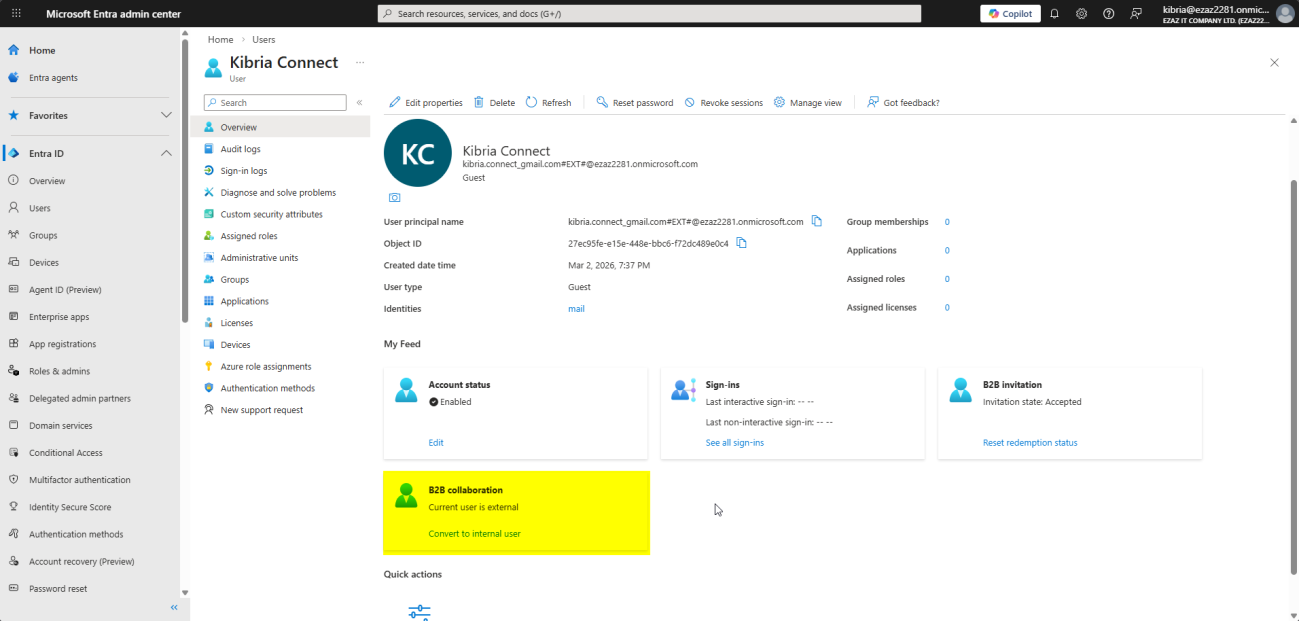
- In the B2B Collaboration section, click Convert to Internal User.
- Set the new UPN (left side
kibria.connect, right side dropdown your domain). - Set a Password — auto-generate or specify.
- Optionally tick Change Email Address if you want their email attribute updated to internal too.
- Convert.
Verify
- Users > All Users (remove the Guest filter) > search by name.
- User Type now reads Member.
- UPN ends in your domain.
- Group memberships intact.
Things that bite people
Guest can’t sign in — ‘account not found’
Almost always a Gmail / Yahoo guest who typed their address directly at myapps.microsoft.com. Walk them through Sign-in options > Sign in to an organization > <your tenant>.onmicrosoft.com. Or just send them the original invitation link.
Invitation never arrived
Check the guest’s spam folder first. The sender is Microsoft Invitations — corporate spam filters sometimes block it. Resend from the user’s profile in Entra Admin Center if needed.
Forgot the Usage Location, can’t assign a license
Set Usage Location on the guest’s Properties before going to Licenses.
Conditional Access policy that requires MFA created without P1
Policy creation succeeds, enforcement quietly fails. Verify your tenant has P1 licensed and assigned before relying on it.
Guests inviting other guests, unbounded
Default permission lets any guest invite further guests. Useful for partner-led collaboration; bad for tight environments. Tighten via Step 8.
Offboarding
When the partnership ends, just delete the guest like any other user. Their home identity is unaffected; what dies is their access to your tenant. Run a quarterly review of guest accounts to remove stale ones — partners with months of inactivity are usually safe to remove.
What’s next
That covers external identity. The next post in the Entra ID Security pathway closes the device-and-data theme: BitLocker Self-Service Recovery & Testing — how to validate that the BitLocker key visibility setting from the Device Settings post actually does (or doesn’t) let users recover their own keys, end-to-end.