
Microsoft Entra Connect uses three different service accounts, each in a different place. When troubleshooting permission errors or stuck syncs, knowing which account does what — and where to look for it — saves real time. This post walks the locations for all three.
The three accounts at a glance
| Account | Role | Format | Where to find |
|---|---|---|---|
| AD DS Connector | Reads/writes on-prem AD | MSOL_xxxx |
Sync Service Mgr > Connectors > on-prem domain > Properties |
| ADSync Service | Runs the Windows service | NT SERVICE\ADSync or DOMAIN\ADSync_xxx |
services.msc > Microsoft Azure AD Sync > Log On |
| Entra Connector (cloud) | Pushes changes to Entra ID | Sync_HOST_xxx@tenant.onmicrosoft.com |
Sync Service Mgr > Connectors > cloud connector OR M365 Admin > Health |
1. Find the AD DS Connector account
This account allows the Sync Server to read users from on-premises AD and write back information (passwords, etc.) if writeback is enabled.
Method 1 — Synchronization Service Manager (recommended)
- Sign in to the Entra Connect server
- Start menu > search for Synchronization > click Synchronization Service
- Click Connectors tab at the top
- Find your on-prem domain connector (e.g.,
infotechninja.local) - Right-click > Properties
- Left menu: Connect to Active Directory Forest
- Look at the User name field
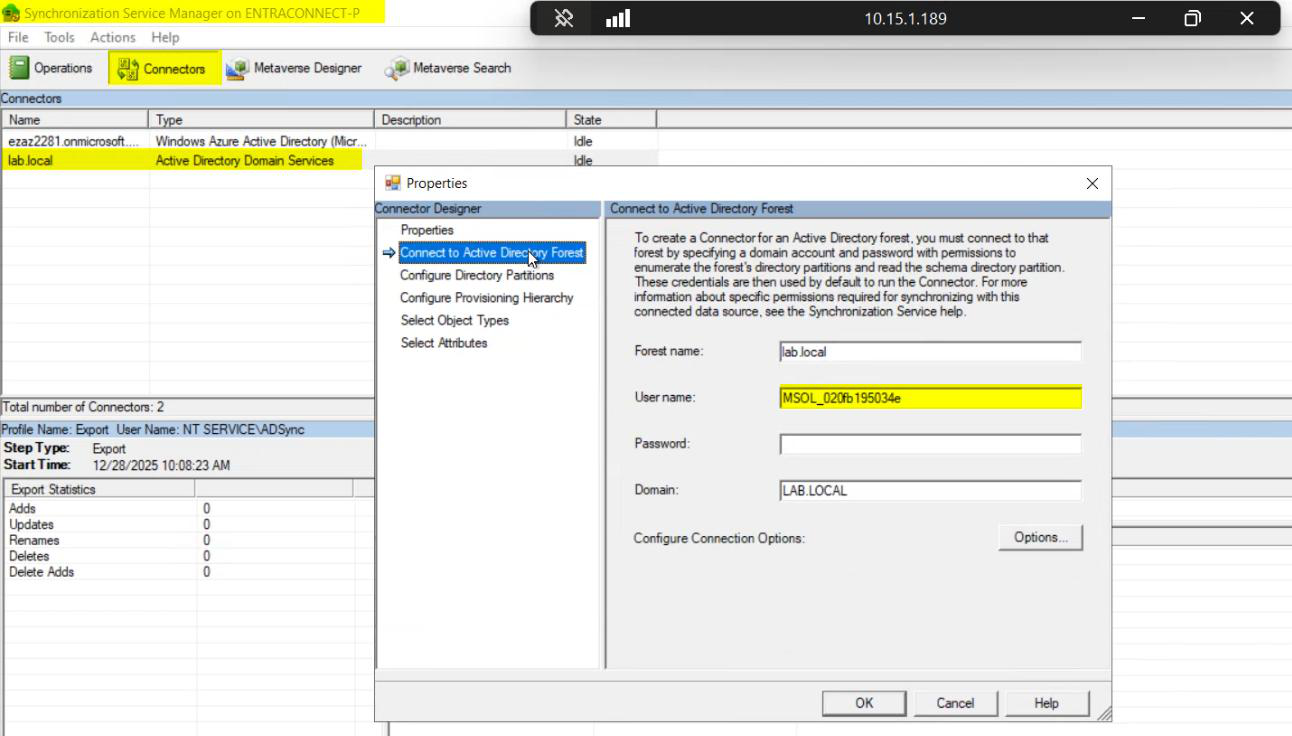
infotechninja.local) > Properties > Connect to Active Directory Forest. The User name field reveals the AD DS Connector account — usually MSOL_xxxx if Express install auto-created it.If the username starts with MSOL_ (e.g., MSOL_1234abcd), Entra Connect auto-created it during install. This is the standard Express-install pattern.
Method 2 — Entra Connect Configuration Viewer
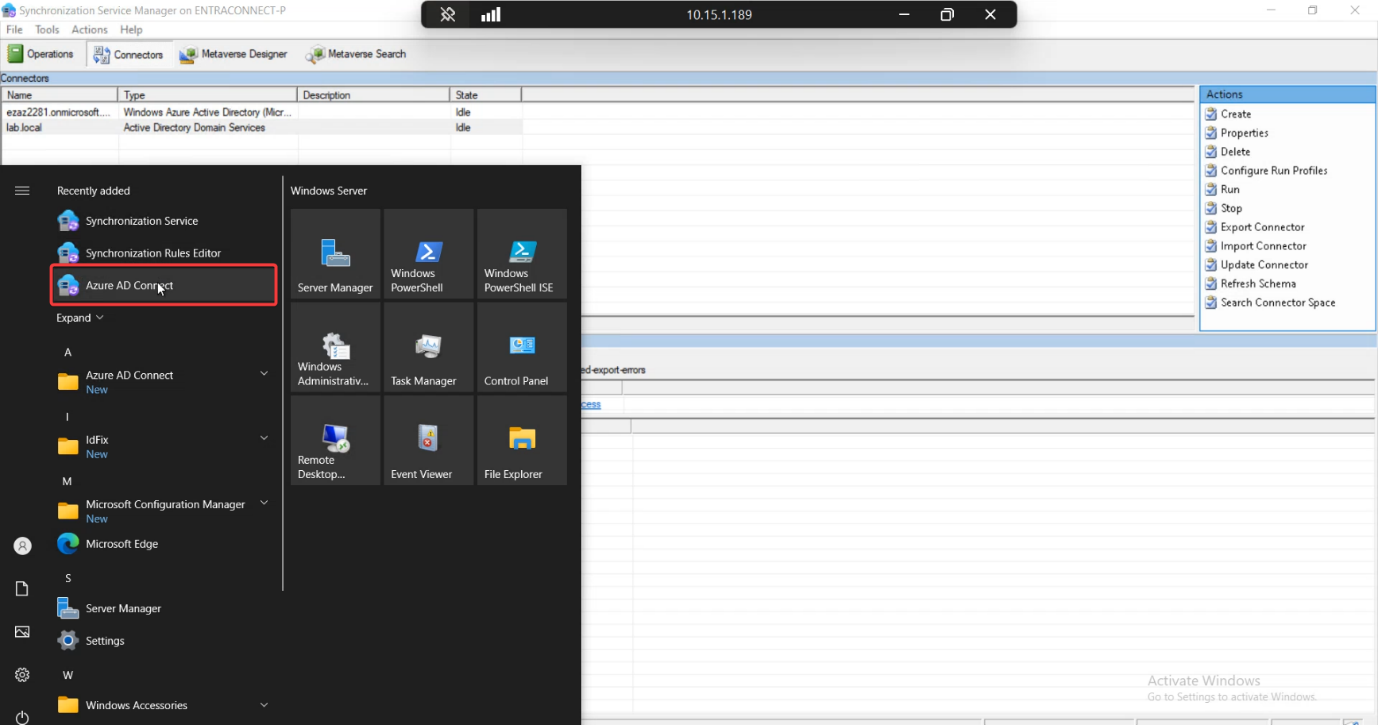
Open the Microsoft Entra Connect wizard from the desktop.
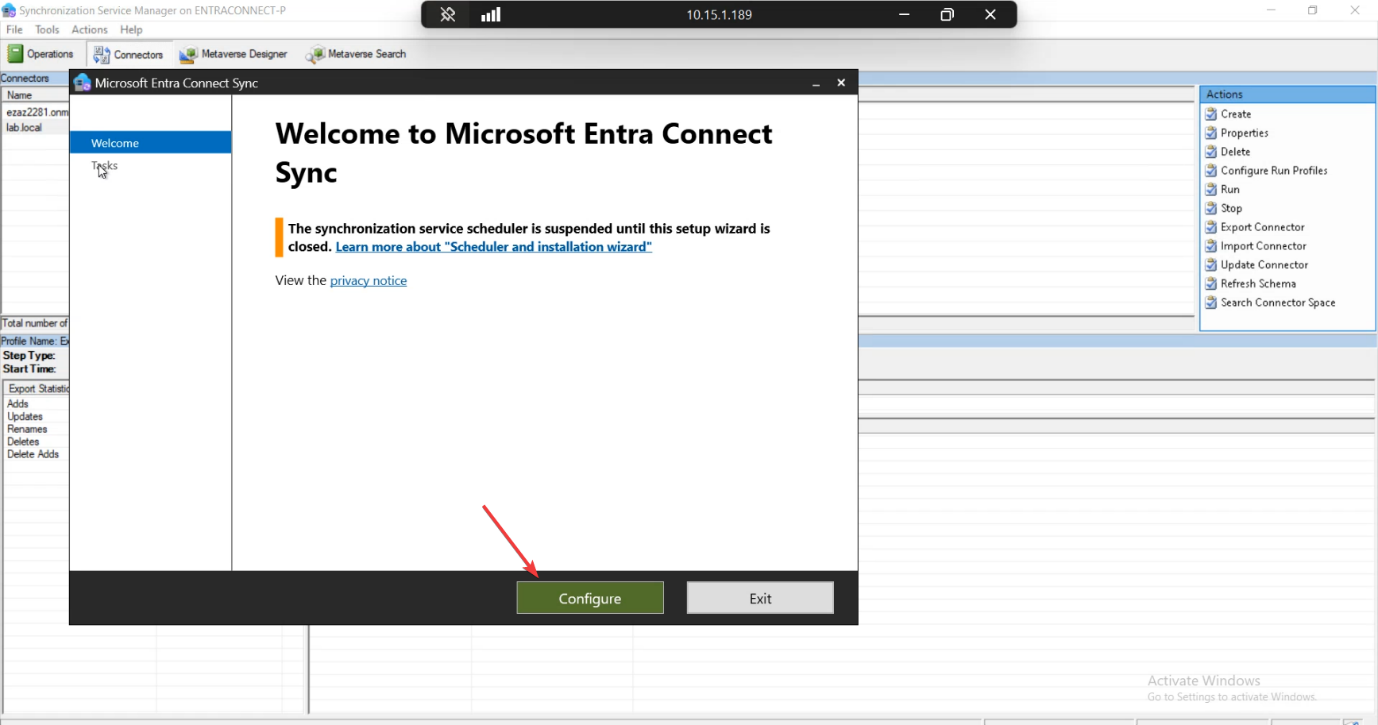
Click Configure.
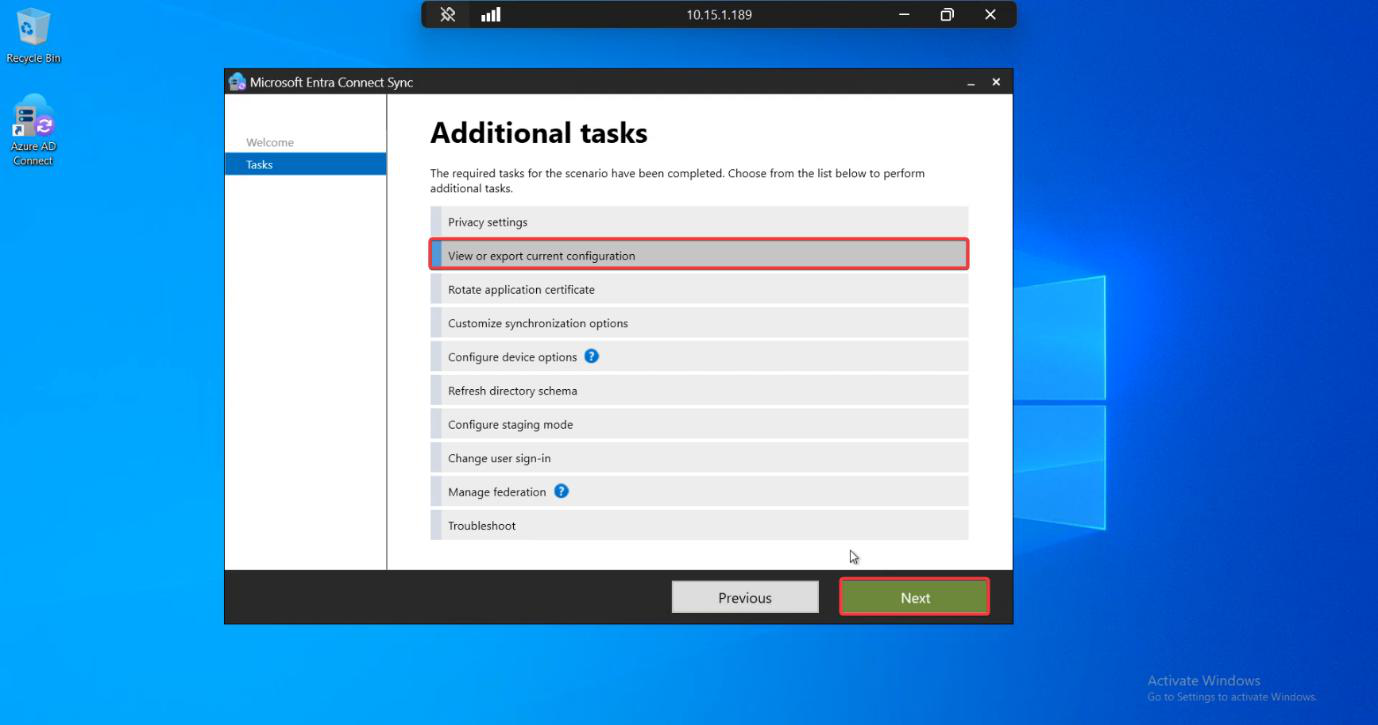
Select View or export current configuration > Next.
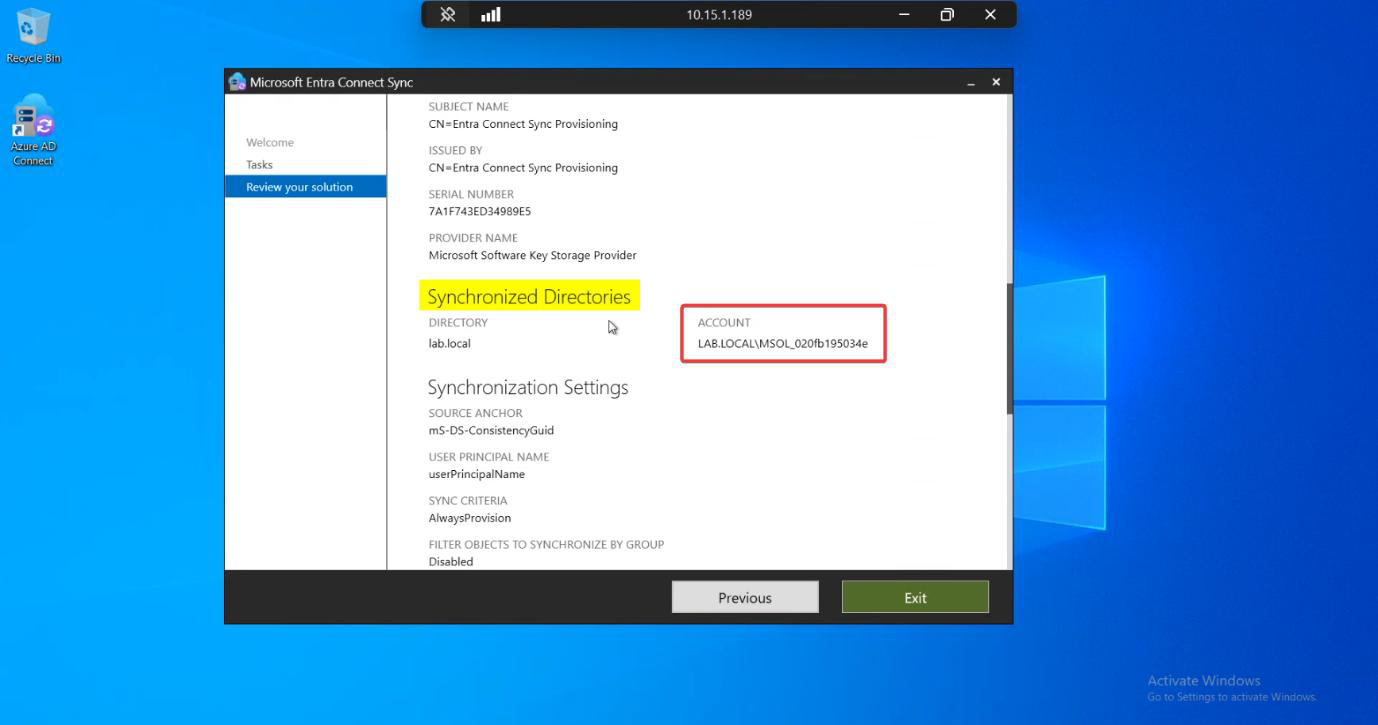
Look for the ACCOUNT property in the configuration list. Same account name as Method 1 — just a different way to find it.
2. Find the ADSync Service account
This account runs the background Windows Service (Microsoft Azure AD Sync) and connects to the SQL LocalDB / SQL Server backing the configuration database.
- Sign in to the Entra Connect server
- Win+R >
services.msc - Find Microsoft Azure AD Sync service
- Right-click > Properties
- Click Log On tab
- Look at the This account field
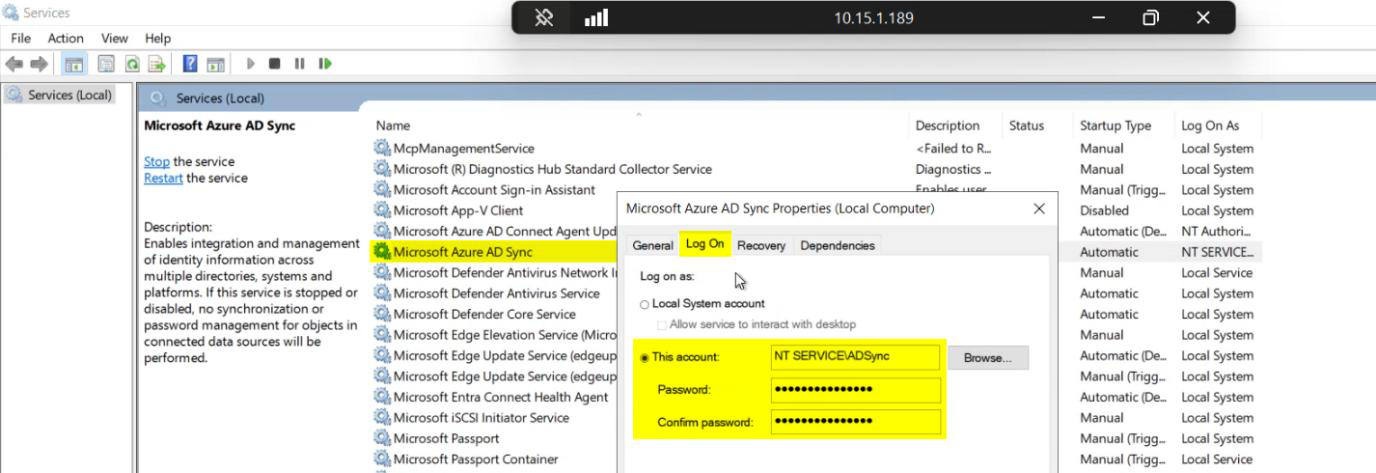
services.msc > Microsoft Azure AD Sync > Properties > Log On tab. The This account field shows the ADSync Service Account. Two common values: NT SERVICE\ADSync (Virtual Service Account, used by Express install) or DOMAIN\ADSync_xxxx (domain user, created by Custom install).Two common values:
NT SERVICE\ADSync— Virtual Service Account. Standard for Express installs. Auto-managed, no password to track.DOMAIN\ADSync_xxxx— Domain user account, created during Custom install for environments that prefer named identities.
3. Find the Microsoft Entra Connector (cloud) account
This is the cloud-only identity used by the Sync Engine to push changes from your on-prem server up to Microsoft Entra ID.
Method 1 — Synchronization Service Manager
- Open Synchronization Service Manager on the server
- Connectors tab
- Select the cloud connector (named with your tenant address:
infotechninja.onmicrosoft.com) - Right-click > Properties
- Left menu: Connectivity
- Look at the UserName field
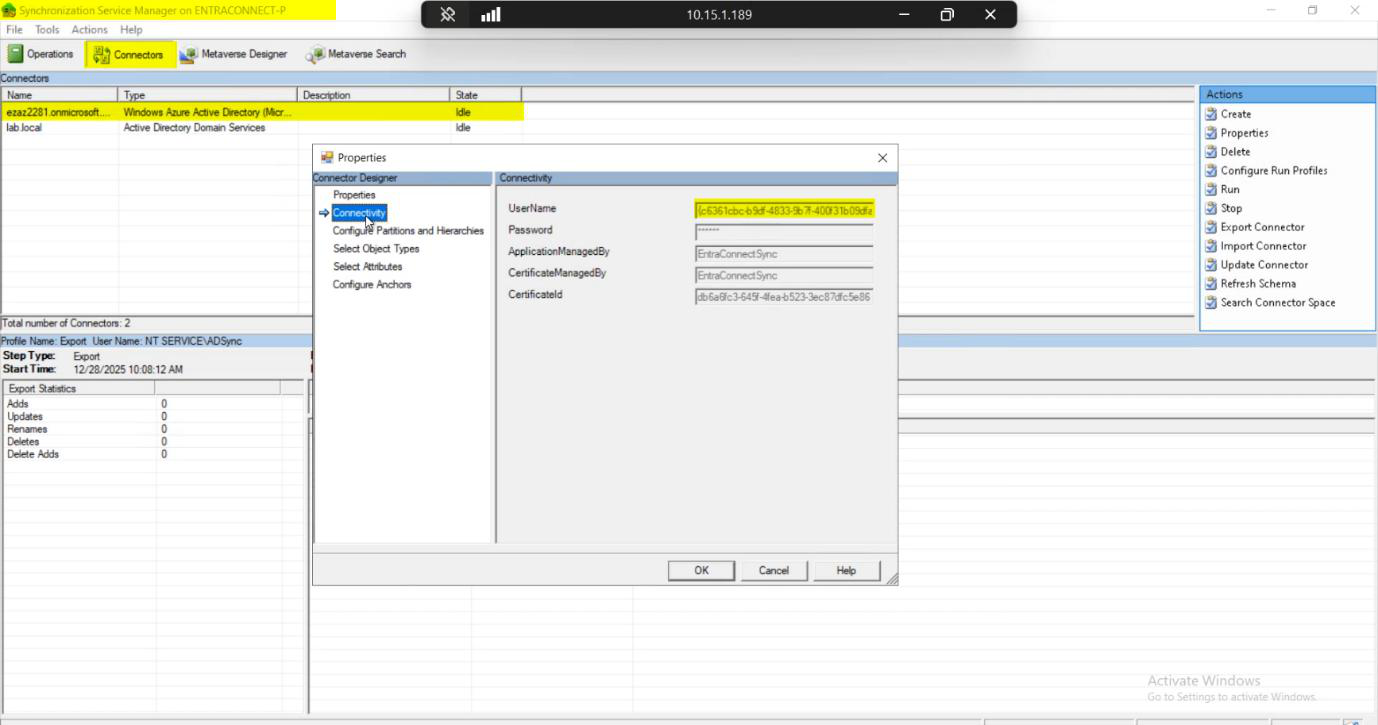
infotechninja.onmicrosoft.com) > Properties > Connectivity. UserName shows the Sync_HOSTNAME_xxxx@infotechninja.onmicrosoft.com account.This is the cloud connector account — usually starts with Sync_.
Method 2 — Microsoft 365 Admin Center (no RDP needed)
- Sign in to Microsoft 365 Admin Center as Global Admin
- Left nav > Health
- Select Directory sync status
- Look for the Directory sync service account field
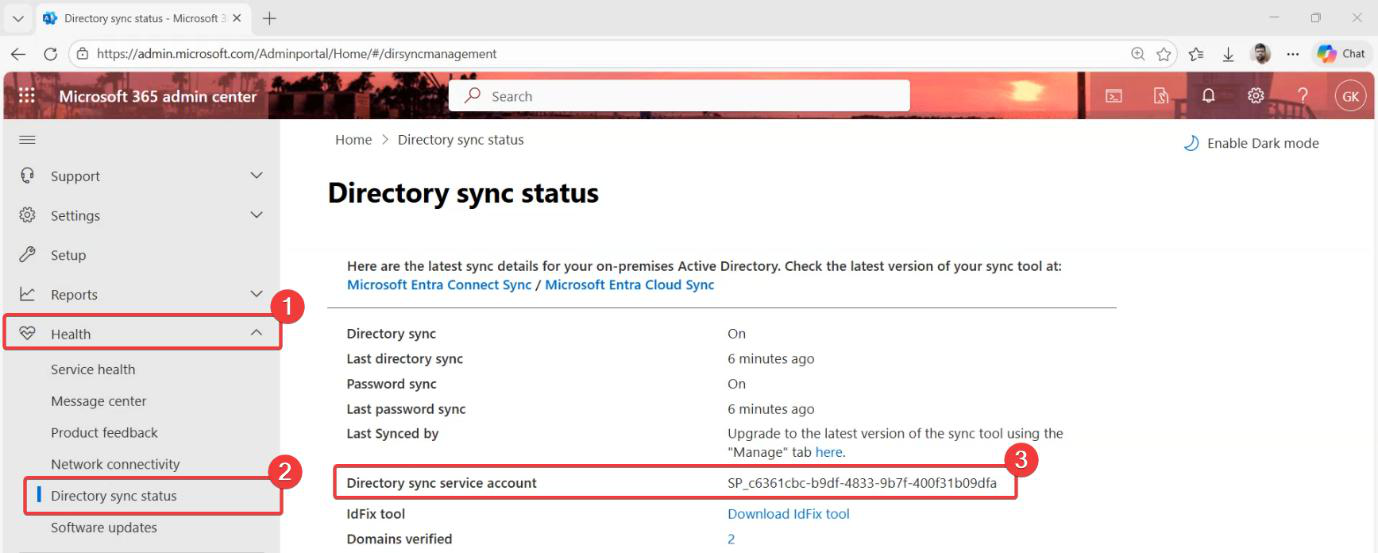 Hybrid Identity pathway.