
Cluster built, HA VM running. Now we prove it works under both planned and unplanned conditions. Phase 1: Live Migration — planned move from Node-01 to Node-02 with zero downtime. Phase 2: kill Node-02 deliberately and watch the cluster auto-fail the VM back to Node-01. Always test failover BEFORE you need it.
Setup — manage both nodes from one Hyper-V Manager
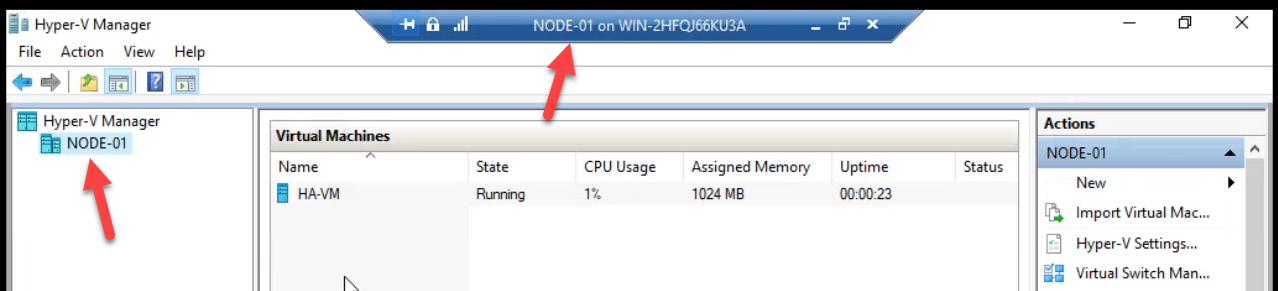
Starting state. Node-01 owns the HA VM from Part 13. Hyper-V Manager confirms.
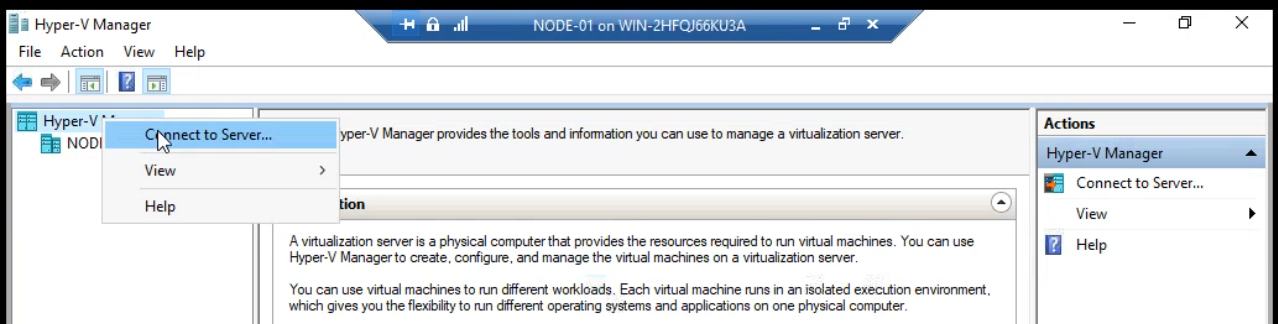
Right-click Hyper-V Manager root > Connect to Server. Add Node-02 so you can see both hosts in one console.
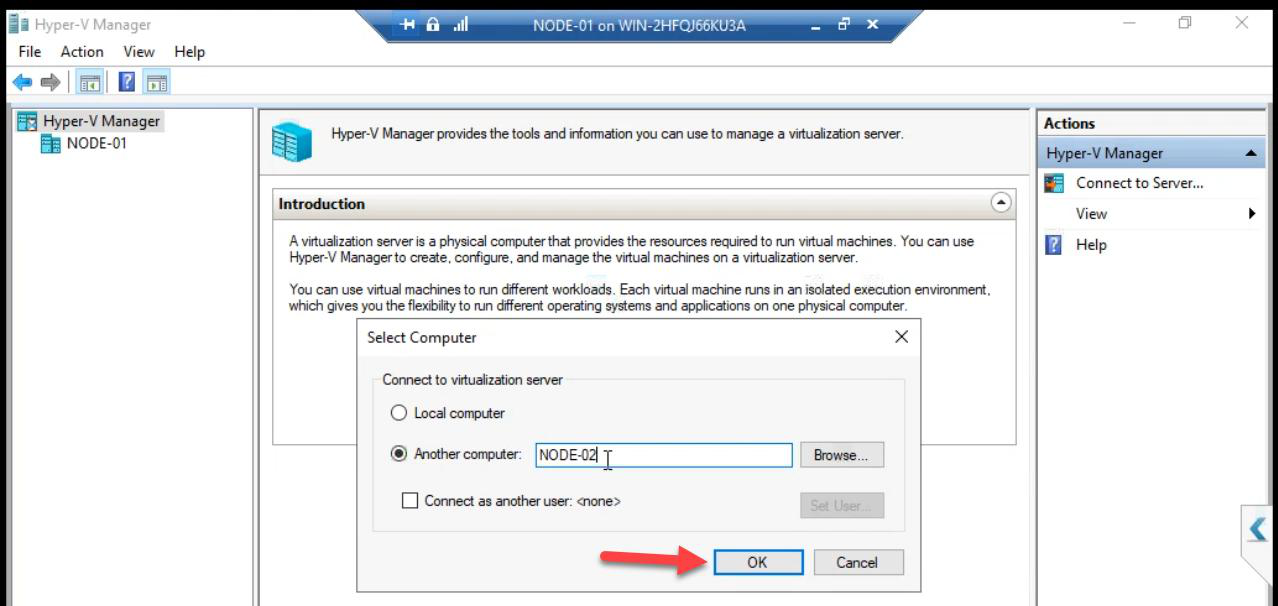
Node-02 > OK.Enter Node-02 > OK.
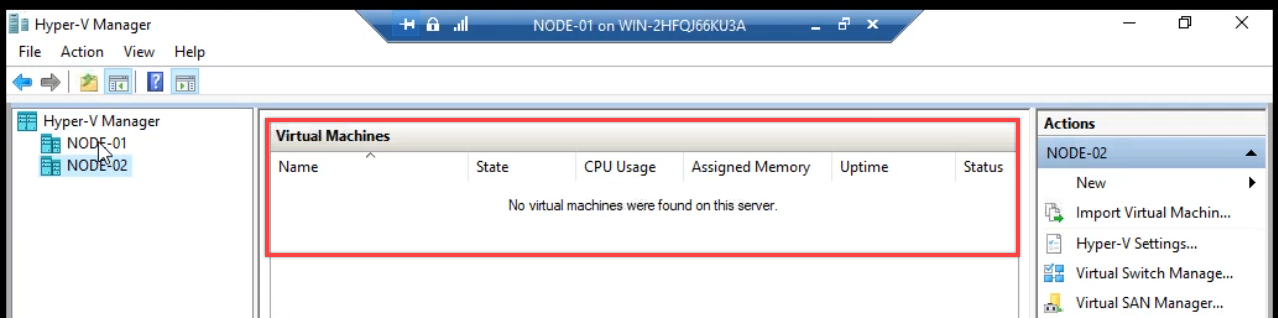
Hyper-V Manager now shows both nodes. Node-02 currently has no VMs — the HA VM lives on Node-01.
Phase 1 — Live Migration (planned move, zero downtime)
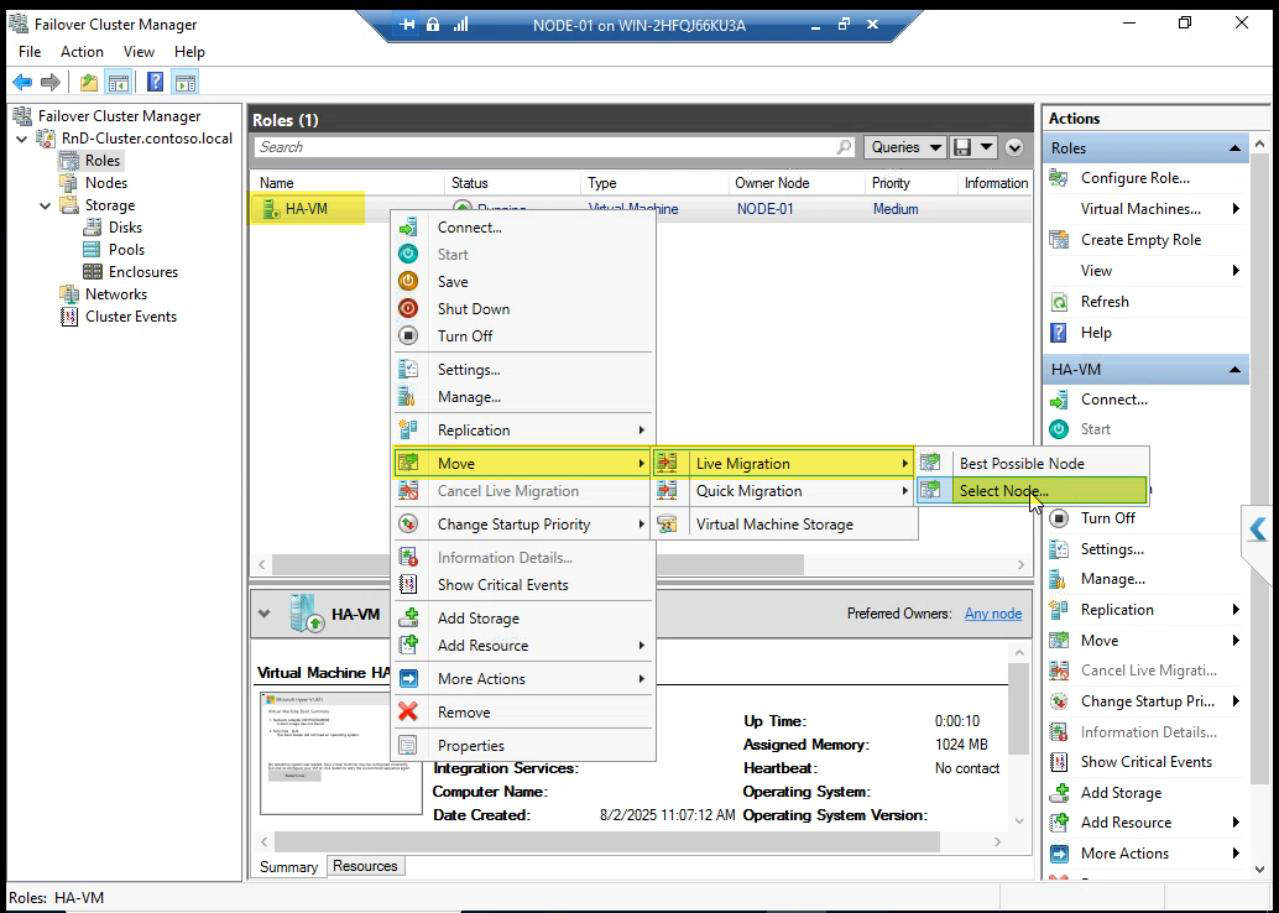
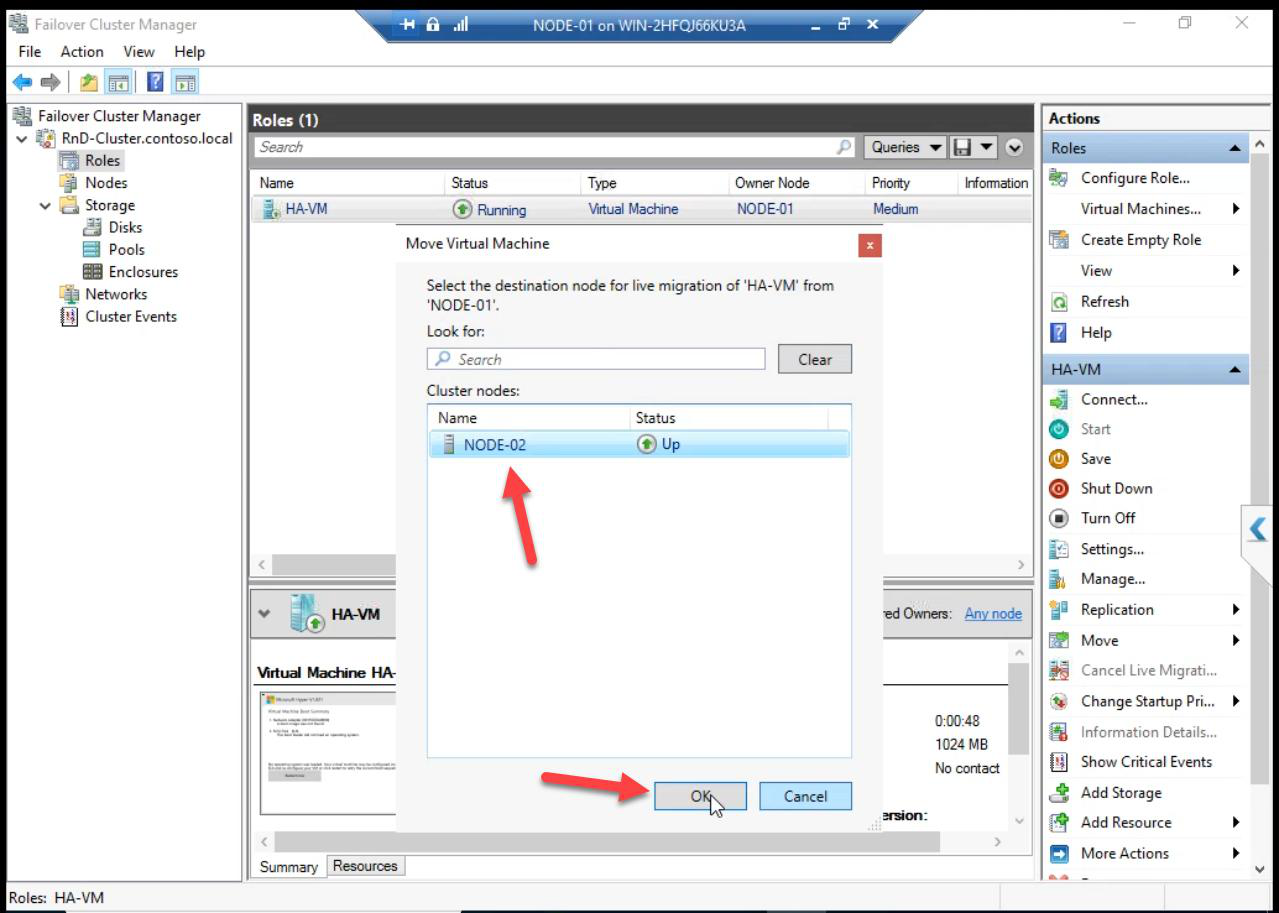
Pick Node-02 > OK.
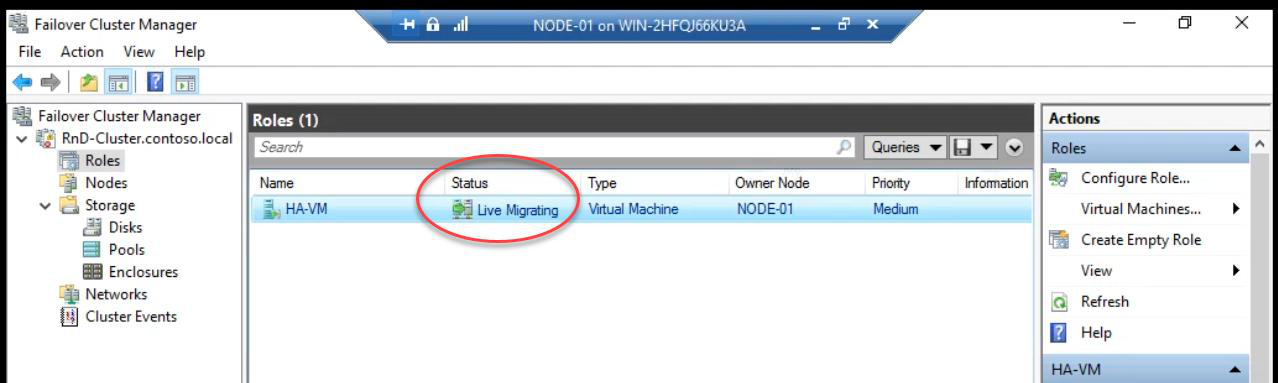
Status: Live Migrating. Behind the scenes:
- Cluster Service starts copying VM memory pages to Node-02
- Memory copy iterates as the VM keeps running on Node-01 — only changed pages re-copy
- When delta is small enough, brief pause (<1 sec): final memory state + CPU state copied
- VM resumes on Node-02 — clients don’t notice
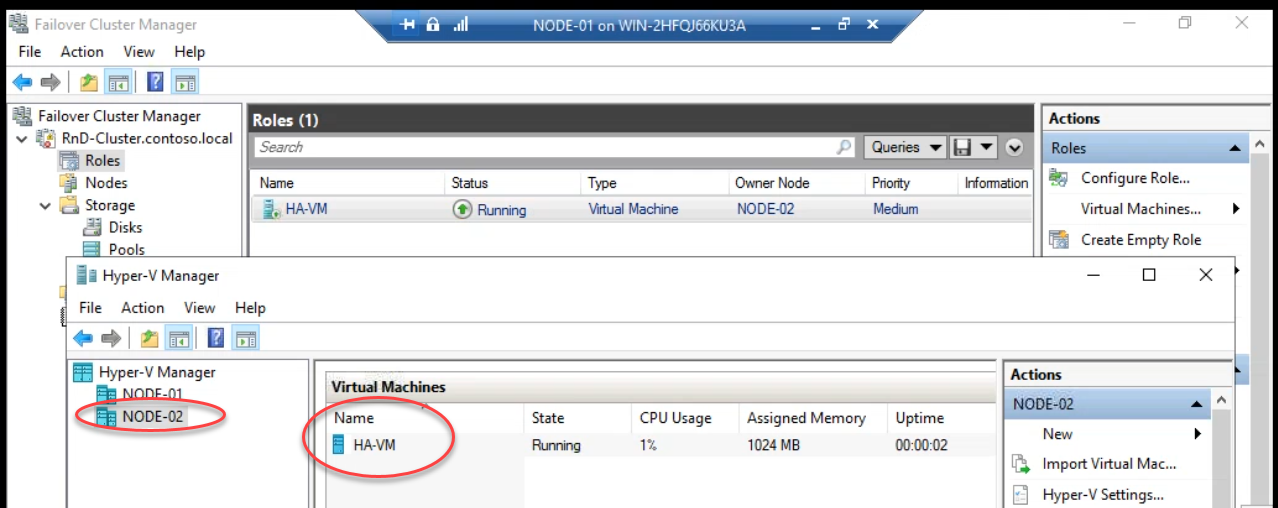
Done. Owner: Node-02. Hyper-V Manager on Node-02 shows the HA VM running. Zero downtime. Active TCP connections, in-flight transactions, all preserved.
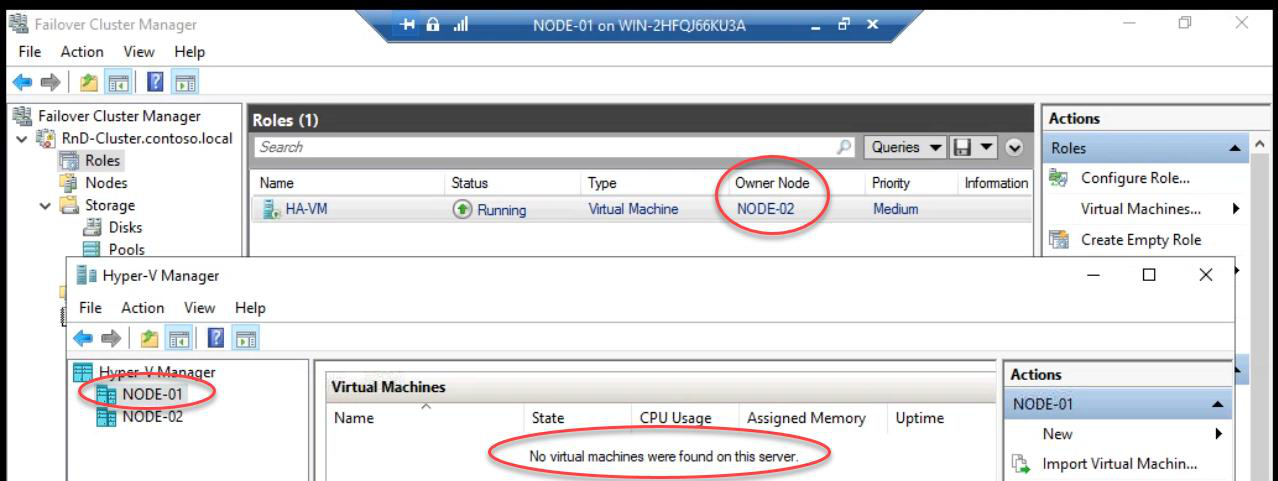
Hyper-V Manager on Node-01: no VMs. The HA VM successfully migrated.
Phase 2 — auto-failover (crash test)
Now the unplanned scenario. The VM is on Node-02. We kill Node-02 deliberately and verify the cluster reacts correctly.
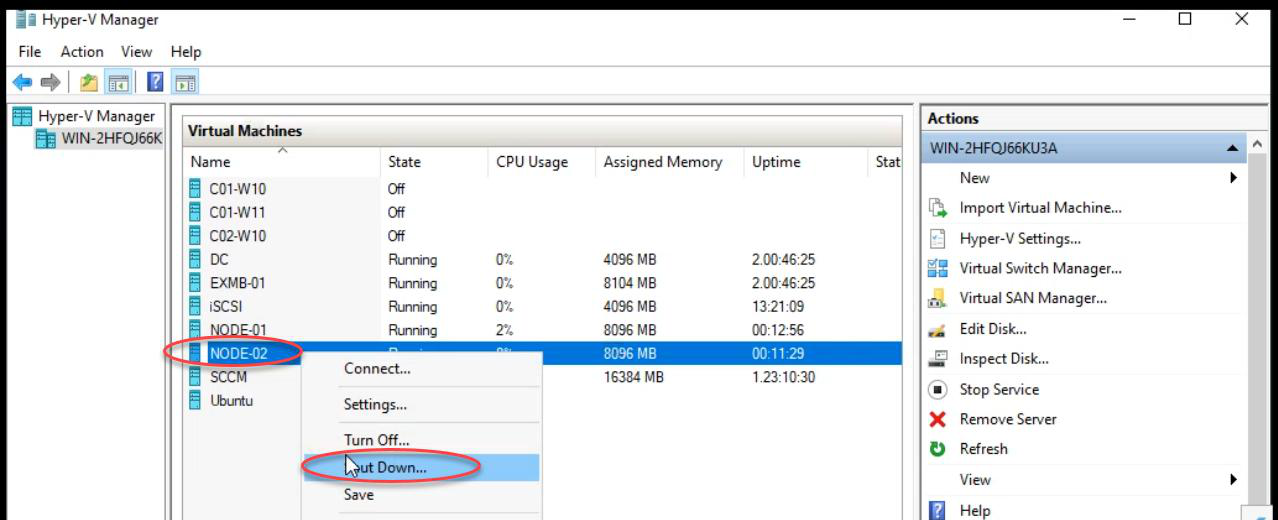
Shut down Node-02. (For a more brutal test, power-off the VM hard from the hypervisor — that simulates a real crash without graceful shutdown.)
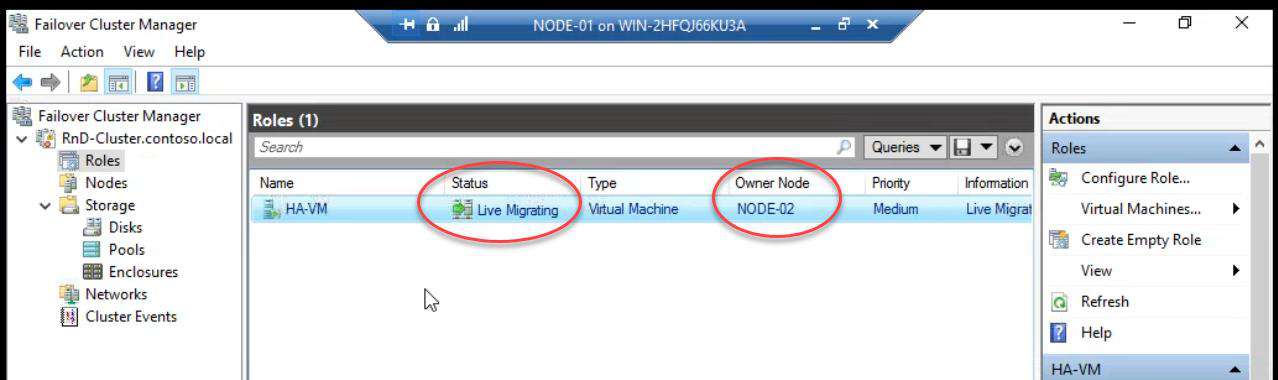
Cluster Service detects Node-02 down within ~5-10 seconds (heartbeat loss). The VM’s cluster role is now “orphaned” — needs a new owner. Cluster picks Node-01 (the only surviving node) and starts the VM there.
FCM shows the VM in Live Migrating state during recovery.
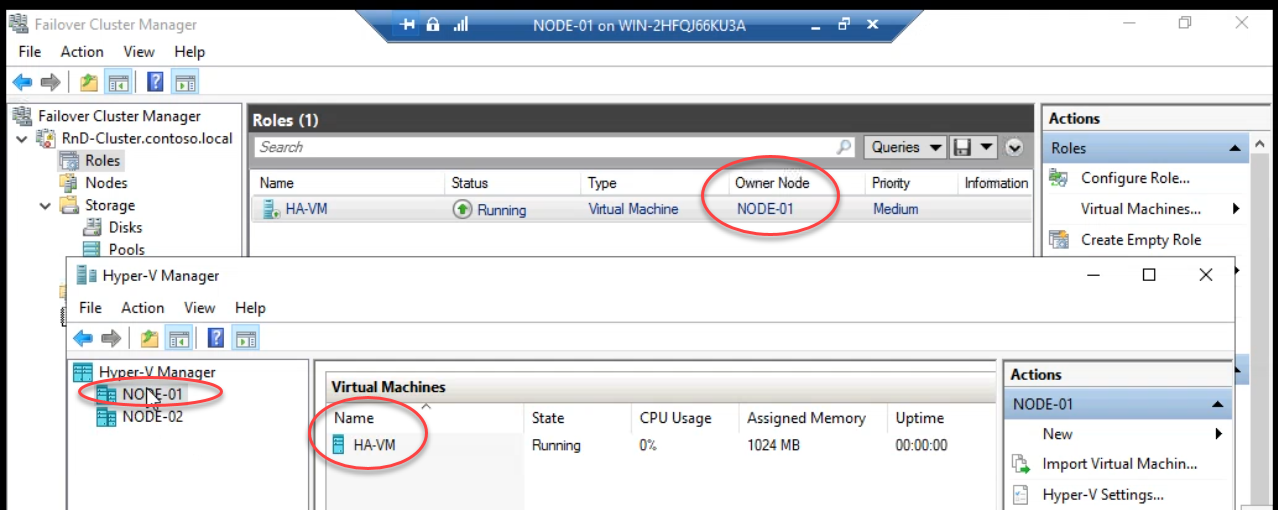
Auto-failover complete. VM running on Node-01 again.
Important difference vs Live Migration: auto-failover is a cold start — the VM was in the middle of running on Node-02 when Node-02 died. The VM’s memory state was lost. Cluster cold-starts the VM from its last on-disk state on Node-01. Active connections drop, in-flight transactions roll back. Typical downtime: 30-60 seconds.
Phase 3 — recover Node-02
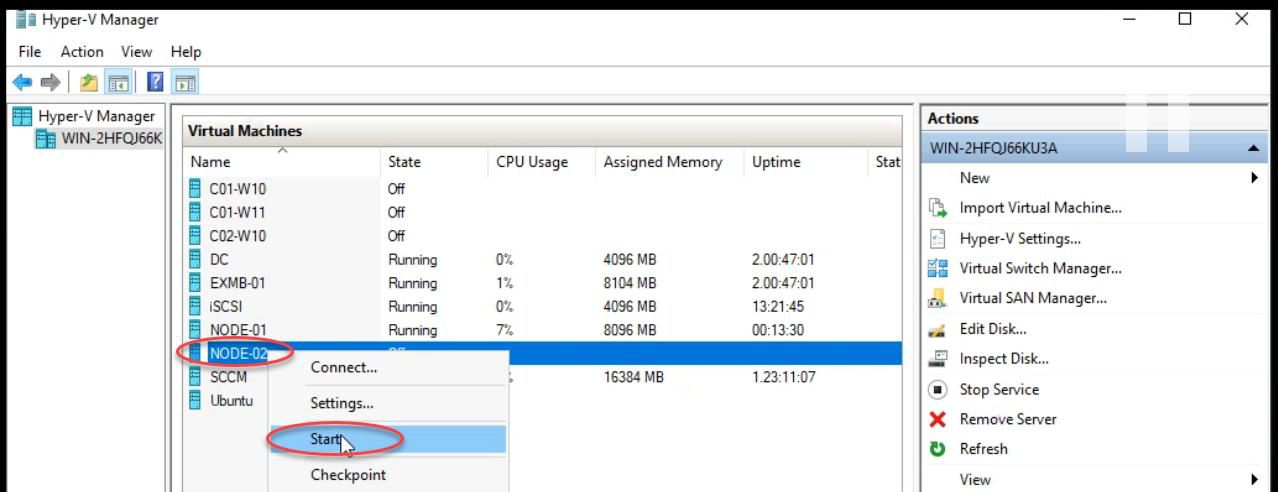
Power Node-02 back on. Wait for boot.
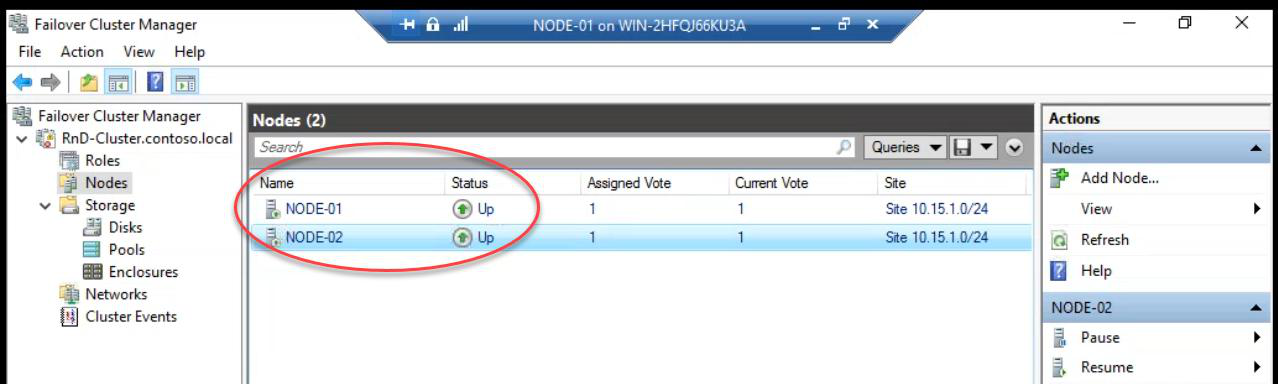
Both nodes Up. Cluster redundancy restored. End state: HA VM survived a deliberate node loss with brief automatic recovery.
Live Migration vs Auto-Failover — what’s the difference?
| Aspect | Live Migration (planned) | Auto-Failover (crash) |
|---|---|---|
| Trigger | Admin clicks Move | Node failure detected |
| Memory state | Copied to target before switch | Lost — cold start on new node |
| Downtime | Zero (sub-second pause) | 30-60 seconds typical |
| TCP connections | Preserved | Dropped — clients reconnect |
| Use for | Patching, maintenance, load balancing | Crashes, hardware failure |
Use Live Migration whenever you have a planned reason to move a VM — patching, hardware maintenance, balancing load. Use auto-failover only when you have to (which is the entire point of clustering).
Things that bite people in this part
Live Migration fails: “Operation timed out”
Memory copy is slower than memory change rate. The VM is changing memory faster than the cluster can copy it — never converges. Common with memory-heavy workloads (large SQL, busy web servers). Mitigation: schedule the migration during low-activity windows, or use Quick Migration (saves state to disk first — a few seconds of downtime instead of zero).
VM doesn’t auto-failover
Check FCM > Roles > VM Properties > Failover tab. Verify “Allow failover” is enabled and Maximum failures isn’t too low. If the VM crashed multiple times in a short window, the cluster may stop trying.
30-second downtime feels too long
That’s the cost of cold start. To reduce: smaller VMs, faster storage (NVMe), faster cluster heartbeat tuning. To eliminate: switch to a different HA model (e.g., load balancer + multiple VM replicas, application-level HA).
Auto-failover happens but VM doesn’t start
Usually means the VHDX path isn’t accessible from the surviving node. CSV path should be the same on every node. Check that C:\ClusterStorage\Volume1 has the VM files.
Forgot to test before production
Most common failure pattern across the industry. Cluster looks fine. Patches applied. Failover never tested. Real outage hits at 03:00 — failover doesn’t work. Test failover quarterly.
What’s next
Failover proven. Part 15 covers expanding cluster storage — adding new LUNs and bringing them under cluster ownership. See the full series at Hyper-V Failover Clustering pathway.