
A Temporary Access Pass (TAP) is a time-limited passcode an admin issues to a user that lets them sign in without their password or existing MFA. Two main use cases: onboarding new employees (set up Authenticator on day one without a static password handoff) and lost-device recovery (user locked out of MFA, needs to register a new device). The end-state of a TAP is always: user signs in with TAP → registers a permanent passwordless method → TAP gets deleted.
Phase 1 — enable the TAP policy
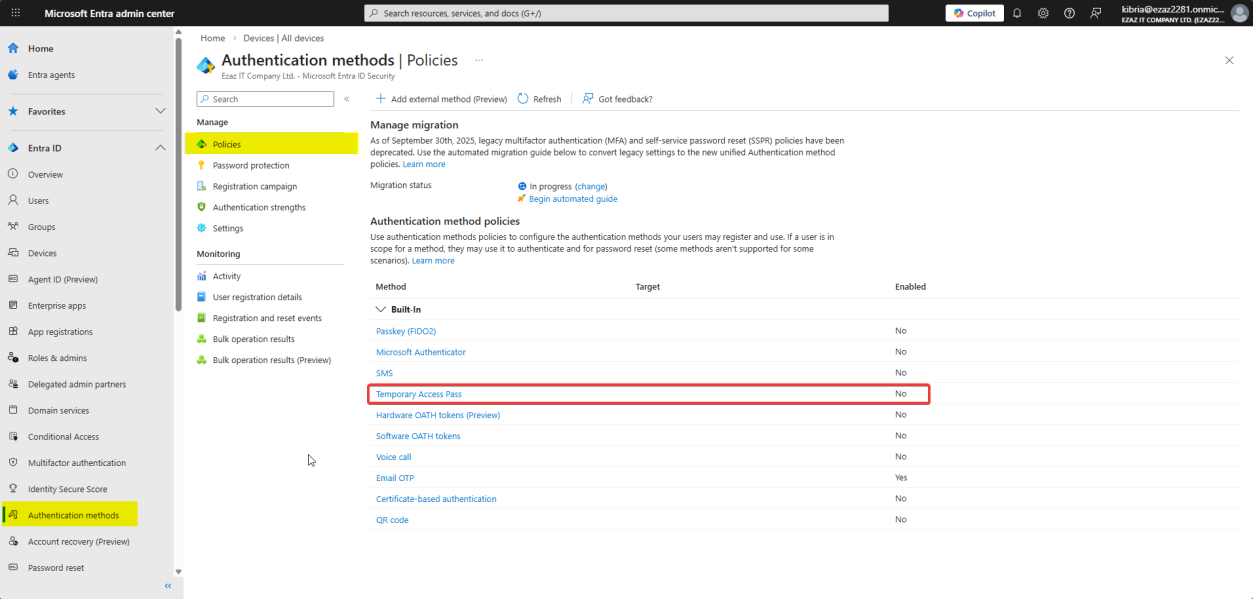 entra.microsoft.com > Authentication methods > Policies > Temporary Access Pass.
Sign in as Authentication Policy Administrator (or Global Admin). Authentication methods > Policies > Temporary Access Pass.
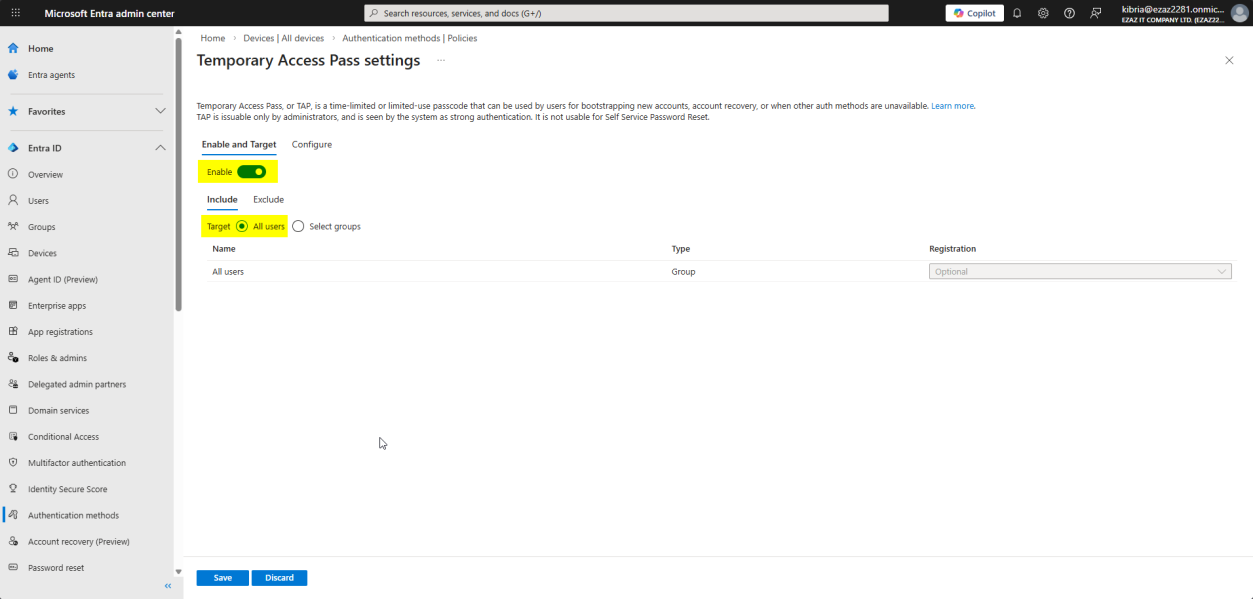
Toggle Enable. Target: All users (or scope to a specific group like “new hires”).
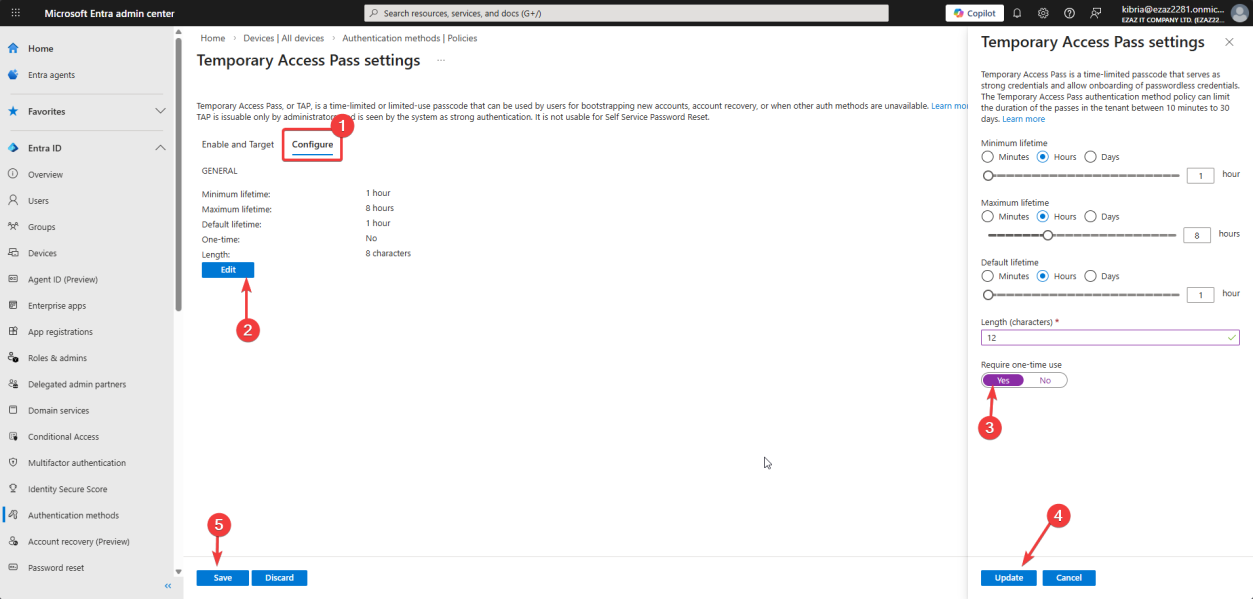
Configure tab > Edit. Settings:
- Length: 8–48 characters (8 is fine for short-lived; longer for printed/mailed)
- Maximum lifetime: 10 minutes – 30 days
- One-time use: tick this for high security — the TAP works once and is dead
Update > Save.
Phase 2 — generate a TAP for a user
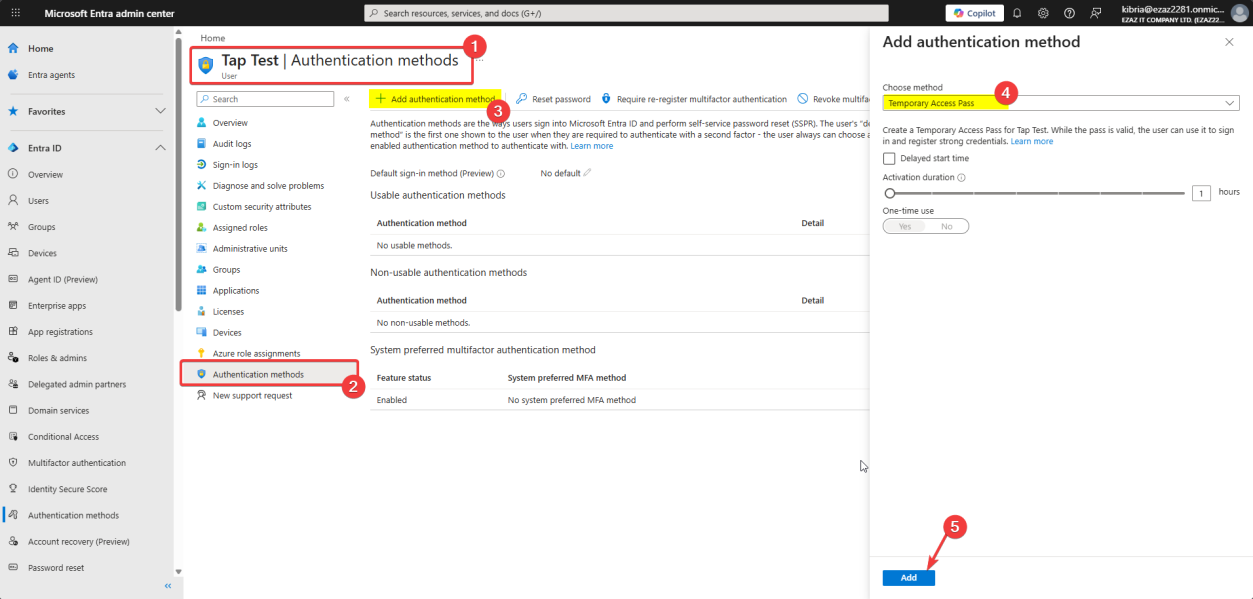
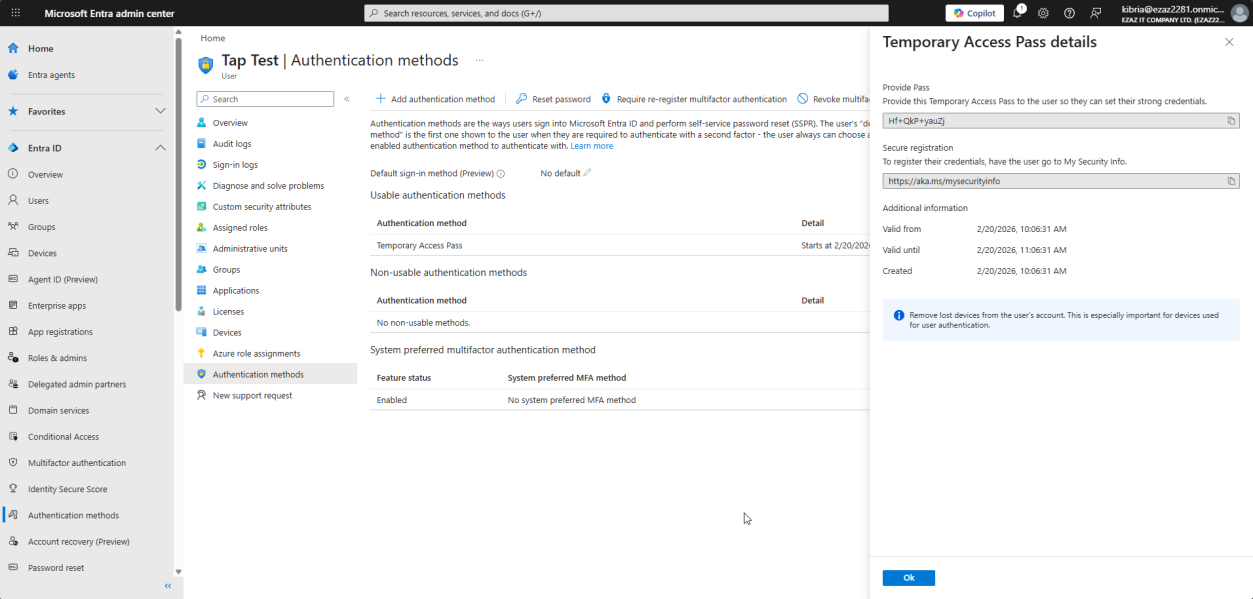
COPY THE PASSCODE IMMEDIATELY. The screen shows it once. Close the window without copying = passcode gone forever. You’ll have to delete and regenerate.
Treat the passcode like an OTP — high-trust, short-lived, one-shot. Send to the user via a secure channel (Signal, password manager, in-person handoff). Don’t email it.
Phase 3 — user signs in with the TAP
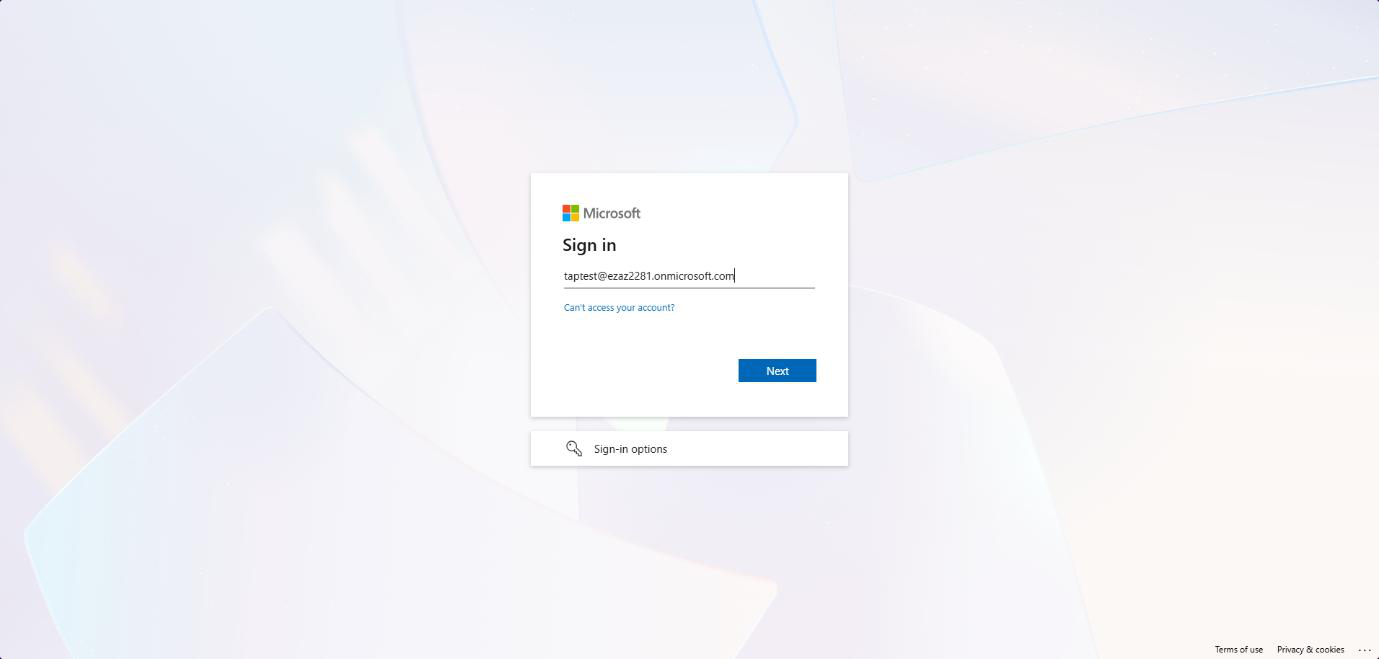
aka.ms/mysecurityinfo > enter the user’s UPN > Next.User opens incognito browser > aka.ms/mysecurityinfo > enters their UPN > Next.
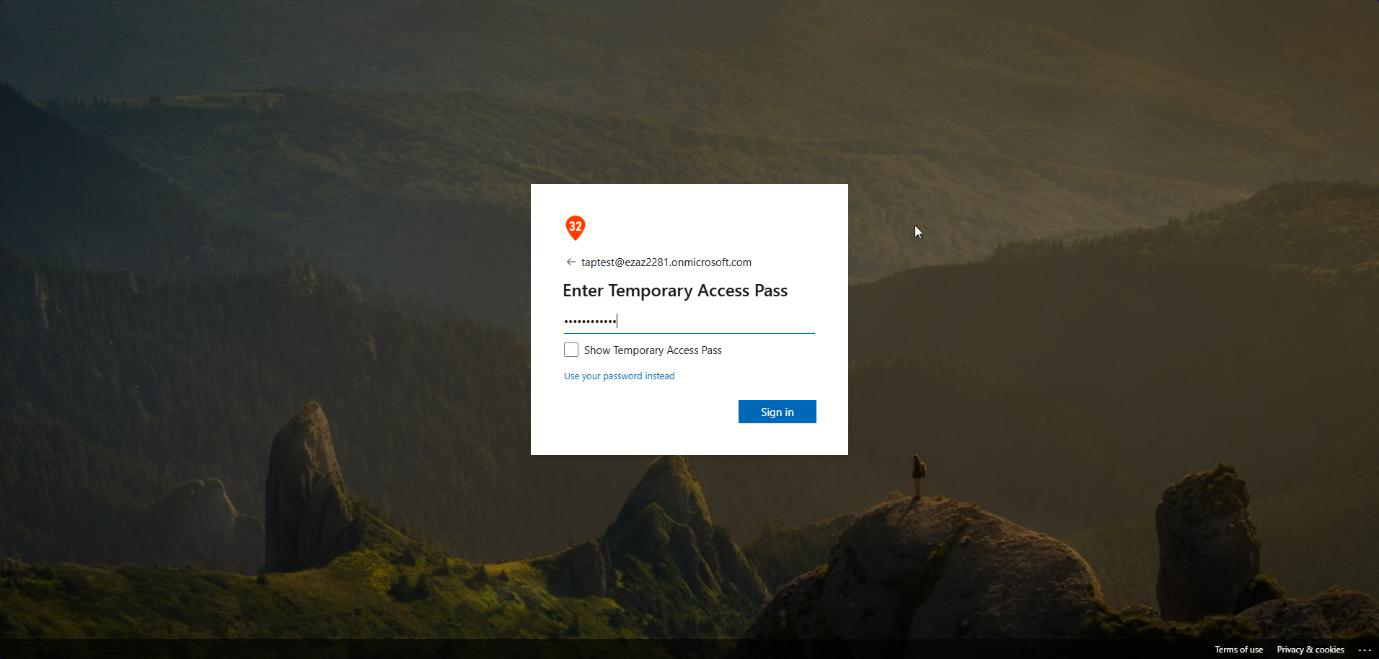
Instead of a password prompt: Temporary Access Pass field. Paste the passcode > Sign in.
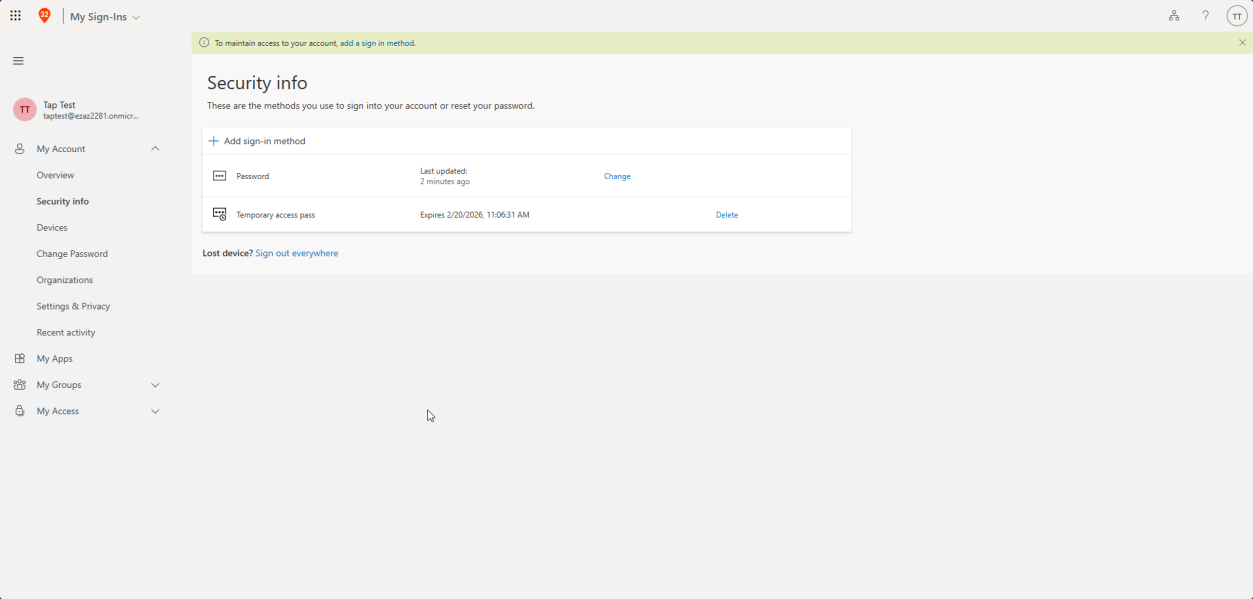
Logged in. From My Sign-Ins, the user can register Microsoft Authenticator, FIDO2 security key, Windows Hello, etc. — their permanent passwordless method.
Phase 4 — delete the TAP (optional but recommended)
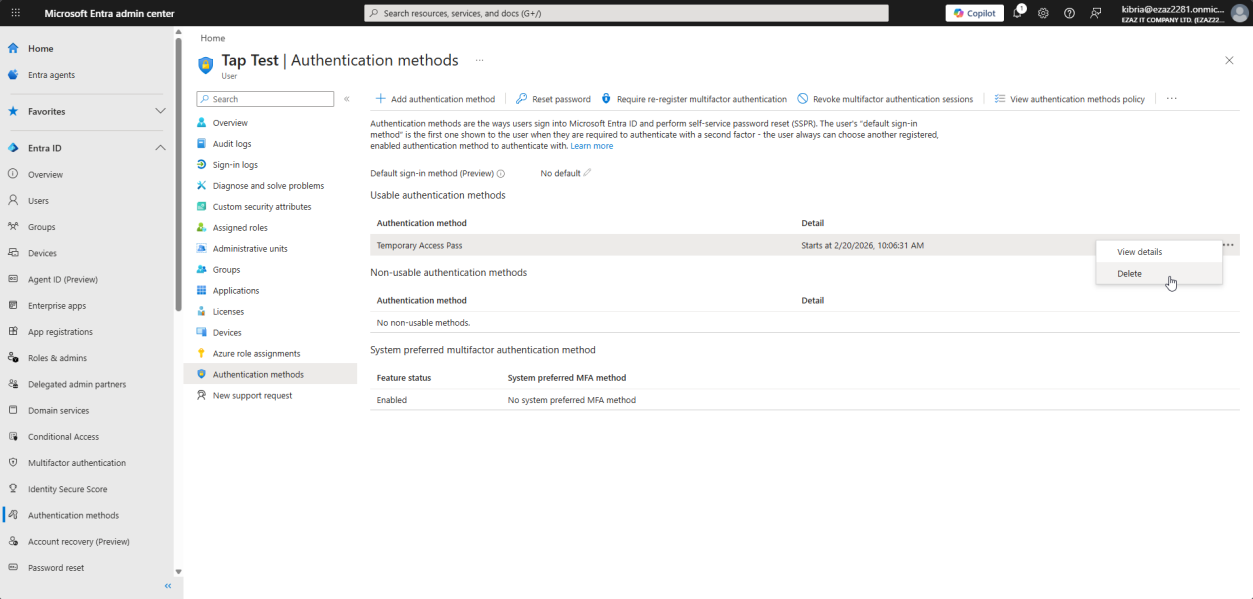
... > Delete > Yes.Once the user has a permanent method registered, delete the TAP. Users > jdoe > Authentication methods > find the TAP entry > ... > Delete > Yes.
If you set One-time use, this is automatic after the first sign-in. If not, manual delete keeps your auth surface clean.
Things that bite people
Lost the passcode
Most common mistake. Closed the window before copying. No way to recover — delete the entry and generate a new one.
Sent the TAP via email
Don’t. Email is plaintext, often archived, often forwarded. Use Signal, in-person, or a one-time-share password manager link.
Configured TAP for a user with an active password
TAP works alongside passwords by default — users can use either. For new hires you usually also want to disable their password login until they’ve set up Authenticator. Combine with Conditional Access blocking password authentication for that user group.
One-time use disabled and TAP shared
If the user shares their TAP with a colleague (don’t laugh, it happens), and One-time use is off, both can sign in. Always enable One-time use for production.
Delayed start gotcha
Set start time in admin’s timezone, but the user signs in from a different timezone. Document the start time in UTC to avoid confusion.
What’s next
TAP is the bridge to passwordless. The next post in the Entra ID Security pathway covers SMS-based sign-in (an alternative for users without smartphones), then full passwordless setup.