
Passwordless authentication via Microsoft Authenticator turns the user’s phone into a phishing-resistant credential. The login flow becomes: type email → phone gets a notification → user types a 2-digit number from the screen into the phone → signed in. No password is ever entered, transmitted, or cached. This is the strongest passwordless option for users who already have a smartphone — for users who don’t, see SMS-based sign-in instead.
Why this beats SMS sign-in: the credential is bound to the device (not just the SIM), it’s phishing-resistant (the number-match step requires the user to read the screen they initiated the login from), and a stolen/lost phone can be revoked instantly without changing a phone number.
Setup is four phases: enable the policy, register the app, upgrade the app to passwordless mode, then test.
Phase 1 — enable the policy
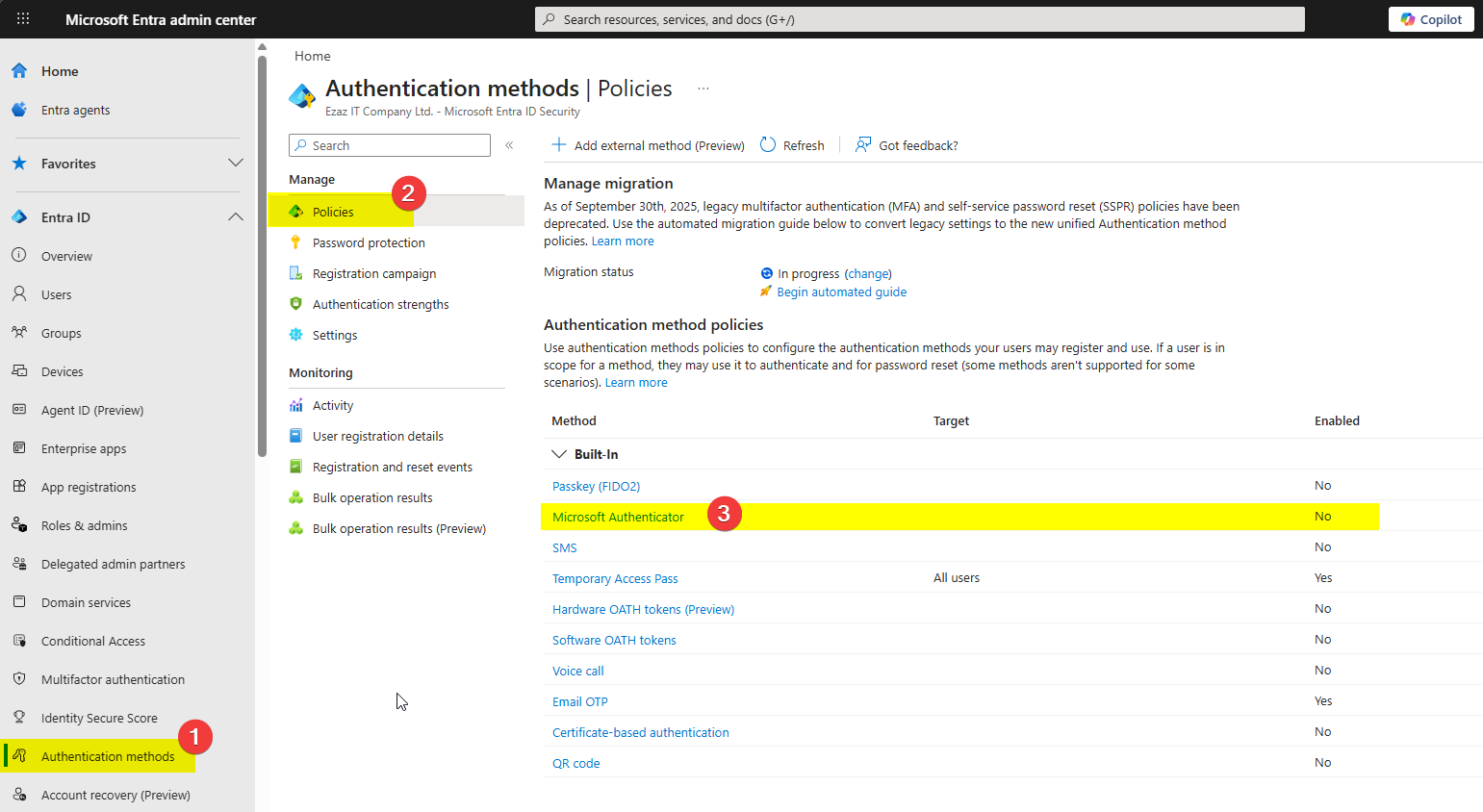
Sign in to entra.microsoft.com as Authentication Policy Administrator. Authentication methods > Policies > Microsoft Authenticator.
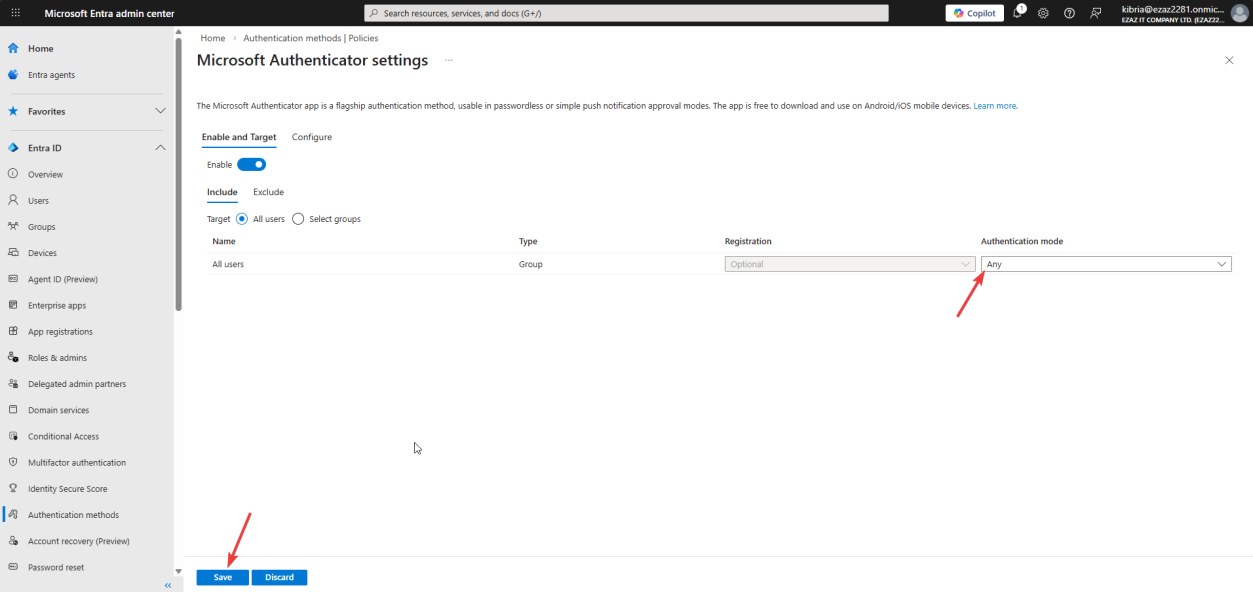
Toggle Enable. Target: All users (or scope to a test group). Authentication mode: Any.
The mode dropdown is the load-bearing setting:
- Any — both push notifications (MFA) and passwordless are allowed
- Push — only push approval, no passwordless
- Passwordless — only passwordless, no push for ordinary MFA
For most tenants, “Any” is right — passwordless users sign in passwordless, MFA-only users still get push prompts. Save.
Phase 2 — register the Authenticator app
This is an end-user step. The user opens a browser, signs in to myaccount.microsoft.com with their UPN and current password.
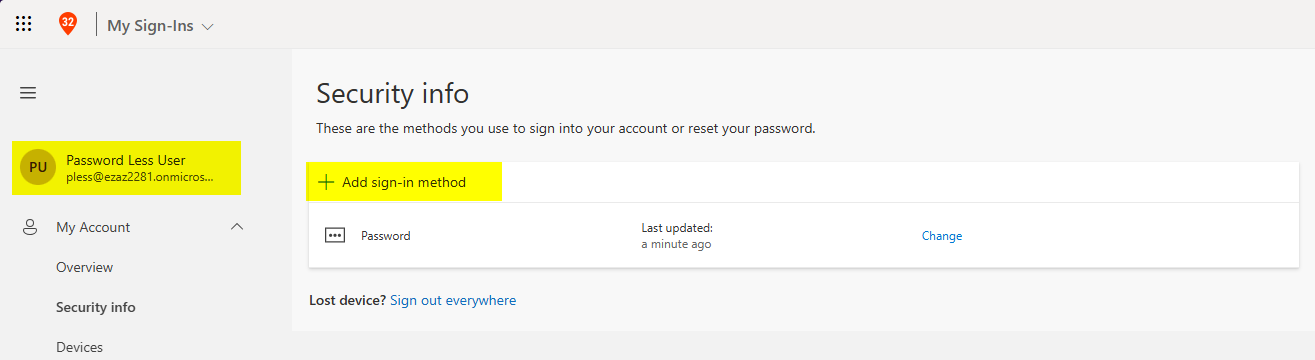
myaccount.microsoft.com > Security info > + Add sign-in method.Left menu > Security info > + Add sign-in method.
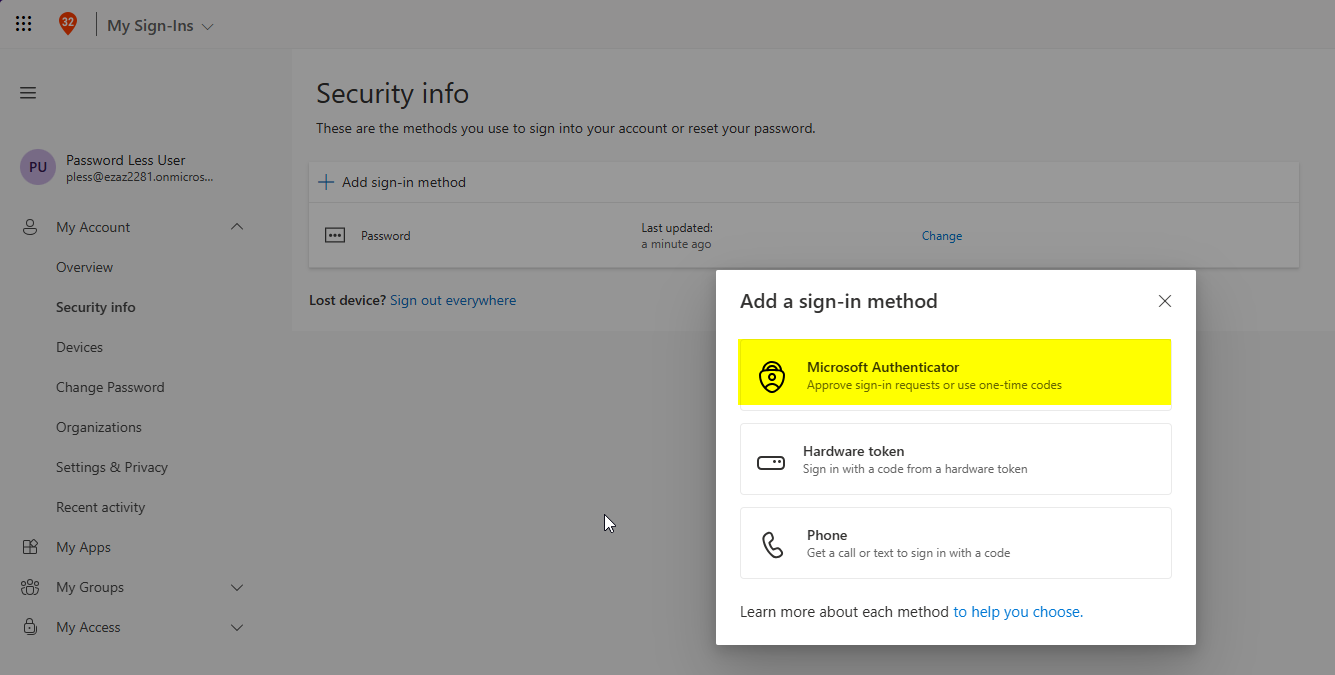
From the dropdown: Authenticator app > Add.
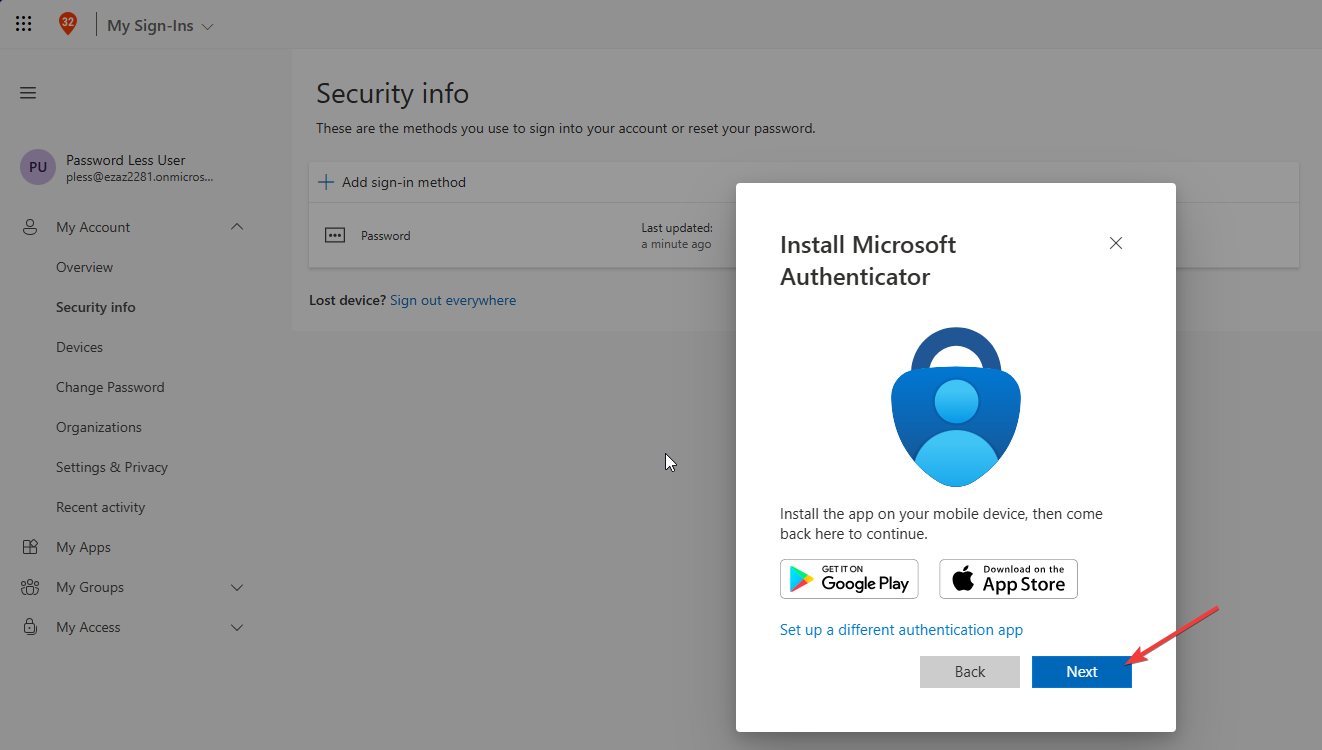
“Start by getting the app” — assumes the user has already installed Microsoft Authenticator from the App Store / Play Store. If not, install first. Next.
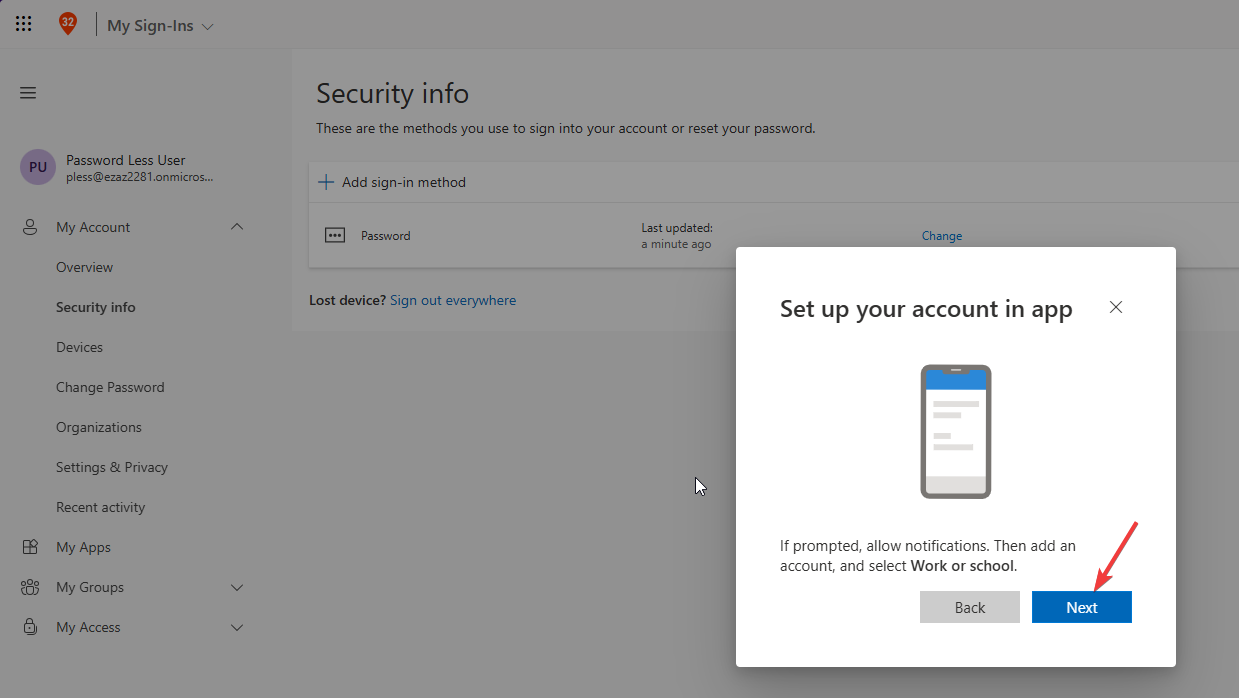
“Set up your account” > Next — a QR code appears on the computer screen.
On the phone:
- Open Authenticator
- Tap + (or “Add account”)
- Choose Work or school account
- Tap Scan a QR code and point the phone’s camera at the QR code on screen
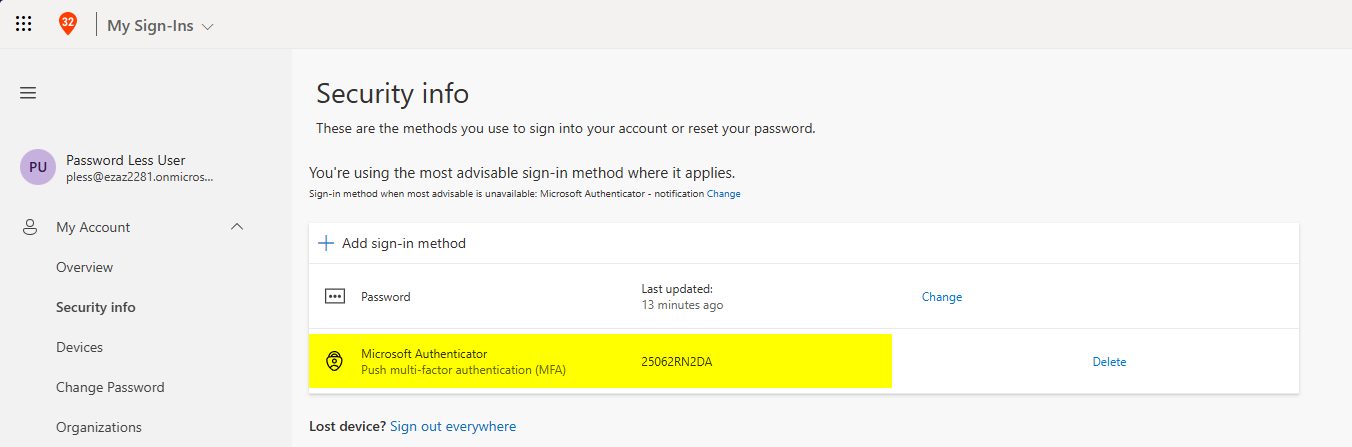
Once scanned, the Authenticator app shows up in Security info on the computer. The account is linked — but at this point it’s only configured for push-MFA, not passwordless. Phase 3 upgrades it.
Phase 3 — upgrade to passwordless on the phone
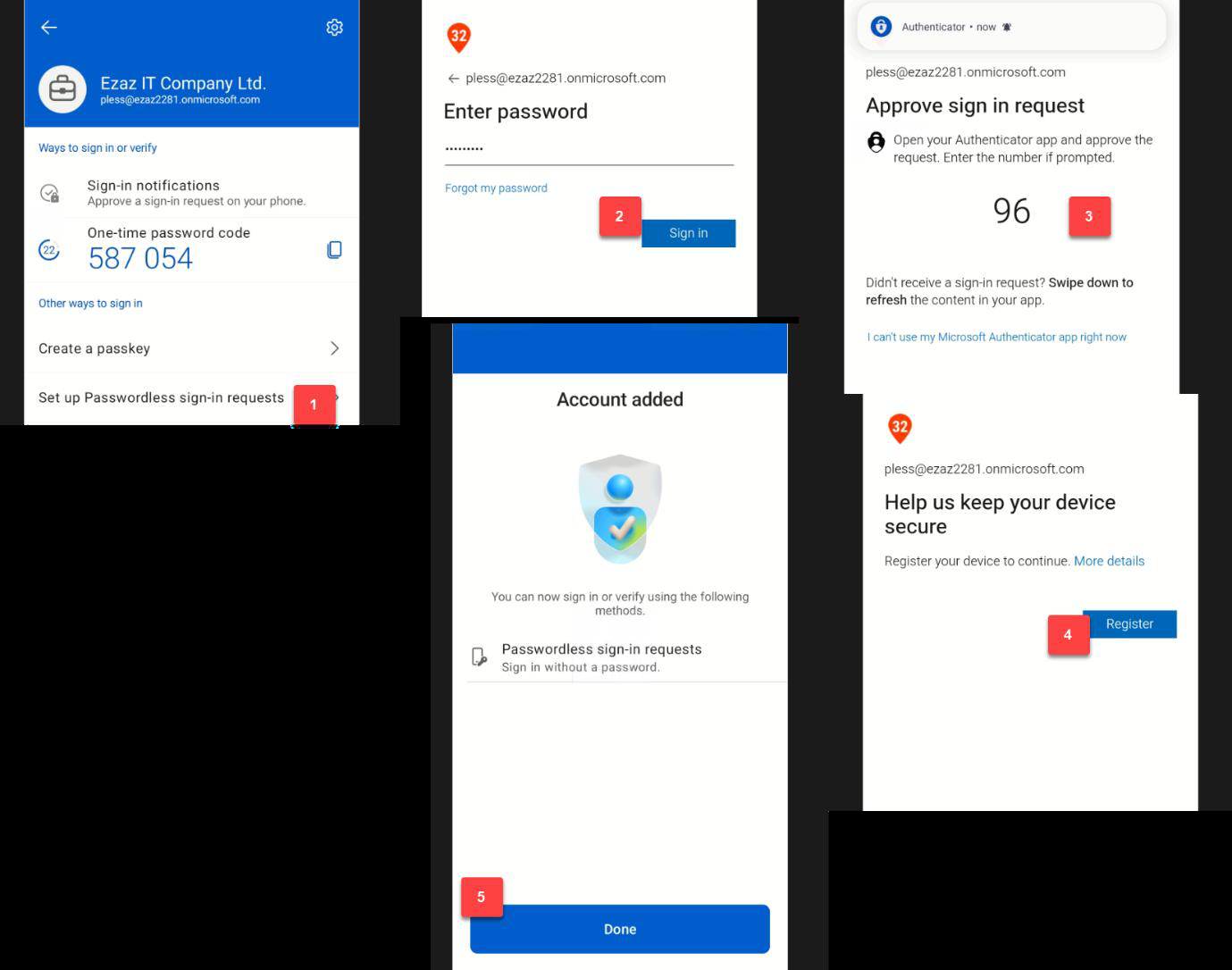
This step happens entirely in the Authenticator app on the phone:
- Open Microsoft Authenticator
- Tap the newly added work/school account to open its details
- Tap Set up passwordless sign-in
- Prompted for the account password — type it once and tap Sign in
- Number-matching prompt: a number appears on the computer screen, type the same number on the phone to approve
- Tap Register to register the phone with Entra ID as a passwordless credential
- Tap Done
The phone is now a registered passwordless credential. The user can stop typing their password.
Phase 4 — test passwordless login
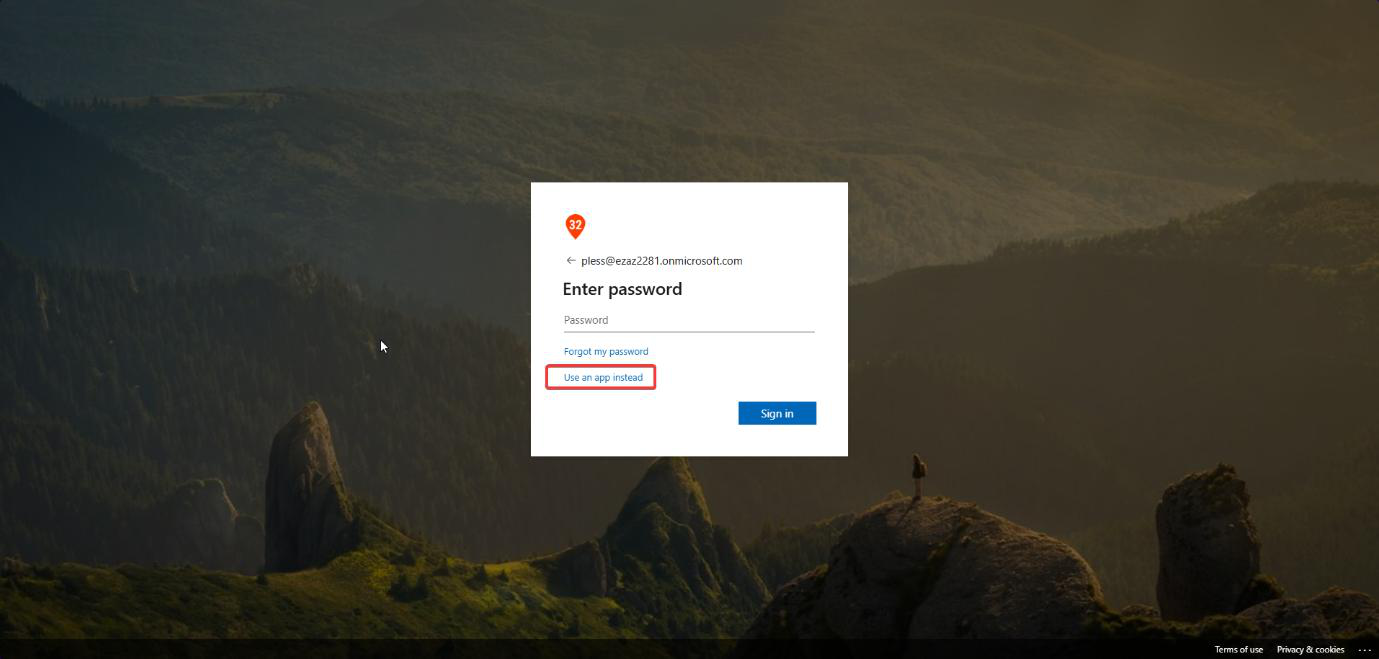
myaccount.microsoft.com > type email > Next > password screen > do not type the password. Click Use an app instead.Open a fresh InPrivate / Incognito browser window > myaccount.microsoft.com > type the email address > Next.
On the password screen: do not type the password. Click the link Use an app instead.
- The browser displays a 2-digit number
- The Authenticator app on the phone pops up with a notification
- Type the matching number into the phone > Approve
- Logged in — no password required
Phase 5 — how to disable later (optional)
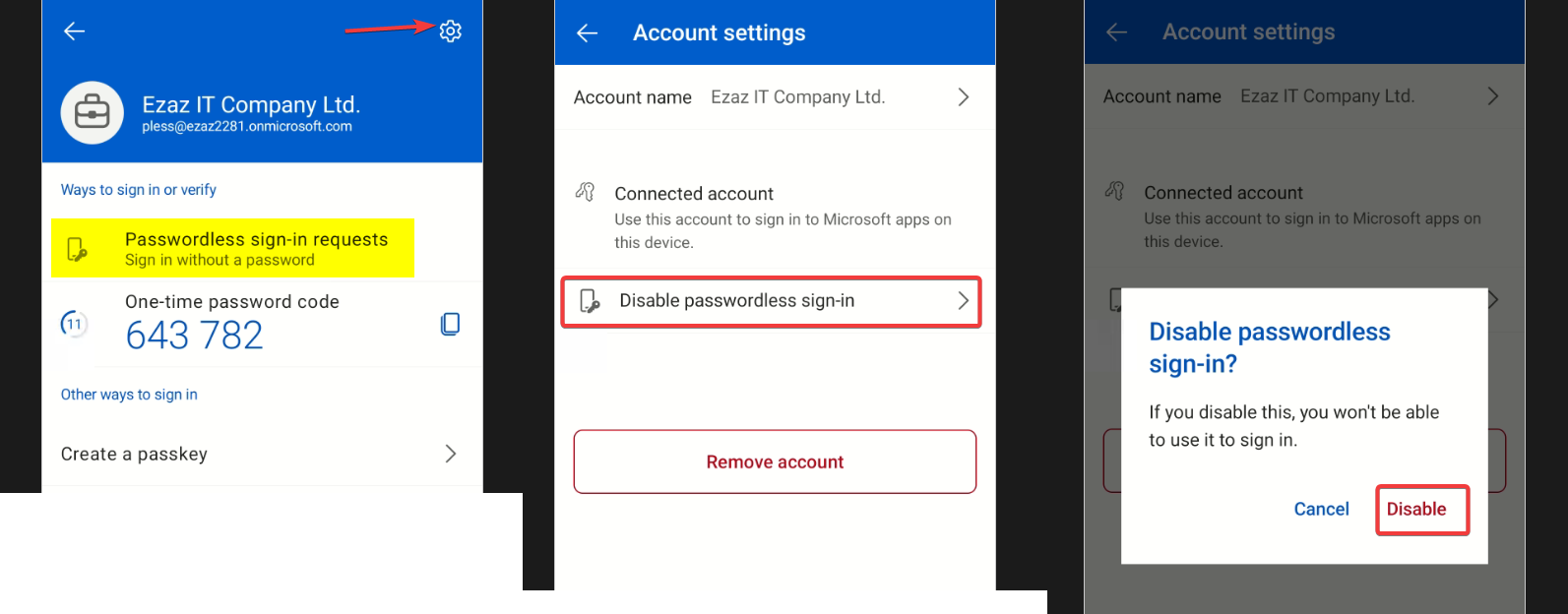
If a user wants to revert to standard password login:
- Open Microsoft Authenticator on the phone
- Tap the work/school account
- Tap the gear icon top-right (Settings)
- Tap Disable passwordless sign-in
- Tap Disable on the confirmation popup
The phone reverts to push-MFA only — password login is restored. The Authenticator registration itself stays intact.
Things that bite people
Authentication mode set to “Push” only
Most common silent failure. The policy is enabled, the user runs through Phase 3 successfully, but the “Use an app instead” link doesn’t appear at sign-in. Cause: mode is “Push” not “Any” — passwordless was never allowed by policy. Set mode to Any and re-test.
Number matching skipped on older Authenticator versions
Authenticator versions before 6.6.x don’t support number matching properly. Microsoft enforces it tenant-wide since Feb 2023, but very old clients can fall back to plain Approve/Deny. Force users to update the app from the store before rolling this out at scale.
Phone has no internet
The notification is push-based — if the phone is offline (airplane mode, no wifi, dead SIM) the user can’t approve. Fallback: tap I can’t use my Microsoft Authenticator app right now on the sign-in screen, which falls back to other registered methods (TAP, SMS, FIDO2).
Single-account phone lost
If the user’s phone is lost/stolen and Authenticator was their only sign-in method, they’re locked out. Helpdesk recovery: issue a TAP, user signs in with the TAP, registers a new device, then revokes the lost phone from Security info. Always have at least two methods registered per user.
QR scan fails on cracked screen
The QR code on a cracked or low-resolution monitor sometimes won’t scan. Workaround: zoom the browser to 150% before showing the QR, or use the “Can’t scan image” link to get a manual setup code instead.
What’s next
Passwordless via Authenticator covers the strongest credential option for smartphone users. The next post in the Entra ID Security pathway shifts to the detective side: Audit and Sign-in log analysis — how to track who signed in, from where, with what method, and what to alert on.