
SMS-based sign-in lets a user log in to Microsoft 365 by typing their phone number as their username and receiving a 6-digit code by text — no password, no UPN. The killer use case is frontline workers: retail staff, factory workers, delivery drivers who don’t have a company laptop or a smartphone capable of running Microsoft Authenticator. Give them a basic SMS-capable handset and they can clock in to Shifts, HR portals, or training apps from a shared kiosk without ever managing a password.
One toggle decides everything: Use for sign-in.
- Checked — the phone number IS the username. User types phone number > gets SMS code > logged in. Truly passwordless.
- Unchecked — standard SMS as a second MFA factor. User types UPN + password > SMS code as the second step.
This guide configures the passwordless flow (toggle on).
Phase 1 — enable the SMS policy
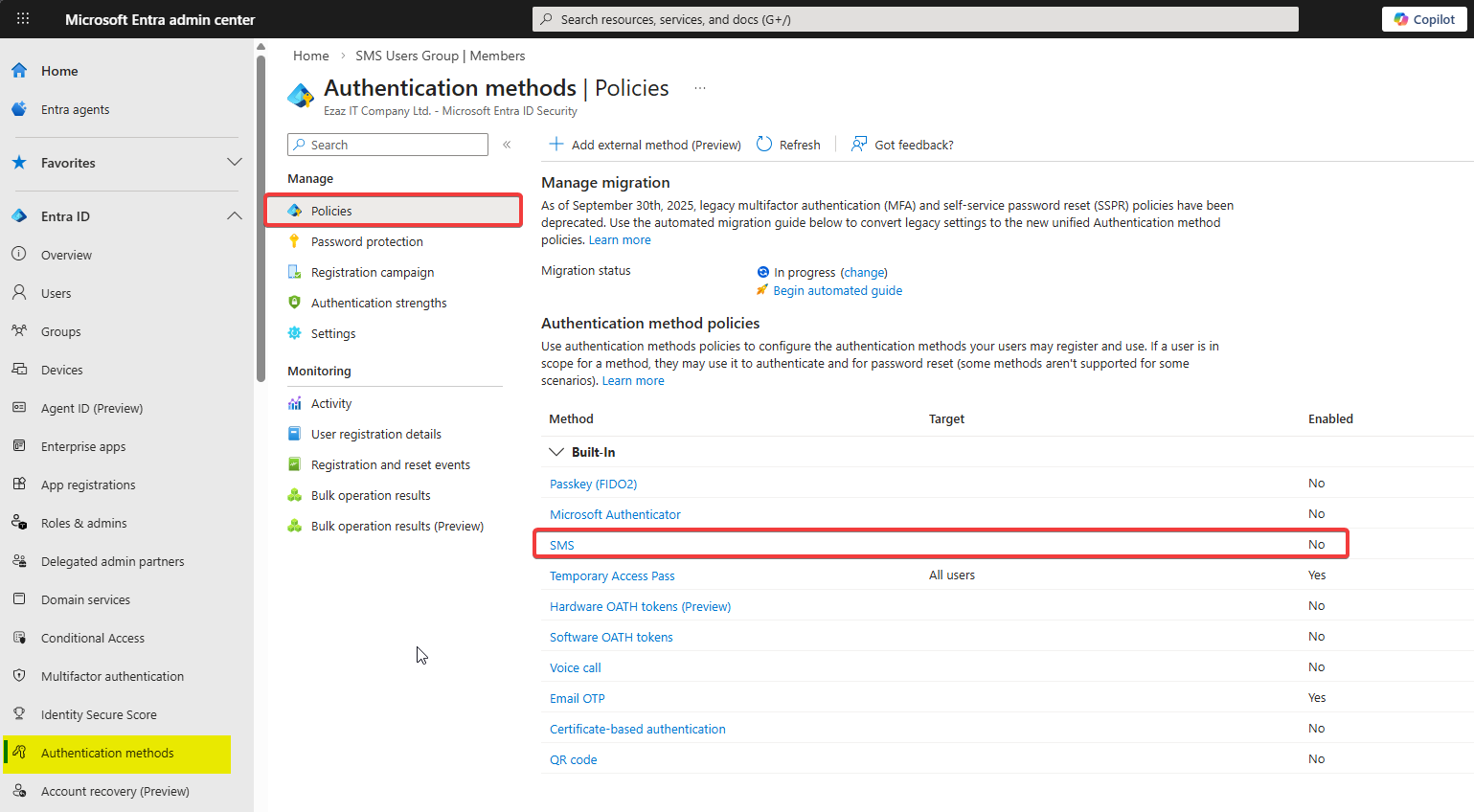
Sign in to entra.microsoft.com as Authentication Policy Administrator (or Global Admin). Left menu > Protection > Authentication methods > Policies. Click SMS.
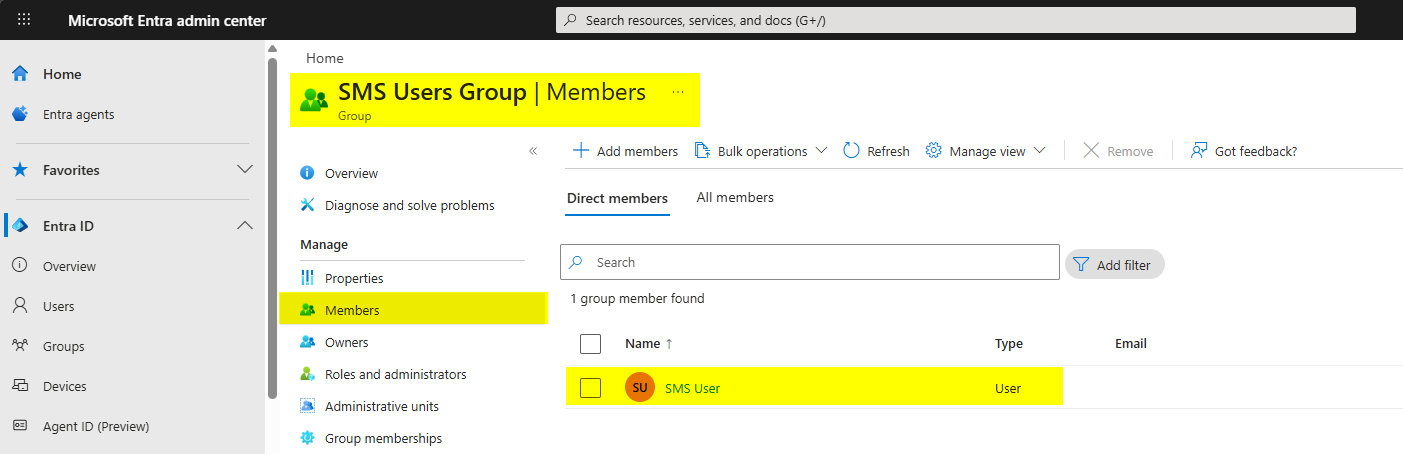
Toggle Enable. Target: All users for production, or scope to a test group containing your SMS test user (e.g. smsuser).
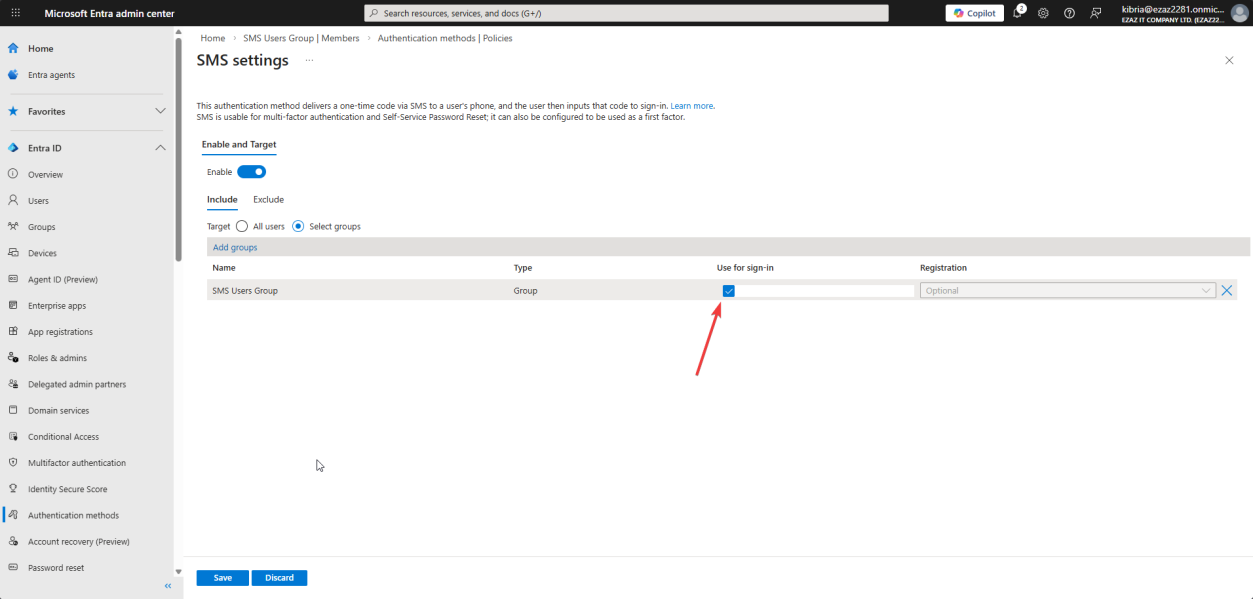
Configure tab > tick Use for sign-in. This is the load-bearing checkbox. Without it, SMS only works as a second-factor — users still need to type a UPN and password. Click Save.
Phase 2 — assign a phone number to the user
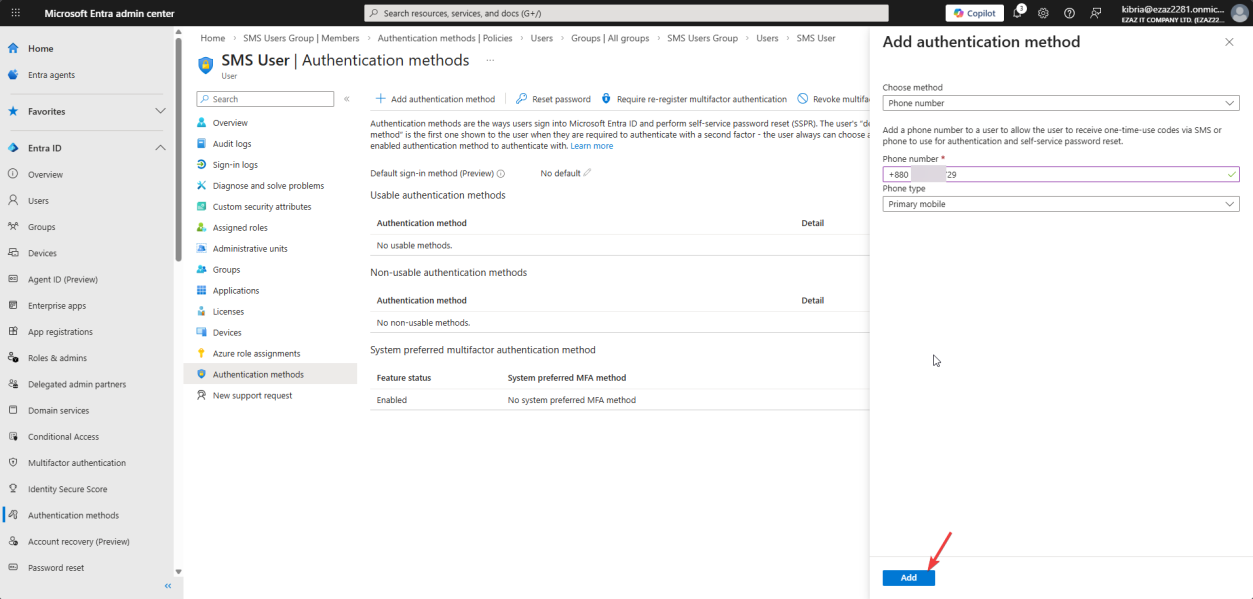
Users > All users > click smsuser > left nav Authentication methods > + Add authentication method > Phone number.
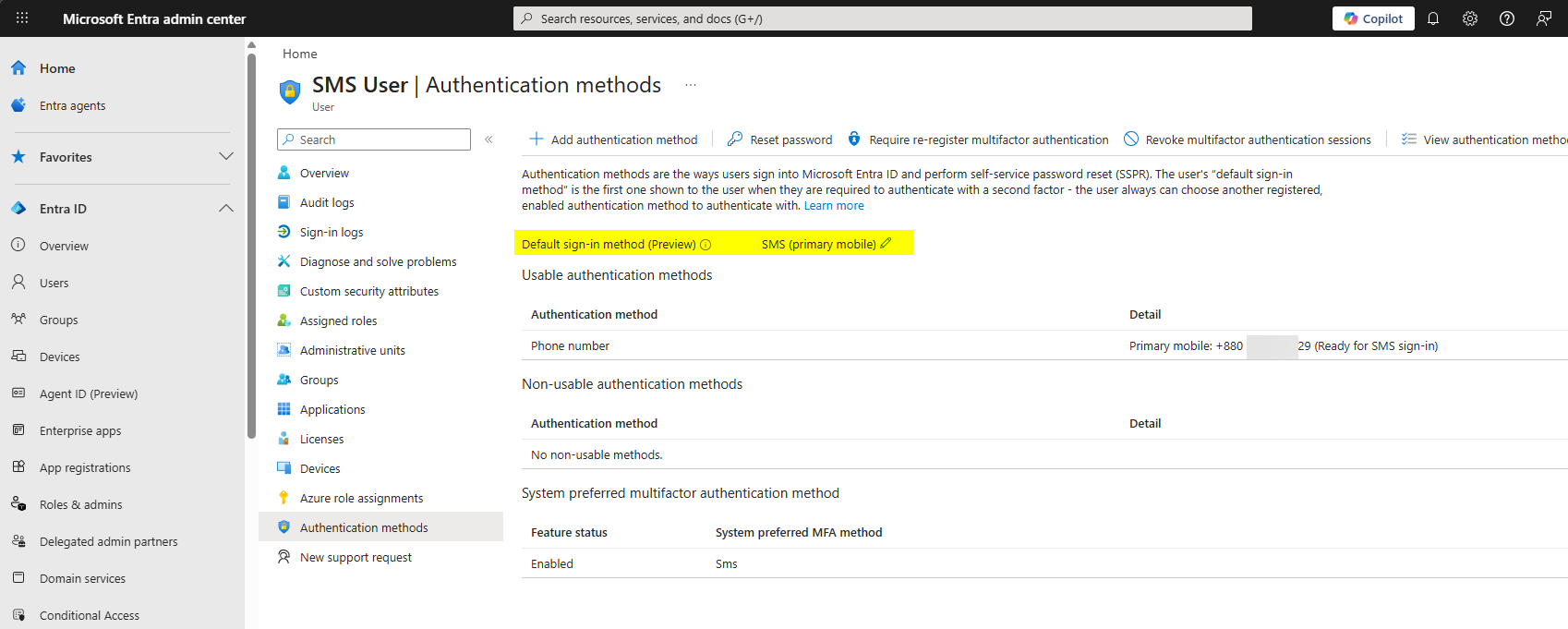
Pick the country code, enter the mobile number (no spaces, no dashes), set Phone type = Primary mobile, click Add. The number is now attached but not verified — the user has to confirm it themselves before phone sign-in works.
Phase 3 — user verifies and enables phone sign-in
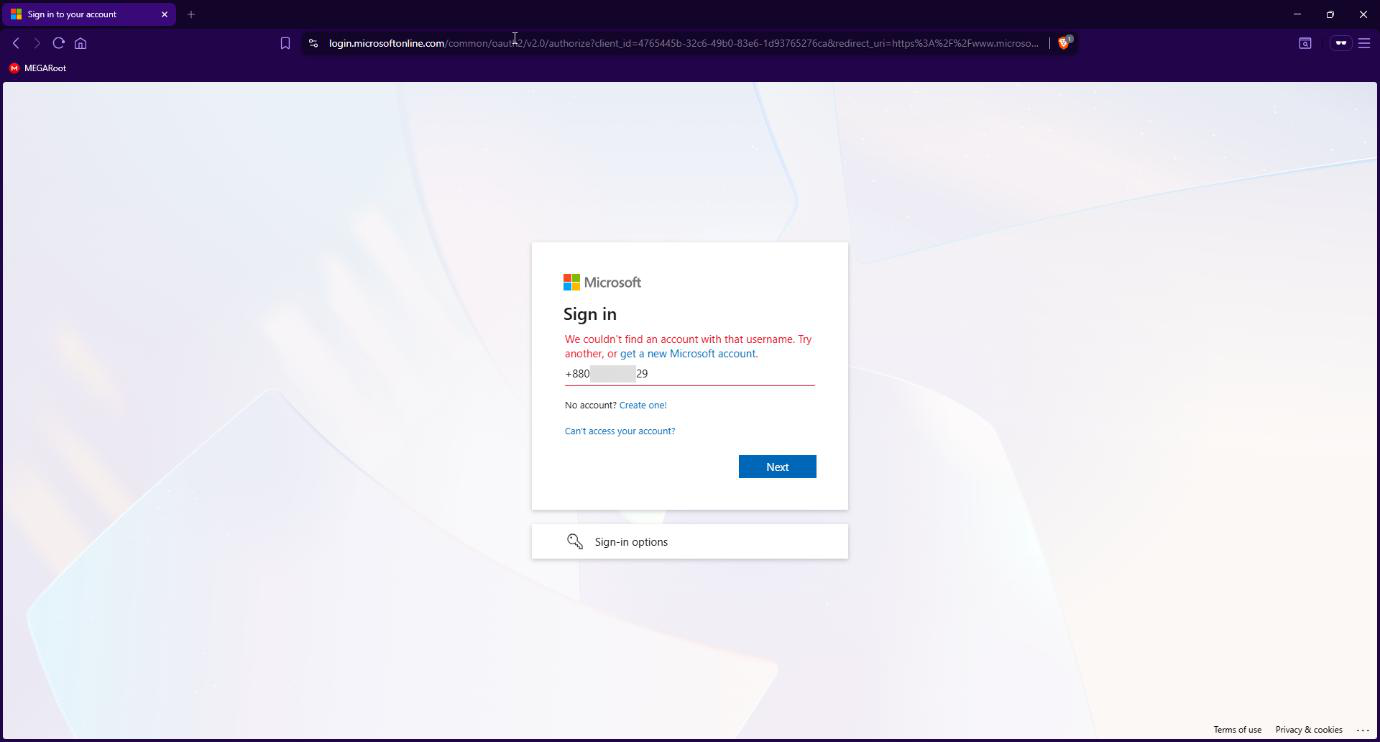
If the user jumps the gun and tries to sign in with the phone number now, they hit this error. The number isn’t verified yet, so it can’t be used as a username. Verification has to happen from My Account first.
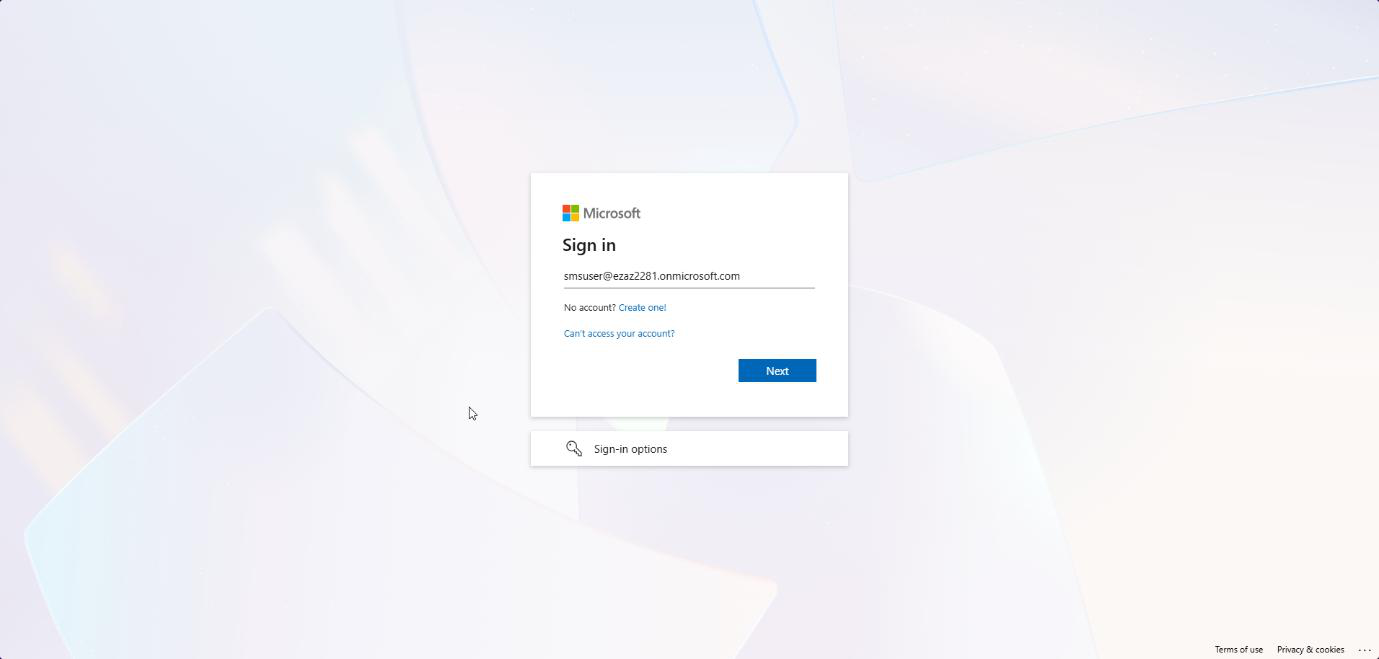
myaccount.microsoft.com > type the UPN (smsuser@tenant.onmicrosoft.com) > Next.Sign in normally for the one-time setup: open a browser, go to myaccount.microsoft.com, enter the UPN (e.g. smsuser@ezaz2281.onmicrosoft.com) > Next.
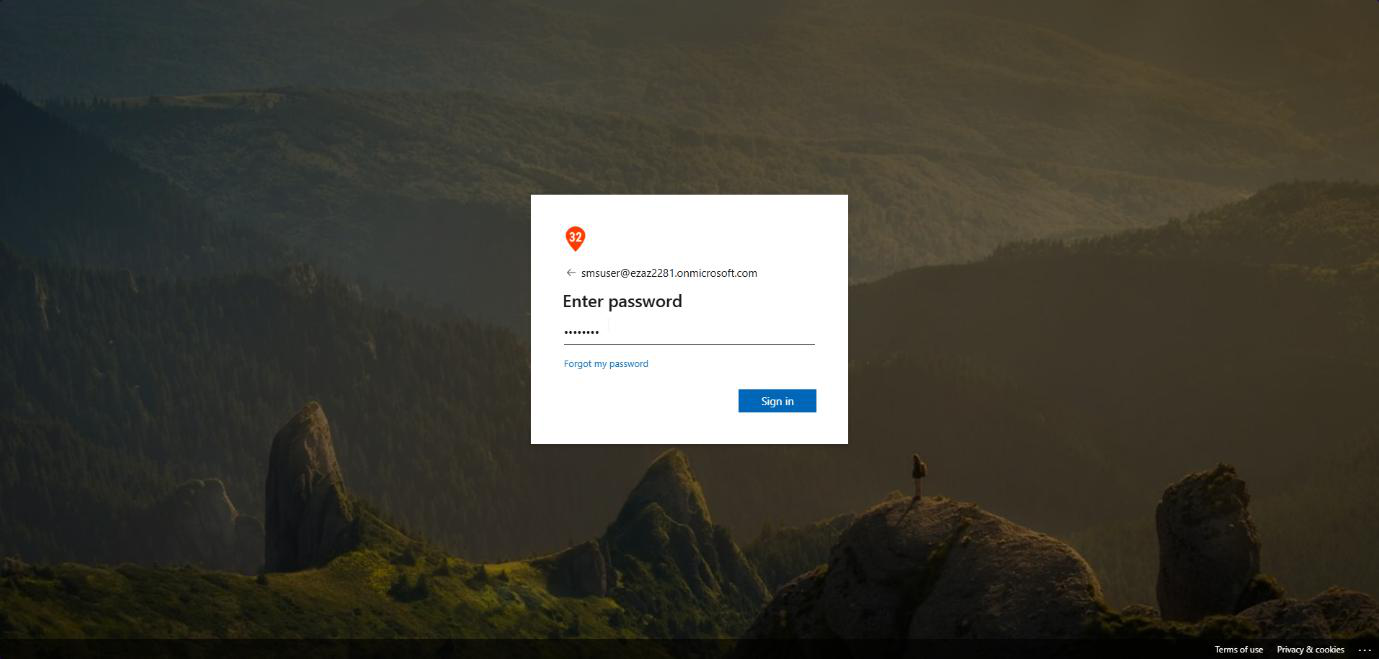
Standard password prompt. Type the password.
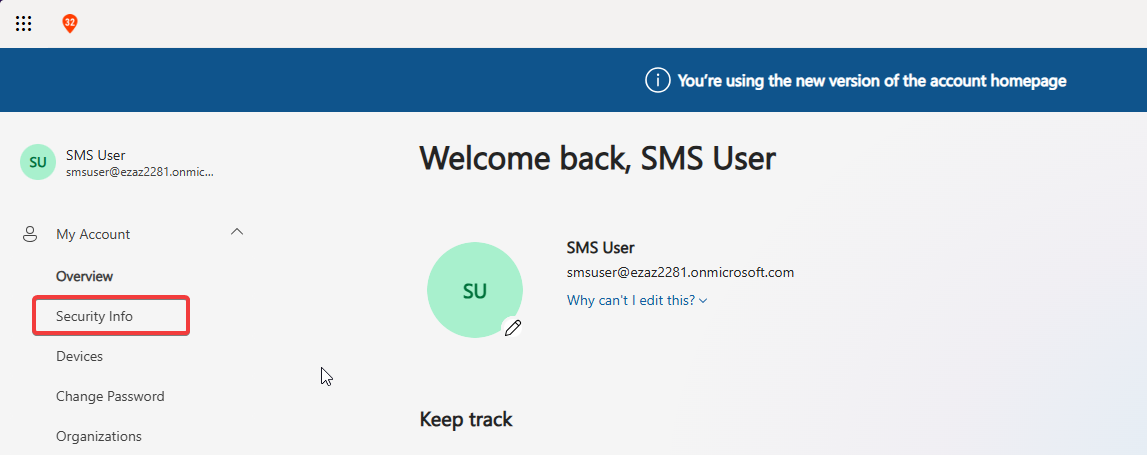
Logged in to My Account. From here the verification flow lives under Security info.
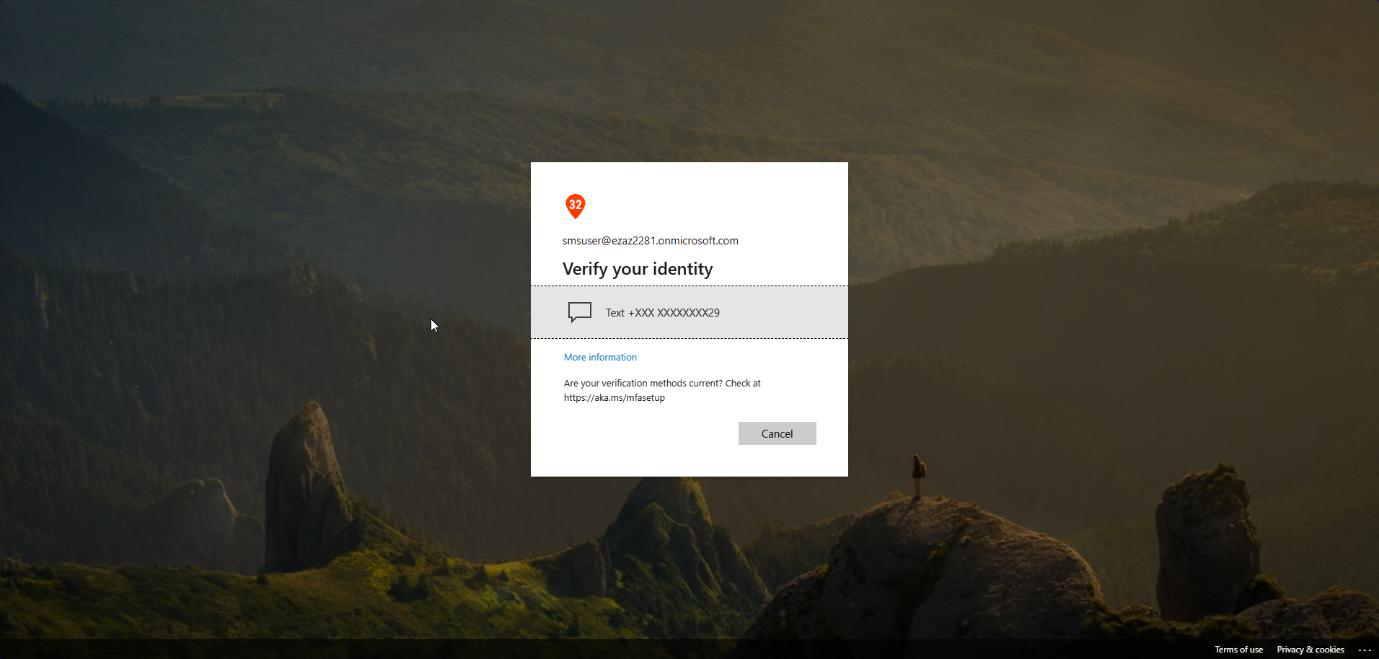
Security info shows the unverified phone with a Verify link. Click it — Microsoft texts a 6-digit code.
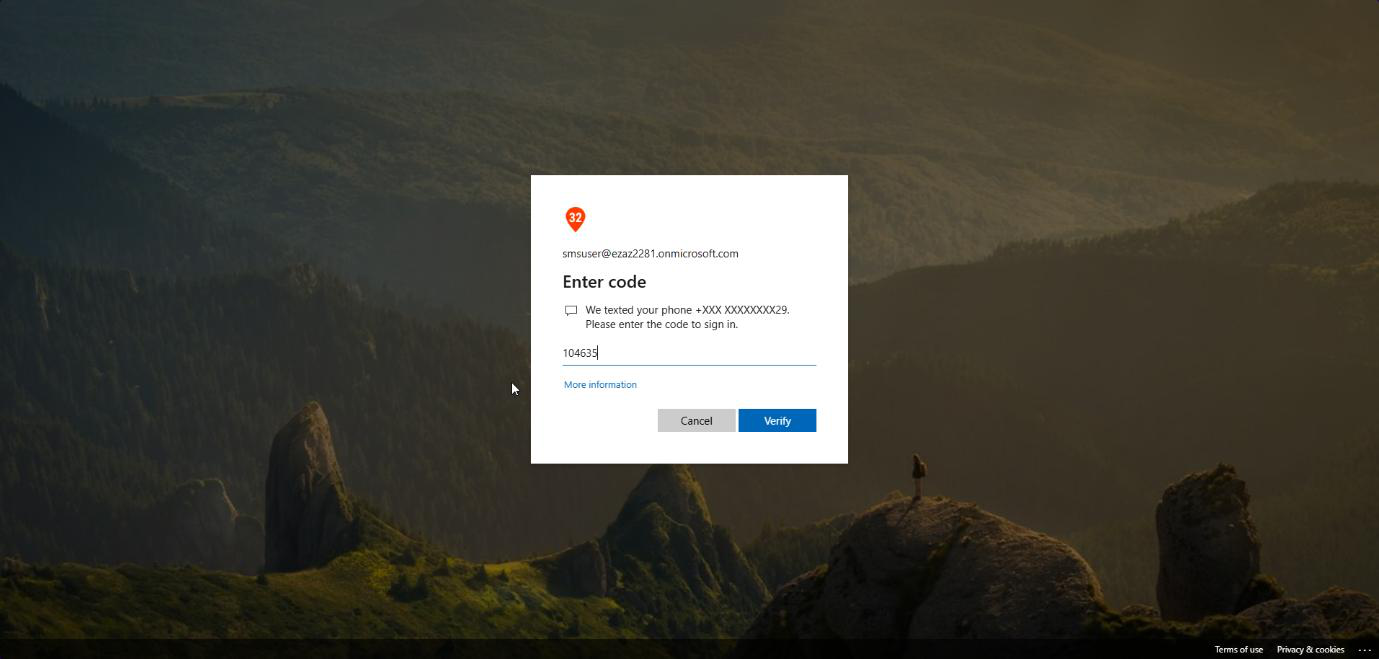
Type the 6-digit code > Verify. The number is now confirmed.
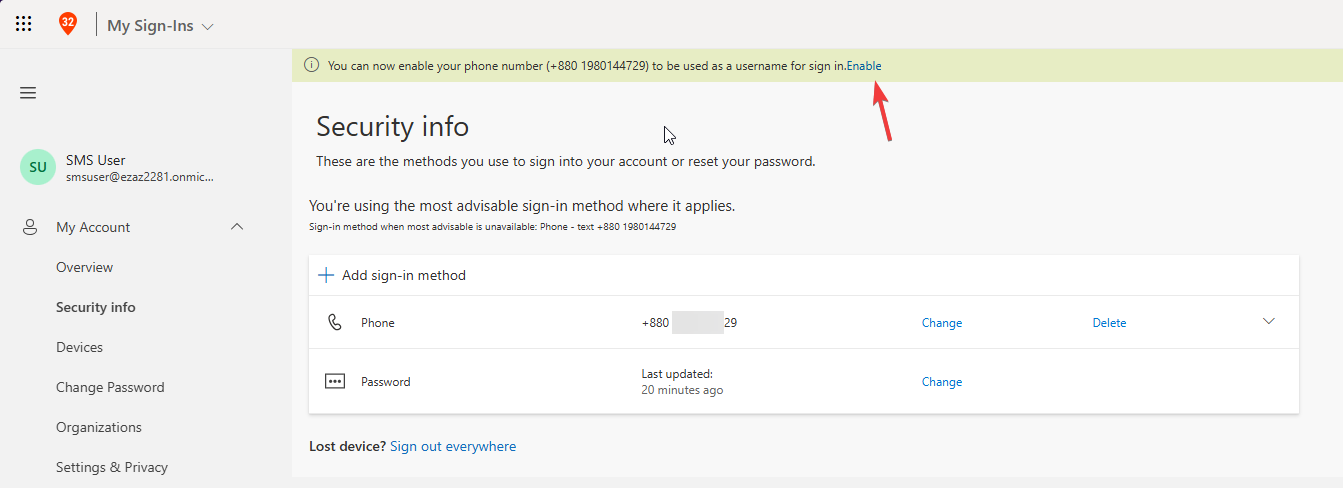
A banner appears at the top of Security Info: “Now you can enable your phone number to be used as a username for sign in.”
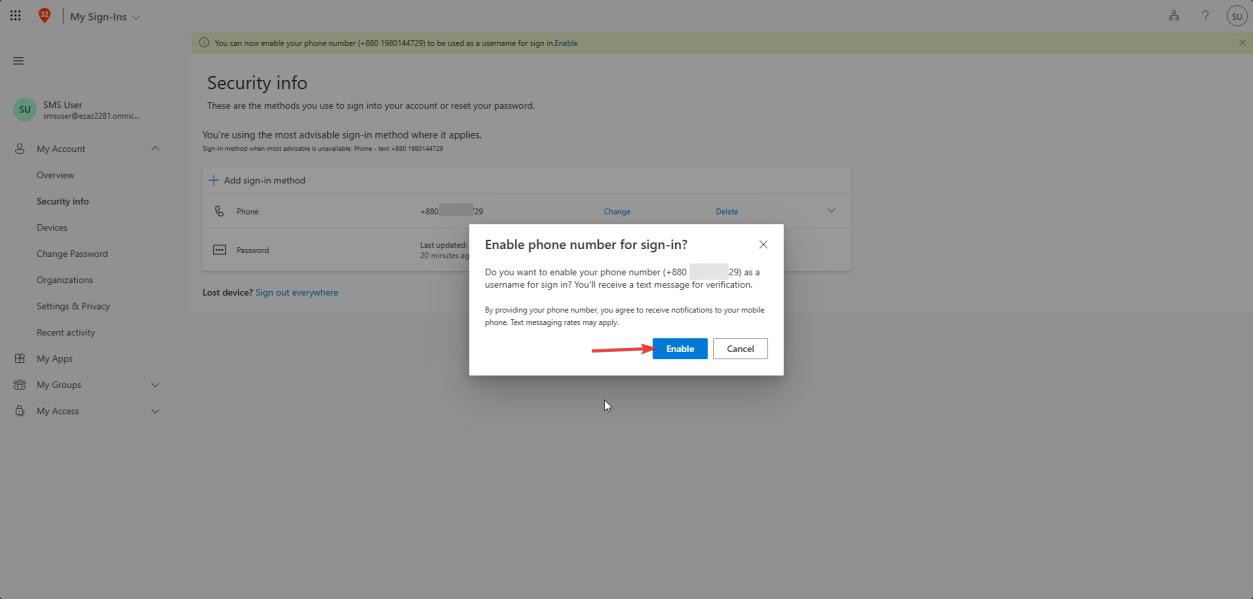
Click Enable. Confirmation popup > Enable again. Sign out. The phone number is now a fully-fledged username for this account.
Phase 4 — test the SMS sign-in
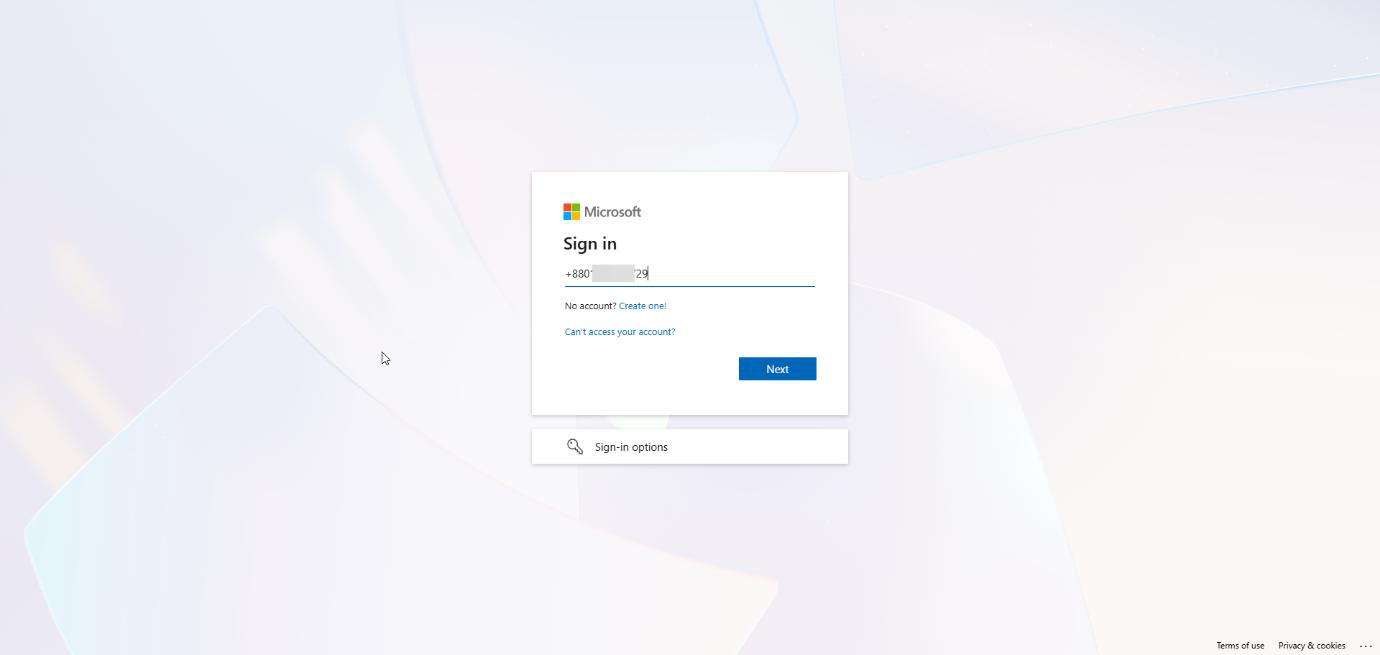
myaccount.microsoft.com. Do not type the username. Type the registered phone number > Next.Open an InPrivate / Incognito browser window > myaccount.microsoft.com. Do not type the UPN. Type the registered phone number (with country code, no spaces) > Next.
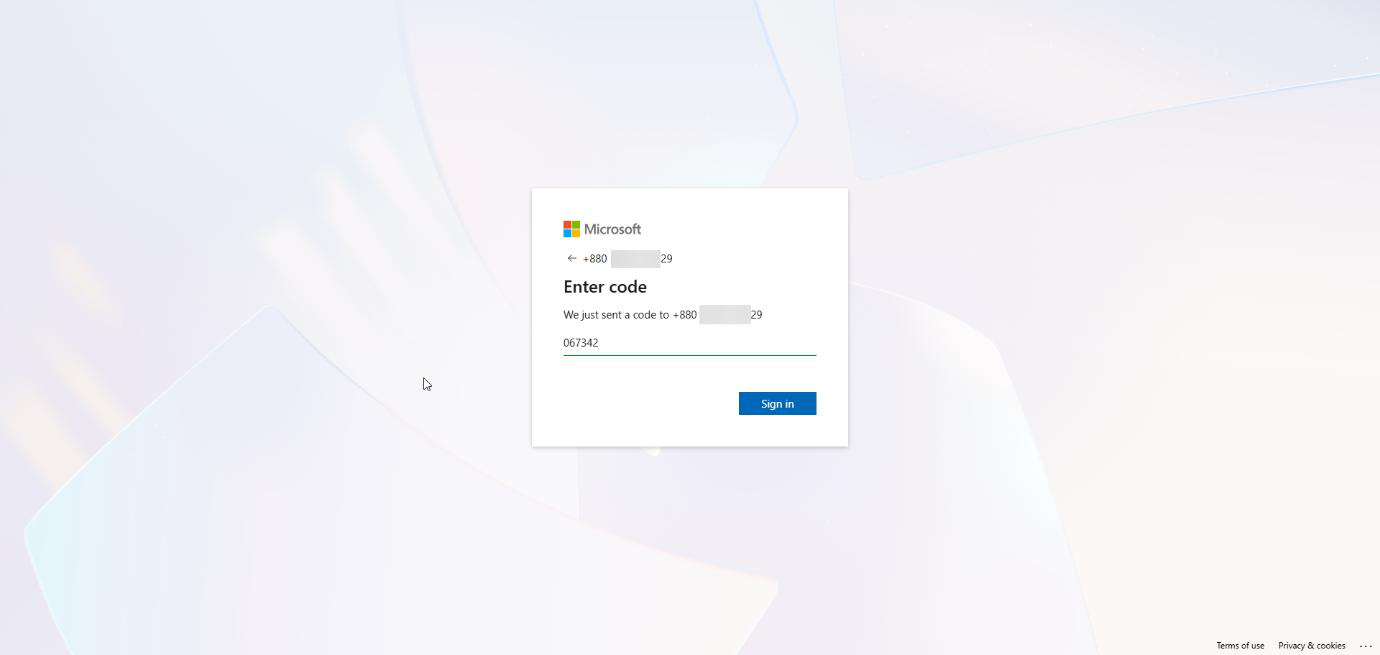
Microsoft texts a 6-digit code to that phone. Enter the code > Sign in.
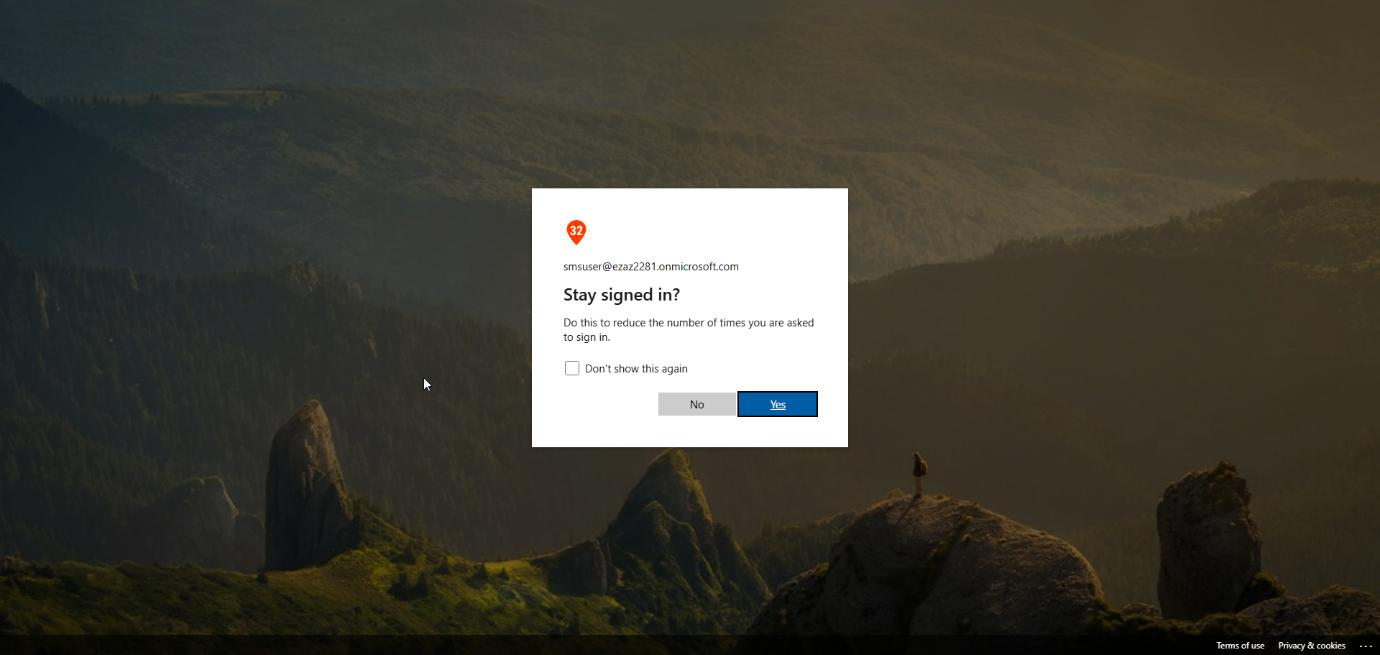
Success. Logged in to My Account — no password typed, no UPN typed. The phone number IS the credential.
How to disable this later
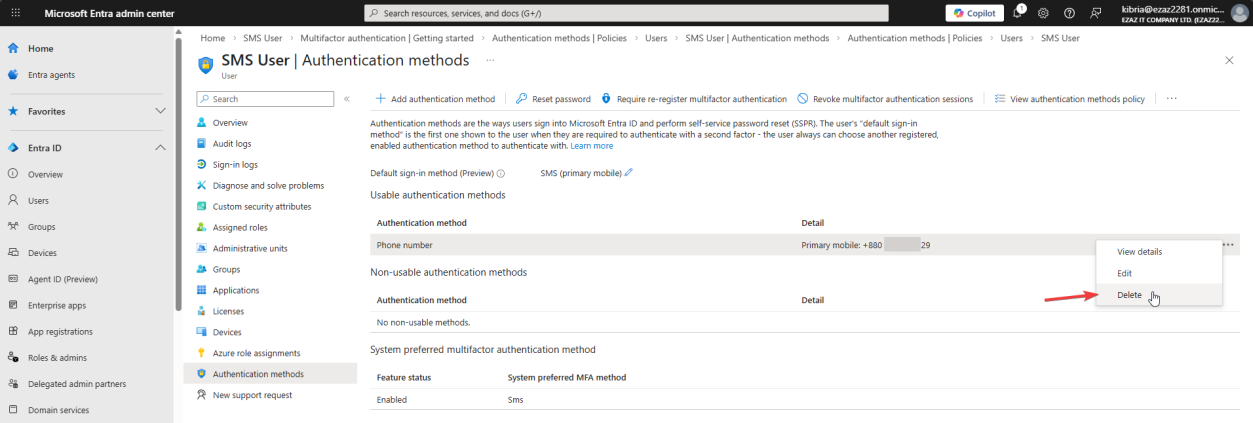
... > Delete. Or untick Use for sign-in on the policy.Two ways to revoke:
- Per-user: Users > smsuser > Authentication methods > phone entry >
...> Delete > Yes. The phone number is gone. - Tenant-wide: Authentication methods > Policies > SMS > untick Use for sign-in (or disable the policy entirely) > Save. Existing assignments stay but stop working.
Things that bite people
SIM-swap risk
SMS sign-in is the weakest form of passwordless. If an attacker SIM-swaps the user’s number (social-engineering the carrier), they own the account. Always pair SMS sign-in with Conditional Access that scopes it to low-risk apps (Shifts, internal HR) and blocks it for anything with admin rights or sensitive data. Never give an admin role to an account using SMS sign-in.
“Number is in use” error
A phone number can only be assigned to ONE user account in the entire tenant. Trying to add the same number to a second user fails. Each frontline worker needs their own SIM.
Country code formatting
Always include the country code (+1, +44, +27 etc.). Without it, sign-in lookup fails because the system can’t match the typed number to the stored one.
User skipped Phase 3
If the user never visits My Account to verify and enable, the phone number is just attached — not active. Sign-in by phone will fail with the FIG6 error. Document Phase 3 in your onboarding sheet.
Use for sign-in left unchecked
The most common mistake. The policy is enabled, the phone is added, but Use for sign-in is off — so the phone only works as a 2FA factor and users still need a UPN + password. Tick the box.
What’s next
SMS-based sign-in covers the “no smartphone” gap. The next post in the Entra ID Security pathway sets up full passwordless authentication — FIDO2 keys and Microsoft Authenticator phone sign-in — for users who do have smartphones and need a stronger credential.