
When you join a Windows device to Microsoft Entra ID, four entities are automatically added to the local Administrators group on that device:
- The built-in
Administratoraccount (always exists) - ALL Global Administrators in your tenant
- The Entra Joined Device Local Admin group
- The user who joined the device
The bold one is the load-bearing risk. Every Global Admin in your tenant becomes a local admin on every Entra Joined device by default. If your tenant has 5 Global Admins, those 5 accounts have full administrator control on every laptop, desktop, and Surface. None of them need to be on those devices to do their job.
This is the textbook lateral movement / privilege escalation surface. Attacker phishes one user → runs malware as local admin on their laptop → if any GA logs in to that laptop, captures their credential → tenant-wide compromise. Removing GAs from the local admin group on devices is the single highest-impact device-security change you can make in an Entra-Joined environment.
Section 1 — what gets local-admin by default
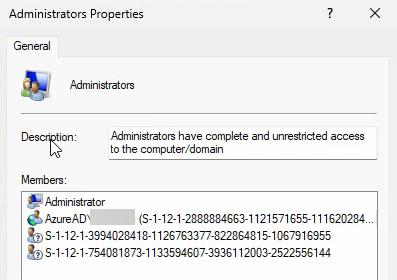
Administrator (built-in) plus 2-3 SID entries (long S-1-12-… strings). Those SIDs are the Entra Global Admins group, the Entra Joined Device Local Admin group, and the joining user.To see the default state: right-click Start > Computer Management > Local Users and Groups > Groups > double-click Administrators.
You’ll see Administrator (the built-in local one) plus 2-3 entries that look like S-1-12-1-1234567890-.... Those are SIDs — Security Identifiers for the Entra ID accounts. Windows shows them as raw SIDs because Computer Management can’t resolve cloud account names the same way it resolves local accounts.
The SIDs map to:
- Microsoft Entra Global Administrators group (every GA in the tenant)
- Microsoft Entra Joined Device Local Administrator group (built-in cloud group)
- The user account that performed the device join
Section 2 — why this matters: lateral movement scenario
Concrete scenario: a Global Admin’s account is also a local admin on every device. Attacker:
- Phishes a regular employee. Gets malware running on their laptop.
- Malware sits there waiting. Logs all interactive logons.
- Eventually a Global Admin logs into that laptop (or another device the malware has spread to). The user happens to be a GA.
- Malware harvests the GA credential / token from memory.
- Attacker now has GA — full control of M365, Azure, Conditional Access policies, Entra Connect, every license, every user, every secret in Key Vault.
The attack chain is: compromised endpoint → local admin → credential harvest → tenant takeover. Removing the GA → local admin link breaks the chain at the third step.
Section 3 — configure the secure settings
Microsoft Entra Admin Center has two settings under Local Administrator Settings (currently in Preview — fully functional, not beta).
Step 1 — navigate
entra.microsoft.com > Identity > Devices > Overview > Device Settings (top horizontal menu) > scroll down to Local Administrator Settings.
Step 2 — setting 1: block GAs from being local admins
Enable Global Administrators to be local admins on all joined devices (or similar wording — preview labels vary).
Default: Yes / Enabled. Change the toggle to No.
Once saved, Global Administrators will no longer auto-add to the local admins group on newly-joined devices. Make sure you have another way to manage devices locally first — either the built-in local Administrator account (with documented password), or Intune for remote management. Don’t flip this switch on Friday afternoon without a backup plan.
Step 3 — setting 2: control who becomes local admin on join
Three options:
- All — every user who joins becomes a local admin (original default, NOT recommended)
- Selected — only specific users / groups you choose become local admins
- None — nobody becomes a local admin on join, regardless of who they are
For most orgs: Selected, with a security group containing your IT helpdesk staff.
- Change the slider from All to Selected
- No member selected link appears > click
- Right-side panel > Add
- Search and pick a security group (recommended) or a user. Example: group
Entra-Device-Local-Adminswith helpdesk team members - Select to confirm
Use a group, not individuals. Group membership lookups don’t require revisiting the Entra Admin settings page every time someone joins / leaves IT. Just add or remove from the group.
Step 4 — save
Top or bottom of Device Settings > Save. Confirmation: Successfully updated device settings. Active for all newly-joined devices going forward.
Section 4 — verify on a fresh device
Best test: join a new Windows 11 device to Entra ID after the settings change, then check the Administrators group.
Join steps as in Part 12. After restart and first sign-in:
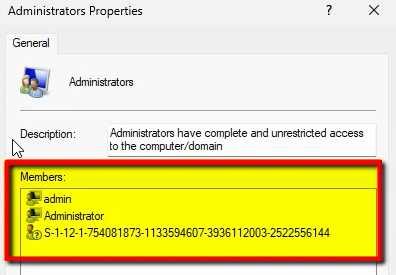
Computer Management > Local Users and Groups > Administrators. You should now see only ONE SID entry — the Entra Joined Device Local Administrator group. The Global Administrators SID is gone. The joining user is also NOT directly listed.
Wait — but you set the joining user (David Warner) as Selected. Why isn’t he listed individually?
Because Selected doesn’t add him directly to the local Administrators group. It adds him to the cloud-side Entra Joined Device Local Administrator group. That cloud group’s SID is already in the local Administrators group. So David’s admin rights flow through cloud-group membership, not local-group membership. One SID, multiple humans behind it — managed entirely from the cloud.

whoami /groups — BUILTIN\Administrators should NOT appear.Verify the user is now Standard: Settings > Accounts > Your info. Should say Standard User, not Administrator.
Or from cmd: whoami /groups — look for BUILTIN\Administrators. If it’s NOT in the output, the user is not a local admin. If it IS in the output, they have local admin rights.
Section 5 — before vs after
| Before (default) | After (hardened) | |
|---|---|---|
| Global Admins in local admins? | YES — all of them on every device | NO — blocked |
| Joining user gets admin rights? | YES — whoever joins | Only pre-approved users |
| Local admin group members | Built-in admin + GAs + joining user + Entra group | Built-in admin + Entra group only |
| Risk if GA compromised | Local admin on ALL devices | Cannot access devices locally |
Section 6 — the security/usability trade-off
Removing local admin from regular users improves security significantly. It also creates friction:
- Users can’t install software themselves
- Some legacy apps fail without admin rights
- Users can’t change certain system settings
- Helpdesk gets more install / config requests
The mitigations are:
- Intune — deploy approved software remotely without needing the user to be admin
- JIT admin access — give temporary admin rights for a bounded time when needed (covered next in the pathway)
- LAPS — manage the built-in local admin password automatically with rotation
FAQ
Can’t the local admin SIDs be displayed by name?
No — Computer Management can’t resolve Entra cloud accounts the same way it resolves local accounts or AD accounts. The SIDs are still valid; just a display limitation.
If GAs aren’t local admins, how do I fix a broken device?
Three options: (1) the built-in local Administrator account always exists — use it for emergency access (document the password securely). (2) Use the Selected option to make IT helpdesk users local admins on devices. (3) Use Intune to push configurations and run scripts remotely.
Settings are in Preview — safe for production?
Yes. Preview means Microsoft is still gathering feedback — not unstable. Most orgs use preview features fine. Test in a non-prod tenant first if you have one.
Does this affect already-joined devices?
No. Settings only apply to devices joined AFTER the change. Existing devices keep their old members. To fix existing: manual cleanup per device, or push an Intune device configuration policy.
What is the Entra Joined Device Local Administrator group?
Built-in Entra ID group every tenant gets. Members become local admins on all Entra Joined devices. Empty by default until you populate it via the Manage additional local administrators setting. Its SID always sits in the local Administrators group as a placeholder, even when empty.
User needs to install software but isn’t local admin — what now?
If you have Intune: deploy software remotely. If not: IT signs in with admin creds and installs. For scale: implement JIT admin via PIM, giving temporary elevated rights only when approved.
Local admin on one device only, not all?
Entra Admin settings work tenant-wide. For per-device admin, use Intune device configuration profiles or Entra LAPS. Covered next in the pathway.
What about orphaned SIDs from disabled / deleted users?
SID still shows in the local group but no longer maps to a valid account. Account can’t log in — so authentication risk gone. Cleanup as best practice via Intune policy or manual removal.
What’s next
You’ve removed the auto-add. Next post in the Entra ID Security pathway: Require MFA when joining devices — blocking unauthenticated / drive-by joins by anyone with a leaked password but no MFA factor.