
By default, when a user joins or registers a device to Microsoft Entra ID, only their username and password are required. If those credentials are stolen (phishing, breach, brute force), the attacker can join their own device to your tenant — and now an unmanaged attacker-controlled device sits inside your directory.
Solution: require MFA for the device join step itself. Even with valid stolen credentials, the attacker can’t complete the join without the user’s second factor (Authenticator app, SMS, FIDO2 key). One toggle, big risk-reduction.
The critical step everyone misses — do this FIRST
Before flipping the toggle: verify every user who needs to join devices already has MFA configured on their account. If you enable the requirement before users have MFA registered, those users are locked out of the join process — the join will fail with an MFA-required error and they’ll have no way to satisfy it.
Analogy: install a card-reader lock before handing out the key cards = nobody gets in, including your own staff. Do MFA setup first, then turn on the requirement.
How to check who has MFA configured
- Per user: entra.microsoft.com > Identity > Users > All Users > click user > Authentication methods (left menu)
- Tenant-wide: Identity > Overview > Properties > Per-user MFA, OR Identity > Monitoring > Sign-in logs filtered by authentication method
Have unset users register at aka.ms/mfasetup — one-time, takes 2 minutes per user.
Two ways to enforce: Tenant-wide vs Conditional Access
| Feature | Tenant-Wide MFA Policy | Conditional Access MFA |
|---|---|---|
| Who it applies to | Every user, no exceptions | Only users / groups you choose |
| Granularity | All-or-nothing | Per group / role / location |
| License | Entra ID Free | Entra ID P1 or P2 (paid) |
| Setup location | Devices > Device Settings | Protection > Conditional Access |
| Best for | Small orgs / labs / Free tenants | Enterprise needing fine control |
This guide covers Method 1 (tenant-wide). If you have P1/P2, build a CA policy instead — same effect, more granular control, and you can scope it to specific risky scenarios (untrusted locations, external networks).
Step-by-step: enable tenant-wide MFA for device join
Step 1 — navigate
entra.microsoft.com as Global Admin > Identity > Devices > Overview > Device Settings (top horizontal menu).
Step 2 — locate and flip the setting
Find: Require Multi-Factor Authentication to register or join devices. Default = No.
Step 3 — toggle to Yes + save
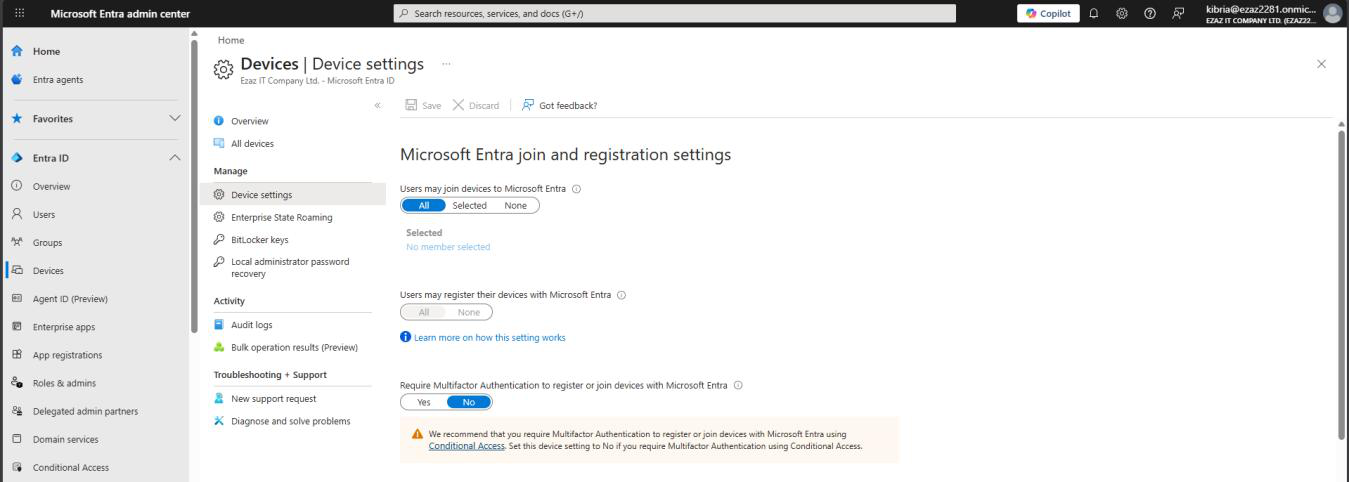
Toggle to Yes > Save (top or bottom). Confirmation: Successfully updated device settings. Active immediately for new join attempts.
Step 4 — if you plan to use Conditional Access instead
Set this Device Settings toggle to No and enforce via CA. Don’t run both — let CA handle it for the granular control. Build the CA policy: Protection > Conditional Access > new policy > Users (target group) > Cloud apps (Microsoft Intune Enrollment) > Grant: Require MFA.
What the user experiences
The join flow now has a new step:
- Settings > Accounts > Access work or school > Connect > Join this device to Microsoft Entra ID (as normal)
- Email > Next
- Password > Sign in
- NEW — MFA prompt appears. User approves on Authenticator, types SMS code, or answers phone call
- Join completes
If the user has no MFA registered: error “Additional security verification is required” and the join fails. Fix: send them to aka.ms/mfasetup, then retry.
Trusted Locations don’t apply to Tenant-Wide policy
If you want office-network IPs to skip the MFA prompt during join, you need Conditional Access — the tenant-wide setting always requires MFA regardless of location. This is one of the practical reasons to upgrade to P1 / P2 once you have more than ~50 users.
Verify the setting is active
- Re-open Device Settings — Require MFA should show Yes
- Test with a user (who has MFA registered) — observe the MFA prompt during join
- Sign-in logs > Conditional Access tab on the join event — confirm MFA was required and satisfied
Things that bite people
Enabled before users had MFA
The most common mistake. Users get locked out of joining their own devices. Helpdesk floods. Mitigation: send users to aka.ms/mfasetup BEFORE you flip the toggle. Or temporarily flip it back to No while they catch up.
Both Tenant-Wide AND CA policies enabled
Doesn’t double-secure — can confuse troubleshooting because either policy can fire. Pick one and disable the other.
Service accounts joining devices
Some automation joins devices using a service account that can’t do MFA. Either: (1) add an exclusion via CA (P1+ only), (2) use a separate service-account-only join workflow, or (3) re-architect to use Autopilot or Intune-driven enrollment instead.
Users complain MFA prompts on every join attempt
That’s by design — one device = one MFA prompt. Not the same as MFA fatigue (multiple prompts per day). If a user is joining 10 devices in a row, that’s 10 MFA prompts. Document the expected behavior in onboarding.
What’s next
The MFA wall is up. Next post in the Entra ID Security pathway: Managing device settings in the Entra Admin Center — the broader knobs around max-devices-per-user, registration vs join, BitLocker recovery key visibility, and other device-policy levers.