
Device Settings in the Microsoft Entra Admin Center is the single page where you configure how devices interact with your tenant: who can join them, how many they can have, who gets local admin rights, whether MFA is required, and what users can do with their own BitLocker recovery keys. Eight knobs, one Save button. Get them wrong and you either hand attackers a way in or lock your own users out.
This guide walks every setting on the page — what it does, what the default is, what to actually set it to, and the gotchas that bite people in production.
Where to find Device Settings
- Open entra.microsoft.com as a Global Administrator.
- In the left rail, expand Identity > Devices > Overview.
- On the Devices Overview page, click Device Settings in the top horizontal menu.
Every setting in this guide lives on that single page. Make all your changes, then click Save once at the bottom.
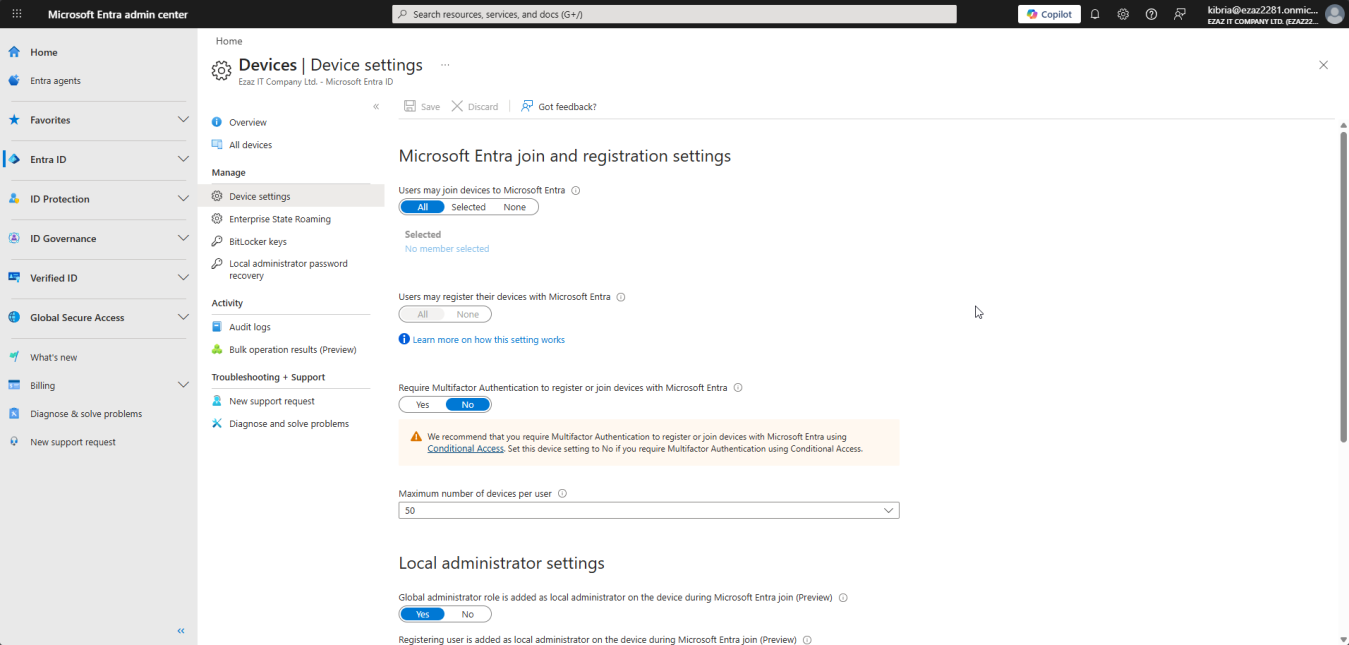
Quick reference — defaults vs recommended
| Setting | Default | Recommended |
|---|---|---|
| Users may join devices | All | Selected (Device-Join-Allowed group) |
| Users may register devices | All | All (or Selected for strict orgs) |
| Require MFA to join/register | No | Yes (or via Conditional Access) |
| Max devices per user | 50 | 20 (org dependent) |
| Global Admin as local admin | Enabled | Enabled for small orgs / Disabled for large |
| Registering user as local admin | All | None or Selected |
| Manage additional local admins | (unset) | Specific helpdesk group |
| BitLocker key self-service | Enabled | Disabled (admin-only) |
Setting 1 — Users may join devices to Microsoft Entra
Controls which users can promote a Windows 10/11 Pro+ machine to a fully Entra-joined corporate device. Default is All — every user in your tenant can join devices.
That’s a problem because every account that gets phished can also bring an attacker-controlled device into your directory. Switch to Selected and point it at a security group like Entra-Device-Join-Allowed. Add only IT staff and authorized employees. When someone changes role, you flip group membership instead of coming back to this page.
How to restrict
- Toggle from All to Selected.
- Click the No member selected link > Add.
- Search for your group, click Select.
- Save at the bottom of the page.
Setting 2 — Users may register devices
Different from joining. Registration is the lighter BYOD relationship for personal phones, tablets, Macs, and Windows Home machines — the device isn’t managed but it can talk to Microsoft 365.
If your tenant runs Intune or MDM for Microsoft 365, this setting is locked at All and greyed out. That’s expected behaviour, not a bug — both services depend on registration to function. Setting None would brick enrollment.
Setting 3 — Require MFA to register or join devices
Default No. Recommended Yes. With this off, a stolen password is enough for an attacker to silently join their own device into your directory.
Critical ordering: verify every user who needs to join devices already has MFA registered before you flip this toggle. Otherwise legitimate joins fail with Additional security verification is required and your helpdesk lights up. Send users to aka.ms/mfasetup first, then enable.
If you have Entra ID P1 or P2, prefer a Conditional Access policy targeting the Microsoft Intune Enrollment cloud app instead — you can scope by group, location, and risk. Don’t run both methods at once; pick one.
Setting 4 — Maximum number of devices per user
Default 50. Hard cap 100. Recommended 20.
50 is generous past the point of usefulness — a typical user has 2–4 devices. The reason to keep the number tight isn’t aesthetics; it’s a tripwire. A compromised account that suddenly registers ten devices in one week is much more visible if your normal cap is 20 than if it’s 50 or unlimited.
For lab/test scenarios where IT staff legitimately spin up many VMs, use a dedicated service account with its own raised limit instead of bumping the global setting.
Setting 5 — Global Administrator as local administrator
When enabled (default), every Global Admin in your tenant is automatically a local admin on every Entra-joined device. Convenient for support; risky if your Global Admin count is high.
- Small org with 2–4 Global Admins (Microsoft’s recommended ceiling): leave Enabled.
- Large org with many Global Admins: disable this and use Setting 7 (Manage additional local admins) plus device-specific Intune policies for targeted access.
Either way, audit your Global Admin count first. More than four and you have a different problem to solve before this one matters.
Setting 6 — Registering user as local administrator
Default All: whoever joins a device automatically becomes a local admin on it. Convenient. Also exactly how you end up with hundreds of local-admin endpoints scattered across the org, each one a soft target for malware that needs elevation to deploy.
Recommended: None or Selected with a tightly scoped group. Regular employees don’t need local admin. Developers and power users who genuinely need it can be granted explicitly via Setting 7 or via Microsoft Entra LAPS (covered in a later post in this pathway).
This setting only applies at join time. Devices already joined retain their existing local admin assignments. To strip admin rights from previously joined devices you have to do it on the device (Computer Management > Local Users and Groups, or PowerShell Remove-LocalGroupMember) or via an Intune Account Protection policy.
Setting 7 — Manage additional local administrators
The deliberate, opt-in version of Setting 6. Add specific users (typically a helpdesk security group) to the Device Administrator Entra role and they get local admin on every Entra-joined device tenant-wide.
This is the right home for your helpdesk team after you’ve set Setting 6 to None. Keep the membership tight and review it quarterly — this role is a real privilege escalation if abused.
Setting 8 — BitLocker key self-service
Controls whether end users can retrieve their own BitLocker recovery key from myaccount.microsoft.com.
- Enabled: convenient when a user locks themselves out of their own laptop. Reduces helpdesk load.
- Disabled (recommended): users call the helpdesk, helpdesk verifies identity, helpdesk pulls the key. Adds a human gate that stops a thief who already has the device from also collecting the recovery key from the user’s account.
This setting is one of the few on the page that requires the Privileged Role Administrator role to change — not just Global Admin. If you get a permission error, that’s why.
Saving your changes
- Review every setting on the page.
- Scroll to the bottom (or top) and click Save.
- Wait for the Successfully updated device settings banner.
Navigate away without saving and every change is silently discarded. There’s no draft state.
Things that bite people
Forgot to click Save
The single most common reason a setting ‘didn’t take effect’. The page doesn’t auto-save and doesn’t warn on navigation.
Setting changed but old devices unaffected
Settings 5 and 6 only apply at the moment of join. Devices already in the tenant keep whatever they got at their original join. Plan for retroactive cleanup separately.
Users may register is greyed out
Intune or MDM for Microsoft 365 is enabled. This is intentional and correct — don’t spend time trying to fix it.
BitLocker setting refuses to save
You don’t have Privileged Role Administrator. Get it assigned (Identity > Roles and administrators) and try again.
Max devices set to 5, executives complain
Set it for the bulk of users; raise individual limits via Conditional Access device filters or use a higher-limit service account for power users.
What’s next
The Device Settings page covered the broad strokes. The next post in the Entra ID Security pathway drills into one specific knob in much more depth: the Device Local Administrator role — how to assign tenant-wide local admin rights to specific people via the third method (Setting 7) and how that interacts with Settings 5 and 6.