
Entra ID monitoring splits into two distinct surfaces: Audit Logs (changes — who did what to your tenant) and Sign-in Logs (access — who got in, from where, with what method). Most security investigations start with one or the other:
- “Why is this user disabled?” → Audit Logs — show me the change.
- “Why is this user’s account locked / where did they sign in from?” → Sign-in Logs — show me the access attempts.
This guide walks the workflow for both: configure the columns you actually need, run two real investigation scenarios in the audit log, then map every tab in a sign-in log entry so you know what each one is for.
Part 1 — Audit Logs
Audit logs are your paper trail. Every administrative change is recorded with five attributes:
- Service — the Entra component (Core Directory for users/groups, PIM for role activations, Conditional Access for policy edits)
- Category — the broad task type (User Management, Group Management, Role Management, etc.)
- Activity — the exact action (Add user, Update user, Delete group, Activate role)
- Initiated by — the actor (the admin or service principal that did the work)
- Target — the object that was changed
Scenario 1: track a newly created user
Entra admin centre > Monitoring & health > Audit logs.
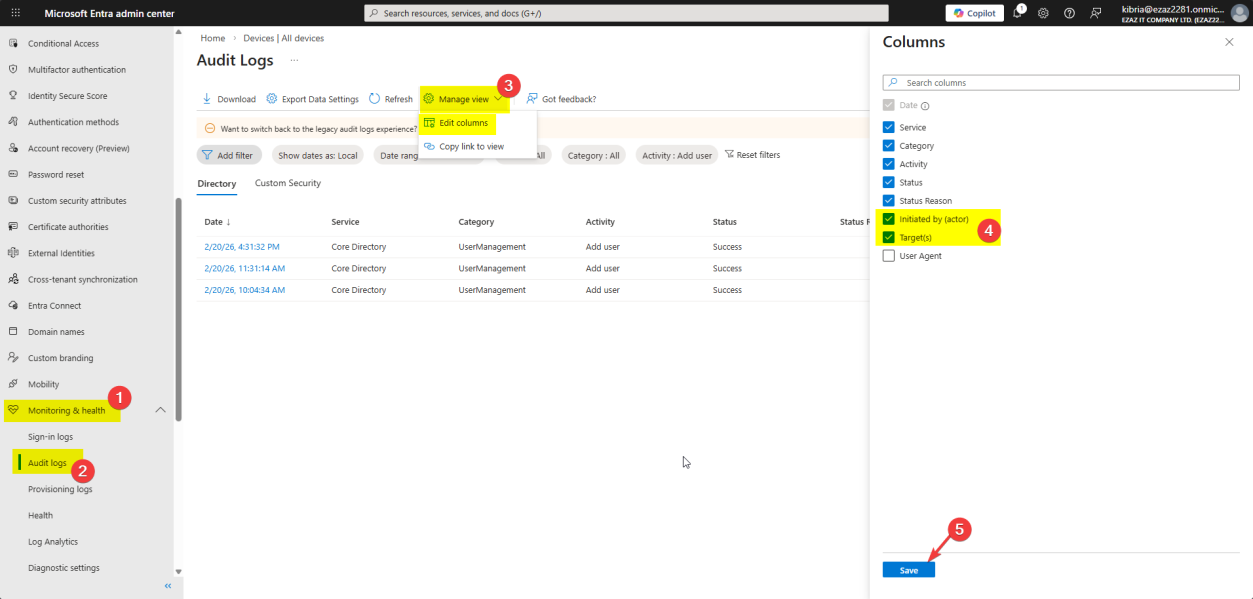
Click Manage view > Edit columns — add Target and Initiated by. By default these are hidden, which makes the log nearly useless. Save.
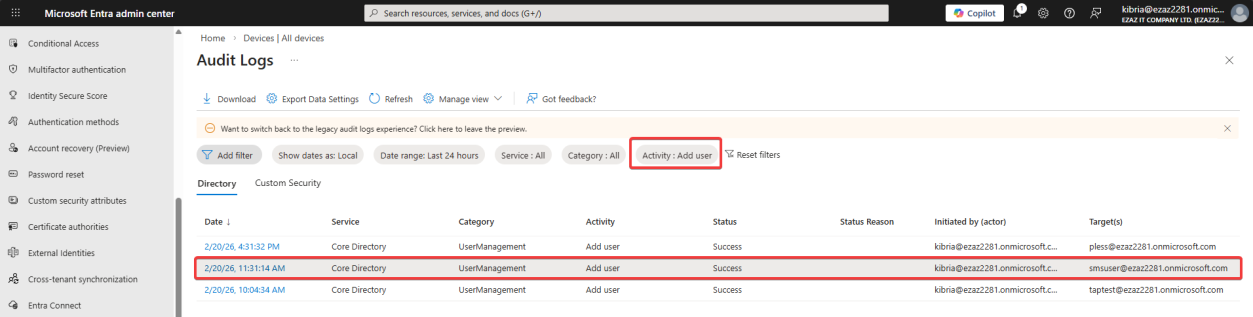
Set the Activity filter to Add user. The log shows:
- Date / Time
- Service: Core Directory
- Category: User Management
- Activity: Add user
- Status: Success
- Initiated by:
kibria@ezaz2281.onmicrosoft.com— the admin who did the work - Target:
smsuser@ezaz2281.onmicrosoft.com— the account that was created
Click the entry to open the details pane. Three tabs:
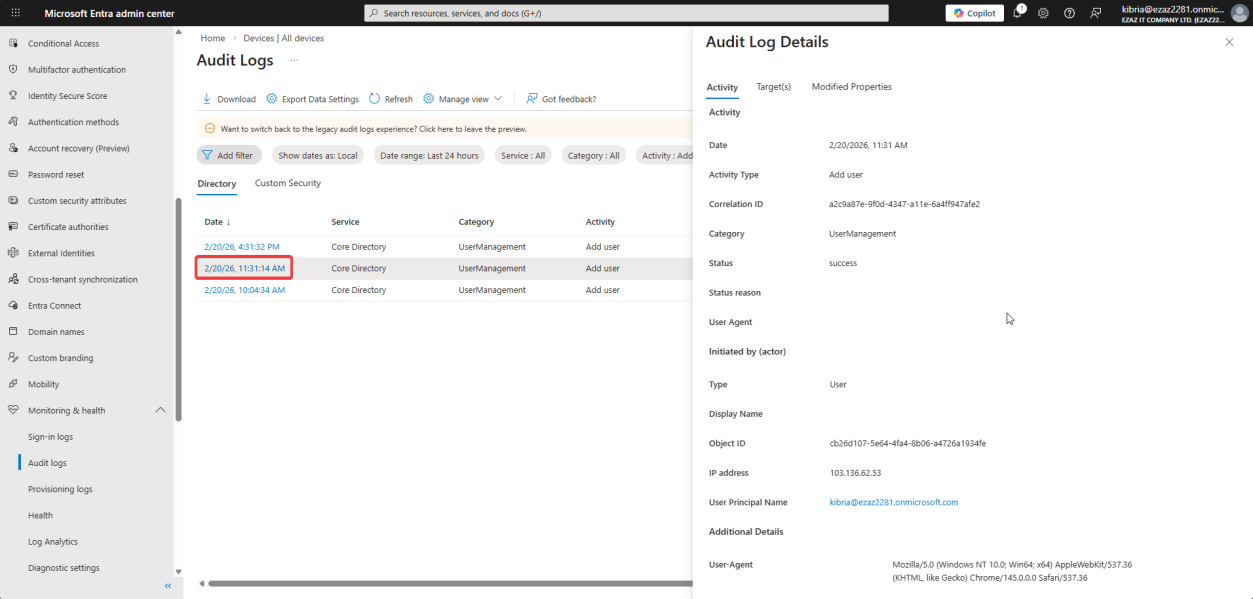
Activity tab — high-level summary, plus the Correlation ID. The Correlation ID is the unique tracking number you give Microsoft Support when raising a case — they can find this exact event in their backend telemetry.
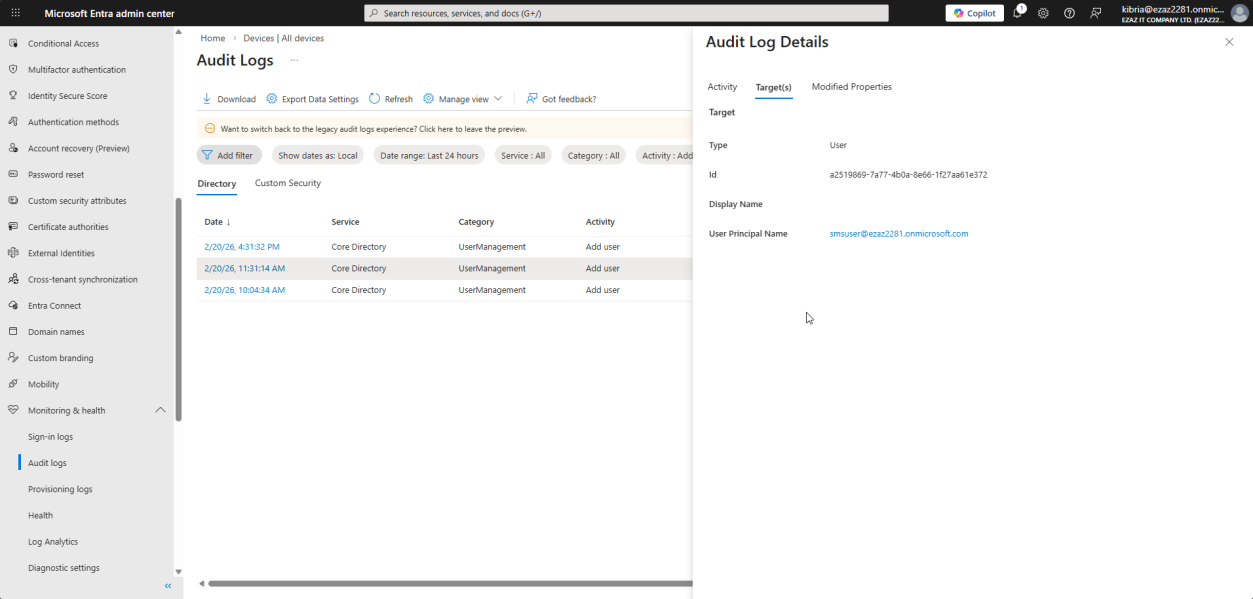
Targets tab — the object that was modified. For Add user, this shows the Object ID and UPN of the new account. For Update group, it would show the group’s Object ID + name.
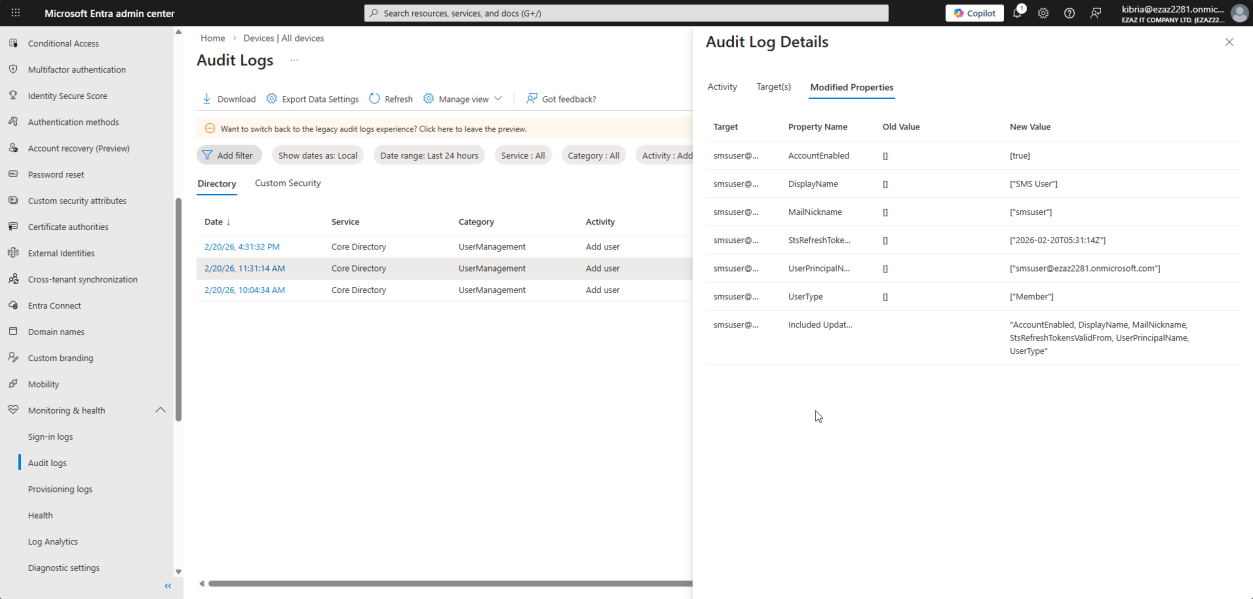
Modified Properties tab — the load-bearing tab for any investigation. Shows the exact attributes that were set during this action, with both Old Value and New Value. For Add user, Old Value is mostly blank (the user didn’t exist before). For an Update, you see precisely what changed.
Scenario 2: who disabled this user?
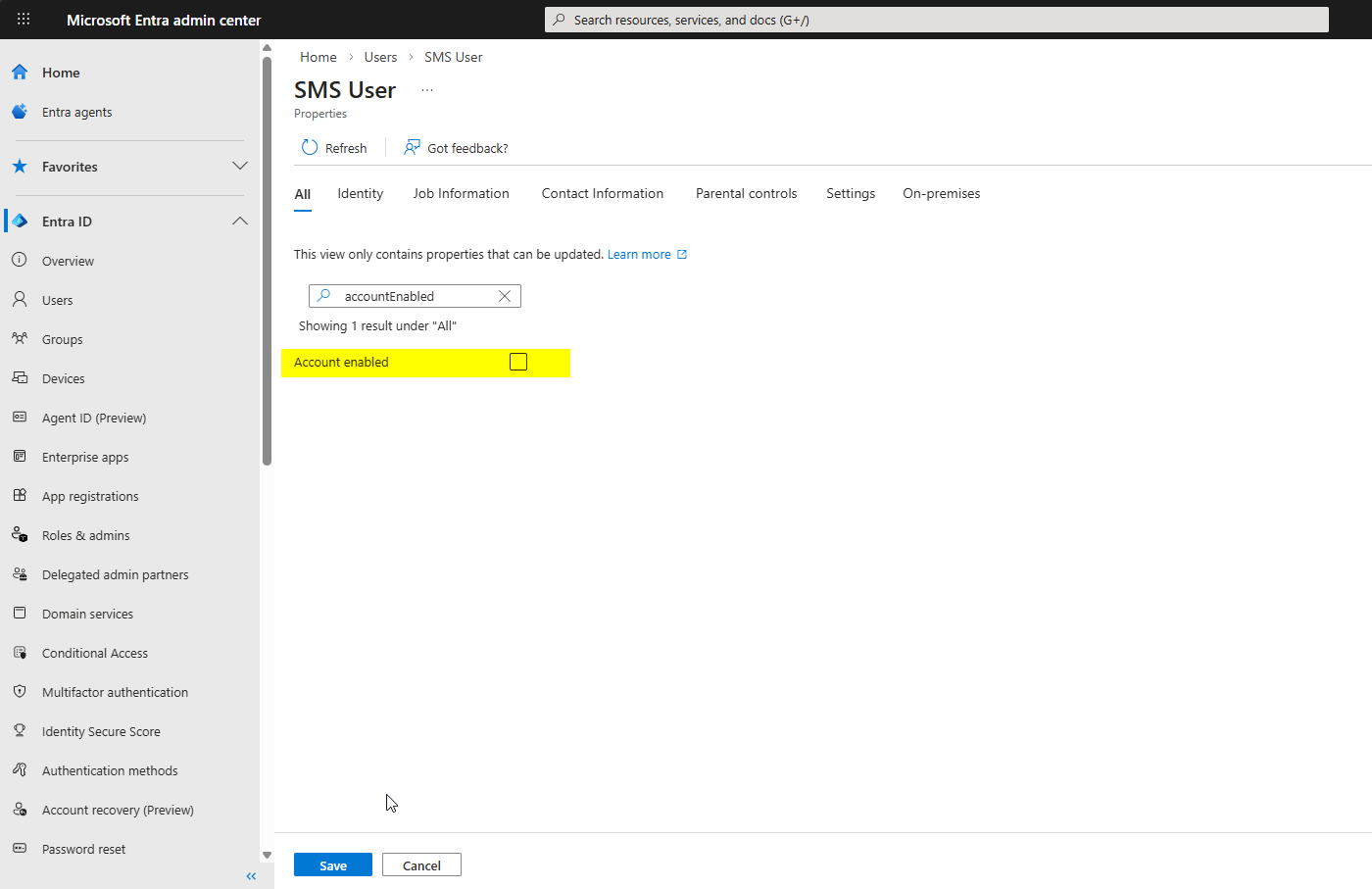
To reproduce: open a user > toggle Block sign-in > Save.
Wait 2–5 minutes for the log to surface (Audit logs have a small ingest delay). Then back to Audit logs — no specific filter needed, just find the most recent Update user activity.
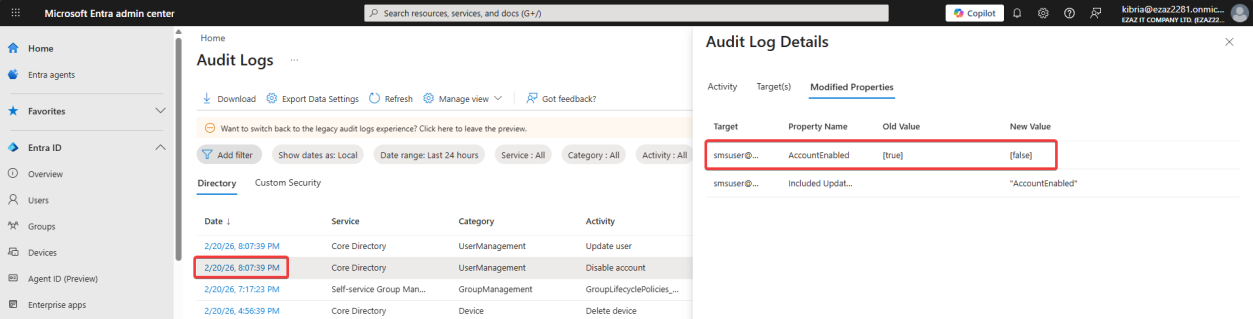
accountEnabled went from True → False. No guesswork — the exact attribute change is there.Click into it > Modified Properties tab. You’ll see accountEnabled with Old Value True and New Value False. The Initiated by column on the parent log row tells you which admin did it.
This is the workflow for any “what changed and who changed it” question. The Modified Properties tab strips out all the guesswork — it’s a literal before/after diff of the configuration.
Part 2 — Sign-in Logs
Sign-in logs tell you access. Monitoring & health > Sign-in logs.
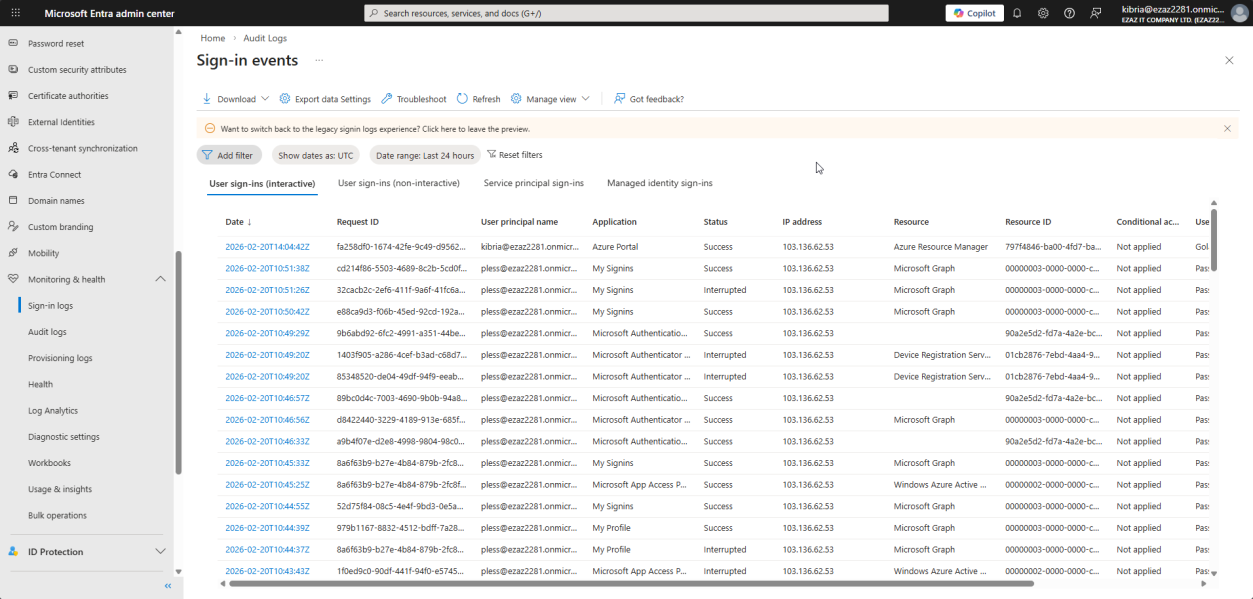
The four tabs at the top split sign-ins by who/what is doing them — pick the right tab for the right investigation:
- Interactive User Sign-ins — a human typed a password, approved an MFA prompt, used Windows Hello. This is the tab for “did the user actually sign in?”
- Non-interactive User Sign-ins — background logins from client apps using a refresh token. Outlook quietly refreshing your inbox, Teams reconnecting after a network blip. No prompt was shown to the user. Don’t panic when this tab is busy — it’s normal.
- Service Principal Sign-ins — app-to-app logins. A registered application authenticating to Entra ID using a certificate or client secret to do automated work. There’s no human involved.
- Managed Identity Sign-ins — Azure resources (a VM, an App Service) authenticating to other Azure services without storing any credentials. Modern best practice for Azure-internal auth.
The columns
For an individual log row:
- Date — when the sign-in happened
- Request ID — unique identifier for this specific attempt (give to Microsoft Support, like Correlation ID)
- UPN — the email of the user signing in
- Application — what they were trying to access (Office 365 Exchange Online, Azure portal, etc.)
- Status — Success / Failure / Interrupted (Interrupted usually means MFA setup or password change is required)
- IP Address — the public IP they came from
- Location — city/country estimated from the IP (geolocation isn’t always accurate)
- Resource — the backend service the app was trying to read from
- Conditional Access — Applied / Not Applied / Failure for this sign-in
Sign-in details — the six tabs
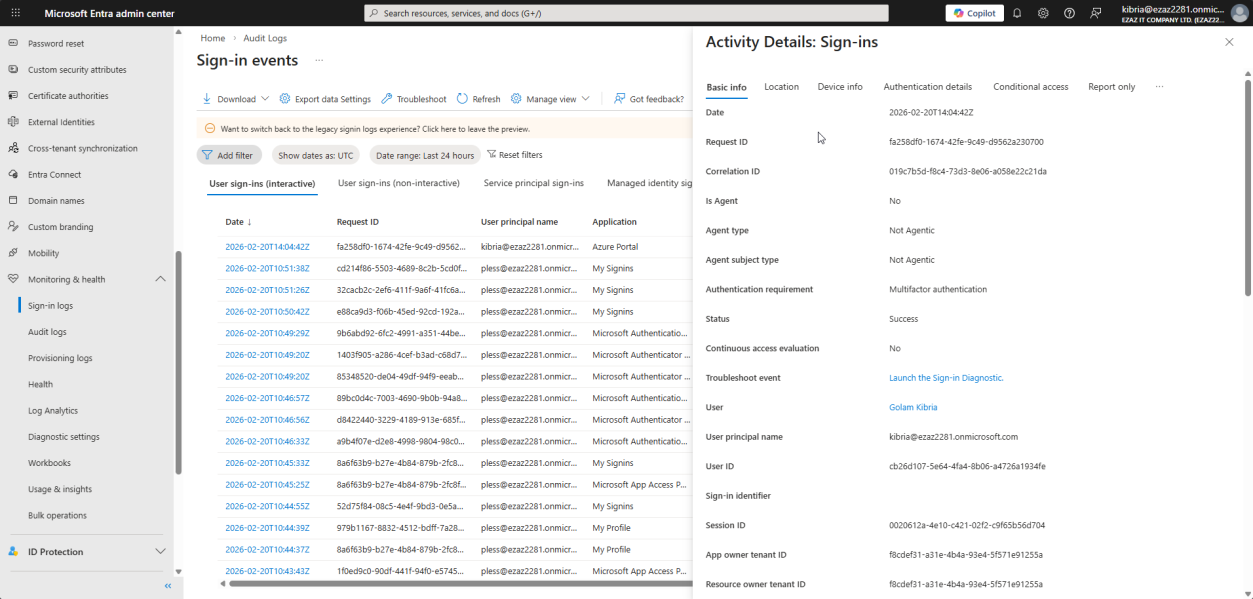
Click any sign-in entry to open the details. Six tabs, each one answers a different question:
- Basic Info — summary plus the error code if it failed (e.g. AADSTS50126 = bad password). Google the error code — Microsoft documents every one with a cause.
- Location — deeper geo data for the IP. Useful for “is this user signing in from a country they shouldn’t be?”
- Device Info — OS, browser, and crucially whether the device is registered/managed in Intune. Unmanaged devices accessing corporate data are a red flag.
- Authentication Details — the most important security tab. Shows exactly how the user proved their identity. Was it password + SMS? Password + Authenticator? Passwordless? FIDO2? Did MFA actually get satisfied? This is where you spot users who have MFA configured but somehow signed in without it.
- Conditional Access — lists every CA policy in the tenant and shows whether each one evaluated this sign-in as Success / Failure / Not Applied. Essential for “why didn’t my CA policy block this?”
- Report Only — results of CA policies that are in test mode. They didn’t actually block, but this tab shows what would have happened if they were live. Use it before flipping a new CA policy from Report-only → On.
Things that bite people
2–5 minute ingest delay
Both audit and sign-in logs have a delay between the action happening and showing up in the log. If you make a test change and immediately go look, you’ll see nothing. Wait 5 minutes and refresh.
Logs only retained 30 days (free tier)
Default retention is 30 days for audit logs, 30 days for sign-in logs (Entra ID Free / Microsoft 365 Apps). Entra ID P1 / P2 = 30 days but you can stream to Log Analytics or a SIEM for longer retention. For compliance scenarios needing 1+ year retention, set up the Log Analytics workspace export early — you can’t backfill once data ages out.
Investigating non-interactive sign-ins by mistake
If a user complains they can’t sign in but you check the wrong tab, the log will look noisy with old refresh-token activity that doesn’t reflect the current failure. Always start with Interactive User Sign-ins for “user can’t log in” complaints.
Conditional Access “Not Applied” doesn’t mean broken
A policy showing Not Applied for a sign-in just means the policy’s conditions didn’t match (wrong user group, wrong app, wrong location). It’s normal for most policies to show Not Applied for most sign-ins. Worry only when a policy should have applied but shows Not Applied — that’s a misconfiguration.
Geolocation false positives
IP-to-location lookups aren’t perfect. Mobile carriers route through different cities, VPNs/proxies obscure real locations. Don’t alert on country mismatch alone — combine with sign-in risk score in Identity Protection (P2) for a real signal.
What’s next
Audit + Sign-in logs give you the visibility. The next post in the Entra ID Security pathway uses that visibility to design Conditional Access policies that enforce MFA for admin roles — the most-recommended baseline policy for any Entra tenant.