
Per-user MFA is the legacy way to enable MFA in Microsoft Entra ID — Microsoft now recommends Conditional Access for new tenants, but per-user MFA is still useful for existing tenants migrating from legacy, Free / non-P1 tenants without CA, or emergency single-user MFA-on situations. Three states: Disabled (no MFA), Enabled (MFA but legacy auth bypasses), Enforced (MFA strictly mandatory, legacy blocked). Goal: get to Enforced.
Step 1 — access the per-user MFA portal
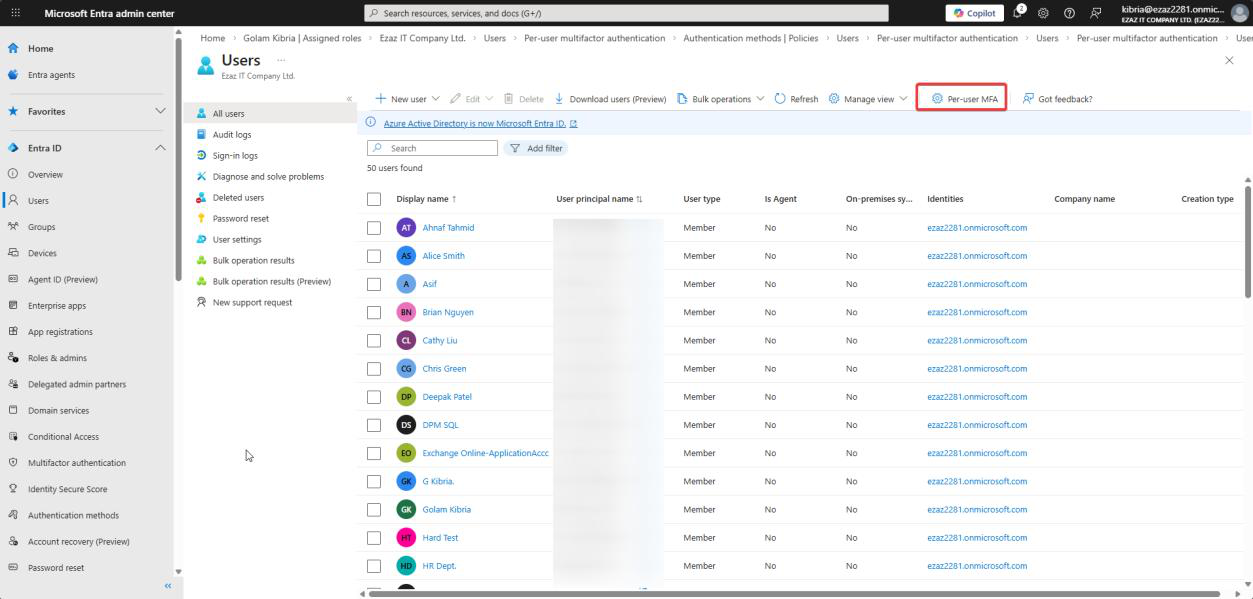 entra.microsoft.com. Users > All users > Per-user MFA in the toolbar (sometimes under
 ...). Opens the legacy MFA portal.Sign in to entra.microsoft.com as a user-administration admin. Users > All users > Per-user MFA in the top menu (sometimes under the gear or ...). New tab opens the legacy MFA portal.
Step 2 — Enable
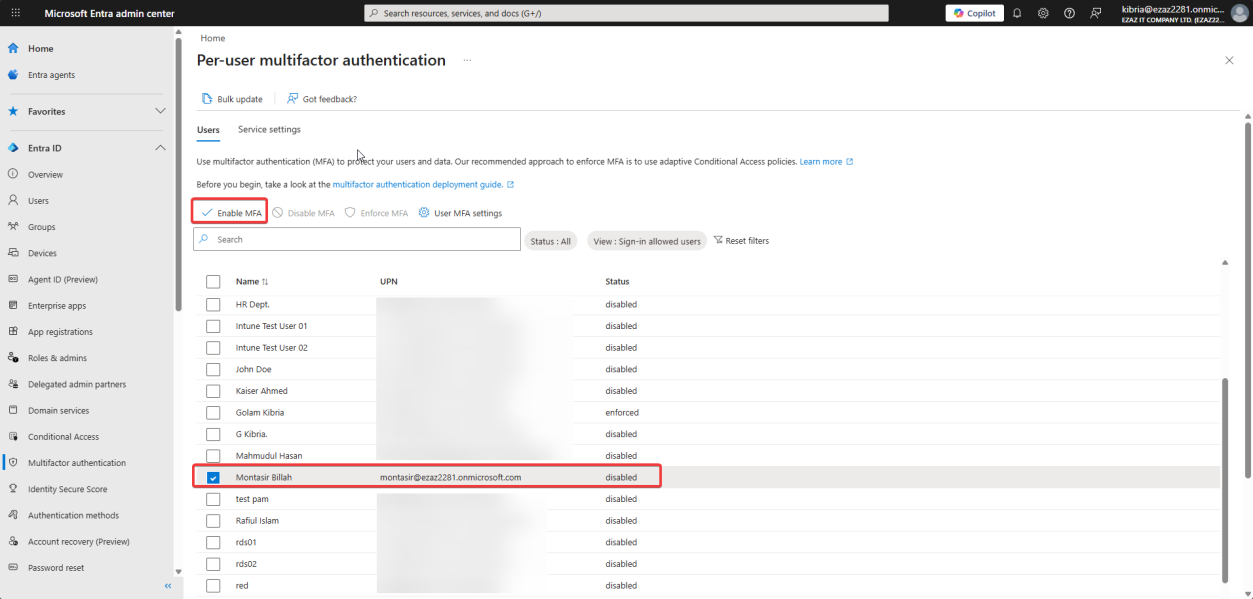
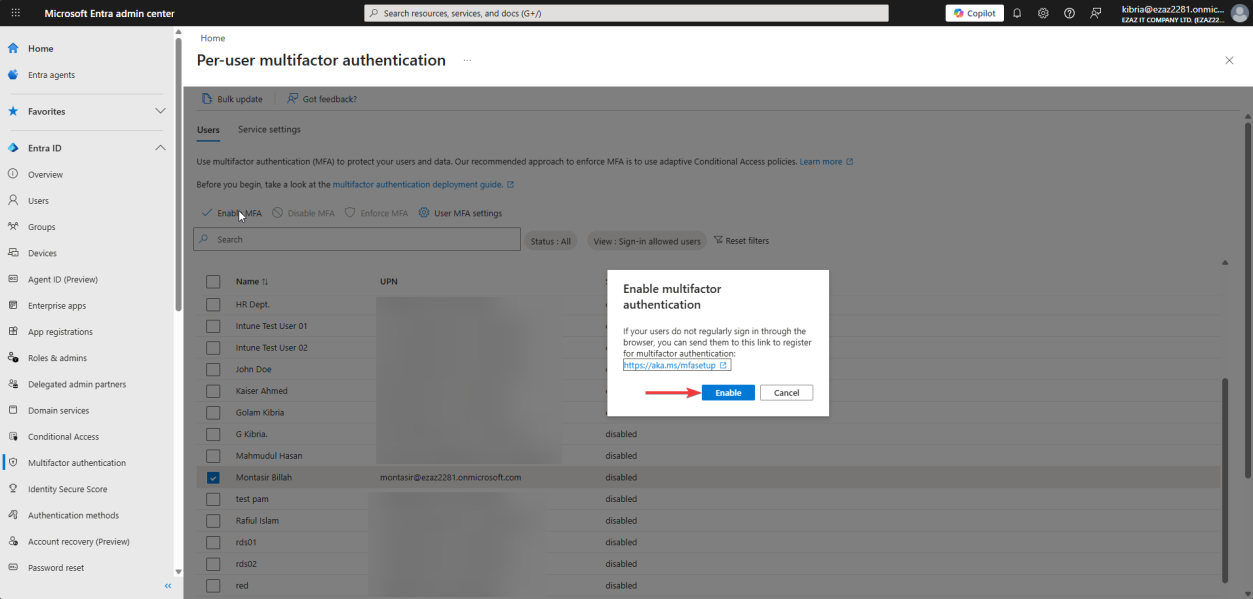
Tick the user (jdoe in this demo). Click Enable. Confirm enable multi-factor auth. Status moves Disabled → Enabled.
At this point, modern apps (Outlook, Teams, browser sign-in) prompt for MFA. Legacy auth (basic auth IMAP/POP/SMTP) can still bypass.
Step 3 — Enforce
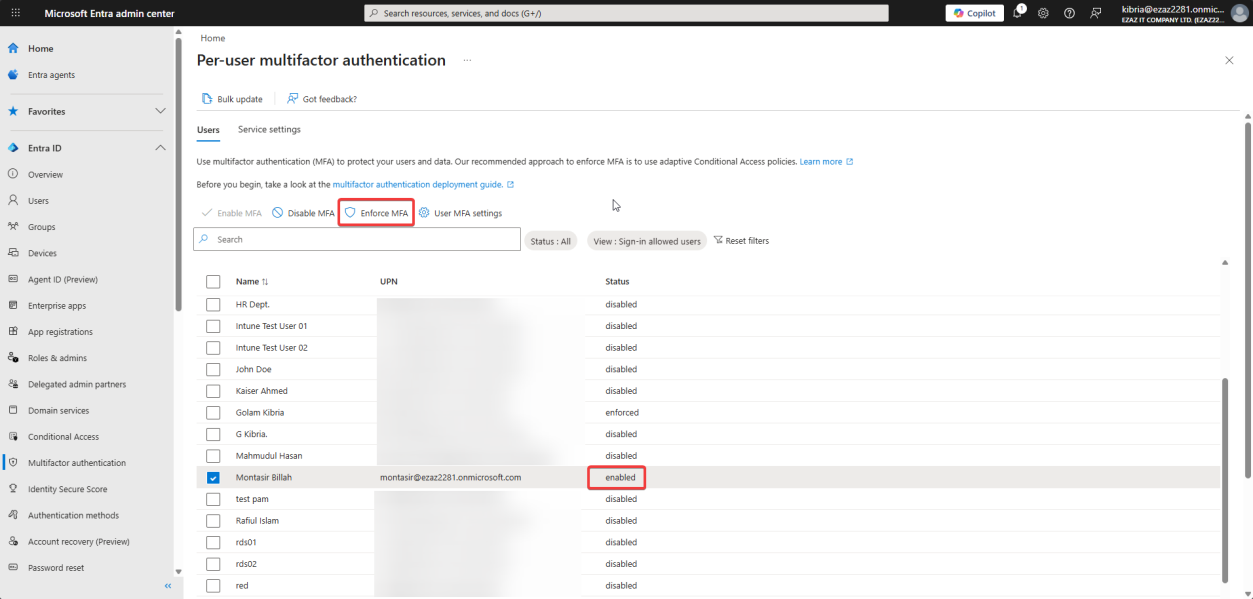
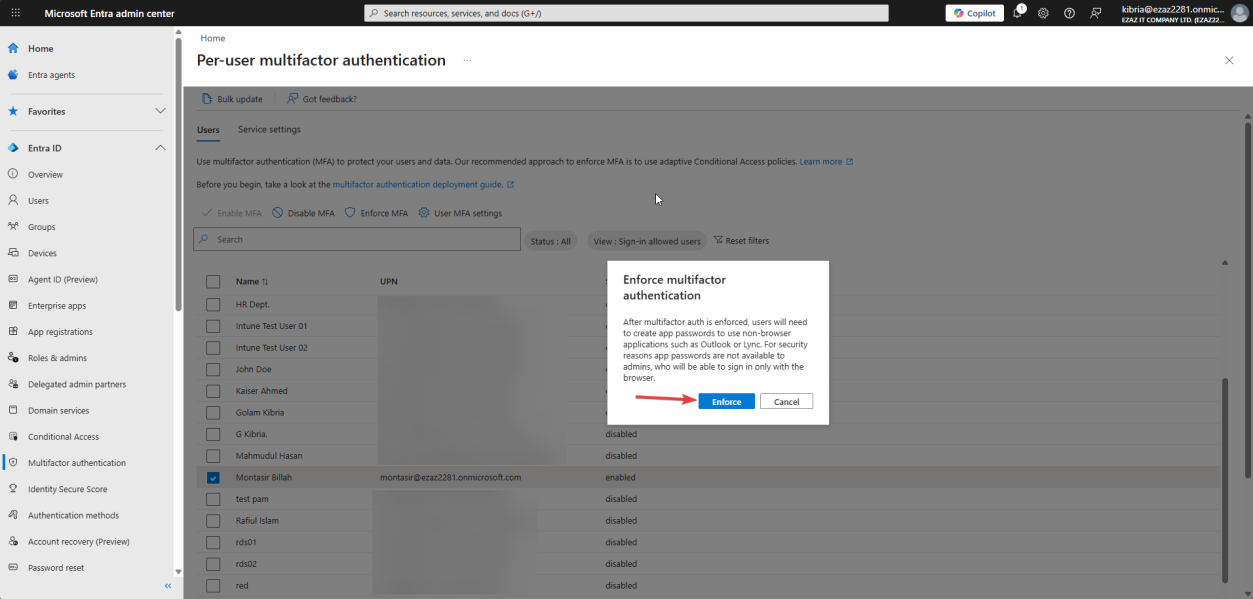
Same user still ticked > Enforce > confirm. Status: Enabled → Enforced. Now legacy auth is blocked too — MFA is mandatory across the board.
Step 4 — verify in incognito

portal.office.com. Sign in as jdoe — More information required appears.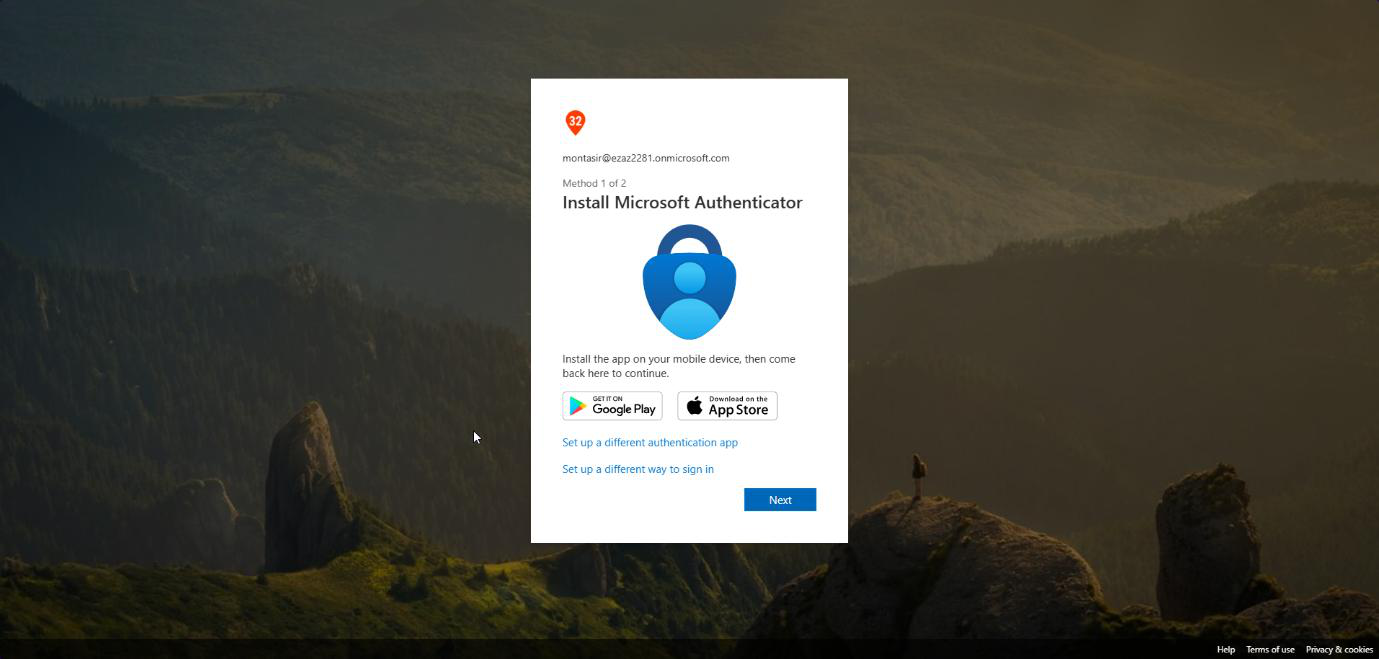
New incognito browser > portal.office.com > sign in as jdoe. After password: More information required. Click Next — setup prompts for Microsoft Authenticator. Done.
Enable vs Enforce — the load-bearing difference
| State | Modern auth | Legacy auth (IMAP/POP/SMTP basic) |
|---|---|---|
| Disabled | Password only | Password only |
| Enabled | MFA required | Bypassed — password only |
| Enforced | MFA required | Blocked entirely |
Stopping at Enabled is a common mistake — gives a false sense of security while attackers can still password-spray legacy endpoints. Always go to Enforced.
Per-user MFA vs Conditional Access
Microsoft’s newer recommendation is Conditional Access policies (covered in later posts in this series): scope MFA by user group, app, location, sign-in risk, etc. More flexible, fewer per-user toggles. Requires Entra ID P1 licensing. For tenants without P1, per-user MFA is still the answer.
Things that bite people
Stopped at Enabled
The portal makes Enabled look like the goal state. It’s not. Always click Enforce too.
Legacy MFA portal feels old
Because it is. The portal predates the new admin centre. Bookmark it directly: https://account.activedirectory.windowsazure.com/UserManagement/MultifactorVerification.aspx
Service accounts also hit MFA
If you enforce MFA on a user account that’s used by a service or app, the service breaks at the next auth. Move services to managed identities or app registrations with cert auth instead.
User can’t register because admin had to do it
The first sign-in after Enforce prompts the user to register their MFA method. If you (the admin) keep helping by clicking Skip, registration never completes. Let the user finish the wizard themselves.
What’s next
Other posts in the Entra ID Security pathway cover Temporary Access Pass (TAP), passwordless, and Conditional Access for MFA enforcement at scale.