
You followed the Hybrid Join guide. Entra Connect is happily syncing. The SCP is in AD. The four URLs are reachable. The device is domain-joined. Yet dsregcmd /status on the client throws fallback_sync, invalid_request, and error_missing_device — and the cloud says the device is stuck at Registered: Pending forever.
This is the classic Hybrid Join GUID-mismatch failure. The device holds a Device ID locally that Entra ID either has no record of, or has only as a half-finished Pending entry. Until that contradiction is cleared on both sides, no amount of restarts, gpupdates, or retries will fix it. This post is the procedure that does fix it — in five phases, with verification at every step.
What the three errors actually mean
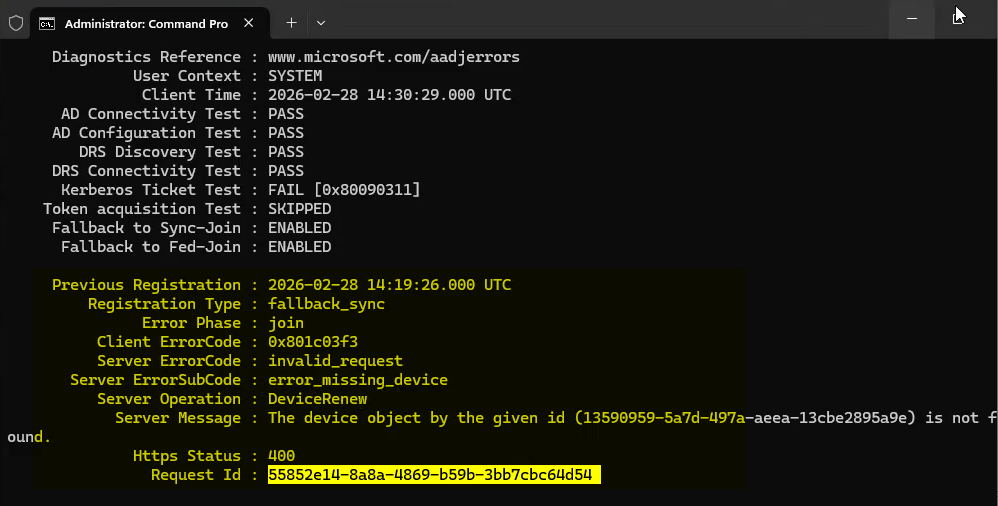
dsregcmd /status reports fallback_sync + invalid_request + error_missing_device. The device thinks it has a Device ID; Entra disagrees.| Error | Meaning |
|---|---|
fallback_sync |
Primary Hybrid Join registration flow failed. Device fell back to an alternate sync method. That also failed. |
invalid_request |
Entra ID rejected the registration request as invalid — usually because the Device ID being presented references an object that no longer exists or is in an unrecoverable state. |
error_missing_device |
Entra ID has no device object matching the GUID the device is presenting. The device thinks it’s registered; the cloud has no record. |
Together they describe a contradictory state, not an unregistered one. The device holds GUID + cert + registry keys; Entra holds nothing or only a stale Pending entry. Both sides must be cleared before re-registration can succeed.
How devices end up here
- Previous Hybrid Join attempt half-completed — device wrote local state, cloud object never finalised or was deleted later.
- Entra Connect synced the computer object but the client never finished the handshake. Cloud entry is stuck at Pending.
- Device was wiped or re-imaged and rejoined the same domain without first clearing its old Entra registration.
- Admin manually deleted the cloud device object while the local cert store still had its certificate.
Where the flow actually breaks
| Stage | What happens | Where |
|---|---|---|
| 1. Domain Join | Computer object created in on-prem AD. | On-prem AD |
| 2. SCP discovery | Device reads the SCP for tenant info. | On-prem AD |
| 3. Entra Connect sync | Computer object syncs up — cloud entry created in Pending. | Entra ID |
| 4. Device registration | Device contacts Entra, presents cert, completes registration. Pending → Registered. | Device + Entra ID |
| 5. Cert issued | Entra issues MS-Organization-Access cert to device. | Device cert store |
| 6. Kerberos / PRT | Device gets Primary Refresh Token for cloud SSO. | Device + DC |
Stage 4 is where the failure happens. The fix is to fully clear stages 4 and 5 on both sides, then let the device walk them again from a clean slate.
Phase 1 — identify and delete the stale Entra object
Step 1 — capture the GUID from dsregcmd
On the affected device, Command Prompt as Administrator:
dsregcmd /statusFind the line:
The device object by the given ID <GUID> is not foundCopy the GUID. That’s the Device ID the client thinks it owns.
Step 2 — find the matching Pending object in the portal
- entra.microsoft.com as Global Admin or Cloud Device Administrator.
- Identity > Devices > All Devices.
- Search by hostname or paste the GUID.
- Open the device. Join Type = Hybrid Azure AD Joined, Registration Status = Pending.
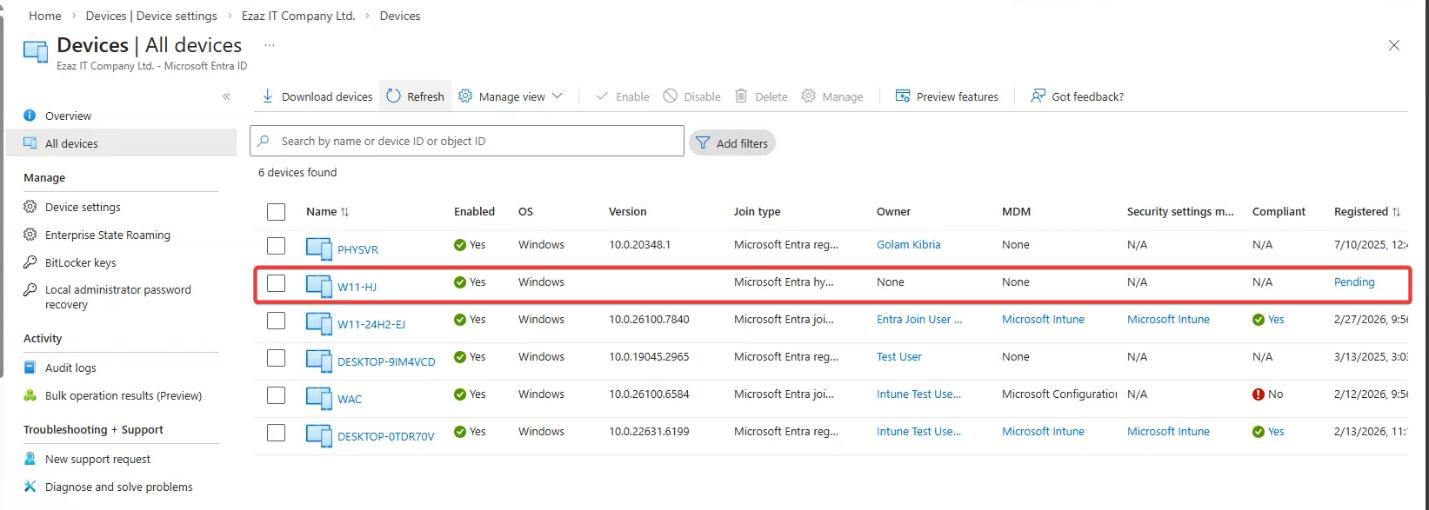
dsregcmd.Confirm the Device ID in the portal matches the GUID from Step 1 before deleting anything. Deleting the wrong device object causes problems for whoever owns it. If the GUIDs don’t match, you’ve found the wrong device entry — search again.
Step 3 — delete the stale object
With the correct device confirmed: Delete > confirm. The next Entra Connect cycle will create a fresh entry, against which the device will re-register.
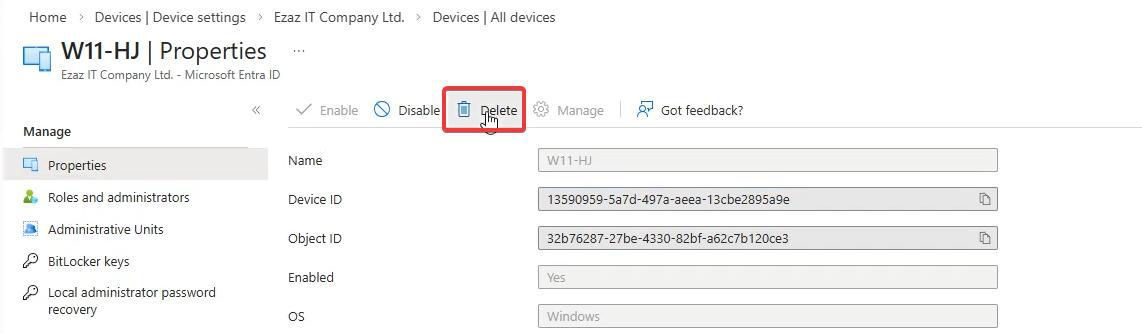
Phase 2 — clear the device-side state
Step 4 — restart the device
Don’t skip this. The restart triggers Hybrid Join scheduled tasks and clears cached state from memory.

Step 5 — dsregcmd /leave
After reboot, Command Prompt as Administrator:
dsregcmd /leave
dsregcmd /status
/leave formally deregisters from Entra ID, clears the local GUID, removes the device cert from the user store, resets registration state. The follow-up /status should now show:
AzureAdJoined : NO
DomainJoined  : YES
Correct intermediate state. Device is still in lab.local (which is what we want), but it is no longer claiming any Entra registration.
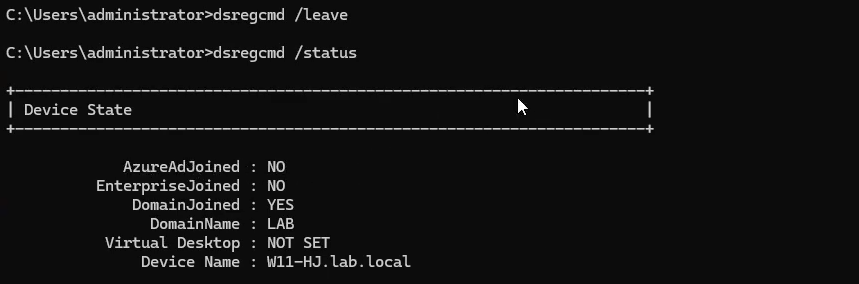
dsregcmd /leave then /status: AzureAdJoined: NO, DomainJoined: YES. Local GUID and cert are gone.Phase 3 — verify time sync
Step 6 — force time resync on the device
Kerberos tolerates roughly five minutes of clock skew. TLS hates expired or future-dated certs. Both are used during registration. Even if the clock looks fine, force a resync:
w32tm /resync /force
w32tm /resync /force. Time skew breaks Kerberos and TLS, both used in the registration handshake.Step 7 — force a delta sync from the Entra Connect server
On the Entra Connect server, PowerShell as Administrator:
Import-Module ADSync
Start-ADSyncSyncCycle -PolicyType Delta
This re-creates a fresh device object in Entra ID in Pending state immediately, instead of waiting up to 30 minutes for the next scheduled cycle.

Import-Module ADSync > Start-ADSyncSyncCycle -PolicyType Delta. New clean object lands in Entra in Pending state.Phase 4 — re-register the device
Step 8 — dsregcmd /join
Back on the device, Command Prompt as Administrator:
dsregcmd /join
dsregcmd /status
/join contacts Entra ID, presents the AD computer cert as proof of identity, and completes the registration against the freshly synced cloud object. The follow-up /status should now show:
AzureAdJoined : YES
DomainJoined  : YES
Both YES = Hybrid Join restored.
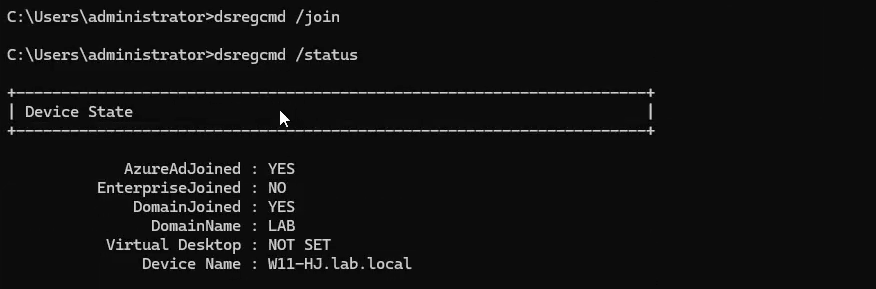
dsregcmd /join > /status: AzureAdJoined: YES, DomainJoined: YES. Hybrid Join is back.Phase 5 — end-to-end verification (don’t skip this)
Don’t stop at dsregcmd /status showing YES. The whole point of the rebuild is to get the GUIDs consistent — you have to confirm that on three sides.
Step 9 — cert in certlm.msc
- Win+R >
certlm.msc> Enter (Local Machine cert store, not user). - Personal > Certificates.
- Find the cert issued by MS-Organization-Access.
- Open it > Details > Subject. Format:
CN = <GUID>.
Note that GUID. This is the load-bearing identifier — for Hybrid Join the cert lives in the Local Machine store (computer-level), unlike Entra Registered (BYOD) where it lives in the user store.
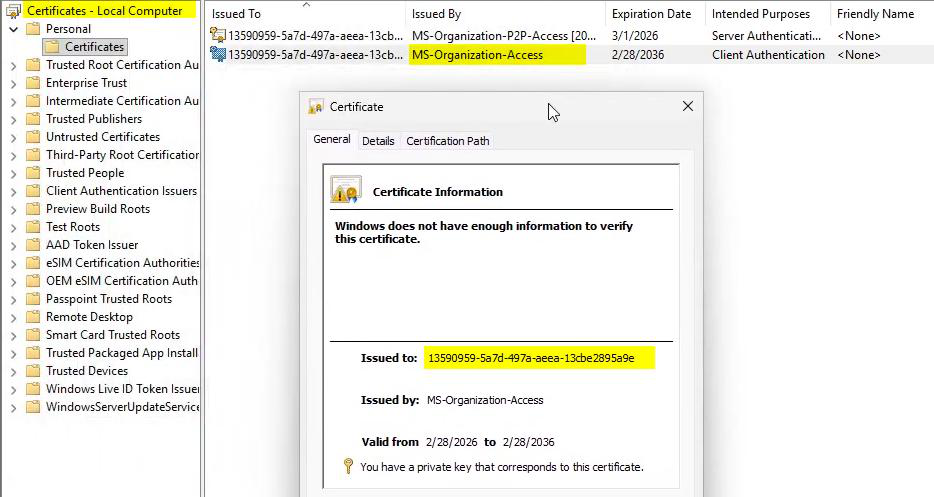
certlm.msc > Personal > Certificates > MS-Organization-Access > Details > Subject. The CN value is the Entra Device ID.Step 10 — objectGUID in on-prem AD
- ADUC on the DC. View > Advanced Features.
- Find the computer object > Properties > Attribute Editor.
- Scroll to objectGUID.
- Compare with the cert Subject GUID from Step 9. They must be identical.
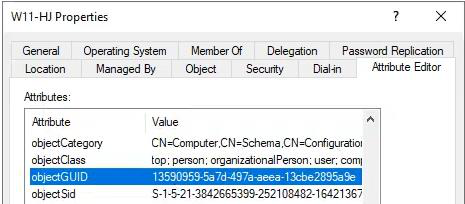
The MS-Organization-Access cert Subject is derived from the AD computer object’s objectGUID. Match here proves the cert on the device corresponds to the right AD object — no GUID mismatch between on-prem and cloud.
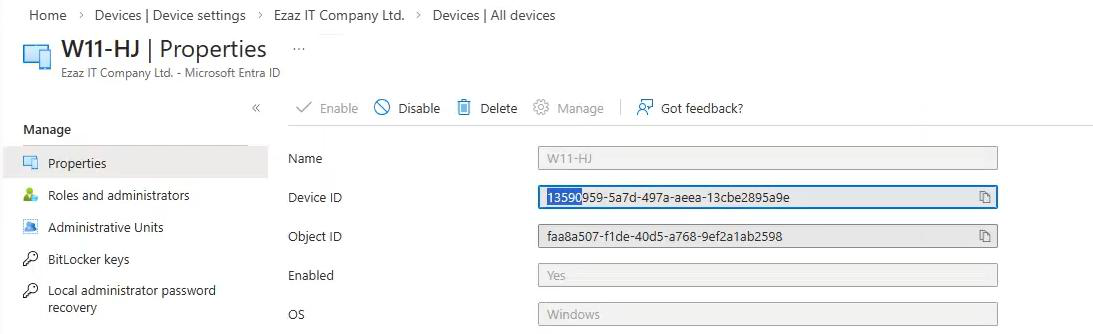
Step 11 — Device ID in the Entra portal
- entra.microsoft.com > Identity > Devices > All Devices.
- Search for the device. Status now Registered (not Pending). Join Type Hybrid Azure AD Joined.
- Click in > note the Device ID.
- All three GUIDs — AD objectGUID, cert Subject, Entra Device ID — must match.
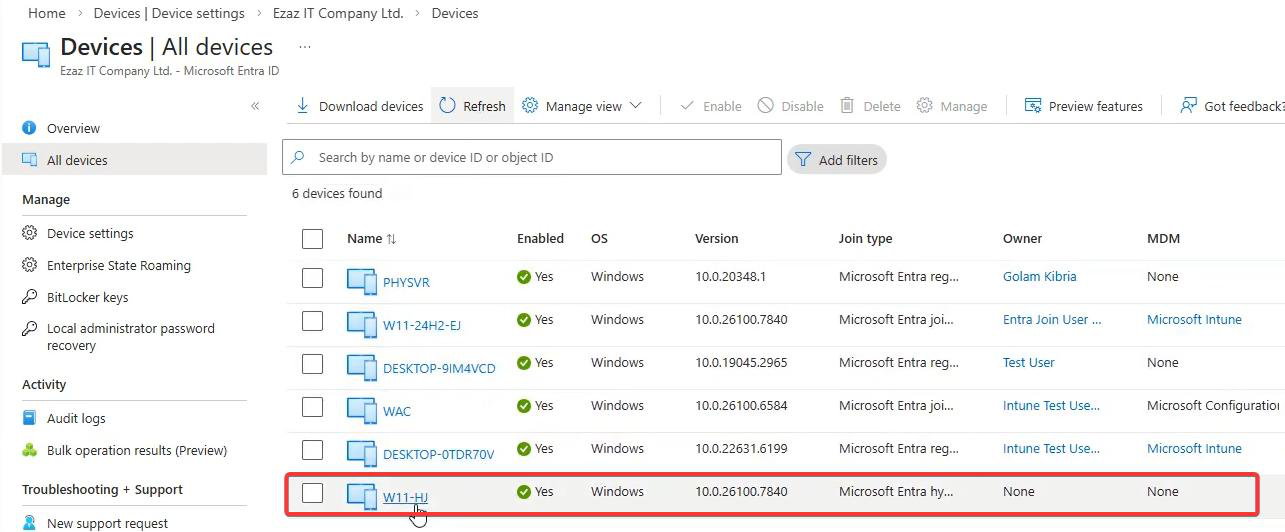
Step 12 — Kerberos ticket cache
klistHealthy output should contain:
| Ticket | Why it matters |
|---|---|
krbtgt/<DOMAIN> |
Domain TGT — foundation ticket from on-prem DC. Confirms domain auth works. |
| Primary Refresh Token (PRT) | Cloud TGT from Entra. Visible via dsregcmd /status as AzureAdPrt: YES. Enables M365 / Azure / Intune SSO. |
krbtgt/<DOMAIN>.cloud |
Cloud Kerberos ticket for hybrid SSO. Only present in hybrid environments. |
If klist shows tickets for your domain, the device is fully functional. If it’s empty or only stale tickets, sign out, sign back in with a domain account, then run klist again — tickets are issued fresh at logon.
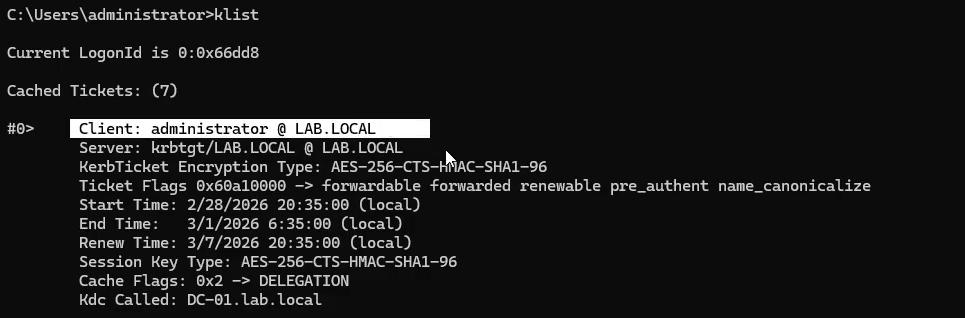
klist — you should see krbtgt/<DOMAIN> (on-prem TGT), the cloud PRT, and a krbtgt/<DOMAIN>.cloud entry. All three present = SSO is wired up.Quick-reference resolution checklist
| # | Action | Where | Expected |
|---|---|---|---|
| 1 | dsregcmd /status, capture GUID from error_missing_device |
Device (admin CMD) | GUID identified |
| 2 | Find device in Entra portal, confirm Pending and matching GUID | Entra Admin Center | Stale Pending object confirmed |
| 3 | Delete the stale object | Entra Admin Center | Object deleted |
| 4 | Restart the device | Device | Reboot complete |
| 5 | dsregcmd /leave > /status |
Device (admin CMD) | AzureAdJoined: NO, DomainJoined: YES |
| 6 | w32tm /resync /force |
Device (admin CMD) | Time synced |
| 7 | Start-ADSyncSyncCycle -PolicyType Delta |
Entra Connect server (admin PS) | Sync complete; fresh Pending object in Entra |
| 8 | dsregcmd /join > /status |
Device (admin CMD) | AzureAdJoined: YES, DomainJoined: YES |
| 9 | Cert MS-Organization-Access in certlm.msc, note Subject | Device | GUID captured |
| 10 | objectGUID in ADUC Attribute Editor | On-prem DC | Matches cert Subject GUID |
| 11 | Device ID in Entra portal, status Registered | Entra Admin Center | Matches cert Subject GUID |
| 12 | klist |
Device (CMD) | Domain TGT + cloud tickets present |
Error-code quick reference
| Error / Status | Root cause | Fix |
|---|---|---|
fallback_sync |
Primary registration failed; alt sync also failed. | Clear stale cloud object, full clean re-register (this guide). |
invalid_request |
Cloud rejected the request — referenced GUID doesn’t exist or is invalid. | Delete Pending object, dsregcmd /leave, then rejoin. |
error_missing_device |
Local GUID exists, no matching cloud device. | Compare GUIDs in portal, delete stale entry, re-register. |
| Registered: Pending (portal) | Connect synced the object but client never finished the handshake. | dsregcmd /join on device after delta sync. |
AzureAdJoined: NO after /join |
Time skew or stale Connect sync. | w32tm /resync /force + Start-ADSyncSyncCycle, retry /join. |
0x4C4C4F43 (LOCL) in w32tm |
DC pulling time from Hyper-V host instead of NTP. Drift will break Kerberos and TLS. | Fix DC time source first — configure an external NTP source, then re-attempt. |

Things that bite people
Skipped the restart between Phase 1 and Phase 2
Cached state in lsass and the dsreg subsystem makes /leave behave unpredictably. The restart is not optional.
Deleted the wrong cloud device object
If the GUID in the portal didn’t match the one from dsregcmd, you deleted some other device. Now you have two broken machines. Triple-check the GUID before clicking Delete.
Forgot to run Start-ADSyncSyncCycle after the cloud delete
The fresh Pending object never appears, so dsregcmd /join still has nothing to register against. Force the delta sync explicitly — don’t wait 30 minutes.
DC time source is the Hyper-V host
Common in lab environments. Hyper-V Time Sync drifts, Kerberos breaks, and you spend hours chasing ‘random’ auth failures. Configure your PDC emulator with an external NTP source (w32tm /config /manualpeerlist:"time.windows.com,0x9" /syncfromflags:manual /reliable:yes /update) before troubleshooting any further.
Old cert lingers in certlm.msc after /leave
Rare, but if it happens you have to manually delete the MS-Organization-Access cert before /join will work cleanly. Confirm /leave says success first.
What’s next
You’ve seen the failure mode and the fix. The next post in the Entra ID Security pathway moves to the other end of a device’s lifecycle: Decommissioning a Device in Microsoft Entra ID — how to retire devices cleanly so they don’t become exactly the kind of stale object you just spent this guide cleaning up.