
Microsoft Entra Hybrid Join is the configuration that lets a Windows device live in two directories at once — your on-premises Active Directory (e.g. lab.local) and Microsoft Entra ID (e.g. ezaz2281.onmicrosoft.com) — without the user noticing anything has changed. The Windows login still happens with the AD account. Group Policy still applies. But the device now also has a cloud identity, which unlocks Intune, Conditional Access, and Single Sign-On to Microsoft 365.
This is the right device-join model for any organisation that already runs on-prem AD and is moving toward cloud management without a cutover. The previous post in this Entra ID Security pathway covered Entra Registered (BYOD); this one covers Hybrid Join end-to-end — prerequisites, network URLs, OU sync scope, the Entra Connect wizard, the on-client Automatic Device Join task, and four ways to verify it actually worked.
Hybrid vs Joined vs Registered — pick the right model
| Feature | Entra Registered | Entra Joined | Hybrid Entra Joined |
|---|---|---|---|
| Needs on-prem AD | No | No | Yes — required |
| Needs Entra Connect | No | No | Yes — required |
| Login account | Personal/local | Entra ID work | On-prem AD account |
| Appears in on-prem AD | No | No | Yes |
| Appears in Entra ID | Yes | Yes | Yes — both |
| GPO support | No | No | Yes |
| Intune policies | Limited | Full | Full |
| SSO to M365 | Yes | Yes | Yes |
| Conditional Access | Partial | Full | Full |
| Best for | BYOD | Cloud-only | Hybrid environments |
Prerequisites
| Requirement | Lab value |
|---|---|
| On-prem AD domain | lab.local with at least one DC |
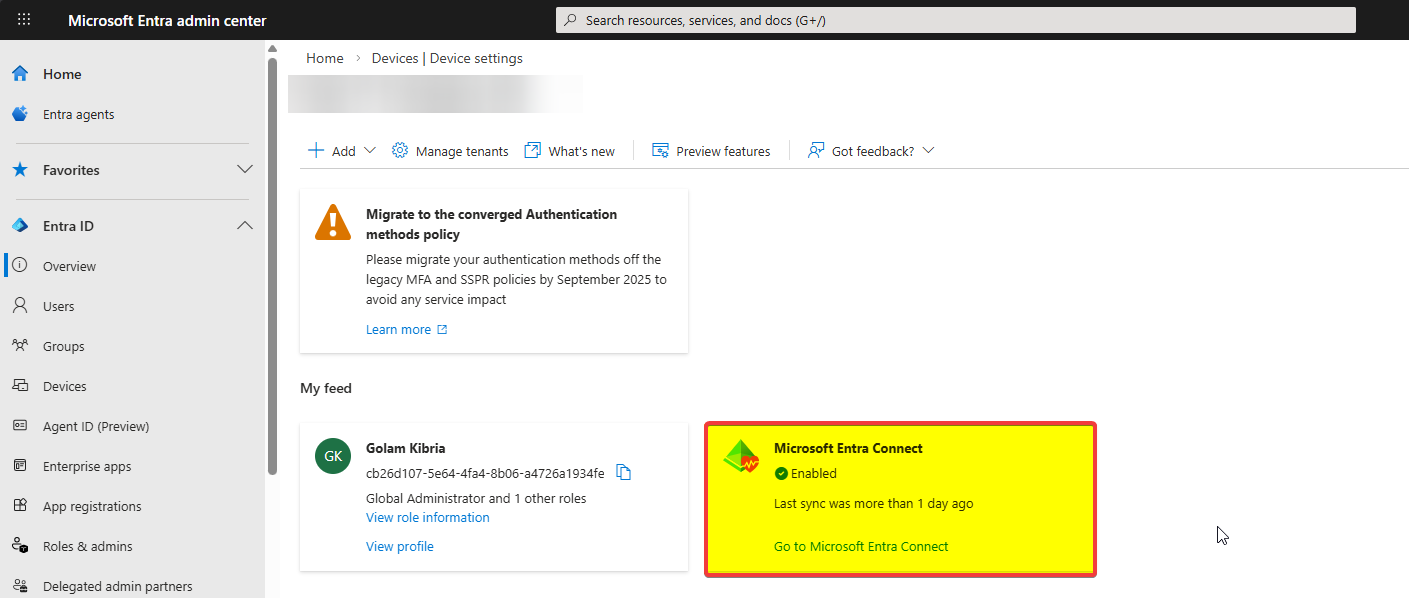
| Microsoft Entra Connect | Installed on the DC and actively syncing |
| Entra ID tenant | ezaz2281.onmicrosoft.com |
| Global Admin account | For the Entra Connect wizard sign-in |
| Enterprise Admin account | For one-time SCP creation in AD |
| OU in sync scope | The OU holding computer objects |
| Client OS | Windows 10 or Windows 11 |
| Network URLs reachable | Four Microsoft endpoints (next section) |
| License | Entra ID Free is sufficient |
The four URLs that must reach Microsoft
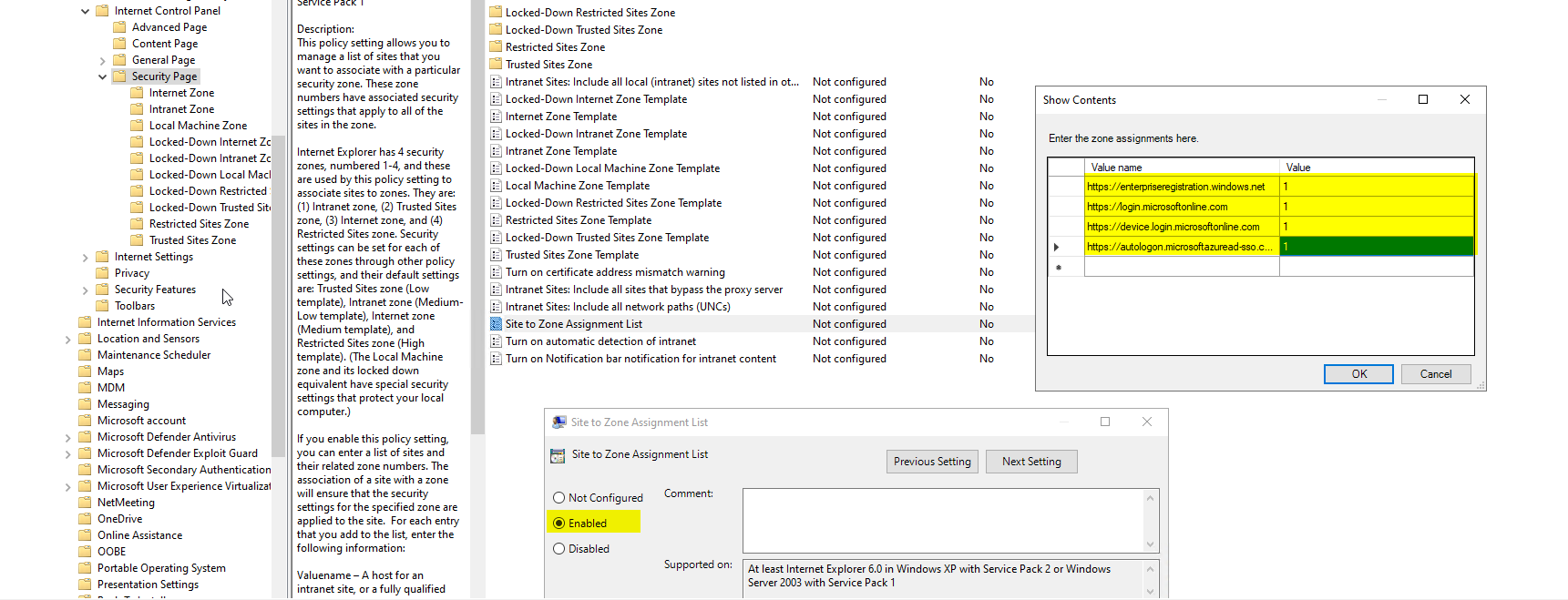
Hybrid Join talks to four Microsoft endpoints. If any of them are blocked by a proxy or firewall, the join silently fails — the device will be domain-joined but never registers in Entra ID, and you’ll waste a long afternoon hunting for a clean error message that doesn’t exist.
| URL | Purpose |
|---|---|
https://enterpriseregistration.windows.net |
Device registration endpoint |
https://login.microsoftonline.com |
Authentication during registration |
https://device.login.microsoftonline.com |
Device login endpoint used during the join itself |
https://autologon.microsoftazuread-sso.com |
Required if Seamless SSO is enabled or planned |
Allow them via Group Policy
- On the DC, open Group Policy Management.
- Edit Default Domain Policy (or a new GPO).
- Computer Configuration > Policies > Administrative Templates > Windows Components > Internet Explorer > Internet Control Panel > Security Page > Site to Zone Assignment List.
- Enable. Click Show. Add each URL with value
1(Intranet zone). - OK / Apply / OK.
Even if your users only ever touch Edge or Chrome, the Windows authentication stack still reads this Internet Explorer zone list during registration. It’s legacy, it’s real, configure it.
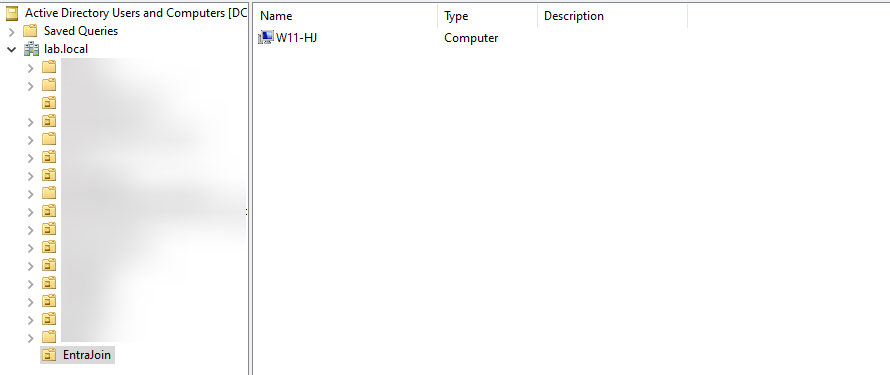
Computers OU must be in the Entra Connect sync scope
When a device joins lab.local, a computer object is created in CN=Computers (or your custom OU). For that object to reach the cloud, the OU has to be in Entra Connect’s sync scope. If it isn’t, the cert never syncs and the device never registers.
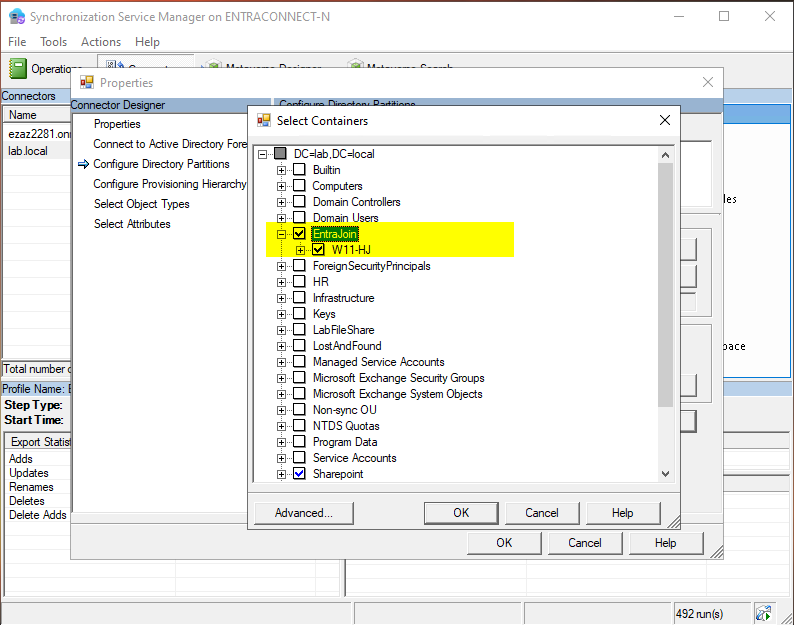
- On the DC: Start > Synchronization Service Manager (installed with Entra Connect).
- Connectors tab > double-click your
lab.localconnector. - Configure Directory Partitions > click Containers.
- Enter on-prem Administrator credentials when prompted (any account that can read AD — doesn’t need to be Enterprise Admin).
- In the Select Containers window, tick the OU your computer objects live in. Default is Computers.
- OK out of every dialog.
Run the Entra Connect Hybrid Join wizard
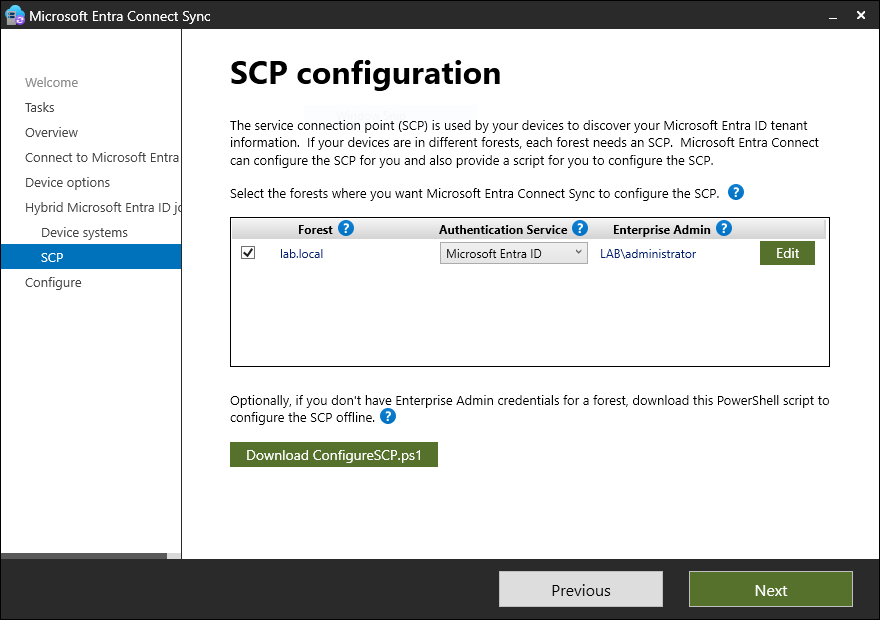
This is where the Service Connection Point (SCP) gets created in AD. The SCP is a tiny config object that tells client devices ‘here’s your Entra ID tenant name and tenant ID’ so the Automatic Device Join task knows where to register. Without the SCP, clients have nowhere to call.
- Open the Microsoft Entra Connect shortcut on the DC desktop (may still say Azure AD Connect — same tool).
- Welcome > Configure.
- Select Configure device options > Next.
- Read the Hybrid Join / Device Writeback intro > Next.
- Sign in with Global Admin (or Hybrid Identity Admin) > complete MFA > Next.
- Device Options screen: Configure Hybrid Microsoft Entra ID Join is selected by default. Next.
- Device Operating Systems: tick Windows 10 or later domain joined devices. Add Supported Windows down-level only if you have Win 7 / 8.1. Next.
- SCP screen: confirm forest =
lab.local. Authentication Service = Microsoft Entra ID (NOT AD FS unless you actually run AD FS). Click Add under Enterprise Administrator credentials. - Enter the on-prem Enterprise Admin username and password > OK > Next.
- Review summary > Configure.
- Wait a few seconds > Configuration complete > Exit.
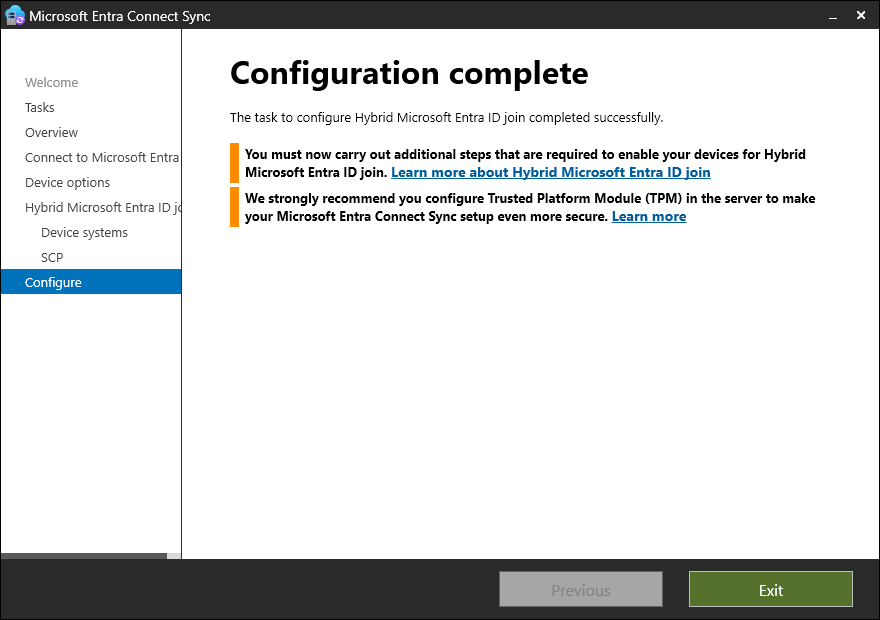
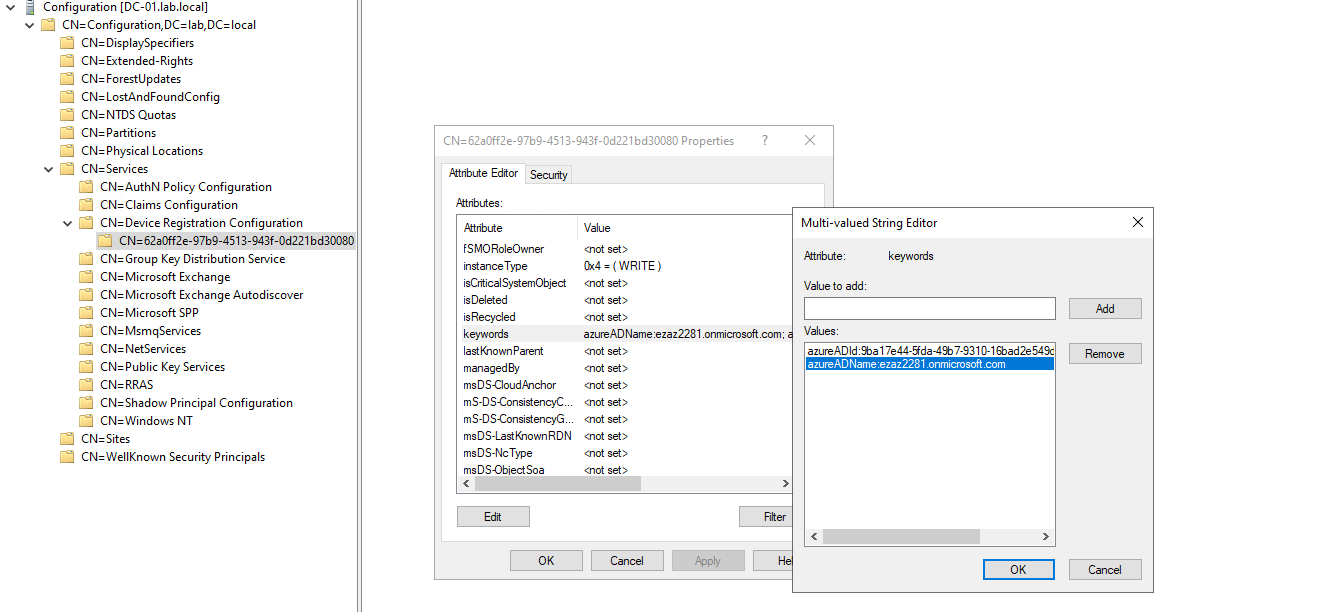
CN=Configuration > Services > Device Registration Configuration.The Enterprise Admin credentials are used only for this one-time SCP creation. They’re not stored. After the SCP exists, you can revoke Enterprise Admin from that account — but keep the account around in case you need to re-run the wizard.
Force a sync to push devices to Entra ID
Trigger an initial sync immediately so existing computer objects flow up:
Start-ADSyncSyncCycle -PolicyType InitialFor routine subsequent syncs, delta is fine:
Start-ADSyncSyncCycle -PolicyType DeltaWatch progress in Synchronization Service Manager > Operations tab. After the run completes, wait 5–10 minutes before checking Entra Admin Center — cloud propagation is fast but not instant.
Domain-join the client (if it isn’t already)
- On the Win 10/11 client: System > Domain or workgroup (or Advanced system settings > Computer Name > Change).
- Member of: Domain > type
lab.local. - Domain admin creds > OK > Welcome message > Restart.
- Sign in with a domain account.
The Automatic Device Join task — how the cloud half completes
You don’t register the client manually. A built-in Windows scheduled task does it after the device joins the domain and reboots:
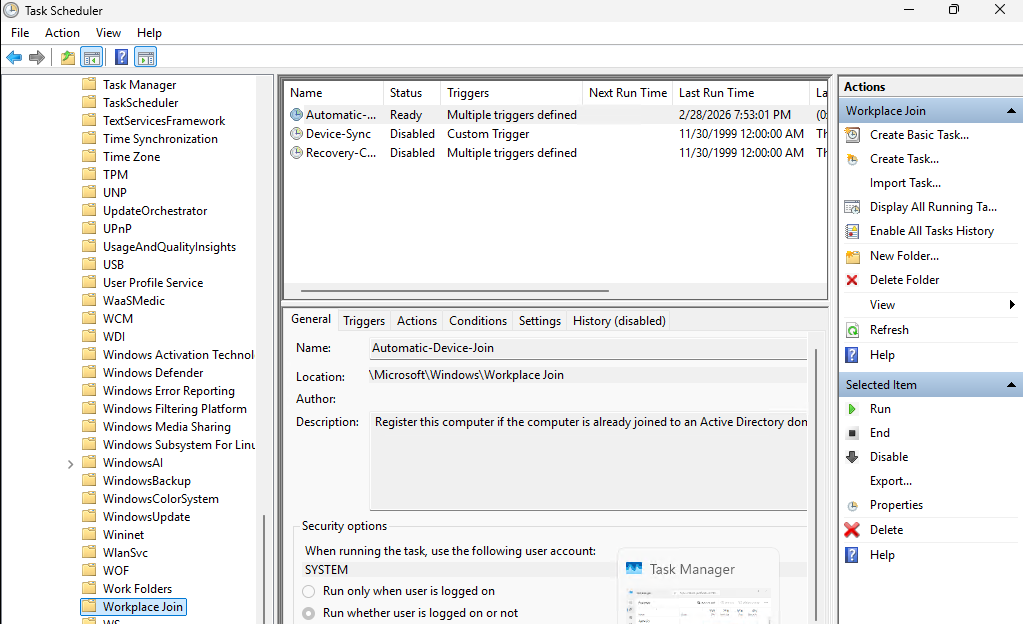
- Task Scheduler > Task Scheduler Library > Microsoft > Windows > Workplace Join.
- Right pane shows Automatic Device Join.
| State | Meaning |
|---|---|
| Disabled | Device not joined to any AD domain. Expected pre-domain-join. |
| Ready | Domain-joined; task is armed and will run on next login. |
| Running → finished | Task contacted Entra ID, got a cert, registration complete. |
What the task actually does
- Reads the SCP from AD — learns the tenant name and tenant ID.
- Contacts Entra ID at the registration endpoint, authenticates as the device using domain creds.
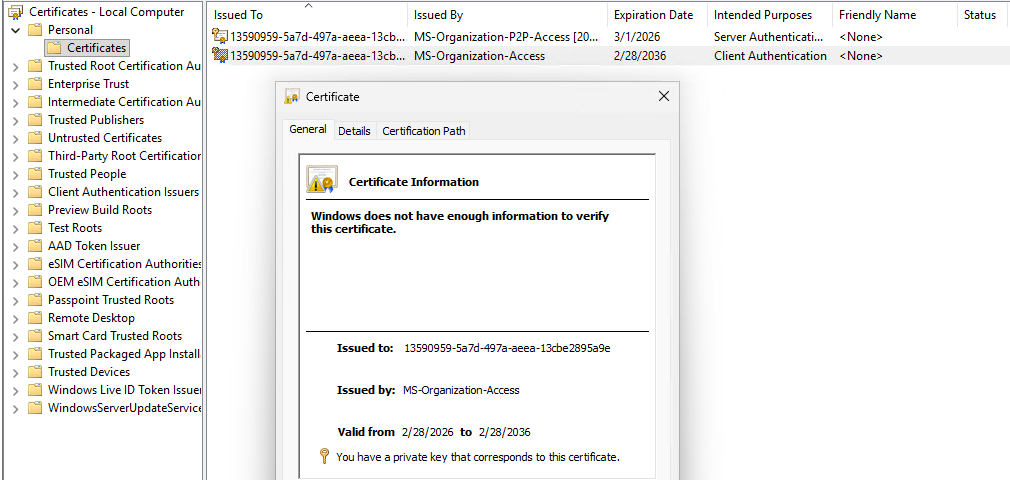
- Entra ID issues a certificate.
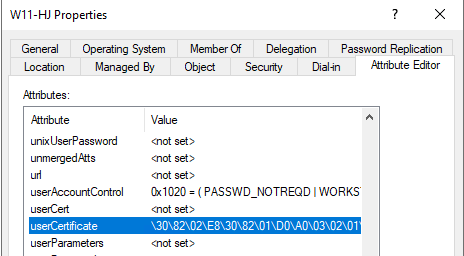
- The cert’s public key lands in the device’s on-prem AD computer object under the userCertificate attribute.
- Entra Connect on its next sync sees the populated userCertificate, syncs the device object up, and the device shows up in Entra Admin Center as Hybrid Joined.
Empty userCertificate = no sync. Entra Connect has a built-in sync rule that explicitly skips device objects without a certificate. If your device is missing from Entra Admin Center, this attribute is the first thing to check.
Verify the Hybrid Join — four methods
Method 1 — dsregcmd /status on the client
After the reboot and a few minutes for the task to complete:
AzureAdJoined : YES
DomainJoined  : YES
AzureAdPrt    : YES
Both AzureAdJoined and DomainJoined as YES = Hybrid Joined. AzureAdPrt YES = Primary Refresh Token issued, SSO will work. If you run dsregcmd before reboot, AzureAdJoined will still be NO — that’s expected.
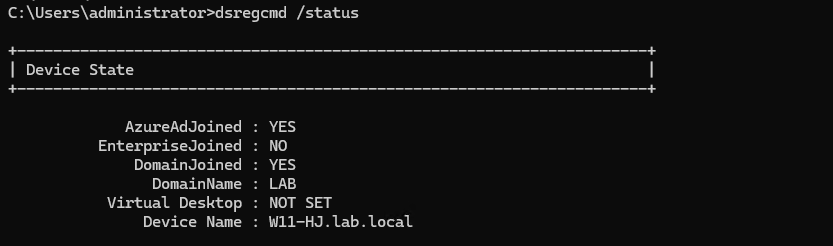
dsregcmd /status: AzureAdJoined: YES + DomainJoined: YES + AzureAdPrt: YES. The Hybrid Join signature.Method 2 — Entra Admin Center
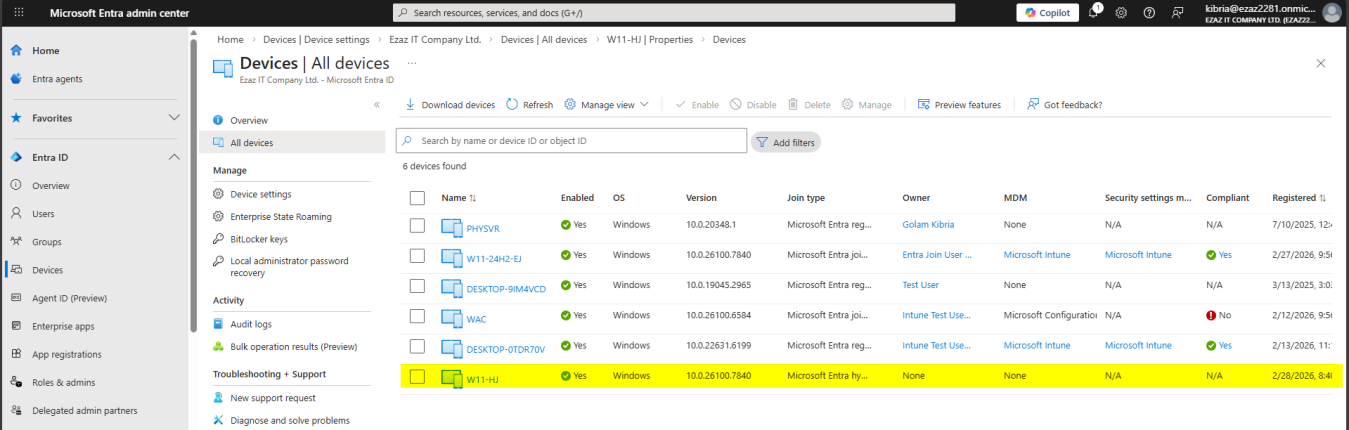
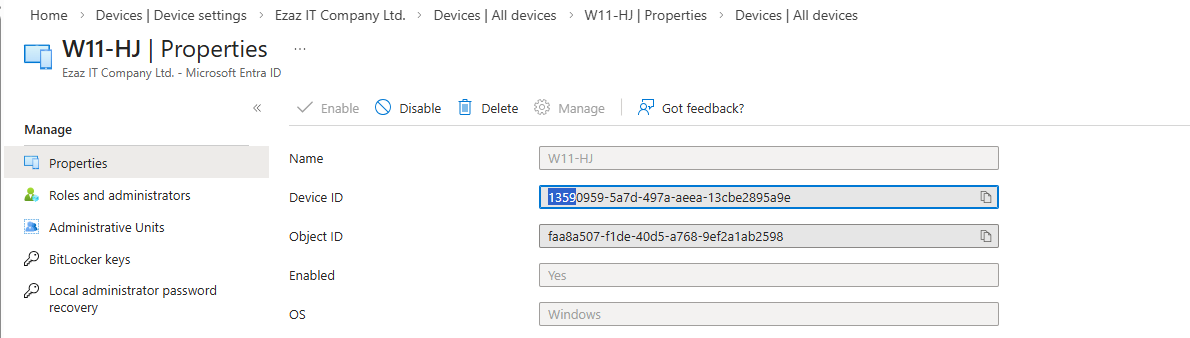
entra.microsoft.com > Identity > Devices > All Devices > search by hostname. Join Type should read Microsoft Entra Hybrid Joined.
Method 3 — userCertificate attribute in AD
On the DC: AD Users and Computers > find the device’s computer object > Properties > Attribute Editor > userCertificate. Should contain a certificate value, not be empty. Empty = the Auto Device Join task didn’t complete or failed.
Method 4 — the SCP in ADSI Edit
To prove the SCP exists with the right tenant info:
- ADSI Edit on the DC.
- Connect to: Configuration.
- Configuration > Services > Device Registration Configuration.
- Properties > keywords attribute — should hold
azureADName:ezaz2281.onmicrosoft.comandazureADId:<tenant-guid>.
Managing Hybrid Joined devices afterward
From on-prem AD
- GPOs apply normally — nothing changes about Group Policy
- SCCM / ConfigMgr, AD Users and Computers, traditional tooling all keep working
- Devices remain in their original OU as normal computer objects
From Entra Admin Center
- Hybrid Joined devices visible in Devices > All Devices
- Intune device configuration profiles apply
- Conditional Access policies (e.g. require Hybrid Joined to access Exchange Online)
- Compliance reporting
- Windows Hello for Business configuration
If you have Intune licensed, you can co-manage — SCCM and Intune both manage the device, with workloads moved gradually from on-prem to cloud at your own pace.
Things that bite people
Device joined to domain, never appears in Entra Admin Center
In order: (1) Auto Device Join task ran? Task Scheduler. (2) userCertificate attribute populated? AD Users and Computers > Attribute Editor. (3) Four URLs reachable? Try opening each in a browser on the client. (4) OU in sync scope? Synchronization Service Manager > Containers. (5) SCP exists with right tenant? ADSI Edit.
dsregcmd still shows AzureAdJoined: NO after reboot
Manually trigger the task: Task Scheduler > Workplace Join > right-click Automatic Device Join > Run. If still NO after that, walk the list above.
Auto Device Join task is Disabled even after domain join
Run gpupdate /force, recheck. If still Disabled, right-click the task > Enable manually.
SCP wizard says Enterprise Admin creds rejected
The account needs Enterprise Admin in the forest root domain, not just Domain Admin in a child domain. Use the forest-root EA account or get one created.
Hybrid Join works for new devices but not legacy ones
Legacy devices need an additional MSI deployment (Windows Installer for the Workplace Join client) and the down-level option ticked in the wizard. Modern Win 10/11 has the task built-in.
Conditional Access policy requires ‘hybrid Azure AD joined’ and blocks everyone
Confirm devices are actually Hybrid Joined in the cloud first (dsregcmd, Entra Admin Center) before turning on a CA policy that requires it. Otherwise you lock the entire workforce out.
Licensing reminder
Hybrid Join itself works on Entra ID Free. The features built on top of it (Conditional Access requiring compliant devices, certain Intune features) need P1 / P2 / Intune licensing separately, but the Hybrid Join configuration is free.
What’s next
That covers the happy path. The next post in the Entra ID Security pathway is the realistic follow-up: Hybrid Join Troubleshooting — the failure modes you’ll actually meet in production, mapped to the exact log entries, registry keys, and event IDs that point at root cause.