
Every NTFS share, Active Directory OU, and file server eventually inherits the same mess: hundreds of access control entries that nobody can untangle, granted to people who left two years ago, breaking inheritance for reasons nobody remembers. The cause is never one bad decision — it is the slow accumulation of shortcuts taken because there was no design.
The fix is not a tool. The fix is a small set of rules applied every single time you touch a permission. Industry veterans call these the Five Golden Rules of Permissions Design. They predate Active Directory, they apply to file shares, SharePoint libraries, and cloud storage equally, and they save more hours than any GUI improvement ever has.
This is Part 1 of the Windows Permissions Deep Dive pathway. Read the rules first, then the rest of the pathway (Share vs NTFS stacking, NTFS Advanced Permissions, Local Groups) makes immediate sense.
Rule 1 — Assign permissions to GROUPS, never to individual users
Even if only one person needs access today, create a group, give the group the permission, then add the user to the group. That extra ten seconds is the single highest-leverage habit you can build.
Why this matters
Imagine Tom from the IT team has been given access to dozens of folders, applications, servers, and shares — all granted directly on his user account. Tom resigns. Sarah replaces him and needs the same access.
You now have to walk the entire infrastructure, every share, every server, every special folder, hunting for ACEs that mention DOMAIN\Tom so you can replicate them for Sarah. Nobody has a map. There is no report. You will miss things, and Sarah will spend her first three weeks filing access tickets that all boil down to “Tom could do this and I can’t.”
One real-world admin, faced with exactly this problem, deleted his own account and renamed Tom’s to keep the access working. That is not a joke — that happened. It is what happens when direct user-on-resource permissions become the norm.
The correct pattern
For a folder called FinanceDocs where Anika needs read/write access:
- Create a group:
FinanceDocs-Editors - Grant that group Modify on
FinanceDocs - Add Anika to the group
When Anika leaves and Rafi takes her seat, you remove Anika and add Rafi. The folder ACL never gets touched. The audit trail stays clean. Multiply this by 500 employees and 200 shares and the value becomes obvious.
Common pushback — and the answer
“But it’s only one person and I’m in a hurry.” That is exactly when this rule pays for itself. The one-person group costs you one extra click today and saves you four hours of detective work five years from now. Do it anyway.
Rule 2 — Minimize duplicate permissions across groups
Design groups so each group has one clear permission. Combine permissions by adding users to multiple groups, not by inventing new combo groups.
The trap
Suppose you need to give people some mix of Create, Modify, and Delete on a share. The tempting first move is to invent three groups:
Create-And-ModifyModify-And-DeleteModify-Only
Then one user from group 1 needs Delete added. Rule 1 forbids you from granting it directly on the user, so you either invent Create-Modify-Delete or add a separate Delete group. Then the next request comes in for Create+Delete-without-Modify. Within a year you have eight groups for three permissions, every one of them subtly overlapping, and no human can tell you who has what.
The fix
Build single-permission groups:
FinanceDocs-Create— Create onlyFinanceDocs-Modify— Modify onlyFinanceDocs-Delete— Delete only
User needs Create+Modify? Two memberships. User needs all three? Three memberships. User needs just Modify? One membership. The group catalog stays small. Access reviews become trivial because each group has exactly one meaning.
Mental model
One key per door. Hand each person the keys they need. Never manufacture a custom keychain for every possible combination of doors — you will end up with more keychains than doors.
Rule 3 — Stay on the General permissions screen unless you genuinely need Advanced
Right-click an AD object > Properties > Security shows the everyday list: Full Control, Read, Write, Create All Child Objects, Delete All Child Objects, plus a handful of object-type-specific entries like Reset Password (on user objects) or Modify Web Information. These cover roughly 90% of permission needs in any real environment.
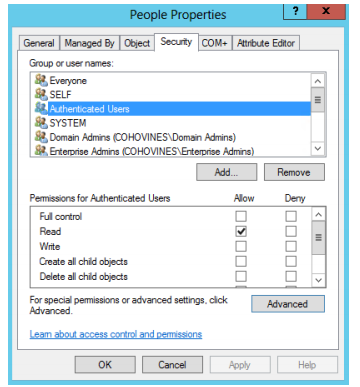
Click Advanced and you get the long property-level list — dozens of fine-grained controls like “Read phone number,” “Write telephoneNumber,” “Read memberOf.” This is the right tool when you have a specific surgical need (e.g., let a junior admin update phone numbers but nothing else). It is the wrong tool when you just want “these people can manage these users.”
Why staying out of Advanced matters
- General permissions are immediately readable on a future audit
- Property-level ACEs hide in the long list — admins miss them when reviewing access
- Most property-level entries are silently inherited from container defaults — layering custom ones on top is asking for confusion
- The risk of mistyping or selecting the wrong attribute compounds quickly
When you must go property-level: use DSACLS, not the GUI
dsacls.exe is a command-line tool that dumps and sets property-level permissions in a single readable text block. For automation, for documentation, for repeatable scripting, it is dramatically better than the Security tab dialog. If you find yourself in Advanced more than once a quarter, capture your work as dsacls commands you can re-run.
Rule 4 — Allow inheritance, do not block it without strong cause
Inheritance is the default Windows ACL behavior: a permission set on a parent container automatically applies to every child container, OU, user, group, and computer beneath it. Block inheritance and you instantly take on the responsibility of maintaining child permissions by hand.
What “blocking inheritance” actually costs you
Every container with inheritance blocked is a black box. A future admin troubleshooting “why can’t this user access that folder?” will walk up the tree expecting to find the answer at a parent — and the answer will not be there because inheritance was severed three levels down. Multiply by every block in your environment and troubleshooting time explodes.
Worse, when org structure changes (a department moves into a new OU, a share gets re-parented), inherited permissions follow automatically. Blocked-inheritance ACLs do not — you have to remember every block and re-evaluate it manually.
When blocking inheritance is legitimate
- The Group Policy container (
CN=Policies,CN=System,DC=…) ships with inheritance blocked by Microsoft, on purpose — you do not want random delegation cascading into GPO permissions - Sensitive HR or finance shares that should not pick up parent-OU delegations
- Service-account paths where you genuinely want a controlled island
For each legitimate block, write a short note (Rule 5) explaining why. Otherwise: leave inheritance alone.
Rule 5 — Log every unusual permissions change
This sounds obvious enough to skip. It is the most-skipped of the five rules. Every admin assumes they will remember; nobody does.
What “a change log” actually looks like
It can be a spreadsheet, a ticket, a wiki page, a SharePoint list, a flat text file in a shared folder. The format does not matter. What matters is that every non-routine change captures six fields:
| Field | What it means |
|---|---|
| Object & location | Which OU / folder / share / object was changed, with its full path |
| Object type | User, group, OU, file share, GPO, etc. |
| What changed | Which ACE was added, removed, or modified |
| Who got access | Group or account that the permission was granted to |
| Which rights | Read, Modify, Full Control, plus inheritance behavior |
| Why | One sentence of business reason — “HR audit request 2024-11-08” |
What “unusual” covers
- Any time you break inheritance
- Any property-level / Advanced permission
- Any deny ACE (denies are special — document them every time)
- Any direct-on-user permission (which you should not be doing per Rule 1, but reality intrudes)
- Cross-domain delegations or trusts
Routine group-membership changes do not need an entry — they are visible in AD and that is enough.
Things that bite people
One-off direct user permissions “just this once”
The exception always survives the user who created it. Five years later, the user is gone, the folder is renamed, and nobody knows what the dangling ACE on DOMAIN\Bob was for. Use a group, even for one person.
Combo groups that nobody can name
FinanceDocs-Mod-Del-NoCreate is a smell. The instant a group name has to encode three Boolean conditions, the design failed. Split it.
Advanced permissions copied from a half-remembered blog post
Property-level ACEs that grant access to attributes nobody understands (msExch-anything, userParameters) live forever once applied. Read every entry you set in Advanced; do not paste blindly.
Inheritance broken “temporarily”
Temporary breaks are forever. If you must break inheritance for an emergency, schedule a calendar reminder for two weeks out to revisit it and restore inheritance with explicit ACEs where genuinely needed.
Change log skipped “because it’s just a small change”
The small change you skip logging today is the four-hour mystery six months from now. Log everything that is not a normal group-membership add/remove.
How the five rules reinforce each other
Each rule on its own helps a little. Used together they compound:
- Rule 1 (groups) makes Rule 2 (single-purpose groups) possible — you cannot keep ACL hygiene if user accounts hold the rights
- Rule 3 (general perms) keeps Rule 5 (change log) short — every Advanced ACE requires a log entry, so staying on General means less to document
- Rule 4 (inheritance) means most of your ACL state lives at one tidy parent — which means Rule 5 has very little to capture
- Rules 1 + 2 + 4 together produce a permission model so small that Rule 5 becomes a habit, not a burden
Environments that follow all five end up with ACL exports that fit on one page per share. Environments that ignore them end up with exports nobody reads.
What’s next
With the design rules in place, Part 2 covers the mechanical question every Windows admin runs into within their first month: Windows File Permissions — Share vs NTFS stacking. When permissions are set on both layers, which wins? Cumulative or most-restrictive? And why does “Deny” behave the way it does? That is Part 2.