
With both VMs built and joined to the domain in Part 1, the next step is installing SQL Server 2022 + SQL Server Management Studio (SSMS) on both nodes. Identical install on both — same edition, same instance name, same service account, same feature set. Asymmetry here surfaces as cryptic errors when you try to bring the Availability Group online in Part 5.
Working on SQL-NODE-01 first. Repeat the entire procedure on SQL-NODE-02 when you’re done.
Mount the SQL Server 2022 ISO
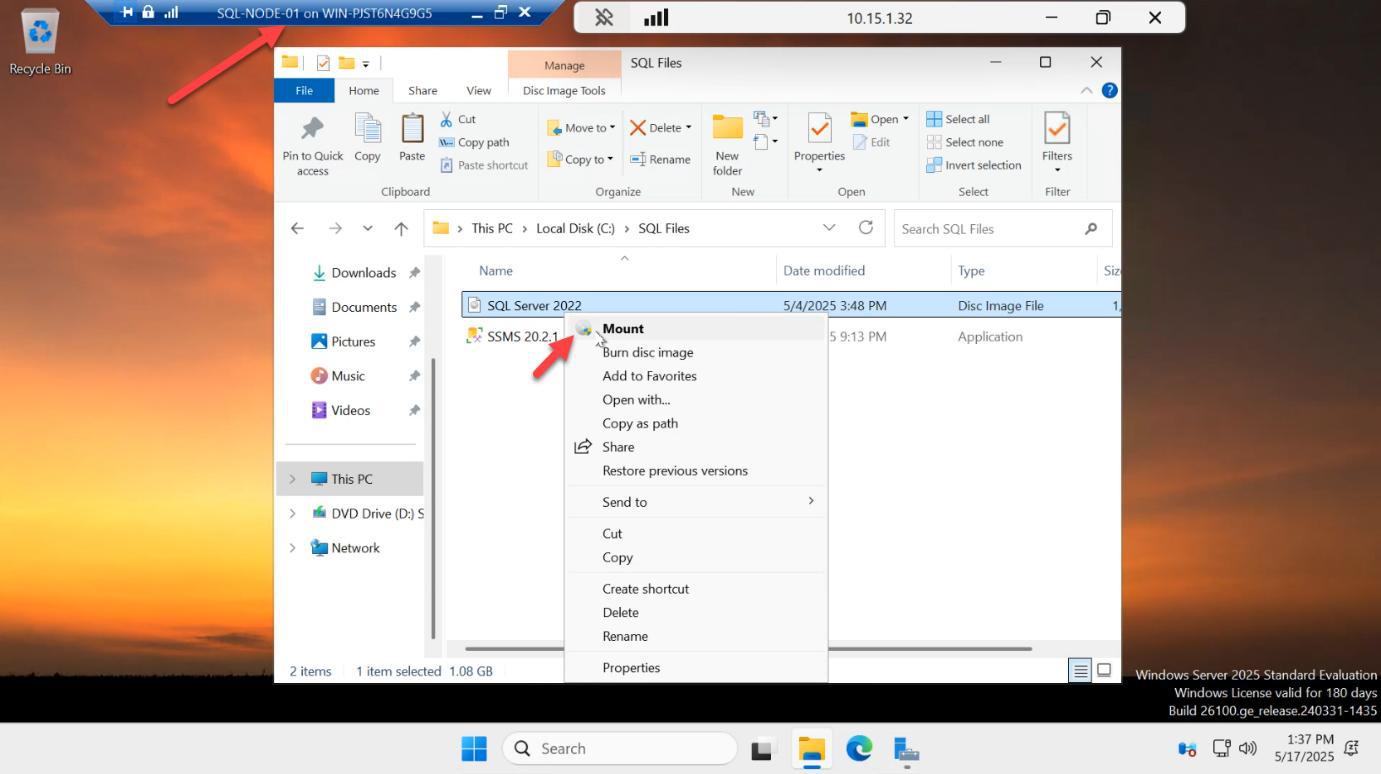
Right-click the SQL Server 2022 ISO > Mount. Windows attaches it as a virtual DVD drive and shows it in This PC.
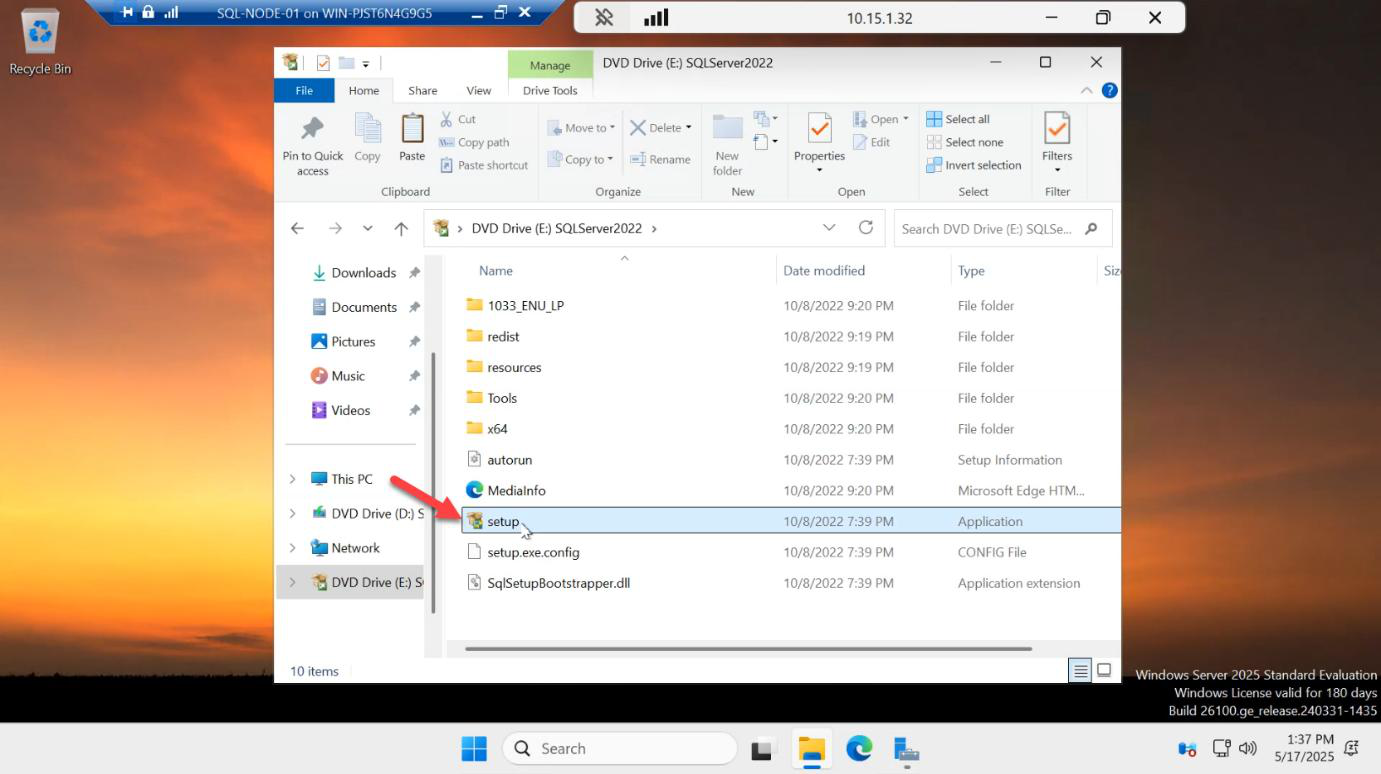
setup.exe.Open the mounted drive > double-click setup.exe.
Launch a new standalone install
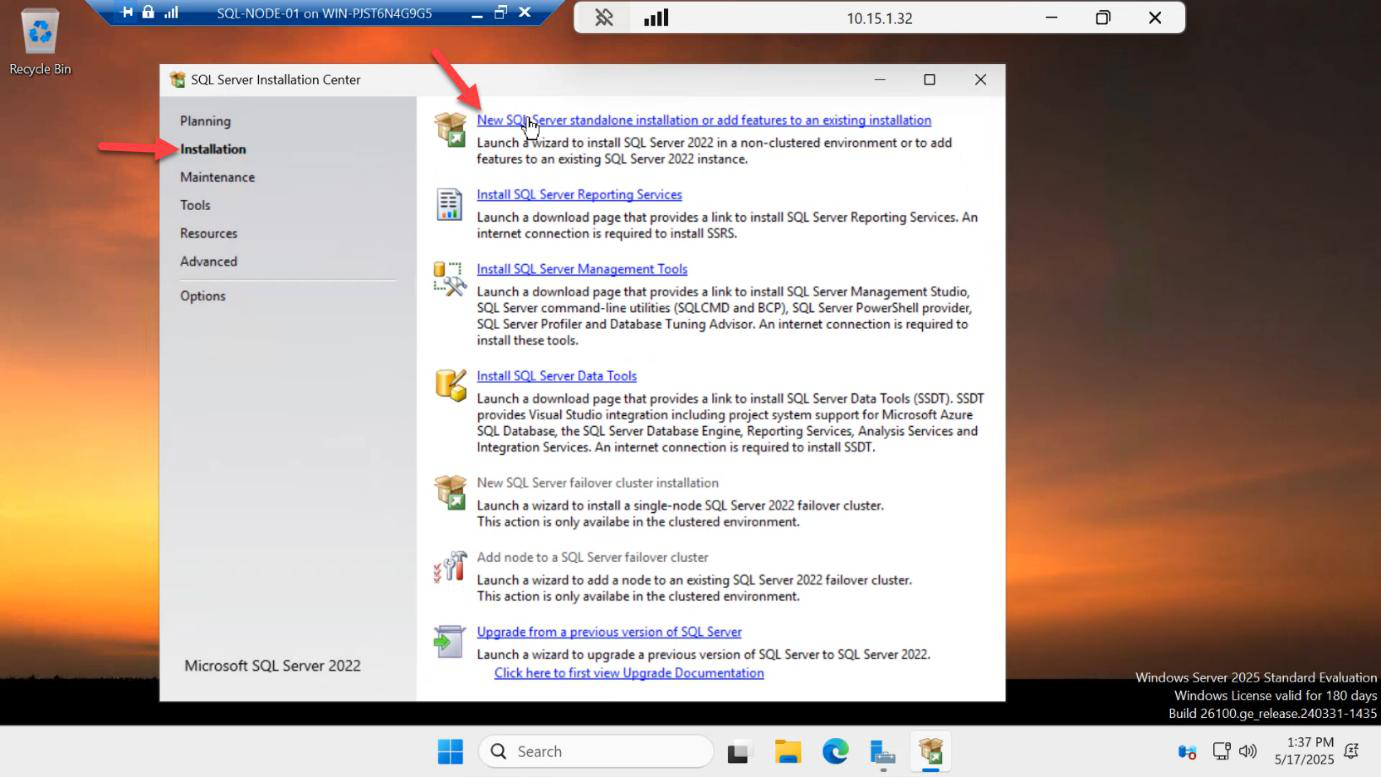
The SQL Server Installation Center opens. Click Installation in the left rail > New SQL Server standalone installation or add features to an existing installation. The other options (Upgrade, Repair, etc.) aren’t what you want for a fresh AG node.
Edition: Evaluation
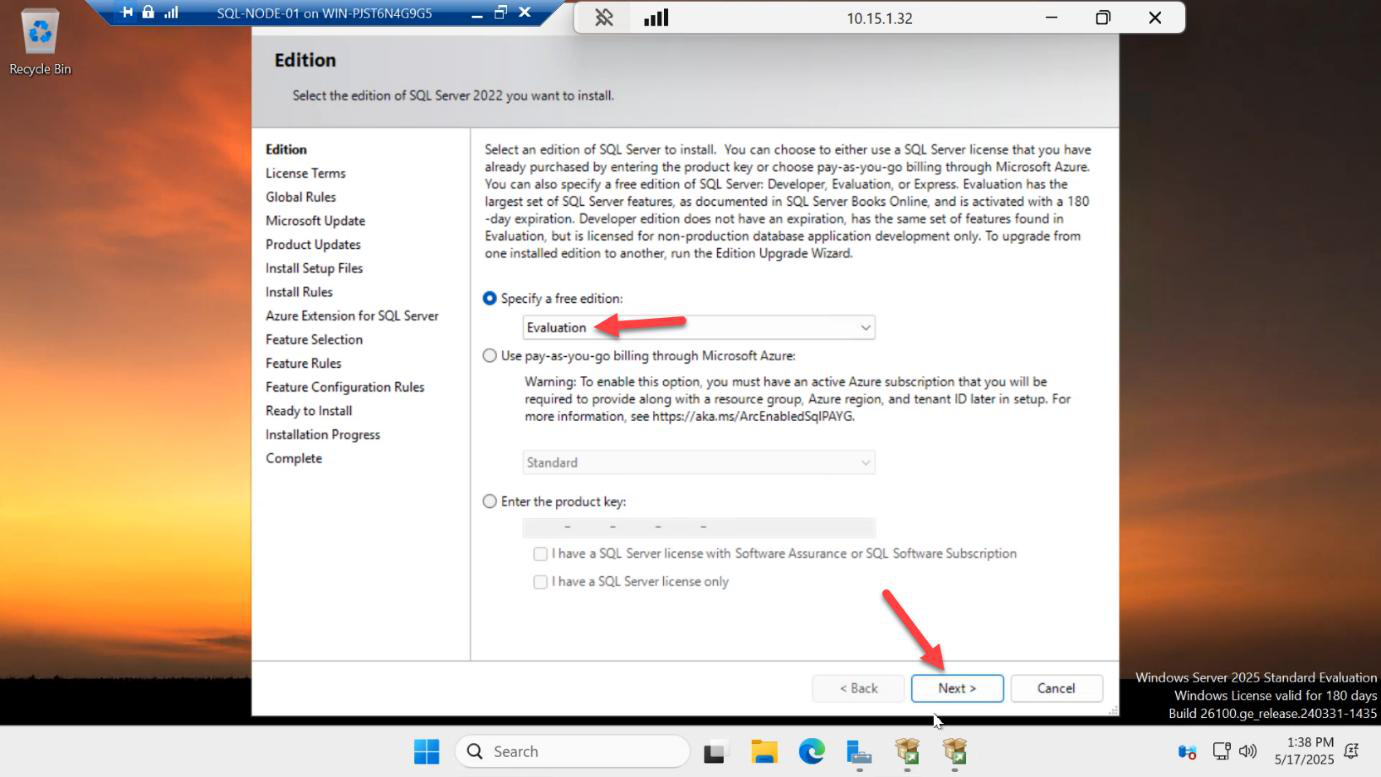
Pick Evaluation from the “Specify a free edition” dropdown > Next.
Why Evaluation? Two reasons:
- 180-day trial — long enough to build, test, and learn the AG.
- Enterprise feature set — including readable secondary replicas. Standard edition only allows two replicas in an AG and they aren’t readable. To exercise the full feature in your lab, you want Eval / Enterprise.
If you’re shipping production, drop in your real Standard or Enterprise key here.
License terms + Microsoft Update
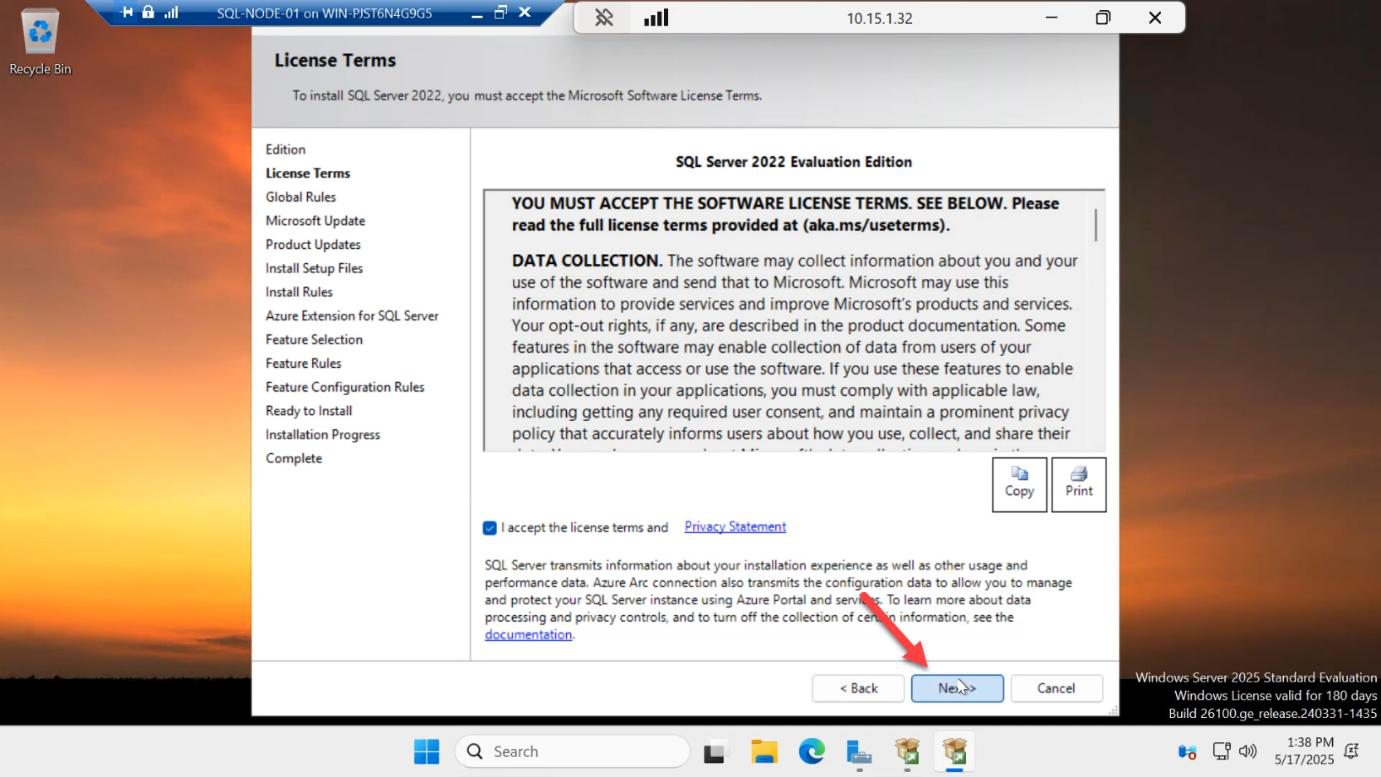
Accept the EULA > Next.
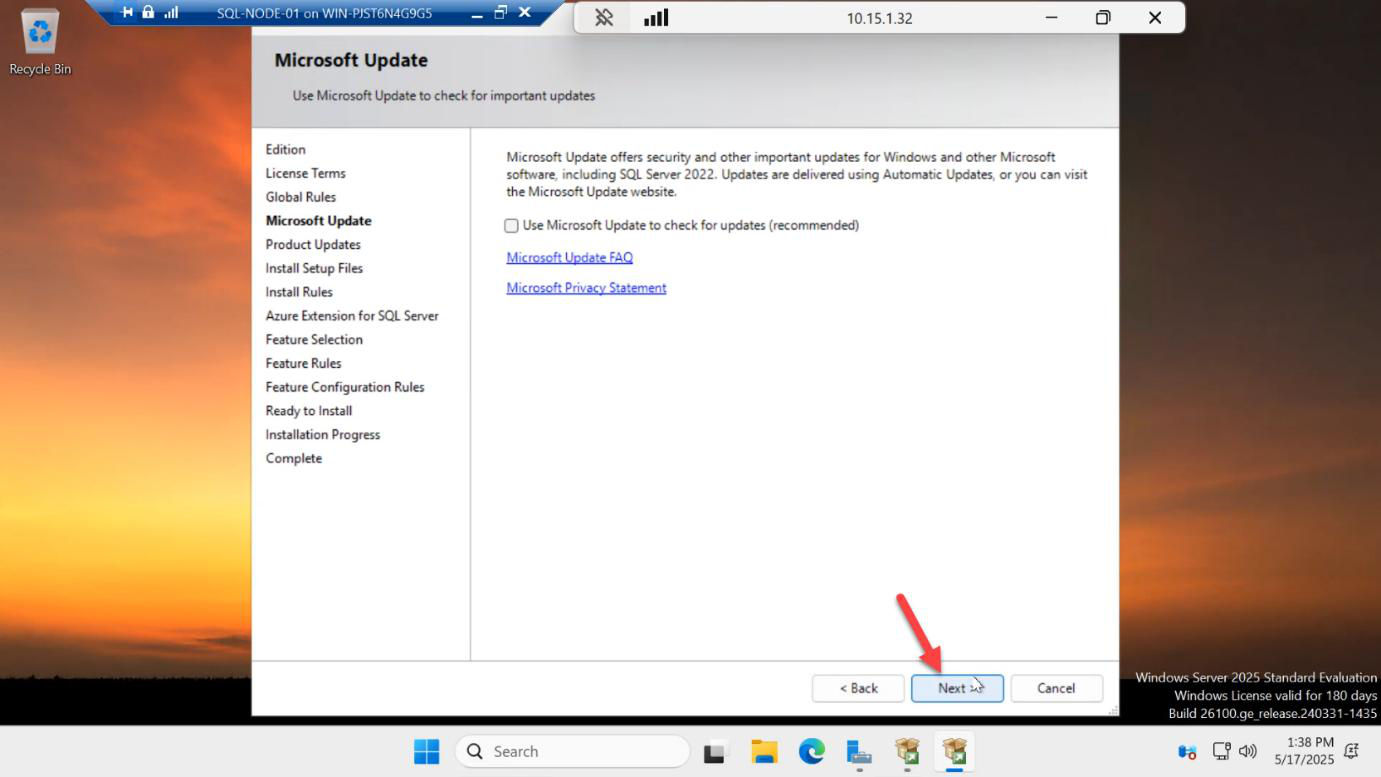
Microsoft Update > Next. Default opt-in is fine.
Install Rules — clear the firewall warning
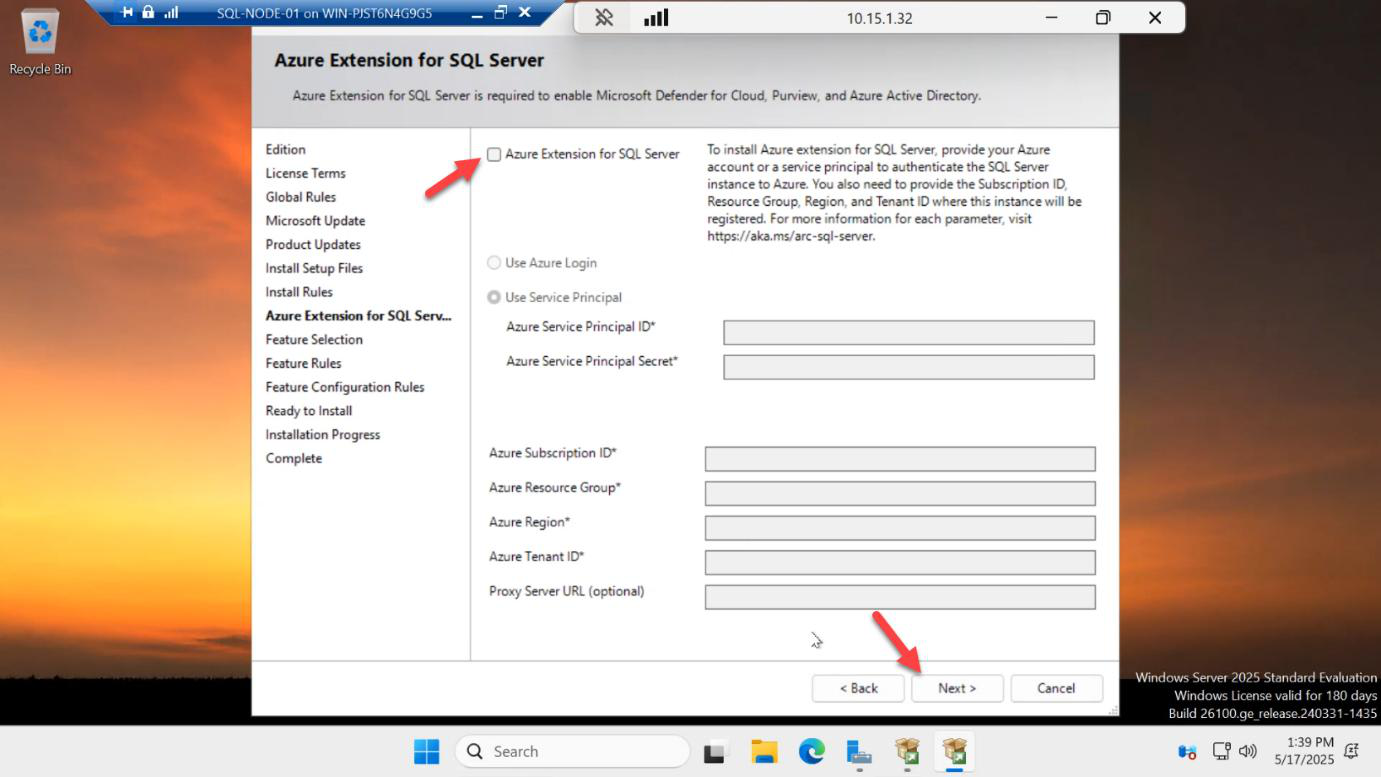
The Install Rules page checks for blockers. The Windows Firewall warning is expected because we disabled the firewall in Part 1’s post-install checklist. Uncheck the warning box > Next. (In a production hardened build you’d leave the firewall on and open ports 1433, 5022, and 47001 instead.)
Feature Selection — only what you need
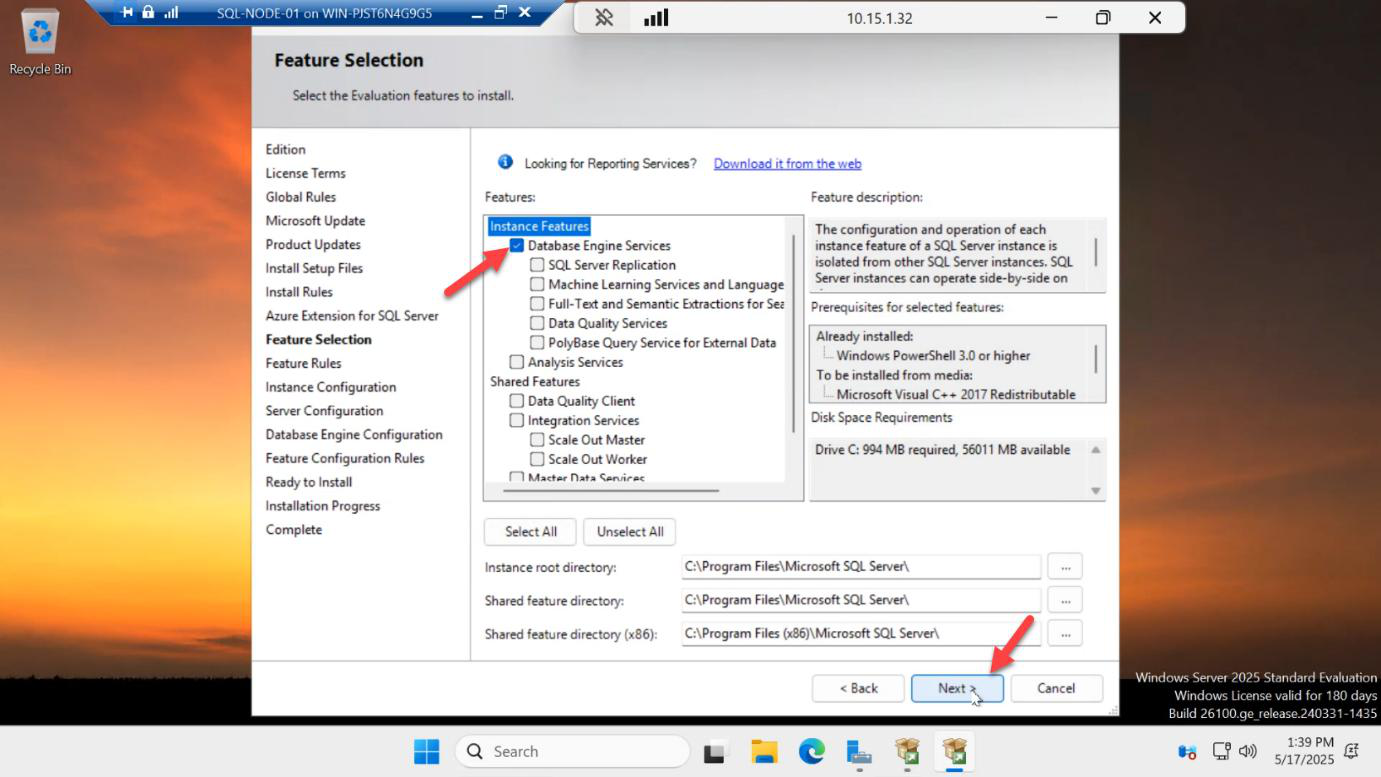
Tick Database Engine Services. That’s it. Don’t reflexively pick everything.
The Replication / Machine Learning / Full-Text / Data Quality features all add surface area, install time, patch overhead, and CVE exposure. Add them later if a workload actually needs them. For an AG lab, only the Database Engine matters.
Instance Configuration
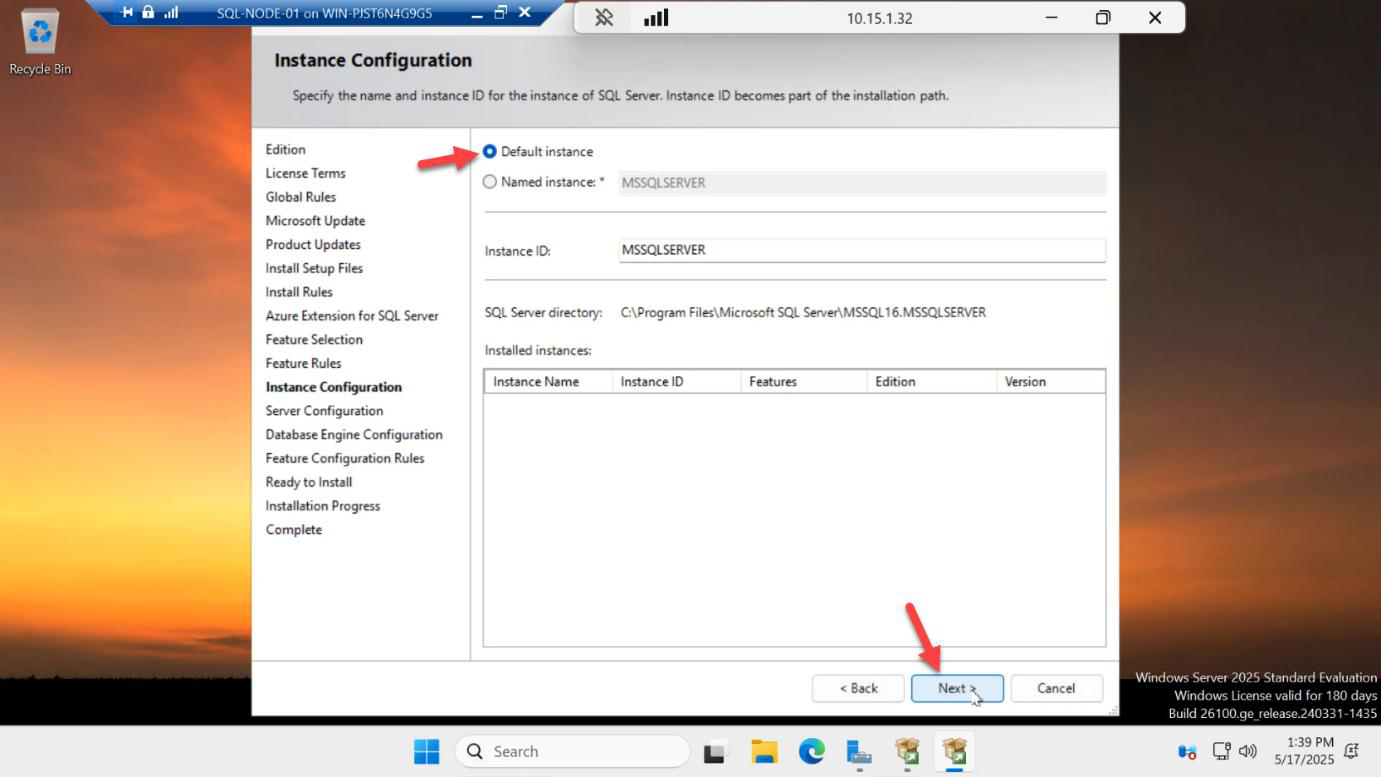
Default instance (MSSQLSERVER) > Next.
Both nodes must use the same instance name. If SQL-NODE-01 is a default instance and SQL-NODE-02 is a named instance, AG endpoint resolution gets weird. Default on both.
Server Configuration — the service account that matters
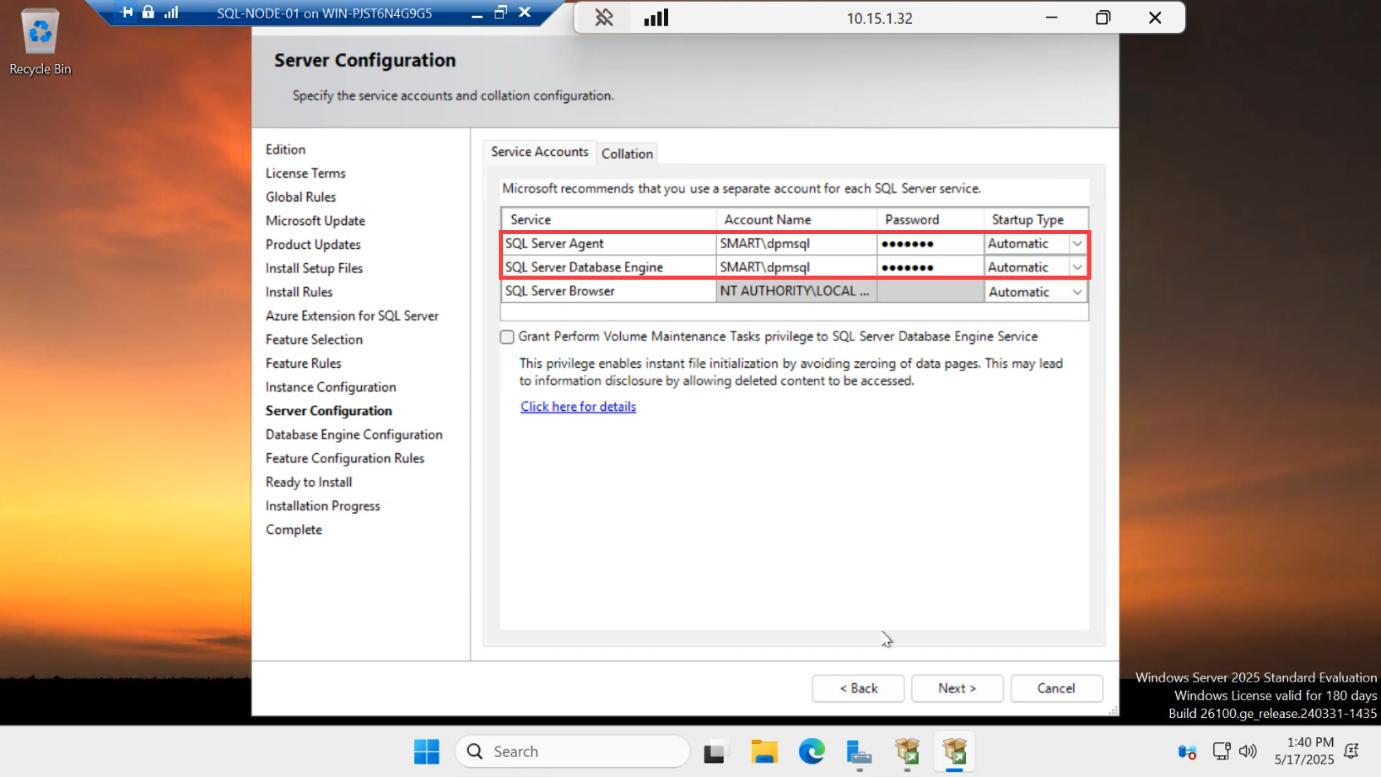
CONTOSO\sql-svc and the password for the SQL Server Database Engine and SQL Server Agent services. Same account on both nodes — this account also runs the AG cluster role.This is the page that bites people. For both SQL Server Database Engine and SQL Server Agent:
- Account Name:
CONTOSO\sql-svc(the AD account you pre-staged in Part 1) - Password: the AD password for that account
- Startup Type: Automatic for both
The same domain account on both nodes lets the AG endpoints (TCP 5022) authenticate over Kerberos. If you use NT SERVICE\MSSQLSERVER (the default virtual account) on each node, the endpoints can’t mutually auth and the AG fails to come online. Domain account on both. Same account on both.
SQL Browser can stay as NT AUTHORITY\LOCAL SERVICE — we’re using the default instance so Browser isn’t critical, but leave it on Automatic.
Database Engine Configuration — Windows auth
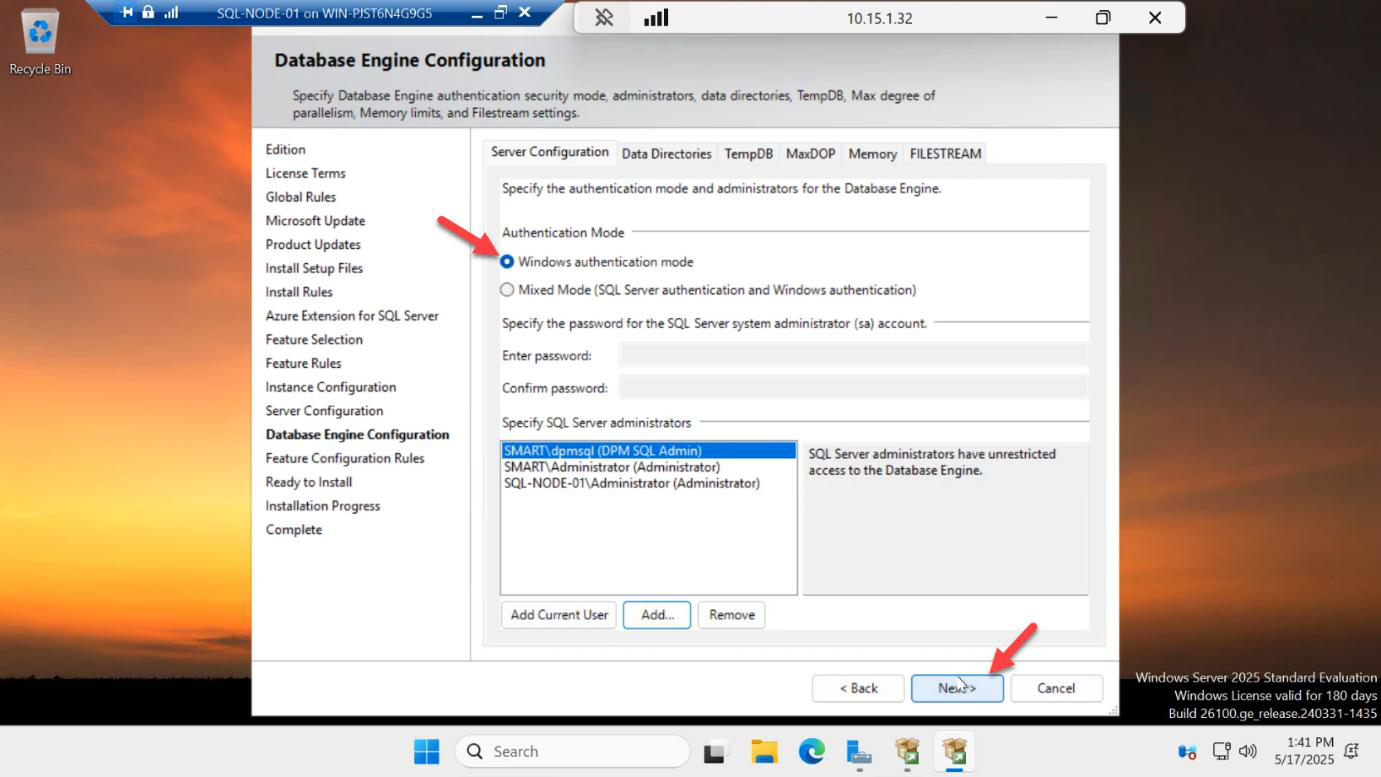
Windows authentication mode. Mixed mode (sa account) is unnecessary here — everything in the AG flow uses Windows auth via the SQL service account.
The current user (your sql-svc login session from Part 1) is auto-added as a SQL admin. That’s exactly what we want.
Install
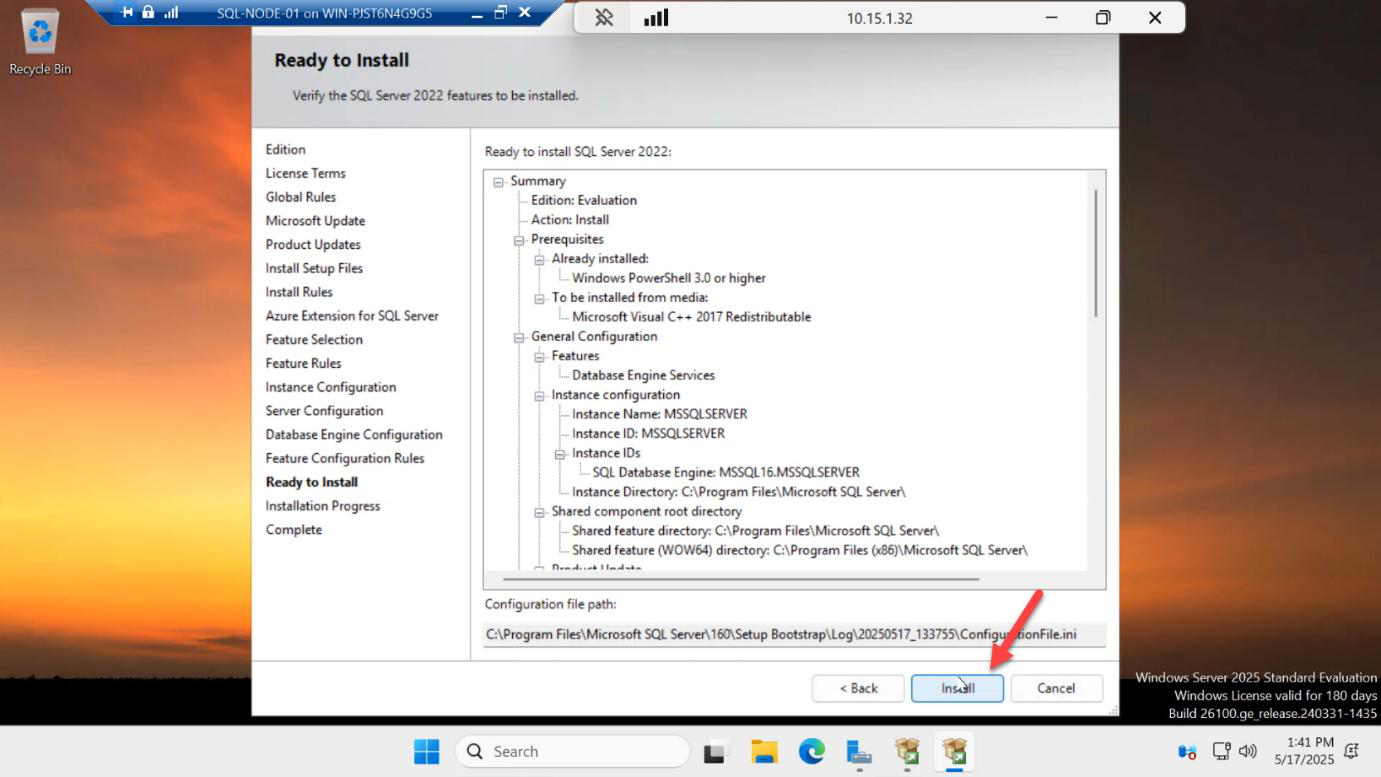
Review the summary > Install.
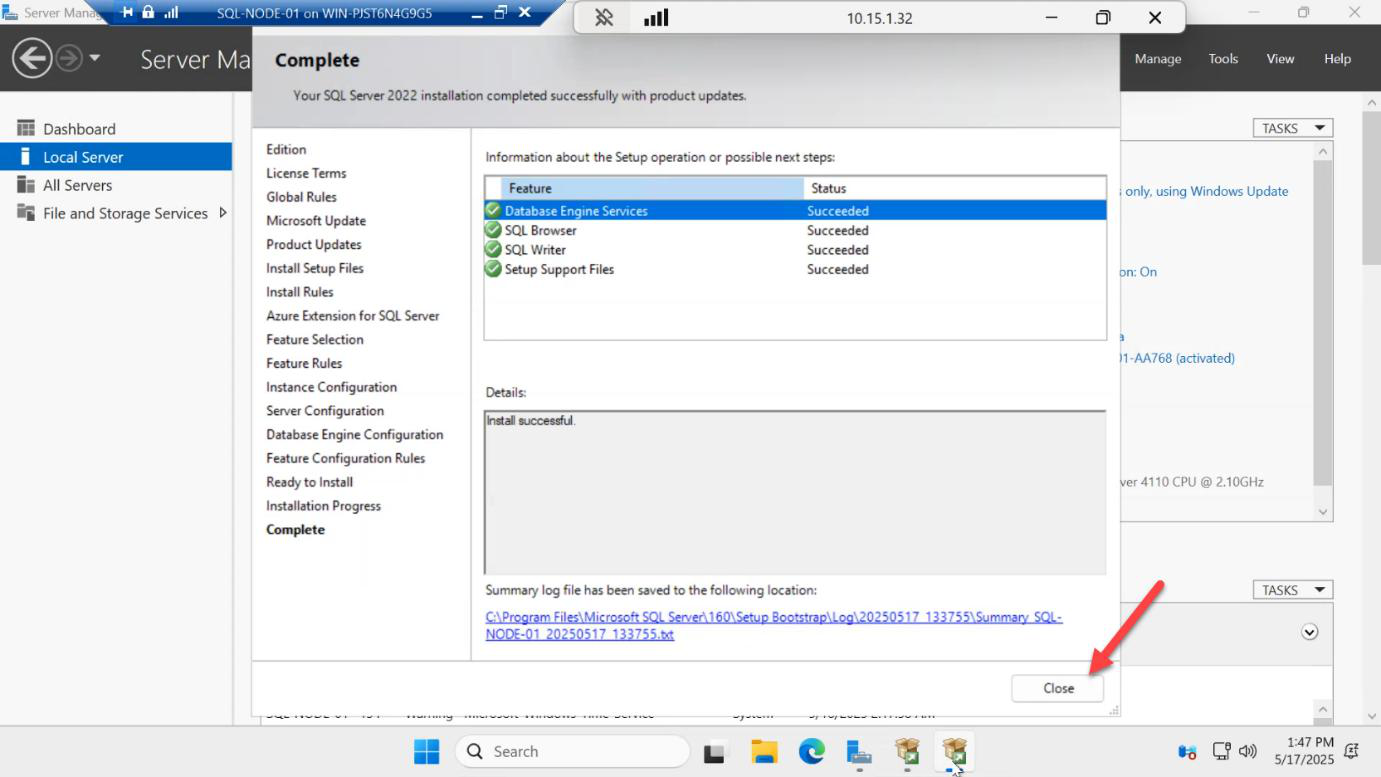
Install runs ~10 minutes — copy files, configure, register services. Close when the green check appears.
Install SSMS
SSMS hasn’t shipped inside the SQL Server installer since 2017 — it’s a separate download from Microsoft. Should already be on the VM from Part 1’s file copy.
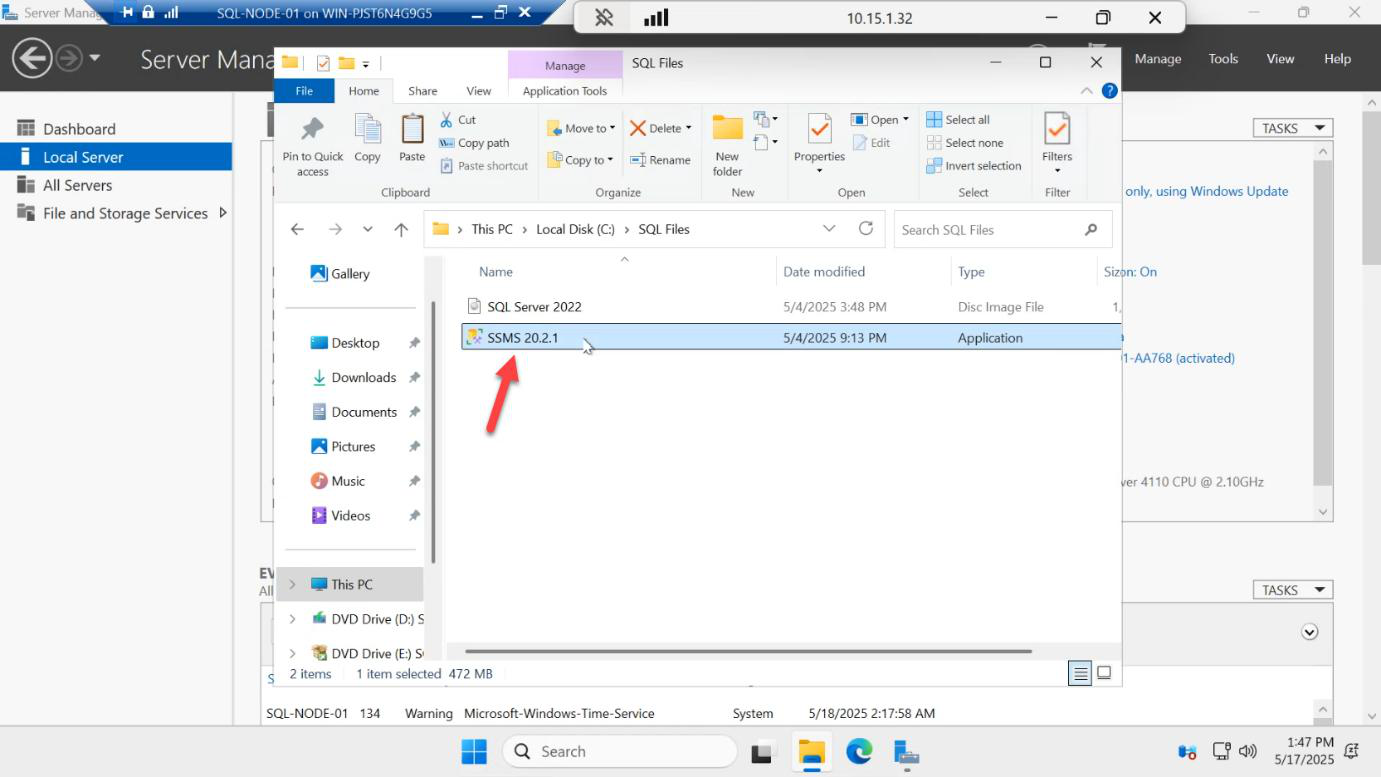
Run SSMS-Setup-ENU.exe.
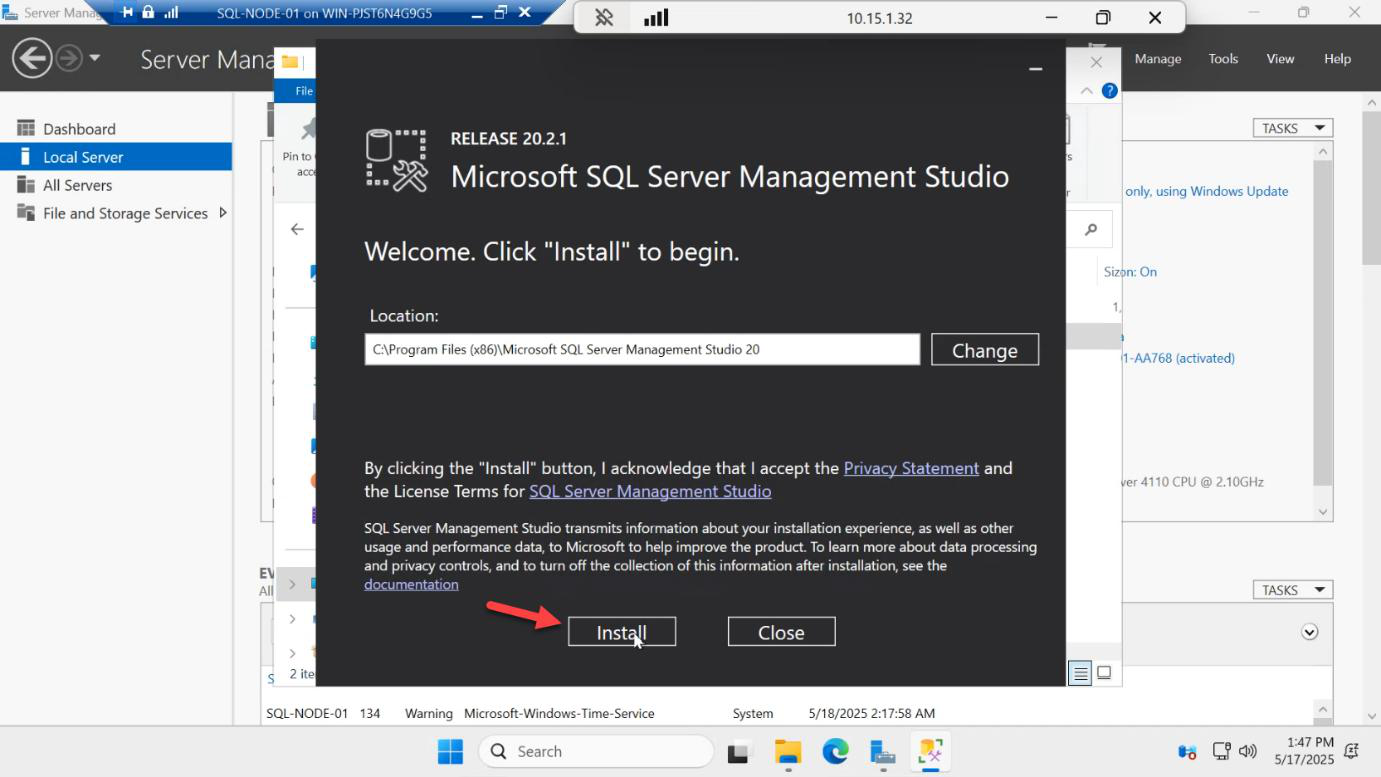
Install. Default install location is fine.
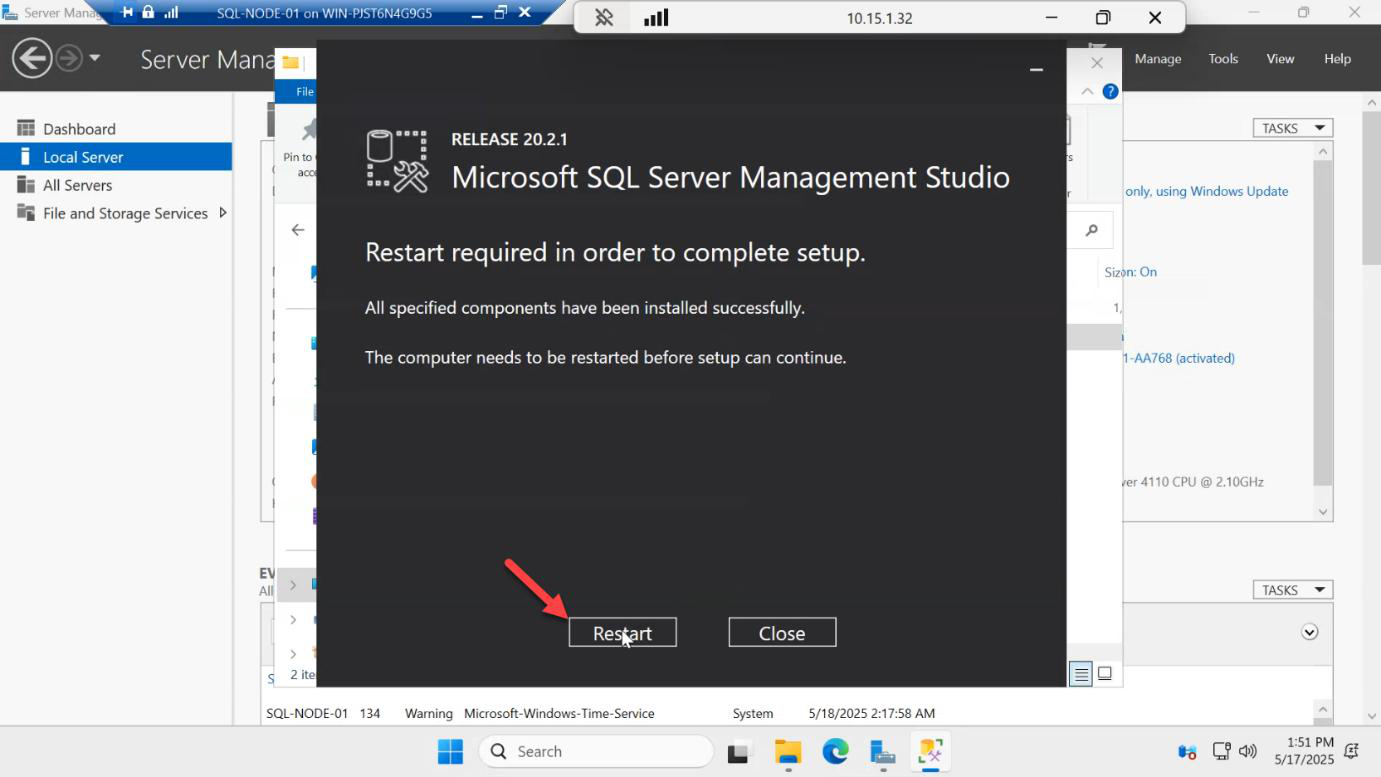
SSMS install takes a few minutes — restart the VM when prompted.
Repeat the entire flow on SQL-NODE-02
Log into SQL-NODE-02 as CONTOSO\sql-svc (same account as the first install). Walk through every step: mount ISO, run setup, Evaluation edition, Database Engine Services only, Default instance, same service account, Windows auth, install, then SSMS, then restart.
If you change anything between the two nodes (different feature set, different account, different instance type), AG init fails in Part 5 with errors that are nearly impossible to map back to “you forgot to tick a box on the second VM.”
Things that bite people
Different service accounts on each node
SQL-NODE-01 runs as CONTOSO\sql-svc; SQL-NODE-02 runs as CONTOSO\sql-svc-02. The AG endpoint authentication uses the service account’s identity — mismatched accounts means each node can’t auth to the other’s endpoint. Same account on both.
Default virtual account (NT SERVICE\MSSQLSERVER)
The default at install time is the per-machine virtual account. It’s great for standalone SQL but useless for AG — it can’t cross machine boundaries to auth to the other node’s endpoint. Always switch to a domain account at install time. Changing it later via Configuration Manager involves restarting SQL and re-granting permissions; cleaner to do it during install.
Mixed instance configuration
Default instance on one node, named instance (e.g. SQL-NODE-02\SQL2022) on the other. Connection strings get tangled, listener registration gets weird. Default on both.
Forgot to install SSMS on both
You’ll need SSMS on both nodes to verify replication health from each side. Don’t skip it on the secondary.
Skipping the post-install restart
SSMS often pulls in .NET / VC redist updates. Without a reboot, the next reboot (which Failover Cluster setup will trigger anyway) catches you off-guard. Just reboot now.
What’s next
Part 3 in the SQL Availability Groups pathway: install the Failover Clustering feature on both nodes, create the share for cluster validation, then build the Windows Server Failover Cluster (WSFC) that the AG will sit on top of.