
You sit down to log into a domain-joined Windows machine, type your username and password, and hit a wall: The trust relationship between this workstation and the primary domain failed. The credentials are right. The domain controller is up. The network is fine. The machine just refuses to authenticate against the domain.
This is the secure channel breaking. Every domain-joined computer holds a machine-account password that it shares with the domain controller; that password rotates automatically every 30 days by default. When the local copy and the DC’s copy drift apart — usually because the machine was offline during a rotation, restored from an old snapshot, or cloned without sysprep — the trust collapses and you get this error.

The error shows up on both client and server operating systems and the recovery is the same on either: re-establish the secure-channel password between the machine and the domain. There are four working approaches, ordered roughly from heaviest to lightest. Pick the one that matches your access and tooling. The screenshots below come from a Windows 10 client, but every solution applies equally to Windows Server.
Solution 1: Rejoin the Computer to the Domain
The Microsoft-recommended workflow, and the one that works in every situation: drop the machine to a workgroup and rejoin the domain. It is the heaviest of the four because it forces a couple of reboots and you have to log in with a local administrator account, but it always works.
Step 1. Log on to the affected computer with a local administrator account. If you do not have one set up, this method is closed to you — jump to Solution 2 or Solution 4.
Step 2. Right-click This PC and choose Properties. In the System window, click Advanced system settings in the left pane to open the System Properties dialog.
Step 3. Switch to the Computer Name tab and click Change. In the Computer Name/Domain Changes dialog, select Workgroup under Member of and type any workgroup name — WORKGROUP is fine. Click OK.
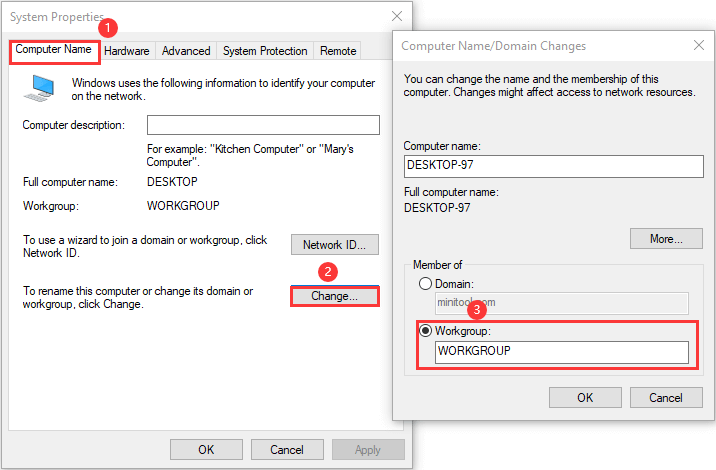
Step 4. Windows prompts for the credentials of an account with permission to remove this computer from the domain. Supply a Domain Admin account, click OK, and reboot when prompted.
Step 5. Log on again with the local administrator account and reopen Computer Name/Domain Changes.
Step 6. Select Domain under Member of, type the domain name (e.g. infotechninja.local), and click OK. Supply a Domain Admin account when prompted, click OK, and reboot once more.
After the second reboot, the domain account logs on cleanly. The new secure channel was established the moment the rejoin completed.
Solution 2: Reset the Secure Channel from PowerShell
Faster than Solution 1 because it skips the workgroup detour and the two reboots. The Reset-ComputerMachinePassword cmdlet contacts the domain controller, generates a new machine-account password, and writes it locally — the secure channel is rebuilt in one round trip without leaving the domain.
Step 1. Log on locally as administrator. Right-click Start and choose Windows PowerShell (Admin). Click Yes at the UAC prompt.
Step 2. Capture a domain credential into a variable so you do not have to retype it:
$credential = Get-CredentialStep 3. A standard credential dialog opens. Supply the username and password of an account with permission to reset the machine password — a member of Domain Admins, or a delegated account that has the Reset Password right on the computer object — and click OK.
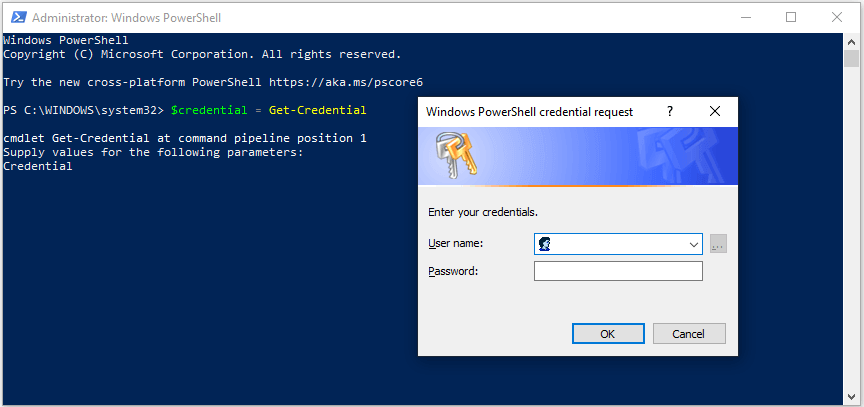
Get-Credential opens the standard credential dialog. Supply a domain account that has permission to reset the machine’s password (Domain Admins, or a delegated account).Step 4. Run the reset:
Reset-ComputerMachinePassword -Credential $credentialThe cmdlet returns silently on success. Sign out of the local account and log back in with a domain account — the trust is rebuilt and the error is gone. No reboot required.
The older nltest /sc_reset:<domain> command does the same thing and still works on every supported version of Windows; Test-ComputerSecureChannel -Repair -Credential $credential is another equivalent. All three resolve the same underlying issue.
Solution 3: Cache the DC in Credential Manager
This one is less of a fix and more of a workaround — it does not actually reset the broken machine password, it just lets you log in despite it by stashing a domain credential locally that the OS reaches for when the secure channel is unavailable. It is useful if you need access to the box right now and cannot reach a domain controller to do Solution 2 properly.
Step 1. Open Control Panel.
Step 2. Go to User Accounts › Credential Manager.
Step 3. Pick Windows Credentials and click Add a Windows credential.
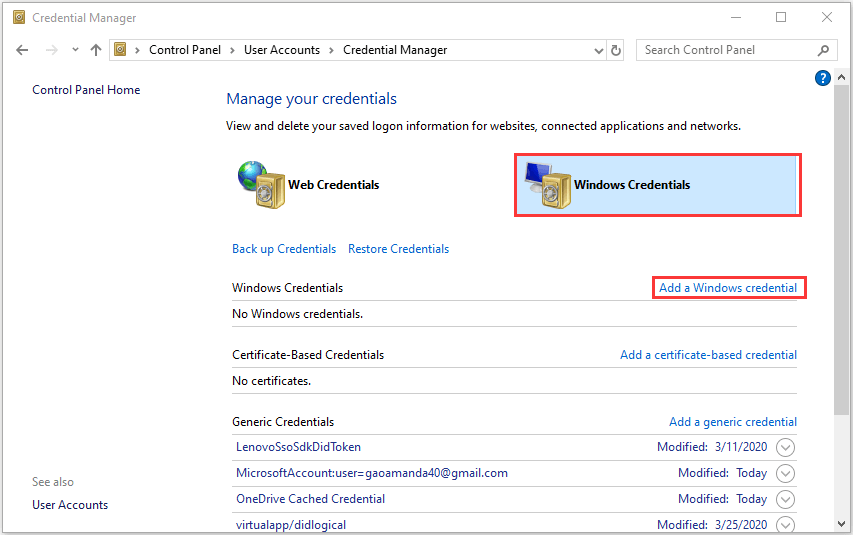
Step 4. Enter the address of the resource to authenticate against (the domain controller’s FQDN works, e.g. dc01.infotechninja.local) and supply a domain account’s username and password that has access to it. Click OK to save.
Reboot, then log in with the same domain account. The OS pulls the cached credential when the secure channel cannot be used and you get a desktop. Treat it as a temporary patch — the underlying machine-account drift is still there, and the next password rotation can put you right back where you started. Run Solution 2 from that desktop session as soon as you can to actually fix the trust.
Solution 4: Reset the Computer Account from a DC
If you cannot get to the broken machine’s desktop at all — no local admin, no recovery account — do the reset from a domain controller instead. Active Directory Users and Computers has a one-click action that flags the computer object for a fresh secure-channel handshake the next time the machine reaches the domain.
This method requires Active Directory Domain Services on the controller side; it is the right answer for server admins, not for end users on a single broken laptop.
Step 1. On a domain controller (or a workstation with RSAT), open Run, type dsa.msc and click OK to launch Active Directory Users and Computers.
Step 2. Expand the domain and select the Computers container (or whichever OU holds the affected machine).
Step 3. Right-click the computer object and pick Reset Account.
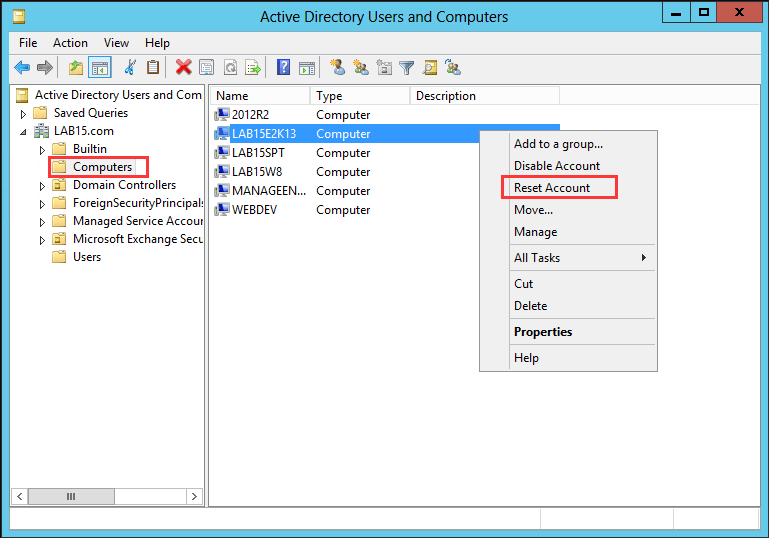
Step 4. Click Yes at the confirmation prompt. The computer object’s password is cleared on the DC side, leaving it ready to accept a fresh handshake from the machine.
Now reboot the affected workstation. On the next domain login the client and the DC re-negotiate a new shared secret and the trust is restored. If the machine cannot reach a DC over the network, this approach does nothing — the AD object is ready, but the client never gets the chance to complete the handshake. Restore network connectivity first.
Why the Trust Breaks in the First Place
The four fixes are interchangeable, but understanding what causes the failure makes the right one obvious in the moment:
- Long offline gap. The machine was powered off or disconnected for longer than the password rotation window (default 30 days). The local password is now stale and the DC has rotated past it.
- Snapshot or backup restore. The machine was rolled back to an older state, restoring an earlier copy of the machine password. The DC has moved on; the snapshot is out of sync.
- Cloning without sysprep. Two machines now share the same SID and machine account, so whichever one talks to the DC last wins, and the other one finds a password it does not recognise.
- Replication lag between DCs. Rare but possible: the password was reset on DC1 but the client is talking to DC2, which has not seen the change yet.
For the offline-gap and snapshot cases, Solution 2 (Reset-ComputerMachinePassword) is the cleanest fix — one command, no reboot. For the cloning case, you actually need to fix the duplicate SID first (sysprep one of the clones, or remove and rejoin both); resetting the password just kicks the can. For replication lag, wait it out or force replication with repadmin /syncall.
Common Pitfalls
- No local administrator account. If the machine has been hardened with no usable local admin, Solutions 1 and 2 are both unavailable — you cannot get a desktop to run them from. Solution 4 (reset from the DC) is the answer; pair it with rebooting the broken machine into recovery and enabling a local administrator account first if you need to verify the fix from the desktop.
- Treating Solution 3 as a fix. Caching a credential in Credential Manager bypasses the broken trust but leaves the underlying machine password mismatch in place. The next rotation, or the next reboot after the cached credential expires, drops you back to the same error. Use it as a temporary bridge to Solution 2, not as the permanent answer.
- Running Reset-ComputerMachinePassword without a domain credential. The cmdlet looks like it should work with the current security context, but it will fail or silently do the wrong thing if the local session is not already authenticated against the domain. Always pass
-Credential $credentialwith an explicit domain account. - Forgetting to reboot after Solution 4. Resetting the computer account on the DC side flags the AD object for a new handshake, but the client only attempts the handshake on a fresh connection — usually a reboot or a logoff/logon cycle. Without that, the broken machine keeps using its stale password and nothing changes.
- Disabling the machine-account password rotation. Group Policy Domain member: Disable machine account password changes turns the rotation off, which sounds like it would prevent this error forever — and it does, at the cost of a permanent shared secret that never refreshes. That is a real security regression. Leave the rotation on; deal with the occasional broken trust the right way.
Conclusion
The trust-relationship error is one of the few AD problems where the fix is genuinely a single command:
$credential = Get-Credential
Reset-ComputerMachinePassword -Credential $credential
If the desktop is reachable, that is the answer. If it is not, reset the computer account from a DC and reboot the client. Save the workgroup-and-rejoin dance for the rare cases where neither path works, and keep Credential Manager caching as a temporary bridge rather than a fix. Bake one of the four into your standard runbook for “cannot log into a domain-joined machine” tickets and the next time it happens the recovery is two minutes instead of an afternoon.