
The Directory Services Restore Mode password is the credential nobody uses until the day they desperately need it. It is a local Administrator account on the domain controller, set when AD DS is installed, that exists outside the directory itself — the only account you can sign in with when AD is offline. Authoritative restores from a system-state backup, post-corruption recovery, and any operation that requires ntds.dit to be unmounted run from this account. If you cannot remember the password, none of those recoveries will work the moment you actually need them.
The fix is simple, runs from a normal elevated PowerShell against a healthy DC, and does not require the old DSRM password. ntdsutil rotates the credential in place. The catch is that the only way to verify the new password actually works is to reboot into DSRM and sign in — so the procedure has two halves: reset (a few minutes) and verify (a reboot, plus another reboot back to normal).
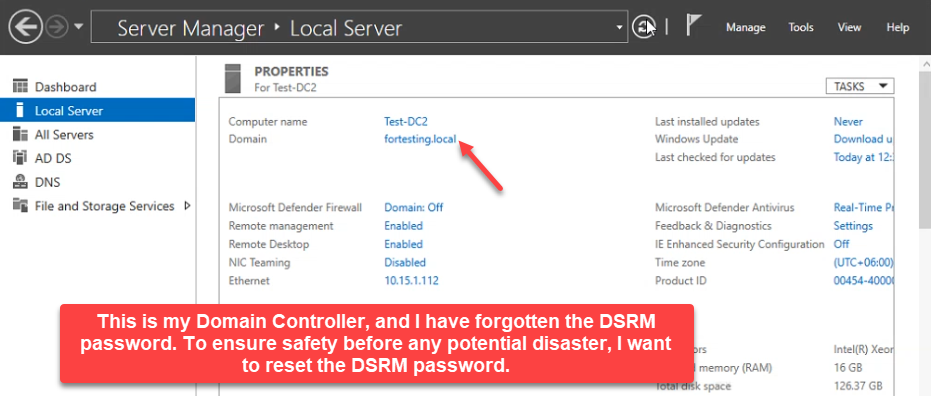
This walkthrough shows both halves on a real domain controller (Test-DC2 in fortesting.local): rotate the DSRM password with ntdsutil, reboot into DSRM, sign in as .\administrator with the new password, observe what AD looks like in repair mode (offline, services stopped), reboot back to normal, and confirm the directory is healthy again.
Why DSRM Matters
- Authoritative restore. If a tombstoned object needs to come back — an OU, a security group, a user — the only sanctioned path is a system-state restore in DSRM, then
ntdsutil›authoritative restoreto mark the recovered object so it overrides replication. - Database corruption.
ntds.ditis a Jet/ESE database. If it corrupts, the offline integrity check (ntdsutil›files›integrity) only runs when AD DS is stopped — which means DSRM. - Last-DC recovery. Single-DC environments that lose Active Directory for any reason recover via a system-state restore, which boots into DSRM. No DSRM password, no recovery.
The password rotates independently of the domain administrator credentials. It is set once at promotion (Install-ADDSDomainController -SafeModeAdministratorPassword) and stays put forever unless someone explicitly changes it. Document it in the same vault you keep break-glass credentials in, and rotate it on the same cadence.
Pre-flight
You need:
- An account with Domain Admins membership — required to launch
ntdsutilagainst the local DC and to log in normally afterwards. - RDP or console access to the domain controller. The reset itself runs from any elevated PowerShell on the DC; the verification half requires a real reboot.
- A maintenance window. The DC will be offline during the DSRM verification reboots — in a multi-DC environment, replication catches up automatically; in a single-DC environment, the directory is fully unavailable for 5–10 minutes.
If this DC is the only DC in the domain, schedule the verification half for a window where five minutes of AD downtime is acceptable, and confirm with Get-ADDomainController -Filter * that no other DC needs to be quiesced first.
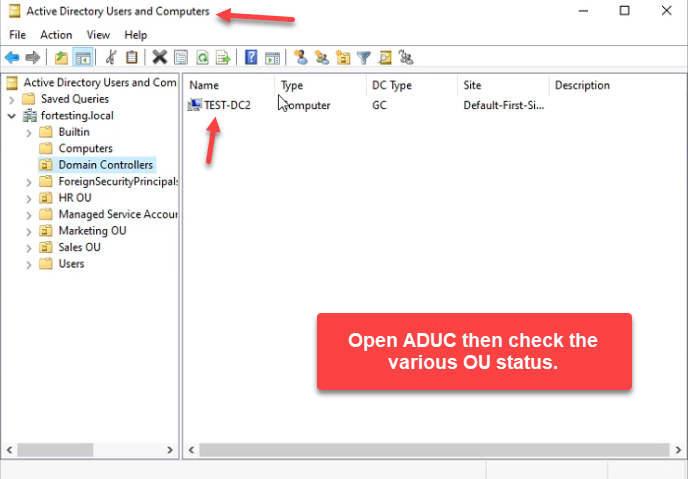
Capture the current ADUC view before you start, so you can spot-check it after the verify-and-return cycle:
Step 1: Reset the DSRM Password with ntdsutil
Open an elevated Windows PowerShell on the DC. Launch ntdsutil and step into the DSRM password subcommand:
ntdsutil
activate instance ntds
set dsrm password
reset password on server null
The keyword null means “the local DC.” To reset the DSRM password on a different DC, replace null with the target DC’s hostname:
reset password on server DC02ntdsutil prompts for the new password twice. Pick something that satisfies your domain’s password complexity policy — long, mixed-case, with digits and symbols — and store it in your password vault before you confirm. Once both prompts match you get Password has been set successfully. Type q twice to exit:
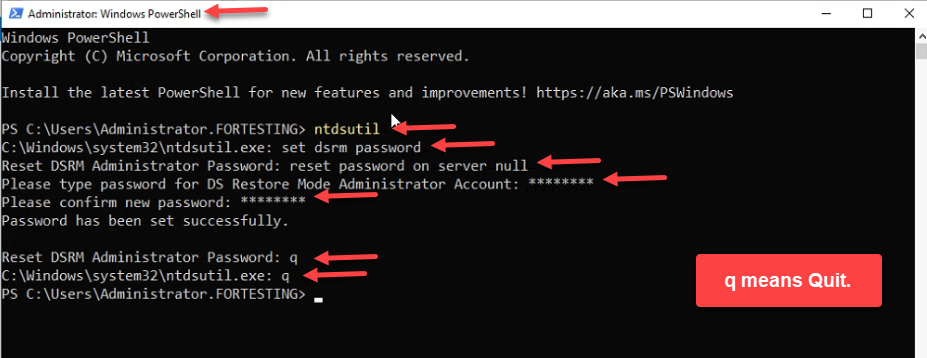
ntdsutil → set dsrm password → reset password on server null → type and confirm the new password → q twice to exit. The null keyword means “the local DC.”The reset is now in effect. Nothing has rebooted, no users were affected, AD continues running. The remaining steps verify that the new password works, which matters because a typo at the password prompt produces no error — ntdsutil just confirms whatever you typed.
Step 2: Reboot into Directory Services Repair Mode
Reboot the DC. As Windows Server starts, press F8 to open Advanced Boot Options and pick Directory Services Repair Mode:
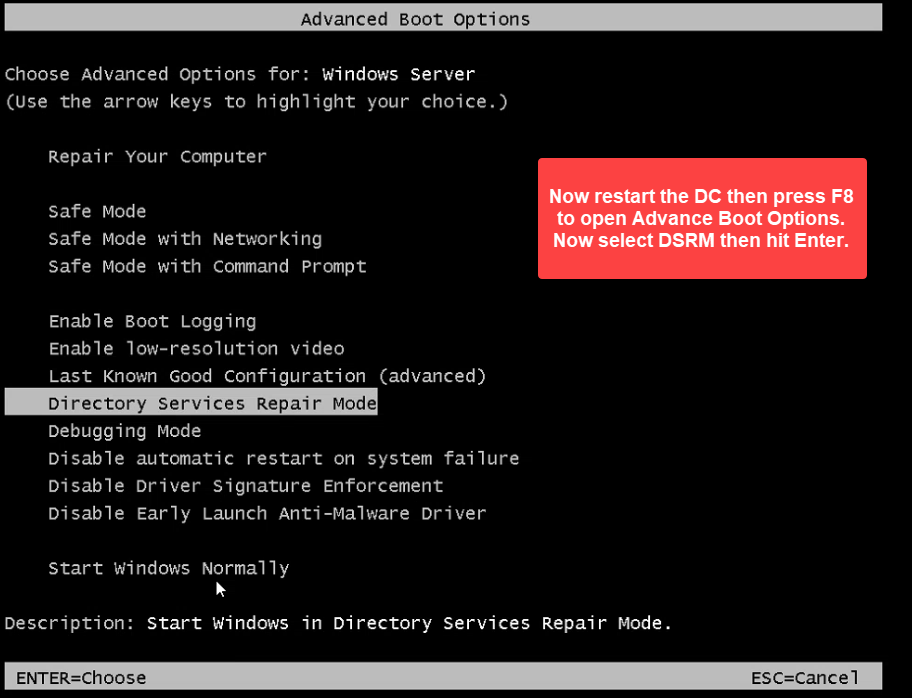
bcdedit /set safeboot dsrepair from an elevated prompt and reboot.On modern Hyper-V VMs and most physical hardware, F8 does not reach the menu reliably. The portable workaround is to set the next boot to Safe Mode › AD repair from an elevated prompt before rebooting:
bcdedit /set safeboot dsrepair
shutdown /r /t 0
The DC reboots straight into DSRM. (Remember to run bcdedit /deletevalue safeboot after verification — otherwise it boots into DSRM forever.)
Step 3: Sign In as the Local Administrator
The DSRM logon screen looks like a normal Windows logon, but the rules are different. The domain itself is offline — you cannot use a domain account.
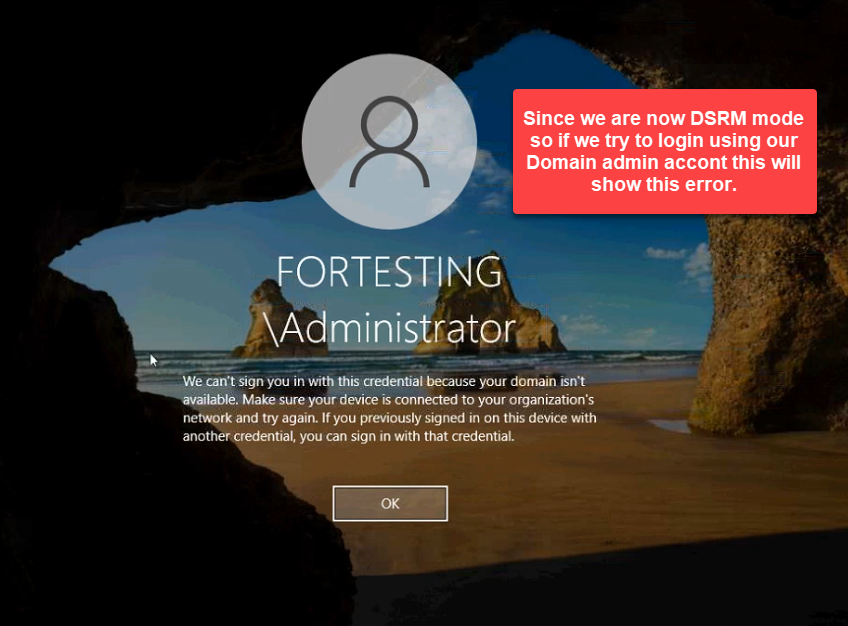
Pick Other user and enter:
- Username:
.\administrator— the leading.\tells Windows to use the local SAM, not the domain. - Password: the DSRM password you just set with
ntdsutil.
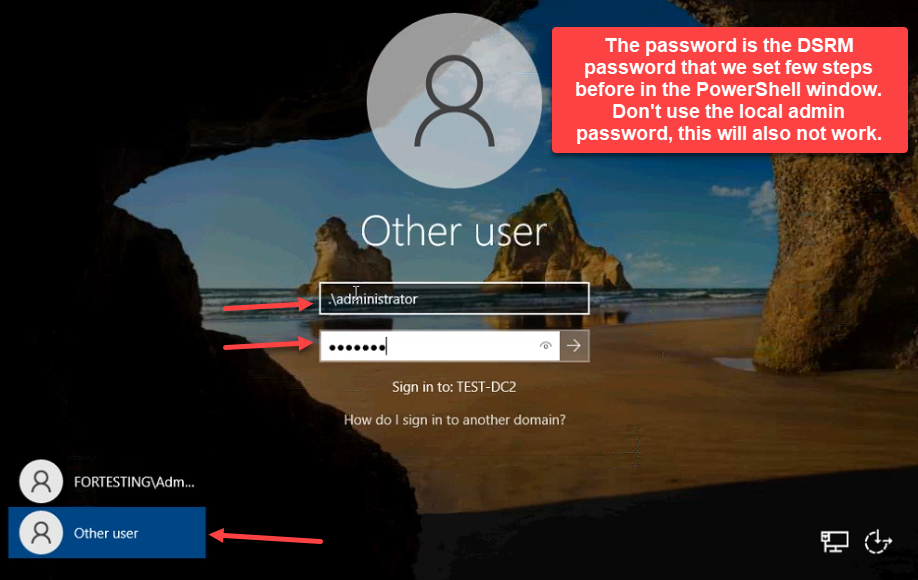
.\\administrator (the leading .\\ tells Windows to use the local SAM, not the domain), and type the new DSRM password — not the local admin password and not your domain admin password.Do not type the local-administrator password and do not type your domain administrator password — both fail. The DSRM password is its own credential, completely separate from the local admin and the domain admin.
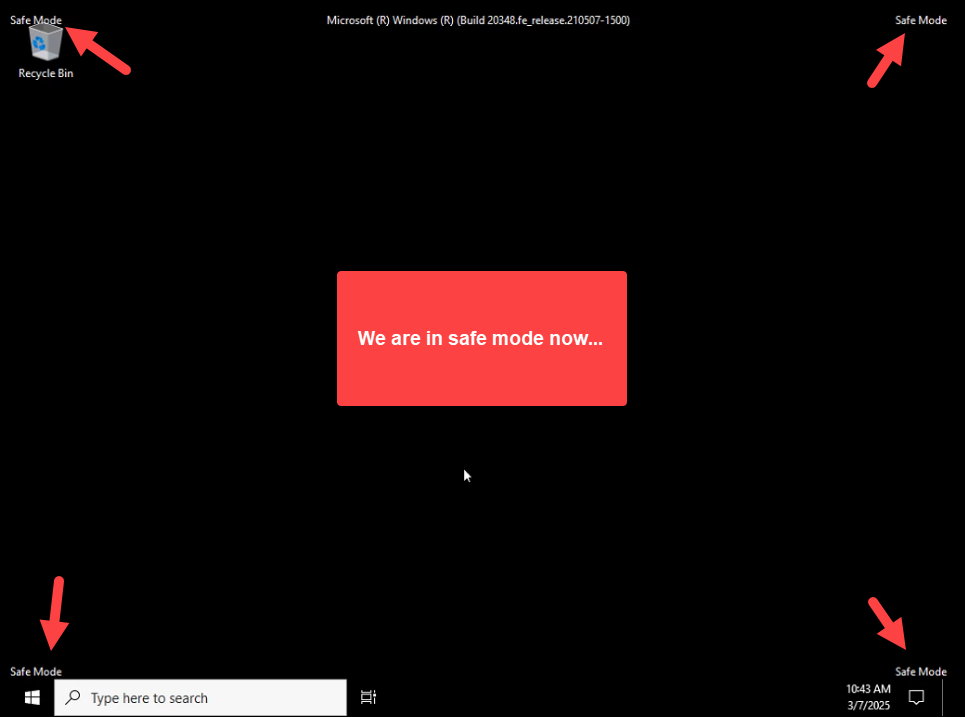
The desktop comes up with Safe Mode watermarks in all four corners. DSRM is a specialized Safe Mode where AD DS is intentionally not running:
Step 4: Confirm the Directory Is Offline
This step is optional but worth doing once so you understand what DSRM looks like. Open Server Manager — AD DS reports a services issue:
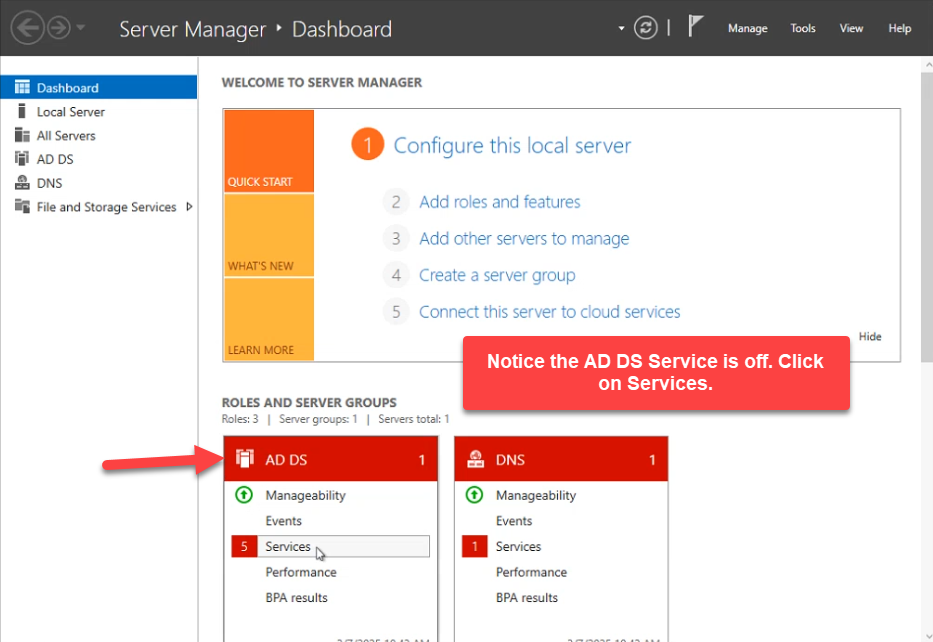
Drill into the AD DS services view. NTDS, Intersite Messaging, DFS Replication, DNS Server, and KDC are all stopped:
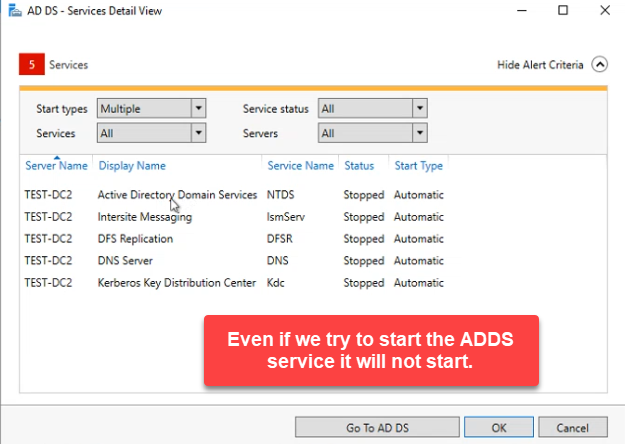
ntdsutil › authoritative restore) operate against the offline database while these are stopped.Trying to start them manually fails with One or more services cannot be started:
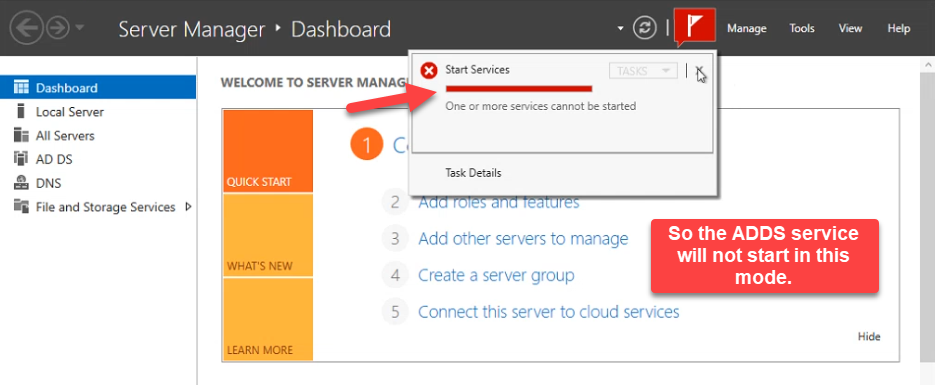
This is the protective behaviour DSRM is built around. The directory database (ntds.dit) is mounted as flat files instead of a running service, so ntdsutil’s file-mode commands (integrity check, defragment, soft / hard recovery) and authoritative-restore commands can run safely without an active replication topology fighting them.
dsa.msc opens but cannot connect to the directory — the root carries a red cross because there is nothing to bind to:
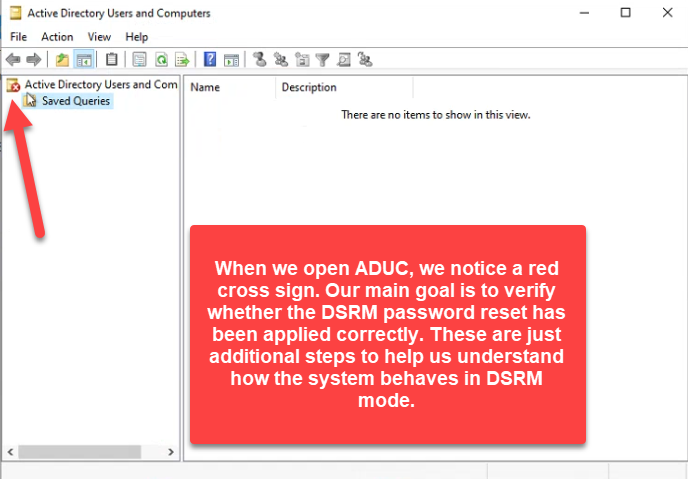
ntds.dit) can be replaced or modified safely.If any of those things looked normal, you would be in regular Safe Mode, not DSRM. The combination of Safe Mode watermarks plus stopped AD services plus an empty dsa.msc is what confirms you actually rebooted into DSRM and signed in with the right credential.
Step 5: Reboot Back to Normal
Restart the server. Do not press F8 this time. If you used bcdedit /set safeboot dsrepair to get into DSRM, run this from an elevated prompt before rebooting (or the box keeps coming up in DSRM):
bcdedit /deletevalue safebootLet the OS boot normally and sign in with your domain administrator account:
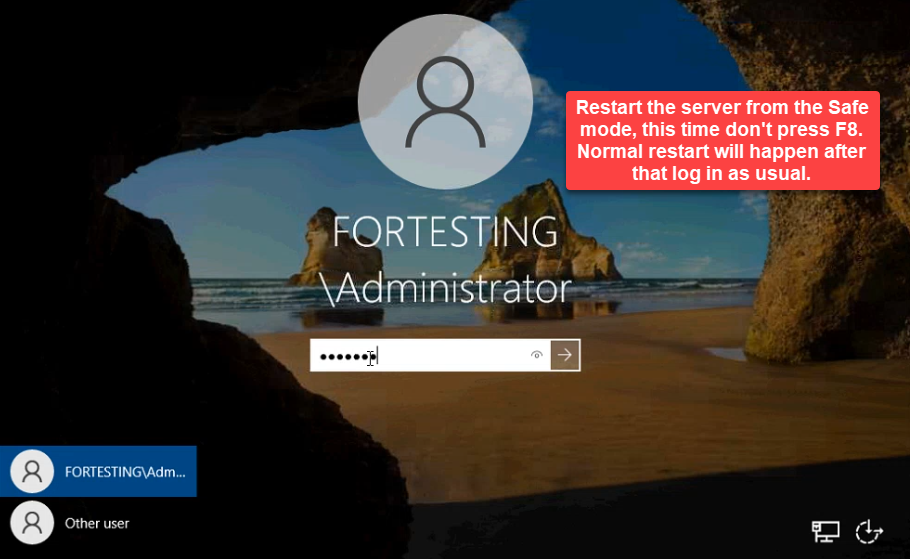
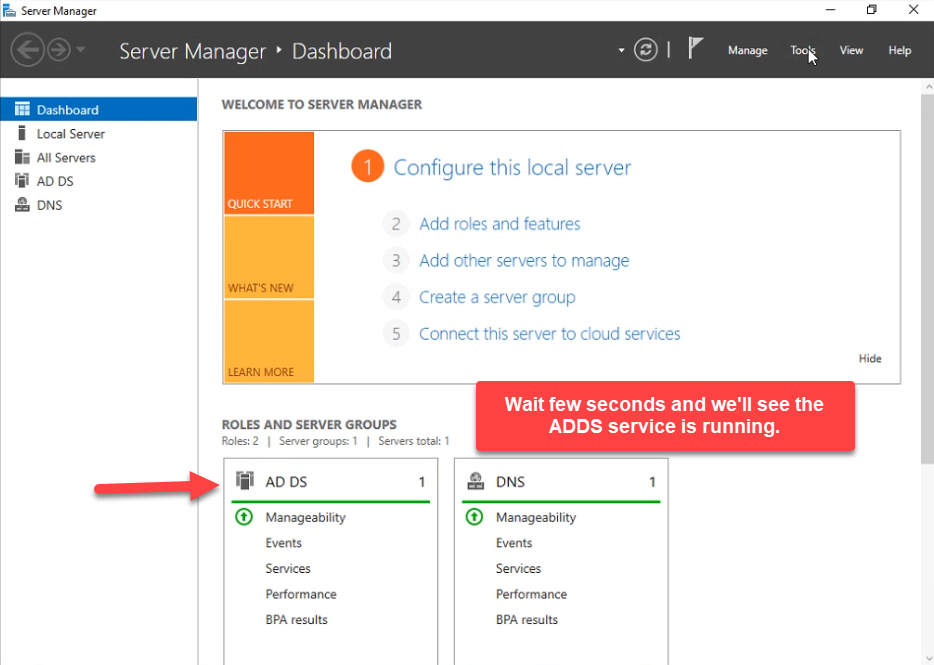
bcdedit /set safeboot dsrepair earlier, also run bcdedit /deletevalue safeboot from an elevated prompt before rebooting, otherwise the box keeps coming up in Safe Mode. Sign in with the domain administrator.Once it is up, Server Manager shows AD DS and DNS green again:
And ADUC pulls the full OU tree:
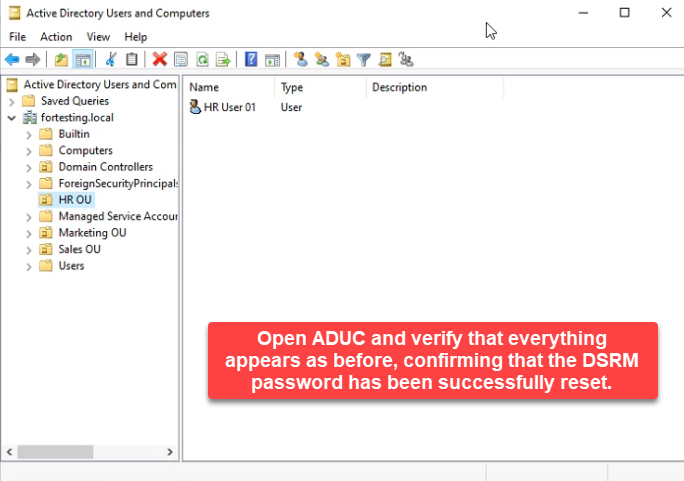
Reset, verified, returned to normal. The DSRM password is documented and known-good; if a real recovery scenario hits next quarter, the credential is not the bottleneck.
Doing It Across Multiple DCs
The DSRM password is per-DC, not per-domain — every DC has its own. To rotate them all at once, run ntdsutil against each DC by name from a single elevated prompt on one of them:
ntdsutil
activate instance ntds
set dsrm password
reset password on server DC01
... (enter password twice)
reset password on server DC02
... (enter password twice)
reset password on server DC03
... (enter password twice)
q
q
Each DC needs the password typed twice. Vault all of them — preferably with one shared password across the fleet so a recovery from any DC uses the same credential, but that decision is yours.
If you would rather sync the DSRM password to a real domain user account’s password (so it rotates automatically with that account), the ntdsutil › set dsrm password › sync from domain account <username> path does that. It is convenient, but it ties the recovery credential to a directory-resident object — if the directory is the thing that broke, the password sync is too. The break-glass pattern (independent password in a vault, rotated on a calendar) is the more defensible answer for most environments.
Common Pitfalls
- Typo at the password prompt.
ntdsutil’s second prompt validates that the two entries match, not that the entries are what you intended. Verify by actually rebooting into DSRM — it is the only way to know the credential works. - Trying the local admin password in DSRM.
.\administratorin DSRM uses the DSRM credential, not the regular local administrator’s password. Even if the DC has the same name for both accounts, the passwords are independent. - Forgetting the safeboot flag.
bcdedit /set safeboot dsrepairsurvives reboots until you delete it. Always pair the set with the delete: get into DSRM, do the work, delete the flag, reboot. - Skipping the verification reboot. The reset succeeds silently regardless of typos. If the next time you need DSRM is also the first time you sign in with the new password, that is the wrong moment to find out the password does not work.
- Resetting only on one DC in a multi-DC environment and assuming the rest are fine. Each DC has its own DSRM password. Rotate all of them or document explicitly which DC has which credential.
- Storing the DSRM password in the same place as the domain admin password. The whole point of DSRM is that it works when the domain is broken. If the only copy of the credential is in a system that requires the domain to log in to (or a vault that depends on AD-integrated SSO), the recovery plan has a circular dependency. Keep the DSRM password in a tier-zero offline vault.
Conclusion
The DSRM reset itself is four lines of ntdsutil and takes a minute. The reason this article is fourteen screenshots long is the verification half — getting into DSRM, signing in with the new credential, observing that AD really is offline, and getting back out cleanly. Skip that half and you are betting the next disaster on a password you never confirmed. Bake the full reset-and-verify into the same calendar as your domain admin password rotation, document the credential in a tier-zero vault, and the DSRM password stops being the recovery scenario’s weakest link.