
Windows ships with a long list of pre-installed UWP apps that almost no business workstation needs — Microsoft Store, Xbox Console Companion, Solitaire & Casual Games, Mixed Reality Portal, the various Skype / Movies / 3D viewers, and so on. They auto-install with the OS image, they auto-update from the Store, and removing them per-machine with Remove-AppxPackage works only until the next provisioning cycle puts them back. The right tool for keeping them off domain-joined endpoints is not removal — it is blocking execution, with a single Group Policy that targets every domain-joined machine.
That tool is AppLocker, specifically its Packaged app Rules collection, scoped to the publisher and product name of each app. AppLocker rules push as a Computer-Configuration Group Policy, evaluate at runtime via the Application Identity service, and intercept the launch of any blocked package before any code runs — the user sees a clean “This app has been blocked by your system administrator” screen and the app does not start.
This walkthrough builds the GPO end to end: create and link a new GPO, configure the Application Identity service for automatic startup (AppLocker’s hard dependency), import a baseline AppLocker policy, scope the rules to deny the specific packages we want blocked, set enforcement mode, push the policy with gpupdate, and verify on a domain-joined client that the Store / Xbox / Solitaire all hit the block screen.
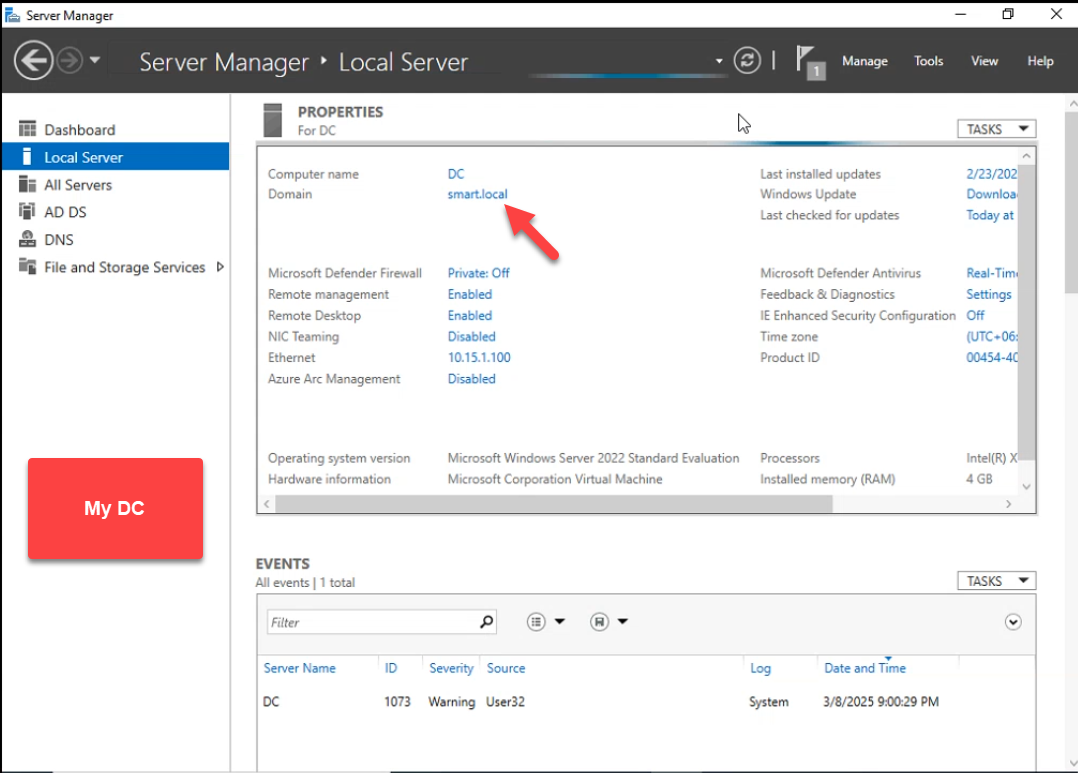
smart.local are the targets — AppLocker is a Computer-Configuration policy and applies on machine boot.Why AppLocker for Packaged Apps
- Survives provisioning.
Remove-AppxPackageand DISM-based removal disappear the next time the OS auto-restores the package or the user creates a new profile. AppLocker blocks at execution time — the package can be present on disk; it just cannot launch. - Per-package precision. A blanket “disable Microsoft Store” setting in Administrative Templates is one switch. AppLocker addresses each package by publisher + product name, so blocking Xbox without breaking Calculator works; blocking Microsoft Store for users without breaking Microsoft Store for Business on managed deployments works.
- Pushed by Group Policy. One GPO covers every domain-joined endpoint. New machines pick the rules up at next boot. No per-machine scripts, no orchestration tooling needed.
- Fail-closed. If the rules malfunction, the worst case is “package does not launch” — loud and obvious to the user, easy to diagnose. There is no silent allow-list bypass like with Software Restriction Policies.
Pre-flight
- Windows Server with RSAT (DC or admin workstation) for editing Group Policy.
- Windows 10/11 Enterprise or Education on the client. AppLocker rules push to Pro and Home but only enforce on Enterprise/Education SKUs. Pro machines see the GPO, evaluate it, and silently allow everything — this is a known Microsoft licensing limit, not a bug.
- An AppLocker baseline XML. The screenshots in this article use a 132-rule baseline that covers every built-in Microsoft packaged app on the test machine. You can generate one yourself: on a clean reference PC, run
Get-AppxPackage | Get-AppLockerFileInformation | New-AppLockerPolicy -RuleType Publisher -User Everyone -RuleNamePrefix "Built-in Apps" -Xml > baseline.xmland save the result.
Step 1: Create and Link the GPO
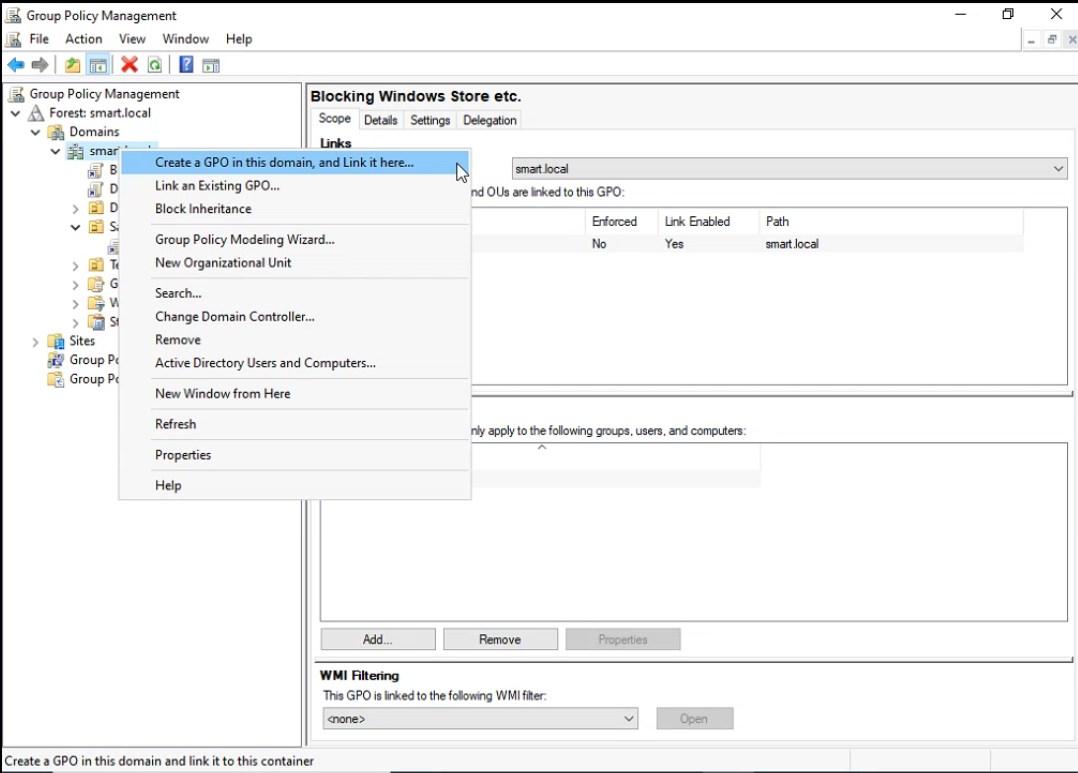
Open Group Policy Management. Right-click the OU that holds your client computers (or the domain root for a fleet-wide policy) and pick Create a GPO in this domain, and Link it here:
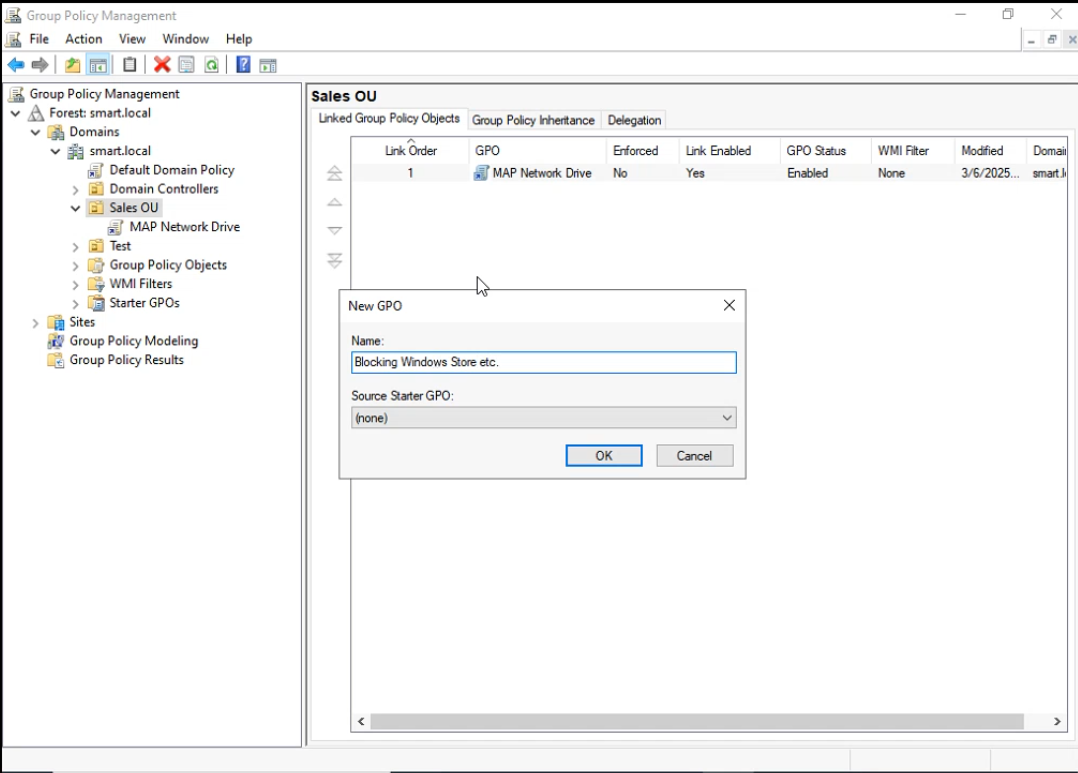
Name it descriptively. Blocking Windows Store etc. works for the lab; production naming might be AppLocker — Block Microsoft Store / Xbox / Solitaire so the scope of the policy is obvious from the GPMC tree:
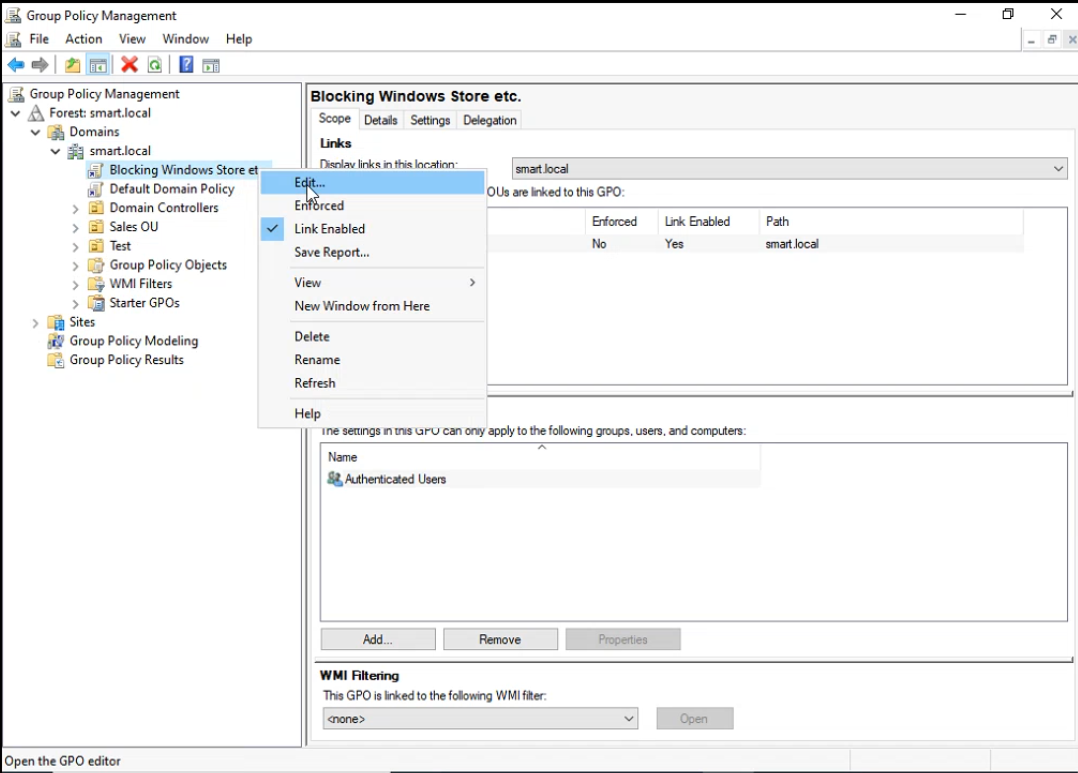
Right-click the new GPO and pick Edit to open the editor:
Step 2: Configure the Application Identity Service
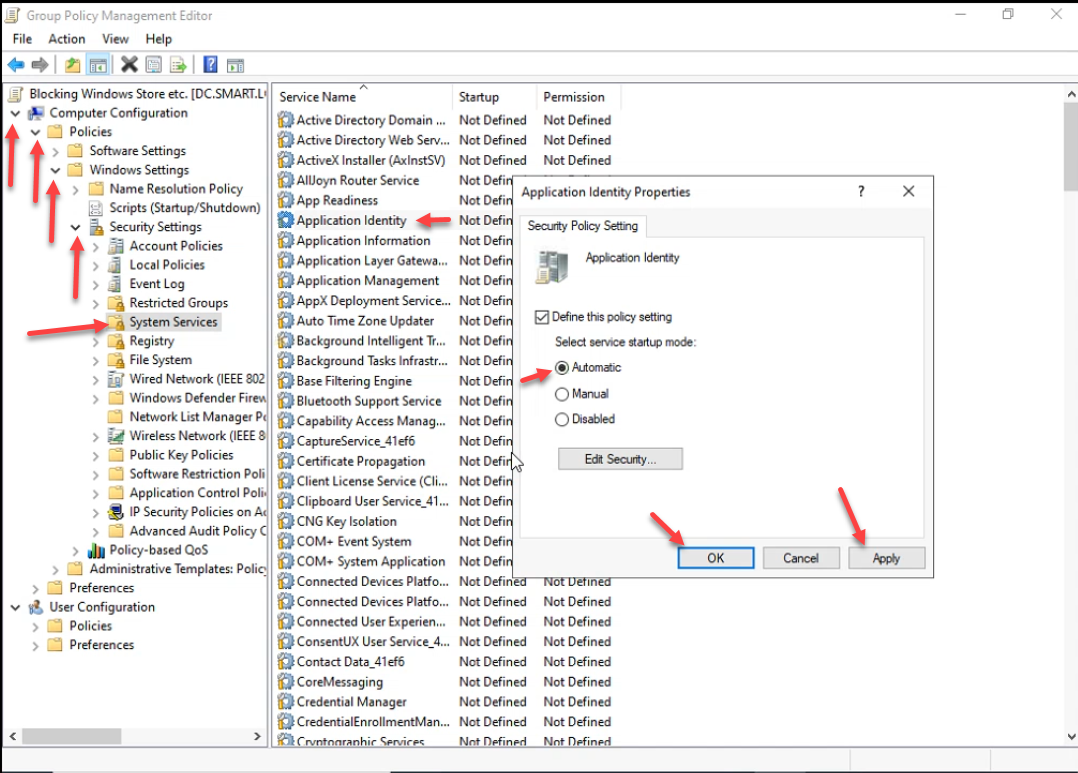
AppLocker has a hard runtime dependency on the Application Identity service (AppIDSvc). If the service is stopped on the client, AppLocker rules push successfully but never evaluate — every package launches as if no rules existed. The service defaults to Manual startup; we have to flip it to Automatic via Group Policy so it starts at every boot.
Navigate to:
Computer Configuration
  Windows Settings
    Security Settings
      System Services
Open Application Identity, check Define this policy setting, and pick Automatic:
The Startup column for Application Identity now reads Automatic:
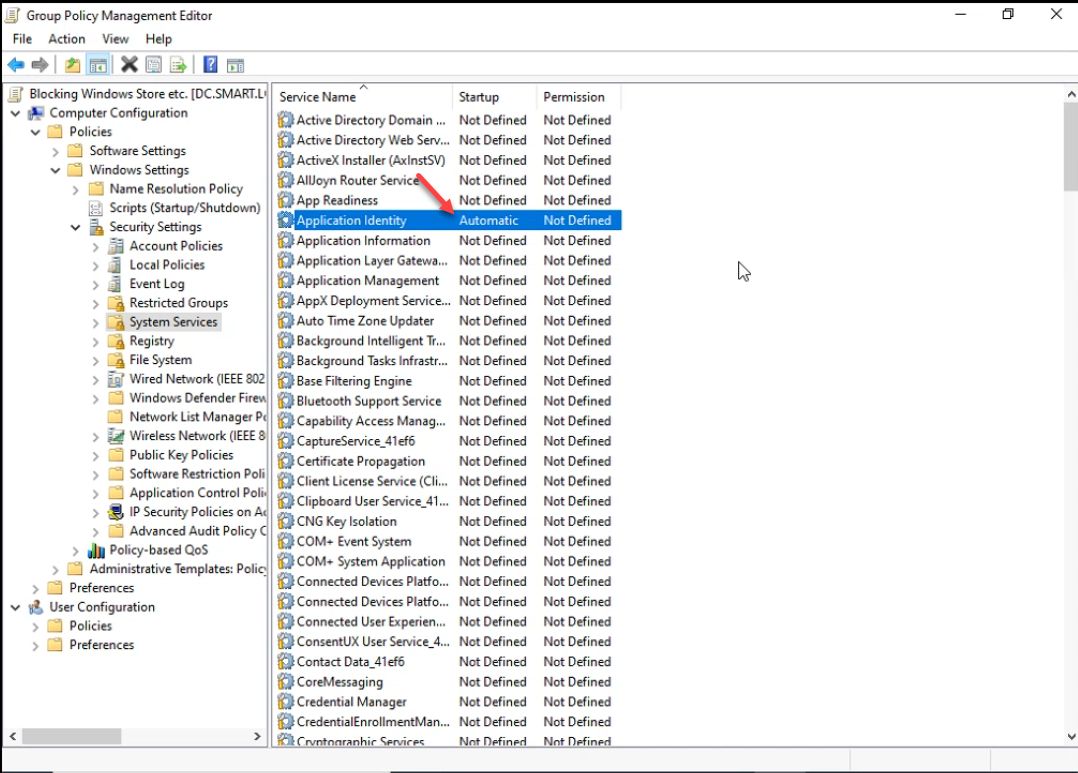
This single change is the most-skipped step in AppLocker walkthroughs. Without it, every other piece of the policy is dead weight on the client.
Step 3: Import the AppLocker Baseline
In the same GPO, navigate to:
Computer Configuration
  Windows Settings
    Security Settings
      Application Control Policies
        AppLocker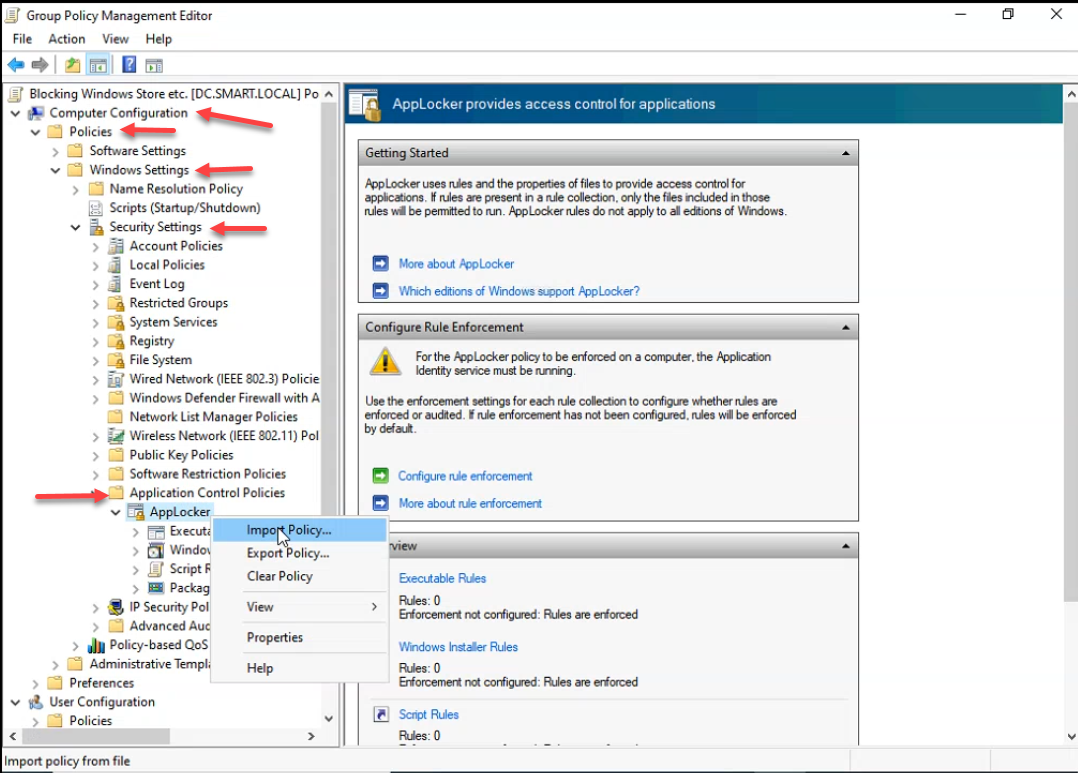
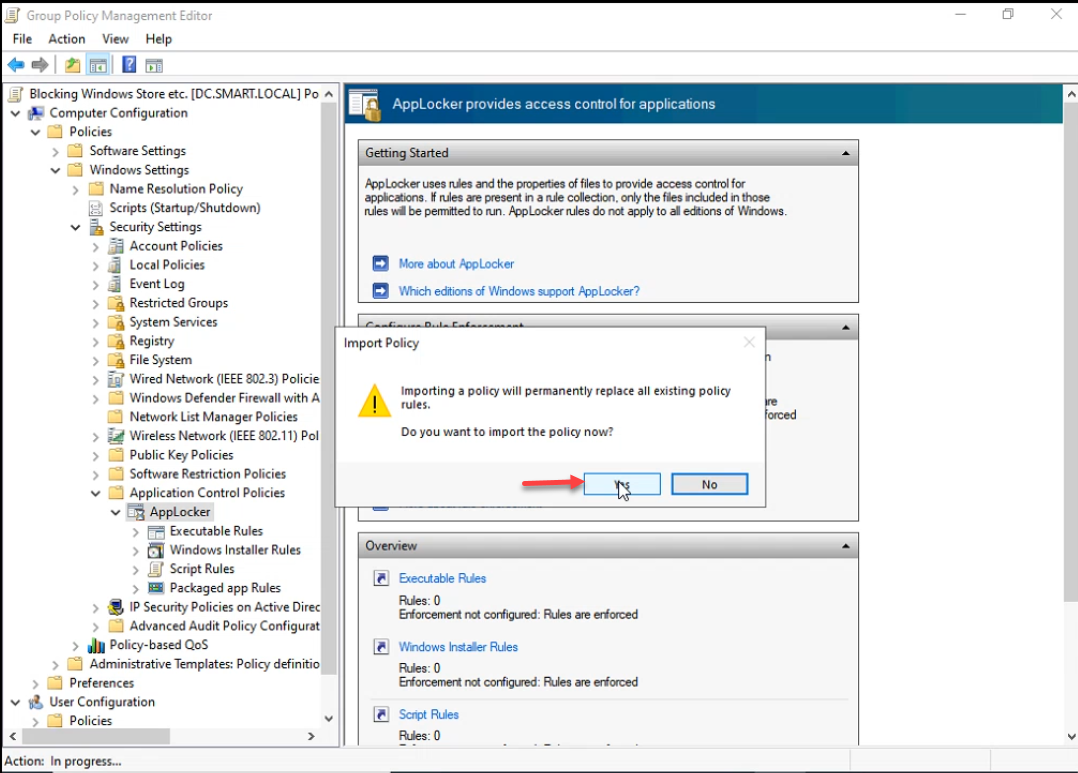
Right-click AppLocker → Import Policy. Pick the baseline XML file:
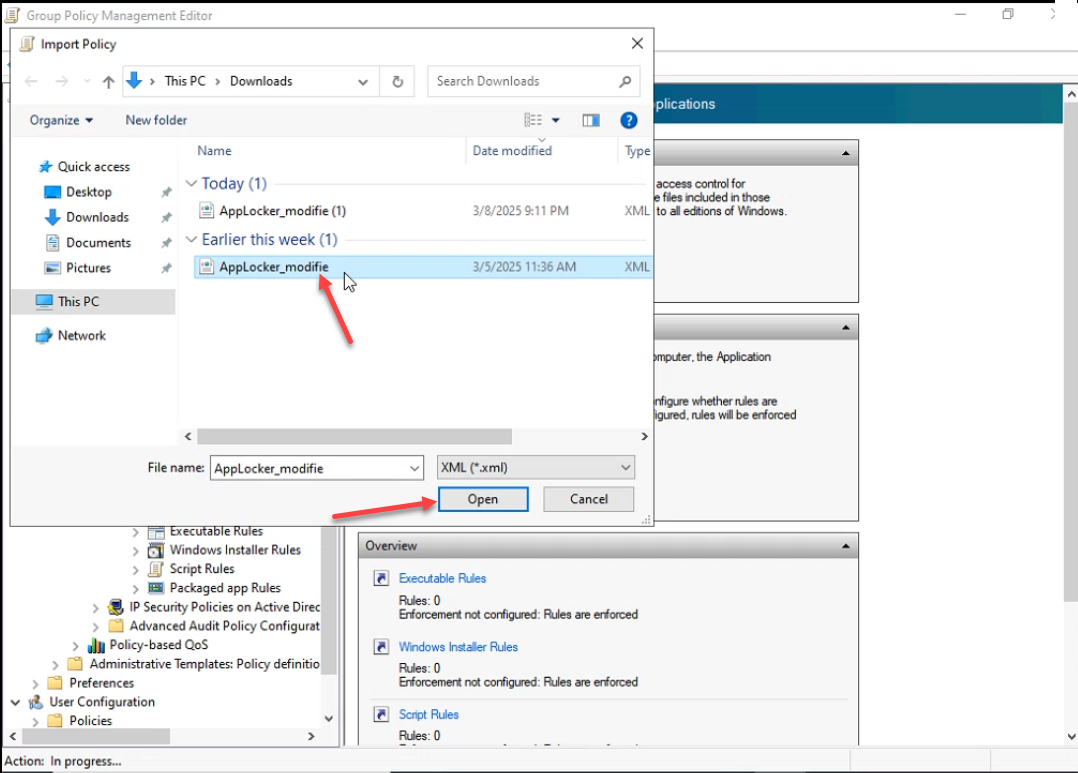
AppLocker_modifie.xml baseline that contains 132 Allow rules covering every built-in Microsoft packaged app.Importing a policy will permanently replace any existing policy — click Yes:
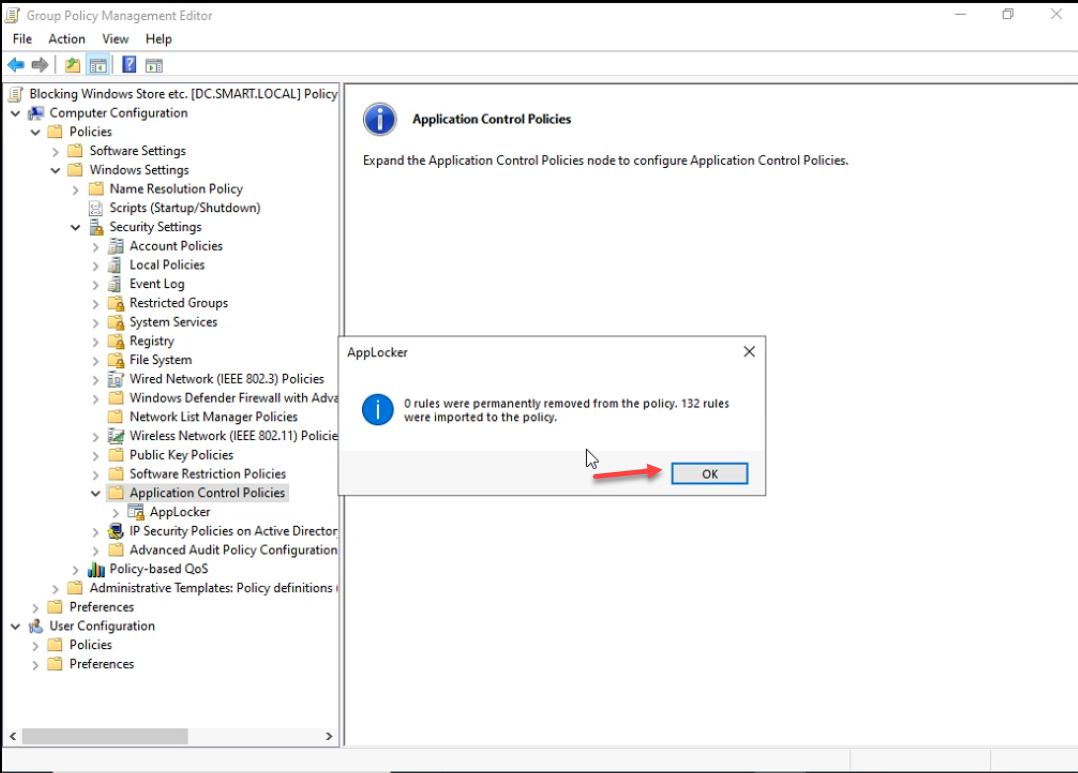
The import reports the count of removed and added rules. For an empty starting policy, the result is something like 0 rules were permanently removed from the policy. 132 rules were imported to the policy.:
Each imported rule is a Publisher rule that allows one specific Microsoft package to run for Everyone. Together they form a permissive baseline — everything Microsoft ships is allowed. The next step removes the apps we want blocked from this allow-list.
Step 4: Block the Specific Packages
Open AppLocker → Packaged app Rules. The imported list shows one row per Microsoft package:
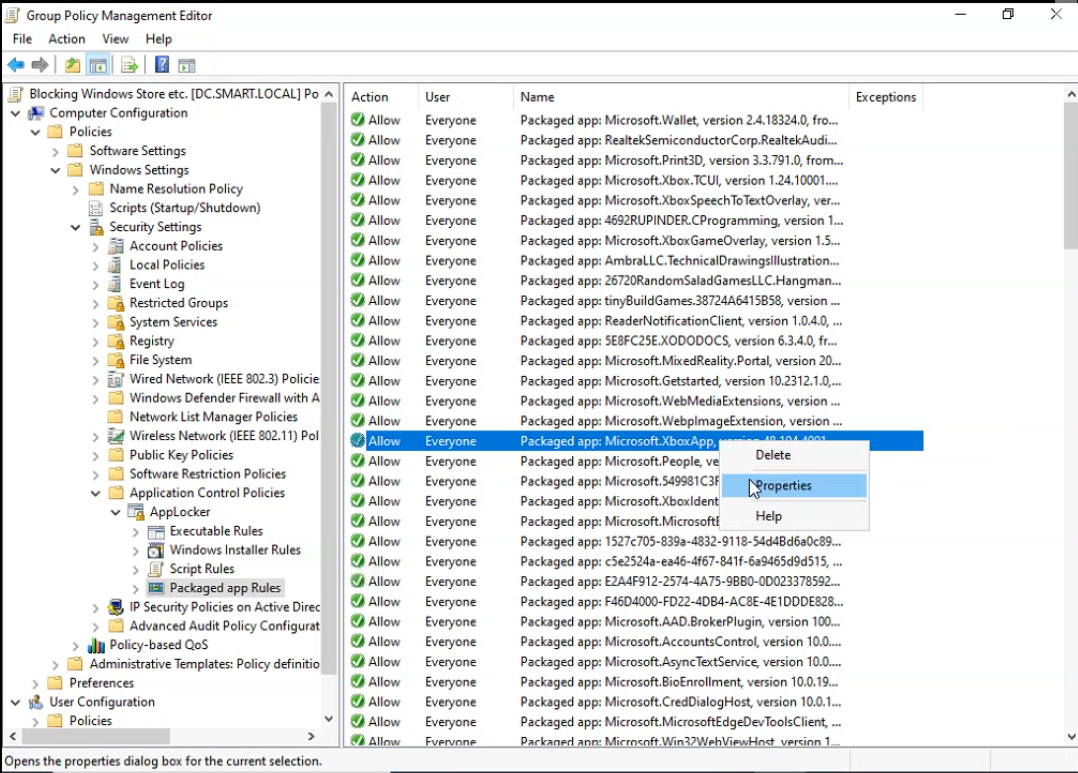
There are two ways to block a package, and AppLocker handles both. Pick whichever fits the rule baseline you imported:
Approach A — Add publisher exceptions to the broad Allow rules. Open the Allow Everyone Packaged Microsoft.* rule, switch to the Exceptions tab, and add a Publisher exception that names the specific package by publisher + product name:
The exception editor lets you pick the package by browsing to an installed app or by typing the publisher and product name directly:
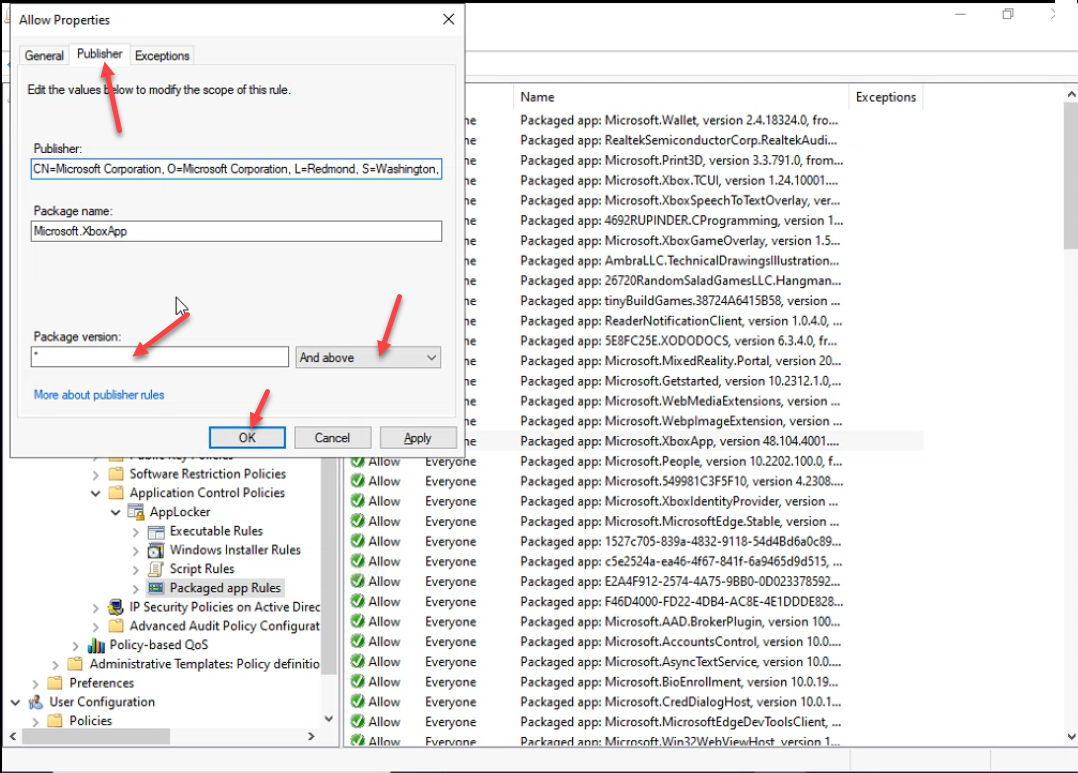
* for the whole package).An exception carves the named package out of the Allow rule. AppLocker is default-deny, so anything not allowed is blocked — the excepted package now hits the block screen. The list still reads Allow Everyone for each rule, because the exception is metadata on the rule rather than a separate row:
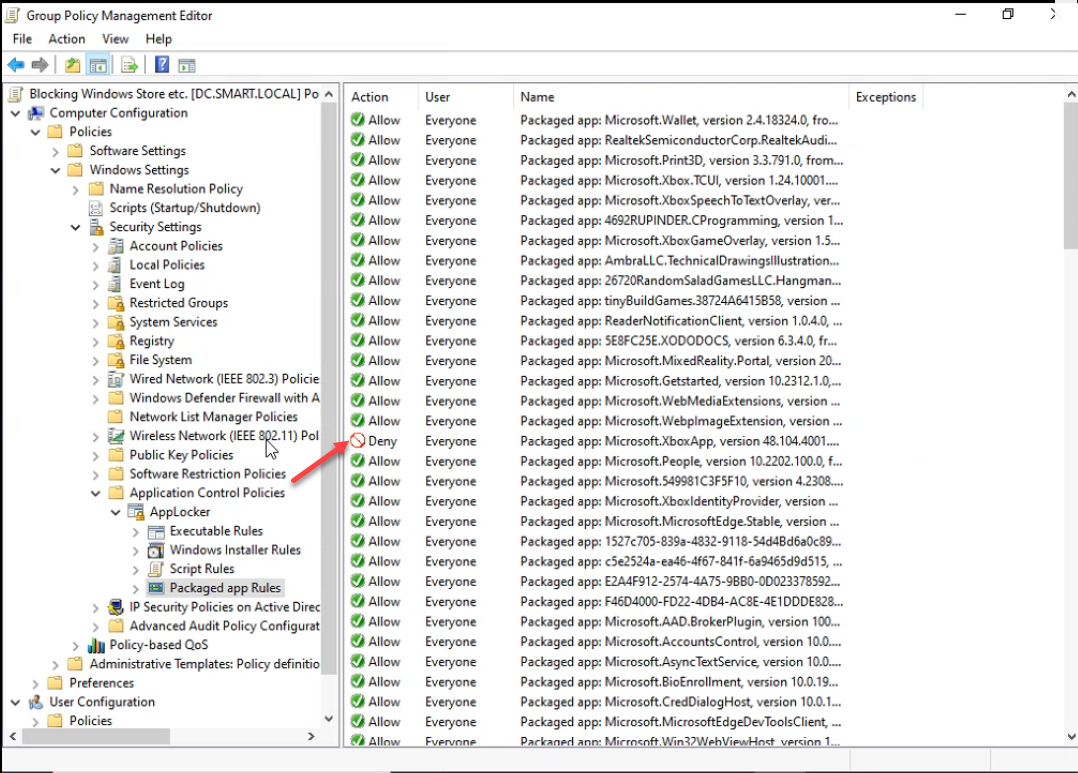
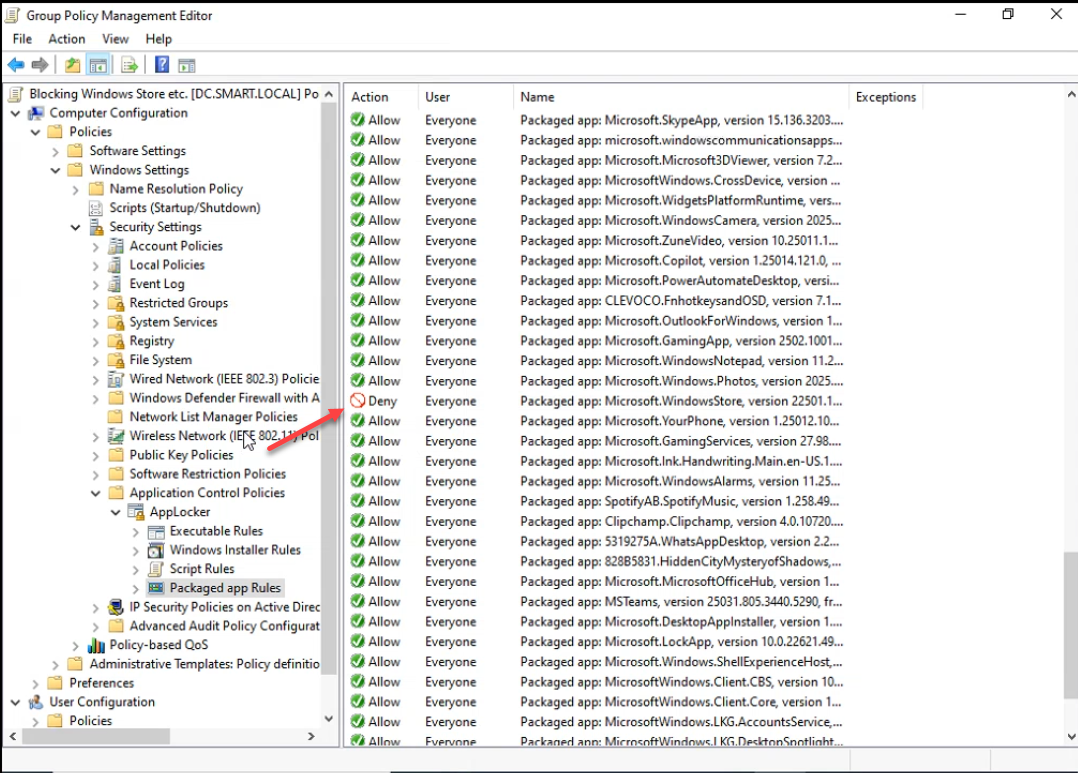
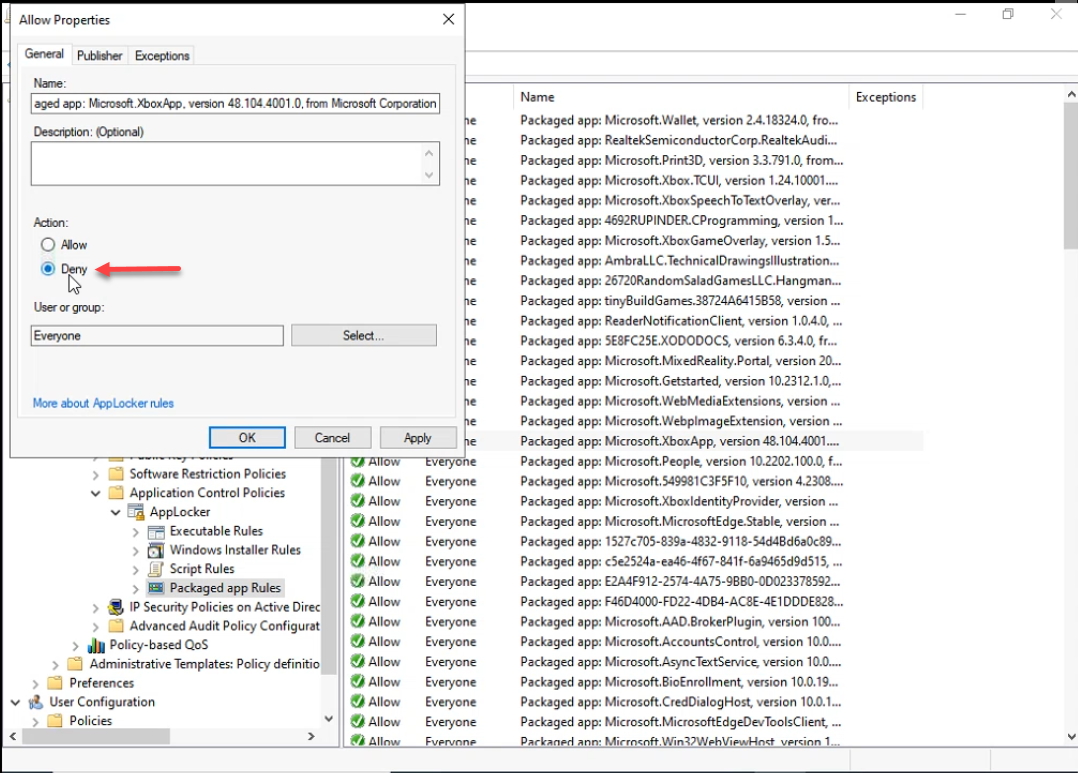
Approach B — Change Action from Allow to Deny. If the baseline already includes a per-package row for the app you want blocked, the simpler answer is to right-click that single rule, pick Properties, and change Action from Allow to Deny. Deny rules win against Allow rules at the same scope; one row, one click, no exception bookkeeping:
Use approach B when only a handful of named packages need blocking. Use approach A when the policy is “allow only Microsoft built-ins, deny everything else” and you need to add specific exceptions to a narrowly-scoped Allow rule.
Step 5: Enforce the Rules
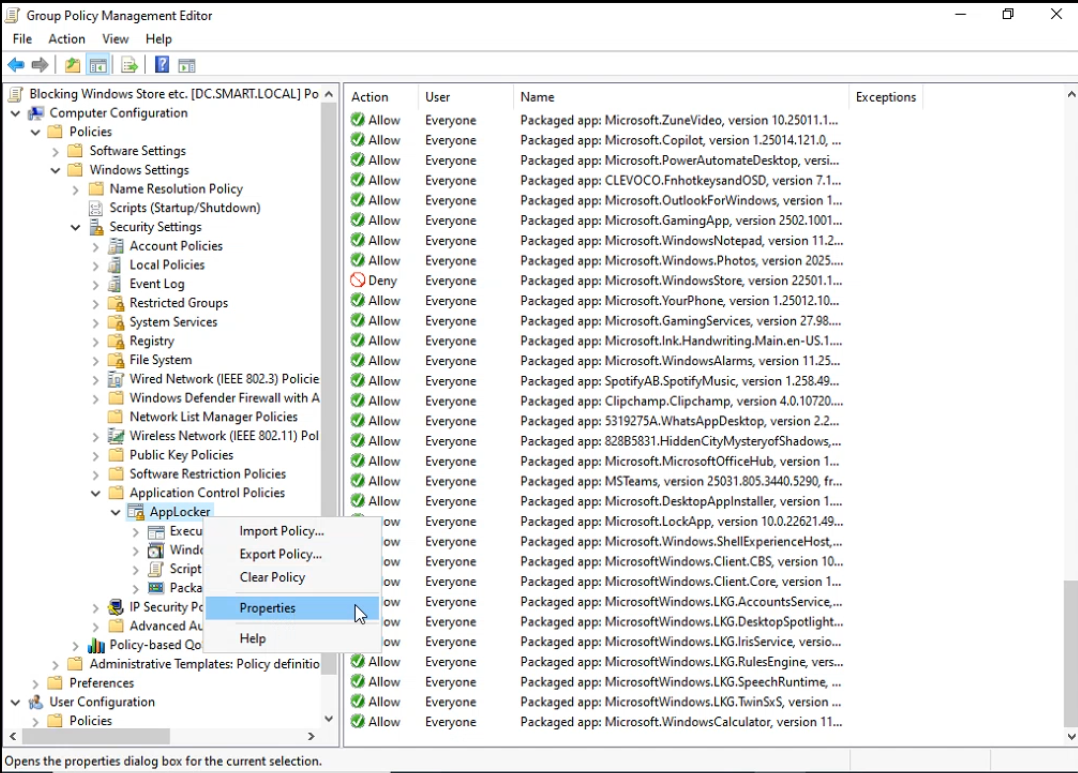
AppLocker imported the rules as Audit only by default — rules are evaluated and logged in the AppLocker event log but no app is actually blocked. Switch to enforcement mode in the AppLocker properties dialog:
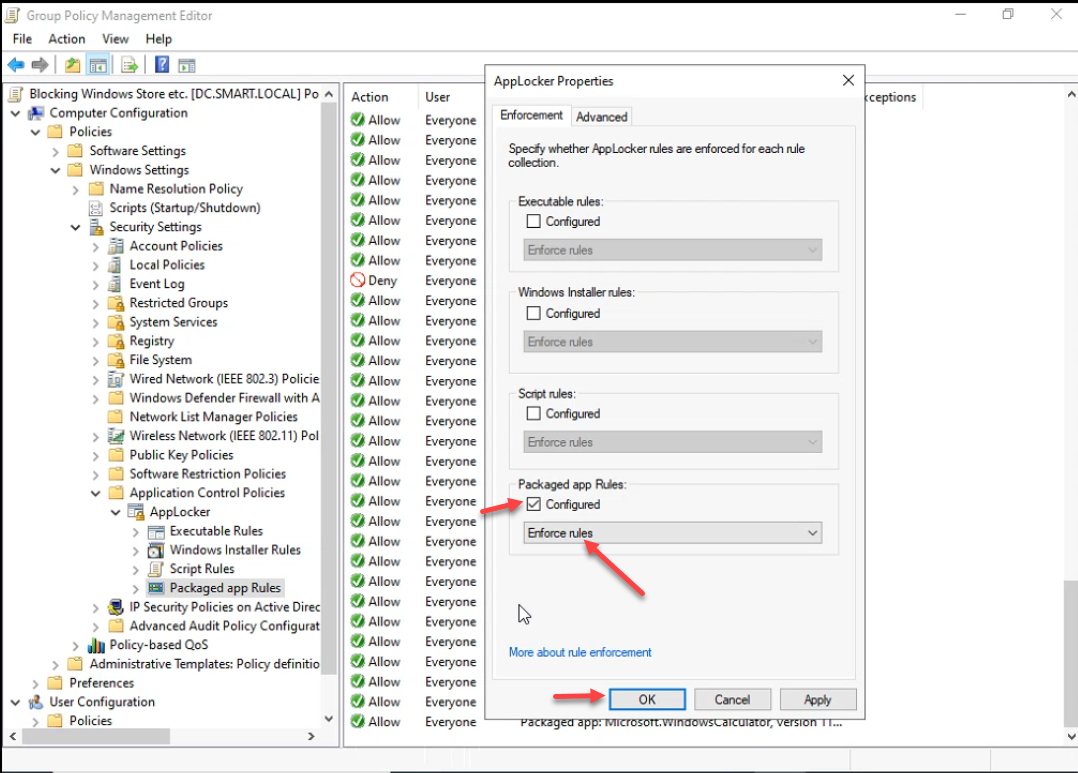
On the Enforcement tab, check Configured for Packaged app Rules and pick Enforce rules. For a production rollout, leave it at Audit only for a week first — check Event Viewer › Applications and Services Logs › Microsoft › Windows › AppLocker › Packaged app-Execution on a representative client to see what would have been blocked. Switch to Enforce rules only after the audit log is clean of false positives.
Step 6: Confirm GPO Scope
On the GPO’s Scope tab, check the link location and security filtering:
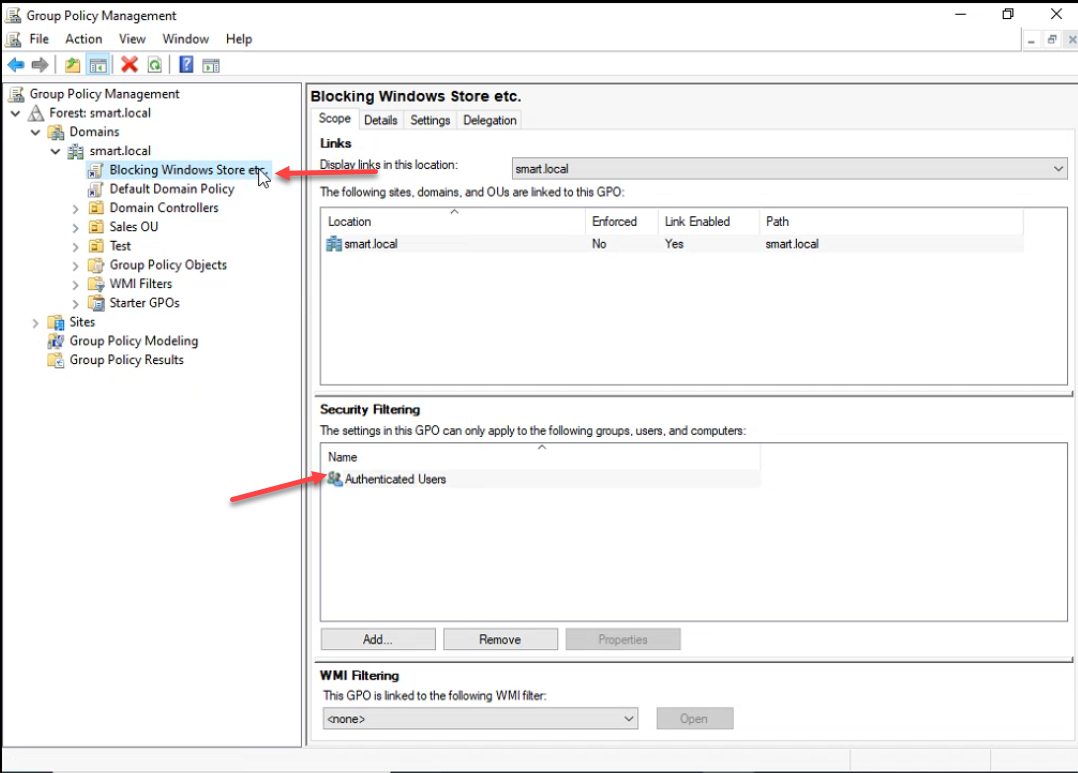
The defaults — linked at the OU/domain you picked, security filtering Authenticated Users — apply the GPO to every computer object in the link scope. Computer accounts are members of Authenticated Users; you do not need to explicitly add them.
Step 7: Push and Verify
From an elevated prompt on the DC, force replication so other DCs in the domain pick up the new GPO immediately:
gpupdate /force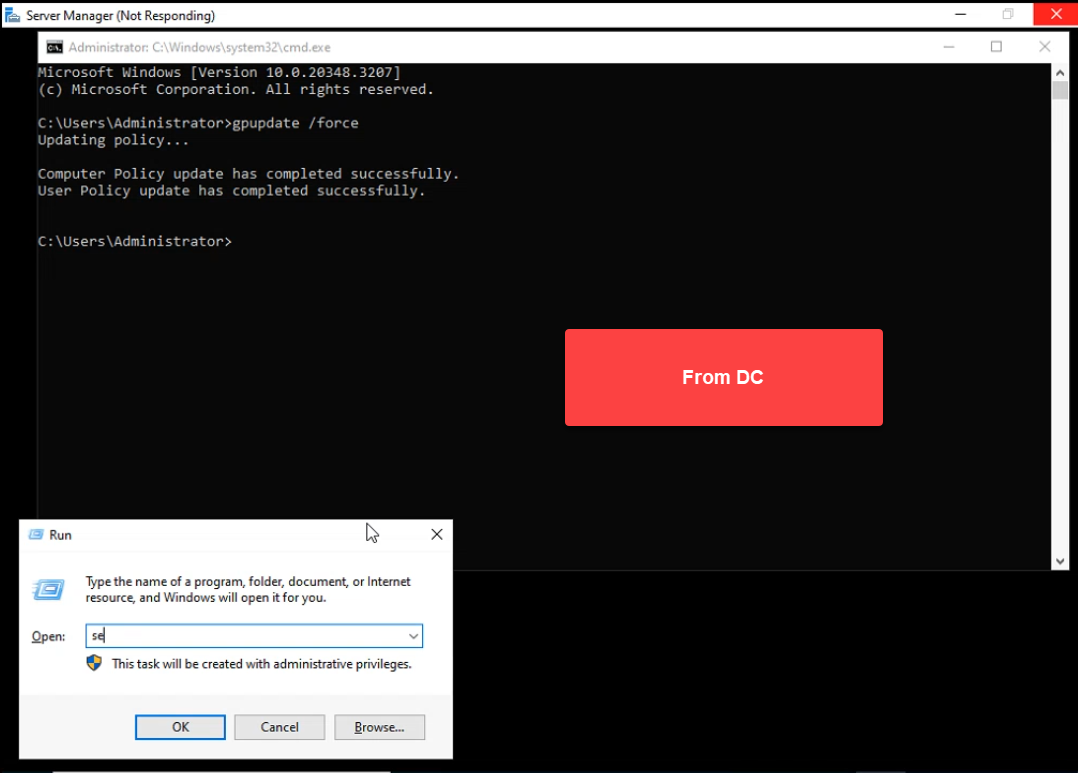
gpupdate /force publishes the GPO. On the client, open Run and type services.msc — we want to confirm the Application Identity service is running before we test the rules.On a domain-joined client, sign in as a regular user and run gpupdate /force as well. Then open services.msc and confirm Application Identity reports Running with Automatic startup type:
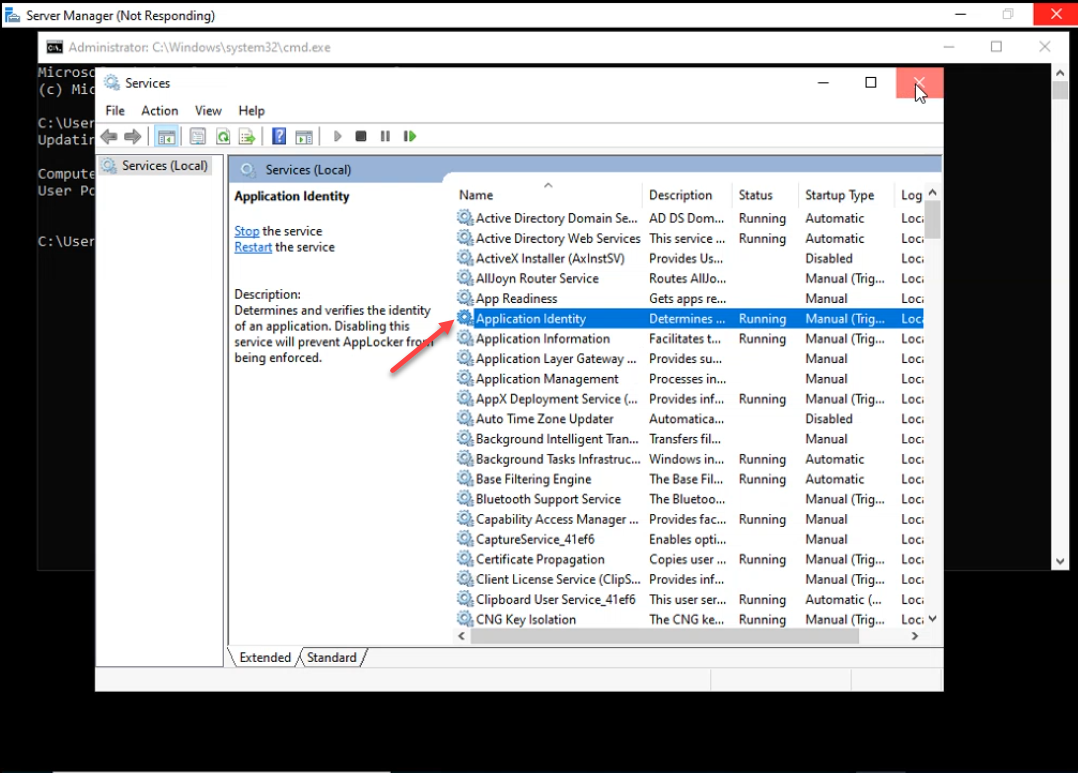
If Application Identity is still stopped after gpupdate /force, reboot the client — the System Services policy that flipped startup mode to Automatic applies on the next service-start cycle.
Test by searching the Start menu for one of the blocked apps. Microsoft Store:
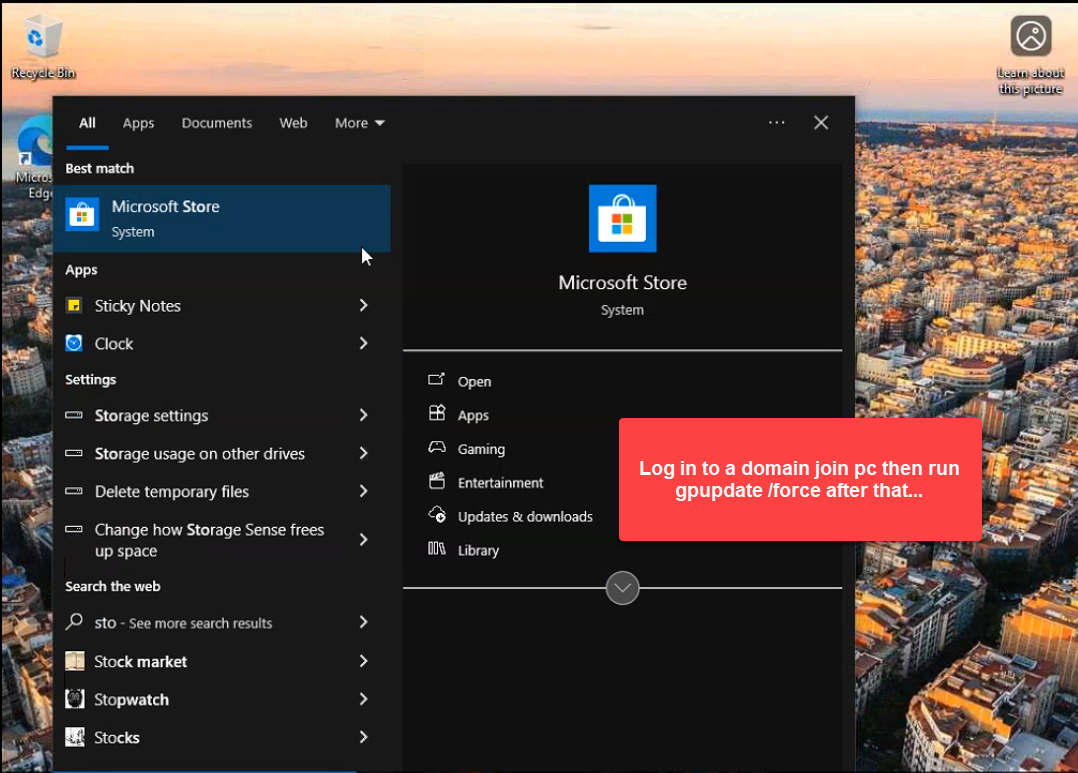
gpupdate /force, then test by searching for Microsoft Store in the Start menu.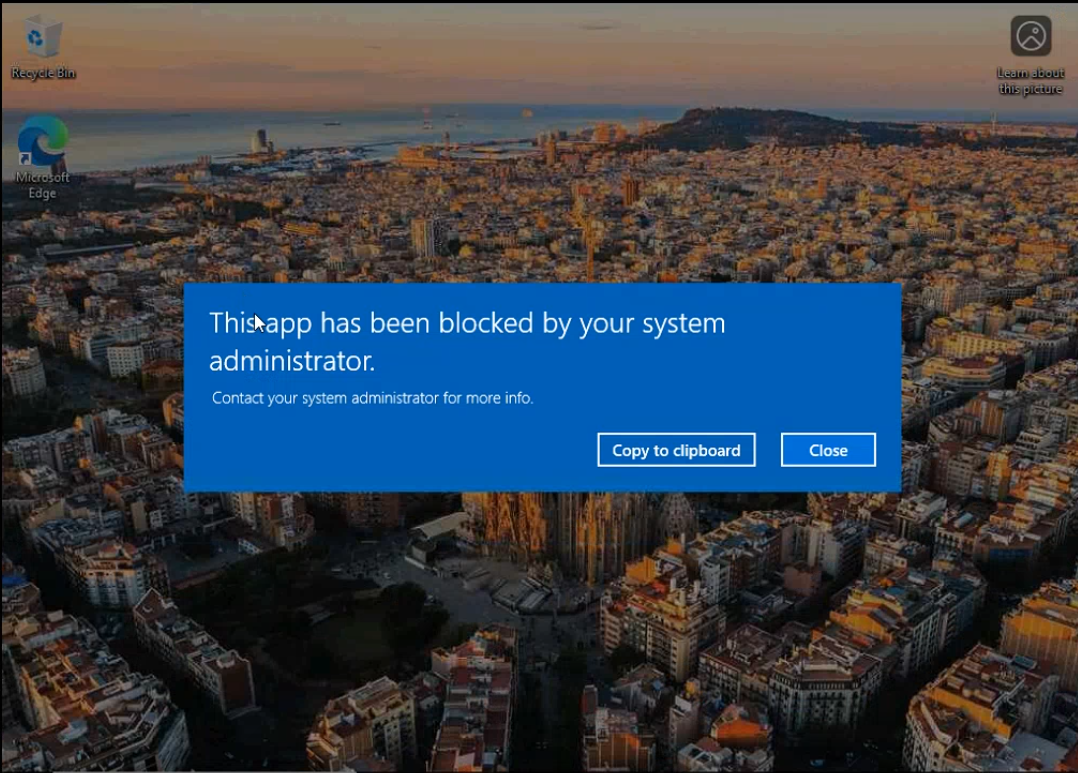
Xbox Console Companion:
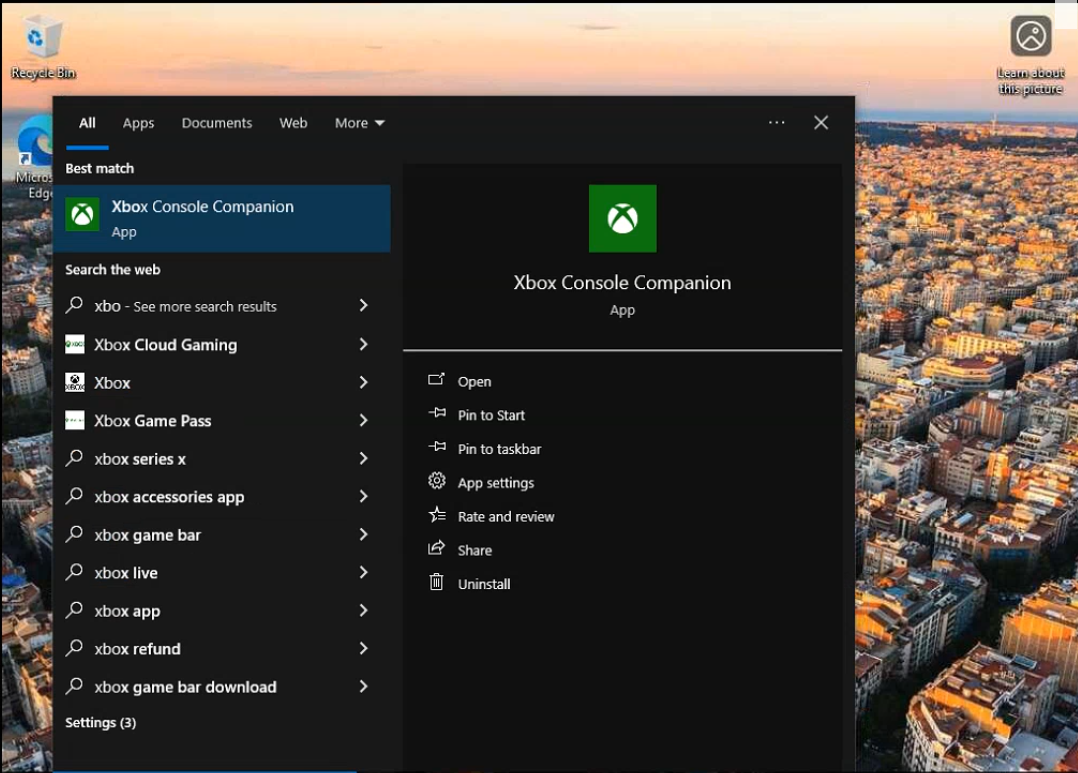
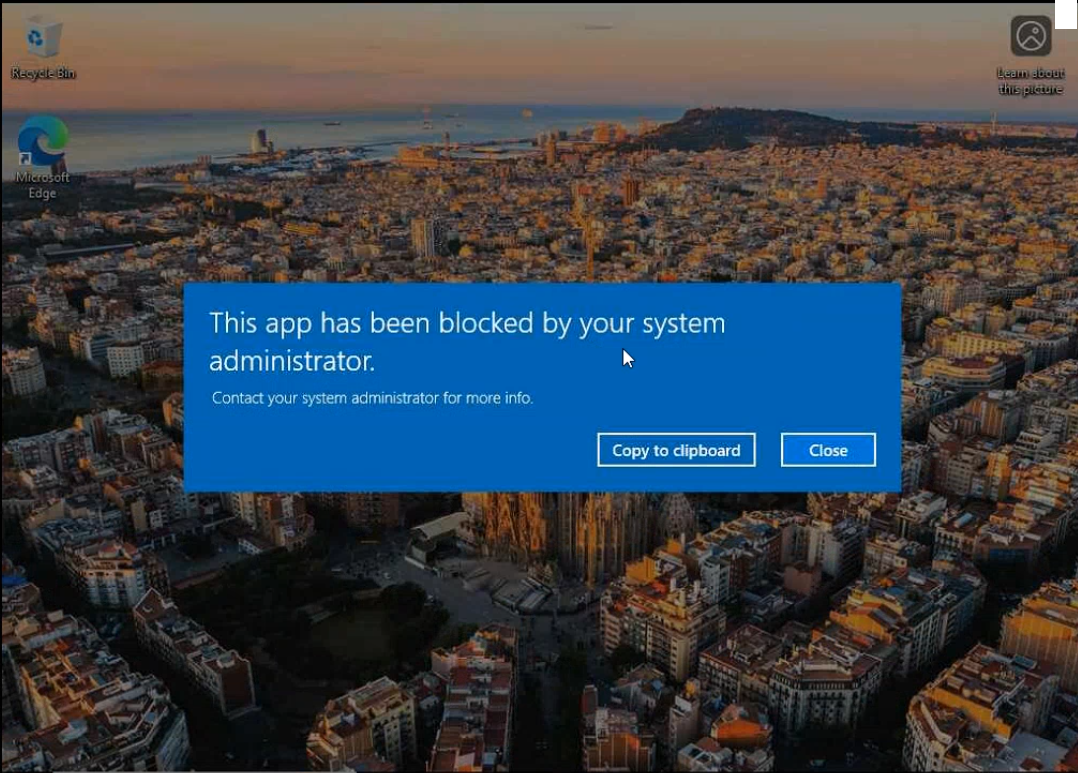
Solitaire & Casual Games:
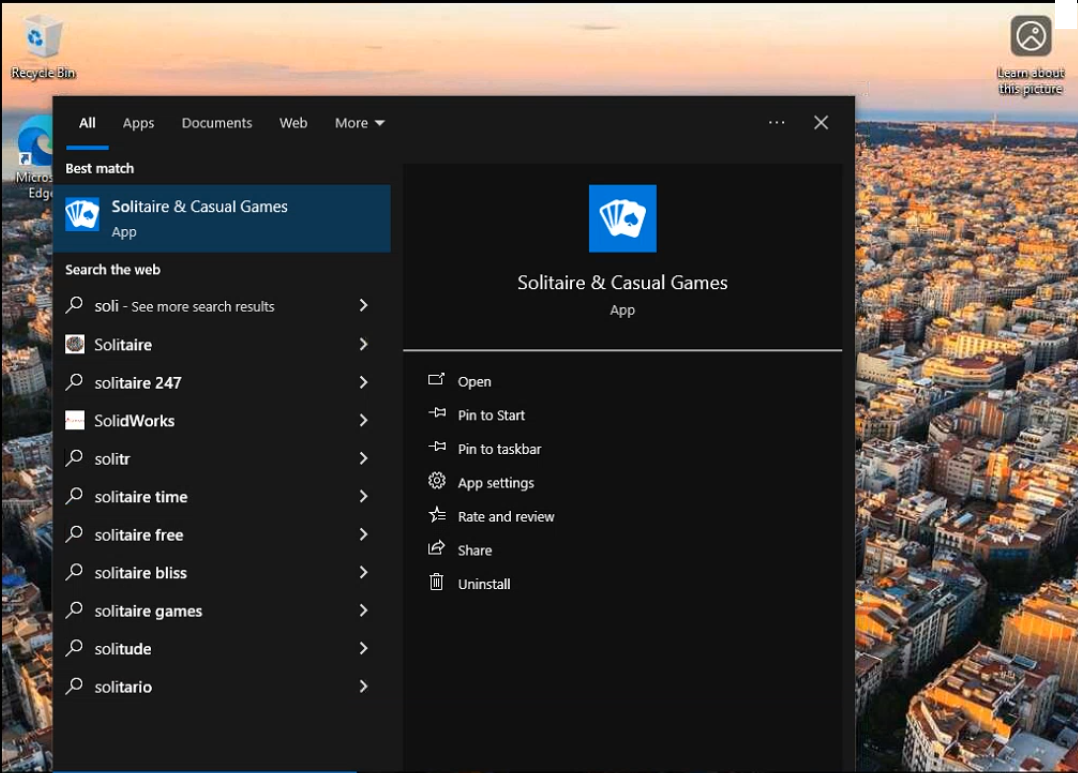
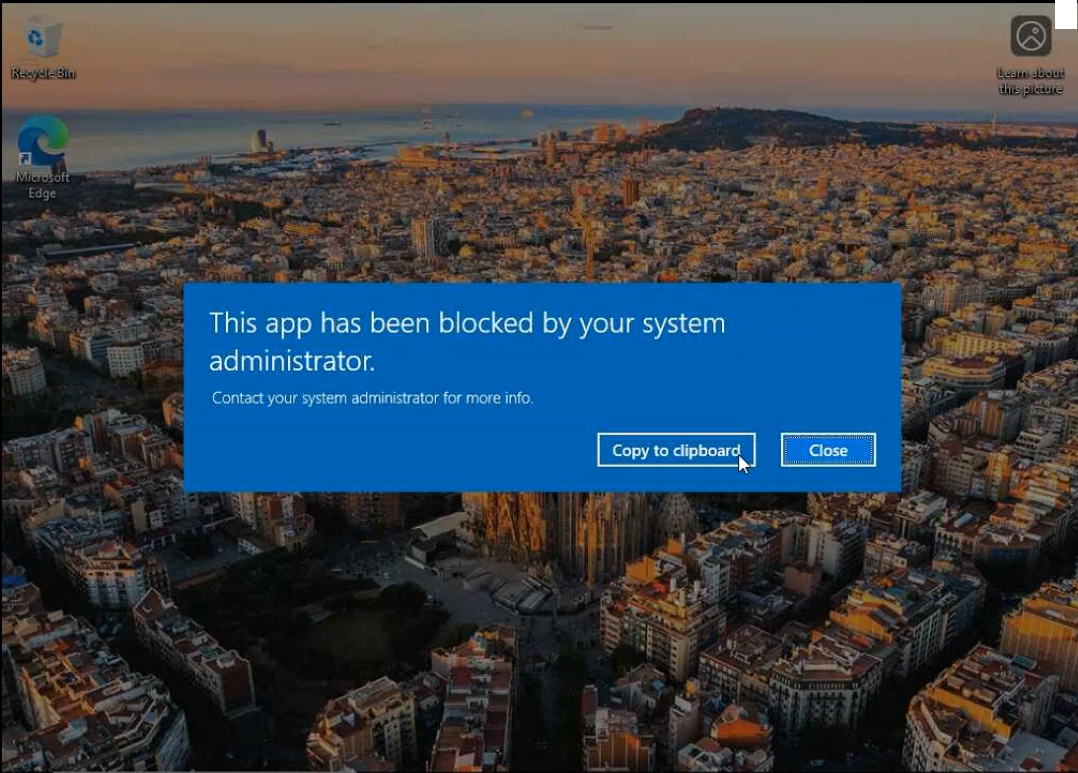
All three packages start to launch, AppLocker intercepts, the launch is killed, and the user sees the standard This app has been blocked by your system administrator screen. Anything not on the deny list (Calculator, Mail, Photos, Edge) launches normally.
Verifying with PowerShell
Read the AppLocker effective policy on the client and the recent block events:
# Show the full effective AppLocker policy
Get-AppLockerPolicy -Effective -Xml

# Recent Packaged-app block events
Get-WinEvent -LogName "Microsoft-Windows-AppLocker/Packaged app-Execution" -MaxEvents 20 |
    Where-Object { $_.Id -eq 8020 } |
    Select-Object TimeCreated, Message
Event ID 8020 is “package was prevented from running” on the client. Event ID 8021 is the same in audit-only mode (logged but not blocked). Both are useful for reporting which users hit which blocks.
Common Pitfalls
- Forgetting the Application Identity service. Without it, AppLocker rules are inert. The client logs nothing, the user sees nothing, and the apps launch normally. Always flip the service to Automatic via the same GPO — do not leave it as a separate manual configuration on each machine.
- Targeting Pro or Home SKUs. AppLocker enforcement requires Enterprise or Education on the client. The GPO applies; the rules evaluate; nothing blocks. Get-AppLockerPolicy -Effective -Xml on a Pro client returns the policy but the runtime never enforces. Target the GPO to an Enterprise/Education-only OU or accept that Pro clients are outside scope.
- Importing the wrong baseline. The 132-rule baseline above lists every package that was on the reference PC at export time. Newer Windows builds add or rename packages. Refresh the baseline annually with
Get-AppxPackage | Get-AppLockerFileInformationon a clean reference machine. - Audit-only deploy then forgetting to enforce. The default after import is Audit only. Test in audit, then explicitly switch to Enforce rules on the AppLocker properties Enforcement tab.
- Mixing approaches inconsistently. Pick either “exceptions on broad Allow rules” or “explicit Deny rules” per package collection. Mixing them works but is confusing — six months later it is hard to tell why a particular package is blocked when the answer is “an exception three rules up.”
- Not testing as a non-admin. Local administrators bypass AppLocker by default. Test on a regular domain user, not the elevated session you used to apply the GPO.
Conclusion
AppLocker Packaged app Rules are the right answer for keeping consumer apps off business endpoints. One GPO, one Application Identity service flip, one imported baseline, one round of per-package Deny or exception entries, and the entire fleet stops launching the apps you do not want. Maintain the policy as a regular GPO — review it when Microsoft adds new bundled apps in a Windows feature update, audit the AppLocker event log monthly for unexpected blocks, and keep the reference-baseline XML in source control next to the GPO backups. The next time someone asks “why does Solitaire still pop up at logon?”, the answer is one rule edit, not a per-machine cleanup.