
The AD Recycle Bin gives you a 180-day window to undelete an Active Directory object before it disappears for good. For most environments that is enough. For environments with quarterly audits, slow ticket queues, or compliance retention floors, 180 days is exactly the right amount of time for the request “please restore the user account my predecessor deleted last quarter” to land on day 181.
The fix is two attributes in the directory-service configuration: msDS-DeletedObjectLifetime sets how long a deleted object stays recoverable from the Recycle Bin, and tombstoneLifetime sets how long it persists as a tombstone before garbage collection makes it permanently irrecoverable. Both default to 180 days. Both can be raised — in tandem — to extend the recovery window. The change runs from any DC, replicates with the directory, and takes effect for every deletion that happens after the change.
This walkthrough shows the full edit in ADSI Edit: connect to the Configuration partition, open CN=Directory Service properties, raise both attributes from 180 to 365, and confirm. Plus the PowerShell equivalent for environments that prefer scripted change.
How AD Recycle Bin Retention Works
Two attributes on CN=Directory Service,CN=Windows NT,CN=Services,CN=Configuration,DC=<forest-root> control retention end to end:
msDS-DeletedObjectLifetime— the count of days a deleted object remains in the Recycle Bin and is fully recoverable withRestore-ADObject(every attribute, every group membership, every cross-link). After this window, the object becomes a recycled-object tombstone — identifiable but mostly stripped of attributes; recovery requires authoritative restore from backup.tombstoneLifetime— the count of days an object persists as a tombstone before garbage collection removes it entirely. After this window, the object is gone permanently — no Recycle Bin, no backup short of system-state, no recovery path.
The two values are linked by a hard rule: msDS-DeletedObjectLifetime ≤ tombstoneLifetime. Raising the Recycle Bin window beyond the tombstone lifetime is invalid. Always raise tombstoneLifetime first, then msDS-DeletedObjectLifetime.
The default for both is 180 days on Windows Server 2003 SP1 and newer. Older forests created against pre-SP1 schemas defaulted to 60 days; if that applies, raise tombstoneLifetime to 180 first as a baseline before extending further.
Pre-flight
- Domain Admin or Enterprise Admin credentials.
CN=Directory Serviceis in the Configuration partition; only forest-level admins can modify it. - RDP or console access to a DC. ADSI Edit is on every DC and on any RSAT-equipped admin workstation.
- Confirm the AD Recycle Bin feature is actually enabled.
(Get-ADOptionalFeature -Filter {Name -eq "Recycle Bin Feature"}).EnabledScopes— if this returns nothing, the feature is off and the retention attributes have no effect. Enable it once withEnable-ADOptionalFeaturebefore continuing. - Decide on the new value. 365 days (one year) is the most common extension. Some environments go to 730 (two years) or higher to align with regulated retention floors. Beyond ~730 days, AD database growth from preserved tombstones starts to become noticeable on busy directories — estimate the deletion rate and project storage before going extreme.
Open ADSI Edit
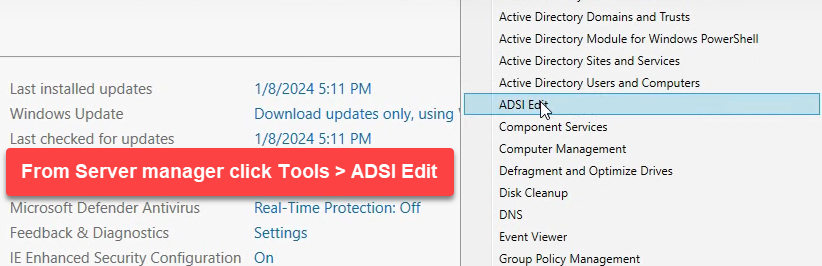
From Server Manager › Tools, pick ADSI Edit:
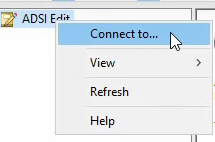
Right-click the ADSI Edit root and pick Connect to…:
The lifetime attributes live in the Configuration partition. In Connection Settings, pick Select a well known Naming Context and choose Configuration:
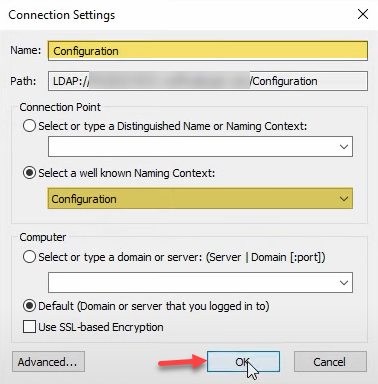
CN=Configuration,DC=<forest-root>.Open the CN=Directory Service Object
Expand the tree:
CN=Configuration,DC=<forest-root>
  CN=Services
    CN=Windows NT
      CN=Directory Service
Right-click CN=Directory Service and pick Properties:
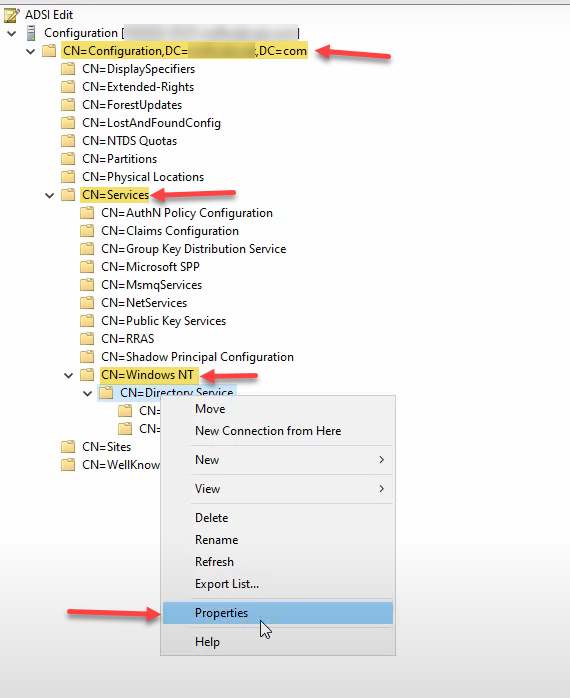
CN=Configuration › CN=Services › CN=Windows NT › CN=Directory Service. Right-click CN=Directory Service and pick Properties. The Properties dialog lists every directory-wide configuration attribute, including the two we care about.The Properties dialog opens on the Attribute Editor tab, listing every directory-wide configuration attribute alphabetically.
Raise tombstoneLifetime First
Scroll to tombstoneLifetime. The default is 180. Click Edit, change the value to 365 in the Integer Attribute Editor, and click OK:
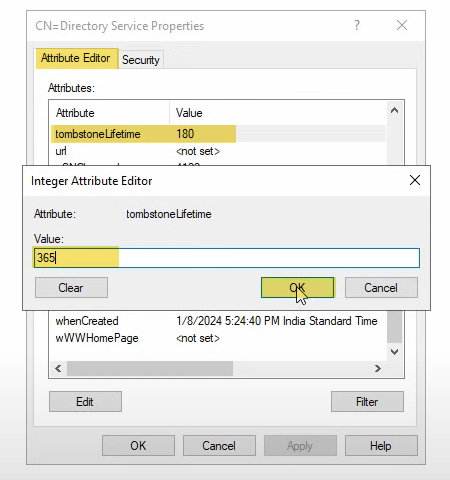
tombstoneLifetime. Default is 180. Pick Edit and type 365 in the Integer Attribute Editor. Click OK. tombstoneLifetime is the count of days a deleted object persists as a tombstone before being garbage-collected and irrecoverable.The list now shows tombstoneLifetime at 365. Click Apply to commit:
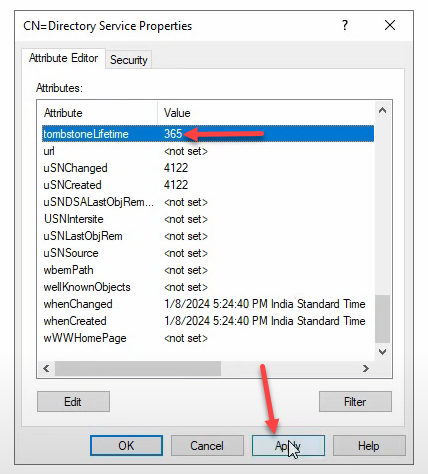
tombstoneLifetime at 365. Click Apply to commit. Do not close the Properties dialog yet — the second attribute is in the same dialog.Why this attribute first: msDS-DeletedObjectLifetime cannot exceed tombstoneLifetime. If you flip them in the wrong order — setting the deleted-object lifetime to 365 while tombstone is still 180 — the operation fails with a directory-service error.
Raise msDS-DeletedObjectLifetime
Scroll to msDS-DeletedObjectLifetime. The default is <not set>, which means the system falls back to whatever tombstoneLifetime is. Click Edit, type 365:
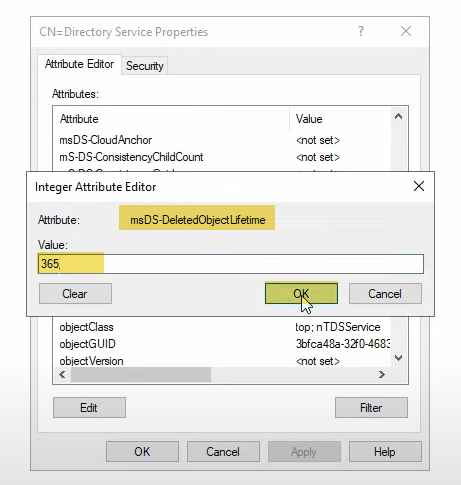
msDS-DeletedObjectLifetime. Default is <not set>, which means the system falls back to tombstoneLifetime. Pick Edit and type 365. Minimum is 2 days — values below 2 are silently treated as 2.Minimum is 2 days. Values below 2 are silently clamped to 2. There is no theoretical upper bound beyond tombstoneLifetime, but practical retention beyond 730 days produces measurable directory-database growth on environments with high object turnover.
Click OK, then Apply, then OK again to close the Properties dialog:
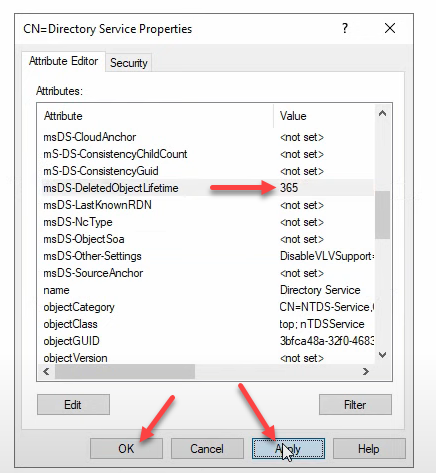
msDS-DeletedObjectLifetime at 365. Click Apply, then OK. The change replicates with directory replication and applies to every DC in the forest within minutes.The change is now in the directory. AD replication propagates it to every DC in the forest within minutes.
Verify with PowerShell
Read both attributes from any DC:
$config = (Get-ADRootDSE).configurationNamingContext
$dsObject = "CN=Directory Service,CN=Windows NT,CN=Services,$config"

Get-ADObject -Identity $dsObject `
    -Properties tombstoneLifetime, msDS-DeletedObjectLifetime |
    Select-Object Name, tombstoneLifetime, "msDS-DeletedObjectLifetime"
Expected output after the change:
Name              tombstoneLifetime   msDS-DeletedObjectLifetime
----              -----------------   --------------------------
Directory Service               365                          365
The PowerShell-Only Path
For an entirely scripted change, skip ADSI Edit and use Set-ADObject:
$config = (Get-ADRootDSE).configurationNamingContext
$dsObject = "CN=Directory Service,CN=Windows NT,CN=Services,$config"

# Always raise tombstoneLifetime first
Set-ADObject -Identity $dsObject -Replace @{ "tombstoneLifetime" = 365 }

# Then raise msDS-DeletedObjectLifetime to the same value
Set-ADObject -Identity $dsObject -Replace @{ "msDS-DeletedObjectLifetime" = 365 }
Both calls succeed silently on success and throw on failure. Wrap them in a script that confirms with Get-ADObject afterwards and you have a repeatable, auditable change ready for change management.
Restoring an Object Within the New Window
The retention change is only useful if you actually use the Recycle Bin to restore. Quick reference for the common cases:
# List recently deleted objects
Get-ADObject -Filter 'isDeleted -eq $true' -IncludeDeletedObjects |
    Select-Object Name, ObjectClass, WhenChanged, ObjectGUID

# Restore a single user by ObjectGUID
Restore-ADObject -Identity "<guid>"

# Restore by lookup
Get-ADObject -Filter 'samAccountName -eq "jdoe" -and isDeleted -eq $true' `
    -IncludeDeletedObjects | Restore-ADObject
Restore-ADObject recovers every attribute and every group membership the object had at deletion. Inside the msDS-DeletedObjectLifetime window, this works. Outside it, the object is a tombstone with most attributes stripped — no clean restore is possible.
Common Pitfalls
- Raising msDS-DeletedObjectLifetime above tombstoneLifetime. The hard rule
DOL ≤ TSLis enforced; the operation fails with a directory-service error. Always raisetombstoneLifetimefirst, even if you never plan to use it independently. - Forgetting that AD Recycle Bin must be enabled separately. The retention attributes only do work if the optional feature is on. Confirm with
(Get-ADOptionalFeature -Filter {Name -eq "Recycle Bin Feature"}).EnabledScopes; enable withEnable-ADOptionalFeature "Recycle Bin Feature" -Scope ForestOrConfigurationSet -Target <forest-root>. The feature is one-way — once enabled, it cannot be disabled. - Setting an extreme retention without estimating storage. Tombstones occupy directory database space proportional to how many objects you delete. An environment that deletes 50,000 objects per year and bumps retention to 5 years will carry 250,000 tombstones plus their preserved attributes at any moment. Project the size before going past two years.
- Trying to retroactively recover objects deleted before the change. The new retention applies forward. Objects already past 180 days at the moment you raise the limit are already tombstones — they do not come back. The change buys time for future deletions, not past ones.
- Editing the wrong CN=Directory Service object. The right object is
CN=Directory Service,CN=Windows NT,CN=Services,CN=Configuration,DC=<forest-root>— the forest-wide one. There is also a per-server NTDS Settings object further down each DC’s tree; that one is not the right place. ADSI Edit makes the distinction clear, but a typo in a PowerShell distinguished-name value modifies the wrong target silently. - Skipping the verify step. ADSI Edit’s Apply commits the change; closing the dialog without Apply does not. After the change, always run the
Get-ADObjectverification above — partial saves are rare but possible, and the next time you need to restore something is a bad time to discover the change never landed.
Conclusion
Two attributes, one ADSI Edit dialog, ten minutes of work. The default 180-day Recycle Bin retention is reasonable for most environments and exactly long enough to leave you stranded the day a quarterly audit asks for an account restored on day 181. Raising both tombstoneLifetime and msDS-DeletedObjectLifetime to 365 covers the common audit cycle; raising further covers regulated retention floors. Bake the change into your AD baseline alongside enabling the Recycle Bin feature itself, document it in change management, and the next deletion that needs to come back six months later is one Restore-ADObject call instead of an authoritative-restore project.