
A Group Policy Object that took six months to build, audit, and roll out can be deleted in two clicks. The directory replicates the deletion to every other DC inside the next AD replication cycle, the SYSVOL files vanish from every DC’s NETLOGON share, and clients drop the policy at the next refresh. There is no recycle-bin path for GPOs — AD Recycle Bin restores the AD-side container but not the GPT folder under SYSVOL, which is where the actual policy settings live. The right unit of recovery is therefore the GPO itself: regular per-GPO backups stored off the DC, restored via GPMC or PowerShell when something gets deleted, modified, or replaced in error.
This walkthrough covers the full GPMC lifecycle: Back Up All… for a fleet snapshot, Back Up… for a single GPO before a risky edit, Manage Backups… for previewing and restoring, and the manual re-link step required after restoring a deleted GPO. Plus the PowerShell Backup-GPO / Restore-GPO equivalents for scheduled or scripted use.
What the Backup Does and Does Not Capture
Understanding the boundary matters when planning recovery:
- Captured: the GPO container in AD (
cn=Policies,cn=System,DC=…), every policy setting (Computer + User Configuration), security filtering, WMI filter assignments, delegation, and the SYSVOL GPT files on disk. The GPO is fully reconstructable from a backup folder alone. - Not captured: links — the GPO-to-OU/site/domain associations that determine where the GPO applies. Those live on the OU/site/domain object, not on the GPO. Restoring a deleted GPO produces an unlinked GPO that needs to be manually re-linked.
- Not captured: WMI filter contents. The filter assignment is captured, but the filter itself is a separate AD object. Back up WMI filters separately if your environment uses them heavily —
Backup-GPOdoes not touch them. - Not captured: Group Policy Preferences passwords (encrypted with the published shared key, but Microsoft removed Preferences password support a long time ago anyway).
Document the link map alongside the backups. A small text file or a periodic Get-GPInheritance -Target <ou> dump captured to the same backup folder is enough for a fast manual re-link after restore.
Pre-flight
- Domain Admin or Group Policy Creator Owners + delegated permissions on the affected OUs — whatever your normal GPO-edit identity is.
- RDP or console access to a DC, or a workstation with RSAT’s Group Policy Management Tools feature.
- A backup target that lives off the DC. The example uses
D:\GPO-Backupson the DC itself for clarity; in production, point the backup folder at a file share on a separate server, an Azure storage account, or a backup volume.
Open Group Policy Management
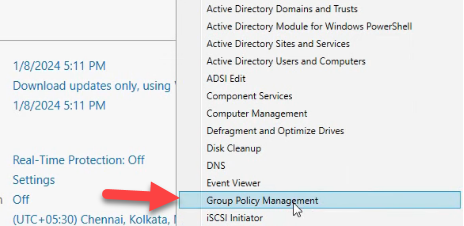
From Server Manager › Tools, pick Group Policy Management:
Method 1: Back Up Every GPO in the Domain
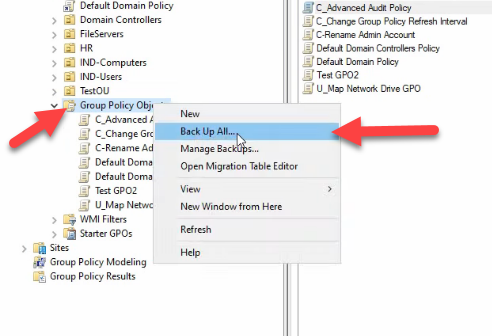
The catch-all option. Right-click the Group Policy Objects container and pick Back Up All…:
The dialog asks for two things: a target folder and a description. Browse to the backup folder — D:\GPO-Backups in the example — and add a description that names the date, change number, and what triggered the backup. Pre-Q1-2026-rollout-baseline is more useful six months later than Backup:
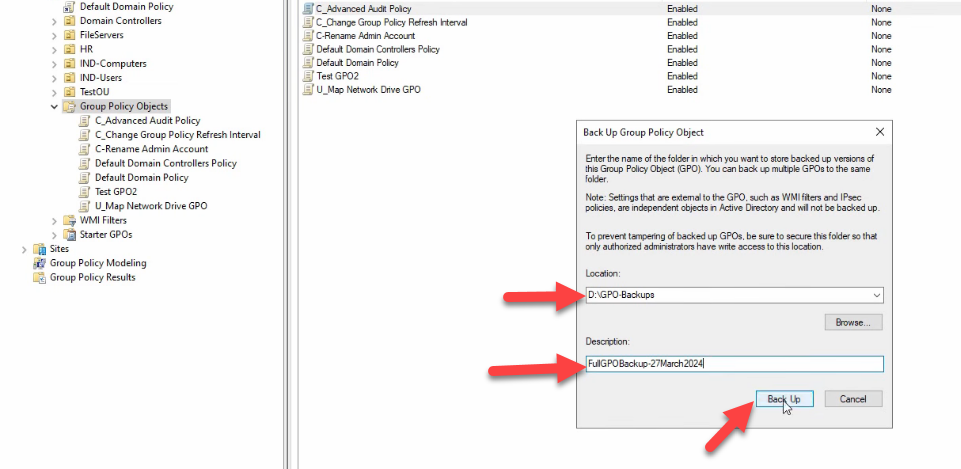
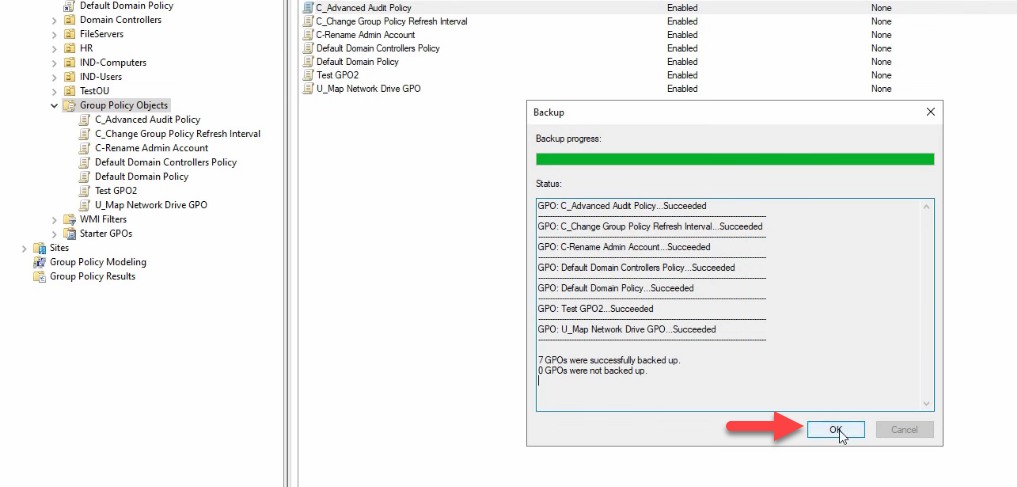
D:\\GPO-Backups) and add a description. The description is searchable later in Manage Backups — include the date, the change number, and what triggered the backup so the right copy is obvious six months later.Click Back Up. Each GPO is processed sequentially; the per-GPO status appears in the pane as the run progresses. The final line summarises the total — 7 GPOs were successfully backed up. 0 GPOs were not backed up:
On disk, each GPO gets its own GUID-named subfolder. The shared manifest.xml at the folder root indexes them; backup.xml, bkupInfo.xml, and gpreport.xml inside each subfolder hold the per-GPO metadata; DomainSysvol\User and DomainSysvol\Machine hold the actual policy file content:
backup.xml, bkupInfo.xml, gpreport.xml, plus the DomainSysvol/User and DomainSysvol/Machine subtrees with the actual policy files. The shared manifest.xml at the root indexes them.Multiple backups of the same GPO can live side by side — running Back Up All… again into the same folder adds new GUID-named subfolders without overwriting the previous run. Manage Backups sees them as separate entries.
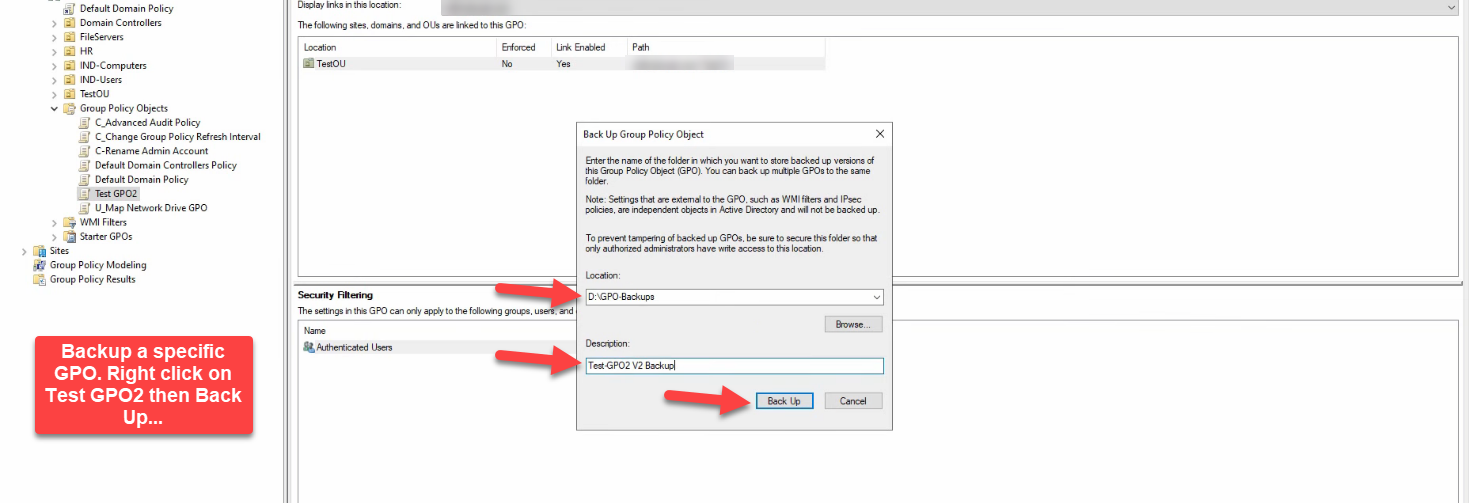
Method 2: Back Up a Single GPO
The right approach before a risky edit. Expand Group Policy Objects and select the GPO — Test GPO2 in the example:
Open the GPO in the editor and make whatever change you came to make. The example demonstration: User Configuration › Policies › Administrative Templates › Start Menu and Taskbar › Add Logoff to the Start Menu → Enabled:
Right-click the GPO and pick Back Up…:
Same dialog as Back Up All… — same location field, same description. Test GPO2 V2 Backup works as a description; the description is what makes the right backup obvious in Manage Backups later:
Click Back Up. One GPO, one row of status, succeeded. Click OK:
For a snapshot-before-edit workflow, take the backup, make the edit, test it, and only commit on the live OU links if the test passes. If the change behaves badly, the same backup folder restores the previous state in one click.
Restore: Manage Backups
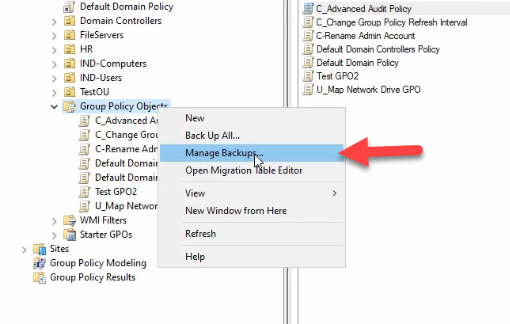
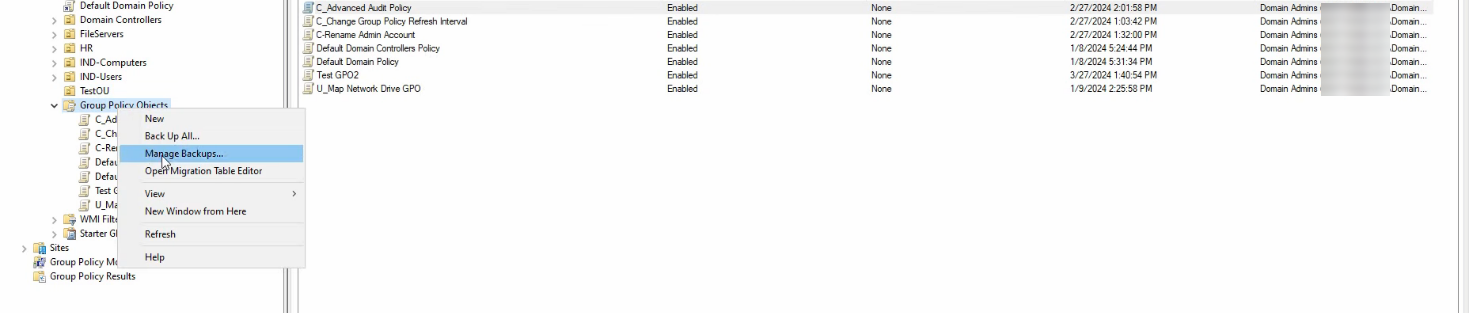
Right-click Group Policy Objects and pick Manage Backups…:
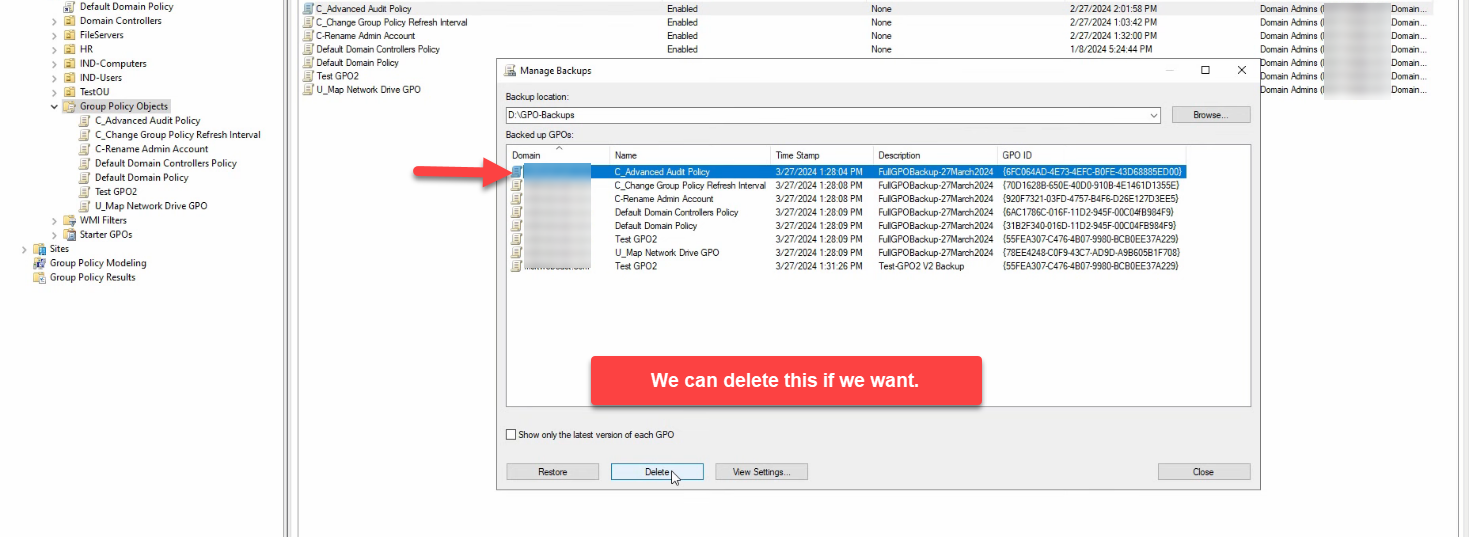
The dialog opens against the last-used backup folder. Use Browse to switch to a different folder. The list shows every backup with its GPO name, timestamp, and description — this is what makes the description field worth taking seriously.
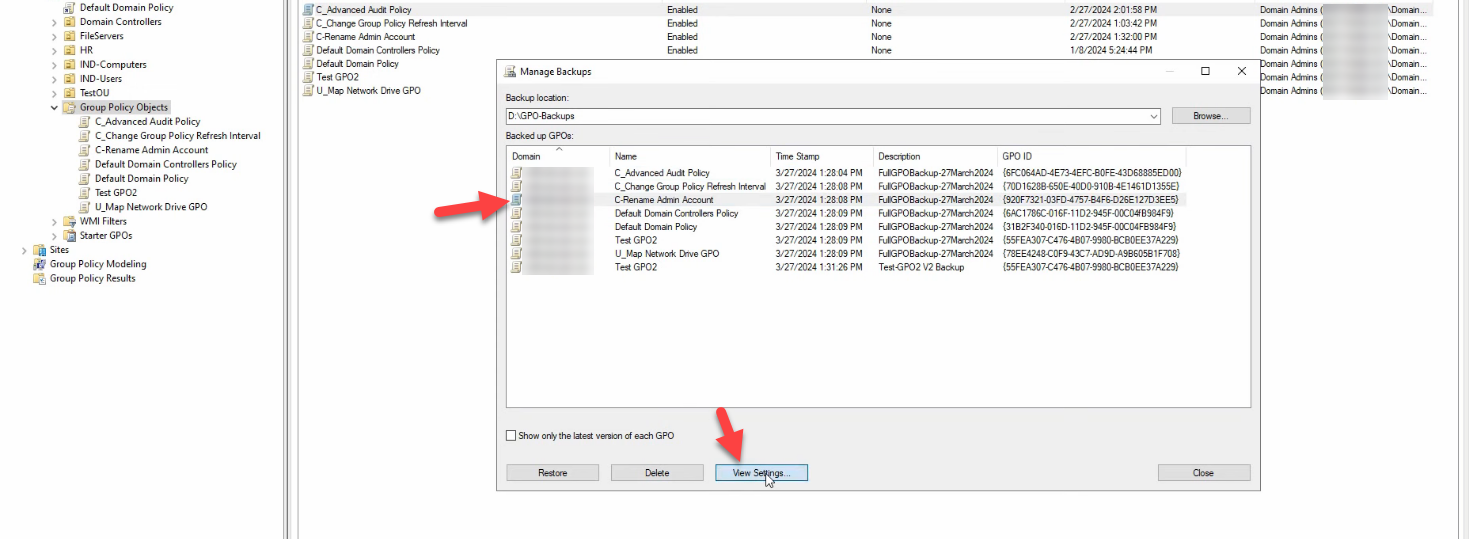
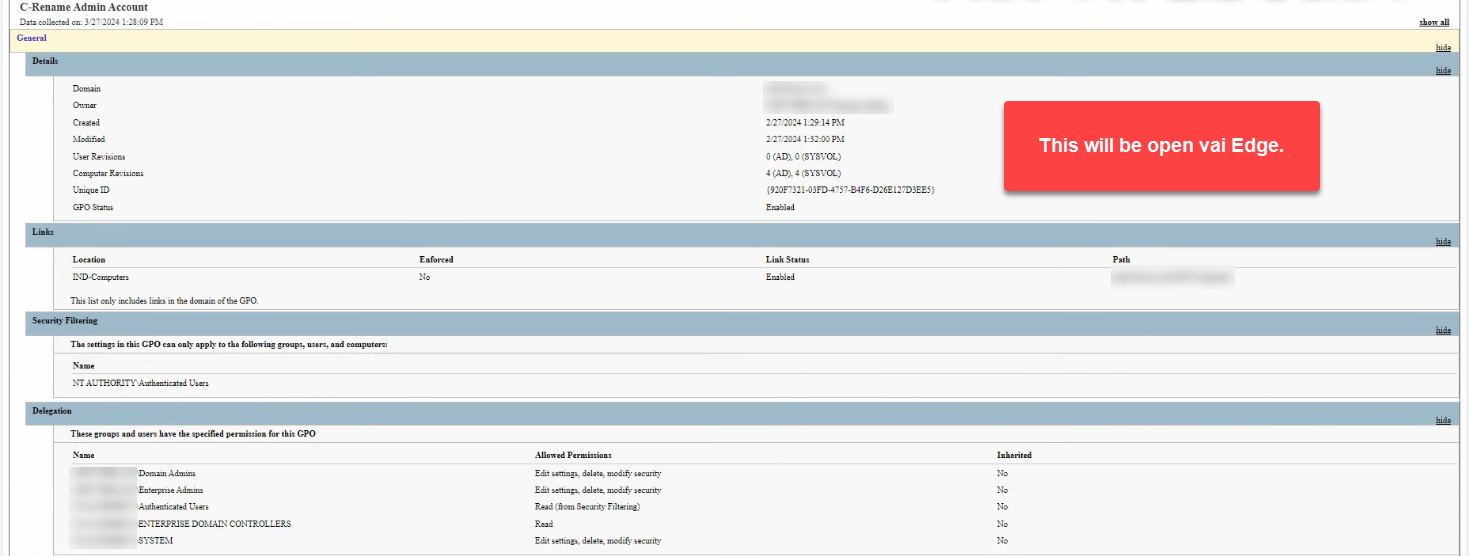
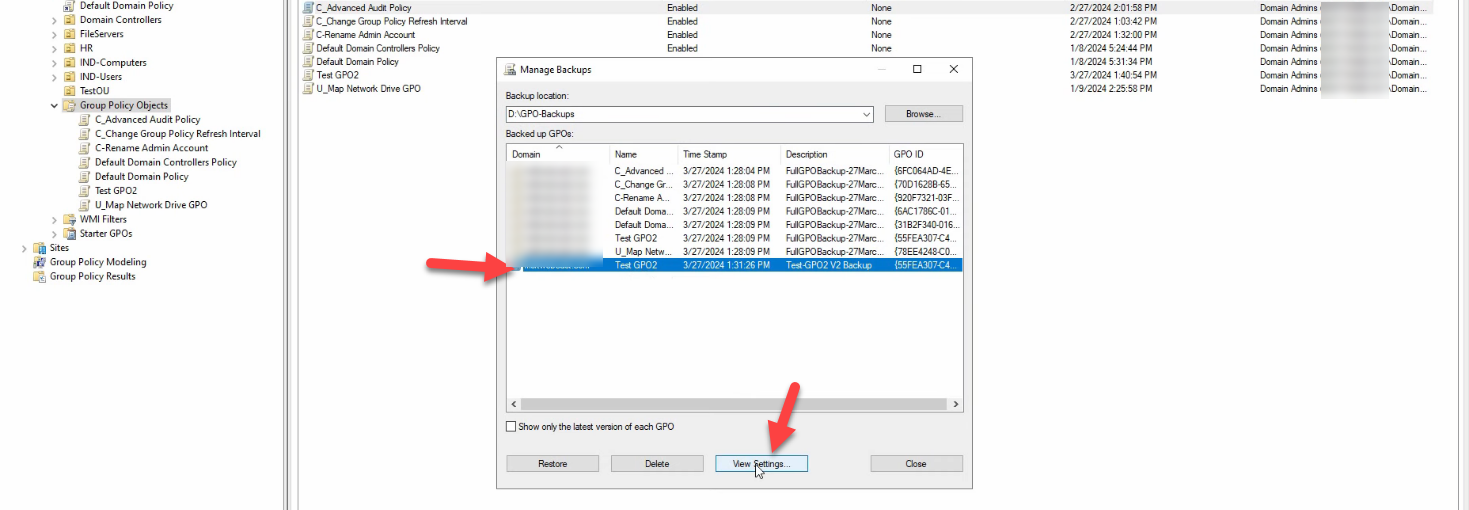
Before clicking Restore, click View Settings on the highlighted backup. View Settings opens an HTML report — the same format gpresult /h produces — showing every policy setting, security filter, WMI filter assignment, and the OUs the GPO was linked to at backup time. Confirm it is the version you want before committing:
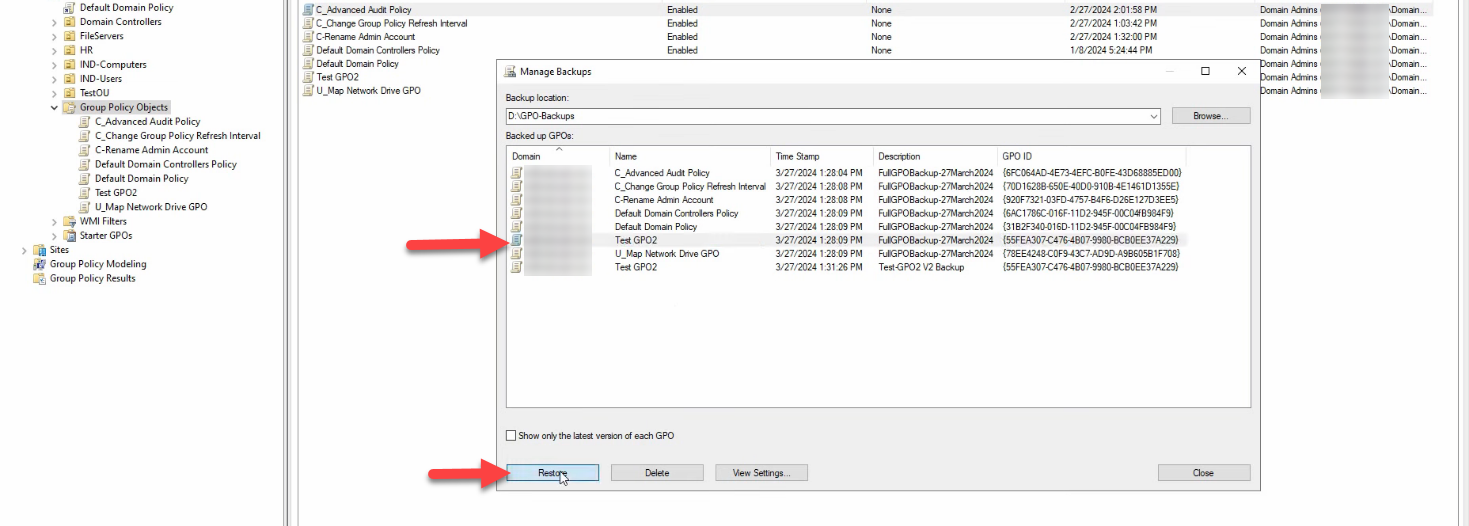
Click Restore. The progress dialog mirrors the backup status pane — per-GPO status, succeeded/failed, total. Test GPO2 … Succeeded:
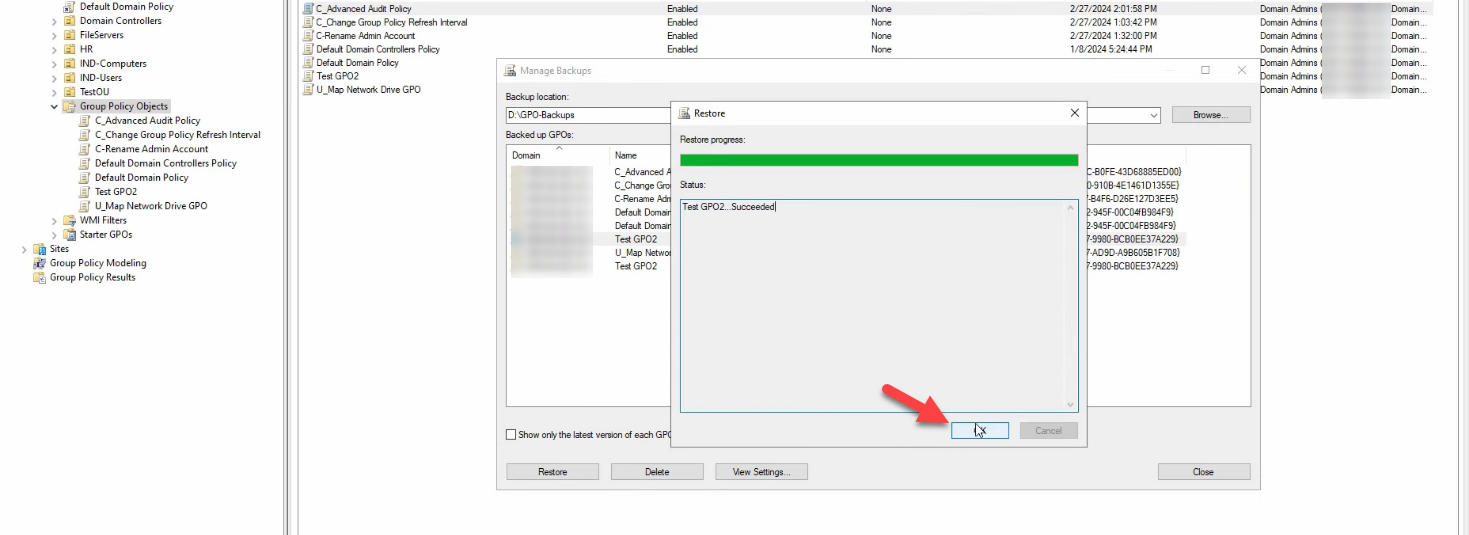
Restoring overwrites the live GPO with the backup’s state. Settings, security filtering, delegation are all replaced. Links are not touched — an existing link to an OU survives the restore. (See the deleted-GPO scenario below for the case where the GPO was deleted entirely.)
Restore a Deleted GPO
The harder case. Simulate the disaster: right-click the GPO and pick Delete. Click Yes to confirm. The GPO is gone from the directory and SYSVOL:
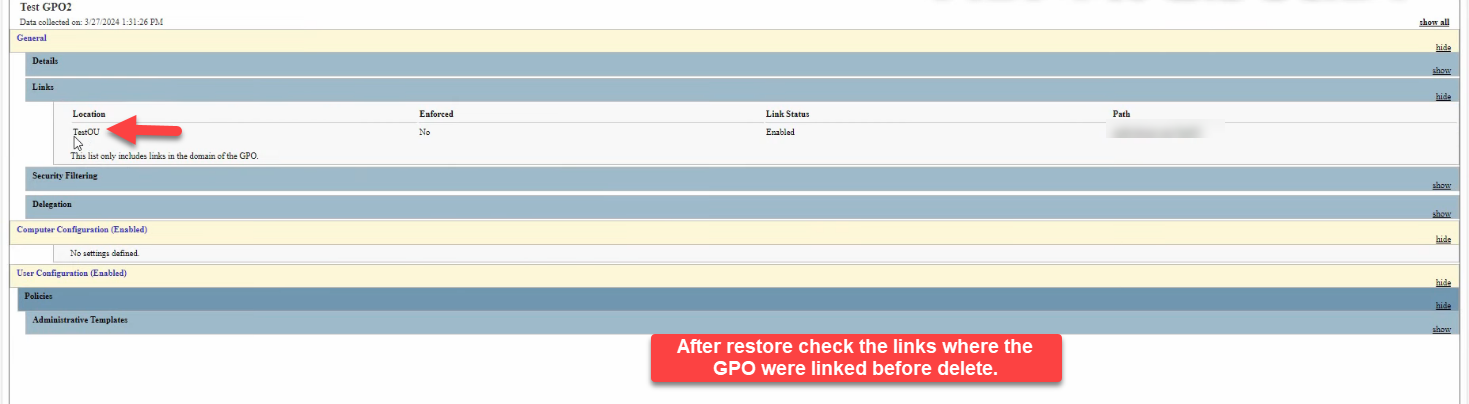
From Manage Backups, find the latest backup of the deleted GPO and click Restore. The progress dialog runs through the per-GPO status; Succeeded. The restored GPO is back under Group Policy Objects — but unlinked.
Manually Re-Link the Restored GPO
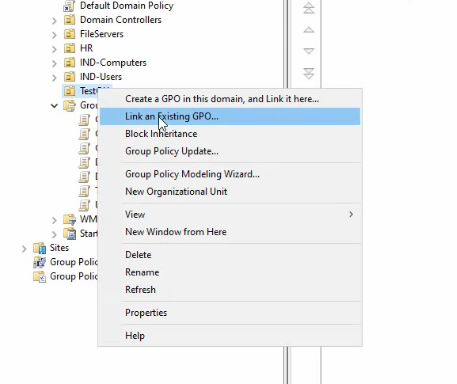
This is the critical step nobody remembers to do under pressure. The link map is not part of the backup. After restoring a deleted GPO, navigate to the OU you want the GPO linked back to and right-click → Link an Existing GPO…:
The Select GPO picker lists every GPO in the domain. Pick the restored GPO — Test GPO2:
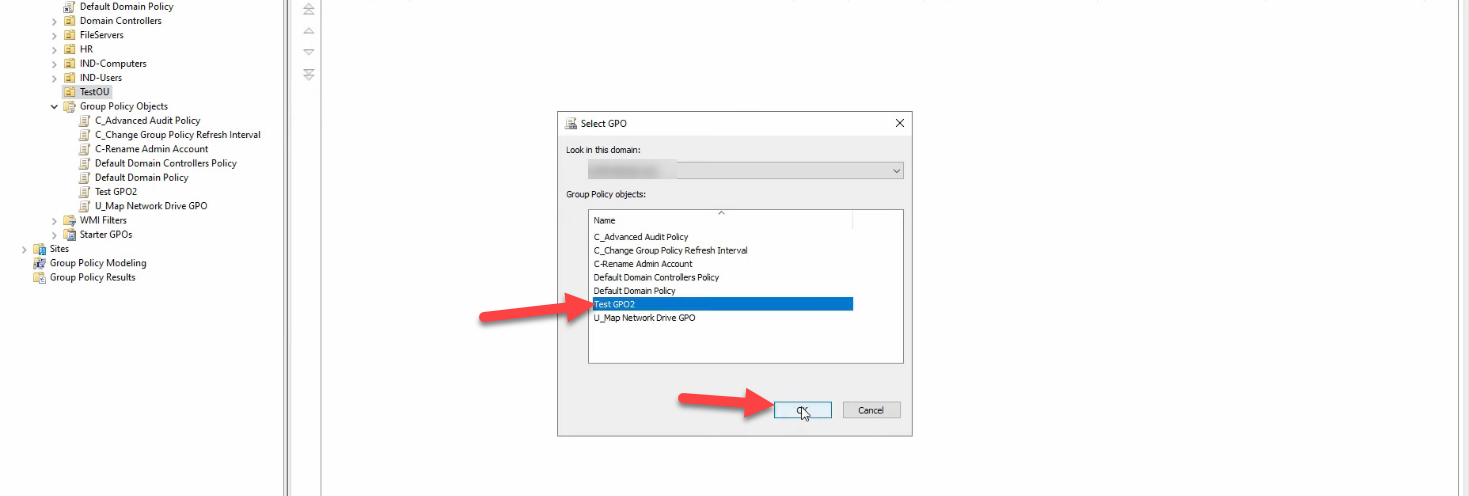
Click OK. The link is recreated:
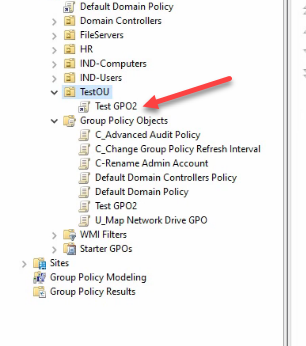
Repeat for every OU/site/domain the GPO was originally linked to. This is why a separate document of the link map matters — under pressure, “which OUs was this GPO linked to before?” is a question the GPO backup itself cannot answer.
Verifying the Restore
Right-click the restored GPO and pick Edit. Confirm the policy settings match the pre-deletion state. For a more thorough check, run the Group Policy Modeling wizard in GPMC against a representative computer + user pair in the linked OU — the wizard simulates what the client would receive at next refresh and surfaces any link / filter mismatches.
From PowerShell on a domain client:
# Confirm the GPO is on the client’s effective list
gpresult /scope:user /h C:\temp\rsop.html
gpresult /scope:computer /h C:\temp\rsop-computer.html

# Force a refresh and re-test
gpupdate /force
The PowerShell Workflow
For scheduled or scripted backups, Backup-GPO is the right answer. It produces the same on-disk format as GPMC’s Back Up All:
$path = "D:\GPO-Backups\$(Get-Date -Format 'yyyy-MM-dd')"
New-Item -Path $path -ItemType Directory -Force | Out-Null

# Back up every GPO in the domain
Backup-GPO -All -Path $path -Comment "Daily snapshot $(Get-Date)"

# Or just one
Backup-GPO -Name "Test GPO2" -Path $path -Comment "Pre-edit snapshot"
Restore is the inverse:
# Restore the most recent backup of one GPO
Restore-GPO -Name "Test GPO2" -Path $path

# Restore every GPO in a folder
Get-ChildItem $path -Directory | ForEach-Object {
    Restore-GPO -BackupId $_.Name -Path $path
}
For a complete daily-backup pattern, a Task Scheduler job that runs the Backup-GPO -All call plus a robocopy step that mirrors the output to a remote backup target gives you a 30-day window of GPO snapshots without any manual GPMC interaction.
Common Pitfalls
- Assuming links are restored. They are not. Document your OU link map separately and keep it next to the backup folder. The first time you restore a deleted GPO under pressure, the missing-link question costs more time than the GPO’s own restore did.
- Backing up to the DC itself. The GPMC default is D:\GPO-Backups on the DC. If the DC is the thing that fails, the backup fails with it. Always replicate the backup folder to an off-server target — a file share, Azure storage, the same place your AD system-state backups live.
- No description. Eight backups in Manage Backups with no description and the same date are uninformative. Make the description a habit: change number, ticket, what is being protected against.
- Not testing restore. A backup that has never been restored is wishful thinking. Quarterly, restore a non-critical GPO into a test domain and confirm it comes back as expected. Most environments discover the missing-link gotcha during a real incident; a quarterly drill catches it without the pressure.
- Overwriting the wrong GPO. The Restore action overwrites the live GPO with the backup’s state. View Settings first, every time. The HTML report is fast to read and saves the “wait, that wasn’t the version I meant” conversation.
- Forgetting WMI filters. WMI filter contents are not in
Backup-GPO’s output. If your environment uses WMI filters extensively, add a separate export step to the daily script —Get-ADObject -Filter "objectClass -eq 'msWMI-Som'" -Properties *dumped to disk works.
Conclusion
GPO backups are cheap, fast, and trivially scheduled with Backup-GPO. The restore path is two clicks for an existing GPO, three clicks plus a manual re-link for a deleted one. The single recovery-skill worth practicing is the deleted-and-relinked drill — under pressure, the missing-link gotcha is what catches teams who only ever practiced the existing-GPO restore. Schedule daily Back Up All…, copy the output off the DC, document the link map, and rehearse a deleted-GPO restore quarterly. The next time someone deletes Default Domain Policy at 4 PM on a Friday, the recovery is a five-minute exercise instead of an evening.