
The classic answer to “map drive S: to \\fileserver\sales for everyone in Sales” was a net use line in a logon script. It worked, but it scaled badly: every department needed its own script, the script ran synchronously and stalled the desktop, and removing a mapping when someone changed teams meant editing logic in a batch file. Group Policy Preferences fixed all of that. The Drive Maps preference is declarative, runs in parallel during the logon background refresh, and pairs with item-level targeting so you can scope a single mapping to anyone who is a member of a specific AD security group — no logon scripts, no per-OU GPO sprawl.
This article walks the full workflow end to end: create the AD security group, share the folder with the right ACLs, create and link a GPO that contains the drive map, configure item-level targeting on the security group, and verify on a domain-joined client that the drive shows up automatically and disappears when membership changes.
What You Need First
- A domain controller and at least one domain-joined Windows client.
- A file server (it can be the DC in a lab, but in production keep file roles off the DC).
- RSAT installed on whichever machine you will run Group Policy Management Console from. On Windows Server it is a feature; on Windows 10/11 install RSAT: Group Policy Management Tools from Settings › Apps › Optional features.
- An OU that contains the user accounts you want to target. The OU does not need to match the security group; item-level targeting handles the membership filter independently of OU placement.
Step 1: Create the AD Security Group
In Active Directory Users and Computers (dsa.msc), create a global security group in the OU of your choice. The example below uses Sales Group in the Sales OU. Add the users that should receive the mapping as members.
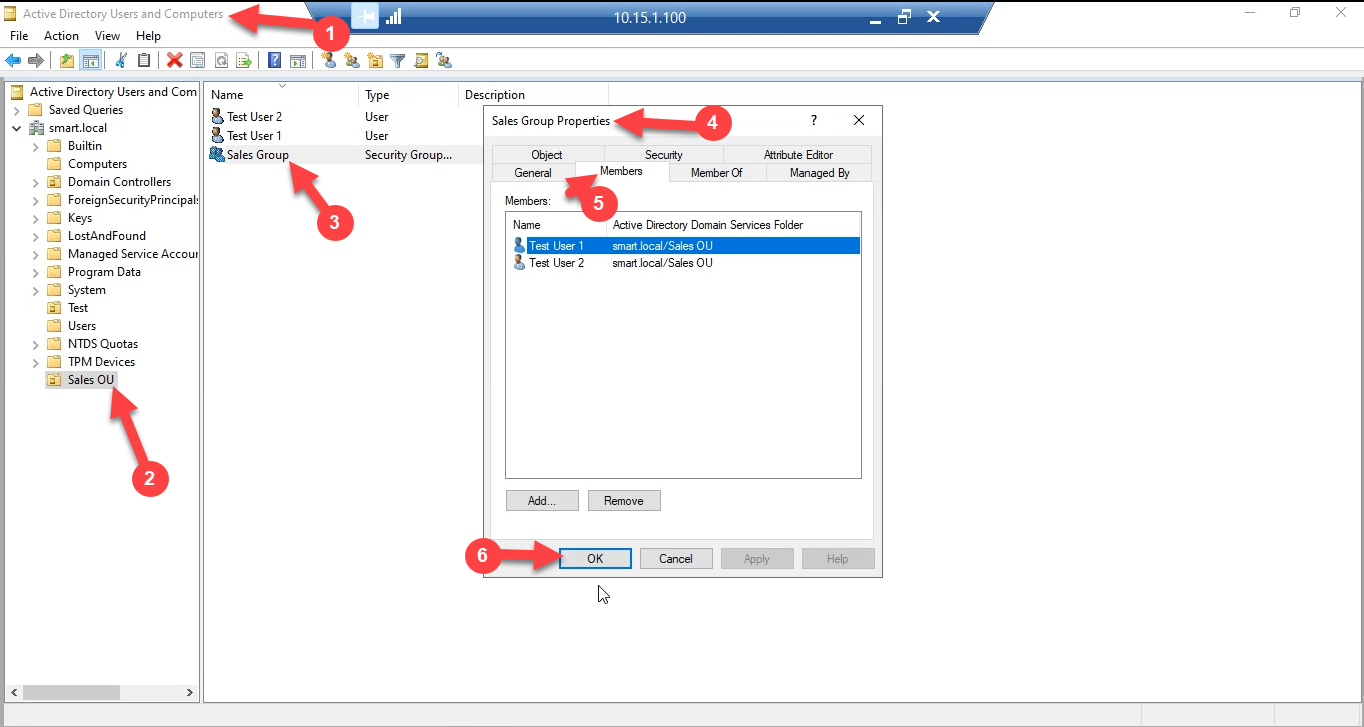
Group scope can be Global or Universal; Global is the right default for departmental groups in a single domain. Group type must be Security, not Distribution — only security groups appear in ACL pickers.
Step 2: Share the Folder with the Right Permissions
On the file server, create the folder you want to expose — for example D:\Shares\sales — and share it. There are two layers of access control to set:
- Share permissions on the Sharing tab. Click Advanced Sharing › Permissions and add the Sales Group with Change and Read. Remove or restrict Everyone.
- NTFS permissions on the Security tab. Add the Sales Group with Modify (read/write/delete the group’s own files) and remove broad Users entries that would let unrelated accounts in.
Share permissions are the outer ceiling; NTFS is the actual gate. The effective permission is the intersection of the two, so leaving share permissions at the default Everyone: Read while NTFS grants Modify caps the user at Read over the network — a common cause of the “works locally, read-only over UNC” ticket. Set both layers consistently.
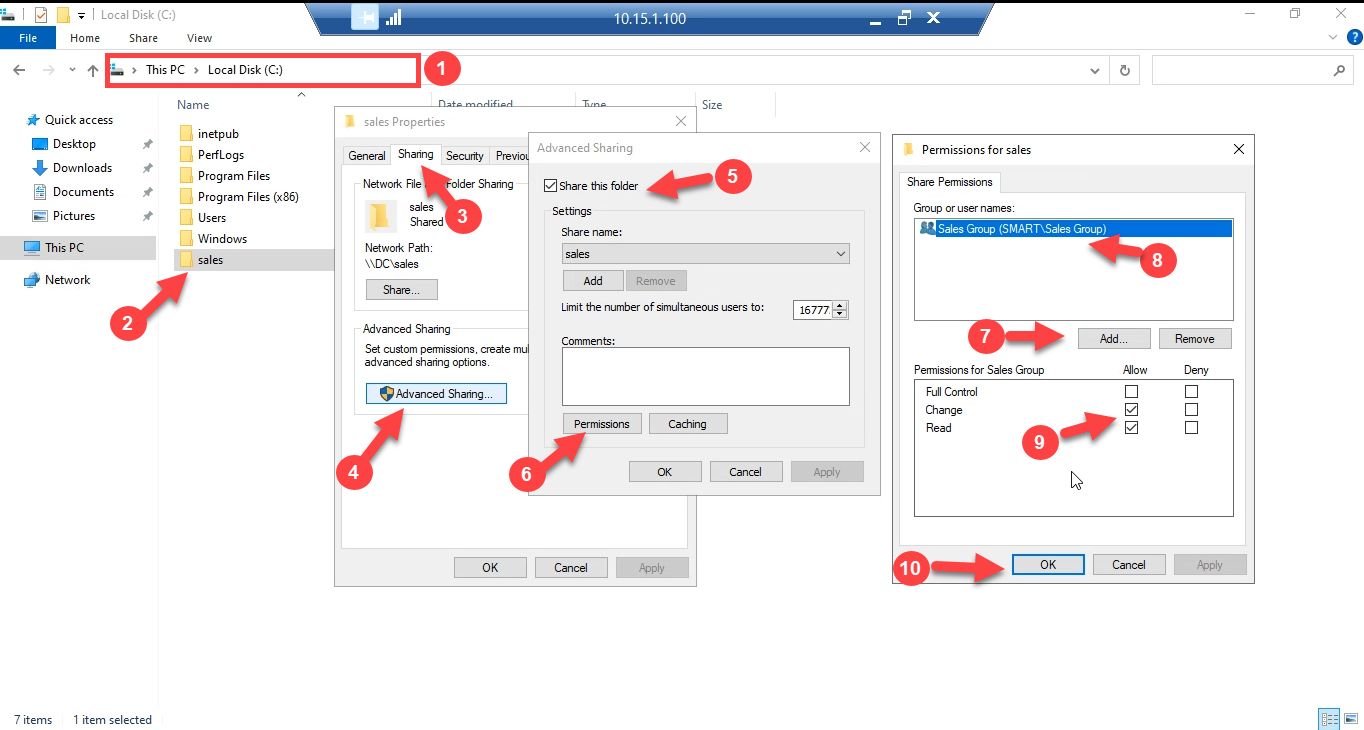
Confirm the UNC path resolves from a workstation: \\FILESERVER\sales in File Explorer should open the folder for a member of the Sales Group and prompt for credentials (or refuse outright) for everyone else.
Step 3: Create and Link the GPO
Open Group Policy Management (gpmc.msc). Right-click the OU that contains the user accounts that might receive this mapping and pick Create a GPO in this domain, and Link it here. Name it something descriptive — MAP Network Drive — Sales reads better six months from now than Drive Map GPO.
The OU you link to is the scope of management — only users in that OU (and child OUs, by default) ever process this GPO. The membership filter comes next.
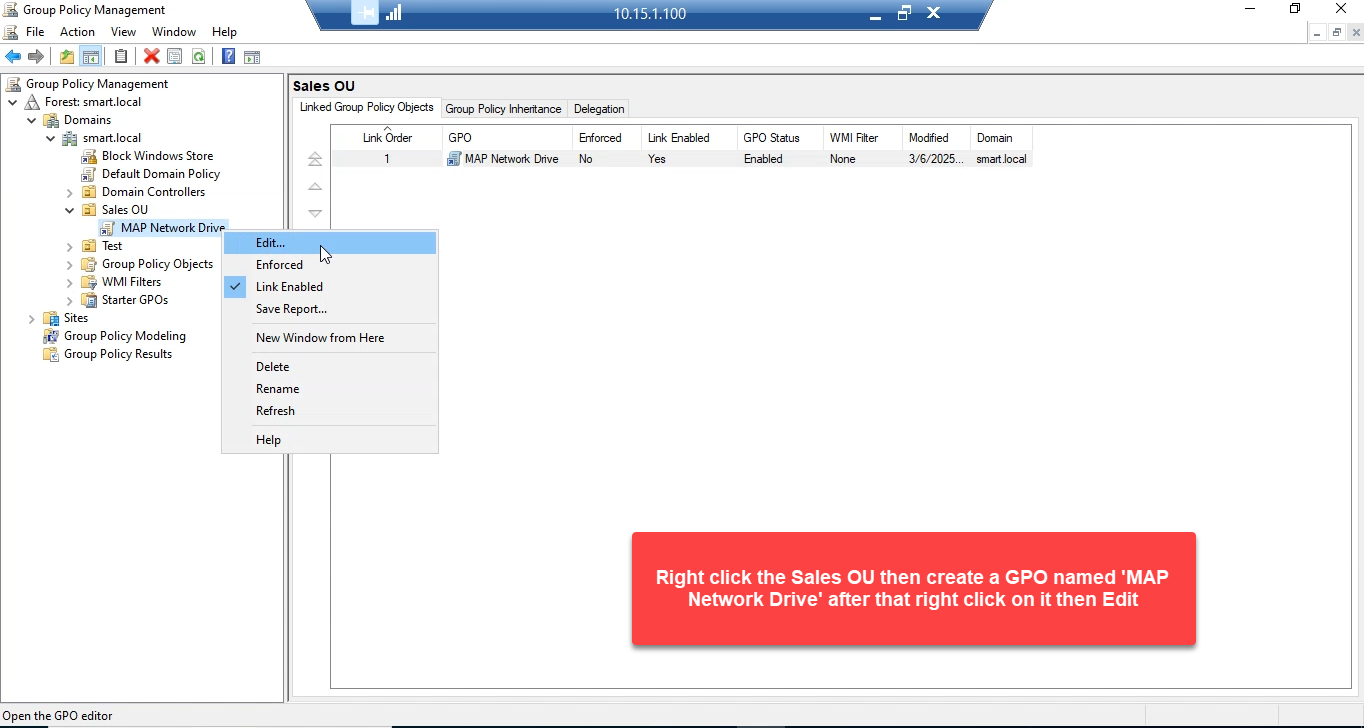
Right-click the new GPO and pick Edit to open Group Policy Management Editor.
Step 4: Add the Drive Map Preference
In the editor, navigate to:
User Configuration
  Preferences
    Windows Settings
      Drive Maps
Right-click in the right pane and pick New › Mapped Drive:
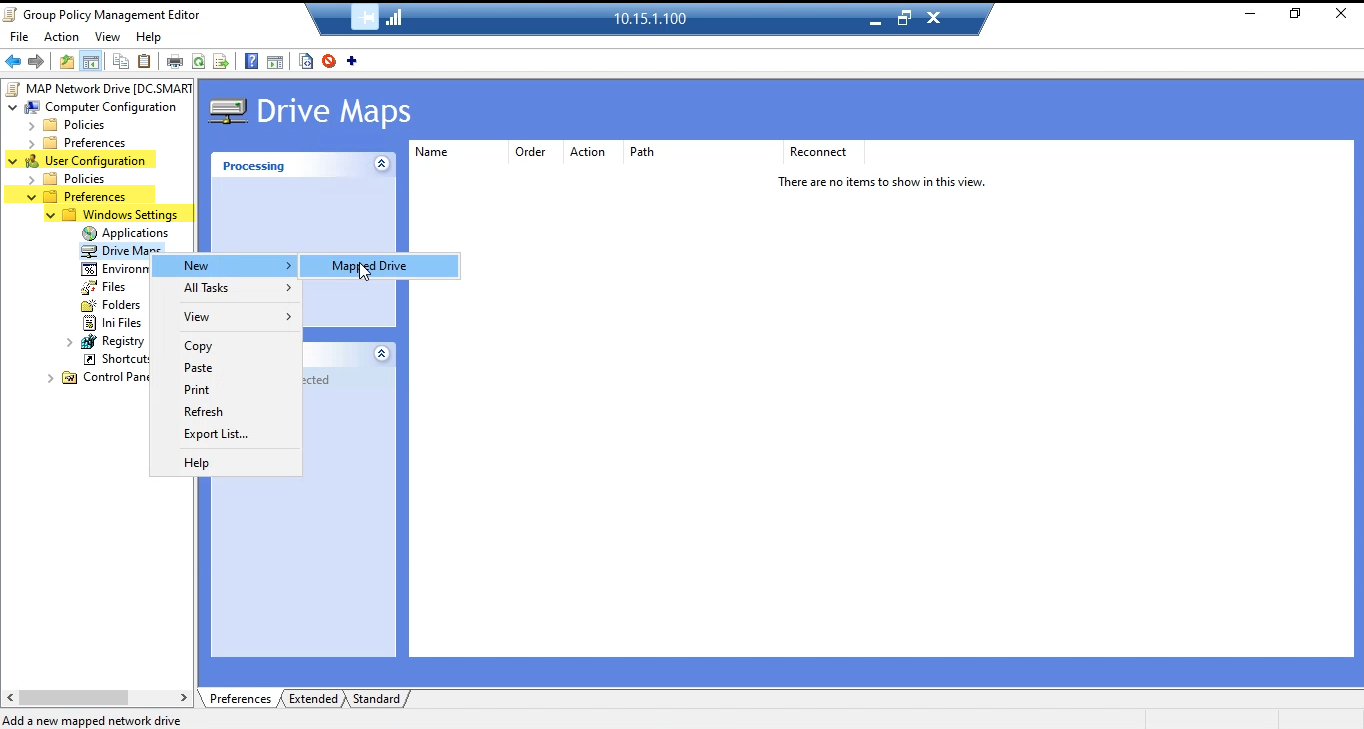
The New Drive Properties dialog opens. The settings that matter:
- Action: Create. Other options are Update (refresh existing), Replace (delete and recreate), and Delete (remove the mapping). Create is right for a fresh deployment; switch to Update if you ever need to change the path or letter without disrupting users who already have the drive.
- Location: the UNC path —
\\FILESERVER\sales. - Reconnect: checked. This adds the mapping to the user’s saved network drives so it persists across logoffs.
- Label as: a friendly name — Sales Group — that appears in This PC next to the drive letter.
- Drive Letter: Use followed by a specific letter (S: here). Use first available, starting at: is the alternative if you want the OS to pick a free letter, but pinning a letter is more predictable across machines.
- Hide/Show this drive: Show this drive. The Hide option is for system mappings you do not want users to browse to.
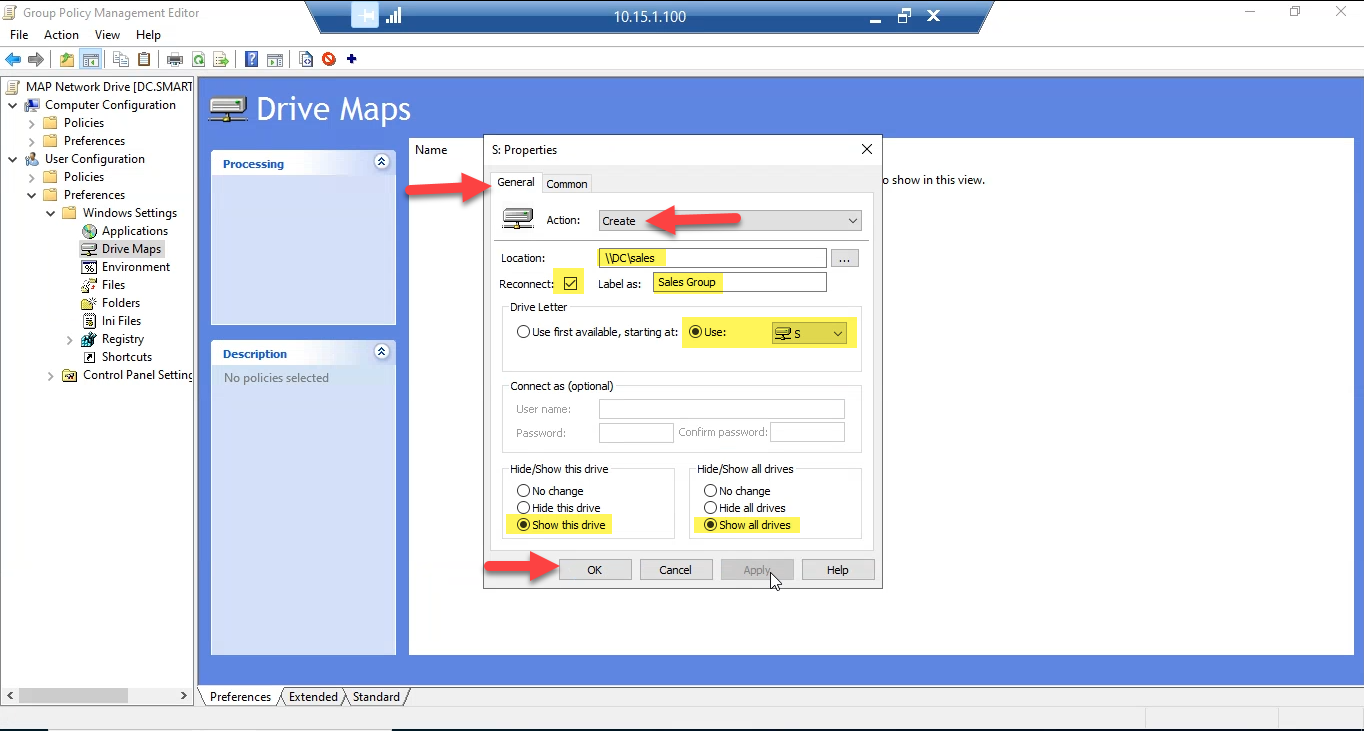
Click OK. The drive map is now in the GPO, but it applies to every user in the OU regardless of group membership. The next step fixes that.
Step 5: Add Item-Level Targeting on the Security Group
The most common version of this article skips this step and just relies on the OU link to scope the mapping. That is fine when the OU contains only members of the target group. It is wrong when the OU mixes Sales and non-Sales users — everyone in the OU will get the drive, including the Marketing manager who happens to live in the same OU.
Item-level targeting moves the membership check to the preference itself, so the GPO can be linked to a broad OU but the drive map is filtered down to the right people. Open the drive map you just created (or right-click and pick Properties) and switch to the Common tab. Check Item-level targeting and click Targeting….
In the targeting editor:
- Click New Item › Security Group.
- Click … next to Group and pick Sales Group from the directory.
- Make sure User in group is selected (not Computer in group). The drive map is a User Configuration preference, so the targeting check needs to be on the user’s membership, not the computer’s.
- Click OK to close the targeting editor, then OK on the drive properties.
The targeting expression now reads the user is a member of SMART\Sales Group. At logon, the GPO is processed for everyone in the linked OU, but the drive map only fires for users who satisfy the filter.
Step 6: Test on a Domain-Joined Client
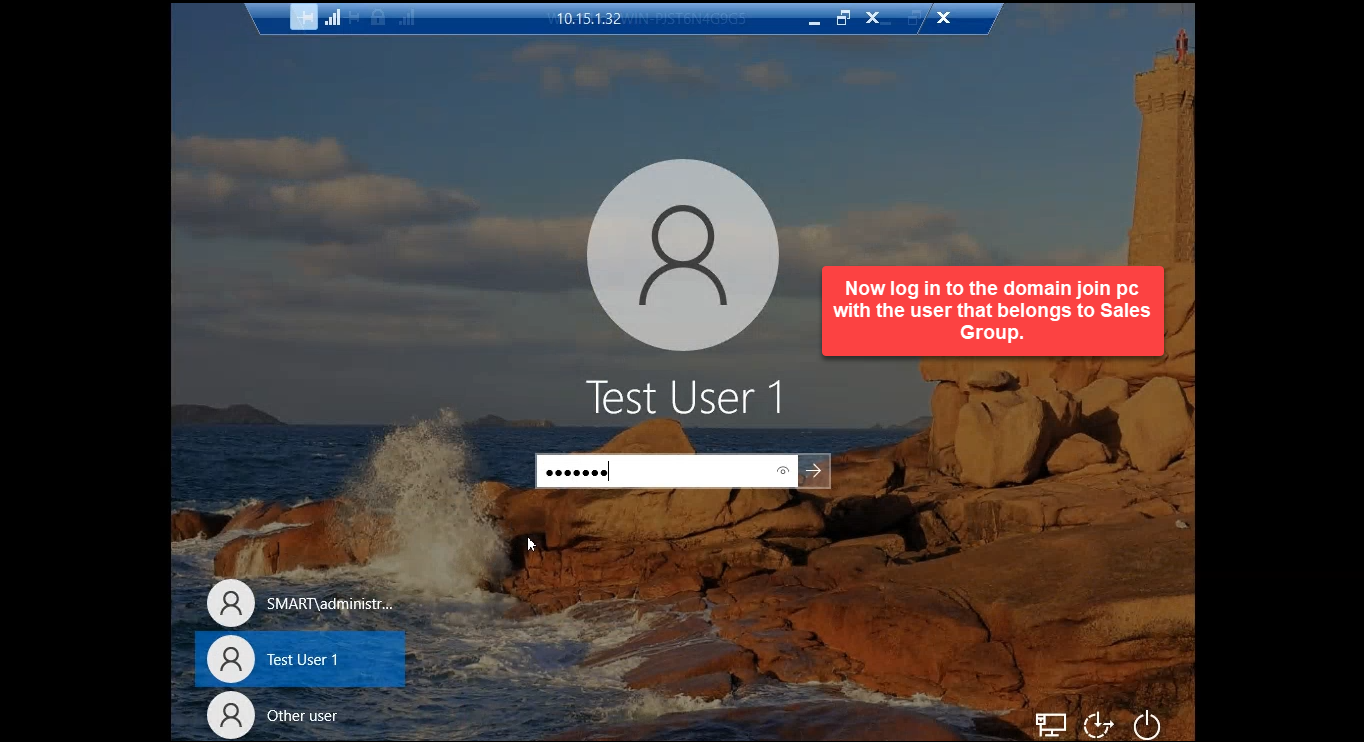
On a client machine, log on as a user that is a member of the Sales Group. If the user was already logged on, run gpupdate /force in an administrative command prompt and then sign out and back in — Drive Maps are user-side preferences and apply at logon, not on a refresh.
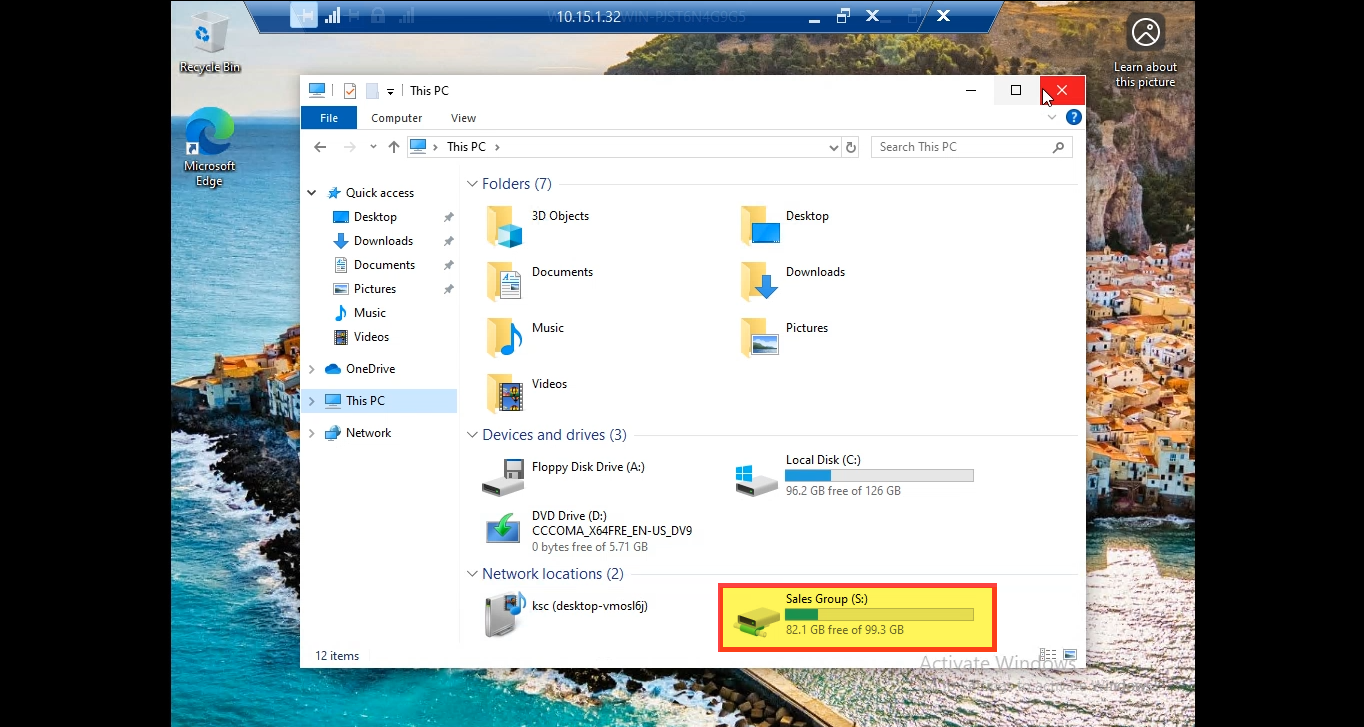
Open This PC. The mapped drive appears under Network locations:
Now log on as a user who is not in the Sales Group. The drive map is skipped silently — no popup, no error, just no drive. That is the correct behaviour: GPO Preferences fail closed.
Verifying with PowerShell
From an elevated PowerShell prompt on the client, list the user’s mapped drives and confirm the source:
Get-PSDrive -PSProvider FileSystem |
    Where-Object { $_.DisplayRoot } |
    Select-Object Name, DisplayRoot, Description
And confirm GPO processing succeeded:
gpresult /scope:user /v | Select-String -Pattern "Drive Map", "MAP Network Drive"The Group Policy Results wizard in gpmc.msc on the DC gives the same information for any user/computer pair without needing to log into the client interactively.
Common Pitfalls
- Linking the GPO to a Computer OU. Drive maps under User Configuration › Preferences only process when the GPO is linked to an OU that contains the user object. Linking to the OU of the workstation has no effect — users will not see the mapping. Confirm in Group Policy Management that the linked OU holds the users.
- Skipping the share permission. If only the NTFS ACL is set, the user can authenticate to the share but reads come back empty (or read-only) because share permissions cap the access. Always set both layers; both layers should grant the same access to the same group.
- Using the wrong group scope. Item-level targeting’s Security Group filter resolves through the user’s logon token, which only contains global and universal group memberships in the user’s domain. Domain-local groups work for ACLs but not for token-based filters — if the targeting filter never matches, double-check the group scope first.
- Not running gpupdate before testing. User policy is fetched at logon and refreshed every 90 minutes by default. Without a forced refresh + relogon, your test still sees yesterday’s configuration.
gpupdate /target:user /forcefollowed by sign-out/sign-in is the reliable test loop. - Putting Computer in group on a User Configuration preference. The targeting editor lets you pick either; User in group is the right one for drive maps. Computer in group filters by which machine the user is sitting at — useful for kiosk scenarios, wrong for departmental mappings.
- Editing the GPO from a workstation without RSAT. The drive map preference and the targeting editor only render in Group Policy Management Editor when the Preferences extension is installed. If you do not see the Preferences branch, install RSAT and reopen the editor.
Conclusion
Drive maps via Group Policy Preferences are the modern replacement for net use in logon scripts. The pattern is the same regardless of the use case: AD security group + SMB share with matching ACLs + GPO with a drive map preference + item-level targeting on the group. Once the pattern is in place, onboarding a new user to a department is one membership change in dsa.msc; the drive appears at next logon, no scripts touched. Off-boarding is the same change in reverse, and the mapping disappears the next time the user logs on. Bake this into your standard departmental-share rollout and the next request for “Marketing also needs a drive” is a five-minute clone of the GPO with a different group filter.