
Browsers love to save passwords. Users love when browsers save passwords. Security teams less so — saved-in-browser credentials are sitting ducks for malware that knows where to look (Chrome stores them encrypted with the user’s Windows DPAPI key, which any process running as that user can decrypt). The clean fix is a Group Policy that prevents the browsers from EVER prompting users to save credentials in the first place. This post walks the ADMX deployment for Chrome, Edge, and Firefox end-to-end. Same recipe for all three browsers; the only thing that varies is the GPO namespace and the policy name.
What the policy actually does
Sets a registry value that the browsers check on startup. When Disabled:
- The “save password?” toolbar prompt no longer appears after a login.
- The browser’s built-in password manager UI is greyed out / inaccessible.
- Existing saved passwords stay accessible — the policy doesn’t delete them. Users can still log in with previously-saved credentials; they just can’t add new ones.
- Auto-fill on form pages still works for already-saved entries.
If you want to clear out existing saved passwords too, that’s a separate operation per browser (and arguably worth doing — if you’re forbidding new saves, leaving the old ones around defeats the security goal).
Why three browsers, three different setups
Chrome, Edge, and Firefox each have their own ADMX template bundle published by their respective vendors. Chrome and Edge share most of their policy structure (both built on Chromium) so the policy NAMES line up, but the templates live in different vendor namespaces in the GPO editor. Firefox is fully separate — different vendor, different namespace, different policy names that mean the same thing functionally.
Plan to deploy templates for whichever browsers are in use in your environment. If you only have Chrome and Edge, skip Firefox. If you only have Edge, skip the others. Each template adds maintenance overhead (you have to refresh them when new policies are added by the vendor); only deploy what you’ll actually use.
Where to grab the templates
| Browser | Source |
|---|---|
| Chrome | policy_templates.zip from Chrome Enterprise (chromeenterprise.google > download policies) |
| Edge | MicrosoftEdgePolicyTemplates.cab from Microsoft Edge Enterprise (microsoft.com/edge/business/download) |
| Firefox | policy-templates from github.com/mozilla/policy-templates (releases tab) |
For convenience, many teams cache a known-good version of each in a SYSVOL or fileshare location so all admins use the same templates. Refresh quarterly — vendors add new policies at major browser releases.
Step 1 — copy the .admx files to the Central Store
Extract each browser’s template bundle. The bundle structure is:
chrome-policy-templates/
└─ admx/
   └─ chrome.admx
   └─ google.admx
   └─ en-US/
      └─ chrome.adml
      └─ google.adml
   └─ (other locales)/
└─ html/
   ...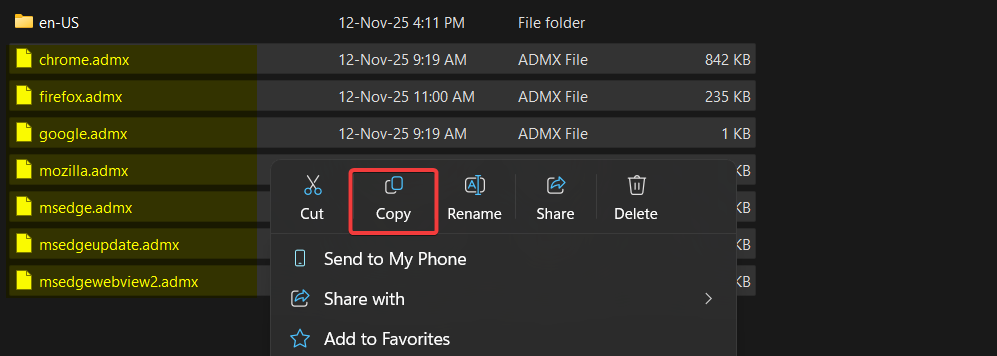
Copy the .admx files (NOT the entire admx folder — just the .admx files inside it) to C:\Windows\PolicyDefinitions on the Domain Controller.
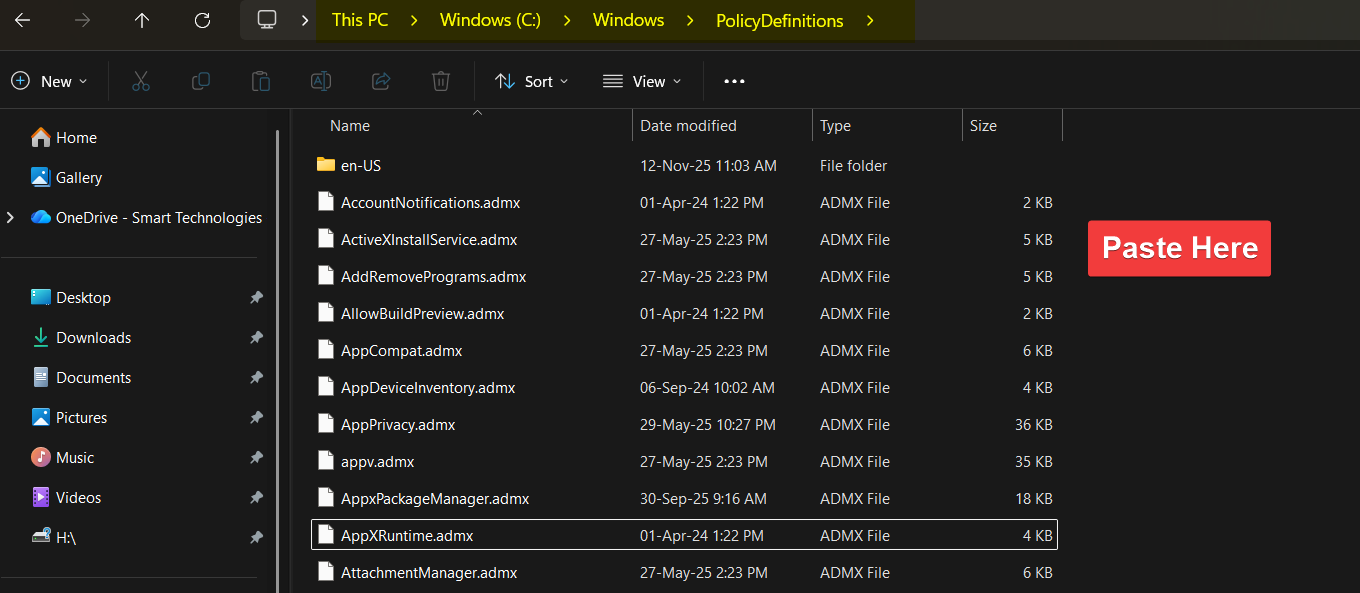
C:\Windows\PolicyDefinitions on the Domain Controller. This is the Central Store; SYSVOL replication propagates the templates to every controller in the domain. For workstation-only edits, copy to the local %WINDIR%\PolicyDefinitions instead.If you have multiple DCs, the SYSVOL replication propagates the templates to every controller automatically. For a workgroup or workstation-only deployment, copy to the local %WINDIR%\PolicyDefinitions on the machine where you’ll edit policies.
What if PolicyDefinitions is local-only?
If your domain doesn’t have a Central Store yet (PolicyDefinitions in SYSVOL), the GPO editor reads templates from %WINDIR%\PolicyDefinitions on the local machine where you’re editing. To switch to a Central Store: copy the entire local PolicyDefinitions folder to \\<domain>\SYSVOL\<domain>\Policies\PolicyDefinitions. Once Central Store exists, all admins editing policies see the same templates.
Step 2 — copy the .adml files to the en-US subdirectory
The .adml files are locale-specific — they provide the human-readable strings (policy names, descriptions, dropdown values) that show up in the Group Policy editor.
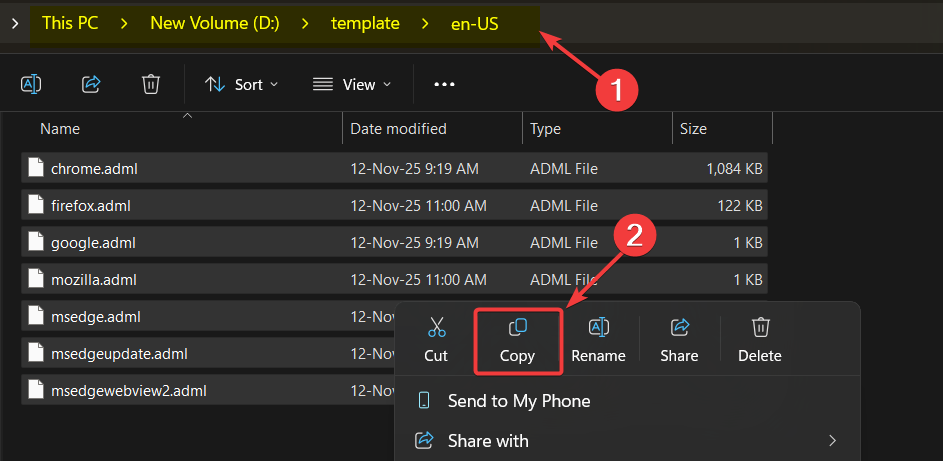
Copy the .adml files from each browser’s en-US folder to C:\Windows\PolicyDefinitions\en-US on the Domain Controller.
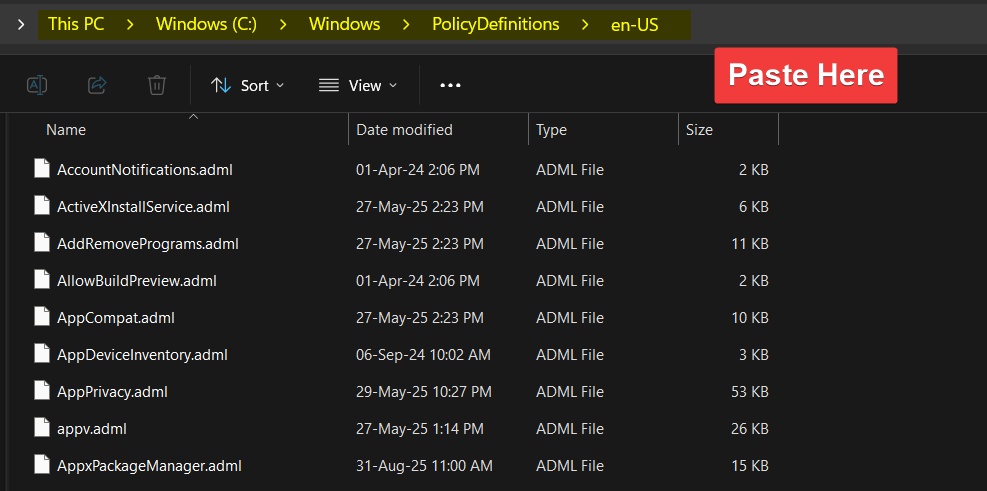
C:\Windows\PolicyDefinitions\en-US. Critical: the .adml MUST be in the en-US (or matching locale) subdir; dropping it next to the .admx means the templates show up but with empty labels in the editor.Critical: the .adml MUST go in the en-US subdirectory (or your matching locale subdirectory). Dropping it alongside the .admx in the parent PolicyDefinitions folder means the templates show up but with empty labels — the GPO editor displays the policy entries with no descriptions and you can’t tell them apart.
Step 3a — configure Chrome
Open Group Policy Management Editor (gpmc.msc) on the Domain Controller. Edit the GPO that targets your client machines (or create a new one if needed).
Navigate to:
Computer Configuration
└─ Administrative Templates
   └─ Google
      └─ Google Chrome
         └─ Password Manager and Protection
Find the policy “Enable saving passwords to the password manager”. Set to Disabled.
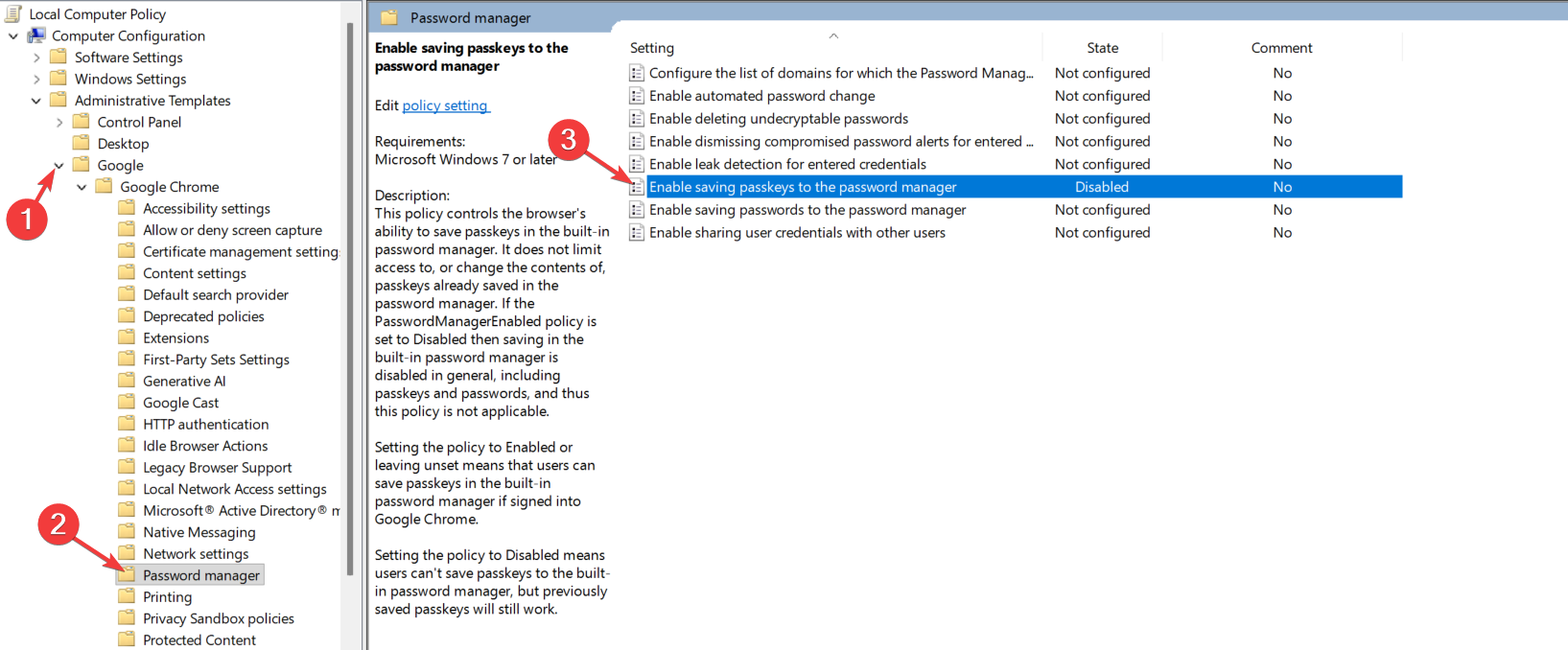
Disabled, not Not Configured. Three states:
- Not Configured — the policy isn’t set; browser uses default behaviour (saves enabled).
- Enabled — explicitly turn ON saving passwords (overrides any user-side setting).
- Disabled — explicitly turn OFF saving passwords. THIS is what you want.
The Disabled state is what suppresses the prompt and disables the password manager UI in the browser. Setting to “Enabled with the checkbox unchecked” doesn’t work the same way — it explicitly TURNS ON the policy and that’s the opposite of what you want.
Step 3b — configure Edge
Same setting name, different namespace. Navigate to:
Computer Configuration
└─ Administrative Templates
   └─ Microsoft Edge
      └─ Password Manager and Protection
“Enable saving passwords to the password manager” > Disabled.
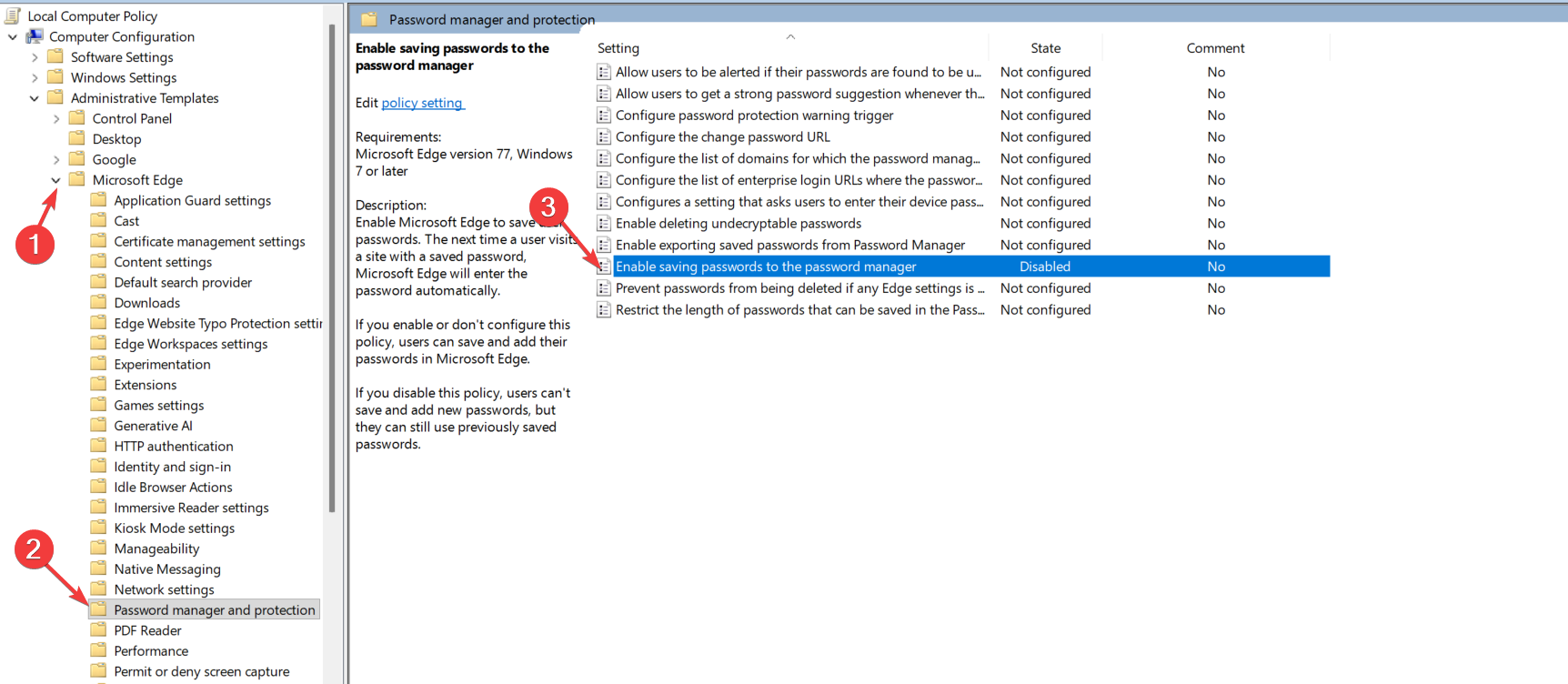
The naming alignment with Chrome is intentional — both browsers are built on Chromium, so the underlying policy schemas are nearly identical. Different ADMX namespace in the GPO editor (Microsoft Edge vs Google Chrome), same setting name underneath.
Step 3c — configure Firefox
Different vendor, different naming convention, same effect. Navigate to:
Computer Configuration
└─ Administrative Templates
   └─ Mozilla
      └─ Firefox
“Offer to save logins” > Disabled.
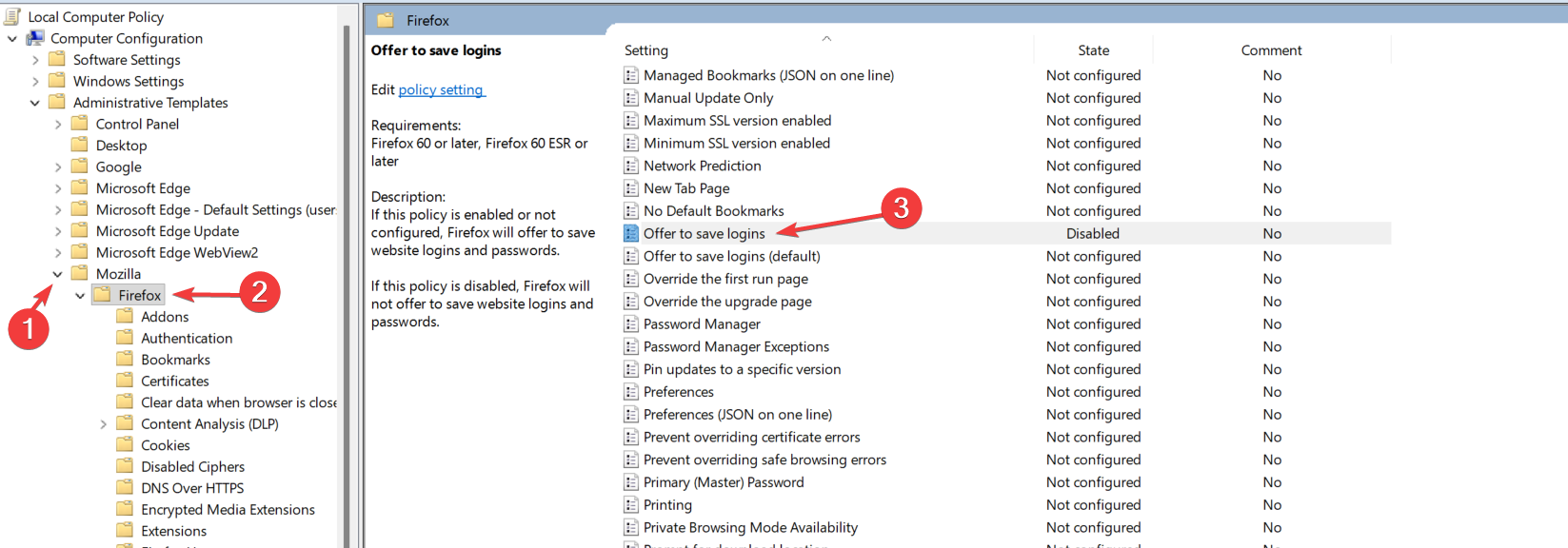
Mozilla calls passwords “logins” in their policy templates. Functionally identical to Chrome/Edge: prevents the save prompt, disables the password manager UI in Firefox.
Step 4 — verify
On a client machine, force a Group Policy refresh:
gpupdate /forceOpen each browser. Navigate to a site that has a login form (gmail.com, github.com, etc.). Enter credentials and submit. The expected behaviour:
- Chrome: no “save password?” bubble in the address bar. The key icon is gone.
- Edge: same as Chrome — no save bubble.
- Firefox: no “save login?” bar at the bottom or address-bar icon.
Open the password manager UI in each browser:
- Chrome: chrome://settings/passwords — should show that the feature is managed by your administrator and the toggle is disabled.
- Edge: edge://settings/passwords — same as Chrome, with a banner about administrator control.
- Firefox: about:logins — the “ask to save” toggle should be disabled.
If any browser still prompts to save, the policy didn’t apply. Common causes:
- The browser’s policy is cached and needs a browser restart (kill all browser processes and reopen).
- gpupdate didn’t actually apply — check Event Viewer at Application logs > Group Policy for errors.
- The OU your test machine is in isn’t covered by the GPO — verify the GPO link and security filtering.
- The policy template wasn’t actually deployed — verify by opening GPO Management Editor on a different host and confirming the browser policies appear.
Things that bite people
Forgetting to copy .adml files
Templates show up in the GPO editor but with empty / blank policy names. The .adml provides the human-readable labels; without it, the editor displays the policies but you can’t tell them apart. Always copy both .admx and .adml as a pair.
Mixing policy template versions across DCs
If you copy templates to one DC and don’t verify SYSVOL replication completed, different DCs end up with different versions of the templates. Admins editing policies see different available settings depending on which DC they connected to. Ensure SYSVOL replication is healthy (DFS-R or FRS) before relying on Central Store deployment.
Using Enabled instead of Disabled
The policy is “Enable saving passwords to the password manager.” Setting to Enabled means “explicitly turn ON saving.” Setting to Disabled means “explicitly turn OFF saving.” The double-negative trips up admins who think Disabled means “don’t set this policy.” Pick Disabled.
Existing saved passwords still work
The policy doesn’t delete existing saved passwords. Users can still log in with previously-saved credentials. If your security policy requires existing entries to be cleared too, that’s a separate per-browser operation (Chrome: chrome://settings/passwords > clear; Edge: same; Firefox: about:logins > clear). For mass deletion via policy, the browsers don’t expose this directly — it’s a manual per-user task.
Browsers using cloud-synced settings
Chrome with sync enabled, Edge with Microsoft Account, Firefox with Sync — the sync stores passwords in the user’s cloud account, not just locally. Disabling local saving doesn’t prevent sync from pulling passwords down from the user’s personal cloud account. To prevent that, additional policies are needed: PasswordManagerEnabled (Chrome / Edge) and DisableMasterPasswordCreation / DisableFirefoxAccounts (Firefox). The full hardening recipe is more than just the save prompt — consider the broader sync surface.
Some browsers respect the policy only on managed installs
The Microsoft Edge per-user (non-MSI) install reads policies; the Chrome per-user (non-MSI) install also does. Firefox traditionally needed a special “ESR” build or extra config to read GPO — modern releases honor it natively, but if you’re on an old Firefox version, double-check.
Auto-fill is a separate setting
“Save passwords” is one setting; “auto-fill saved passwords” is another. Disabling save still allows auto-fill of previously-saved entries. If you want to disable auto-fill too, look for the AutofillCreditCardEnabled / AutofillAddressEnabled policies (Chrome / Edge) and the equivalent in Firefox.
User reports: “but the browser keeps offering to save”
The user is on the wrong network (BYOD or VPN with split-tunnel that bypasses GPO). The policy applies when the machine reads its GPO from a DC; if the laptop hasn’t talked to a DC since the last GP refresh, the new policy hasn’t applied. Force gpupdate /force while connected to a network that can reach a DC.
Where this fits
Browser hardening via GPO is one piece of a broader endpoint-hardening strategy. For other browser-related GPOs (cache cleanup on logoff, default search engine, blocked extensions), see the Group Policy pathway. For the underlying ADMX/Central Store mechanics that this post relies on, the same pathway covers Group Policy fundamentals. For broader endpoint-security posts including SmartScreen and Defender, also in the Windows Server Administration pathway.