
The Print Spooler service (spoolsv.exe) runs by default on every Windows host. It manages print jobs, talks to printers, and historically has been one of the most fertile sources of remote-code-execution vulnerabilities in the Microsoft codebase. PrintNightmare (CVE-2021-1675 + CVE-2021-34527) was the most famous, but it’s far from alone — SpoolFool (CVE-2022-21999), CVE-2022-22717, CVE-2024-38198, and a steady drumbeat of smaller bugs across the years. The service runs as SYSTEM. On a Domain Controller, RCE-as-SYSTEM is one privilege escalation away from Domain Admin. Disabling Print Spooler on every DC is a no-brainer hardening step that costs nothing (DCs don’t need to print) and closes off the entire class of vulnerability. This post walks the GPO end-to-end.
Why this is a no-brainer
| Question | Answer |
|---|---|
| Does a DC need to print? | No. |
| What breaks if Print Spooler is disabled on a DC? | Nothing. |
| What does Print Spooler enable on a DC? | An RCE-as-SYSTEM attack surface that history has shown is exceptionally hard to keep bug-free. |
| How long does this take to roll out? | ~10 minutes for the GPO + push. |
| Reversible if needed? | Yes — remove the GPO link or set the policy to Not Configured. |
This is the rare hardening change with no downside. Microsoft’s own security baseline for Windows Server recommends it. CIS Benchmarks recommend it. Every red-team engagement against a Microsoft AD environment looks at the spooler first. Just turn it off.
The vulnerability history (in case you need to convince anyone)
- CVE-2021-1675 / CVE-2021-34527 (PrintNightmare, 2021). The headliner. RemoteCode execution as SYSTEM via the RPC interface of the spooler. Patches were issued, then bypassed, then patched again, then bypassed again. Several public PoCs that any low-priv user on the domain could weaponise.
- CVE-2022-21999 (SpoolFool, 2022). Local privilege escalation via spooler. Useful in chains where attacker has any code execution on a host and wants to escalate to SYSTEM.
- CVE-2022-22717. Another spooler RCE, slightly different mechanism.
- CVE-2024-38198. Information disclosure in spooler — less severe but useful for attacker reconnaissance.
- Multiple CVE-XXXX-YYYY each year through the entire history of Windows Server that involve spooler in some way. The codebase is old, complex, and has been an attacker focus for years.
If your security team needs justification, this list is it. The pattern is: a new spooler bug ships, Microsoft patches it, attackers find a bypass, Microsoft patches the bypass, repeat. Disabling the service ends the cycle for hosts that don’t need it.
Prerequisites
- Domain Admin (to create and link a GPO at the Domain Controllers OU).
- Group Policy Management Console (gpmc.msc) installed — either on a DC or a management workstation with RSAT.
- Awareness of which Domain Controllers (if any) are also acting as print servers. If any DC IS a print server, deal with that first — move the print queues to a dedicated print server (which is best practice anyway), THEN apply this GPO.
Step 1 — verify the current state on a DC
Before changing anything, look at the as-is state. Log into a Domain Controller. Open Services (services.msc).
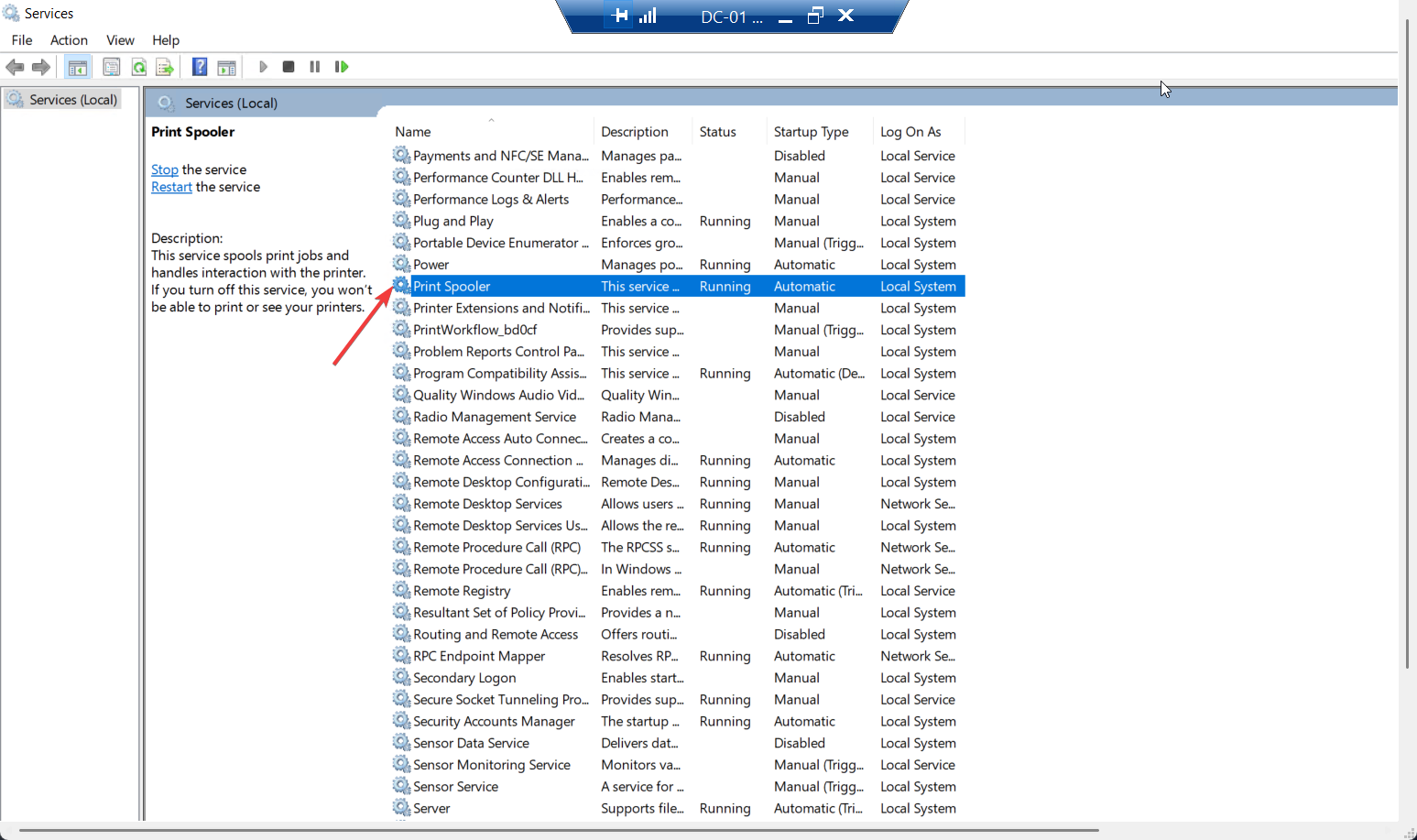
Find Print Spooler. Confirm:
- Status: Running
- Startup type: Automatic
This is the default. Every DC ships this way. If yours shows differently, someone has already partially hardened — check Event Viewer for previous policy applications before assuming you’re starting from a clean state.
Step 2 — create and link the GPO
From a DC or a management workstation with GPMC installed:
- Open Group Policy Management Console (
gpmc.msc). - Expand Forest > Domains > your domain name.
- Right-click the Domain Controllers Organizational Unit (the built-in OU; don’t create a new one).
- Select Create a GPO in this domain, and Link it here…
- Name it descriptively. Suggested:
GPO_Disable_PrintSpooler_DCs. Click OK. - Click on the newly created GPO > right-click > Edit. Group Policy Management Editor opens.
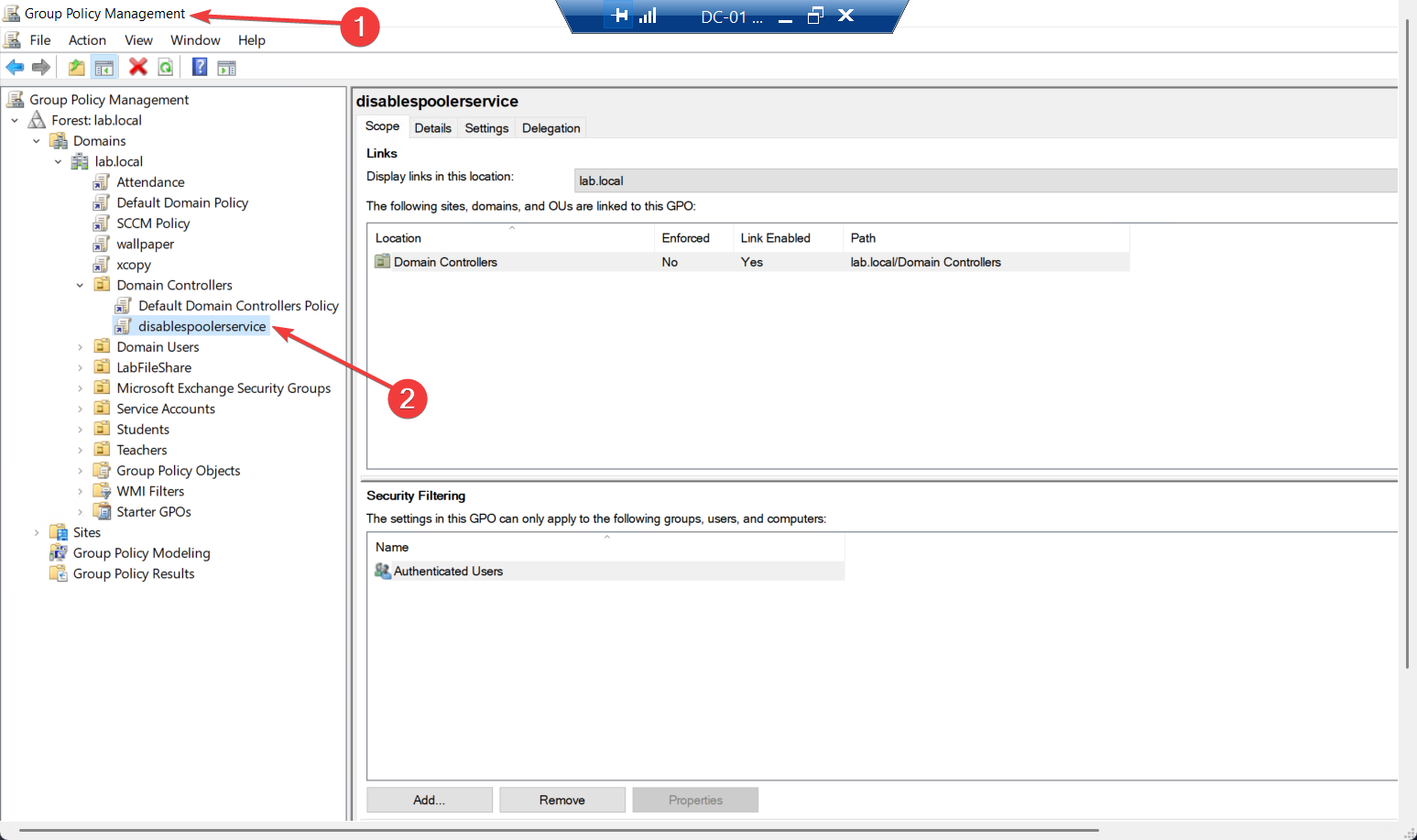
Naming convention matters in environments with many GPOs. GPO_Disable_PrintSpooler_DCs tells you at a glance: it’s a custom GPO (GPO_ prefix), what it does (Disable_PrintSpooler), and where it applies (DCs). Self-documenting names save investigation time later.
Step 3 — configure the System Services policy
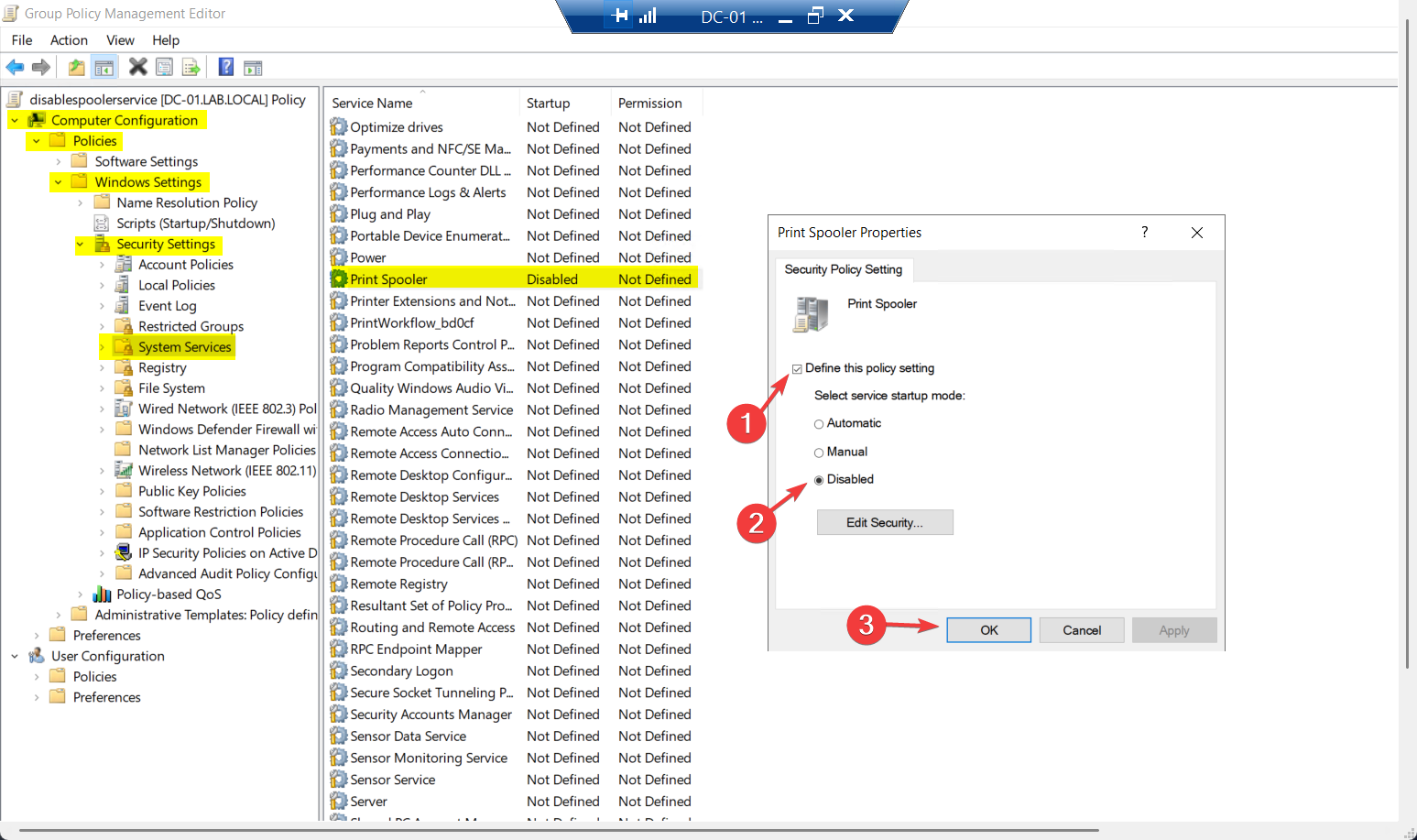
In Group Policy Management Editor, navigate to:
Computer Configuration
└─ Policies
   └─ Windows Settings
      └─ Security Settings
         └─ System Services
The right pane lists every Windows service the GPO can manage. Scroll down to Print Spooler and double-click.
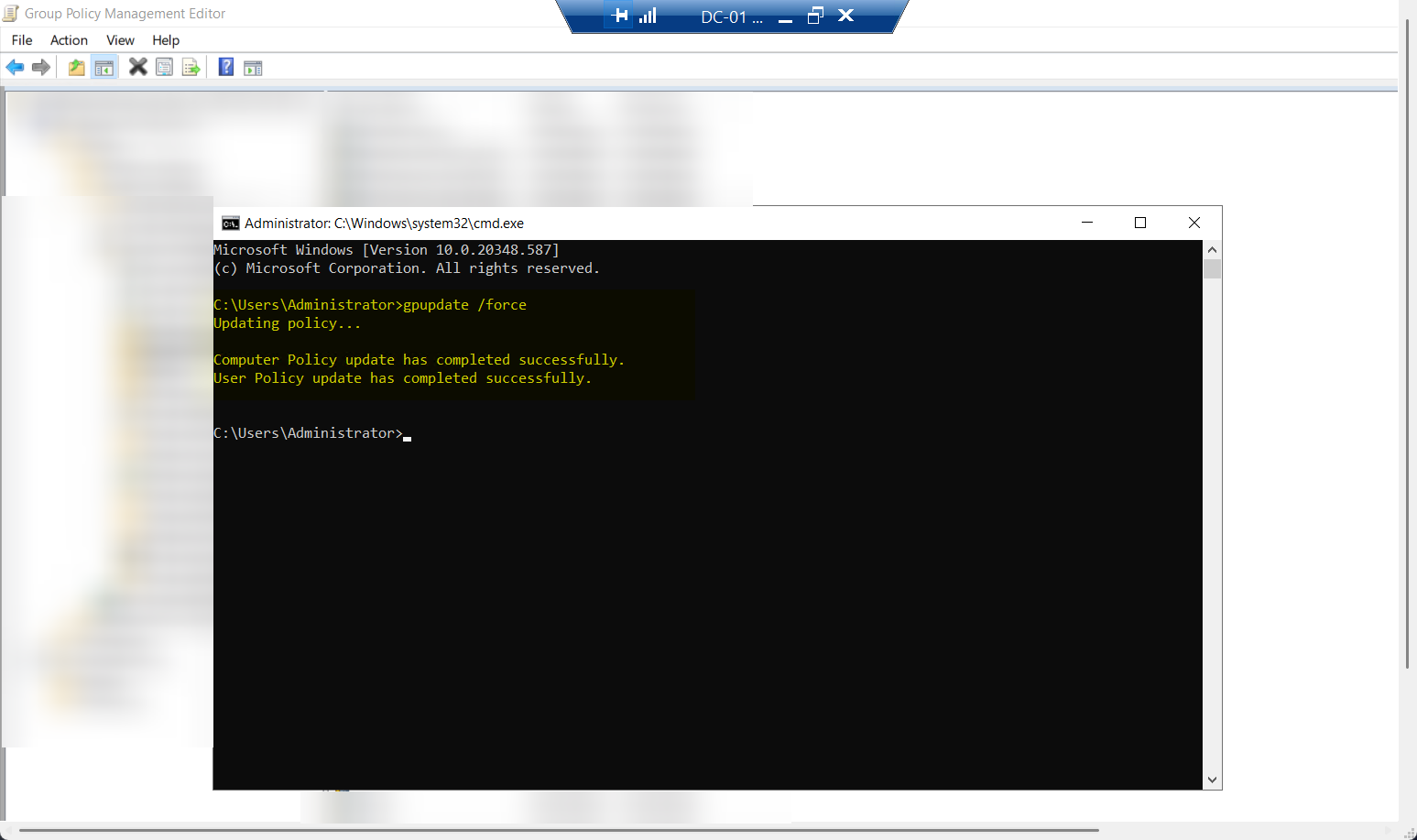
gpupdate /force, wait for the Computer policy update successfully completed message. Use this on the first DC to verify the policy lands cleanly before pushing to the whole OU.Verify on this DC: Services console > Print Spooler. Status should now be Stopped, Startup type Disabled. If yes, proceed to Step 4b for the rest of the DCs. If no, troubleshoot before pushing to fleet.
Step 4b — push to all DCs via GPMC (recommended)
Once the test DC is good, push to the whole fleet:
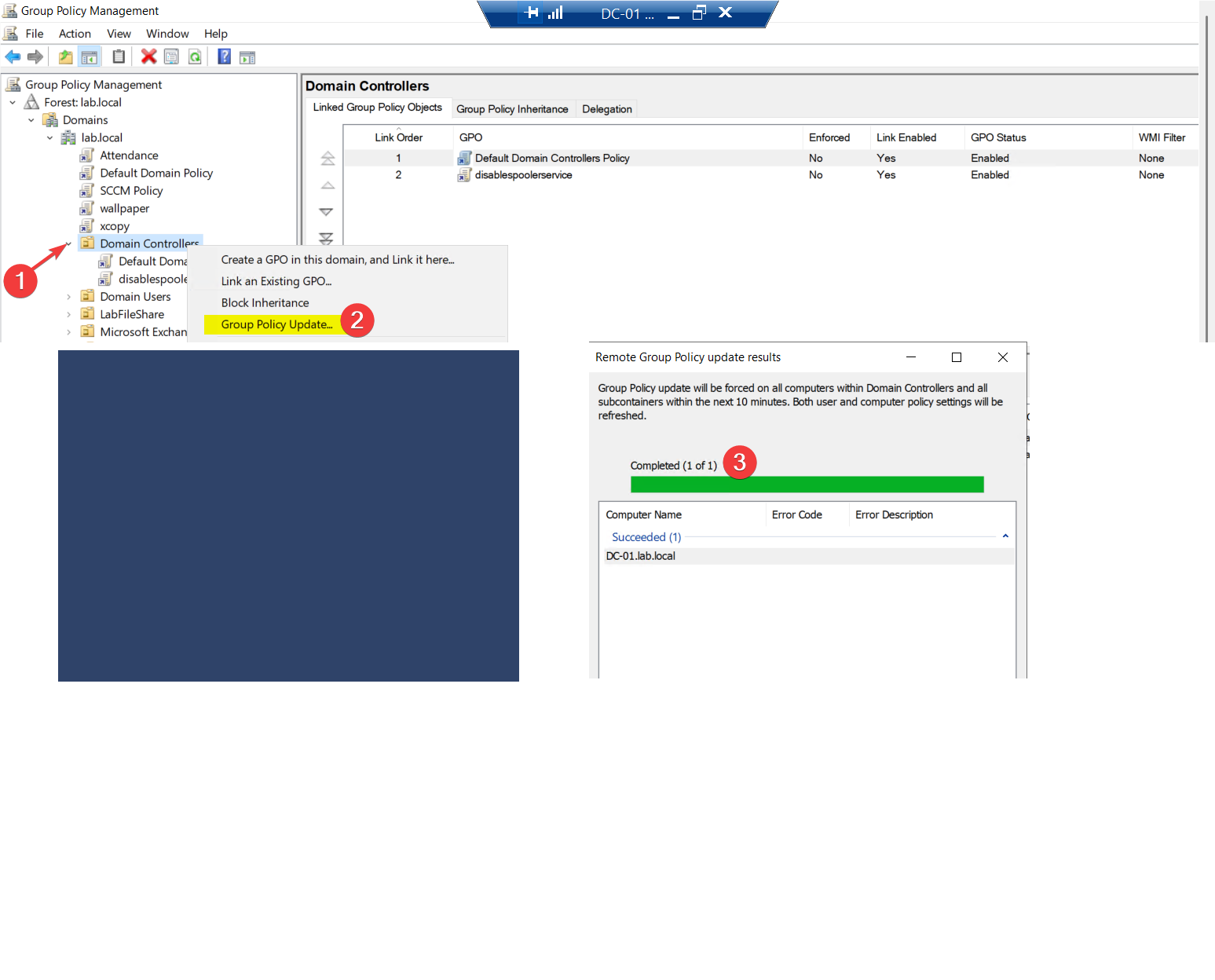
- Open GPMC.
- Right-click the Domain Controllers OU.
- Select Group Policy Update…
- Confirm the prompt about forcing the update on all computers in the scope. Click Yes.
A results window shows the per-DC status. Each DC should report success.
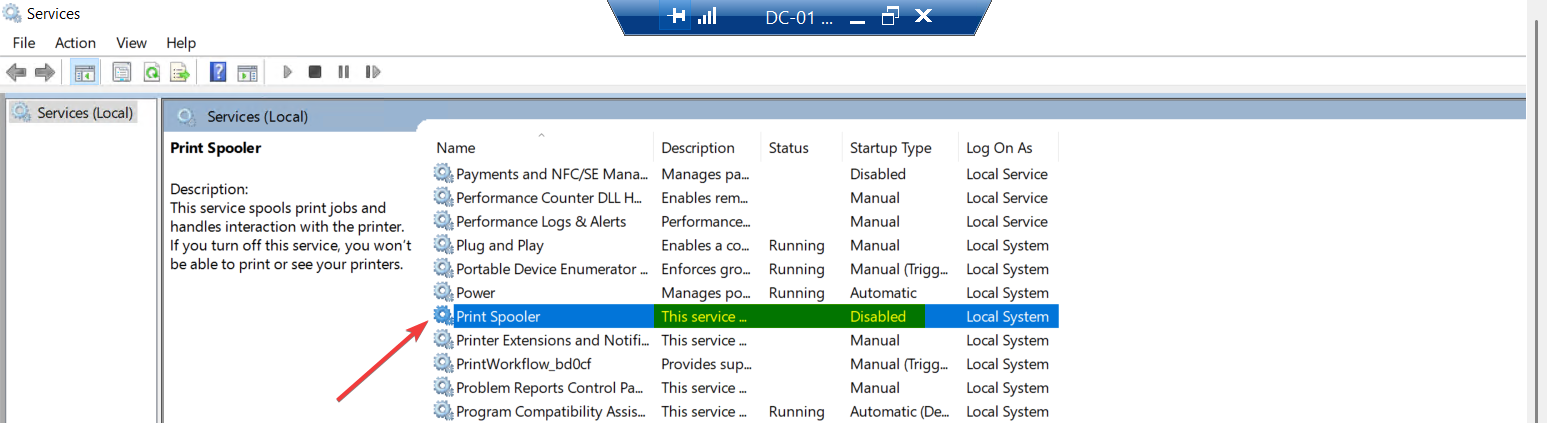
Services > Print Spooler:
- Status: Stopped
- Startup type: Disabled (and the field is greyed out — controlled by GPO)
The greyed-out field is the visible signature of GPO control. Local admins cannot change it through services.msc; the only way to start the service is to remove the GPO link or change the policy.
If a DC still shows the service as Running:
- Confirm the GPO actually applied:
gpresult /h C:\gpresult.htmlon that DC, then open the HTML report and look for the GPO_Disable_PrintSpooler_DCs entry. - If applied but status still Running, a dependency or another service is restarting it — reboot the DC. Print Spooler should not start at next boot.
- If GPO didn’t apply: check OU placement (the DC must be in an OU under or at Domain Controllers), check security filtering on the GPO, check Event Viewer at Application logs > Group Policy.
Things that bite people
A DC that’s also a print server
If you have any DC acting as a print server, this GPO breaks printing for whoever depends on that DC. Solution: move print queues to a dedicated print server (best practice anyway) BEFORE applying the GPO. If for some reason a specific DC genuinely must keep the spooler running, exclude it via security filtering on the GPO — but treat that exception as a security debt to pay down.
The policy applies to non-DC servers under DC OU
If you’ve placed non-DC servers in or under the Domain Controllers OU (rare but happens), this GPO disables their spooler too. Verify OU contents before pushing. Either move non-DCs out, or scope the GPO via security filtering to apply only to DC computer accounts.
Confusion between “Disabled” and “Not Configured”
In GP Editor, the System Services dialog has three states: Not Defined (the policy doesn’t affect the service), Disabled (force the service to Disabled startup type), and Manual (force to Manual startup). Pick Disabled. Not Defined leaves the service alone — useless for hardening.
Local admin tries to start the spooler
After the GPO applies, a local admin on the DC may try to start the spooler manually for some operational reason. Services.msc shows the field greyed out; PowerShell Start-Service Spooler fails with a permission error. The local admin can’t override GPO without first removing the GPO link — which requires Domain Admin. This is the desired behaviour but can confuse people.
Patching the rest of the fleet
Disabling spooler on DCs is the highest-leverage move. The same logic applies to ANY server that doesn’t print: file servers, app servers, database servers, web servers. Consider extending the GPO to cover server OUs beyond Domain Controllers. The trade-off: someone on those servers will eventually need to print something and discover the policy. For DCs the trade-off is none; for app servers it’s minimal-but-nonzero.
The spooler keeps coming back after a Windows update
Some Windows Server cumulative updates re-enable services as part of their installation. The GPO re-applies on the next gpupdate cycle (default 90 minutes for non-DCs, ~5 minutes for DCs), so the re-enabling is short-lived. If you want belt-and-suspenders: also set the spooler service to Disabled in a GPO Preferences > Services entry, which applies more aggressively than the System Services policy.
RPC over HTTP gets caught up too
Spooler is one of several RPC-exposed services on a DC. If you’re looking at this post for hardening, also consider: disabling SMBv1 (very old vulnerability source), restricting NTLM where possible, enforcing LDAP signing/binding (covered in other posts in the AD hardening pathway). The spooler GPO is one item in a larger hardening checklist.
Print Spooler dependencies on hosts that DO print
For non-DC hosts that legitimately print, the spooler service has dependencies (Network Printer Discovery and Sharing has been the answer to most weird printer issues over the years). Disabling spooler on a server that needs to print breaks more than just the print operation. Don’t apply this GPO to OUs containing print servers or end-user workstations.
Where this fits
This is one of the most-bang-for-buck hardening operations in Active Directory. Combined with other DC hardening posts in the Group Policy pathway and the broader AD hardening posts in the Active Directory pathway, it forms part of a baseline that every domain should have applied. For Microsoft’s own broader recommendations, see the Windows Server Security Baseline (downloadable as a set of GPOs from Microsoft Security Compliance Toolkit).