
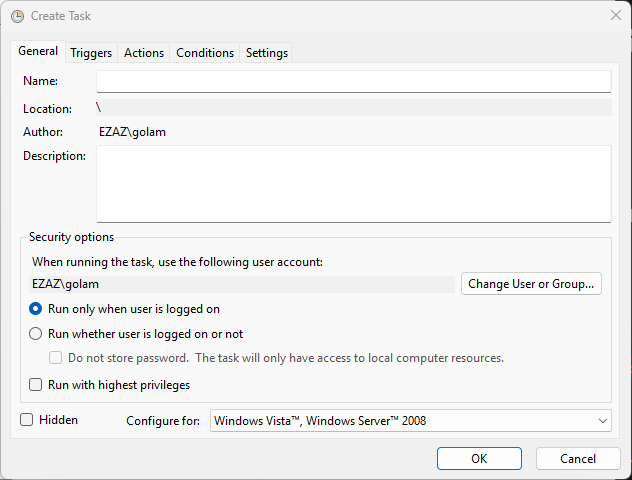
Windows Task Scheduler is the workhorse that runs everything from nightly log backups to Active Directory health probes to deferred reboot scripts — if it runs unattended on a Windows box, odds are it’s a scheduled task. The General tab of the Create-Task dialog is where the task’s identity and security context get set, and most of the “why isn’t my scheduled task running?” troubleshooting tickets trace back to a checkbox on this one tab being set wrong. Eleven fields, two sections, and a handful of subtle interactions that decide whether the task ever fires. This post walks every field, what it actually does, and the gotchas that aren’t labelled in the UI.
What you need before starting
- A Windows machine (client or server) with the Task Scheduler service running — it ships and runs by default on every supported Windows release
- Local administrator rights, if you intend to schedule a task that runs as another user, runs at boot, or runs with elevated privileges — standard users can only schedule tasks that run as themselves and only when they’re logged on
- The credentials of any service account you plan to use as the task’s run-as identity (you’ll be prompted to type the password when you save the task)
taskschd.mscfrom a Run dialog or Start menu launches the Task Scheduler MMC; the equivalent PowerShell route usesRegister-ScheduledTask, but the GUI exposes the same options as the cmdlet’s parameters
Where the General tab fits
The Create-Task dialog has five tabs — identity and security on this first one, then triggers, actions, conditions, and settings on the others. The General tab is the only tab you cannot skip; without a name and a security context, Task Scheduler refuses to save the task. Treat it as the “who and what is this task?” tab; the others answer “when,” “do what,” “under which preconditions,” and “with what failure-handling.”
The four identity fields
Name
The display name of the task in the Task Scheduler Library. Required, and the one field you cannot edit after the task is saved — if you need to rename, you have to delete and recreate. Keep names short, action-first, and descriptive. BackupSqlLogs-Nightly reads better than SQL Backup or jenkins_task_3; future-you and the next admin will be grateful.
Location
The folder under the Task Scheduler Library where the task lives. The default is the root, \, which is fine for ad-hoc tasks but turns into a soup of Microsoft built-ins, third-party installers, and your stuff once a server has been around a few years. Create per-purpose folders — \Custom\Backups, \Custom\AD-Health, \Custom\Reboot-Triggers — so the library is browsable. Folders are also useful for permissioning and for bulk export/import via schtasks /Query /XML.
Author
Auto-filled with the user account that created the task. Cannot be edited from this dialog. The author field has no functional impact — the run-as account in the Security section is what actually owns the task at runtime — but it does serve as a built-in audit trail (“who put this here?”) when paired with the task’s creation time visible in the History tab.
Description
Optional but worth filling in. The Library view truncates long descriptions, so write the first sentence as a one-line summary and put detail after. A good description names the script the task runs, the schedule (or trigger pattern), and any preconditions. “Runs nightly at 02:00 to invoke C:\scripts\backup-logs.ps1; service account requires read on C:\logs and write on \\backup-srv\logs.” Anything to keep the next admin from reverse-engineering the task at 3 AM during an incident.
Security options — the section that breaks tasks
Below the description is the “Security options” group. This is where every “the task is enabled but not running” investigation eventually lands. Six fields, with subtle interactions.
5. Run-as account picker
The user account whose security context the task assumes when it runs. Defaults to the creating user, but in production you almost always want a service account — either a domain-joined service account scoped to the rights the task needs, or a built-in such as SYSTEM, LOCAL SERVICE, or NETWORK SERVICE.
The right account depends on what the task does. SYSTEM has unrestricted access on the local machine but no network identity (cannot authenticate to anything off-box). NETWORK SERVICE has limited local privilege but presents the computer’s machine account on the wire, which is useful for tasks that need to read from a domain share. A custom domain service account — ideally a Group Managed Service Account, see the Active Directory pathway — is the right answer for production: revocable, password-rotated automatically, scoped to least privilege.
6. Run only when user is logged on
The first of two mutually exclusive options. Selecting this means the task runs in the user’s session and can interact with the desktop — pop up GUI windows, write to the user’s mapped network drives, prompt for input. The cost is that the task simply doesn’t fire if the user isn’t signed in at the trigger time. Right for: maintenance utilities the user explicitly wants to see, scripts that depend on user-profile state (mapped drives, user-scoped environment variables), anything that should not run unattended.
7. Run whether user is logged on or not
The other half of the radio. Task runs in a non-interactive session, meaning the script can do anything it has rights to do but cannot show a window, prompt for credentials, or use a mapped drive established by the user’s logon script. Selecting this prompts you to enter the run-as account’s password — Task Scheduler stores it in the LSA secrets store on the local machine and uses it to log the account on at trigger time. This is the right option for almost every server-side automation: backups, log rotation, scripted health checks, anything that runs at a fixed schedule regardless of human presence.
8. Do not store password (local resources only)
A modifier on the “run whether logged on or not” option. Tells Task Scheduler not to cache the run-as password — instead, the task runs as the principal’s S4U logon, which avoids password storage on disk but in exchange the task can only access local resources. Off-box access (domain shares, network APIs, anything requiring outbound authentication) silently fails. The right trade for tasks that genuinely don’t need network identity (a local file rotation, a registry tweak, a local service restart); the wrong trade for anything else.
9. Run with highest privileges
The Task Scheduler equivalent of “Run as Administrator.” Without it ticked, the task runs at the user’s normal privilege level, even if the user is an administrator — same UAC split-token model that applies to interactive logons. Anything that touches the registry under HKLM, restarts a service, modifies %ProgramFiles%, or otherwise needs elevation will fail with access-denied unless this is checked.
The catch: ticking “highest privileges” for a task that runs as a domain user requires that the user has the “Log on as a batch job” user right on the local machine (granted by default to administrators, granted by GPO for service accounts under Computer Configuration → Policies → Windows Settings → Security Settings → Local Policies → User Rights Assignment). Missing that right is the cause of approximately every “task failed with 0x80070534 / 1314” error on the first run after deployment.
10. Hidden
Hides the task from the default Task Scheduler Library view. The task still runs; it just doesn’t appear unless you tick View → Show Hidden Tasks. The intended use is for system tasks installed by Windows components — if you look at the volume of hidden tasks under \Microsoft\Windows\ in any Windows installation, that is what they are. For your own tasks, leave Hidden unchecked — if a task is important enough to schedule, it’s important enough to be visible to the next admin.
11. Configure for
An OS-version selector that determines which schema version the task is saved in. Older choices (Windows 7, Windows Server 2008 R2) save in v1 schemas that lack newer features (S4U logon, conditional triggers, repetition patterns). Newer choices (Windows 10, Windows Server 2016/2019/2022) save in v2 schemas that expose every modern option but won’t import on older OSs. The default matches the OS you’re creating the task on; only change it if the task XML will be exported and imported on an older target.
A worked example: nightly log backup
Concrete walk-through. Goal: a script C:\scripts\backup-logs.ps1 that compresses yesterday’s logs and copies them to a domain share, runs at 02:00 every day, no human interaction. The General-tab settings:
- Name:
BackupLogs-Nightly - Location:
\Custom\Backups - Description: Compresses prior-day logs from C:\logs and copies the archive to \\backup-srv\logs. Run-as account requires read on the source folder and write on the share. See ticket OPS-1284.
- Run-as account:
CONTOSO\svc-backup(a domain service account with the necessary share permissions) - Run whether user is logged on or not (selected) — this is unattended automation
- Do not store password — LEFT UNCHECKED, because the task copies to a network share and needs network identity
- Run with highest privileges — ticked, because the script reads from
%ProgramData%subdirs that require elevation - Hidden — left unchecked
- Configure for: the matching Windows Server release
Save, type the service-account password when prompted, then move on to the Trigger and Action tabs.
Things that bite people in production
The run-as account needs “Log on as a batch job” or the task fails silently
The single most common Task Scheduler failure mode. The task is configured correctly, the password is right, the script works when run interactively — and the task fires with result 0x80070534 or last-run code 1314 (“A required privilege is not held by the client”). The fix is to grant the run-as account the “Log on as a batch job” user right on the machine where the task runs. Built-in administrators have it by default; service accounts and standard users do not. Granted via GPO at scale; via secpol.msc → User Rights Assignment per machine.
“Run only when user is logged on” tasks miss when no one is signed in
This sounds obvious but is a real source of confusion: tasks that work fine when you’re testing them at your desk silently skip every fire that lands on a weekend or holiday because nobody’s signed in. If the task should fire on a clock, switch to “Run whether user is logged on or not.” Reserve the logged-on option for genuinely interactive tasks.
Stored passwords don’t auto-rotate
The password Task Scheduler caches when you tick “Run whether logged on or not” is a snapshot. Rotate the service account’s password and the task starts failing on the next run with a credential error. Either remember to update every task that uses the account, or use a Group Managed Service Account (gMSA) where the password is auto-rotated and Task Scheduler picks up the new credential transparently. gMSAs are the right answer for any service-account-driven task in a modern AD environment.
The “Author” field is not who the task runs as
Worth re-stating because it is a common misreading. Author is the creator (immutable, audit-trail). Run-as is the runtime identity (set in the “Security options” group below). Tasks created by an admin and configured to run as a service account display the admin in the Author column — that is correct, not a misconfiguration.
Hidden tasks hide from schtasks /Query too unless you ask
If a task is configured Hidden, it won’t appear in the default schtasks /Query output, which means inventory scripts that scan tasks miss it. Always pass schtasks /Query /v /fo LIST for full output (verbose mode includes hidden tasks). The PowerShell equivalent Get-ScheduledTask includes hidden tasks by default.
OS compatibility silently downgrades features
Pick “Configure for: Windows 7” on a Windows Server 2022 machine and you lose access to half a dozen settings on the other tabs (per-trigger repetition pattern, S4U-only logon, several condition types) without the dialog warning you. If options on the Triggers or Conditions tab are greyed out unexpectedly, check the General tab’s “Configure for” first — that is almost always the cause.
Where this fits
The General tab is one of five — the Triggers tab covers when the task fires, Actions covers what it runs, Conditions covers under what state the machine has to be in, and Settings covers failure-handling behaviour. The next post in the series walks the Triggers tab in the same depth. For the broader sysadmin context, the Windows Server administration pathway covers the full surface area — this post is the “why is my scheduled task not firing?” reference, not the “is my server hardened?” reference.