
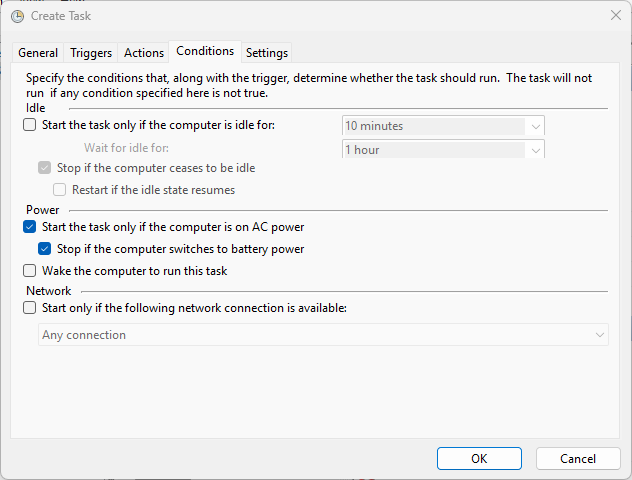
The fourth Task Scheduler tab is the layer most administrators forget exists until they ship a task that mysteriously fails to fire half the time. The Triggers tab decided when; the Actions tab decided what; the Conditions tab decides whether to actually run when the trigger matches. Three groups of gates — idle, power, network — that are AND-ed together with whatever the trigger fired on. If a configured condition isn’t met, the task silently skips, no error in the History tab, no event-log entry by default. This post walks all three condition groups, what they actually do, and the production gotchas that account for most “the schedule is right but the task isn’t running” tickets.
What you need before starting
- A task with the General, Triggers, and Actions tabs already configured (the Conditions gates only matter at trigger time, not at task save time)
- For wake-from-sleep behaviour:
powercfgrunning on the target machine and the “Allow wake timers” advanced power option enabled at machine scope (otherwise the task’s Wake-Computer checkbox does nothing) - For named-network conditions: knowledge of the exact network connection name as it appears in Network and Sharing Center — the task picker matches on the literal string
- Local administrator rights to run
schtasks /Query /xmland inspect the saved Conditions block, useful when verifying a configuration after the fact
How conditions interact with triggers
Mental model: the trigger is “please consider running the task now,” the conditions are “but only if these gates also pass.” All configured conditions are evaluated at the moment the trigger fires; if any one fails, the task does not run, the schedule moves on to its next fire (or simply ends, for a one-time trigger), and the History tab records the skip as “Task triggered but not started: condition not met.” Unconfigured conditions don’t evaluate — an unticked checkbox is not a gate.
The Idle group
The Idle group has four checkboxes that work together. Idle is defined strictly: no keyboard or mouse input AND CPU usage below the threshold AND disk activity below threshold for the configured duration. The thresholds themselves are global power-policy settings, not per-task.
Start the task only if the computer is idle for: N minutes
The headline gate. With it ticked, the task only runs when the system has been idle for at least the configured period. Right for any maintenance work that should yield to active use — backups, indexing, antivirus scans, batch transcoding. The default of 10 minutes is conservative; increase it if you only want the task to run during genuinely-idle periods (overnight, lunch breaks).
Wait for idle for: N hours
How long Task Scheduler is willing to wait, after the trigger fires, for idle to be reached. With it set to 1 hour, the trigger fires at (say) 09:00; if idle hasn’t been reached by 10:00, the task is abandoned for that fire. Without this checkbox, Task Scheduler waits indefinitely — which means the task could fire hours late on a busy machine. Always pair the “start only if idle” gate with a wait timeout that matches the urgency of the work.
Stop if the computer ceases to be idle
If the user comes back during the task’s execution (touches the keyboard, mouse moves, CPU spikes), Task Scheduler kills the running task. Useful when the task itself is heavy enough to be noticeable — you don’t want a CPU-saturating maintenance script running while the user is suddenly trying to compile something. Less useful for cheap tasks that complete in seconds; the kill is heavier than letting them finish.
Restart if the idle state resumes
The companion to “stop if no longer idle.” If the task was killed by the user returning, then the user goes idle again, the task starts over from scratch. The implicit assumption is that the task is idempotent and re-running it from the beginning is safe; if it isn’t (irreversible side effects, partial data writes), don’t enable this without writing the script defensively.
The Power group
Three checkboxes that matter mostly on laptops, mobile workstations, and battery-backed devices, but also on plug-in-power servers in some configurations.
Start the task only if the computer is on AC power
Right for anything you wouldn’t want to drain a battery for: long backups, big antivirus scans, software-update installs, video transcoding. With it ticked, the task waits silently if the machine is on battery and runs the next time it’s plugged in (subject to the trigger schedule). Servers on UPS power generally report as “on AC” from this checkbox’s perspective — the gate isn’t literally checking AC mains, it’s checking the battery-state indicator the OS exposes via GetSystemPowerStatus.
Stop if the computer switches to battery power
If the task is running and the machine unplugs (or fails over to UPS battery during a power blip), the task is killed. Useful for the same scenarios as the previous gate — long-running, heavy, or non-essential work that should yield when the power source becomes uncertain. Watch the kill semantics: it’s a TerminateProcess, not a graceful signal — the task gets no chance to clean up.
Wake the computer to run this task
If the machine is asleep at trigger time, this checkbox tells Task Scheduler to wake it. The wake mechanism is the OS’s wake-timer subsystem, which is gated by a separate machine-wide power policy: Power Options → Change Plan Settings → Change Advanced Power Settings → Sleep → Allow wake timers. If that policy is set to Disable (the modern default for laptops on battery), this checkbox does nothing — the task simply doesn’t fire while the machine is asleep, and the next fire happens whenever the machine next wakes naturally. Confirm the system policy first; the checkbox alone is not sufficient.
The Network group
One main gate with two flavours.
Start only if the following network connection is available
The dropdown defaults to Any connection, which means “any active network adapter with a default-gateway-routable IP.” Tick the box and pick a specific named network from the dropdown to scope the gate to that one connection — useful for tasks that target a specific VPN, a specific corporate Wi-Fi SSID, or a specific Ethernet connection. The matching is on the literal connection name as shown in the Network and Sharing Center.
The catch: the gate evaluates only the OS’s network-status flag, not actual reachability. A network that the OS thinks is connected but is firewalled-off, has stale DHCP, or is in captive-portal limbo all pass the gate — the task fires, then the script discovers the network is unusable. For genuine reachability checks, do a Test-NetConnection -ComputerName ping inside the script before relying on the network being usable.
A worked example: nightly backup of a laptop
Goal: a backup task that runs at 02:00 every night, but only when the laptop is plugged in, only when the user has been away for at least 30 minutes, and only when on the corporate network. Configuration:
- Idle: Start only if idle for 30 minutes; Wait for idle for 2 hours; Stop if no longer idle (so the user’s 6 AM unlock kills the backup gracefully)
- Power: Start only on AC power; Stop on battery (so an unplug mid-backup doesn’t drain the battery to dead)
- Network: tick the “specific network” option, pick Corp-Wi-Fi-Office or VPN-Corp from the dropdown
- Wake to run: leave OFF (laptop is in a bag; waking it nightly drains battery; the next morning’s plug-in is when the backup will fire instead)
The trigger is the schedule (02:00 daily); the four conditions act as gates that decide whether each fire converts to an actual run.
Things that bite people in production
Conditions silently skip; nothing in History by default
The single biggest source of confusion. A task that fails a condition gate is recorded as “Task triggered but not started: condition not met,” which doesn’t appear unless you actively look at the History tab AND have History enabled (it is enabled by default in modern Task Scheduler, but disabled in some hardened images). No alerting, no Windows event-log entry by default. The first sign that conditions are skipping fires is usually that nobody noticed the backups missed five nights in a row.
Wake timers depend on a separate power policy
The Wake-Computer checkbox is necessary but not sufficient. A laptop on battery, with “Allow wake timers” set to Important Wake Timers Only (the default in Windows 10/11 on battery), will not wake for a Task Scheduler wake event — only for system-critical wake events. To force the laptop-on-battery wake behaviour: powercfg /SETACVALUEINDEX SCHEME_CURRENT SUB_SLEEP RTCWAKE 1 for AC mode and the equivalent SETDCVALUEINDEX for battery. Confirm with powercfg /WAKETIMERS after the task fires once.
The “On idle” trigger is not the same as the Idle condition
Two different things. The trigger fires on idle; the condition gates on idle. A task with both has the redundant pattern of “trigger when idle” AND “only run if idle” — usually you want one or the other. Use the trigger when idle is the cause (the task should fire because the machine became idle); use the condition when the trigger is something else (a schedule, an event) and idle is just a precondition. See Triggers tab for the trigger side.
Network condition is on the OS-level interface state, not actual reachability
A task gated on “any connection” passes the gate if the laptop’s Wi-Fi adapter has an IP — even if that Wi-Fi is a captive-portal hotel network with no real internet, even if the corporate VPN tunnel that the script needs is down. For accurate reachability, do an in-script Test-NetConnection against the actual endpoint and exit cleanly if it fails; don’t rely on the gate alone.
Stop-on-battery is a hard kill
If the task is mid-write to a file when the machine unplugs and the gate kills it, the file may be left half-written. Scripts that touch persistent state need to be transactional (write-then-rename, journal files, idempotent re-runs) so that the next run after replug recovers cleanly. The gate itself doesn’t add any cleanup — it’s TerminateProcess.
Conditions evaluate at trigger time, not continuously
If the trigger fires and conditions pass, the task starts. If a condition then changes mid-run (network drops, user returns from idle without the “stop if no longer idle” gate set, machine unplugs without the “stop on battery” gate set), the task keeps running — the gate doesn’t re-evaluate. The “stop if” checkboxes are the explicit opt-in to mid-run re-evaluation; without them the gate is a fire-time-only check.
Where this fits
The Conditions tab answers “under what state.” The previous tabs covered who (General), when (Triggers), and what (Actions). The fifth and final tab, Settings, covers what to do when something goes wrong — multiple-instance handling, restart-on-failure, idle-related stop-tolerance — and is covered next. For broader sysadmin context, the Windows Server administration pathway covers the rest of the surface area.