
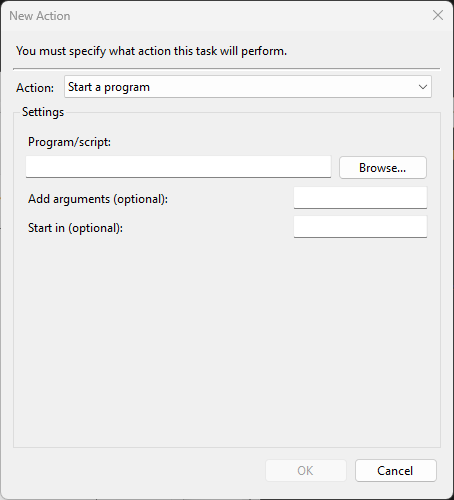
The third tab in the Create-Task dialog is the smallest of the five and the easiest to misconfigure in subtle ways. It defines what the task does when its trigger fires — which executable to run, what command-line arguments to pass it, and what folder to set as its working directory. Three fields, no more. The catch is that the wrong combination of those three values produces a task that fires on schedule but does nothing, fails silently, or executes against the wrong working directory and never finds the files it expects. This post walks the three fields, the two deprecated action types you should never select, and the production gotchas that account for most “task is enabled but the script doesn’t do anything” tickets.
What you need before starting
- The General and Triggers tabs already filled in — the action only fires when a configured trigger matches
- The full path to the program or script you want to run, OR a binary that lives somewhere on the system
PATH(Task Scheduler honoursPATHresolution, but the run-as user’sPATH, not yours) - If the script depends on relative paths or a
.configfile in the same directory, knowledge of which directory those files live in — the “Start in” field is what tells the OS the working directory at process spawn time - The exact argument syntax the executable expects — what you’d type at a command prompt minus the executable name itself
The only action that still works: Start a program
The Action dropdown shows three options on most Windows versions. Two are deprecated stubs (covered at the end); the only one that actually runs in modern builds is Start a program. Selecting it exposes three input fields. They map directly onto the parameters Windows uses internally to spawn the process, which is why understanding what each field is doing matters: a wrong value produces an obscure failure rather than a clean error.
Field 1: Program/script
The path to the executable you want to launch. Three formats work:
- Absolute path —
C:\Windows\System32\notepad.exe. Always works, never ambiguous, the right choice for production. Use this even when the binary is inSystem32; relying on path resolution introduces a subtle dependency on the run-as account’sPATHenvironment variable. - Bare executable name —
notepad.exe,powershell.exe,cmd.exe. Resolved via the run-as user’sPATH. Convenient for system binaries that live inSystem32(which is on every account’sPATH) but unreliable for anything custom. - Path with environment variables —
%SystemRoot%\System32\notepad.exe,%ProgramFiles%\Custom\App.exe. Variables get expanded against the run-as user’s environment at spawn time. Useful for paths that differ across systems but stay constant within an environment family.
The single biggest source of confusion: this field is for the executable, not for the script. To run a PowerShell script, the program is powershell.exe, not backup.ps1. The script path goes in the next field as an argument. Putting backup.ps1 directly into the Program/script field will silently fail or open the script in Notepad depending on the user’s file associations — almost never what you wanted.
Field 2: Add arguments (optional)
Command-line parameters passed to the executable. Whatever you would type after the program name at a real prompt goes here. Two examples:
- To run a PowerShell script with bypass-execution-policy: program
powershell.exe, arguments-NoProfile -ExecutionPolicy Bypass -File "C:\Scripts\Backup.ps1" - To run a batch file with logging: program
cmd.exe, arguments/c C:\Scripts\backup.bat >> C:\logs\backup.log 2>&1
Quoting matters. If any path contains a space, the entire path needs to be wrapped in double quotes — "C:\Program Files\App\app.exe". Task Scheduler passes the argument string to the OS process spawner unchanged, so the same quoting rules as cmd.exe apply. The classic failure mode: a script path with a space in Program Files that wasn’t quoted, producing a “file not found” that doesn’t obviously trace back to the missing quotes.
Pipes, redirection, and chained commands need a wrapper
The Action tab spawns a single process; it doesn’t invoke a shell. That means pipes (|), redirection (>, >>, 2>&1), command chaining (&&, ;), and environment-variable expansion in arguments don’t work directly — those are shell features, not OS features. To use them, wrap the command in a shell invocation:
cmd.exe /c "your-command-with-pipes-and-redirects"powershell.exe -NoProfile -Command "Get-Process | Out-File C:\out.txt"
The wrapper shell process interprets the special characters; the program that needs them runs as a child. Without the wrapper, the | in the arguments is passed literally to the program as a string and produces a baffling result.
Field 3: Start in (optional)
The working directory the process will run from — the value of %CD% at process spawn time, the directory that relative paths in the script resolve against. Two production realities make this field less optional than the “optional” label suggests.
Scripts that use relative paths break without it. A script that opens .\config.json or writes to .\logs\ needs the working directory to be wherever those files live. Without “Start in,” Task Scheduler defaults the working directory to C:\Windows\System32 (when running as SYSTEM) or to the run-as user’s home directory — almost never the directory the script is in. Put the script’s containing folder in “Start in” and the relative paths resolve correctly.
The path goes in plain — no quotes. Unlike the Arguments field, the “Start in” field is parsed as a single path; quoting it can produce “invalid path” errors. Just type the path: C:\Scripts, C:\Program Files\App, etc. Spaces in the path are fine without quoting because Task Scheduler treats the whole field as one value.
The two deprecated action types
The Action dropdown still shows two other options for backwards compatibility, both removed in modern Windows builds:
Send an e-mail (deprecated)
Used to send an SMTP email when the trigger fired, configured directly in the dialog with To/From/Subject/Body fields. Removed in Windows 8 / Server 2012 because the implementation only supported SMTP without TLS, no authentication, and stored the credentials in the task XML in plain. Selecting it on a modern Windows build configures the action but produces no email when the trigger fires — the action runs and silently no-ops. The supported replacement is Send-MailMessage (PowerShell) or any third-party CLI mailer (blat, swaks, custom curl-to-API), invoked via Start a program.
Display a message (deprecated)
Used to pop up a message box on the user’s desktop. Same removal story: gone in Windows 8 / Server 2012, kept in the dropdown for backwards compatibility, no-ops when triggered. The replacement is msg.exe * (built into every Windows install — sends a console message to all sessions) or PowerShell’s System.Windows.Forms.MessageBox, again invoked via Start a program.
The presence of these two deprecated options in the UI is the single most consistent source of “I configured this and nothing happens” tickets from administrators new to modern Task Scheduler. If you see either selected on an existing task, it should be migrated to a Start-a-program equivalent before the next maintenance cycle.
A worked example: nightly PowerShell backup
Goal: run C:\Scripts\Backup.ps1 nightly, with the script’s working directory set to C:\Scripts (so its relative-path log writes resolve correctly), without changing the machine’s execution policy. The Action-tab fields:
- Program/script:
powershell.exe(relies onSystem32being on PATH;C:\Windows\System32\powershell.exeis the more defensive equivalent) - Add arguments:
-NoProfile -ExecutionPolicy Bypass -File "C:\Scripts\Backup.ps1" - Start in:
C:\Scripts
The composed invocation Task Scheduler runs at trigger time:
cd C:\Scripts
powershell.exe -NoProfile -ExecutionPolicy Bypass -File "C:\Scripts\Backup.ps1"
-NoProfile skips the per-user PowerShell profile, which keeps cold start fast and removes a class of profile-load failures. -ExecutionPolicy Bypass overrides the machine’s execution policy for this single invocation only (covered in PowerShell execution policies), so the task works without permanently loosening security. -File tells PowerShell to run the script and exit, instead of prompting interactively.
Things that bite people in production
Putting the script directly in “Program/script” silently fails
The most common single mistake. Writing C:\Scripts\Backup.ps1 in the Program/script field instead of powershell.exe with the script as an argument means Task Scheduler hands the .ps1 file to the OS process loader, which doesn’t know what to do with it — result is either a no-op or the script opens in Notepad depending on file associations. Always wrap script files in their interpreter (powershell.exe, python.exe, cscript.exe) and pass the script path as an argument.
Working directory is unrelated to script location
Task Scheduler does NOT default the working directory to the script’s containing folder. It defaults to the SYSTEM working directory (C:\Windows\System32 for SYSTEM) or the run-as user’s home directory. Scripts that work fine when you run them by hand in their own folder break under Task Scheduler the first time they hit a relative path. Always set “Start in” explicitly to the script’s containing folder unless you have a reason to do otherwise.
Argument quoting is unforgiving
If any path in the arguments contains a space, it MUST be wrapped in double quotes. The argument -File C:\Program Files\App\script.ps1 parses as -File C:\Program followed by extra positional arguments, and the script never runs. The correct form is -File "C:\Program Files\App\script.ps1". The dialog will not warn you; the failure shows up only at trigger time as “file not found” or worse, no output at all.
Pipes / redirection require a shell wrapper
The Action field spawns one process. Special characters in arguments — |, >, &&, even %VAR% expansion — aren’t interpreted because there’s no shell in the loop. Wrap with cmd.exe /c "..." or powershell.exe -NoProfile -Command "..." when those features are needed.
Multiple actions are allowed and run sequentially
A task can have several actions configured; they fire in the order they’re listed in the Action tab when the trigger matches, with no concurrency. If action 2 depends on action 1 succeeding, the chain breaks silently when action 1 fails — Task Scheduler doesn’t halt on per-action failure unless the program returns a non-zero exit code AND you’ve set the task to stop on error in Settings. For complex multi-step workflows, wrap the steps in a single script with proper error handling rather than relying on chained Task Scheduler actions.
The Send-Email and Display-Message options still appear in the dropdown
And configuring them produces a task that the dialog says is configured correctly but does nothing at trigger time. Always select Start a program; never use the other two even though the UI accepts them.
Where this fits
The Action tab answers “do what.” The Triggers tab covered when the action fires (Trigger tab walkthrough); the General tab covered who runs it (General tab walkthrough). The remaining two tabs — Conditions and Settings — cover “under what state should the action be allowed to run” and “what to do when something goes wrong,” covered next. For the broader sysadmin context, the Windows Server administration pathway covers the rest of the surface area.