
Part 1 of this series covered the “why” of multi-location Active Directory and built out the four-VM lab. That post ended with one root DC sitting alone in Default-First-Site-Name. This post turns that into a properly-modelled headquarters: we create the Surat-HO location object, attach the headquarters subnet to it, move the existing root DC out of the legacy default container into Surat-HO, and stand up a second DC in the same location for high availability. Four ordered operations in dssite.msc + Server Manager that, together, leave the headquarters with redundant authentication and a topology AD can reason about correctly.
What you need before starting
- The Part 1 lab build complete — SRT22-DC01 promoted with
msfwebcast.com, the router VM bridging 172.18.72.0/24 and 172.31.72.0/24, and SRT22-DC02 sitting on the network with no AD role yet - Domain Admin credentials for
msfwebcast.com(the promotion wizard will prompt for them) - SRT22-DC02 reachable from the existing DC, and DNS resolution working from SRT22-DC02 to the domain (we’ll verify with a ping before the promotion)
dssite.mscopen from Server Manager → Tools → Active Directory Sites and Services on SRT22-DC01 — this is where steps 1, 2, 3 happen
Step 1 — Create the Surat-HO location object
The default Default-First-Site-Name object that AD creates at forest install is the catch-all container until you build out a real topology. We replace it (logically — we won’t delete the default; we’ll just move things out of it) with named location objects that match the physical deployment.
- In
dssite.msc, expand Sites in the left pane. You’ll seeDefault-First-Site-Namewith SRT22-DC01 listed under its Servers sub-container. - Right-click the Sites root node and pick New Site.
- Name the new location
Surat-HO(HO for Head Office — the naming convention here is project preference;HQ-NewYorkorBR-Tokyowork just as well). - Pick a site link from the list. The wizard requires one to be selected.
DEFAULTIPSITELINKis auto-created at forest install and is the right pick now — we’ll edit it later (Part 5) when there’s a second location to actually link to. - Click OK. The wizard pops a confirmation that the location was created, plus a reminder to add subnets and assign servers; click through.
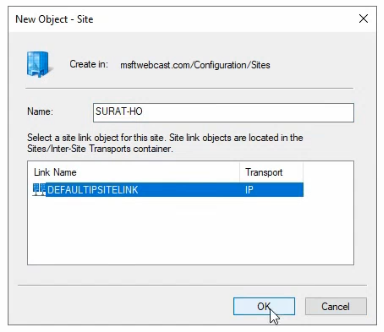
dssite.msc. The default Default-First-Site-Name stays present alongside it as a legacy container; we’ll leave it empty for now.Surat-HO now exists as a peer of Default-First-Site-Name in the tree. It’s empty — no servers, no subnet associations yet. That’s expected; we’ll fill it in over the next three steps.
Step 2 — Create the 172.18.72.0/22 subnet and attach it to Surat-HO
Subnets are how AD figures out which location a client belongs to. When a workstation tries to authenticate, AD looks up its IP, finds the matching subnet object, follows the subnet-to-location pointer, and returns SRV records for DCs in that location. No subnet object means no location-aware DC selection — clients pick a DC at random, which defeats the entire point of multi-location AD.
- Right-click the Subnets node in
dssite.mscand pick New Subnet. - Enter the prefix:
172.18.72.0/22. (The lab uses /22 to cover the contiguous Surat range — a /24 would also work for just the 172.18.72.0–.255 hosts. Match the prefix to the actual subnet boundary in your deployment.) - Pick the associated location from the list: Surat-HO.
- Click OK.
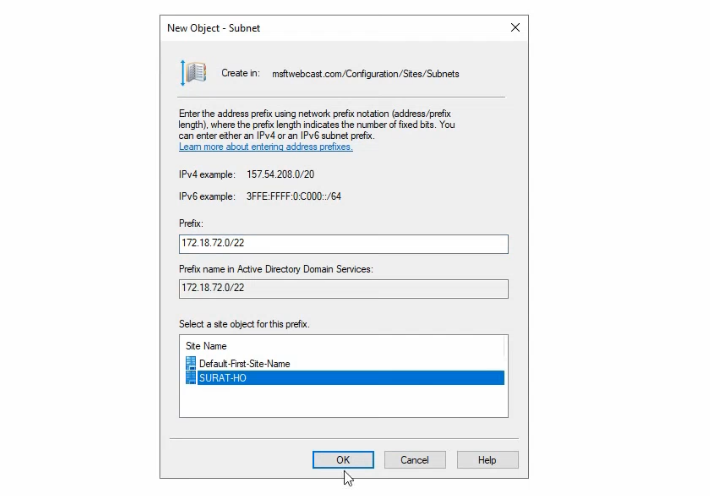
Any host with an IP in 172.18.72.0/22 — the Surat DCs included — is now associated with the Surat-HO location. Repeat this step for any additional Surat subnets (file-server VLAN, voice VLAN, guest-Wi-Fi VLAN if it’s domain-joined, etc.). One location object can have many subnets attached.
Step 3 — Move SRT22-DC01 from the default container to Surat-HO
The DC was promoted into Default-First-Site-Name (because that was the only location at forest-install time). We need it under Surat-HO so the topology matches reality.
- In
dssite.msc, expand Default-First-Site-Name → Servers. - Right-click SRT22-DC01 and pick Move.
- Pick Surat-HO from the destination list and click OK.
- Expand Surat-HO → Servers to confirm SRT22-DC01 is now there. Default-First-Site-Name → Servers should now be empty.
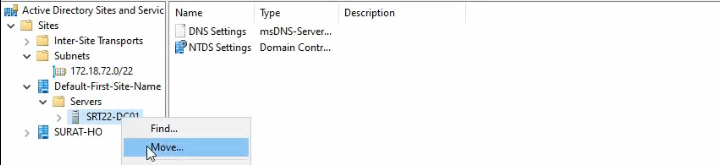
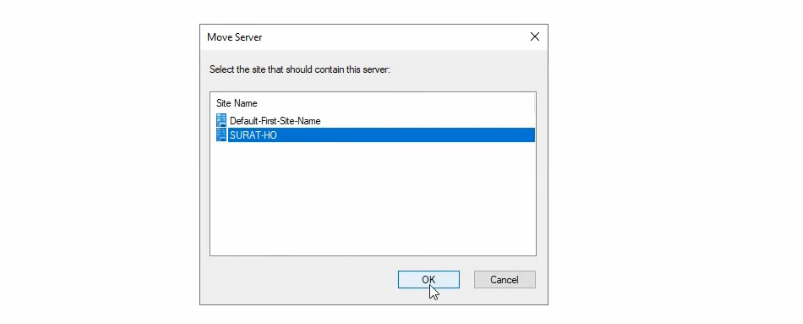
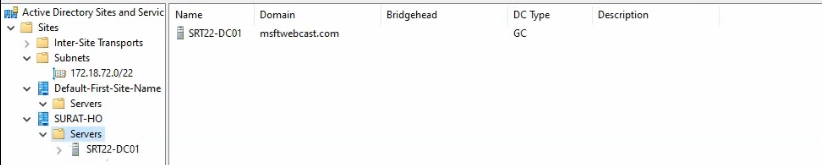
Force a DNS re-registration
Moving a DC between locations updates the AD object but not the DNS SRV records the DC publishes for itself. The next scheduled DNS refresh would catch up — but it’s a 15-to-60-minute window during which clients see stale location associations and may bind to the wrong DC. The fix is one command:
nltest /dsregdnsRun from an elevated PowerShell on SRT22-DC01. nltest /dsregdns immediately re-registers the DC’s SRV records with the new location association — _kerberos._tcp.Surat-HO._sites.msfwebcast.com now exists and points at this DC, and the obsolete Default-First-Site-Name equivalents drop out on the next DNS scavenging cycle. Always run this after a location move; otherwise the change appears successful in dssite.msc but isn’t fully effective until the SRV records catch up.
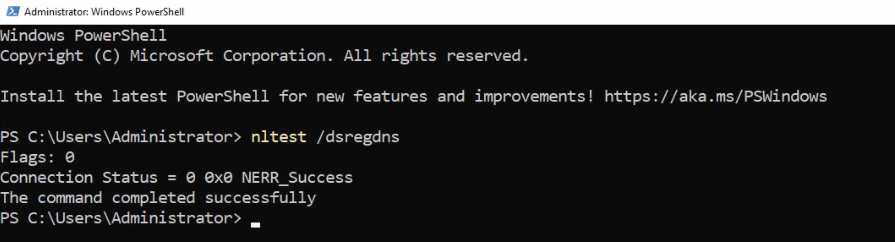
nltest /dsregdns so the DC’s SRV records pick up the new location association without waiting for the next scheduled refresh.Step 4 — Promote SRT22-DC02 as the second DC in Surat-HO
One DC per location is the minimum; two is the recommendation, because a single DC failure that takes the location offline destroys the whole point of having a local DC. The build is two phases — pre-flight checks, then the actual promotion.
Pre-flight: confirm DNS and connectivity from SRT22-DC02
Open elevated PowerShell on SRT22-DC02 and run:
ping msfwebcast.comThe ping should resolve to 172.18.72.51 (SRT22-DC01’s IP) and return successful replies. Two things this check confirms in one go:
- DNS resolution works. SRT22-DC02 has its DNS pointed at SRT22-DC01 (set up during Part 1’s NIC config) and it’s able to resolve the domain name to a DC IP.
- Network reachability works. ICMP replies confirm the IP-layer path is fine. (RPC ports 135 + dynamic high range still need to be open for the actual promotion; if the DCs are on the same subnet behind a switch with no L3 firewall, that’s normally not an issue. If they’re separated by a host-based firewall, open those ports first.)
If either check fails, fix it before continuing — the promotion will throw obscure errors otherwise. The fast diagnostic for DNS issues is nslookup msfwebcast.com; for IP issues, Test-NetConnection 172.18.72.51 -Port 389 (LDAP) confirms reachability on the actual port the wizard will use.
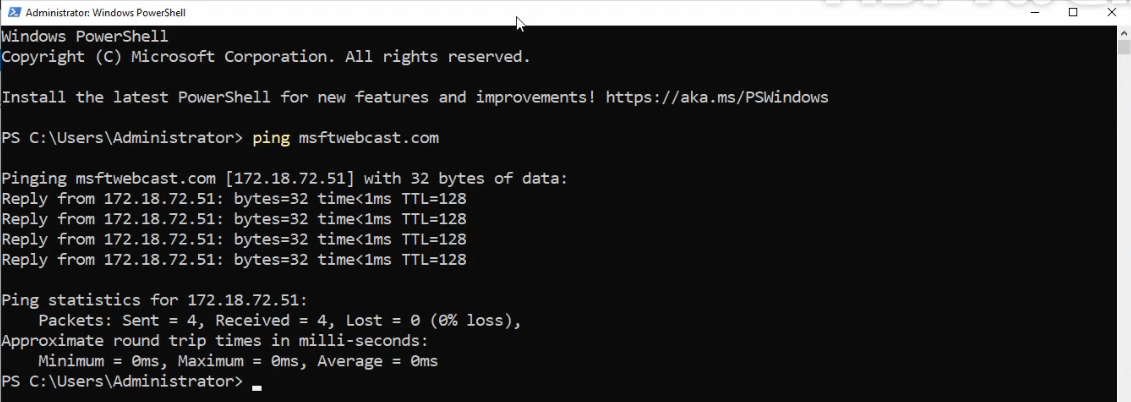
msfwebcast.com to 172.18.72.51 and ping replies confirm IP reachability before we begin the promotion.Install the AD DS role
Still on SRT22-DC02, install the role from PowerShell:
Install-WindowsFeature -Name AD-Domain-Services -IncludeManagementTools-IncludeManagementTools pulls in the RSAT-AD-Tools bundle (ADUC, dssite.msc, GPMC, ADSI Edit) so the new DC has the same admin tooling as the existing DC. Without it, the role installs but management has to happen from a remote workstation. The install completes without requiring a reboot on Windows Server 2022 — older releases (Server 2008 R2 in particular) sometimes did; modern releases don’t.

Install-WindowsFeature -Name AD-Domain-Services -IncludeManagementTools finishes without a reboot on Windows Server 2022 and immediately flags the server as eligible for promotion.Promote via the wizard
Refresh the Server Manager dashboard. A yellow notification appears with a link — Promote this server to a domain controller. Click it.
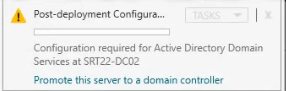
The AD DS Configuration Wizard runs through several pages. The choices that matter:
- Deployment Configuration: pick Add a domain controller to an existing domain. The other two options are for new forest / new domain in existing forest, neither of which applies here.
- The wizard auto-detects
msfwebcast.comas the domain. If the box isn’t yet domain-joined (it’s a fresh server), it’ll prompt for credentials — click Change and supplyadministrator@msfwebcast.comwith the domain admin password. - Domain Controller Options: tick Domain Name System (DNS) server (the default). Tick Global Catalog (GC) — the recommended best practice is one GC per location, and SRT22-DC02 is the second DC for Surat-HO. Read only domain controller (RODC) stays unticked; this isn’t a branch-RODC scenario.
- Set the Directory Services Restore Mode (DSRM) password — this is a separate password from any domain account, used only when booting into DSRM for offline AD repair. Pick something strong and store it in your password vault.
- DNS Options: may warn about a missing parent zone delegation — safe to ignore in a single-domain forest where DNS is AD-integrated.
- Additional Options: the wizard auto-suggests “replicate from any DC.” That’s fine for a small lab; for production, pick the closest existing DC explicitly to control which DC bears the initial-replication load.
- Paths: default locations for the database (
%SystemRoot%\NTDS), log files, and SYSVOL are fine on a lab. For production, isolate them on dedicated volumes; SYSVOL on a slow disk is a frequent cause of GPO-apply latency. - Prerequisites Check: the wizard runs a series of validations. If they all pass, click Install. The promotion takes 5–15 minutes, the server reboots automatically, and on next logon SRT22-DC02 is a working DC.
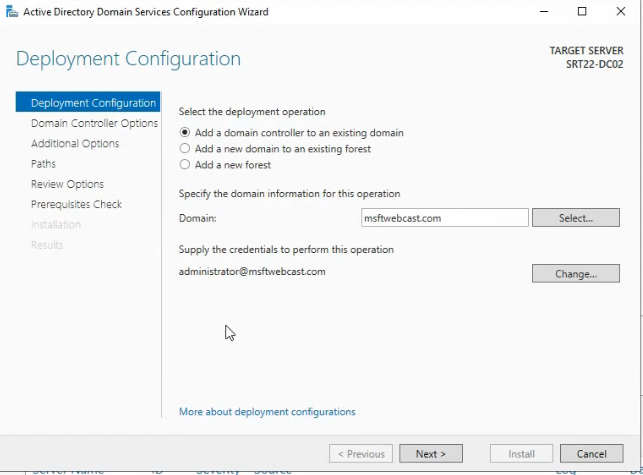
msfwebcast.com.Step 5 — Reciprocal DNS configuration
Two DCs in the same location should each use the other as primary DNS, and themselves (or 127.0.0.1) as secondary. This survives the failure of either one — if SRT22-DC01 goes down, SRT22-DC02 falls back to its own DNS service for resolution and vice-versa.
On SRT22-DC02: NIC properties → IPv4 → Use the following DNS server addresses → primary 172.18.72.51 (SRT22-DC01), secondary 127.0.0.1 (itself).
On SRT22-DC01: NIC properties → IPv4 → primary 172.18.72.52 (SRT22-DC02), secondary 127.0.0.1 (itself).
Verify with nslookup msfwebcast.com from each box — the resolution should succeed and the answering server should be the peer DC.
Step 6 — Verify intra-location replication
With two DCs in Surat-HO, AD has to replicate the directory between them. Intra-location replication is fast (every 15 seconds by default) and fully meshed (each DC pulls from every other DC in the same location). Confirm it’s working before declaring the headquarters build complete:
- From either DC, run
repadmin /showrepl— the output should list the partner DC under INBOUND NEIGHBORS with all five naming contexts replicating successfully via RPC. (If the output is unfamiliar, see read repadmin /showrepl output for the section-by-section walkthrough.) - Test bi-directional replication by creating a test user on SRT22-DC01 (
New-ADUser -Name "ReplTest" -SamAccountName "repltest"), then querying from SRT22-DC02 (Get-ADUser repltest). The user should appear within a second or two; if it doesn’t, force replication withrepadmin /syncall /AdePand re-test. - Run
dcdiag /test:replicationson both DCs — should report PASS for every test.
Things that bite people in production
Forgetting nltest /dsregdns after the move
The single most common Step-3 mistake. The DC’s AD-object location is updated immediately by the move, but the DNS SRV records still point at the old location until the next scheduled refresh. Clients in the new location keep being directed to the wrong DCs (because the old SRV records are still being returned). Always run nltest /dsregdns on each moved DC the moment the move completes.
Promoting a DC into the wrong location
The promotion wizard auto-picks a location based on the new DC’s subnet match. If the subnet object hasn’t been created yet (Step 2 was skipped or done wrong), the wizard falls back to Default-First-Site-Name — you end up with the new DC in the legacy location and need to move it manually. ALWAYS create the location object AND its subnet BEFORE promoting any DC into the location, so the wizard places it correctly the first time.
The Global Catalog checkbox matters
Easy to miss in the wizard. Without GC ticked on the new DC, the location has no local Global Catalog — universal-group lookups during logon hit a remote-location GC across the WAN. The recommendation is one GC per location, ideally on the most reliable DC. The role is free to add and adds minimal disk/CPU overhead in a single-domain forest.
DSRM password is separate — don’t lose it
DSRM is the offline-recovery boot mode for repairing a corrupted AD database. The password is set during promotion and is NOT the same as any domain admin password. If you lose it, you’ll be in pain the next time the DC fails to boot normally and needs DSRM intervention. Store it in your password vault alongside the BitLocker recovery keys, the BMC creds, and the other “won’t need this until the day I really need this” secrets.
Default-First-Site-Name should be left, not deleted
Once all DCs are moved out of Default-First-Site-Name, the temptation is to delete it. Don’t. Some Microsoft-system processes still expect the default location to exist; deleting it can cause subtle failures in promotions and trust operations. Leave it empty and ignore it.
Subnet prefix mismatches send clients to the wrong location
If you create a /24 subnet object but the actual deployment uses /22, clients on the “extra” addresses (those in the /22 but outside the /24) won’t match the subnet object and AD will fall back to a random DC. Always size the subnet object to match the actual routed subnet boundary, not whatever you happen to have running in lab.
Where this fits
Headquarters is now a proper Surat-HO location with two DCs, a subnet, and validated replication. Part 3 of this series adds the Delhi branch DC (DEL22-DC03) and creates the Delhi location object — same workflow, different name. Part 4 walks the AD-Sites-and-Services site-link configuration that lets the two locations replicate over the WAN on a controlled schedule. Part 5 tunes that schedule and verifies cross-location convergence under realistic conditions. For the broader replication context, read repadmin /showrepl output covers the per-DC health check and the Active Directory pathway covers the rest of the surface area.