
Importing a VM from an older Hyper-V host onto a newer one works smoothly — the new host runs the imported VM’s configuration as-is, no fuss. The catch: the imported VM keeps the source host’s schema version, which means anything the newer host introduced (improved memory ballooning, virtualization-based security, hot-add memory, vTPM, modern checkpoint formats) stays unavailable until you explicitly upgrade. The upgrade is a one-time, one-way operation: take the VM offline, run a single command (or click one menu item), and the VM’s schema jumps to whatever the host supports. After that, the VM can no longer run on the older host. This post walks the schema-jump for both the PowerShell route (better for batch operations) and the Hyper-V Manager GUI route (better for one-off upgrades), with the production-grade caveats that come with the change.
What you need before starting
- A newer Hyper-V host (Windows Server 2025 in the lab) with imported VMs from an older host (Windows Server 2012 R2 in the lab, schema 8.0)
- The imported VM in Off state — the configuration file is locked while the VM is running
- Local administrator rights on the host
- A backup of the VM (export, snapshot, or VM checkpoint) — the upgrade is irreversible; the only roll-back is restoring from backup
- An understanding that any existing snapshots are upgraded along with the VM, but cannot be re-applied to a downgraded VM later (because there is no downgrade)
Why the schema even has a version
The VM configuration file (.vmcx) describes the VM’s virtual hardware, integration services, security posture, and whatever runtime features Hyper-V exposes. Each Hyper-V release introduces a new schema version that adds support for new capabilities. Keeping older schemas runnable means an older VM keeps working without modification when the host is upgraded; introducing a new schema means newer VMs can take advantage of newer features.
The version map (output of Get-VMHostSupportedVersion on a Windows Server 2025 host):
| Schema | Introduced by | Key features |
|---|---|---|
| 5.0 | Windows Server 2012 | Original Gen1 baseline |
| 6.2 | Windows Server 2012 R2 | Generation 2 VMs, UEFI, secure boot |
| 8.0 | Windows Server 2016 (TP4) | Production checkpoints, hot-add NIC, Linux secure boot |
| 9.0/9.x | Windows Server 2016 | Hot-add memory, key-protector, host resource protection |
| 10.0 | Windows Server 2019 | Persistent memory, dedicated VFs, OS-level vTPM |
| 11.0 | Windows Server 2022 | Discrete device assignment refinements, vNUMA tweaks |
| 12.0 | Windows Server 2025 | Modern integration services, GPU partitioning, refined VBS |
The exact 9.x and 11.x sub-versions vary by build; the rough mapping above is the user-facing summary.
Step 1 — Inventory: what schema is each VM running
From elevated PowerShell on the host:
Get-VMHostSupportedVersionReports every schema this host can run.
Get-VMHostSupportedVersion -DefaultReports the host’s preferred (latest) schema — the target for an unqualified Update-VMVersion.
Get-VM | Format-List Name, VersionPer-VM readout. Anything below the host default is a candidate for upgrade. In the lab, Server1 shows 8.0 (imported from a 2012 R2 host).

Server1 is the imported VM at schema version 8.0, sitting on a Windows Server 2025 host capable of running version 12.0. Configuration upgrade is the bridge.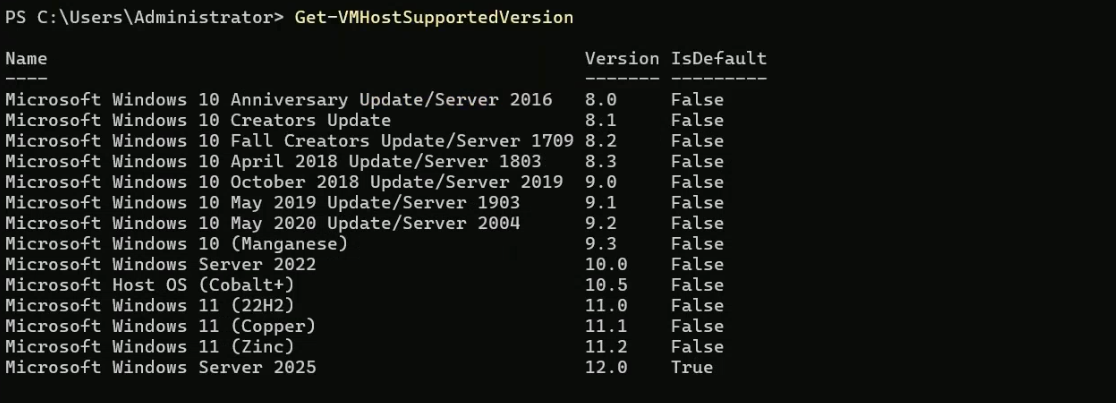
Get-VMHostSupportedVersion on Windows Server 2025 lists every schema version the host can run. The list spans years of Hyper-V releases — you can run very old VMs unmodified.
Get-VMHostSupportedVersion -Default reports 12.0 — the host’s preferred / newest schema. Update-VMVersion without an explicit -TargetVersion lands here.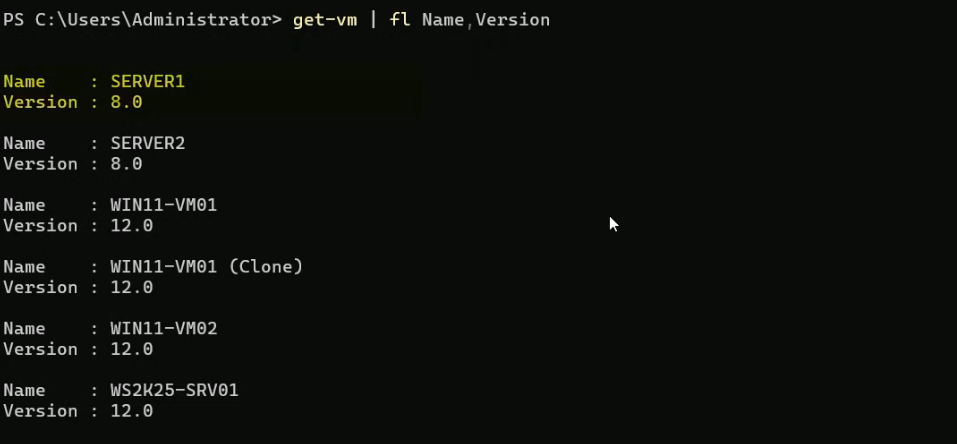
Get-VM | Format-List Name, Version — per-VM schema readout. The imported Server1 shows 8.0; whatever was promoted natively on the new host shows 12.0.Step 2 — Confirm the VM is off
Get-VM Server1The State column should read Off. If it’s Running or Saved, shut it down via Stop-VM Server1 -Force (or wait for an orderly shutdown) before continuing. Saved state has its own complication: the saved-state file is tied to the current schema, and the upgrade discards it. The GUI prompts about this; the PowerShell upgrade would also discard saved state, but only after a clean Off transition. Either way, the running snapshot of memory contents is lost — if the in-memory state matters, RDP in and shut down properly first.

Server1 reports Off. The configuration files are locked when the VM is running, so the host enforces a power-off before any schema change.Step 3 — Take a backup
The upgrade is irreversible — there is no Downgrade-VMVersion. The right safety net is a full export before the change:
Export-VM -Name Server1 -Path "D:\Backups\PreUpgrade\"Hyper-V copies the VHDX, the current configuration files, and any saved state to the target folder. If the upgrade fails or the VM behaves wrong post-upgrade, Import-VM -Path "D:\Backups\PreUpgrade\..." brings back the pre-upgrade VM (which can run on either the new host or the old one).
For a quick lab where rollback risk is low, a checkpoint via Checkpoint-VM Server1 -SnapshotName Pre-Upgrade works as a smaller alternative, but checkpoints are tied to the running VM and won’t survive if the VM itself becomes unusable.
Step 4 — Run the upgrade
PowerShell route — one VM
Update-VMVersion Server1The cmdlet prompts for confirmation:
Confirm
Updating VM "Server1" will result in the VM being unable to be started on
hosts running an earlier version of Windows Server. Are you sure you want
to perform this action?
[Y] Yes  [A] Yes to All  [N] No  [L] No to All  [S] Suspend  [?] Help
Type Y + Enter. The schema jumps; .vmcx is rewritten in place; existing snapshots are converted to the new schema. The whole operation takes seconds for a typical VM.

Update-VMVersion Server1 — the upgrade command. Confirmation prompt explicitly warns the change is irreversible; Y acknowledges and the bump completes in seconds.PowerShell route — pin to a specific target
The unqualified form jumps to the host default (12.0 on Server 2025). To stop at an intermediate target — useful when you want to keep some compatibility with intermediate-host versions:
Update-VMVersion Server1 -TargetVersion 10.0Bumps Server1 to 10.0 (Server 2019 era) instead of 12.0. The VM can then run on Server 2019, 2022, and 2025 hosts but not on Server 2012/2016. Useful in mixed-host environments.
PowerShell route — bulk
Update-VMVersion *Upgrades every VM on the host to the host default. The wildcard is convenient but dangerous — it’ll upgrade VMs you maybe wanted to keep at older schemas. Better:
Get-VM | Where-Object Version -lt '12.0' | ForEach-Object { Update-VMVersion $_ -Confirm:$false }Filters to only VMs below the host default and disables the per-VM confirmation prompt for unattended runs.
Verify
Get-VM Server1Version column should now show 12.0 (or whichever target you specified).

Get-VM Server1 now reports Version 12.0. From this moment, Server1 can no longer run on a Windows Server 2012 R2 host.Step 5 — The Hyper-V Manager GUI alternative
Same operation, different surface. Right-click the VM in Hyper-V Manager and pick Upgrade Configuration Version. The GUI surfaces a more verbose warning about checkpoint compatibility, gives you a chance to discard saved state, and applies the change interactively.
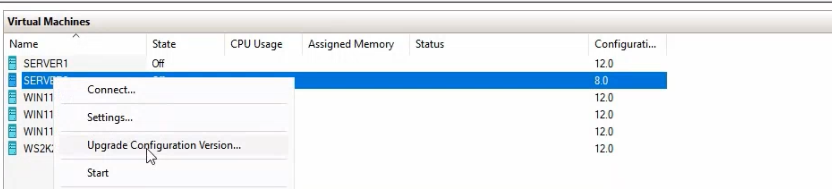
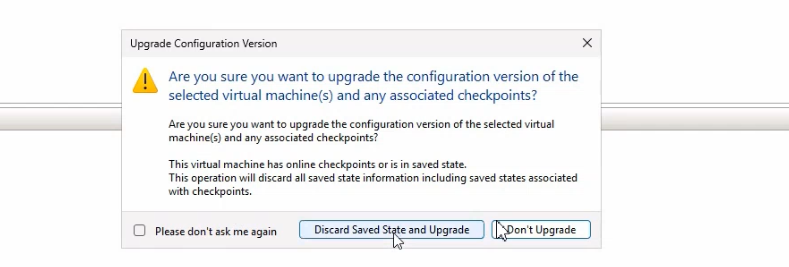
The result is identical to the PowerShell path — same .vmcx rewrite, same schema jump, same irreversibility. Use the GUI for one-off upgrades; use PowerShell for anything you might script or repeat.

Server2 confirming the GUI route landed at 12.0 just like the PowerShell route did on Server1. The two methods produce identical results.Things that bite people in production
The upgrade is one-way — backups are non-negotiable
There is no rollback command. If the VM behaves badly post-upgrade (rare but possible — integration services interactions can shift, GPU passthrough configurations sometimes need re-tuning), the only recovery is restoring from the pre-upgrade export. Treat the export as a hard prerequisite, not a nice-to-have.
Saved state is discarded if the VM was suspended
An imported VM that came over from the older host in Saved state has the suspended-memory contents in a file alongside the configuration. The upgrade discards that file. The GUI warns explicitly; the PowerShell path requires the VM to be in Off state first, which means you have to either resume + shutdown or discard the saved state manually before running the upgrade.
Cluster shared volumes need both hosts upgraded first
If the imported VM lives on a Cluster Shared Volume (CSV) and you upgrade its schema to 12.0 while one of the cluster nodes is still on Server 2022 (schema 11.0 max), the VM becomes unmovable to that older node — live migration fails with a schema-incompatibility error. Always upgrade the whole cluster to the same OS version before bumping VM schemas.
The bulk wildcard is too aggressive for production
Update-VMVersion * upgrades everything on the host. In a lab, fine; in production, the per-VM filter (Get-VM | Where-Object Version -lt 12.0) is safer because it surfaces the list of affected VMs before the change. Some VMs deliberately stay at older schemas to maintain mobility to older hosts during a migration window — the wildcard ignores that intent.
The schema upgrade is not a host-OS upgrade
Bumping a VM’s schema does NOT upgrade its guest OS. A Windows Server 2012 R2 guest on schema 12.0 is still Windows Server 2012 R2 inside — same patches needed, same end-of-support timeline. The schema is purely the Hyper-V-side compatibility shim.
Linux integration services are looser about schema changes than Windows
Linux guests typically don’t care — they use the kernel-side hyperv_* modules which work across schemas. Windows guests sometimes need the in-VM Hyper-V Integration Services updated after a host upgrade to take advantage of newer features (heartbeat, key-value pair, time sync). Schedule that as a separate post-upgrade step.
Where this fits
Schema upgrades are part of the broader VM-lifecycle toolkit. For creating VMs from scratch, see create a VM on Hyper-V using PowerShell; for the golden-image template pattern, build a Hyper-V golden image. For the broader virtualization surface area, the Hyper-V virtualization pathway covers live migration, replicas, vSwitch configuration, and the rest. For the broader Windows Server admin context, the Windows Server administration pathway covers the rest of the surface area.