
VHDX disks come in two allocation modes. Pre-allocated reserves the full configured size on the host filesystem at creation time; on-demand allocates space as the guest writes. Each has a use case — pre-allocated for performance-sensitive workloads where you want predictable latency, on-demand for storage-efficient workloads where most of the configured size sits unused. The trade-offs are real, but they aren’t permanent: VHDX supports converting between modes after the fact. This post walks both directions — pre-allocated to on-demand via Hyper-V Manager (better for one-offs) and on-demand to pre-allocated via PowerShell (better for scripting) — with the pre-flight checks that keep the conversion safe.
What you need before starting
- A Hyper-V host with the VM whose VHDX you want to convert
- The VM in Off state (file lock requirement during the conversion)
- Roughly 2x the source VHDX’s size of free space on the destination drive (the conversion writes a new file rather than overwriting the source)
- No active checkpoints (avhdx files) attached to the VHDX, no differencing-disk parent relationship, no active replica failover targeting the VHDX
- Local administrator rights on the host
Pre-allocated vs on-demand — what each one buys you
| Pre-allocated (Fixed) | On-demand (Dynamic) | |
|---|---|---|
| On-disk size at create time | Full configured size | Tiny (a few MB) |
| On-disk size after writes | Stays at full configured size | Grows up to configured max |
| Read/write performance | Faster, predictable latency | Slower expansion writes; fragmented over time |
| Storage efficiency | Wastes unused allocation | Uses only what the guest writes |
| Right for | SQL, busy file servers, latency-sensitive workloads | Test/lab VMs, archival, infrequently-accessed workloads |
The default in modern Hyper-V is on-demand. New-VHD without a -Fixed flag creates an on-demand file. Production deployments where performance matters typically force pre-allocated at creation time; test environments live happily on on-demand.
Lab setup
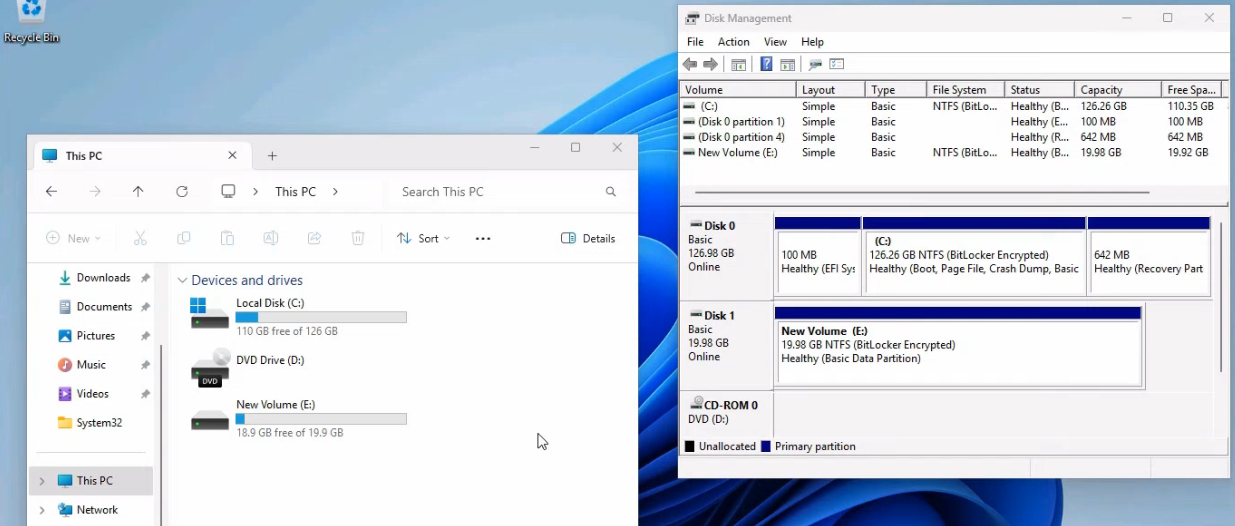
Win11-VM01 with a 20 GB pre-allocated VHDX. The conversion target is to flip it to on-demand expansion to recover the unused space.The lab has two VHDXs to convert in opposite directions:
Disk1.vhdx— 20 GB pre-allocated, attached toWin11-VM01, with 1.4 GB of actual data. Target: convert to on-demand to recover ~18.6 GB.DynDisk1.vhdx— 10 GB on-demand, standalone (not attached to any VM). Target: convert to pre-allocated for the performance side.
Direction 1 — Pre-allocated to on-demand via the GUI
Shut down the VM
The VHDX file is locked by Hyper-V while the VM is running. Shut down Win11-VM01 from inside the guest (Start → Power → Shut down) or via PowerShell on the host (Stop-VM Win11-VM01). Wait until Hyper-V Manager shows the VM as Off; the conversion fails with a “file in use” error otherwise.

Open the Edit Virtual Hard Disk Wizard
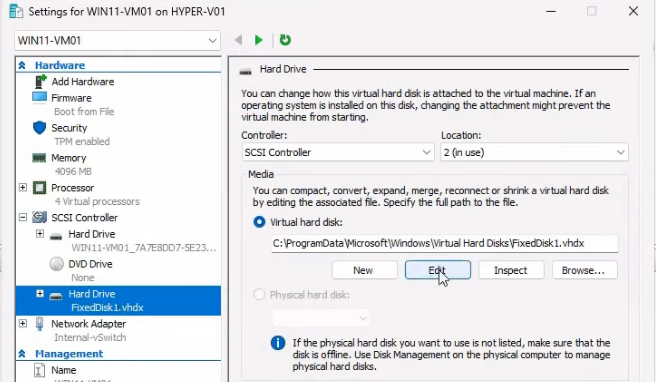
In Hyper-V Manager, right-click Win11-VM01 → Settings. Find the Hard Drive entry under SCSI Controller (or IDE Controller for Generation 1 VMs); note the VHDX path; click Edit.
Acknowledge the warnings
The wizard’s first page is a compatibility warning — conversion is unsafe in three scenarios:
- Differencing-disk parent — the VHDX has child differencing disks. Converting the parent breaks every child. Resolve by merging the children into the parent first (
Merge-VHD). - Attached checkpoints — the VM has snapshots, which means there are
.avhdxchild disks. Same issue as differencing chains. Delete the checkpoints first. - Active replica failover — the VM is part of a Hyper-V replica relationship and currently in failover or test-failover mode. The replica subsystem expects the disk format to stay constant during failover. Wait until the failover completes or cancel it before converting.
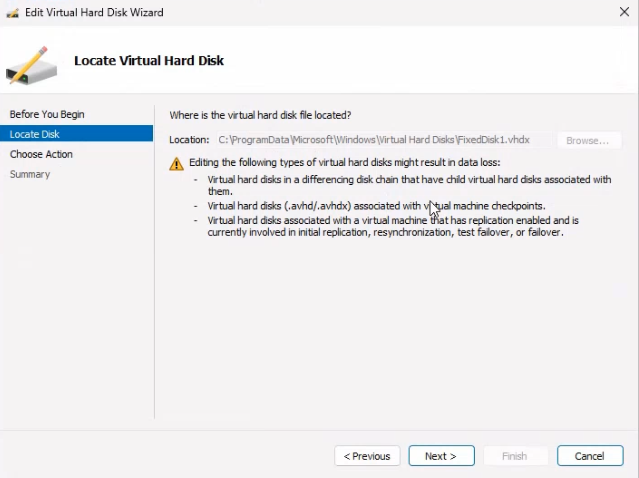
If none of those apply (the lab assumes none), click Next.
Pick Convert (not Compact, not Expand)
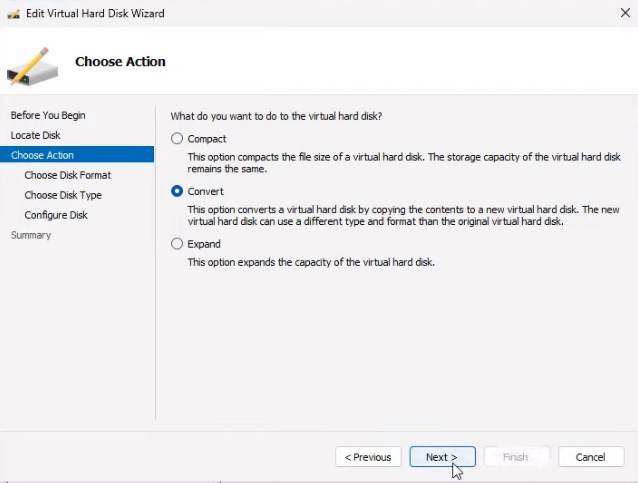
Three actions on the next page:
- Compact — shrink an on-demand VHDX by reclaiming space the guest freed but the disk still allocates. Useful for routine storage cleanup; doesn’t change the disk type.
- Convert — change the type (pre-allocated ↔ on-demand). What we want.
- Expand — grow the maximum size. Independent of allocation mode.
Pick Convert. Click Next.
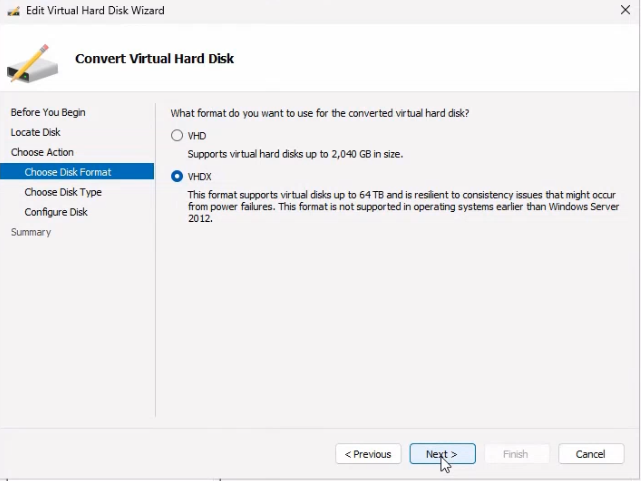
Pick VHDX format
Two formats: VHDX (modern, up to 64 TB, better power-loss resilience, supports modern Hyper-V features) or VHD (legacy, 2 TB max, kept for backwards compatibility). Always VHDX in modern Hyper-V; VHD is only correct when you’re intentionally exporting to an older host.
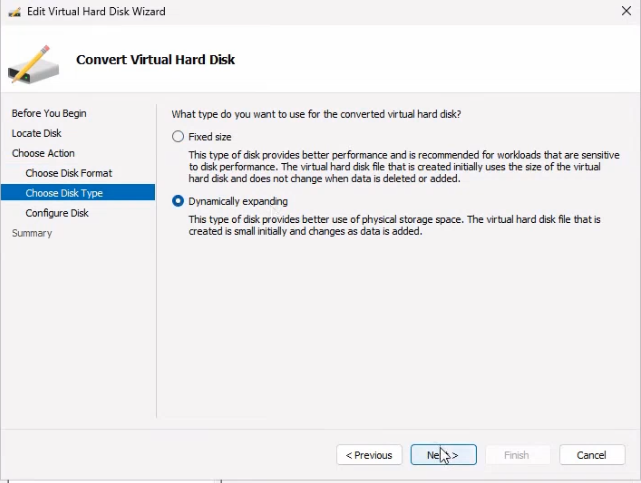
Pick on-demand as the target type
The radio choices are Fixed Size or Dynamically Expanding. We want Dynamically Expanding (on-demand) for this direction.
Set the destination path
The wizard writes a new file rather than rewriting the source in-place. Pick a target path that’s descriptive of the conversion: D:\VHDs\FixedToDynamicDisk1.vhdx in the lab. The source Disk1.vhdx stays intact — useful for rollback if the converted file misbehaves.
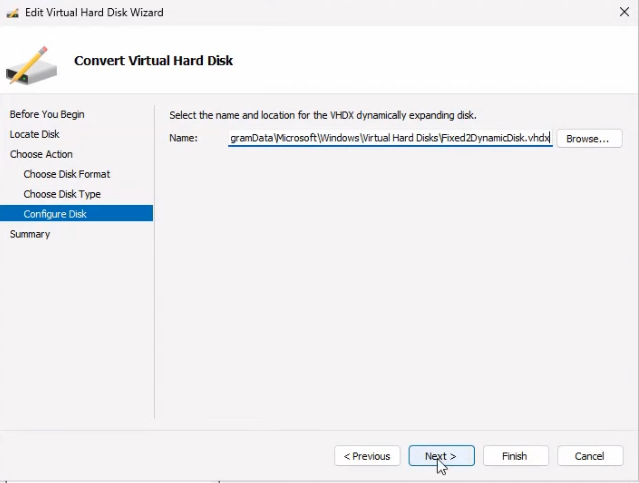
FixedToDynamicDisk1.vhdx here).Review and convert
Summary page lists the parameters; Finish kicks off the actual conversion. Time depends on source size and host disk speed — a small lab VHDX takes a few seconds; a TB-scale production disk takes minutes to hours. Hyper-V shows progress in the dialog.
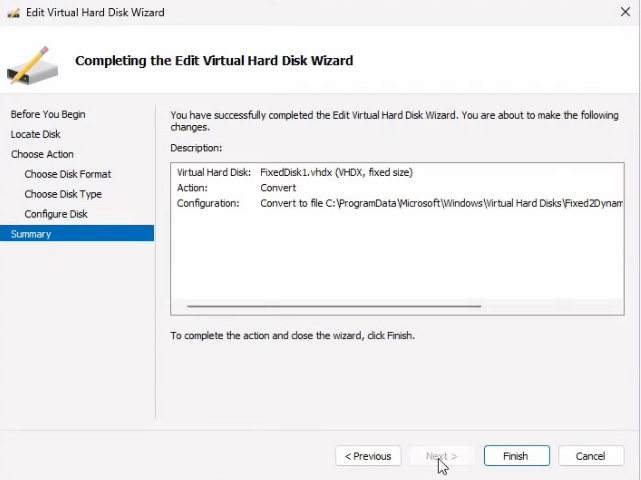
Verify
Open File Explorer at the target folder. The new VHDX should be roughly the size of the actual data, not the original full allocation. In the lab: FixedToDynamicDisk1.vhdx is 1.4 GB on disk, vs the original 20 GB. The savings is the 18.6 GB the source had reserved but unused.
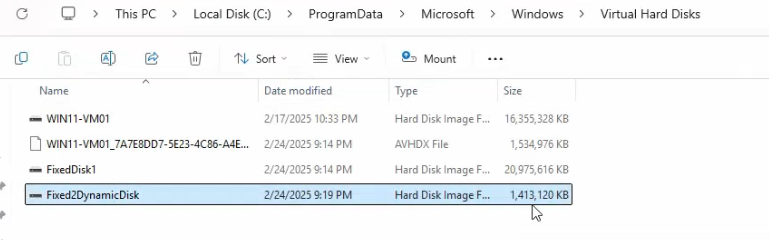
Re-attach the new VHDX to the VM (Settings → Hard Drive → Browse to the new path) and start the VM. The guest sees the same 20 GB of capacity (Hyper-V’s on-demand grows up to the original max); the host now uses dramatically less physical space.
Direction 2 — On-demand to pre-allocated via PowerShell
The PowerShell route is the same operation, no wizard. Faster, scriptable, no clicks.
Inspect the source
Get-VHD -Path D:\VHDs\DynDisk1.vhdxReports the type (Dynamic), the configured maximum size, the current on-disk size, and a few other properties. Confirms the disk is what you think it is before converting.
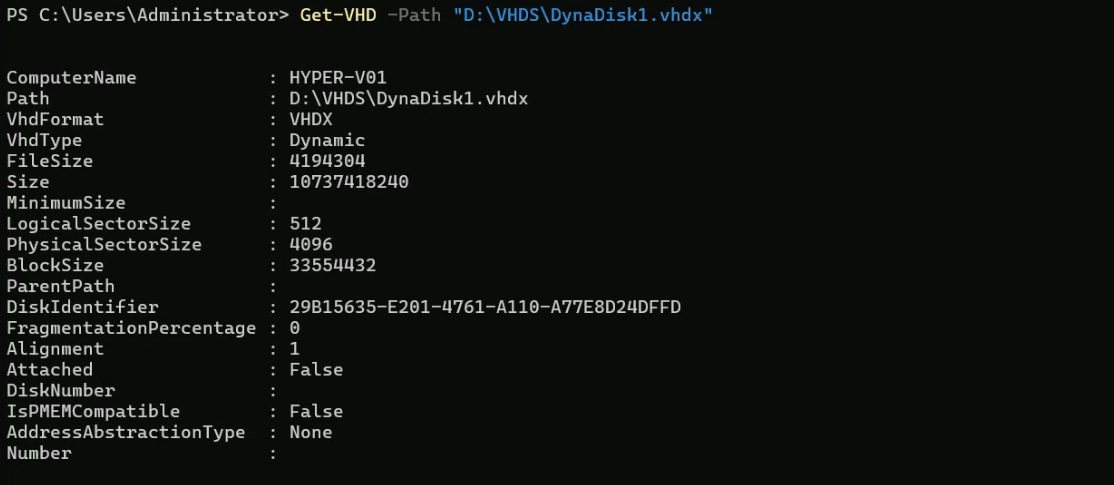
Get-VHD -Path D:\VHDs\DynDisk1.vhdx — pre-conversion inspection. The source is Dynamic, 10 GB max size.Run the conversion
Convert-VHD -Path D:\VHDs\DynDisk1.vhdx -DestinationPath D:\VHDs\FixedDisk1.vhdx -VHDType FixedThree required parameters:
-Path— the source VHDX.-DestinationPath— the target path. Must differ from the source; the cmdlet won’t overwrite the source in place. Pick a path on a drive with enough free space for the full pre-allocated size.-VHDType— the target type. Fixed for pre-allocated, Dynamic for on-demand. The cmdlet enforces both directions.
No confirmation prompt — the cmdlet just does the work. The conversion runs synchronously; the prompt returns when finished. For a 10 GB on-demand disk converting to 10 GB pre-allocated, expect 30 seconds to a couple of minutes depending on disk speed.

Convert-VHD -Path src -DestinationPath dst -VHDType Fixed — the PowerShell route runs without a confirmation prompt; convenient for scripting but means you must be sure of the parameters before pressing Enter.Verify
Get-VHD -Path D:\VHDs\FixedDisk1.vhdxConfirms the new disk is Fixed, same configured maximum size, on-disk size now matches the configured size (10 GB on disk regardless of actual data).
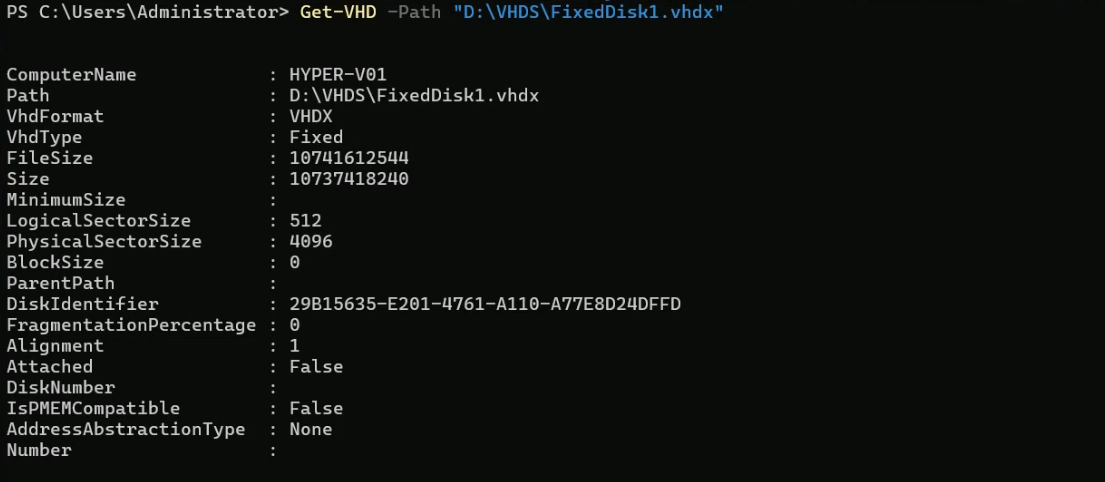
Get-VHD reports Fixed, same 10 GB size. The new pre-allocated file is the full 10 GB on disk regardless of how much actual data the previous dynamic disk held.The bulk pattern
The cmdlet form makes batch conversion straightforward:
Get-ChildItem D:\VHDs -Filter *.vhdx | Where-Object {
    (Get-VHD $_.FullName).VhdType -eq 'Dynamic'
} | ForEach-Object {
    $dest = $_.FullName -replace '.vhdx$','.fixed.vhdx'
    Convert-VHD -Path $_.FullName -DestinationPath $dest -VHDType Fixed
}
Loops through every dynamic VHDX in a folder and converts each to a fixed peer with a renamed destination. Useful for migrating a whole storage area to pre-allocated for performance reasons (e.g., on dedicated SSD storage where the space cost is acceptable but the latency benefit is wanted).
Things that bite people in production
Free space on the destination drive needs to be the full configured size
For the on-demand → pre-allocated direction in particular, the destination needs the FULL configured maximum size as free space, not just the actual-data size. Converting a 10 GB on-demand VHDX with 1.4 GB of data to pre-allocated requires 10 GB free on the destination drive, not 1.4 GB. Run out of free space mid-convert and you get a partial file that’s unusable.
Conversions are not in-place
The cmdlet writes a new file. The source stays intact. After verifying the new file works, you have to manually delete the source — otherwise you’re using more disk space than before, not less. The GUI wizard doesn’t prompt you to delete the source either; same cleanup story.
VHDX with attached checkpoints needs the checkpoints removed first
Both the GUI wizard and the cmdlet refuse to convert a VHDX that has live .avhdx children (active checkpoints). The fix is to either delete the checkpoints (loses the snapshot history but lets the conversion proceed) or merge them into the parent (preserves the current state). Right-click the VM in Hyper-V Manager and pick Delete Checkpoint Subtree for the cleanest path; the underlying VHDX cleans itself up and is then convertible.
Differencing-disk children are silently broken by parent conversion
If the VHDX has child differencing disks (created via New-VHD -Differencing -ParentPath), converting the parent doesn’t prompt you about them — it just succeeds, and every child becomes unmountable because the parent’s identity has changed. Merge-VHD the children into the parent first if you intend to keep them, or accept that they’ll be lost.
Replica relationships need failover cancelled before convert
If the VM is part of a Hyper-V replica relationship and currently in failover or test-failover mode, the replica subsystem holds locks on the VHDX. The conversion will report “file in use” or “the operation cannot be performed in the current replica state.” Cancel the failover (Stop-VMFailover for test failover, complete the planned failover for production failover) before attempting the conversion.
Pre-allocated does not equal “always faster”
The performance advantage of pre-allocated VHDX is real but workload-dependent. For sequential streaming reads, the difference is minimal; for random IO with frequent small writes, pre-allocated wins materially. For workloads that fit in the host’s file-system cache, both perform the same. Don’t blanket-convert to pre-allocated under the assumption that “fixed = fast” — profile the actual workload first.
Where this fits
VHDX management is part of broader VM lifecycle work. For VM creation see create a VM on Hyper-V using PowerShell; for the golden-image template pattern, build a Hyper-V golden image; for the schema-version side, upgrade a VM configuration schema. The broader virtualization surface area lives in the Hyper-V virtualization pathway; the broader Windows Server context in the Windows Server administration pathway.