
The Windows event log already records every interactive logon and logoff — events 4624 and 4634 are sitting on every domain-joined client right now. The catch is that those events live on the client, scattered across dozens or hundreds of machines, with the Security log rolling over after a few days under the default size limits. For a quick, centralised “who’s been on which workstation and when” report that’s readable without an event-collector or a SIEM, the cheapest answer is two batch scripts and a Group Policy that runs them at logon and logoff. Lines append to a single shared text file on the DC, indexed by computer + user + timestamp; tail the file or grep it from anywhere with read access. This post walks the build — scripts, share, GPO — and the gotchas that come with the simple approach.
What you need before starting
- An AD domain — the lab uses
techpro.localwith DC1 (192.168.0.1) as the controller and Client1 (192.168.0.72) as a domain-joined Windows machine - A test user account — the lab uses
henry - Local administrator rights on the DC and on the management workstation
- Domain Admin (or equivalent) rights to create + link the GPO
- An understanding that this is a soft-audit pattern — useful for “quick visibility” questions, not a substitute for proper Security-event auditing or a real SIEM
Why this isn’t event ID 4624
The Security log captures every logon natively (event 4624 for success, 4625 for failure, 4634 for logoff, 4647 for explicit logoff) with rich metadata: logon type, source workstation, authentication package, security ID, full timestamp. Event-log subscriptions can forward those events to a central collector. That is the right answer for compliance auditing and security investigation.
The script-based approach this post covers is a different shape. It produces a flat, human-readable text file with one line per logon and one line per logoff. The advantages: one file, no event-log filtering needed, readable by anyone with a text editor, trivially greppable. The disadvantages: no logon-failure recording (only successful logons trigger the script), no per-process detail, and the user’s session can in principle stop the script before it writes (uncommon but possible). For environments that need both, run the script-based approach as a quick visibility layer alongside event-collector forwarding to a SIEM — they answer different questions.
Step 1 — Create the staging folder on the DC
From elevated PowerShell on DC1:
New-Item -ItemType Directory -Path 'C:\Log Data' -ForceThe folder name is conventional, not required. Log Data with the space is what the source uses; Logs or UserActivity or anything else works equally well. The space in the name does mean the UNC path needs quoting in any script that refers to it — "\\DC1\Log Data\login.txt".

C:\Log Data staging folder on DC1. The two batch scripts and the log files all live here; the share ACL controls who can write to them.Step 2 — Write the two batch scripts
The batch scripts are intentionally minimal — one echo per script, redirected to a file. The four environment variables Windows populates for every interactive session (%COMPUTERNAME%, %USERNAME%, %DATE%, %TIME%) are exactly the columns we want.
login.bat
In C:\Log Data\login.bat:
@echo off
echo %COMPUTERNAME% %USERNAME% %DATE% %TIME% >> "\\DC1\Log Data\login.txt"
@echo off at the top suppresses the noisy “C:\Log Data>echo…” that would otherwise flash on the user’s screen during logon. The append redirect (>>) is critical — > would overwrite the file every logon, defeating the entire purpose. The UNC path is hard-coded to the DC because the script runs on the client, not on the DC; it has to write across the network to land in a single shared file.

login.bat — one line of echo that captures the four environment variables every Windows session populates and appends them to login.txt on the DC.logoff.bat
In C:\Log Data\logoff.bat:
@echo off
echo %COMPUTERNAME% %USERNAME% %DATE% %TIME% >> "\\DC1\Log Data\logoff.txt"
Mirror of login.bat. Same fields, different output file, fired by the logoff trigger instead of the logon trigger. Splitting into two files (rather than one with a tag column) keeps the files small and lets you tail one or the other depending on the question being asked.

logoff.bat — mirror of login.bat, writing to logoff.txt. Same fields, different file, fired by the logoff trigger.Step 3 — Share the folder so clients can write to it
The scripts run in the user’s context on the client, then write to a network share on the DC. Two ACLs have to permit the write — the share-level ACL and the NTFS ACL. Get one wrong and the script silently fails (the redirect produces no error, just an empty file).
Share permissions
- Right-click
C:\Log Data→ Properties → Sharing tab → Advanced Sharing. - Tick Share this folder. Share name defaults to
Log Data. - Click Permissions. Add Authenticated Users with Change permission (lets them write but not change ACLs). Remove Everyone if it’s in the list.
- Click OK to apply.
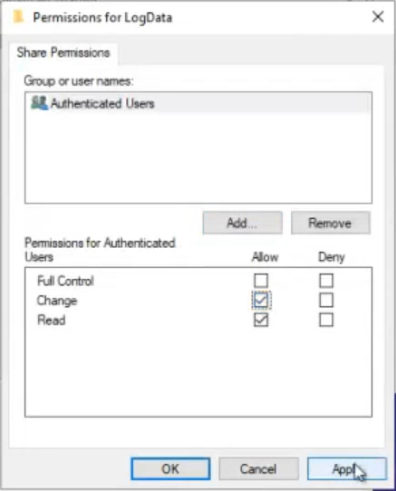
NTFS permissions
- Same Properties dialog → Security tab.
- Add Authenticated Users with Modify permission. Modify includes the necessary write + delete-own-file permissions.
- Apply.
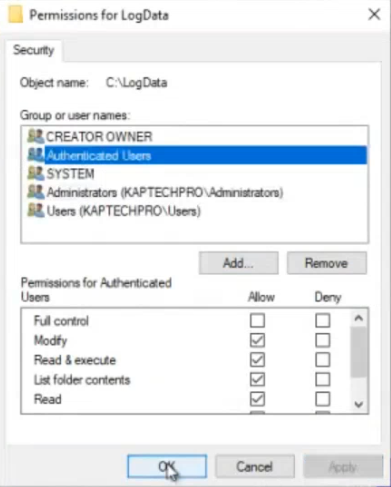
Combined effect: any authenticated user in the domain can write to \\DC1\Log Data\. The narrowest defensible permission for this pattern is “Authenticated Users / append-only,” but Modify is what the source recommends and what the script needs — the redirect’s append behaviour relies on Modify-level rights.
Step 4 — Create the GPO
Open Group Policy Management on DC1.
- Right-click the
techpro.localdomain (or whichever OU you want to scope to) and pick Create a GPO in this domain, and Link it here. - Name it
Log Tracking(or any descriptive name). Click OK. - Right-click the new GPO and pick Edit.
Step 5 — Attach the scripts to the GPO
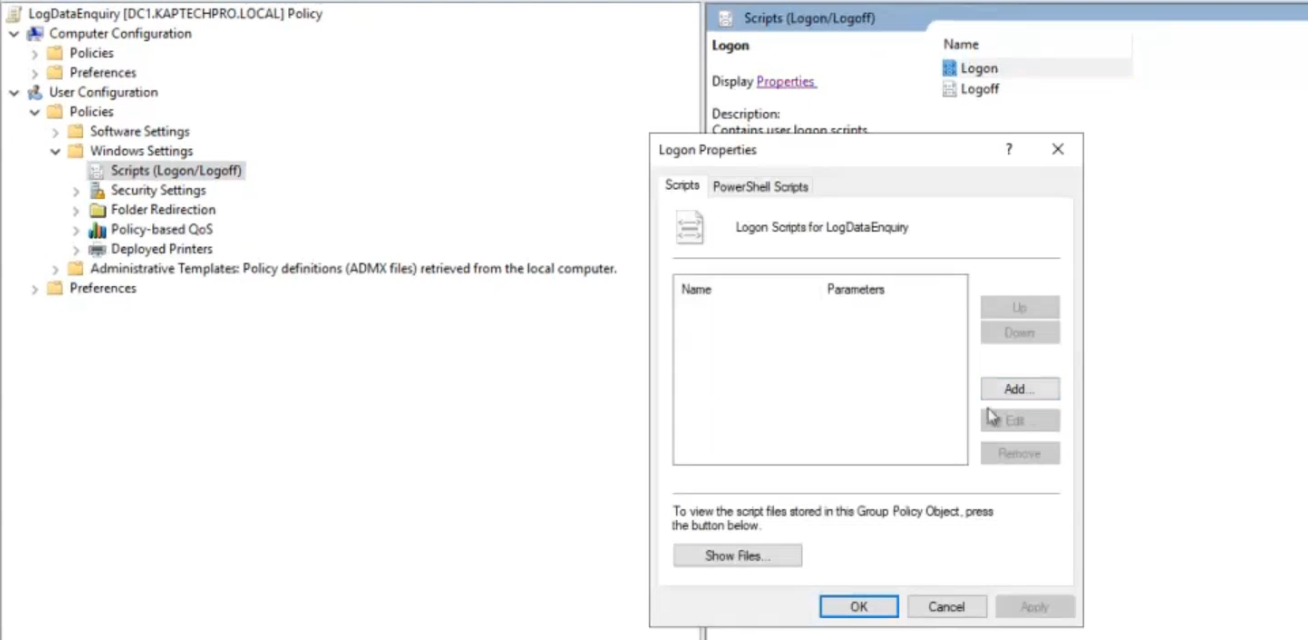
The Logon and Logoff script triggers live under User Configuration, not Computer Configuration. This matters — the same GPO has separate Computer-side startup/shutdown script slots; we don’t want those.
- In the Group Policy Management Editor, navigate to User Configuration > Policies > Windows Settings > Scripts (Logon/Logoff).
- Double-click Logon in the right pane.
- Click Add.
- For Script Name, paste the UNC path:
\\DC1\Log Data\login.bat. Leave Script Parameters blank. - Click OK.
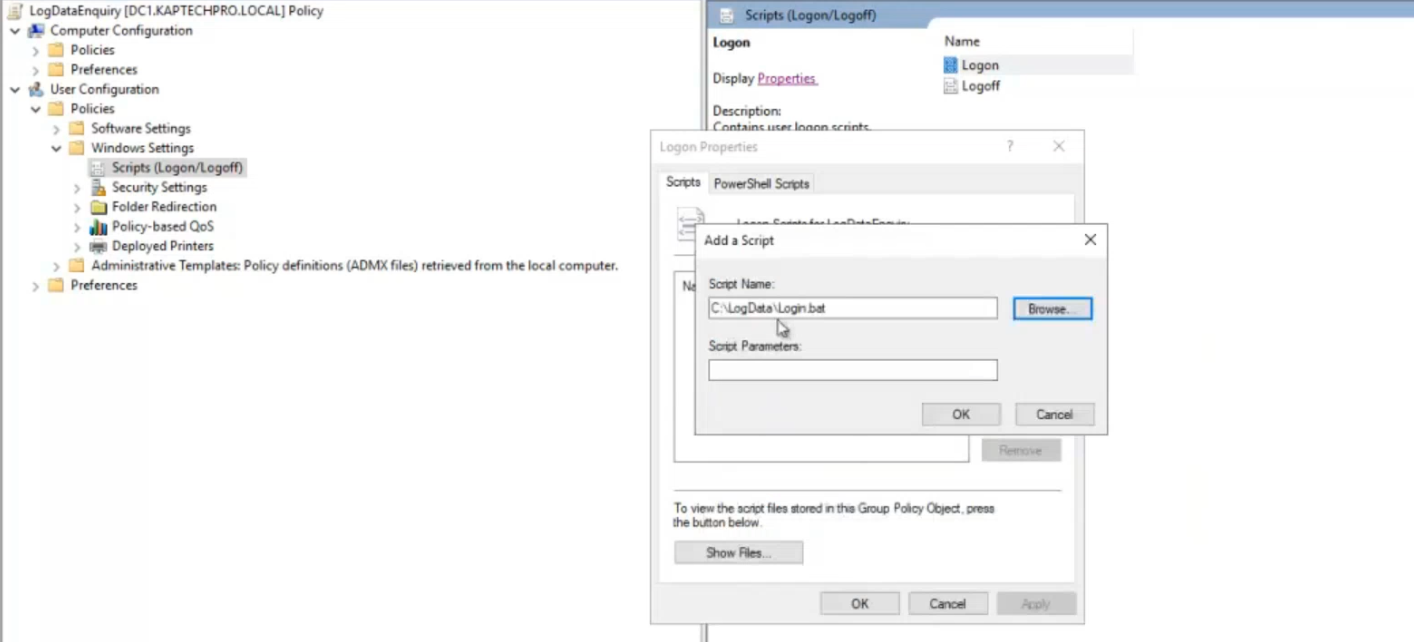
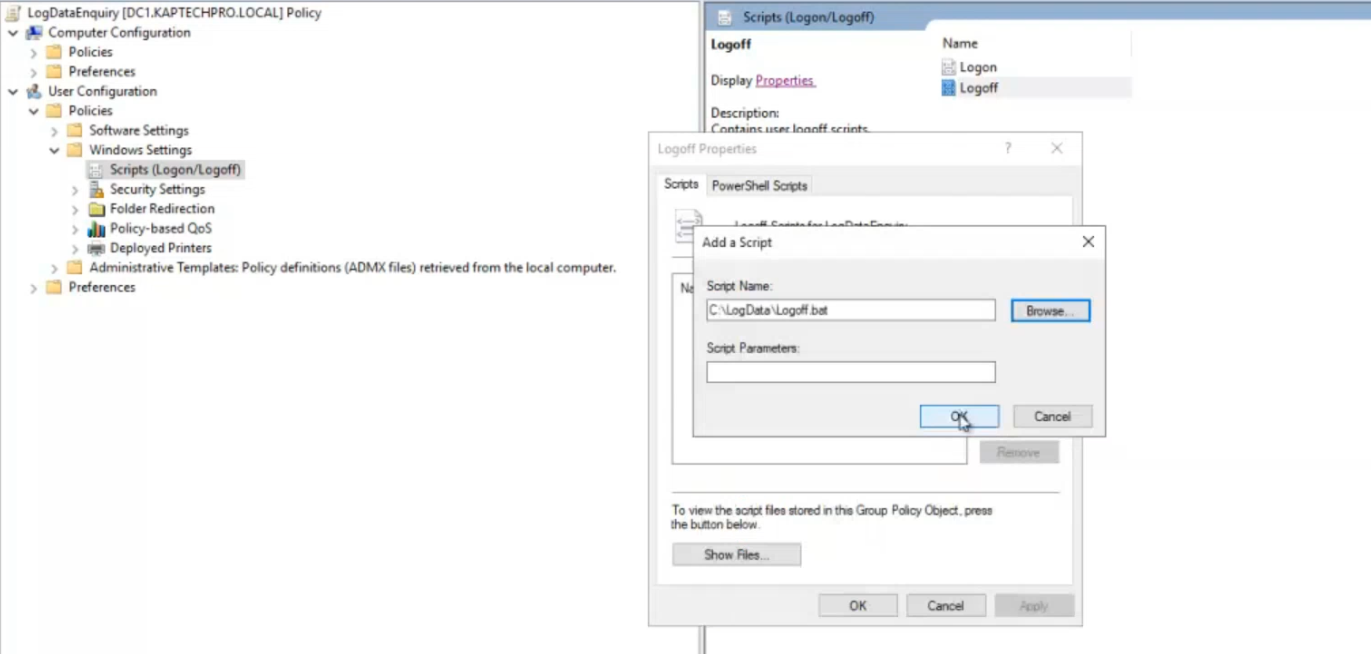
\\DC1\Log Data\login.bat as the user-logon script. Same flow on the Logoff entry for the logoff.bat side.- Repeat for Logoff — same dialog, point it at
\\DC1\Log Data\logoff.bat. - Click OK to close. The GPO now has both scripts attached.
Step 6 — Apply the GPO and verify
Force a refresh on the DC:
gpupdate /forceThe GPO is now active across the domain. The clients pick it up on the next user logon (or on their next 90-minute background refresh, whichever comes first). To verify immediately, sign out of the test client and sign back in as Henry — the login.bat fires invisibly during logon, and a single line should appear in \\DC1\Log Data\login.txt:
CLIENT1 henry Sat 05/09/2026 09:14:22.13Sign out and a corresponding line lands in logoff.txt. From the DC, Get-Content '\\DC1\Log Data\login.txt' -Tail 10 tails the file across the network; Get-Content '\\DC1\Log Data\login.txt' -Wait follows it in real time the way tail -f does on Linux.
Things that bite people in production
The script doesn’t run if the file isn’t reachable at GPO load time
If the client is off-network when the user signs in (e.g., a remote laptop without VPN), the UNC path is unreachable, and the script fails silently. The user logs in fine; no log entry is produced. The fix for environments where this matters is to use a local cache + sync pattern instead — have the script write to %APPDATA%\Logs\local-login.txt and a separate scheduled task copy that to the share when the network is available. More moving parts; more reliability.
The append redirect is racy under fast-logon storms
>> in cmd.exe opens the file, seeks to end, writes, closes. Two clients hitting the redirect within the same millisecond can produce interleaved or truncated lines. For a 50-user environment this is theoretical; for a 5000-user environment it’s a real source of corrupted log lines. The mitigation is either a tiny custom logger (PowerShell with file locking, or a small Win32 service running on the DC accepting submissions over HTTP), or accepting that 1 in 10000 lines may be malformed and writing the parser to skip them.
Logoff scripts can race the session teardown
The logoff trigger fires after the user-initiated logoff but before the session fully closes. If the script writes to a slow network share and the session teardown happens to win the race, the script gets killed mid-write. Mitigation: keep logoff scripts as short as possible (the single echo here is fine), and accept that a small percentage of logoff entries may be missing.
Both ACLs need to permit writing
Share-level Change + NTFS Modify is the supported pair. Forgetting one or the other produces a silent no-op — the script runs, the redirect succeeds locally (no error returned to the script), but no line lands in the file. The diagnostic: from a client, manually echo test >> "\\DC1\Log Data\login.txt" — if it doesn’t append, fix the ACL. icacls "\\DC1\Log Data" from a client lists the effective ACL.
Domain-wide GPO link is overly broad for production
Linking Log Tracking at the domain root means it applies to every user, including service accounts that may sign in to do non-interactive work. The Notion source links at the domain for simplicity; in production, link to a specific OU like Workstations\Sales or Workstations\Engineering — you’ll get the user-activity tracking without polluting the log file with service-account or scheduled-task “logons.”
The log file grows without rotation
One line per logon per user adds up. A 500-user environment with three logons per day per user produces 1500 lines a day, or roughly half a million lines a year. The file stays small (text is cheap), but plain text files of any size become slow to grep for recent entries. The fix: a scheduled task on the DC that runs nightly, archives login.txt to login-YYYYMMDD.txt, and starts a fresh empty file. Move-Item + New-Item in PowerShell is a 3-line scheduled task.
Where this fits
For more rigorous user-activity auditing, see configure advanced audit policies in Active Directory and enable Active Directory auditing — those cover the proper Security-event-log path with categorisation, success-vs-failure logging, and per-OU scoping. For Group Policy itself, the Group Policy pathway covers the broader configuration surface; the Windows Server administration pathway covers the rest of the surface area.