
Per-machine firewall configuration is one of those administrative tasks that’s painless on five workstations and intolerable on five hundred. Group Policy is the answer: define the firewall posture once, link the GPO to the right OU, and every domain-joined client picks up the policy on its next refresh. The hard part is figuring out which checkboxes in the Group Policy Management Editor correspond to which actual firewall behaviour, because the layout is dense and the consequences of getting any one of them wrong are surprisingly far-reaching. This post walks the GPO layer by layer — profiles and logging, an inbound ICMP rule, an inbound port rule, the service-lockdown that prevents users from disabling the firewall locally — and verifies the policy on a Windows 10 client.
What you need before starting
- An AD domain with at least one DC running Windows Server — the lab uses
msfwebcast.comon SR22-DC01 - At least one domain-joined client whose firewall you want to manage centrally — the lab uses a Windows 10 client at 172.18.72.61
- An OU to scope the policy to during testing — this lab uses an OU named Test Computers; in production the equivalent might be Workstations\Sales or Servers\Web
- RSAT Group Policy Management installed on the management workstation (it’s on the DCs by default)
- Domain Admin or equivalent rights to create GPOs and link them
The starting state — default Windows blocks ping
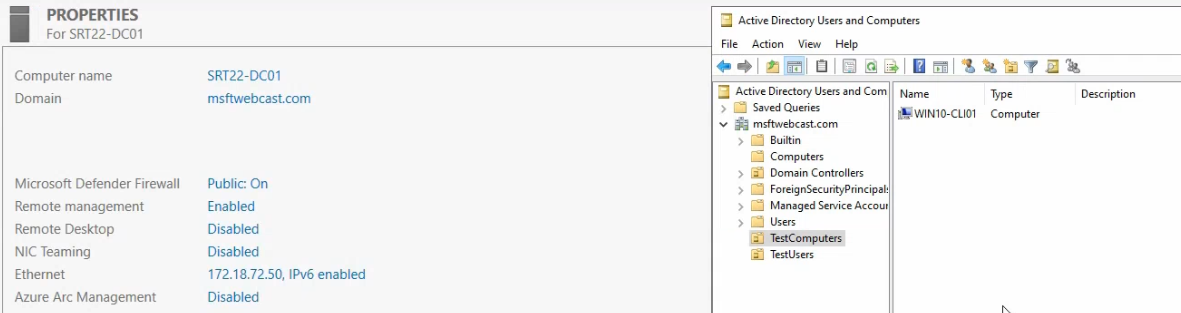
msfwebcast.com with the Windows 10 client account placed inside. The GPO will link to this OU so it only applies to the test client during validation.Before any policy is applied, the Windows 10 client’s firewall is in its out-of-the-box state. That state blocks inbound ICMP Echo Request packets — which is what ping uses. Run a ping from the DC and you get nothing:
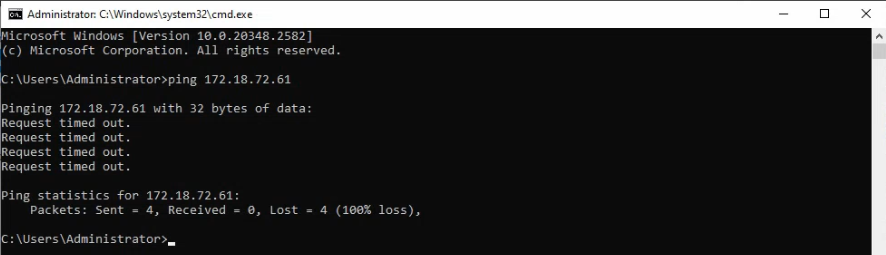
The block is by design. Default-deny inbound is good security; it means an attacker can’t enumerate live hosts on a subnet just by pinging them. But it also means legitimate diagnostics from inside the network can’t see the client either. The GPO we’re going to build adds the specific exceptions we need (allow ping from the local subnet, allow TCP 7891 from the DC) without weakening the rest of the posture.
Step 1 — Create the GPO
- On SR22-DC01, open Server Manager → Tools → Group Policy Management.
- Expand the
msfwebcast.comdomain and the Group Policy Objects container. - Right-click Group Policy Objects and pick New.
- Name it
Windows Firewall Test Policy(any descriptive name works; this one matches what we’ll see in the test). Click OK.
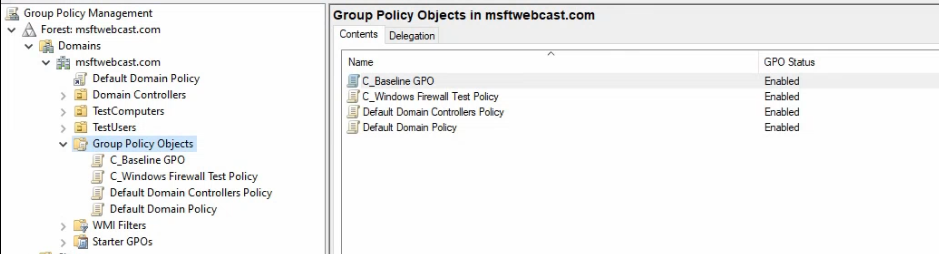
The new GPO appears under Group Policy Objects with no settings configured yet — an empty container ready to be filled. Don’t link it to the OU yet; we’ll wait until the policy is fully built so the link doesn’t apply a half-configured policy.
Step 2 — Set firewall state and logging on all three profiles
The Windows firewall has three profiles — Domain (when the machine is connected to the AD domain), Private (trusted non-domain networks), and Public (untrusted networks like coffee-shop Wi-Fi). Each profile has its own state, its own logging settings, and its own default behaviours. The profiles are evaluated independently; a machine on a corporate Wi-Fi network gets the Domain profile, but the same machine taken to a hotel Wi-Fi switches to Public. The right policy turns the firewall ON for all three.
- Right-click the Windows Firewall Test Policy GPO and pick Edit. The Group Policy Management Editor opens.
- Navigate to Computer Configuration > Policies > Windows Settings > Security Settings > Windows Defender Firewall with Advanced Security > Windows Defender Firewall with Advanced Security. (Yes, the deepest path in Group Policy.)
- Right-click the deepest Windows Defender Firewall with Advanced Security node and pick Properties.
Domain profile
- Set Firewall state to On (recommended).
- Leave Inbound connections at Block (default).
- Leave Outbound connections at Allow (default).
- Click Customize under Logging.
- Set Log dropped packets to Yes. Default log path is
%SystemRoot%\System32\LogFiles\Firewall\pfirewall.log— leave it. - Click OK.
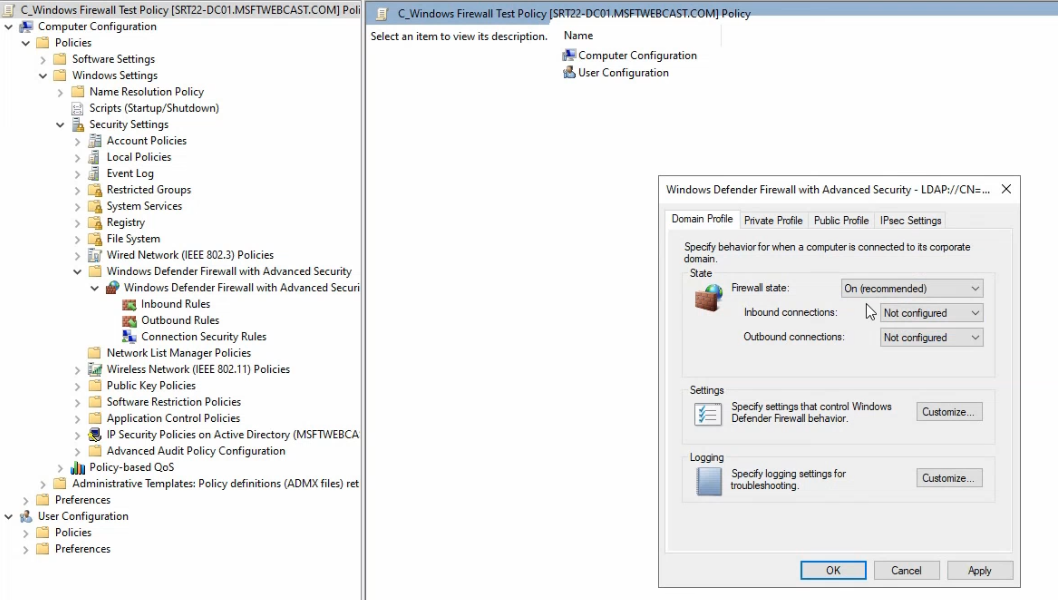
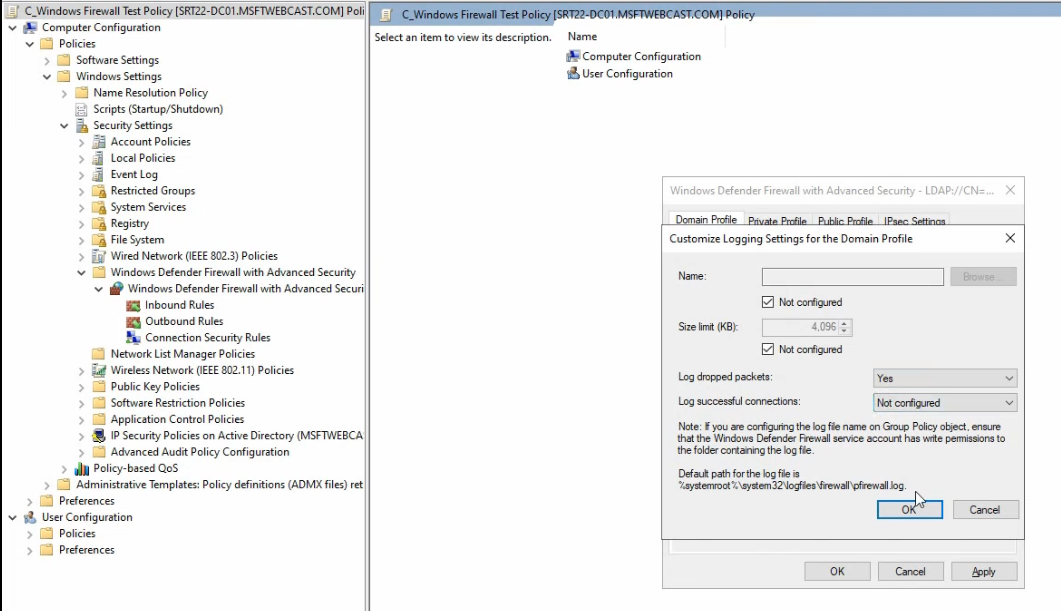
%SystemRoot%\System32\LogFiles\Firewall\pfirewall.log on each client.Private profile
Same settings — Firewall state On, Log dropped packets Yes.
Public profile
Same settings — Firewall state On, Log dropped packets Yes.
Click Apply and OK. The three profiles are now active across whatever networks the client connects to. The dropped-packets log is the diagnostic surface for “why did this connection fail?” questions later — tail the log on a client and you can see in real time what the firewall is rejecting.
Step 3 — Inbound ICMP rule (allow ping from the local subnet)
The first specific exception. We want to allow ping from any machine on 172.18.72.0/24 (the local subnet) but block ping from anywhere else.
- In the GP Management Editor, under Windows Defender Firewall with Advanced Security, expand and right-click Inbound Rules. Pick New Rule.
- Rule Type: select Custom. (The presets are too narrow; Custom gives access to the protocol-specific tabs.)
- Program: click Next without selecting a program (ICMP isn’t tied to a specific binary).
- Protocol and Ports: in the Protocol type dropdown, pick ICMPv4. The dropdown also has ICMPv6 if your network needs IPv6 support; tick both via separate rules if so.
- Click Customize next to Internet Control Message Protocol (ICMP) settings. In the dialog, pick Specific ICMP types and tick Echo Request. Click OK.
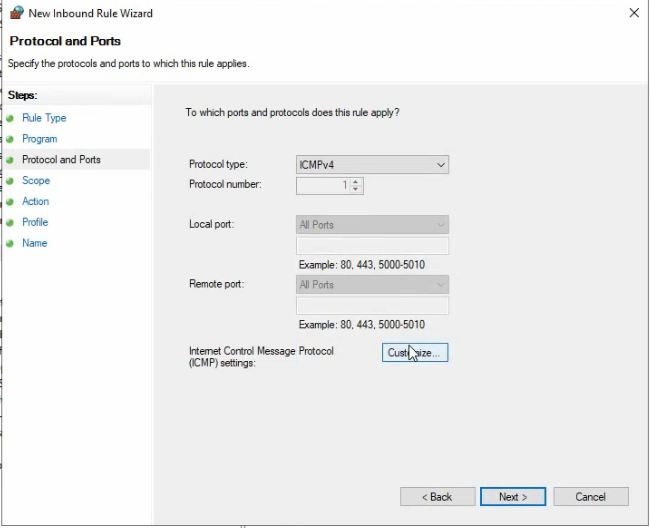
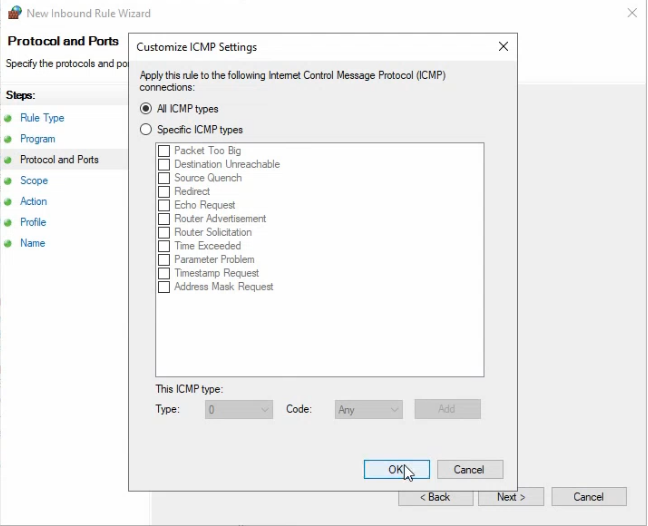
- Scope: under Remote IP address, pick These IP addresses and click Add. Enter
172.18.72.0/24. This restricts the rule to pings originating from the local subnet only.
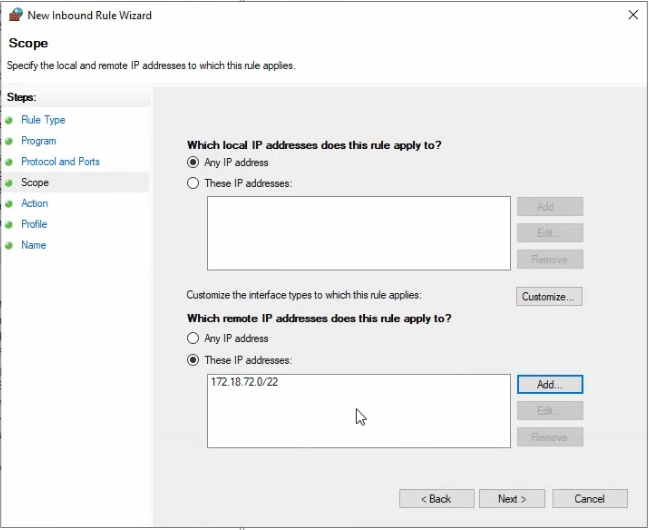
172.18.72.0/24 so only hosts on the local subnet can ping. Limits the blast radius if a remote system needs to probe the client.- Action: Allow the connection.
- Profile: tick all three (Domain, Private, Public). For tighter posture, tick only Domain — pings from non-domain networks won’t be allowed at all.
- Name: something descriptive like
Allow ICMP from Local Subnet. Click Finish.
The rule appears under Inbound Rules in the GPO editor. After the GPO applies on the client, ping from the DC will succeed; ping from anywhere outside 172.18.72.0/24 will still fail.
Why the scope matters
Allowing ICMP without a scope filter (or with a scope of “Any IP address”) means anyone on any reachable network — including the public internet if the machine is internet-exposed — can probe the client. Restricting the scope to the local subnet is the equivalent of saying “corporate diagnostics yes, internet probing no.”
Step 4 — Inbound port rule (TCP 7891 from a single IP)
The second exception covers a custom application that listens on TCP 7891 on the client. Only the DC at 172.18.72.50 should be able to reach the port.
- Right-click Inbound Rules and pick New Rule.
- Rule Type: Port.
- Protocol and Ports: select TCP, pick Specific local ports, enter
7891. - Action: Allow the connection.
- Profile: tick Domain (this is a server-to-client connection that only makes sense on the corporate network).
- Scope: after the wizard finishes, double-click the new rule, switch to the Scope tab, set Remote IP address to These IP addresses, add
172.18.72.50(the DC). Click OK. - Name:
Allow TCP 7891 from SR22-DC01.
This is the “least-privilege source” pattern — opening a port only to the specific source that needs it, not to the whole subnet. For application servers that need to reach all clients in a subnet, you’d use a /24 source instead, but always be deliberate about the breadth.
Step 5 — Lock down the firewall service
The firewall rules are useless if a user can stop the service. The Windows firewall runs as the mpssvc Windows service; if it stops, every rule we just configured is gone. Lock the service via the same GPO:
- In the GP Management Editor, navigate to Computer Configuration > Policies > Windows Settings > Security Settings > System Services.
- Find Windows Defender Firewall in the list. Right-click and pick Properties.
- Tick Define this policy setting. Set startup mode to Automatic. Click Edit Security.
- In the security ACL, ensure that SYSTEM has Full Control but standard users do not have Stop, pause, and continue permissions. Click OK.
The result: mpssvc starts automatically at boot, runs as SYSTEM, and standard users can’t stop it from services.msc or net stop mpssvc. Local administrators can still stop it (you can’t prevent that without breaking other functionality), but ordinary users can’t.
Step 6 — Link the GPO to the OU and verify
With the GPO fully configured, link it to the target OU.
- In Group Policy Management, right-click the Test Computers OU and pick Link an Existing GPO.
- Pick the Windows Firewall Test Policy from the list. Click OK.
The GPO now applies to every computer object in the OU. On the Windows 10 client, force a refresh:
gpupdate /forceThen test:
- From SR22-DC01:
ping 172.18.72.61should now succeed (the inbound ICMP rule allows it). - From a machine outside 172.18.72.0/24: ping should still fail (scope filter is doing its job).
- On the client:
gpresult /h C:\Users\Public\rsop.htmlgenerates a Resultant-Set-of-Policy report showing which GPO settings actually applied. The firewall settings should appear under Computer Configuration → Windows Settings → Security Settings → Windows Defender Firewall. - On the client:
netsh advfirewall show allprofilesreports the current state of all three profiles — should match what the GPO configured. - On the client: tail
%SystemRoot%\System32\LogFiles\Firewall\pfirewall.log— you should see DROP entries for any blocked traffic, useful for diagnosing application-firewall conflicts.
Things that bite people in production
Firewall service permissions are inherited from a small ACL
The mpssvc service ACL applied via GPO replaces the default ACL on the client — so don’t over-prune it. Leaving SYSTEM with Full Control and Administrators with appropriate rights is essential; an over-tight ACL has been known to break the firewall’s ability to start at all on the next boot.
Public profile rules apply on coffee-shop Wi-Fi
If you tick “Allow ICMP from local subnet” for all three profiles AND the laptop is connected to a hotel Wi-Fi where the “local subnet” is 192.168.1.0/24, the rule allows ping from random hotel guests on 192.168.1.0/24. The scope filter does its job — restricts to the local subnet — but the local subnet on a hotel network is not your local subnet. Either tick only Domain profile (recommended for inside-corporate-only rules) or use absolute IP ranges instead of local subnet in the scope.
Inbound rules don’t imply outbound rules
Allowing TCP 7891 inbound on the client doesn’t allow the response packets to flow outbound — technically. In practice the Windows firewall is stateful, so the inbound rule’s response packets ride the same connection state and pass without an explicit outbound rule. But for protocols that initiate from both ends (some legacy protocols), you may need explicit outbound rules in addition to inbound. Test before assuming.
Drop-packet logging is verbose
pfirewall.log grows rapidly on a busy client — megabytes per hour for chatty network environments. The default rotation is at 4 MB. Increase if you need longer history; expect disk growth.
GPO Management Editor accepts conflicting settings without warning
If two GPOs apply to the same client and one says “Firewall on” while another says “Firewall off,” the GPO with higher precedence wins (link order on the OU; child OUs override parent OUs unless block-inheritance is set). The Editor doesn’t warn about conflicts at edit time. Use Group Policy Modeling on the GPMC to predict the resultant policy before deploying.
The deep-deep editor path is wrong half the time
The path goes Computer Configuration > Policies > Windows Settings > Security Settings > Windows Defender Firewall with Advanced Security > Windows Defender Firewall with Advanced Security — the same node name appears twice in a row. The double name is intentional (the parent is the policy node; the child is the configuration root) but it trips up new admins regularly. The Inbound Rules / Outbound Rules nodes hang off the deeper one.
Where this fits
Centrally-managed firewall configuration via GPO is part of a hardened-workstation baseline. For broader workstation hardening (UAC, BitLocker, attack-surface-reduction rules), see Windows 10/11 hardening. For other GPO-driven configurations — AppLocker, drive maps, Group Policy planning — see the Group Policy pathway. For the host-side equivalent of these rules configured via the local netsh advfirewall CLI rather than centrally, see the Windows Server administration pathway.