
DNS zone transfer is the standards-based way to keep a read-only copy of a zone’s record set on a separate server. The primary holds the authoritative copy and accepts updates; the secondary mirrors the records, serves queries, and pulls fresh data from the primary on a schedule. The mechanism predates AD-integrated DNS and still matters: it’s how you mirror a zone to a non-Microsoft DNS server, how you keep a standby DNS available when the primary is down for maintenance, and how cross-vendor DNS resilience is typically built. This post walks the standard primary-and-secondary setup — install the role on a member server, create the secondary zone, authorise the transfer on the primary, and verify the records propagate.
What you need before starting
- An existing primary DNS zone — in the lab,
msfwebcast.comonSR22-DC01at 172.18.72.50, an AD-integrated zone created when the DC was promoted - A second Windows Server 2022 box (or any DNS server — bind, PowerDNS, an appliance) that’ll host the secondary copy. The lab uses a Windows member server; in practice the secondary is often a non-Microsoft platform for cross-vendor resilience
- Network reachability between the two servers on TCP 53 (zone transfers use TCP) and UDP 53 (the SOA-serial poll that tells the secondary whether to pull). Open both directions if a host firewall sits between them
- Local administrator rights on both servers
What zone transfer actually is
The primary server holds the writable copy of the zone — every A, AAAA, CNAME, MX, SRV, TXT, and PTR record. When a record is added or modified, the primary increments a counter on the zone’s SOA (Start of Authority) record called the serial number. The secondary periodically queries the primary for the SOA serial, compares it against its own cached value, and if the primary’s is newer it pulls the changes.
AXFR vs IXFR
Two protocols cover the actual record copy:
- AXFR (Full Zone Transfer) — the secondary asks for the entire zone. Used on first load (when the secondary has no cached data) and as a fallback when an incremental transfer fails or isn’t supported.
- IXFR (Incremental Zone Transfer) — the secondary tells the primary “I last saw serial N; send me everything since then.” The primary returns just the deltas. Way cheaper than AXFR for large zones with small daily change rates — for a zone with 10,000 records and 5 changes a day, IXFR transfers a few hundred bytes vs AXFR’s full payload.
Both protocols run over TCP 53 (UDP can’t carry the response payload). The SOA-serial poll that decides whether to pull at all uses UDP 53 like normal DNS queries. Modern DNS servers prefer IXFR by default and fall back to AXFR if the primary doesn’t support IXFR or if the IXFR delta is too large.
Where notify fits in
The default secondary refresh interval (set on the SOA record) is typically 15 minutes. That means a change on the primary takes up to 15 minutes to propagate without intervention. To shorten that, primaries can be configured to notify their secondaries the moment a zone changes — the primary sends a NOTIFY message (TCP 53), the secondary immediately polls for the new serial, and pulls the deltas. End-to-end propagation drops from up-to-15-minutes to seconds.
Step 1 — Install the DNS role on the secondary server
From elevated PowerShell on the member server that’ll host the secondary:
Install-WindowsFeature -Name DNS -IncludeManagementTools
Install-WindowsFeature -Name DNS -IncludeManagementTools on the secondary server. Adds the DNS Server role plus the management snap-in (dnsmgmt.msc) without requiring a reboot.-IncludeManagementTools pulls in dnsmgmt.msc — the DNS Manager snap-in — which we’ll use for the wizard-driven secondary-zone creation. The role install completes in a few seconds and doesn’t require a reboot on Windows Server 2022.
Step 2 — Create the secondary zone
Launch the DNS Manager:
dnsmgmt.mscThe DNS Manager opens with the local server selected and an empty zone list. We’re going to create a forward-lookup secondary zone for msfwebcast.com.
- Right-click Forward Lookup Zones and pick New Zone.
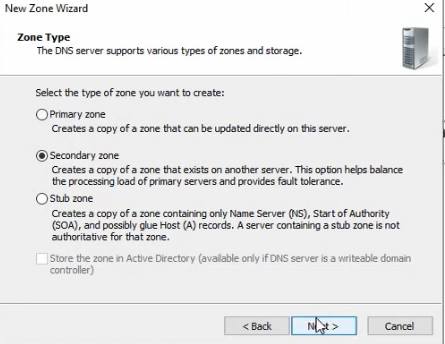
- Zone Type: select Secondary zone. Note that the “Store the zone in Active Directory” checkbox is greyed out for secondary zones — secondaries can’t be AD-integrated by definition (AD-integration is the alternative replication mechanism, only available on AD-joined Windows DNS servers in the same domain).
- Zone Name: enter
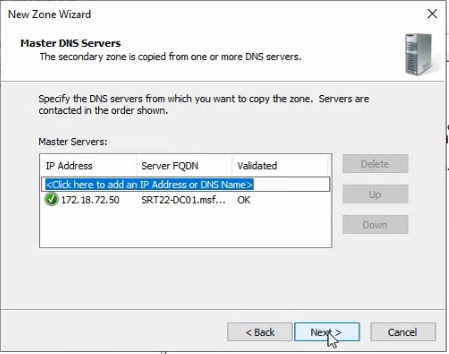
msfwebcast.com. The name must match the primary zone exactly — it’s the identifier used in the SOA-serial poll. - Master DNS Servers: add the primary’s IP (
172.18.72.50). The wizard validates the entry by attempting a connection; you’ll see “Validating…” followed by an OK or an error if the primary isn’t reachable.
- Click Finish. The wizard creates the secondary zone object on the local server.
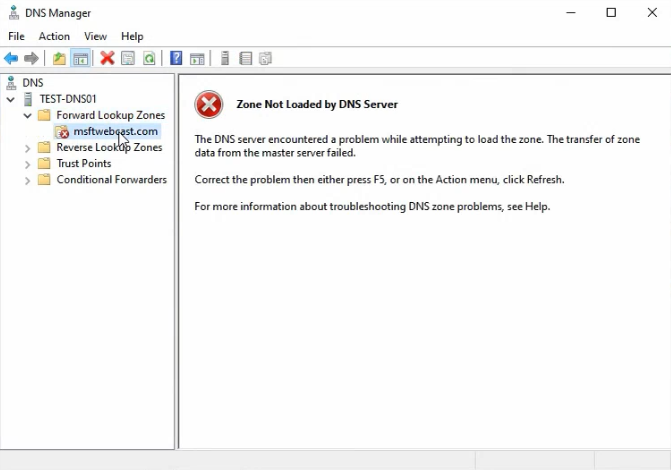
Open the zone and you’ll see “Zone not loaded by the DNS server” with a red icon. This is expected — the primary hasn’t yet authorised this server for transfer, so the initial AXFR fails. The zone exists locally but holds no records. We fix that by configuring the primary.
Step 3 — Authorise the transfer on the primary
RDP or remote-shell into SR22-DC01 (or wherever the primary lives) and open dnsmgmt.msc there.
Add the secondary server to the zone’s Name Servers tab
- Right-click the
msfwebcast.comzone in Forward Lookup Zones and pick Properties. - Switch to the Name Servers tab.
- Click Add and enter the secondary server’s FQDN and IP. The wizard does a name-resolution check; if it succeeds the entry is added to the list.
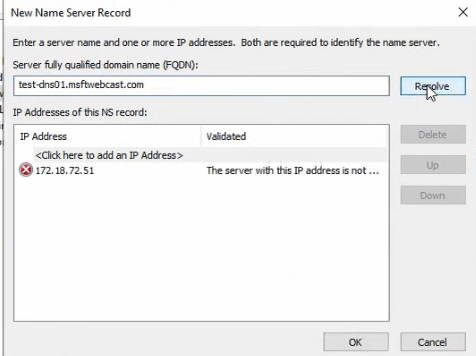
The Name Servers tab is the authoritative NS record set for the zone. Adding the secondary here is the first half of the “known servers” configuration — the primary now knows this server is a legitimate target for transfers.
Allow transfers from the Zone Transfers tab
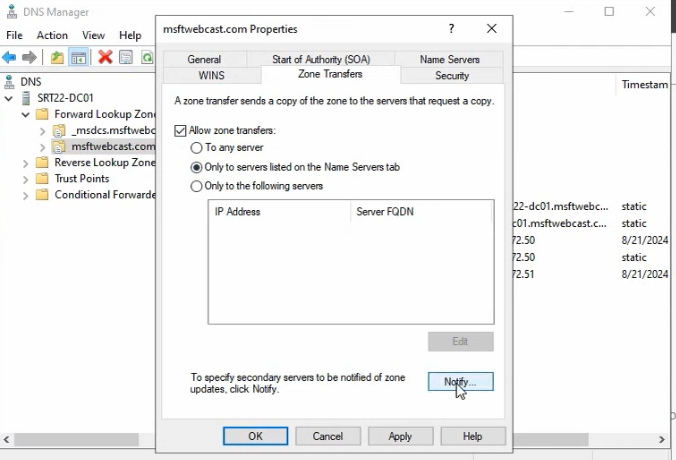
- Switch to the Zone Transfers tab in the same Properties dialog.
- Tick Allow zone transfers. The default before you tick this is to deny all transfers — secure default, but it’s why the secondary failed to load.
- Pick Only to servers listed on the Name Servers tab. The other options are To any server (never use this in production; anyone on the internet can pull a copy of your zone) and Only to the following servers (a per-IP allowlist, useful when the secondary isn’t a Windows DNS Server with a registerable NS record).
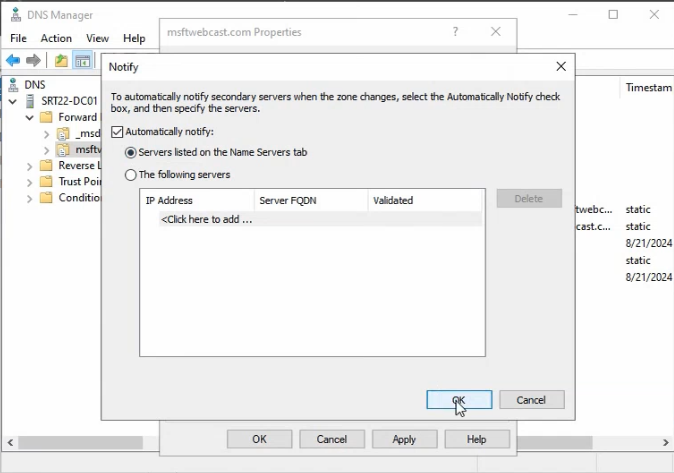
- Click Notify. In the Notify dialog, tick Automatically notify and pick Servers listed on the Name Servers tab. This means the primary will push notifications to every NS-listed server when the zone changes, instead of waiting for the secondary’s next poll.
- Click OK on both dialogs to apply.
From this moment, the primary will accept transfer requests from the secondary and notify it on changes.
Step 4 — Force the initial transfer
Back on the secondary, refresh the zone view in dnsmgmt.msc — right-click the zone and pick Reload or Transfer from Master. The first AXFR runs, the records flow over, and the zone loads.
Verify by expanding the zone in DNS Manager — you should see all the records that exist on the primary, with the same SOA serial number. From here forward, the primary’s NOTIFY messages will trigger near-instant IXFR pulls; without NOTIFY, the secondary refreshes on its own schedule (default 15 minutes for the SOA-serial poll).
Verifying with the SOA serial
The SOA record exposes everything you need to confirm transfer health:
Resolve-DnsName -Name msfwebcast.com -Type SOA -Server 172.18.72.50
Resolve-DnsName -Name msfwebcast.com -Type SOA -Server <secondary-IP>
Run both queries and compare the SerialNumber field. If the secondary’s serial matches the primary’s, the transfer is up-to-date. If the secondary’s is older, it hasn’t pulled yet — check the Refresh and Retry intervals in the SOA Properties dialog (right-click the zone > Properties > Start of Authority).
The SOA fields you’ll see and what they mean:
- Serial number — incremented on every zone change. The freshness counter the secondary compares against. Format is typically
YYYYMMDDNN(date-encoded so admins can read it) or just an unsigned-32-bit counter. - Refresh interval — how often the secondary polls the primary for the current serial. Default 15 minutes (900 seconds).
- Retry interval — if the SOA poll fails, how long to wait before retrying. Default 10 minutes.
- Expire after — if the secondary can’t reach the primary for this long, it stops answering queries authoritatively. Default 1 day.
- Minimum (default) TTL — the negative-cache TTL for NXDOMAIN responses. Default 1 hour.
Tune these in the SOA Properties dialog on the primary; the secondary picks up the new values on the next refresh.
Reverse-lookup zones get the same treatment
The walkthrough so far covers the forward-lookup zone (msfwebcast.com). Reverse-lookup zones — the ones that translate IP addresses to hostnames via PTR records — need the same secondary configuration if you want them mirrored. The reverse zone for the lab’s 172.18.72.0/24 subnet is 72.18.172.in-addr.arpa (note the octet reversal that’s how the in-addr.arpa hierarchy works).
The configuration is identical to the forward-zone walkthrough above — New Zone > Secondary, name 72.18.172.in-addr.arpa, master 172.18.72.50; on the primary, add the secondary to the Name Servers tab and allow transfers on the Zone Transfers tab. Reverse-lookup zones are smaller than forward-lookup zones in most environments and the transfer is correspondingly fast.
Things that bite people in production
“Allow zone transfers to any server” is a data leak
The Zone Transfers tab’s To any server option is the easy answer when you’re troubleshooting and the per-server allowlist isn’t accepting your secondary. Don’t leave it on. An anonymous AXFR from any internet host returns the entire record set — user names, internal hostnames, mail servers, the whole map of your infrastructure. Always restrict to the Name Servers tab or to a per-IP allowlist.
The secondary loading “not loaded” sometimes traces back to time skew
If both the primary’s ACL and the secondary’s configuration look right but the transfer still fails, check time. Kerberos authenticates DNS Server-to-Server transfers in some configurations and Kerberos has a hard 5-minute time-skew tolerance. w32tm /query /status on both ends; if either is drifting more than a few minutes, fix the time source before debugging anything else.
NOTIFY can fight per-server firewall rules
NOTIFY messages are TCP 53 from the primary to the secondary. If the secondary’s firewall blocks inbound 53 from the primary, NOTIFY fails silently — the secondary still polls on its own schedule and the zone still converges, just at the SOA-poll cadence rather than instantly. Check Windows Firewall on the secondary; the “DNS Service” rule needs to permit inbound 53 from the primary’s IP.
AD-integrated zones don’t need standard zone transfer
If both DCs are AD-integrated DNS servers in the same domain, the AD-integrated replication mechanism (riding the AD-Replication transport, covered in Part 4 of the multi-location AD series) handles propagation. Standard zone transfer is what you use for cross-vendor replication or for non-AD-joined secondaries. Don’t add a standard secondary on top of the AD-integrated mechanism — you’ll get duplicate records or replication conflicts.
IXFR fails over to AXFR on large gaps
If the secondary has been down for long enough that the IXFR delta-count would exceed the primary’s journal size, the primary returns an AXFR (full zone) instead. This is correct behaviour but produces a much larger network spike than expected. After a long secondary outage, watch the transfer size; if it’s an AXFR rather than the expected IXFR, that’s why.
Secondary servers are read-only by design
Records cannot be added or modified on a secondary — the only path for changes is the primary, which then propagates. If you need a writable second copy of a zone, the right model is AD-integrated DNS (multi-master) or a stub zone with a separate authoritative server. A secondary is, by design, read-only.
Where this fits
Zone transfer is the foundation of cross-vendor DNS resilience. For AD-integrated DNS in a multi-location setup, see Multi-Location AD Part 4 (replication mechanics) and the Active Directory pathway. For DNS specifically — conditional forwarding, root hints, scavenging, secure dynamic updates — the broader DNS surface area is covered across the DNS / DHCP / Networking pathway.