
If a user account vanishes from your domain at 3am and nobody admits to deleting it, the only thing standing between you and a full incident-response circus is whether AD auditing was switched on before the incident. The default answer in Windows Server is “mostly off” — advanced subcategory auditing has to be configured explicitly through Group Policy before domain controllers will log who created, modified, deleted, or even tampered with the audit settings themselves.
This walkthrough enables the four audit subcategories that cover almost every realistic AD investigation: Account Management, Directory Service Changes, Directory Service Access, and Audit Policy Change. We configure them once in a single GPO linked to the Domain Controllers OU, and every DC in the domain picks the policy up automatically on the next refresh.
What you need before starting
- Domain controllers running Windows Server 2008 R2 or later — advanced audit policy subcategories were introduced in Vista / 2008 R2 and are required for granular control
- Group Policy Management Console (gpmc.msc) installed on the workstation you’re editing from
- An account with Domain Admin or equivalent rights to create and link GPOs at the Domain Controllers OU
Step 1 — Open the Group Policy Management Console
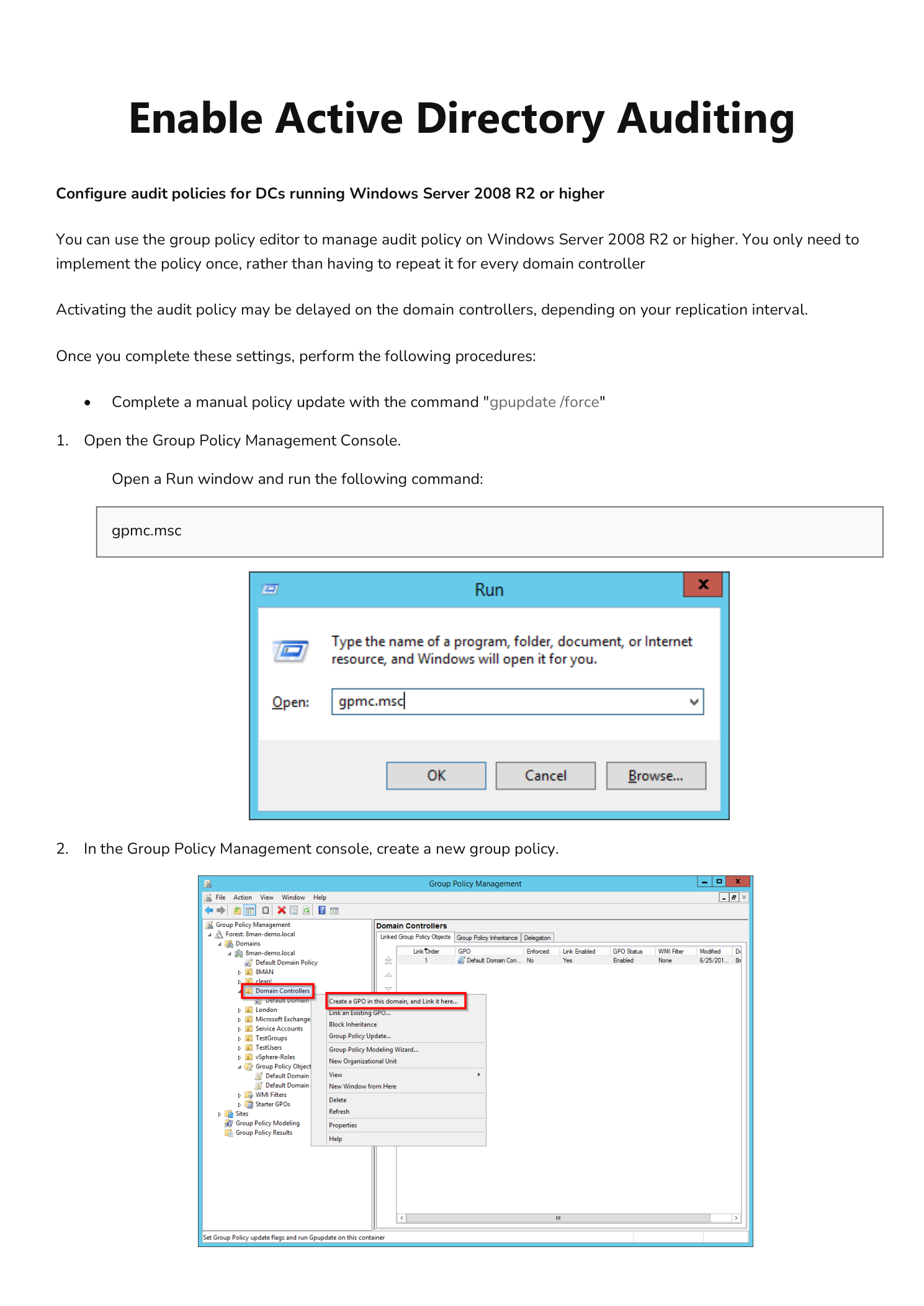
Press Win + R to open the Run dialog, type gpmc.msc, and press OK. GPMC opens with your forest and domain tree on the left.
Step 2 — Create a dedicated GPO for AD auditing
Don’t hang audit settings off the Default Domain Controllers Policy — you want a clearly-named, single-purpose GPO so anyone reading the link order later understands what it does. In the GPMC tree, expand your domain, right-click the Domain Controllers container, and choose Create a GPO in this domain, and Link it here. Name it something obvious like AD Auditing Policy.
Step 3 — Confirm the link order
Click the Domain Controllers OU. If multiple GPOs are linked there, the link order on the right pane controls precedence — lower number wins on conflicting settings. The defaults usually have the Default Domain Controllers Policy at order 1; your new AD Auditing Policy appears below it and will apply on top, which is what you want for additive audit settings.
Step 4 — Open the GPO for editing
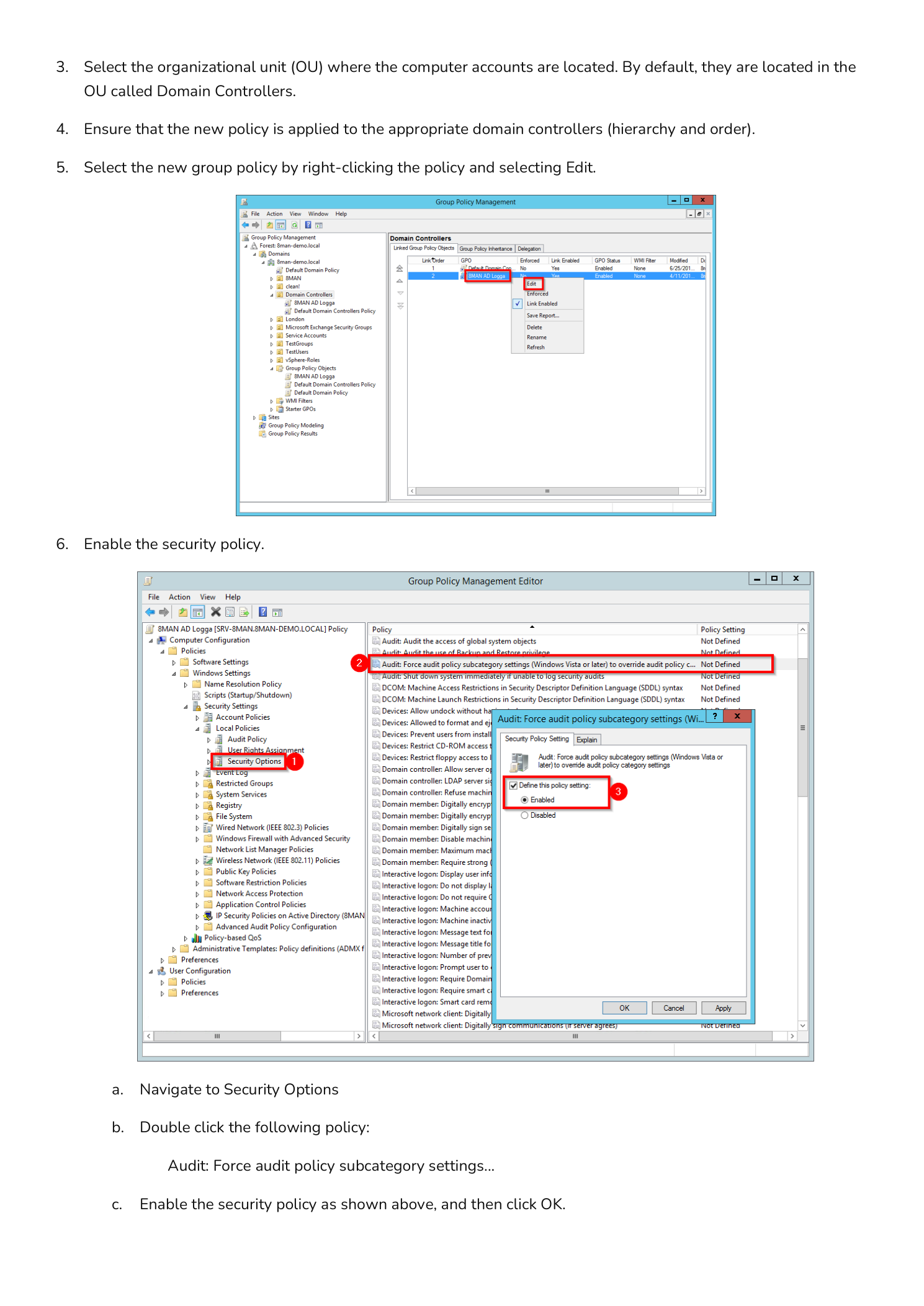
Right-click the AD Auditing Policy link and choose Edit. The Group Policy Management Editor opens against that single GPO.
Step 5 — Force subcategory settings to override legacy categories
Before configuring any subcategories, you have to tell Windows to actually use them. Both the legacy nine top-level audit categories AND the modern Advanced Audit Policy subcategories exist side-by-side, and by default the legacy categories win. Flip that with the Force setting:
Computer Configuration > Windows Settings > Security Settings > Local Policies > Security OptionsDouble-click Audit: Force audit policy subcategory settings (Windows Vista or later) to override audit policy category settings. Set it to Enabled and click OK. Without this, none of the subcategory settings you configure below will actually take effect — this is the most-missed prerequisite of the whole procedure.
Step 6 — Audit Account Management
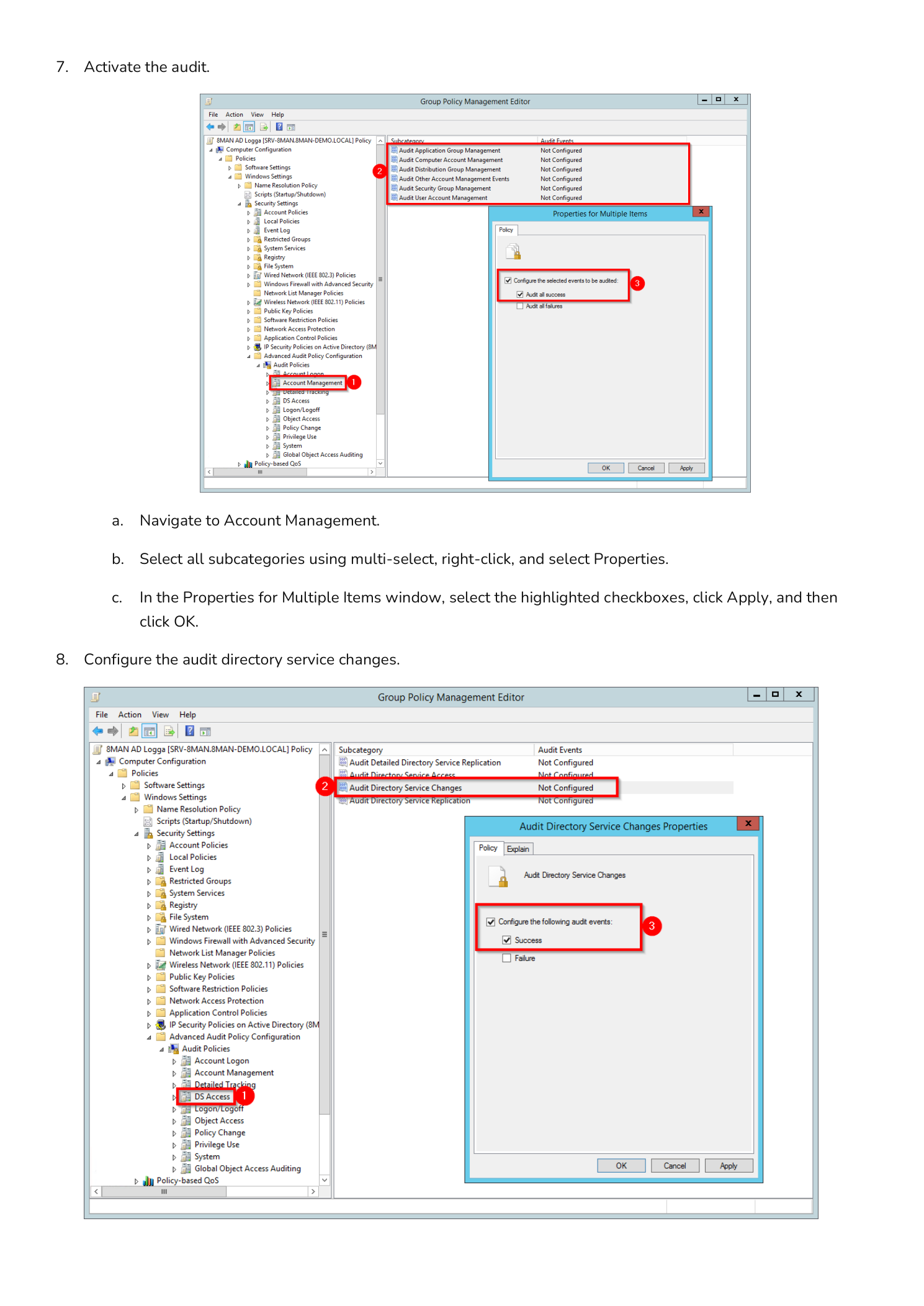
Account Management covers user, group, and computer account creation, modification, and deletion — the bread and butter of any “who deleted that account” investigation. Navigate to:
Computer Configuration > Windows Settings > Security Settings > Advanced Audit Policy Configuration > Audit Policies > Account ManagementSelect all subcategories with Ctrl + A, right-click, and choose Properties. In the Properties for Multiple Items dialog, tick Configure the following audit events and enable both Success and Failure. Click Apply then OK.
Step 7 — Audit Directory Service Changes
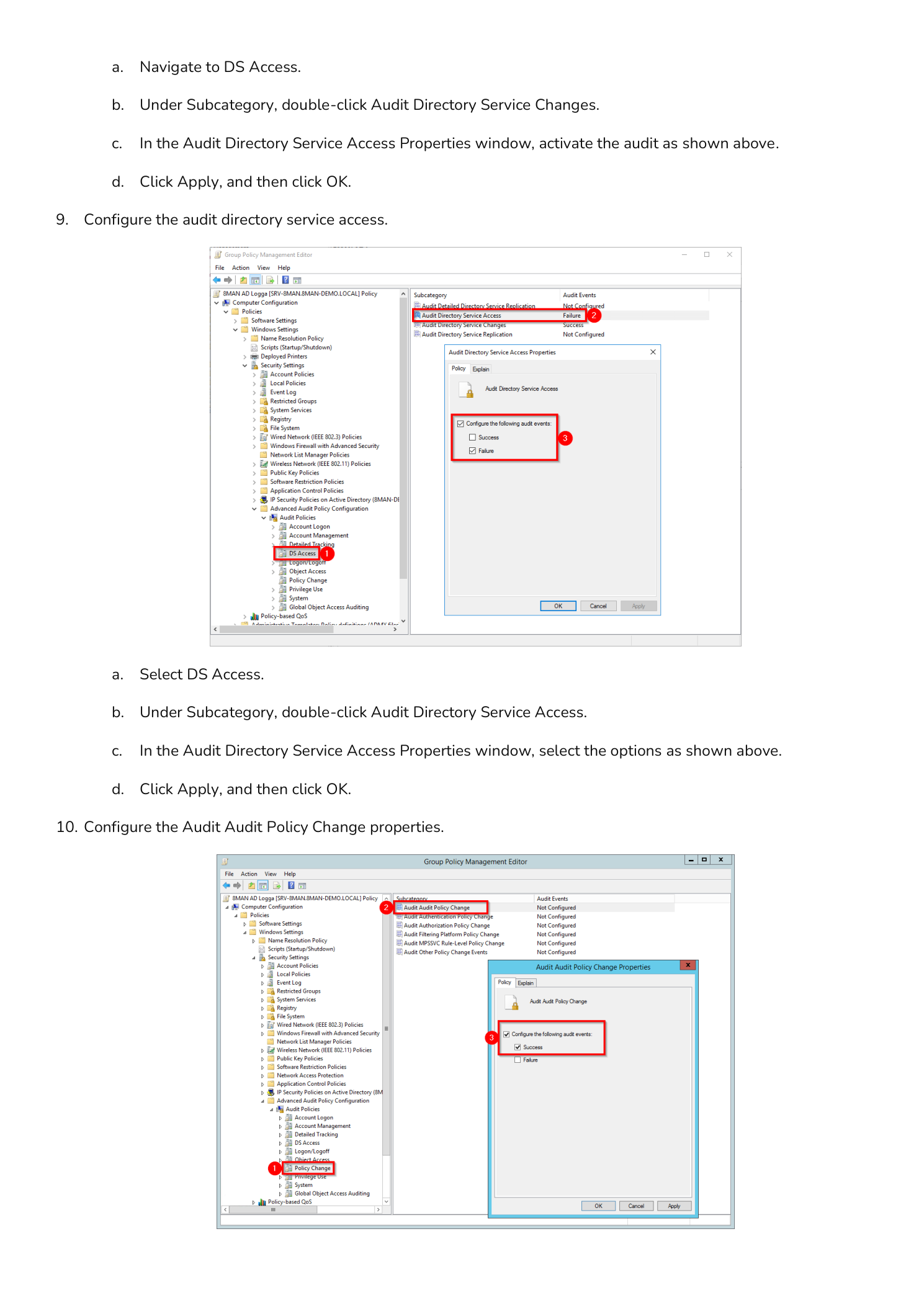
This subcategory logs the actual attribute-level changes to AD objects — not just “an account was modified” but “sAMAccountName changed from foo to bar.” Go to DS Access under Advanced Audit Policy Configuration, double-click Audit Directory Service Changes, tick Configure the following audit events with both Success and Failure, then Apply and OK.
Step 8 — Audit Directory Service Access
Directory Service Access logs read attempts against AD objects when those objects have a SACL configured. Still in DS Access, double-click Audit Directory Service Access, enable Success and Failure, then Apply and OK.
Step 9 — Audit Audit Policy Change
This is the meta-audit — logging changes to the audit policy itself. Without it, an attacker who lands a Domain Admin token can quietly disable auditing, do their work, and re-enable it before leaving. Navigate to Policy Change under Advanced Audit Policy Configuration, double-click Audit Audit Policy Change, enable Success and Failure, then Apply and OK.
Step 10 — Push the policy out
Group Policy refreshes on its own every 90 minutes plus a 0–30 minute random offset on member servers and DCs, but you don’t have to wait. Open a Run dialog (or an elevated PowerShell) and run:
gpupdate /forceRepeat that on every domain controller in the domain — or wait one full replication interval and let AD propagate the GPO automatically. Site topology and the DC’s replication partner intervals decide how long that takes.
Plan your storage before the logs fill up
Auditing this aggressively will produce volume. The two pinch points are the AD Logga audit database (if you’re using a long-term archiver) and the local Windows Security event log on each DC.
AD Logga storage
Plan on roughly 57 MB per 1,000 events. The default retention is 30 days; multiply your expected daily event volume by your target retention window to size the database.
Windows Security event log size
The Security log is a circular buffer — once it fills, the oldest events get overwritten. Storage runs about 1 KB per event. As a baseline, a collector handling 1,000 events per hour with a one-hour maintenance window needs at least 1 MB of headroom; scale that up by your actual event rate. If you’re forwarding to a SIEM, the local log only has to survive long enough to span any forwarder outage — otherwise size it generously, since lost events are lost forever.
Verify the policy actually applied
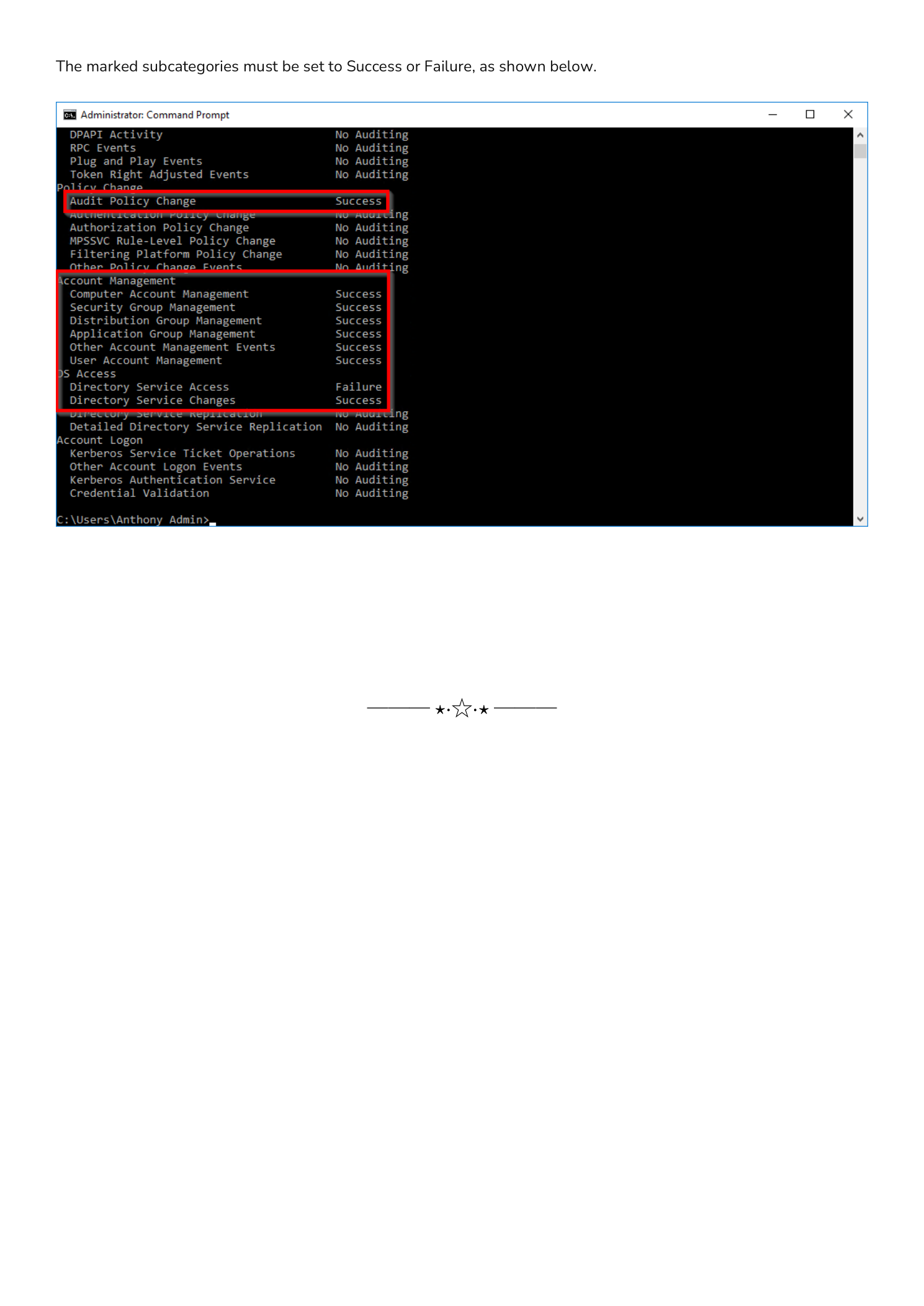
Don’t trust the GPO alone — verify what each DC actually sees. On a target DC, open an elevated Command Prompt and run one of these.
Targeted check (English locale):
auditpol /get /category:"policy change,account management,ds access"Full policy dump (works in any locale):
auditpol /get /category:*The output should show every subcategory you configured set to Success, Failure, or both — matching what you set in the GPO. If a subcategory shows No Auditing, either Force Subcategory Settings was missed in Step 5 or the GPO hasn’t replicated to this DC yet.
Where this fits in the broader picture
Enabling auditing is the foundation; it produces the events. The next two pieces of the puzzle are collection (forwarding the Security log to a SIEM or central collector so attackers can’t simply rotate the log to cover their tracks) and review (alerting on the events that matter — new Domain Admin members, changes to AdminSDHolder, Kerberos ticket anomalies). For deeper coverage of specific subcategories, see configuring advanced audit policies in Active Directory, and the Group Policy pathway for OU design that keeps your audit GPO from being broken by an unrelated link-order change down the road.