
Introduction
You downloaded a PowerShell script from the internet, dropped it on your server, opened an elevated PowerShell prompt, hit run — and got hit with this:
.\Script.ps1 : File C:\Scripts\Script.ps1 cannot be loaded.
The file C:\Scripts\Script.ps1 is not digitally signed.
You cannot run this script on the current system.
For more information about running scripts and setting execution policy,
see about_Execution_Policies at http://go.microsoft.com/fwlink/?LinkID=135170.
At line:1 char:1
+ .\Script.ps1
+ ~~~~~~~~~~~~
    + CategoryInfo          : SecurityError: (:) [], PSSecurityException
    + FullyQualifiedErrorId : UnauthorizedAccess
Frustrating, right? Your own scripts run fine. Other downloaded scripts have run before. The execution policy on this server has not changed in months. So why is this script blocked?
The answer is not the execution policy at all — it is a per-file marker that Windows attaches to anything you download from the internet. In this guide you will learn what that marker is, why PowerShell treats it as untrusted, and how to clear it in three clicks so the script runs the way you expect.
What Is Actually Causing the Error?
Despite what the error message says, the immediate cause is not that your execution policy requires signed scripts. The cause is a Windows feature called the Mark of the Web (MOTW).
When a file is downloaded by Edge, Chrome, Firefox, Outlook, Teams, or any application that uses the Windows Attachment Manager API, Windows tags it with a hidden NTFS Alternate Data Stream named Zone.Identifier. The contents look like this:
[ZoneTransfer]
ZoneId=3
ReferrerUrl=https://example.com/scripts/
HostUrl=https://example.com/scripts/Script.ps1
ZoneId=3 means “Internet Zone — treat as untrusted.” PowerShell’s default execution policy on Windows Server (RemoteSigned) reads this marker and applies stricter rules: scripts marked as coming from the internet must be digitally signed by a trusted publisher, even though scripts you authored locally can run unsigned.
That is why your locally-written scripts run fine and the downloaded one does not. The execution policy is identical for both files; the MOTW is what changed.
How to Verify the Mark of the Web Is the Problem
Before fixing it, prove it is the cause. Open an elevated PowerShell prompt and run:
Get-Item C:\Scripts\Script.ps1 -Stream Zone.IdentifierIf the script has the MOTW attached, this returns a stream object with a non-zero length. If the script is clean, you get an ItemNotFoundException — that is the result you want. To see the actual contents:
Get-Content C:\Scripts\Script.ps1 -Stream Zone.IdentifierYou will see the [ZoneTransfer] block above. ZoneId=3 confirms the script was downloaded from the internet zone and is what is triggering the not-digitally-signed error.
Fix Option 1 — Unblock via File Properties (GUI)
This is the safest, most surgical fix. It clears the MOTW for one specific file without touching execution policy or trusting other scripts.
Step 1 — Open the Script’s Properties
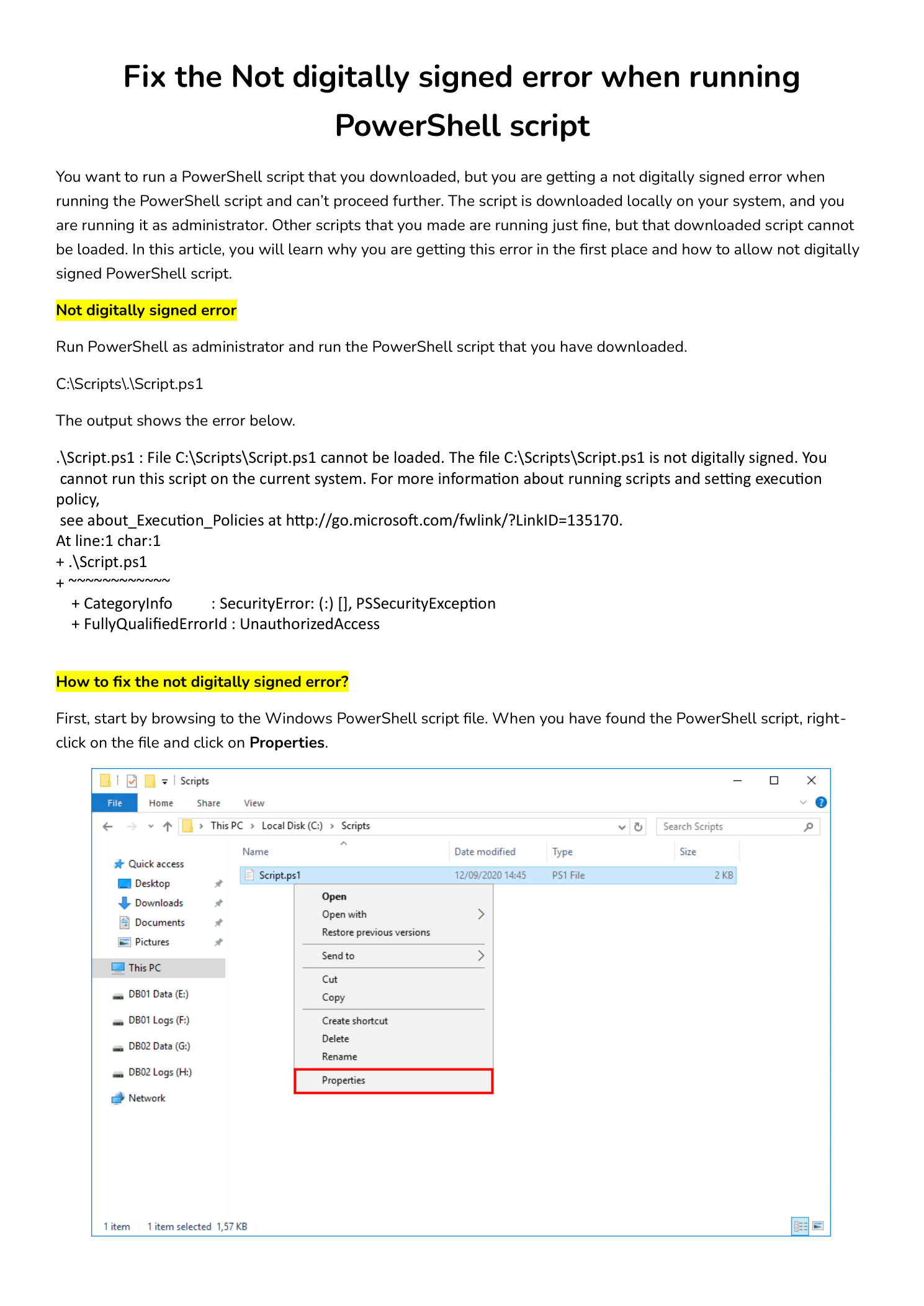
Open File Explorer and browse to the location of the downloaded script (in this example C:\Scripts\Script.ps1). Right-click the file and choose Properties.
Step 2 — Tick the Unblock Checkbox
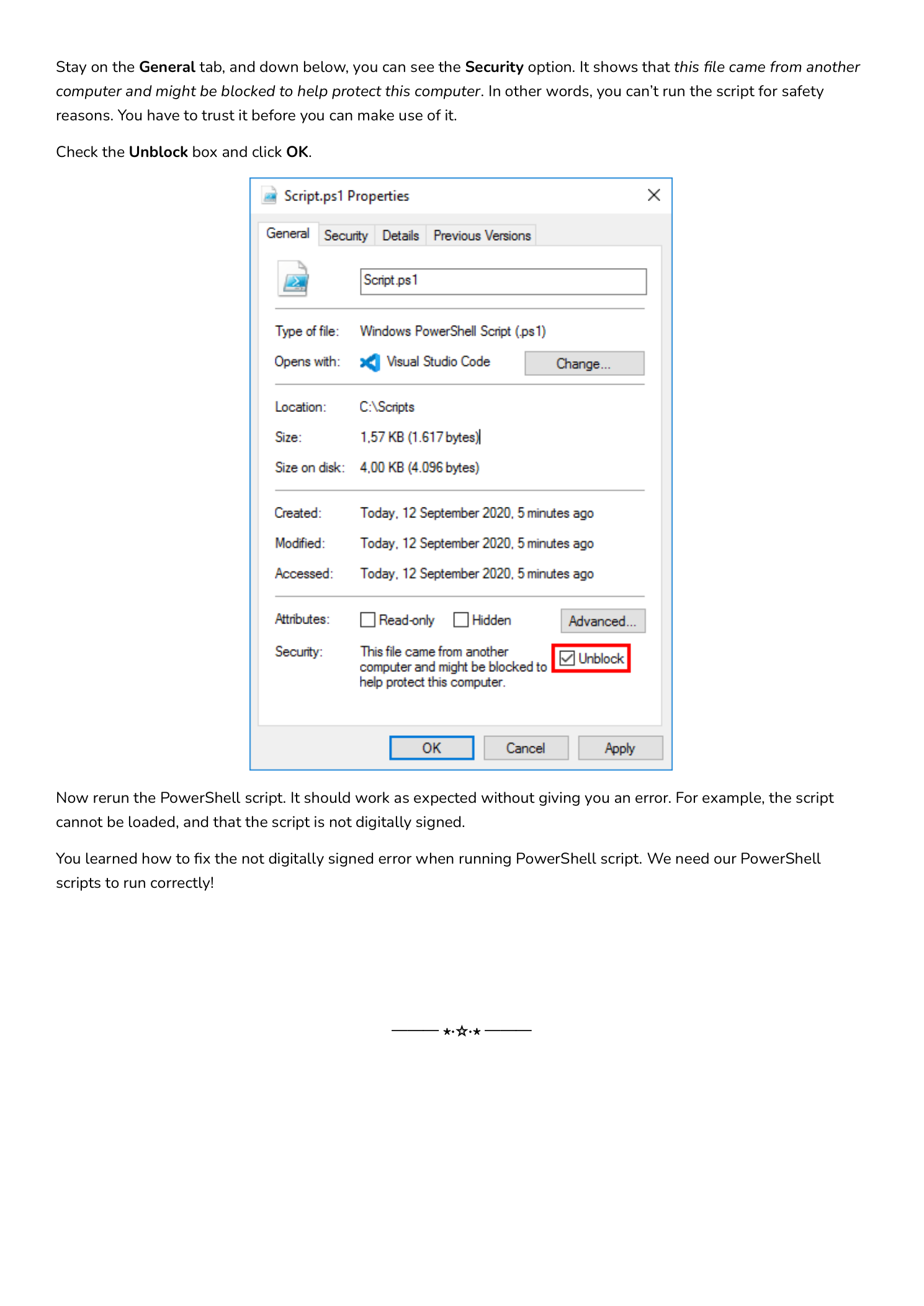
Stay on the General tab. At the bottom of the dialog you will see a Security section with the warning: “This file came from another computer and might be blocked to help protect this computer.” Next to that warning is an Unblock checkbox.
Tick Unblock and click OK. The Security section disappears (the file is now clean) and the Properties dialog closes.
Step 3 — Re-run the Script
Back in your elevated PowerShell session, run the script again:
C:\Scripts\.\Script.ps1It should run cleanly. The not-digitally-signed error is gone because the MOTW is gone — PowerShell no longer sees this as an internet-downloaded file.
Fix Option 2 — Unblock from PowerShell
If you have many scripts to clear or you are working over a remote session without File Explorer, use the built-in cmdlet:
Unblock-File -Path C:\Scripts\Script.ps1To clear an entire directory of downloaded scripts in one command:
Get-ChildItem C:\Scripts\*.ps1 | Unblock-FileOr recursively for a tree of nested folders:
Get-ChildItem C:\Scripts -Recurse -Include *.ps1, *.psm1, *.psd1 | Unblock-FileUnder the hood, Unblock-File simply deletes the Zone.Identifier alternate data stream — the same effect as ticking the Unblock checkbox in the GUI. No execution-policy change, no permission grant beyond clearing this one marker.
Fix Option 3 — Bypass Execution Policy for One Script
If you cannot or do not want to remove the MOTW (for example, the script lives on a read-only share), you can bypass the execution policy for a single invocation without changing the system policy:
powershell.exe -ExecutionPolicy Bypass -File C:\Scripts\Script.ps1Or interactively from inside an existing PowerShell session:
Set-ExecutionPolicy -Scope Process -ExecutionPolicy Bypass
.\Script.ps1
The -Scope Process change only affects the current PowerShell process — close the window and the policy reverts. This is much safer than running Set-ExecutionPolicy Bypass at machine scope, which would weaken every PowerShell session forever.
What You Should Not Do
Do Not Set Execution Policy to Unrestricted Globally
You will find advice online that says “just run Set-ExecutionPolicy Unrestricted and forget about it.” Do not do this on a production server or even a daily-driver workstation. Unrestricted at the LocalMachine scope tells PowerShell to load any script from any location with no signature checks and no MOTW prompts — including scripts that might be dropped by a phishing attachment or a compromised application. The whole point of execution policy is to give you a brief moment of friction before unfamiliar code runs; setting it to Unrestricted machine-wide removes that friction permanently.
Do Not Sign Random Internet Scripts to “Fix” the Error
Code signing is for scripts you authored or vetted. Signing a script with your code-signing certificate tells PowerShell “I trust this code” — if you sign a downloaded script you have not read line-by-line, you are vouching for someone else’s code with your name. Read the script first, then either unblock it (you trust it but did not write it) or sign it (you wrote or audited it).
Do Not Disable Mark of the Web System-wide
There are registry tweaks that disable MOTW propagation entirely. Do not. The MOTW is a useful security signal that protects against drive-by-download attacks across many Microsoft products (PowerShell, Office macro warnings, SmartScreen, etc.). Clearing it per-file is the right granularity; turning it off globally is not.
Understanding PowerShell Execution Policies
While you are here, it is worth knowing the execution policy values you will run into:
- Restricted — default on Windows client OSes. No scripts run, only interactive commands.
- AllSigned — every script must be signed by a trusted publisher, including ones you wrote yourself.
- RemoteSigned — default on Windows Server. Local scripts run unsigned; downloaded scripts (with MOTW) require a trusted signature. This is the policy that triggered the error in this article.
- Unrestricted — all scripts run; downloaded scripts prompt the user for confirmation. Convenient but loose.
- Bypass — nothing is blocked, no prompts. Reserved for one-off invocations via
-ExecutionPolicy Bypass, never as a persistent setting.
Check the current value with Get-ExecutionPolicy -List — PowerShell evaluates policy across five scopes (MachinePolicy, UserPolicy, Process, CurrentUser, LocalMachine) and uses the most restrictive that is set. If you ever wonder why a policy change “did not take,” it is almost always because a Group Policy at the MachinePolicy scope is overriding your local change.
Conclusion
The not-digitally-signed error is one of the most common stumbling blocks for admins moving from running their own scripts to running scripts from GitHub, Stack Overflow, or vendor downloads. The fix is almost always one of three things:
- Right-click the file and tick Unblock — safest, most specific
- Run
Unblock-Filein PowerShell — same effect, scriptable for many files - Bypass execution policy for one invocation with
-ExecutionPolicy Bypass— useful when you cannot modify the file
Whichever option you pick, the underlying skill is the same: read the script before you run it. Unblocking and bypassing make PowerShell get out of your way, but they do not make a malicious script safe. Treat any downloaded code the way you would treat any code review — understand what it does before you run it as administrator.