
Introduction
Once you install Active Directory Domain Services on the first Domain Controller in a forest, all five FSMO (Flexible Single Master Operations) roles land on that one server by default. As soon as you stand up a second DC or split the forest into multiple domains, you need to know which DC holds which role — transferring or seizing FSMO roles, troubleshooting replication, and decommissioning a Domain Controller all start with the same question: where do the roles actually live right now?
In this guide you will learn three reliable ways to check FSMO role holders in Active Directory: a one-line Command Prompt method, a richer PowerShell script, and the click-by-click GUI walkthrough across three MMC snap-ins.
How Many FSMO Roles Are There?
There are five FSMO roles, split between forest scope and domain scope:
- Schema master — one per forest. Owns updates to the Active Directory schema (object class and attribute definitions).
- Domain naming master — one per forest. Owns adding and removing domains and application partitions in the forest.
- RID master — one per domain. Hands out blocks of RIDs (relative IDs) to every DC so each new SID is unique.
- PDC emulator — one per domain. Authoritative time source, password change replication hub, GPO editor target, and legacy NT-compatibility role.
- Infrastructure master — one per domain. Updates cross-domain object references (the SID and DN of foreign-domain principals in local groups).
In a single-domain, single-forest deployment all five roles will sit on the same DC unless you explicitly transfer them. In a multi-domain forest the two forest-scope roles (Schema, Domain naming) live in the forest root, while the three domain-scope roles (RID, PDC, Infrastructure) exist once per domain.
Method 1 — Check FSMO Roles with Command Prompt
The fastest way to list every FSMO role holder in your forest is the built-in netdom command. Open Command Prompt or PowerShell as an administrator on any domain-joined machine and run:
netdom query FSMOThe output looks like this:
Schema master           DC01-2019.infotechninja.local
Domain naming master    DC01-2019.infotechninja.local
PDC                     DC01-2019.infotechninja.local
RID pool manager        DC01-2019.infotechninja.local
Infrastructure master   DC01-2019.infotechninja.local
The command completed successfully.
One command, all five roles, no MMC snap-ins required. This is the answer to “which DC holds the FSMO roles right now?” in literally every situation where the network is healthy.
Method 2 — Check FSMO Roles with PowerShell
If you want the same information plus a broader view of forest and domain functional levels, the cleanest one-liner uses the ActiveDirectory PowerShell module:
Get-ADForest | Select-Object SchemaMaster, DomainNamingMaster
Get-ADDomain  | Select-Object PDCEmulator, RIDMaster, InfrastructureMaster
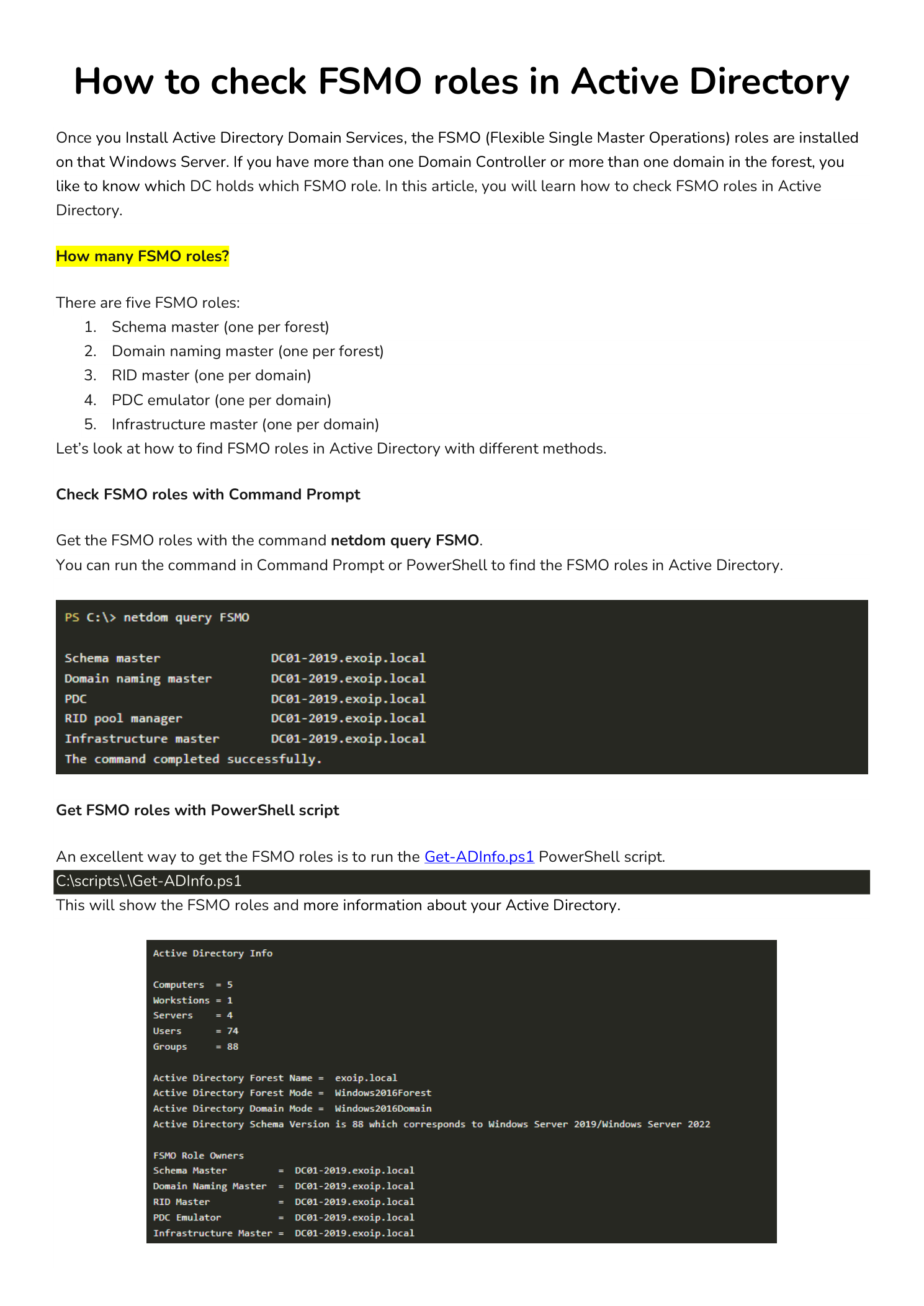
For a richer report, the community Get-ADInfo.ps1 script bundles forest info, domain info, FSMO roles, functional levels, DC list, sites, and trusts into a single output. Save the script under C:\Scripts\ and run:
C:\Scripts\.\Get-ADInfo.ps1The output gives you a complete snapshot of your AD environment in one shot — ideal for documentation, change tickets, and pre-migration audits.
Method 3 — Check FSMO Roles with the GUI
The GUI walkthrough is longer, but it is the method most admins encounter in courseware and certification labs because it shows you exactly where each role is configured. The five roles are surfaced across three different MMC snap-ins:
- Active Directory Schema → Schema master
- Active Directory Domains and Trusts → Domain naming master
- Active Directory Users and Computers → RID, PDC, Infrastructure (one tab each)
Step 1 — Register the Active Directory Schema Snap-in
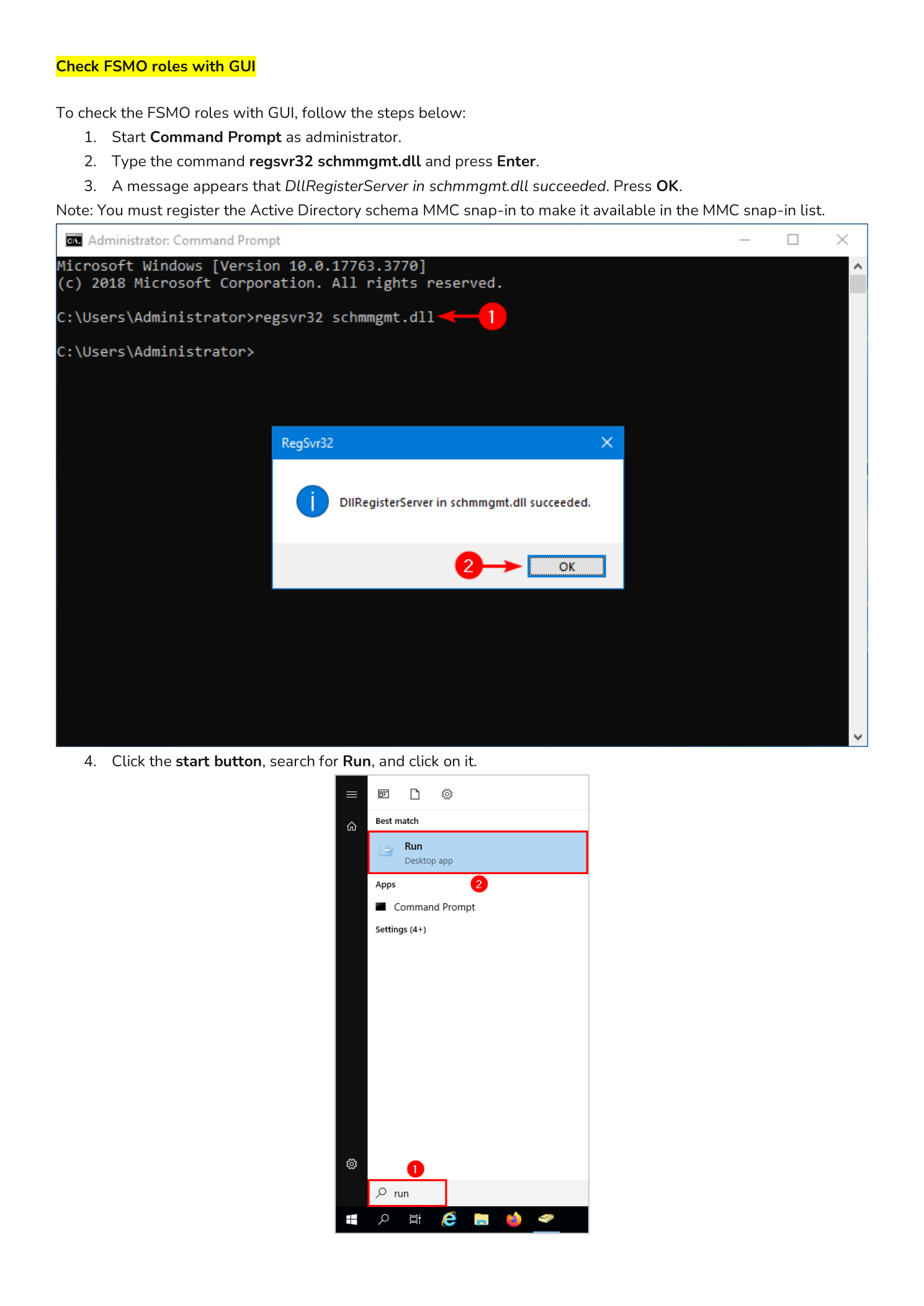
The Schema snap-in is not available in MMC by default — you have to register its DLL first. Open Command Prompt as administrator and run:
regsvr32 schmmgmt.dllA small dialog appears reporting “DllRegisterServer in schmmgmt.dll succeeded.” Click OK.
Note: You only need to do this once per machine. If you have already used the Schema snap-in on this server, skip to Step 2.
Step 2 — Open an Empty MMC Console
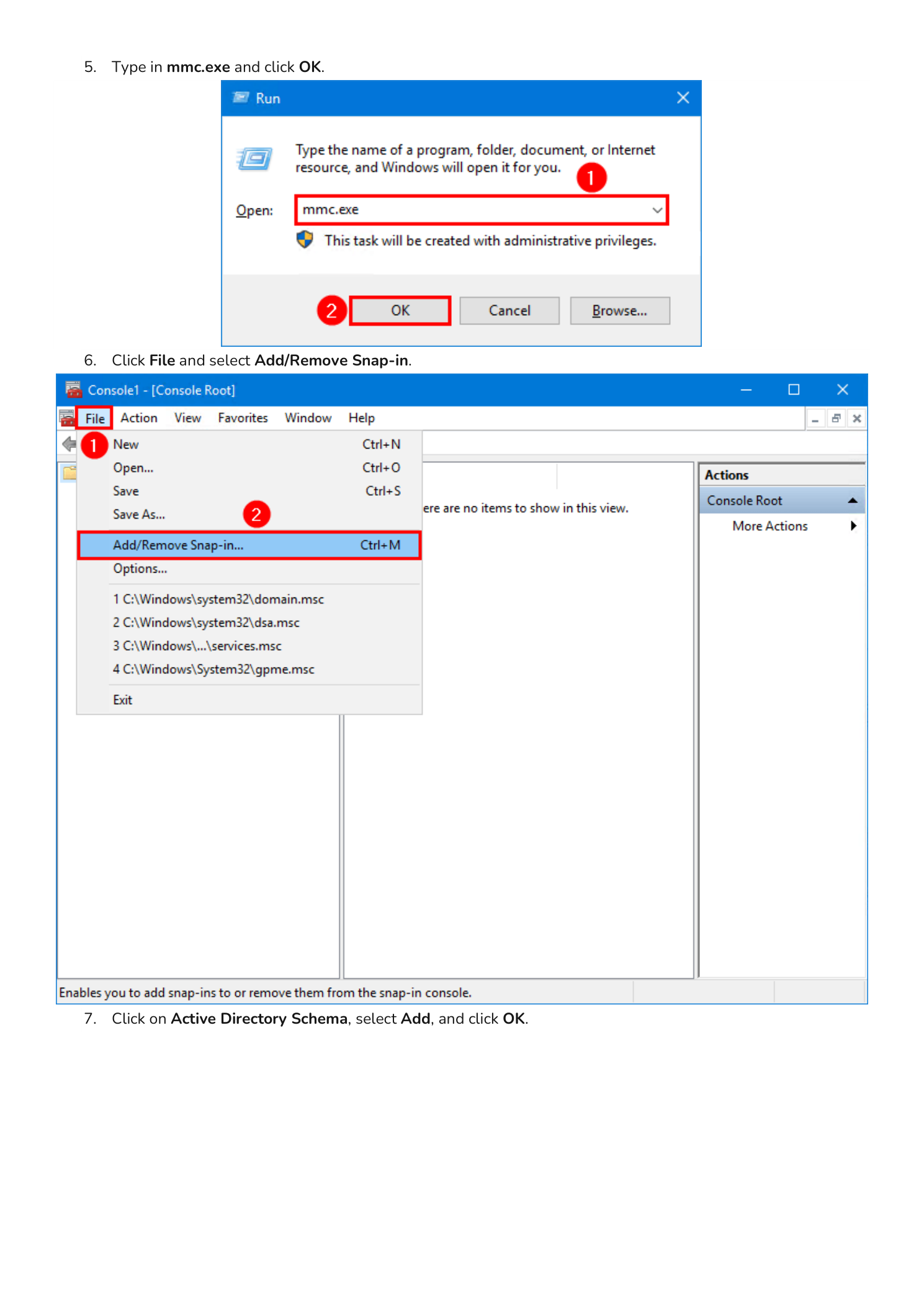
Click Start, type Run, and open the Run dialog (or press Win+R). Type mmc.exe and press Enter.
An empty Console1 window opens. Click File in the menu bar and choose Add/Remove Snap-in….
Step 3 — Add the Active Directory Schema Snap-in
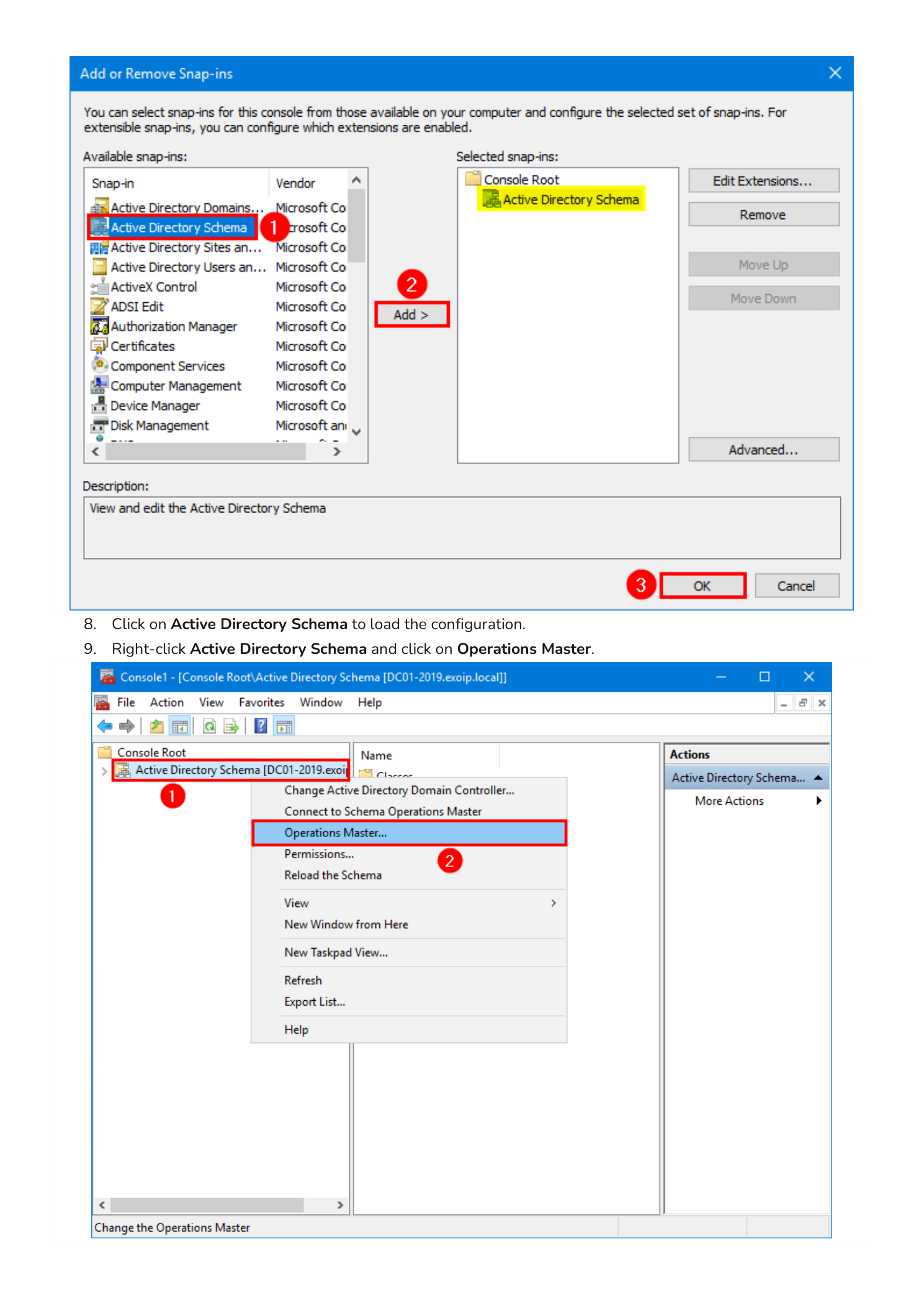
In the Add or Remove Snap-ins dialog, scroll the left column to Active Directory Schema, select it, click Add >, and click OK. Active Directory Schema now appears in the console tree on the left.
Click Active Directory Schema once to load the configuration (the snap-in is lazy and will not contact a DC until you expand or click it). Then right-click Active Directory Schema and choose Operations Master….
Step 4 — Read the Schema Master and Continue
The Change Schema Master dialog appears. The Current schema master (online) field shows the DC that holds the Schema master role — in the example screenshot, DC01-2019.infotechninja.local. Click Close; you do not want to change anything yet.
Now switch to the next snap-in. Open Active Directory Domains and Trusts from Server Manager > Tools (or add it to the same MMC console with File > Add/Remove Snap-in). Right-click Active Directory Domains and Trusts at the top of the tree and choose Operations Master….
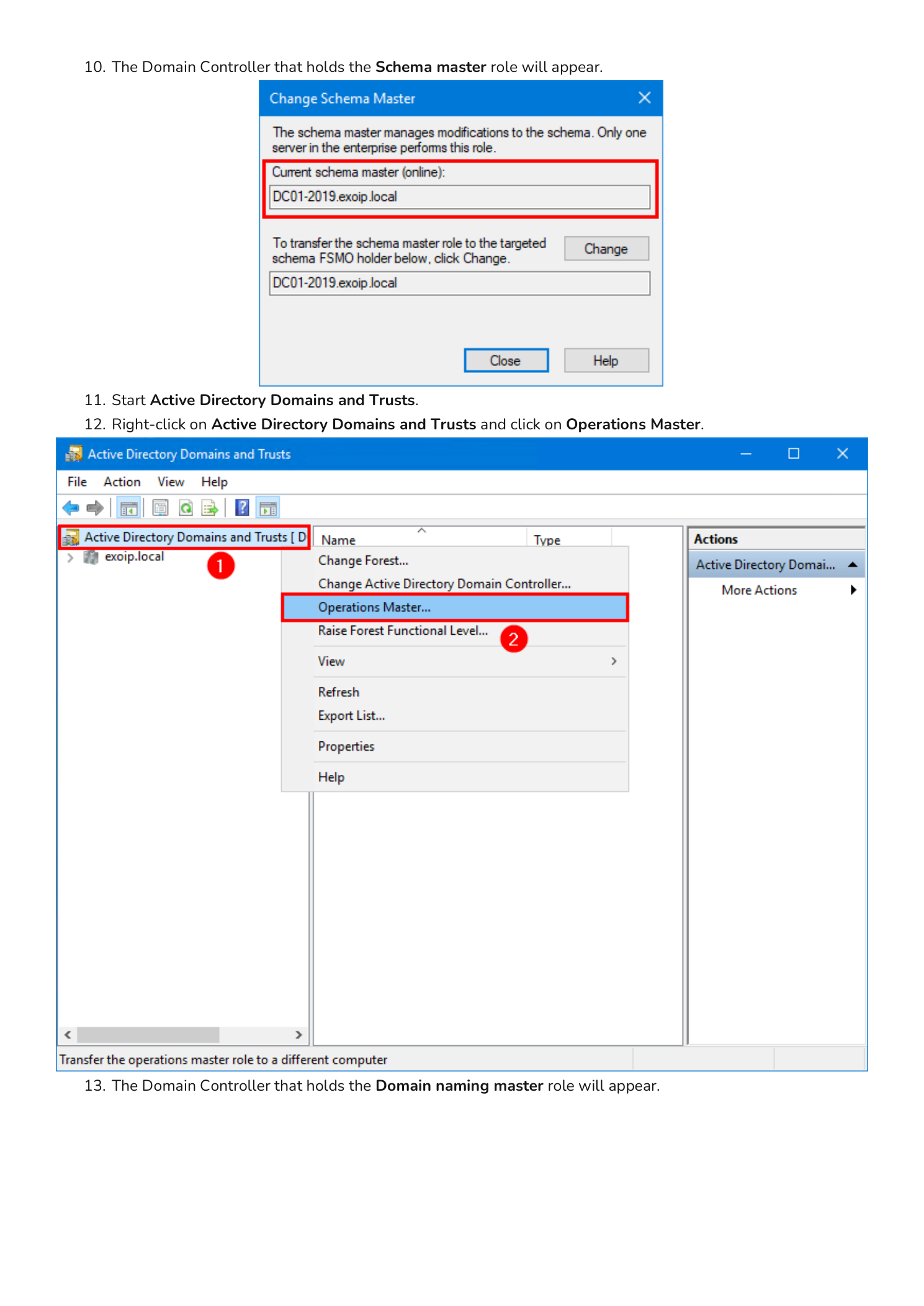
Step 5 — Read the Domain Naming Master and Continue
The Operations Master dialog shows the Domain naming operations master field with the DC holding that role — again DC01-2019.infotechninja.local in the example. Click Close.
For the final three roles, open Active Directory Users and Computers (Server Manager > Tools > Active Directory Users and Computers). Right-click your domain in the tree (for example infotechninja.local) and choose Operations Masters… — note the plural; this dialog is the only one with three tabs.
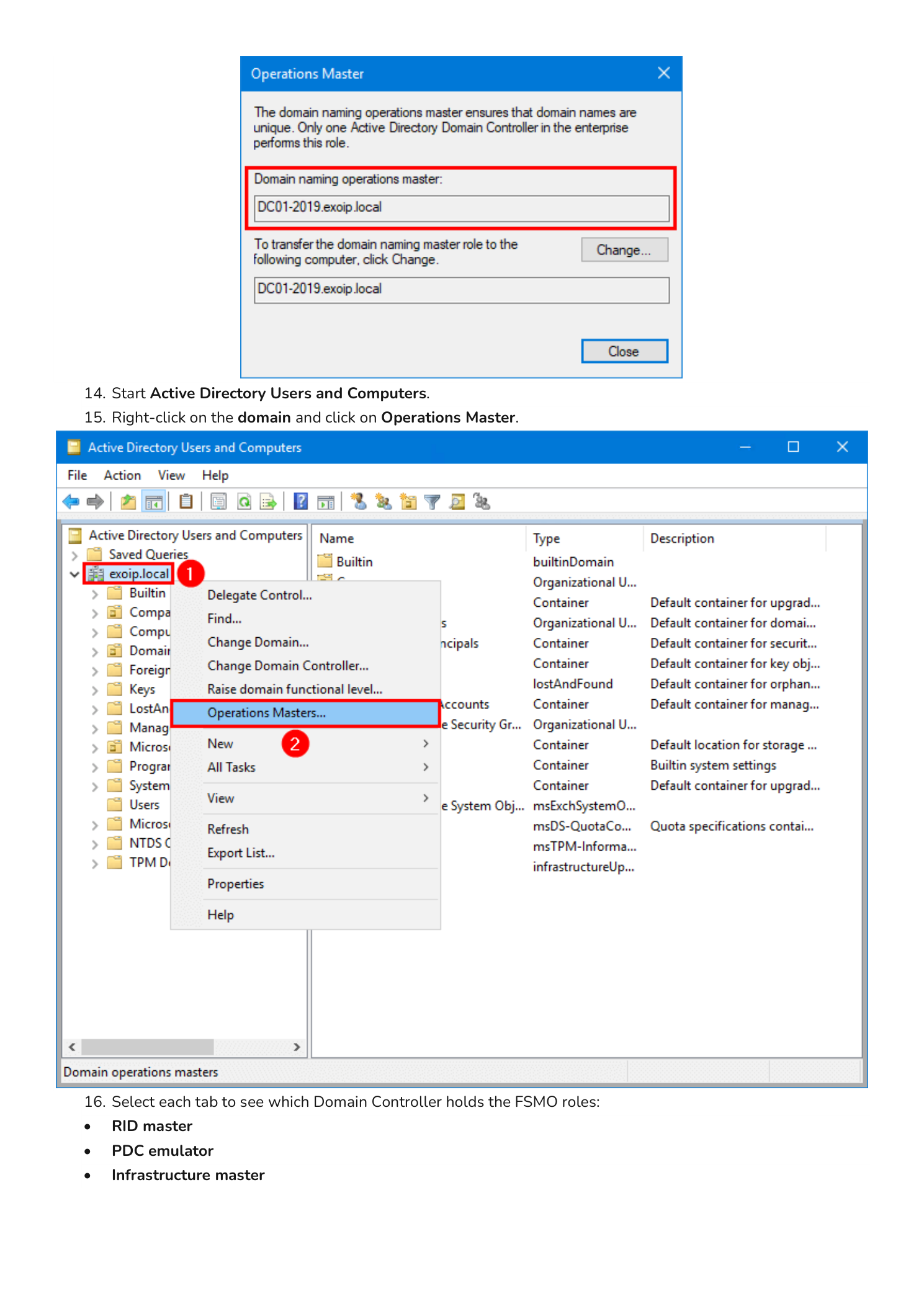
Step 6 — Read the RID, PDC, and Infrastructure Masters
The Operations Masters dialog has three tabs across the top:
- RID — the RID pool manager
- PDC — the PDC emulator
- Infrastructure — the Infrastructure master
Each tab has the same layout: a description of what the role does, an Operations master field showing the current holder, a To transfer the operations master role to the following computer field, and a Change… button. Click each tab in turn to read the holder; click Close when you are done.
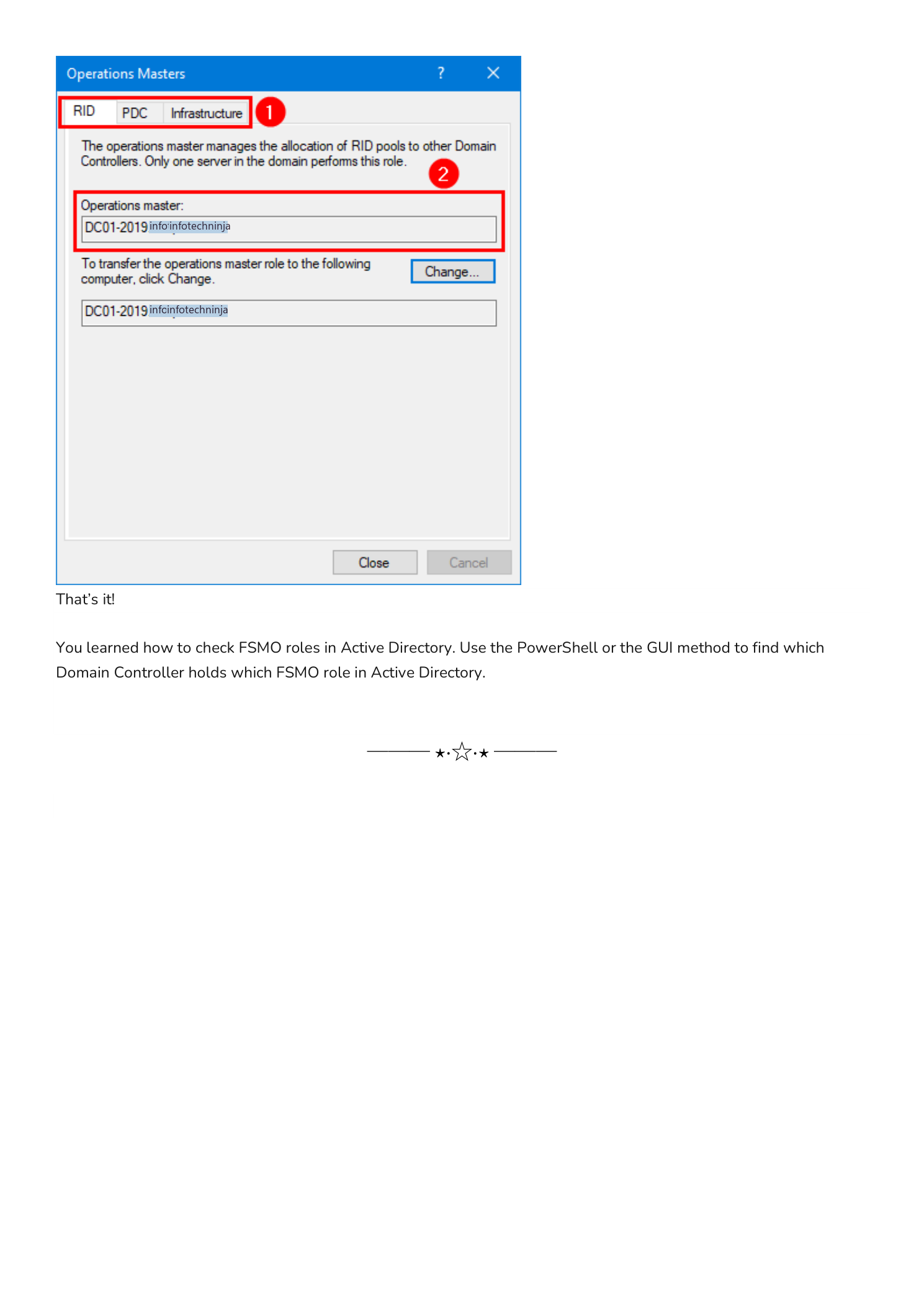
That is all five FSMO roles accounted for via the GUI — one snap-in for the Schema master, one for the Domain naming master, and three tabs of one dialog for RID, PDC, and Infrastructure.
When You Will Actually Need to Know This
Checking FSMO role holders is a routine starting point for several common AD operations:
- Decommissioning a Domain Controller. Before you demote a DC, transfer any FSMO roles it holds to another DC; otherwise the demotion will fail or strand a role.
- Authoritative time problems. The PDC emulator is the authoritative time source for every member of its domain. If clients and servers have time skew issues, the PDC emulator is the first place to look.
- RID pool exhaustion or replication lag. If a DC stops creating new objects (users, computers, groups), the RID master may be unreachable or the local DC’s RID pool may be exhausted.
- Schema extensions. Installing Exchange, Skype for Business, or any product that extends the AD schema requires you to be on (or able to reach) the Schema master.
- Forest-level upgrades. Raising the forest functional level or adding a new domain requires the Domain naming master.
If a single DC currently holds all five FSMO roles, that is fine for a small or single-DC deployment, but it is also a single point of failure. In production environments with multiple DCs, FSMO roles are usually split between two DCs — commonly the Schema master and Domain naming master on one forest-root DC, and the three domain-scope roles on another DC in the same domain.
Conclusion
You learned three ways to check FSMO roles in Active Directory:
netdom query FSMO— one line, all five roles, works from any domain-joined Command Prompt or PowerShell sessionGet-ADForest/Get-ADDomainor theGet-ADInfo.ps1script — same answer plus context (functional levels, DC list, etc.)- The GUI walkthrough across Active Directory Schema, Active Directory Domains and Trusts, and Active Directory Users and Computers — slower but the way every certification track teaches it
Use whichever fits the situation. For day-to-day operations netdom query FSMO is fine. For documentation runs or pre-change snapshots, the PowerShell methods give you a richer report. The GUI is essential when you need to transfer a role — the same dialogs you used to read the role holders are the dialogs you use to move them.