
Introduction
Security is essential for every organization, and the front door to most environments is still the Active Directory password. When a single account password is breached, attackers can pivot from that one foothold into mailboxes, file shares, line-of-business applications, and eventually the rest of the domain. The cost is rarely just the data that leaks — it is also the days or weeks of incident response, forensics, customer communication, and regulatory paperwork that follow.
Strong security starts with two unglamorous fundamentals: auditing the passwords your users have today, and preventing them from picking known-bad passwords tomorrow. In this article you will learn how to do both for Active Directory using Lithnet Password Protection and the Have I Been Pwned (HIBP) compromised passwords list — the same dataset of nearly a billion real-world breached password hashes that powers HIBP’s public lookup.
The Two Configurations You Need
Hardening AD passwords against breaches is two distinct projects, and you should plan to do both:
- Audit account passwords. Compare every user’s current password hash in AD against the HIBP compromised list. The output is a CSV of accounts whose passwords have already appeared in a public breach.
- Secure account passwords. Configure a Group Policy that intercepts password set/change operations and rejects any candidate password whose hash is in the HIBP store — so users and admins simply cannot pick a known-bad password going forward.
The audit alone is useful but insufficient: a user with a pwned password can be told to change it, and then re-enter another pwned password the next time. The block-on-set GPO closes that loop and stops the next bad password from getting into AD in the first place.
Both halves of the solution use the same tool: Lithnet Password Protection for Active Directory — a free, open-source domain controller agent that maintains a local copy of the HIBP hash store and exposes both an auditing cmdlet and a password filter that the LSA calls during every password change.
Set Up Lithnet Password Protection for Active Directory
Step 1 — Install Lithnet Password Protection on the DC
Sign in to a Domain Controller as a Domain Admin. Lithnet PP installs onto every DC where you want password filtering enforced; for an audit-only deployment, installing on a single DC is enough.
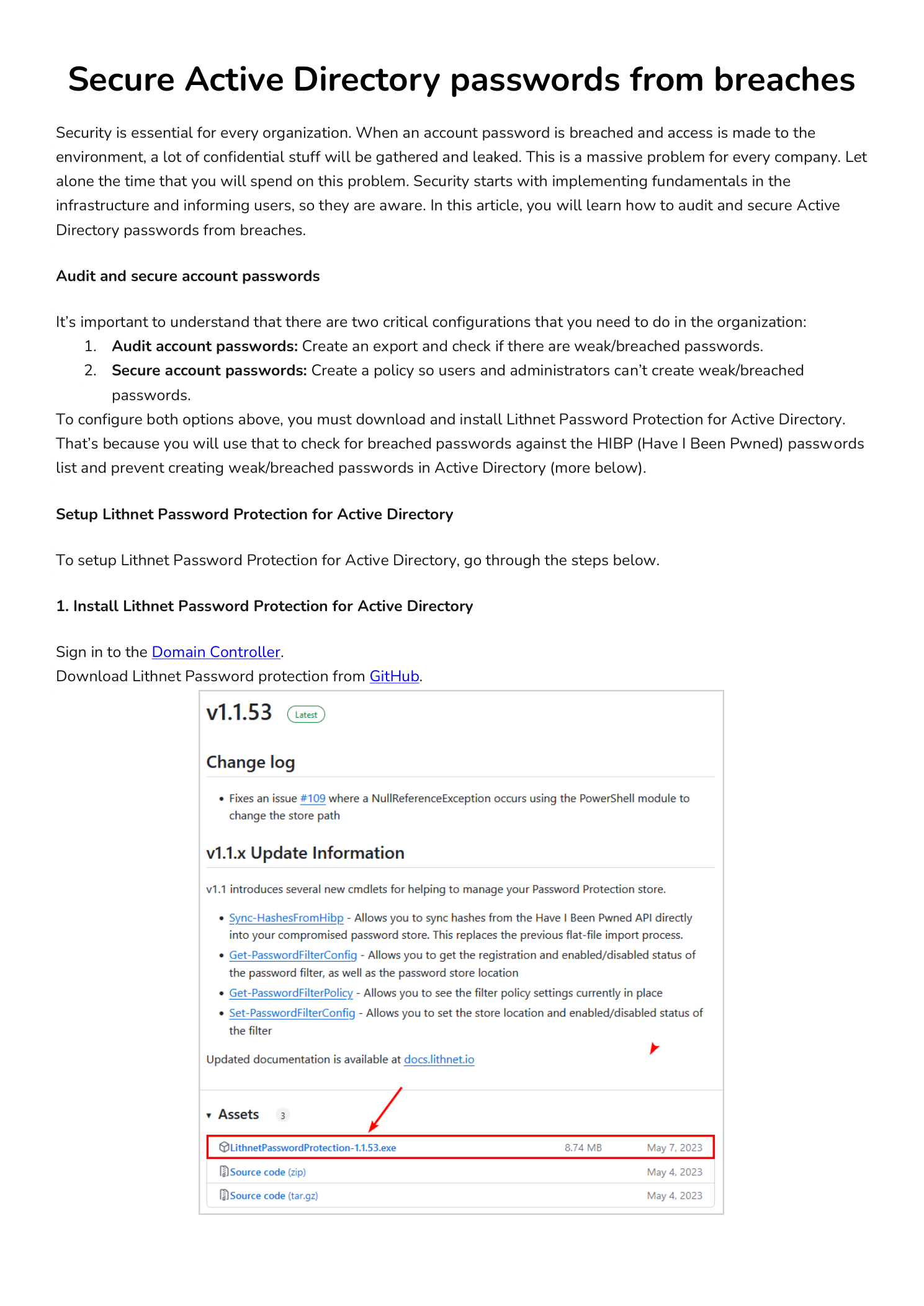
Download the latest LithnetPasswordProtection-x.x.xx.msi installer from the project’s GitHub releases page. The release notes list any breaking changes between versions; in general, taking the latest stable build is the right call.
Start the installer and walk through the wizard. There are no configuration choices to make — click Next through the welcome and license screens, then Install on the Ready to Install step. The wizard registers the password filter DLL with the Local Security Authority and creates the empty hash store directory under C:\Program Files\Lithnet\Active Directory Password Protection\Store\v3.
Step 2 — Sync the HIBP Hash Store
The installer ships with an empty hash store. To populate it, open an elevated PowerShell window on the DC and run the synchronization cmdlet:
Sync-HashesFromHibpThe cmdlet streams the entire HIBP compromised passwords list (currently around 1,048,576 pages of SHA-1 hash prefixes) down from the public HIBP API and writes them into the local store. Expect this to take roughly an hour on a fast connection — the volume of data is significant.
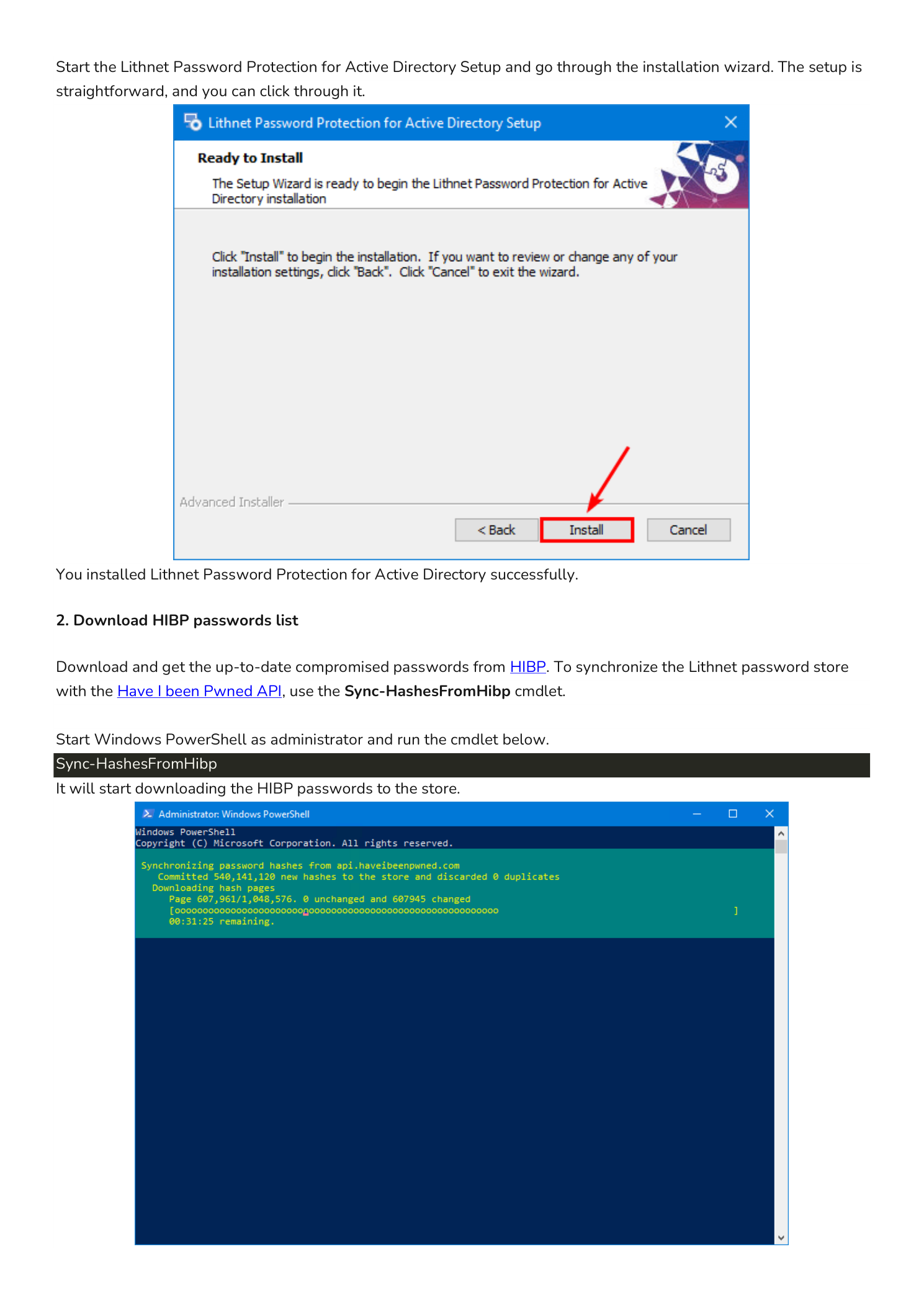
When the sync completes, PowerShell prints a summary object with the counters. A first sync against an empty store looks something like this:
OperationStart           : 1/23/2024 7:13:35 PM
OperationFinish          : 1/23/2024 8:30:35 PM
Duration                 : 01:17:00.2187755
PagesRetrieved           : 1048576
PagesWithChanges         : 1048576
PagesUnchanged           : 0
NewHashesImported        : 931856448
ExistingHashesDiscarded  : 0
TotalHashesProcessed     : 931856448
That is roughly 932 million compromised password hashes loaded into the local store on this DC.
Step 3 — Verify the Hash Store
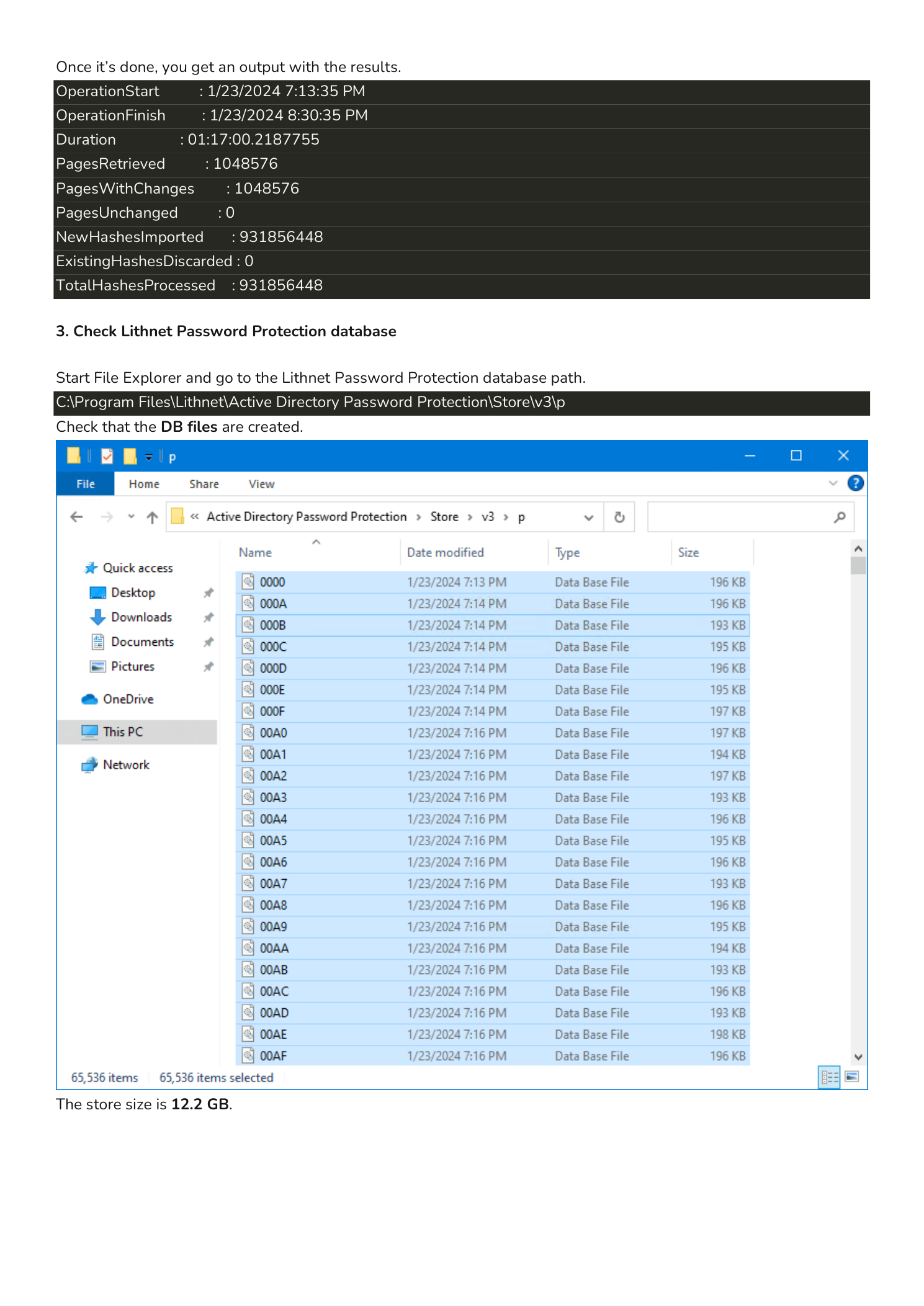
Open File Explorer and browse to:
C:\Program Files\Lithnet\Active Directory Password Protection\Store\v3\pYou should see a directory full of small Data Base Files with hex-string names (0000, 00A, 00B, …). Right-click the parent v3 folder, choose Properties, and confirm the on-disk size is roughly 12.2 GB. That number is a useful sanity check that the sync actually completed and the store is populated.
Schedule Sync-HashesFromHibp to run weekly via Task Scheduler so the local store stays current as new breaches are added to HIBP. Subsequent syncs are far smaller (only changed pages are pulled), typically minutes rather than an hour.
Audit Existing AD Passwords
Step 4 — Run the Audit Script
Lithnet PP ships with a sample Audit-Passwords.ps1 script in its module directory. Copy it into C:\scripts on the Domain Controller (or wherever you keep maintenance scripts) and run it from an elevated PowerShell session:
C:\scripts\.\Audit-Passwords.ps1The script enumerates every user object in the domain, reads the NT hash, computes the SHA-1 hash of the underlying password (Lithnet has secure access to the unicode-NT-to-SHA1 derivation), and looks up each hash in the local Lithnet store. Wait for it to complete — on a domain with thousands of users this can take several minutes.
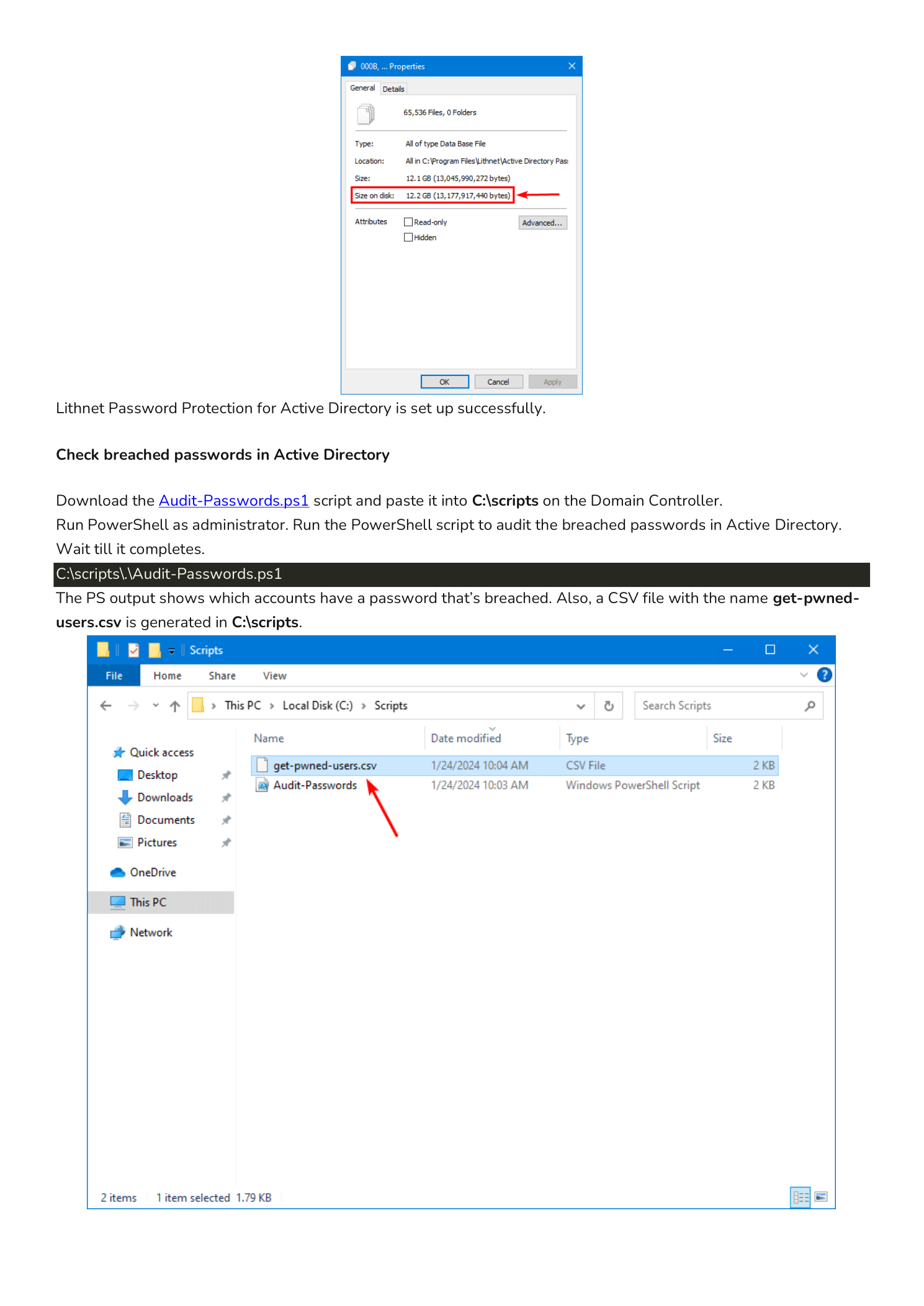
Step 5 — Review the get-pwned-users.csv Output
When the script finishes, it produces C:\scripts\get-pwned-users.csv — a CSV with one row per Active Directory account that has a pwned password. Typical columns include accountName, UPN, pwdLastSet, lastLogon, and accountDisabled.
Open the CSV in Excel and you will see something like this:
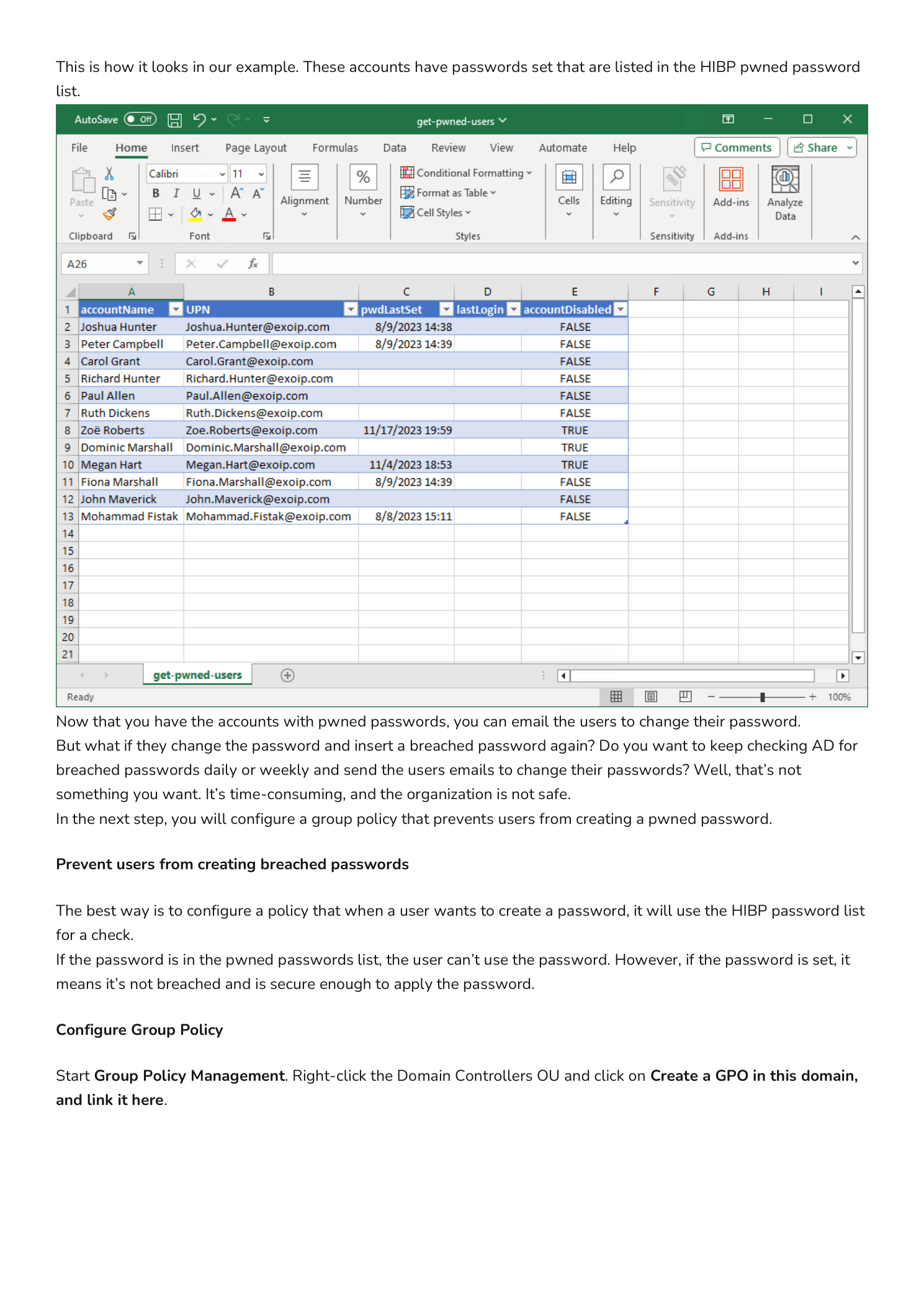
Now you have a concrete remediation list. The honest next step is uncomfortable but necessary: contact each affected user, tell them their current password matches a known breach, and require them to change it. Do not include the breached password in the email — pointing the user at the public HIBP search lets them verify it themselves without you ever transmitting the password.
But there is a deeper problem here: nothing prevents the user from changing their password to another pwned password. Without a real-time block, you would be running this audit weekly and chasing the same users in a loop. That is the job of the next section.
Prevent Users From Setting Pwned Passwords
The block-on-set behavior is what turns Lithnet PP from an audit tool into a true control. With the GPO below in place, every password set/change request flows through the password filter, the candidate password is hashed, the hash is checked against the local store, and the operation is rejected if the hash matches a known breach — before the new password is ever written to AD.
Step 6 — Create the GPO
On the Domain Controller, open Group Policy Management. Right-click the Domain Controllers OU and choose Create a GPO in this domain, and Link it here. In the New GPO dialog, name the GPO LithnetPP and click OK.
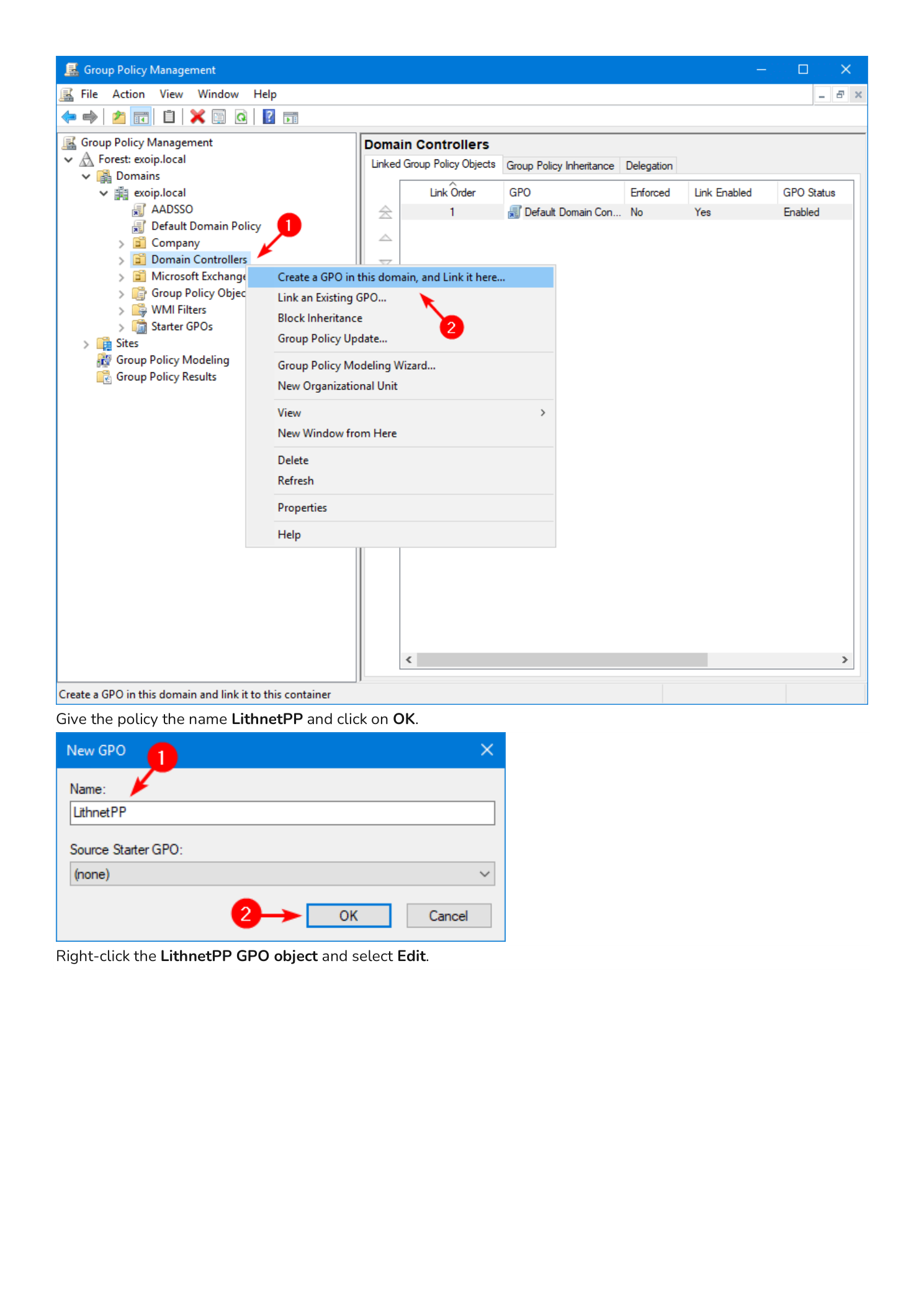
Linking on the Domain Controllers OU is intentional: the password filter runs inside lsass on the DC that processes the password change. Linking the policy at the DC OU level guarantees every DC enforces the same setting.
Step 7 — Edit the GPO and Find the Setting
Right-click the LithnetPP GPO and choose Edit. In Group Policy Management Editor, navigate to:
Computer Configuration
  > Policies
    > Administrative Templates
      > Lithnet
        > Password Protection for Active Directory
          > Default Policy
Find and double-click the setting Reject passwords found in the compromised password store.
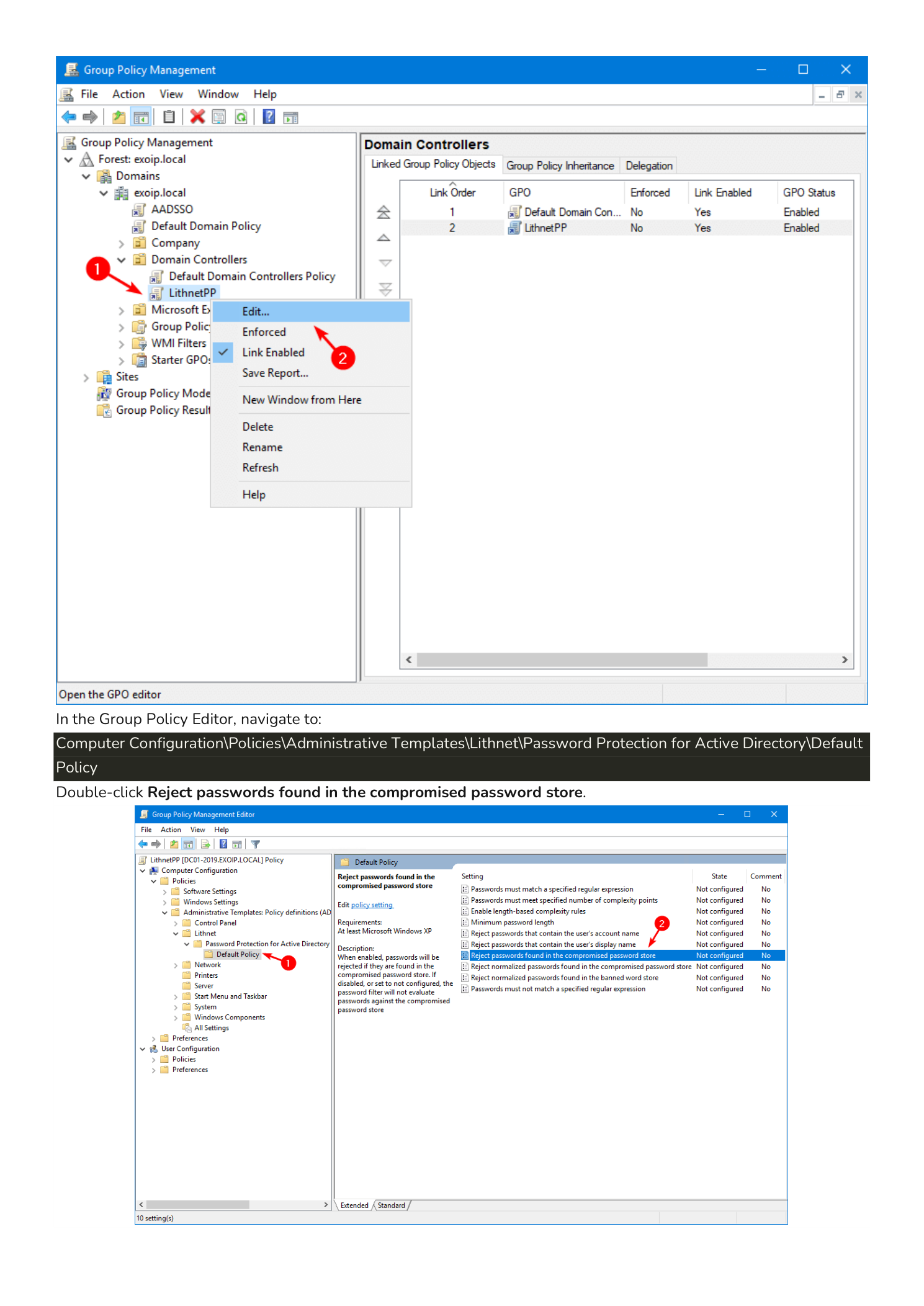
Step 8 — Enable the Reject Policy
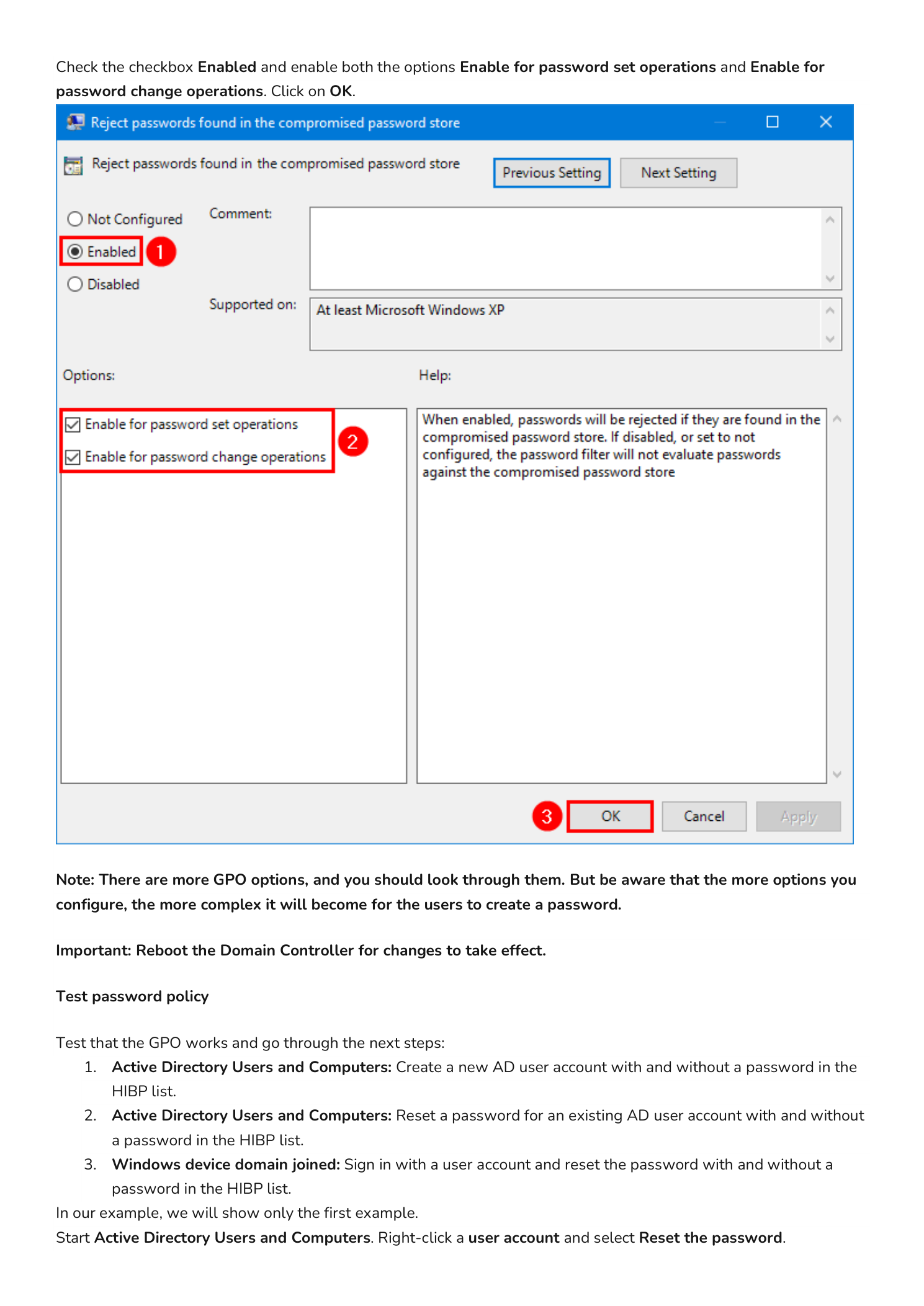
In the policy dialog:
- Select the Enabled radio button at the top.
- In the Options pane, tick both checkboxes:
- Enable for password set operations — admin-initiated resets via ADUC, Reset-ADAccountPassword, etc.
- Enable for password change operations — user-initiated changes via Ctrl+Alt+Del or the self-service portal.
- Click OK.
Note: The Lithnet ADMX has many more settings — banned-words lists, complexity beyond Microsoft’s built-in rules, length thresholds, accept-on-length policies, and so on. You can layer them on, but be aware that every additional rule makes legitimate password creation harder for users. Start with the HIBP reject and add complexity gradually based on real friction reports.
Important: Reboot the Domain Controller after enabling the policy. The Lithnet password filter is loaded by lsass at boot; the new GPO settings only take effect on the next start.
Test the New Policy
Verify the policy works in three different scenarios:
- Active Directory Users and Computers (admin reset): create a new account or reset an existing one. Try a password from the HIBP list, then a unique one.
- Active Directory Users and Computers (admin reset on existing user): reset an existing user’s password with both a breached and a clean password.
- Domain-joined Windows device (user change): sign in as a regular user, press Ctrl+Alt+Del > Change a password, and try both kinds.
The walkthrough below covers scenario 1 because the others produce identical filter behavior.
Reset a Password to a Pwned Value
In Active Directory Users and Computers, right-click a user account (in this example, Ricky Springer) and choose Reset Password. In the dialog, enter a password that you know is in the HIBP list. If you are unsure whether a candidate is breached, paste it into the public HIBP Pwned Passwords search first — HIBP uses the same SHA-1 prefix lookup that Lithnet uses locally and never transmits the full hash.
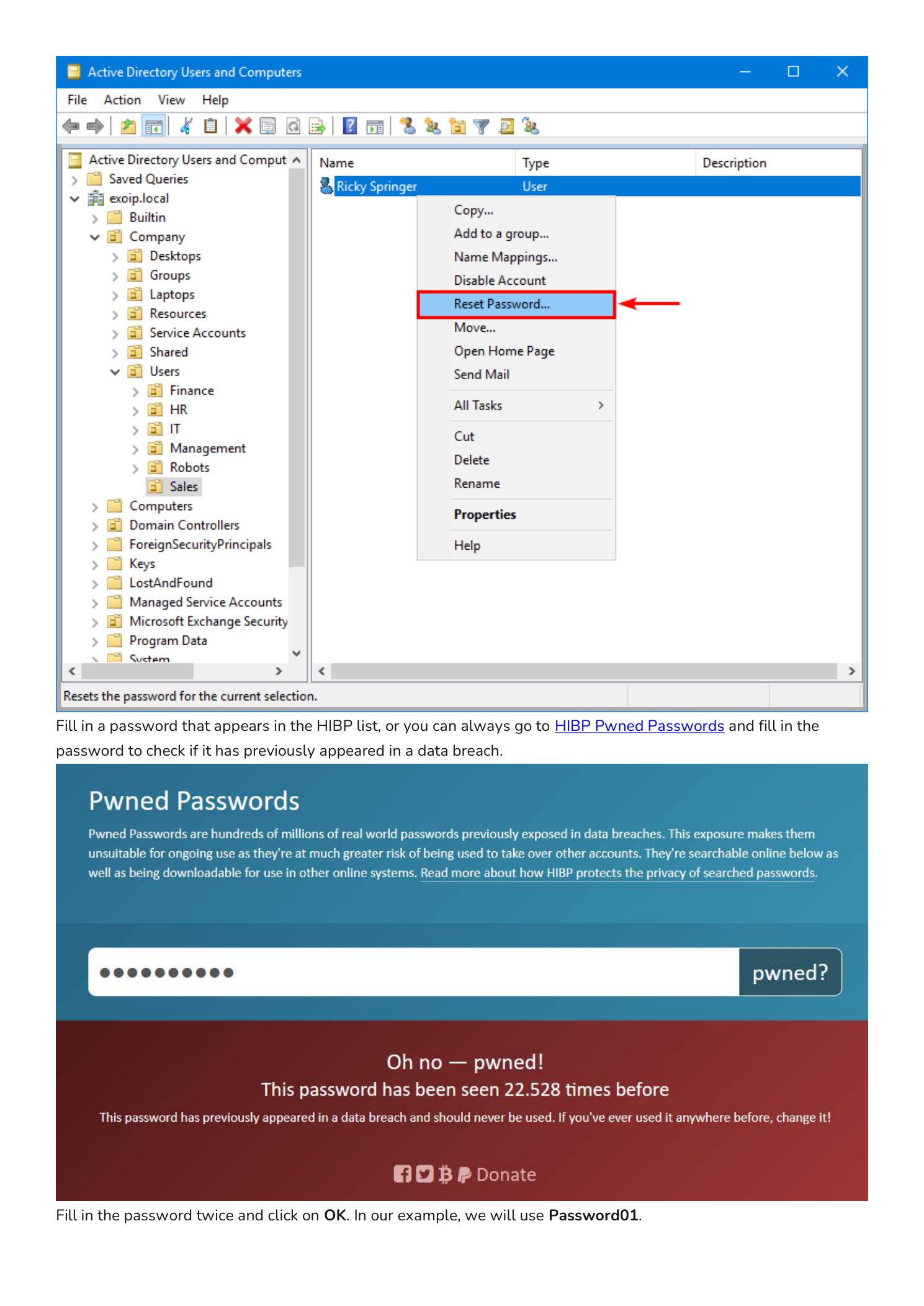
For this example we use Password01 — a notoriously common test password that has appeared in breaches tens of thousands of times.
Type the password in both fields and click OK. AD rejects the change with the standard error:
Windows cannot complete the password change for Ricky Springer because: The password does not meet the password policy requirements. Check the minimum password length, password complexity, and password history requirements.
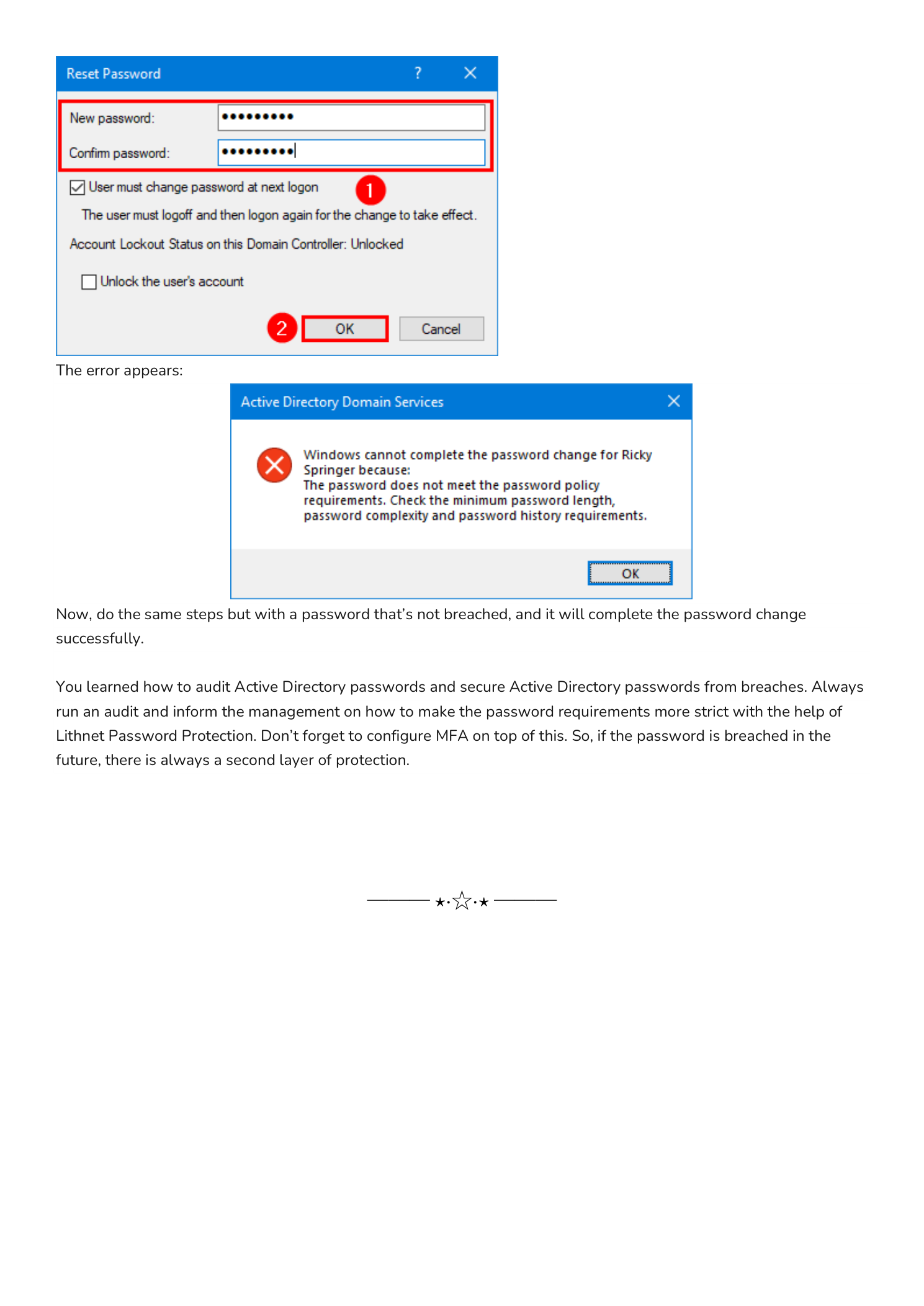
The error message is generic by design — AD does not surface the “rejected because pwned” reason to the calling client, just the same wording it would use for any password-policy violation. Lithnet PP does log the specific reject reason to the DC’s event log under the Lithnet provider, which is where to look when a user complains they cannot reset their password.
Reset to a Clean Password
Repeat the same steps but choose a password that has never been in a breach — long, unique, generated by a password manager. The reset succeeds. Lithnet’s SHA-1 lookup against the local store returned no match, and the password filter let the operation through to the LSA as normal.
Operational Notes
- Sync schedule. Run
Sync-HashesFromHibpweekly via Task Scheduler. New hashes are added to HIBP whenever new breaches are processed, and a stale store is a partially-blind store. - Disk space. The store is roughly 12 GB at the time of writing and grows slowly. Make sure your DC system drive can absorb this on every DC where you install Lithnet.
- Replication is not needed. Each DC has its own local hash store; there is no replication concern. Just make sure every DC runs the sync.
- Pair with MFA. Even with this control in place, treat the password as one factor of two. Multi-factor authentication on every privileged account, every external-facing service, and every VPN endpoint stays the most important compensating control if a password ever does leak.
- Log monitoring. Forward the Lithnet event log to your SIEM. Repeated rejects from the same account over a short window can indicate password-spray attempts hitting your filter, which is useful threat-intel.
Conclusion
You learned how to audit and harden Active Directory against breached passwords using Lithnet Password Protection and the HIBP compromised-passwords dataset. The setup is a one-time effort — install the agent, sync the store, drop the GPO, and reboot the DCs — and the result is a domain where simply using a known-bad password is no longer possible.
Always pair this control with regular auditing (so existing pwned passwords get rotated out) and with multi-factor authentication (so a leaked password is not enough on its own to compromise an account). With those three layers in place, the account-password attack surface in your environment shrinks dramatically.