
Introduction
Updating one Windows machine through Settings > Windows Update is fine. Updating fifty servers that way is not. The minute you have more than a handful of systems — or any production server you cannot remote-desktop into during business hours — you want a scriptable way to drive Windows Update from a single PowerShell window.
The community module PSWindowsUpdate wraps the Windows Update Agent COM API behind clean cmdlets that work the way every other PowerShell module does: parameters, pipelines, and remote execution against a list of computer names. In this article you will learn how to install PSWindowsUpdate, what it gives you, and how to use it to query and install updates on a single machine, a fixed list of remote machines, or every computer in a chosen Active Directory OU.
Install PSWindowsUpdate
Three commands install the module from the PowerShell Gallery. Run them once per machine where you want to manage updates locally; for remote operation you also need the module on the target machines.
Step 1 — Set the Execution Policy
By default Windows refuses to run scripts downloaded from the internet. Open Windows PowerShell as administrator and run:
Set-ExecutionPolicy RemoteSigned -ForceThis allows scripts you authored locally to run unsigned, while still requiring downloaded scripts to be signed by a trusted publisher. Close and re-open the elevated PowerShell window after running this command so the new policy takes effect for the new session.
Step 2 — Install / Update PowerShellGet
PowerShellGet is the package manager that talks to the PowerShell Gallery. Refresh it to the current version so it can install other Gallery modules cleanly:
Install-Module PowerShellGet -ForceThe first time you run this on a new system it will prompt to install the NuGet provider — press Y and Enter to continue. Subsequent runs just update PowerShellGet itself.
Step 3 — Install PSWindowsUpdate
Install-Module -Name PSWindowsUpdate -ForceThat is it — the module installs to the AllUsers scope under C:\Program Files\WindowsPowerShell\Modules\PSWindowsUpdate\ and is now available in any new PowerShell session.
Explore the PSWindowsUpdate Cmdlets
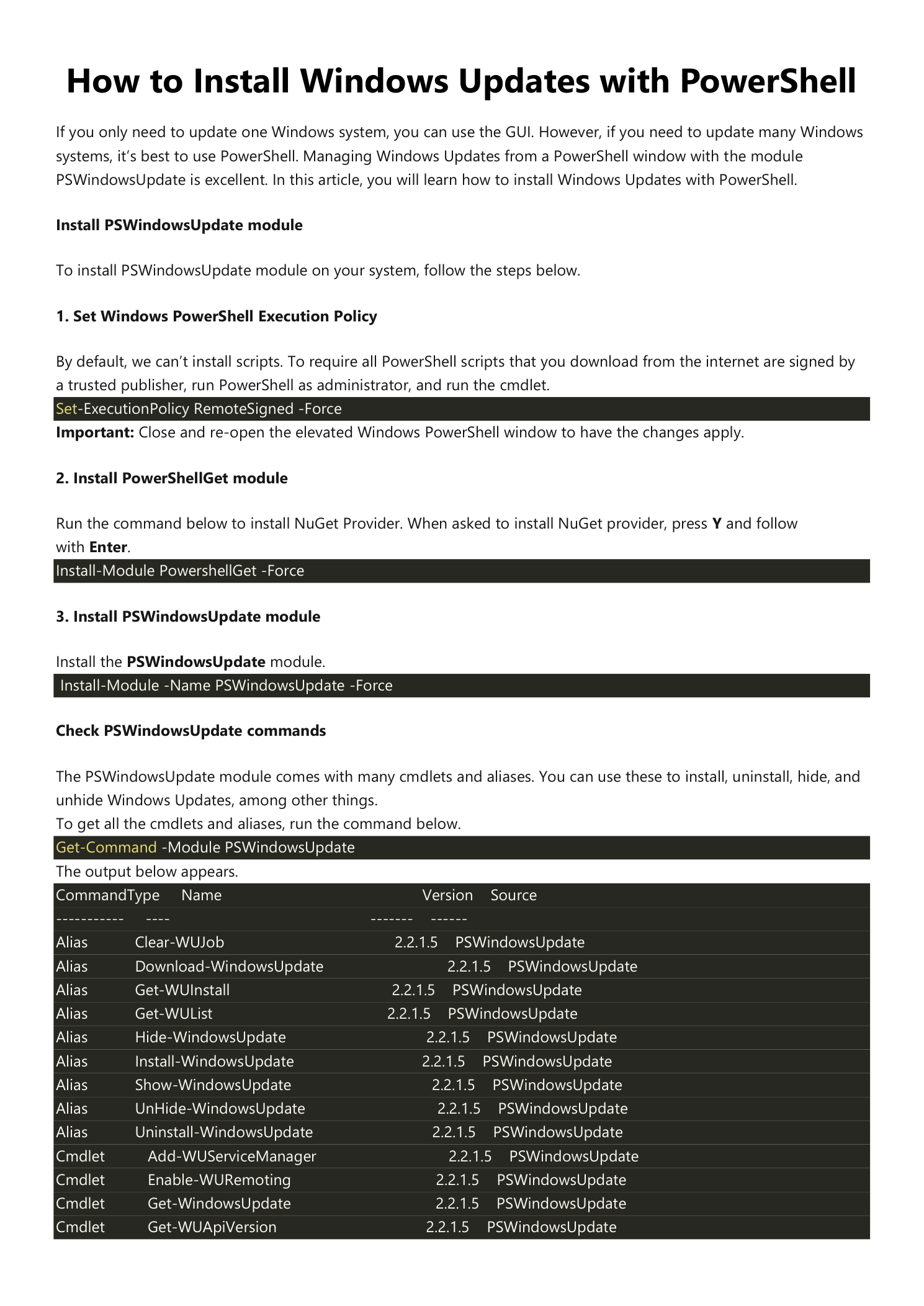
List every cmdlet and alias the module exposes:
Get-Command -Module PSWindowsUpdateThe output is a long list, but the cmdlets you will actually use are a small subset:
- Get-WindowsUpdate — query available updates (also installs when given
-Install). - Install-WindowsUpdate — alias for
Get-WindowsUpdate -Install. - Hide-WindowsUpdate / Show-WindowsUpdate — suppress or unsuppress a specific KB.
- Uninstall-WindowsUpdate — roll back an installed update.
- Get-WUHistory — show the full update install history.
- Get-WURebootStatus — check whether a pending reboot is required.
- Add-WUServiceManager / Get-WUServiceManager — manage the update sources (Microsoft Update, WSUS, etc.).
The aliases Get-WUInstall, Get-WUList, and Install-WindowsUpdate all map back to Get-WindowsUpdate with different switches; pick whichever reads best in your scripts.
Find Available Updates
On the Local Machine
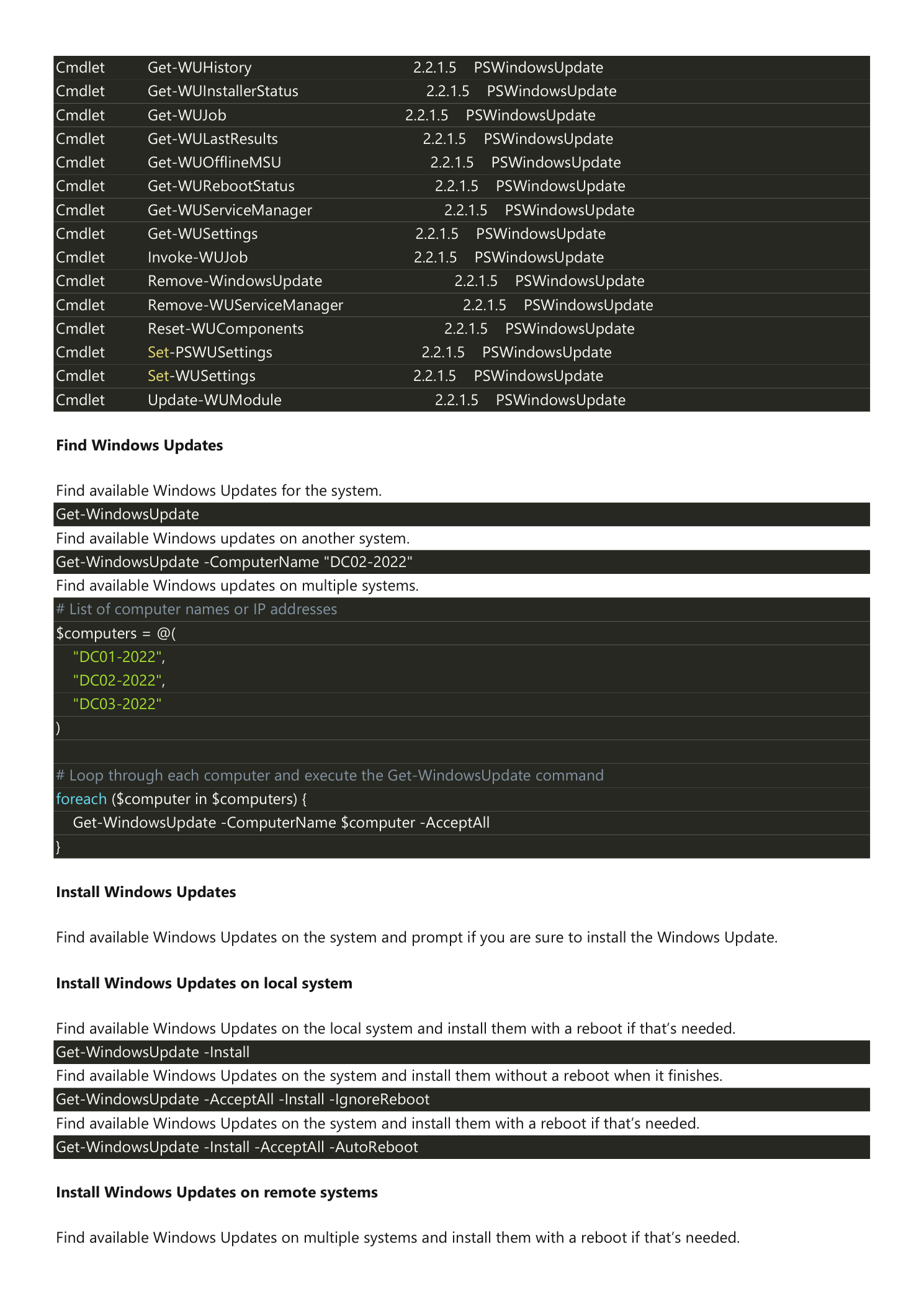
Show every update Windows Update considers applicable to the local machine:
Get-WindowsUpdateThe output is a table with KB numbers, titles, sizes, and categories. Nothing is downloaded or installed — this is a query only.
On a Remote Machine
Use -ComputerName to inspect another system. The remote machine must have PSWindowsUpdate installed and PowerShell Remoting enabled:
Get-WindowsUpdate -ComputerName "DC02-2022"On a Fleet of Machines
Loop over a hard-coded array of names:
# List of computer names or IP addresses
$computers = @(
    "DC01-2022",
    "DC02-2022",
    "DC03-2022"
)

# Loop through each computer and run Get-WindowsUpdate
foreach ($computer in $computers) {
    Get-WindowsUpdate -ComputerName $computer -AcceptAll
}
-AcceptAll just suppresses the per-update confirmation prompt that Get-WindowsUpdate issues when piped through certain modes; it does not install anything by itself.
Install Updates
Install on the Local Machine
Three patterns are common, distinguished by their reboot behavior:
# Find available updates on the local system and install them, rebooting if required
Get-WindowsUpdate -Install

# Install all available updates without rebooting (you reboot manually later)
Get-WindowsUpdate -AcceptAll -Install -IgnoreReboot

# Install everything and let the cmdlet reboot when finished
Get-WindowsUpdate -Install -AcceptAll -AutoReboot
Use -IgnoreReboot for production systems that need a maintenance window to reboot. Use -AutoReboot for unattended overnight patch runs.
Install on Remote Machines
Same pattern as the query, with the install switches added. The PSWindowsUpdate module must already be installed on every target machine.
# List of computer names or IP addresses
$computers = @(
    "DC01-2022",
    "DC02-2022",
    "DC03-2022"
)

# Loop through each computer, install updates, and reboot
foreach ($computer in $computers) {
    Get-WindowsUpdate -ComputerName $computer -Install -AcceptAll -AutoReboot
}
Sequencing matters here — this loop hits the machines one at a time, which is what you want for Domain Controllers (you do not want all DCs rebooting at once). For non-critical fleets, you can parallelize with ForEach-Object -Parallel in PowerShell 7+ if patching speed matters more than ordered availability.
Install on Every Machine in an OU
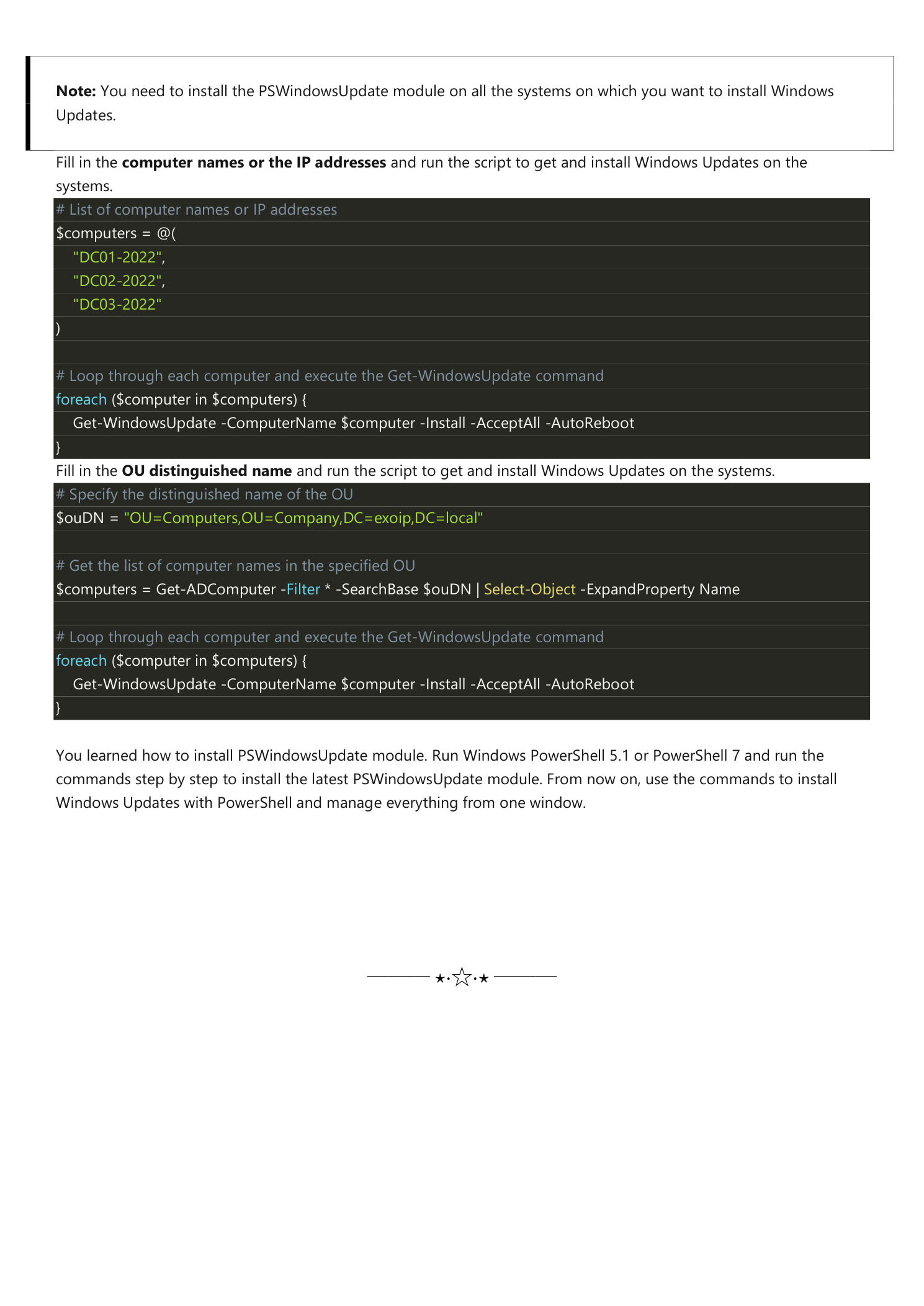
The most useful pattern in a real Active Directory: pull the computer list dynamically from an OU and patch every member. No hand-maintained list to drift out of sync.
# Specify the distinguished name of the OU
$ouDN = "OU=Computers,OU=Company,DC=infotechninja,DC=local"

# Get the list of computer names in the specified OU
$computers = Get-ADComputer -Filter * -SearchBase $ouDN |
             Select-Object -ExpandProperty Name

# Loop through each computer, install updates, and reboot
foreach ($computer in $computers) {
    Get-WindowsUpdate -ComputerName $computer -Install -AcceptAll -AutoReboot
}
Combine this with separate OUs per patch ring (OU=Servers-Ring1, OU=Servers-Ring2, etc.) and you have a working patch-rollout pipeline driven entirely from AD organizational unit membership.
Operational Tips
- Always test in a lab first. Run the loop against one machine in a non-production OU before pointing it at
OU=Domain Controllers. - Use a maintenance-window scope. Wrap the loop in a check that the current time is inside your patching window, so an accidental kick-off in business hours does not reboot every server immediately.
- Watch for reboot loops. A few cumulative updates require two reboots to fully apply. Run
Get-WURebootStatusafter the loop and re-run if any machine still reports pending. - Log to a file. Wrap the loop in
Start-Transcript/Stop-Transcriptso you have a written record of which KB applied to which machine on which date — this is the only audit trail you will want when something breaks the day after patching. - Filter to security only. For a stricter rollout, add
-Category 'Security Updates'to install only security-classified updates and leave the cumulative/feature updates for a later pass. - WSUS-aware shops. If the targets get their updates from WSUS, the same cmdlets work — PSWindowsUpdate honors the configured Windows Update source.
Get-WUServiceManagershows which source is in use;Add-WUServiceManager -ServiceIDcan switch to Microsoft Update for the next run.
Conclusion
You learned how to install the PSWindowsUpdate module and how to use it to drive Windows Update from a single PowerShell window. The recipe scales from one machine to a whole AD OU without changing the underlying cmdlet:
- Set the execution policy, install PowerShellGet, then PSWindowsUpdate — three commands.
- Get-WindowsUpdate for the local query,
-ComputerNamefor remote, aforeachloop for fleets. - Add
-Install -AcceptAll -AutoRebootto actually patch, with-IgnoreRebootwhen you want to control the reboot manually. - Pull computer names from an OU with
Get-ADComputer -SearchBasefor dynamic, AD-driven patch rollout.
From now on, the answer to “how do I patch fifty servers tonight?” is one PowerShell window and a foreach loop, not fifty RDP sessions.