
Why the Functional Level Number Matters
The first thing a senior admin asks when they walk into an unfamiliar Active Directory environment is two questions: what is the forest functional level, and what is the domain functional level? Those two values gate which AD features the directory supports. Active Directory Recycle Bin, fine-grained password policies, group Managed Service Accounts (gMSAs), authentication policies and silos, and several types of forest trust all require a minimum functional level to enable. If you try to enable a feature whose minimum level is higher than what the forest or domain currently runs at, the cmdlet returns an error and the feature stays off.
Functional levels also gate which Domain Controllers you can run. A forest at Windows2016Forest requires every DC to be at least Windows Server 2016 — you cannot promote a Windows Server 2012 R2 DC into it. The level you choose tomorrow forces the OS floor on every DC you operate after that.
This article walks through how to read the current forest and domain levels, what each level unlocks, and the pre-flight checks you run before raising one. The cmdlets are short; the operational caveats are where the value is.
Forest Level vs Domain Level
Active Directory has two functional level values, with a strict relationship between them:
- Forest functional level (FFL). One per forest. Gates forest-wide features (Recycle Bin, forest trust types). The FFL is the floor for every domain in the forest.
- Domain functional level (DFL). One per domain. Gates domain-wide features (gMSA, fine-grained password policy, authentication policies). Always at or above the FFL —
DFL >= FFL.
In a single-domain forest you usually want both at the same level. In a multi-domain forest you can have one domain at a higher DFL than another (useful when one domain has been refreshed to a newer DC OS but another lags behind), but no domain can be lower than the FFL.
Three Ways to Check the Current Levels
Method 1 — PowerShell
The cleanest answer for any admin work that has to be auditable. Open Windows PowerShell as administrator on a Domain Controller (or any management box with the AD module) and run:
Get-ADForest | Select-Object Name, ForestMode
Get-ADDomain | Select-Object Name, DomainMode
The output looks like this:
Name           ForestMode
----           ----------
corp.local     Windows2016Forest

Name           DomainMode
----           ----------
corp.local     Windows2016Domain
For a quick combined report:
[pscustomobject]@{
    Forest      = (Get-ADDomain).Forest
    ForestMode  = (Get-ADForest).ForestMode
    DomainMode  = (Get-ADDomain).DomainMode
    SchemaVer   = (Get-ADObject (Get-ADRootDSE).schemaNamingContext -Properties objectVersion).objectVersion
}Method 2 — AD Domains and Trusts (GUI)
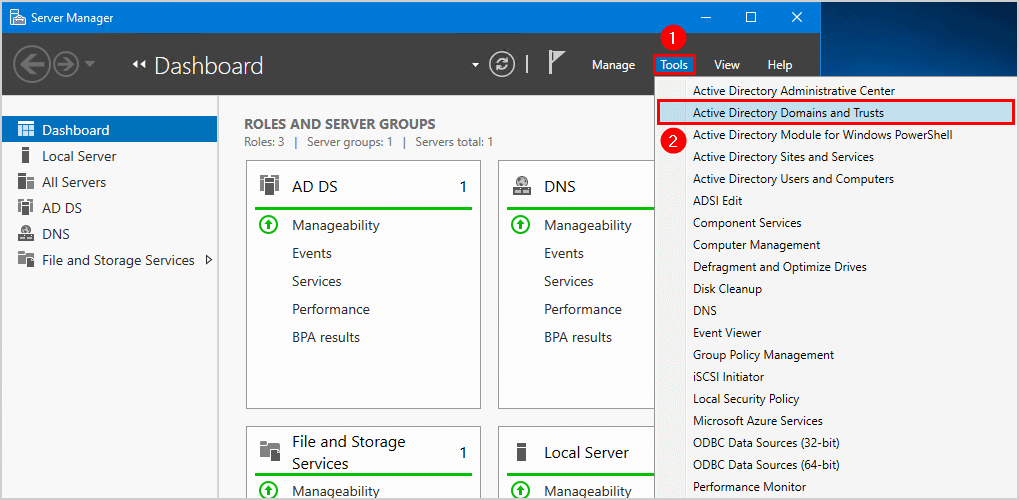
If you prefer a GUI confirmation (or you are walking a junior admin through the values), open Active Directory Domains and Trusts from Server Manager > Tools.
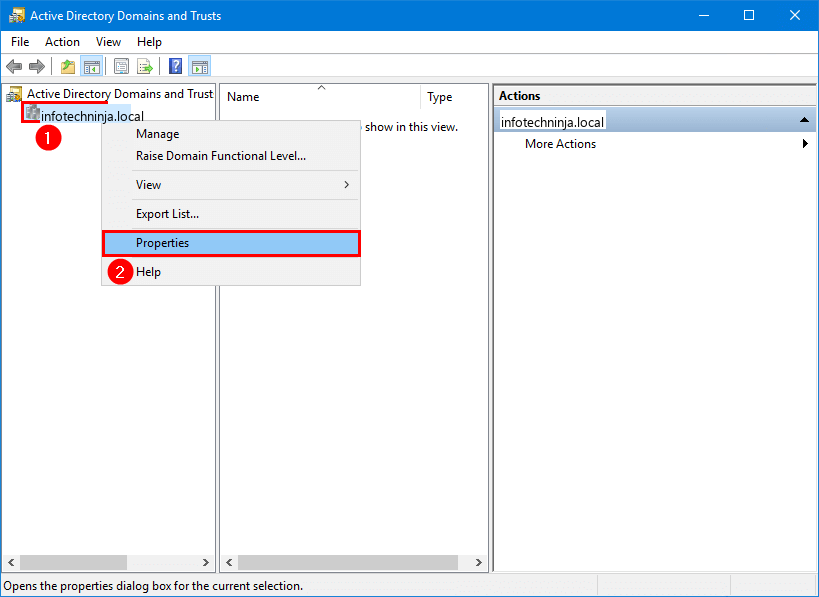
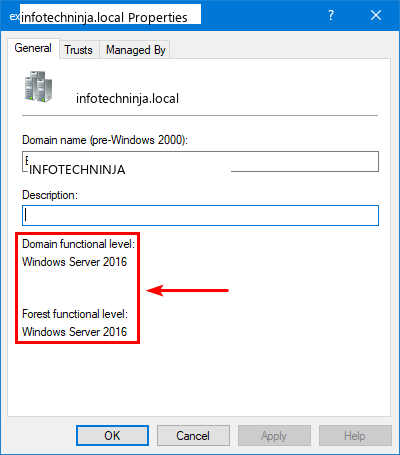
- Forest level. Right-click the root node Active Directory Domains and Trusts [DC.corp.local] and choose Properties. The dialog shows the current Forest functional level at the top.
- Domain level. Right-click the domain node (
corp.local) and choose Properties. The dialog shows the current Domain functional level.
The same right-click menus also expose Raise Forest Functional Level… and Raise Domain Functional Level… — only do that after the pre-flight checks below.
Method 3 — The Get-ADInfo One-Shot Report
If you also want object counts, FSMO holders, and schema version in the same output, use the Get-ADInfo.ps1 script. It runs all the queries in one pass and returns a colorized report. See the Get-ADInfo article for the full script.
What Each Level Unlocks
The functional level numbers map to Windows Server release names. Each level locks in the features of every release at or below it. The short version, with the unlocks that actually matter for day-to-day operations:
| Level | Schema | Min DC OS | Notable unlocks |
|---|---|---|---|
Windows2008DomainWindows2008Forest |
44 | Server 2008 | Read-Only DCs, DFS-R for SYSVOL, fine-grained password policies (domain), AES Kerberos |
Windows2008R2DomainWindows2008R2Forest |
47 | Server 2008 R2 | AD Recycle Bin (forest), Managed Service Accounts |
Windows2012DomainWindows2012Forest |
56 | Server 2012 | Group Managed Service Accounts (gMSA), KDC claims/armoring, compound authentication |
Windows2012R2DomainWindows2012R2Forest |
69 | Server 2012 R2 | Authentication policies and silos, DC-side claims, Protected Users group enforcement |
Windows2016DomainWindows2016Forest |
87 | Server 2016 | Privileged Access Management (PAM) trust types, time-bound group membership, smart-card-required-for-interactive rolling NTLM hash |
Windows2025DomainWindows2025Forest |
91 | Server 2025 | 32k-bit Kerberos, AES SHA-256/384, optional NTLM hardening, modernized replication metadata |
Note: there are no separate Windows2019 or Windows2022 functional levels. Server 2019 and Server 2022 both report Windows2016Forest / Windows2016Domain — Microsoft did not introduce a new level for either release. Server 2025 is the first new level since 2016.
Pre-Flight: Before You Raise the Level
Raising the functional level is a one-way change — you cannot lower it after it is committed. Before running Set-ADForestMode or Set-ADDomainMode, walk through this checklist:
- Inventory every Domain Controller’s OS. The lowest DC OS in the forest is the ceiling on the FFL. The lowest DC OS in a domain is the ceiling on that domain’s DFL. Run:
Get-ADDomainController -Filter * |
  Select-Object Name, OperatingSystem, OperatingSystemVersion, Site |
  Sort-Object OperatingSystem
If a DC running Server 2012 R2 shows up, the highest DFL the domain can reach is
Windows2012R2Domainuntil that DC is upgraded or decommissioned. - Confirm replication is healthy. A functional-level raise replicates a tiny attribute change to every DC; if replication is broken, the raise will succeed on the source DC but never propagate. Run
repadmin /replsummaryand confirm zero failures across all DCs. - Identify the FSMO role holders. The Schema Master holds the lock for forest-level changes. If it is offline or unreachable, a forest-level raise fails.
netdom query FSMOtells you who owns each role. - Capture a backup. A current System State backup of every DC, plus an export of the forest configuration partition, is your fallback if something goes sideways.
- Document which features you actually need. Raising for the sake of being on the latest level is not a reason; raising because you need AD Recycle Bin or gMSA or PAM trusts is. The change-control ticket should name the feature, not the version number.
How to Raise the Level (Once Pre-Flight Passes)
Raise the domain level first, then the forest. The order matters because the forest level cannot exceed the lowest DFL across all domains in the forest.
PowerShell
# Domain (run on a DC in that domain)
Set-ADDomainMode -Identity corp.local -DomainMode Windows2016Domain -Confirm:$true

# Forest (after every domain is at the target level)
Set-ADForestMode -Identity corp.local -ForestMode Windows2016Forest -Confirm:$true
Both cmdlets prompt for confirmation by default. Read the prompt carefully — it spells out the irreversibility. Use -WhatIf first to verify the cmdlet would run; do not pass -Force until you have already done a dry run with -WhatIf.
GUI
- Domain: Active Directory Domains and Trusts > right-click the domain > Raise Domain Functional Level… > pick the new level > Raise.
- Forest: Active Directory Domains and Trusts > right-click the root Active Directory Domains and Trusts node > Raise Forest Functional Level… > pick the new level > Raise.
The dialog also issues an irreversible-warning prompt. The cmdlet path and the GUI path produce the exact same change.
Why It’s Irreversible (Mostly)
The functional level raise updates a few attributes on the forest’s CN=Partitions,CN=Configuration container and on each domain’s root object. These attributes are used by the directory itself to decide which feature replication and behavior to enable. There is no built-in path to lower them.
Microsoft has occasionally provided a limited rollback path (Server 2008 R2 introduced one for FFL but only between specific levels), and PowerShell has historically blocked level-lowering at the cmdlet boundary. In practice, treat any raise as one-way.
The two recovery options if you raise too soon and need to roll back:
- Restore from backup. Restore an authoritative copy of the configuration partition from a System State backup taken before the raise. Disruptive, slow, and only works if the backup is recent and intact.
- Decommission and rebuild. Stand up a new forest at the desired (lower) level, migrate the directory contents (ADMT, custom scripts), then decommission the old forest. Plausible for tiny labs; impractical for production.
Both options are an order of magnitude more work than getting the pre-flight right. The pre-flight is the work.
Common Pitfalls
- The forgotten DC. Someone provisioned a Windows Server 2012 R2 DC in a remote site three years ago and nobody remembers.
Get-ADDomainController -Filter *finds it; an unaudited raise turns the DC into an orphaned read-only artifact that cannot replicate. - The wrong-direction question. Admins sometimes ask “does raising break anything?” when they should ask “is anything not yet ready for the higher level?” The change itself is small; the breakage comes from environment elements that have not caught up.
- Server 2019/2022 confusion. Both report
Windows2016Forest/Windows2016Domain. There is no level to raise to until you have all DCs at Server 2025. - Believing the GUI’s “available levels” list is exhaustive. The GUI only shows levels at or above the lowest DC OS in scope. If you do not see the level you want, that is the GUI telling you the DC inventory is the constraint.
- Forgetting the schema. Schema upgrades and functional level raises are different operations. Running
adprep /forestprepis required before some level raises but does not by itself raise the FFL. Both steps are needed.
Conclusion
Two values, two cmdlets, one decision tree:
- Read the levels with
Get-ADForest | Select ForestModeandGet-ADDomain | Select DomainMode. - Match each level to the features it unlocks — raise because of a feature, never just to be on the latest.
- Pre-flight the DC OS inventory, replication health, and backup state.
- Raise domain first, then forest with
Set-ADDomainModeandSet-ADForestMode— or the equivalent right-click in AD Domains and Trusts. - Treat the change as one-way — the rollback paths exist but you do not want to use them.
Functional levels are unfashionable AD plumbing. They also gate most of the AD security features added in the last fifteen years. Knowing exactly where your forest sits, and what the next bump would unlock, is the difference between “we cannot enable Recycle Bin” and “we already have it.”