
Introduction
How do you get a complete picture of an Active Directory environment in one shot? You could click through five different MMC snap-ins, run a dozen Get-AD* cmdlets one at a time, and copy the results into a Word document — or you could run a single PowerShell script that prints every fact you actually need on one screen.
This article gives you that script. Get-ADInfo.ps1 is a tiny PowerShell file that queries Active Directory once and prints ten distinct pieces of information in a single colorized output: object counts, forest and domain modes, the schema version (translated to a friendly Windows Server name), and every FSMO role holder. It is the script every AD admin reaches for before a migration, an audit, a new-DC build, or a tier-zero handover.
What the Script Returns
Running Get-ADInfo.ps1 produces ten facts in one output:
- Computers — total count of Get-ADComputer (workstations + servers)
- Workstations — computer count where OperatingSystem does NOT contain “Server”
- Servers — computer count where OperatingSystem DOES contain “Server”
- Users — total Get-ADUser count
- Groups — total Get-ADGroup count
- Active Directory forest name
- Active Directory forest mode (functional level, e.g. Windows2016Forest)
- Active Directory domain mode (e.g. Windows2016Domain)
- Active Directory schema version (translated to a Windows Server release name)
- FSMO role owners — Schema Master, Domain Naming Master, RID Master, PDC Emulator, Infrastructure Master
That is essentially every question a senior admin asks in the first five minutes after being handed an unfamiliar AD environment.
The Get-ADInfo.ps1 Script
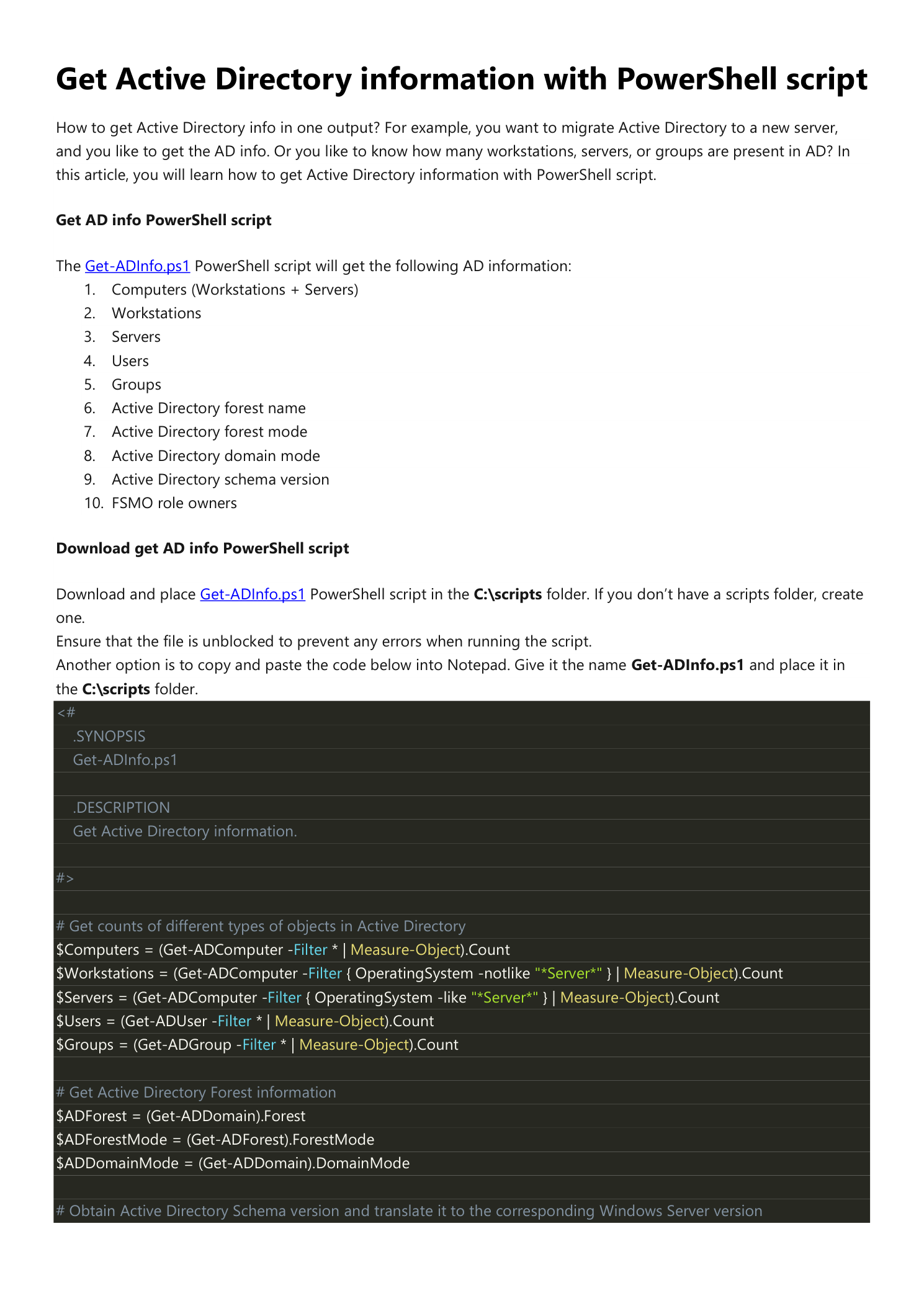
Save the following to C:\scripts\Get-ADInfo.ps1 on a Domain Controller or any management server with the ActiveDirectory PowerShell module installed. If you do not have a C:\scripts folder, create one. Make sure the file is unblocked (right-click > Properties > Unblock) so it does not trip the “not digitally signed” error on first run.
<#
.SYNOPSIS
  Get-ADInfo.ps1
.DESCRIPTION
  Get Active Directory information.
#>

# Get counts of different types of objects in Active Directory
$Computers    = (Get-ADComputer -Filter * | Measure-Object).Count
$Workstations = (Get-ADComputer -Filter { OperatingSystem -notlike "*Server*" } | Measure-Object).Count
$Servers      = (Get-ADComputer -Filter { OperatingSystem -like    "*Server*" } | Measure-Object).Count
$Users        = (Get-ADUser     -Filter * | Measure-Object).Count
$Groups       = (Get-ADGroup    -Filter * | Measure-Object).Count

# Get Active Directory Forest information
$ADForest     = (Get-ADDomain).Forest
$ADForestMode = (Get-ADForest).ForestMode
$ADDomainMode = (Get-ADDomain).DomainMode

# Obtain Active Directory Schema version and translate it to the corresponding Windows Server version
$ADVer = Get-ADObject (Get-ADRootDSE).schemaNamingContext -Property objectVersion |
         Select-Object objectVersion
$ADNum = $ADVer -replace "@{objectVersion=", "" -replace "}", ""

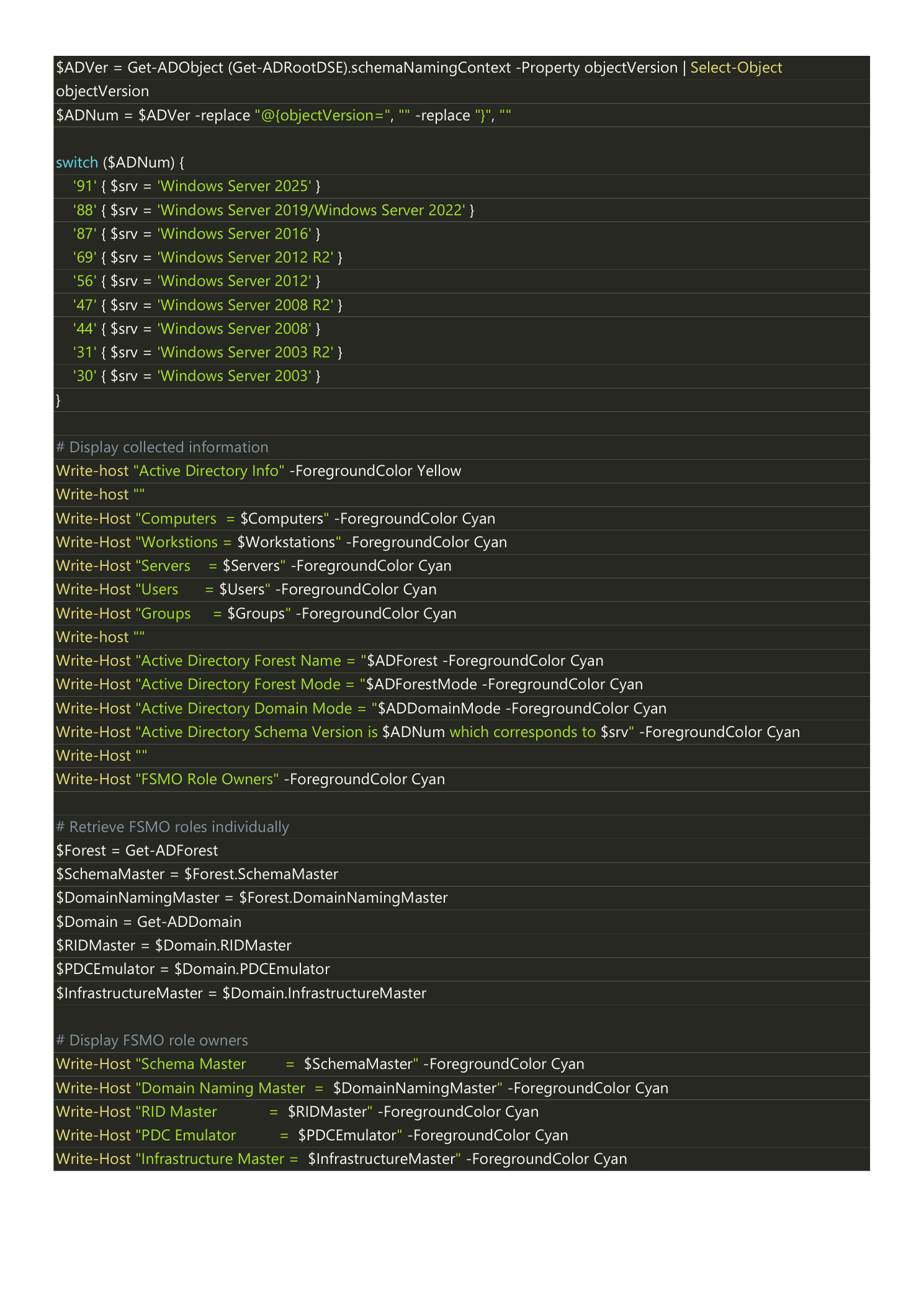
switch ($ADNum) {
    '91' { $srv = 'Windows Server 2025' }
    '88' { $srv = 'Windows Server 2019/Windows Server 2022' }
    '87' { $srv = 'Windows Server 2016' }
    '69' { $srv = 'Windows Server 2012 R2' }
    '56' { $srv = 'Windows Server 2012' }
    '47' { $srv = 'Windows Server 2008 R2' }
    '44' { $srv = 'Windows Server 2008' }
    '31' { $srv = 'Windows Server 2003 R2' }
    '30' { $srv = 'Windows Server 2003' }
}

# Display collected information
Write-Host "Active Directory Info" -ForegroundColor Yellow
Write-Host ""
Write-Host "Computers     = $Computers"     -ForegroundColor Cyan
Write-Host "Workstations  = $Workstations"  -ForegroundColor Cyan
Write-Host "Servers       = $Servers"       -ForegroundColor Cyan
Write-Host "Users         = $Users"         -ForegroundColor Cyan
Write-Host "Groups        = $Groups"        -ForegroundColor Cyan
Write-Host ""
Write-Host "Active Directory Forest Name = $ADForest"     -ForegroundColor Cyan
Write-Host "Active Directory Forest Mode = $ADForestMode" -ForegroundColor Cyan
Write-Host "Active Directory Domain Mode = $ADDomainMode" -ForegroundColor Cyan
Write-Host "Active Directory Schema Version is $ADNum which corresponds to $srv" -ForegroundColor Cyan
Write-Host ""
Write-Host "FSMO Role Owners" -ForegroundColor Cyan

# Retrieve FSMO roles individually
$Forest               = Get-ADForest
$SchemaMaster         = $Forest.SchemaMaster
$DomainNamingMaster   = $Forest.DomainNamingMaster
$Domain               = Get-ADDomain
$RIDMaster            = $Domain.RIDMaster
$PDCEmulator          = $Domain.PDCEmulator
$InfrastructureMaster = $Domain.InfrastructureMaster

# Display FSMO role owners
Write-Host "Schema Master         = $SchemaMaster"         -ForegroundColor Cyan
Write-Host "Domain Naming Master  = $DomainNamingMaster"   -ForegroundColor Cyan
Write-Host "RID Master            = $RIDMaster"            -ForegroundColor Cyan
Write-Host "PDC Emulator          = $PDCEmulator"          -ForegroundColor Cyan
Write-Host "Infrastructure Master = $InfrastructureMaster" -ForegroundColor Cyan
What the Code Is Doing
The script is intentionally simple — the value is in collecting all ten facts in one output, not in clever PowerShell. A quick tour of the interesting parts:
- Object counts use
Get-AD* -Filter * | Measure-Object. TheMeasure-ObjectCount is what you want; piping straight to.Countwould also work but is less idiomatic. - Workstation vs server filtering uses the
OperatingSystemattribute. Anything that includes the word Server (Windows Server 2016, 2019, 2022…) goes to the Servers bucket; everything else (Windows 10, 11, embedded, Linux-joined, etc.) goes to Workstations. - Schema version is read from the
objectVersionattribute on the schema naming context. The attribute returns a number like88; theswitchblock translates it to a friendly OS name. Update the switch when a new Windows Server schema ships. - FSMO holders come from properties on the objects returned by
Get-ADForest(Schema Master, Domain Naming Master) andGet-ADDomain(RID, PDC, Infrastructure). Nonetdomshell-out is needed.
Schema Version Reference Table
For quick lookup when you encounter an objectVersion the switch does not map yet:
| objectVersion | Windows Server release |
|---|---|
| 30 | Windows Server 2003 |
| 31 | Windows Server 2003 R2 |
| 44 | Windows Server 2008 |
| 47 | Windows Server 2008 R2 |
| 56 | Windows Server 2012 |
| 69 | Windows Server 2012 R2 |
| 87 | Windows Server 2016 |
| 88 | Windows Server 2019 / 2022 |
| 91 | Windows Server 2025 |
Run the Script
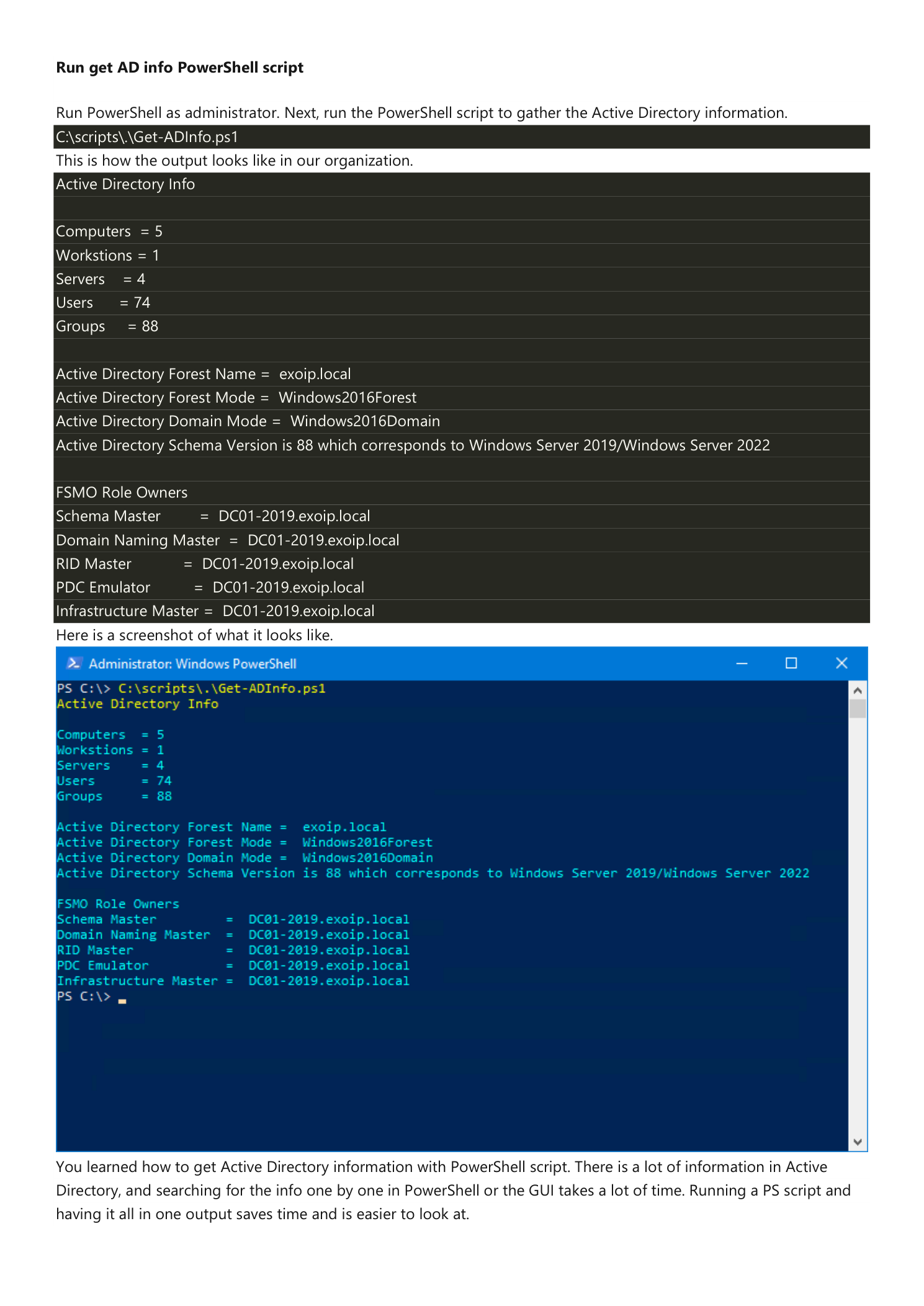
Open Windows PowerShell as administrator on a Domain Controller (or a management box with the AD module and reachable DCs) and run:
C:\scripts\.\Get-ADInfo.ps1For a small lab domain, the output looks like this:
Active Directory Info

Computers     = 5
Workstations  = 1
Servers       = 4
Users         = 74
Groups        = 88

Active Directory Forest Name = infotechninja.local
Active Directory Forest Mode = Windows2016Forest
Active Directory Domain Mode = Windows2016Domain
Active Directory Schema Version is 88 which corresponds to Windows Server 2019/Windows Server 2022

FSMO Role Owners
Schema Master         = DC01-2019.infotechninja.local
Domain Naming Master  = DC01-2019.infotechninja.local
RID Master            = DC01-2019.infotechninja.local
PDC Emulator          = DC01-2019.infotechninja.local
Infrastructure Master = DC01-2019.infotechninja.local
The yellow header makes the report easy to spot in a long terminal session, and the cyan data lines are easy to read against the dark PowerShell background. In a real PowerShell window the output is colorized:
When to Run This
This script is the first thing to run when:
- You inherit an AD environment. One run tells you the forest/domain functional levels, the schema version, who owns FSMO, and roughly how big the directory is.
- You are planning a migration. Pre-migration documentation almost always asks for the same set of facts the script prints — capture them as part of the change-control package.
- You are about to raise a functional level. Confirm the current forest and domain modes before running
Set-ADForestModeorSet-ADDomainMode. - You are decommissioning a DC. Verify which DC currently owns each FSMO role so you can transfer them off before demotion.
- You are extending the schema. Schema extensions (Exchange, Skype, third-party products) require the Schema Master role — this script tells you which DC that is.
- For periodic AD health snapshots. Schedule the script via Task Scheduler weekly and pipe the output to a dated log file under
\\file-share\AD-snapshots\for change-tracking.
Extending the Script
The script is intentionally minimal so it stays auditable, but you can layer on additional facts without changing its shape:
- Domain Controllers list:
Get-ADDomainController -Filter * | Select Name,IPv4Address,Site,IsGlobalCatalog,OperatingSystem - Replication site count:
(Get-ADReplicationSite -Filter * | Measure-Object).Count - Trust list:
Get-ADTrust -Filter * - Tombstone lifetime:
(Get-ADObject -Identity "CN=Directory Service,CN=Windows NT,CN=Services,$((Get-ADRootDSE).configurationNamingContext)" -Properties tombstoneLifetime).tombstoneLifetime - Disabled / inactive accounts:
(Search-ADAccount -AccountInactive -TimeSpan 90 -UsersOnly | Measure-Object).Count
For a richer all-in-one report, look at the community Get-ADHealth and Get-ADInfo modules on the PowerShell Gallery — they bundle these and dozens of other queries into a structured object. The minimal script in this article is the right starting point when you want a quick sanity check or a simple text log; community modules are the right answer when you want a full PowerShell-object report you can pipe into Excel or HTML.
Conclusion
You learned how to gather Active Directory information with a single PowerShell script. Get-ADInfo.ps1 collects ten distinct facts — object counts, forest/domain functional levels, schema version translated to OS name, and the five FSMO role owners — in one short run.
Save it to C:\scripts\ on every DC and management server you operate. The first time someone asks “what schema version are we on?” or “who owns the PDC role?”, you will answer in seconds instead of minutes.