
Two organizations merge, two business units sit on separate forests, or you’re consolidating after years of forest sprawl — sooner or later you’ll need users in one Active Directory forest to authenticate against resources in another. The clean way to do that is a forest trust: a single negotiated relationship between the two forest root domains that lets every user in either forest reach across without you having to maintain duplicate accounts.
This walkthrough builds a two-way forest trust between contoso.loc and test.loc. The two unavoidable preconditions are DNS — each forest’s DNS servers have to be able to resolve the other forest’s names — and Enterprise Admin credentials in both forests, since the trust object lives in the forest root.
What you need before starting
- Two independent Active Directory forests, each with at least one functioning domain controller
- Enterprise Admin credentials in both forests — trusts are forest-root objects, so domain-level rights aren’t enough
- Routable network connectivity between domain controllers in the two forests (LDAP, Kerberos, SMB, RPC — the usual AD ports)
Part 1 — Get DNS resolving across the trust first
The single most common reason the trust wizard fails is that one side can’t resolve the other side’s names. Fix DNS before touching the wizard. Conditional forwarders are the lightest-weight way to do it — each forest knows to forward queries for the other forest’s namespace to a specific DNS server in that forest.
Step 1 — Open DNS Manager on a contoso.loc DC
On a domain controller in contoso.loc, press Win + R, type dnsmgmt.msc, and press OK. The DNS console loads with your server, forward zones, reverse zones, and conditional forwarders in the tree.
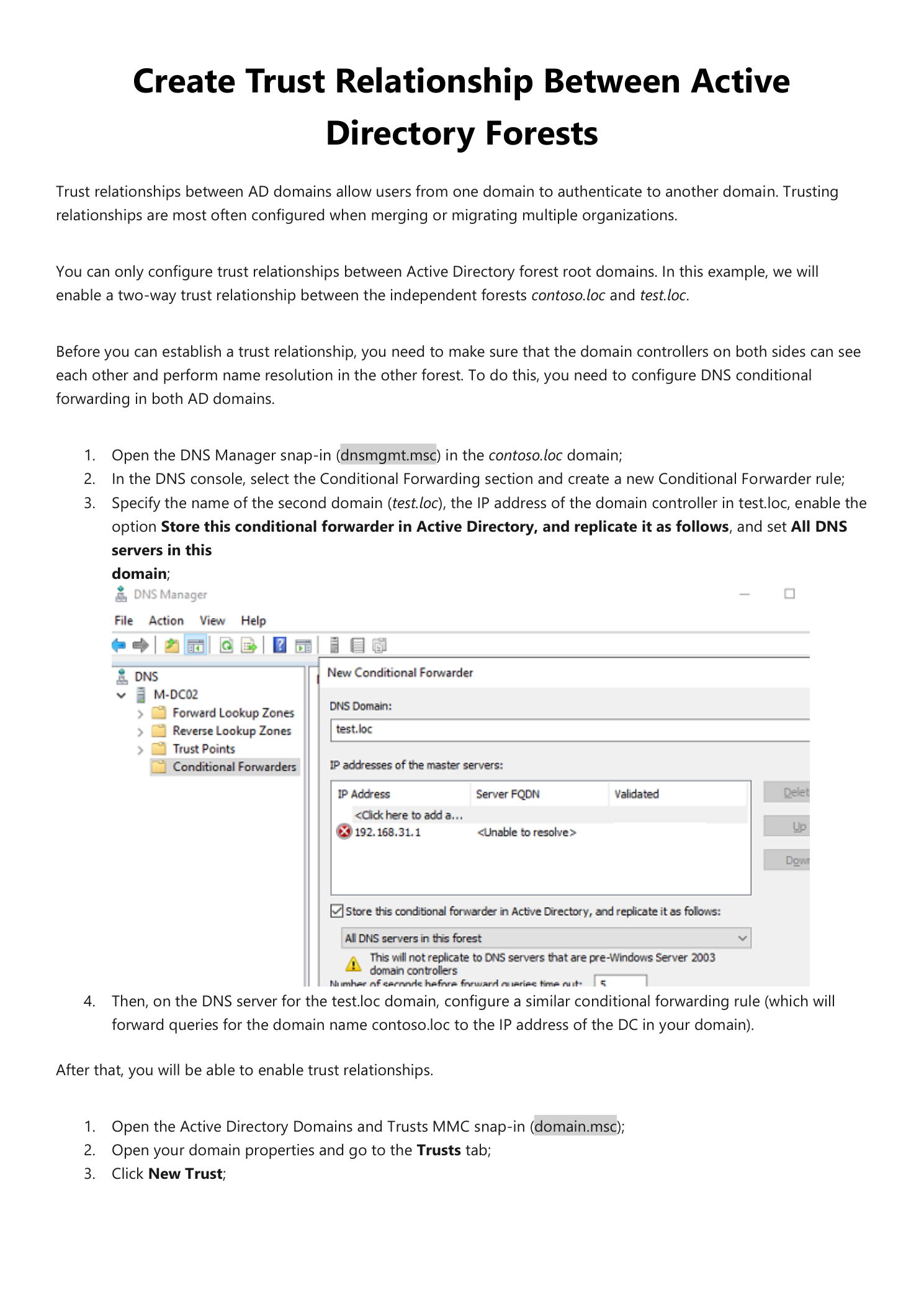
Step 2 — Add a conditional forwarder for test.loc
Expand your DNS server in the tree, right-click Conditional Forwarders, and pick New Conditional Forwarder. Fill it in:
- DNS Domain:
test.loc - IP addresses of master servers: the IP of a domain controller (running DNS) in test.loc
- Tick Store this conditional forwarder in Active Directory, and replicate it as follows, then choose All DNS servers in this domain — this saves you from creating the same forwarder by hand on every DC
Click OK. Within a replication cycle every DC in contoso.loc knows where to send queries for test.loc.
Step 3 — Mirror the forwarder on the test.loc side
Repeat the exact same procedure on a DC in test.loc: a conditional forwarder for contoso.loc pointing to a DNS server in contoso.loc, AD-integrated and replicated to all DNS servers in the domain. Both forwarders need to exist before the trust wizard runs — one direction alone is enough to fail the wizard with cryptic naming errors.
Part 2 — Build the trust
Step 4 — Open Active Directory Domains and Trusts
Back on a contoso.loc DC, press Win + R and type domain.msc. The Active Directory Domains and Trusts console opens. Right-click your forest root domain (contoso.loc), choose Properties, switch to the Trusts tab, and click New Trust.
Step 5 — Name the partner forest
The first wizard page asks for a name. Enter the FQDN of the forest you’re trusting — test.loc in this walkthrough — and click Next. If DNS isn’t set up correctly, the wizard fails here with a name resolution error; back to Part 1.
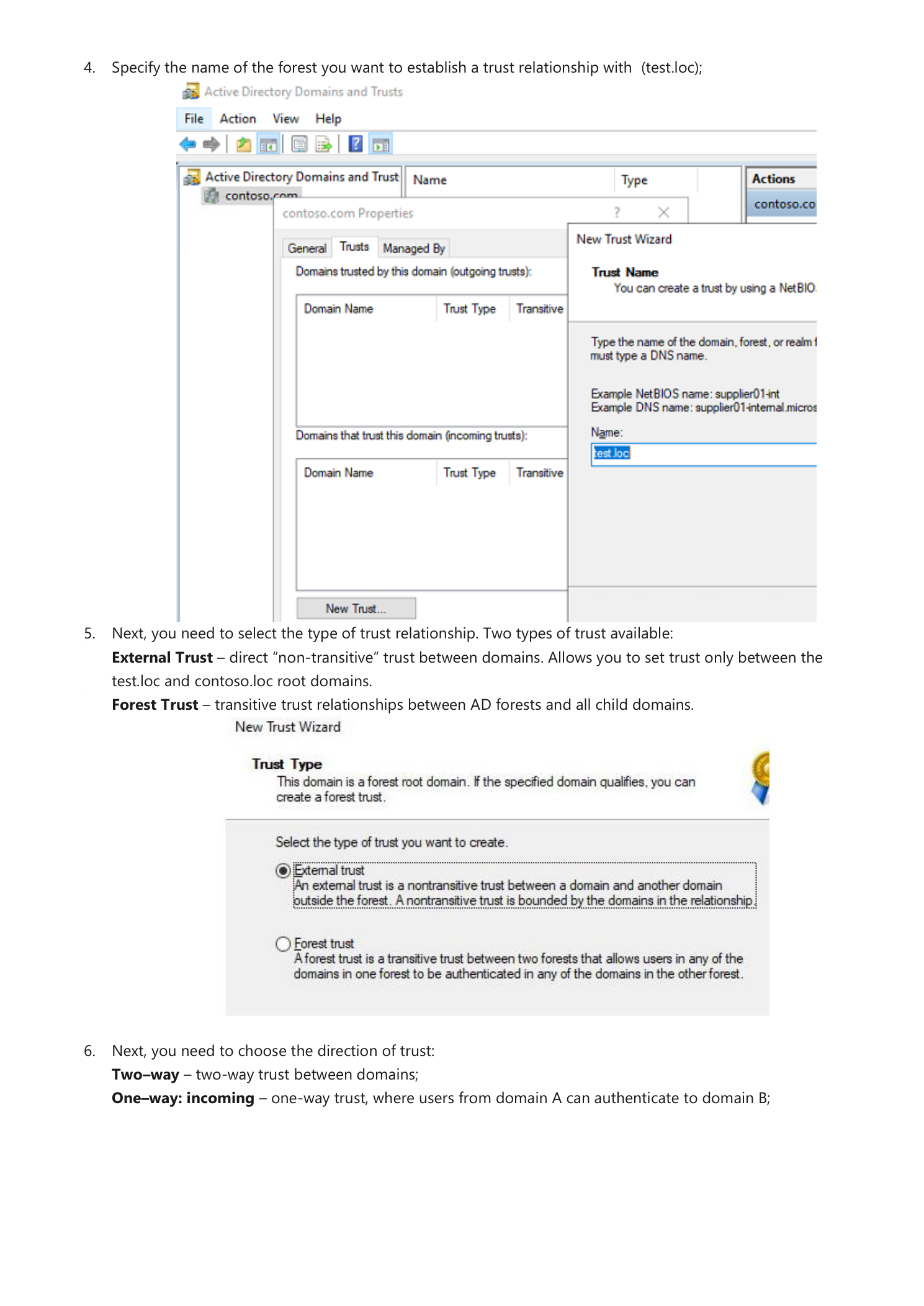
Step 6 — Pick the trust type
The wizard offers two options:
- External Trust — non-transitive, scoped to the two specific domains in the relationship. Useful when you only need cross-authentication between two specific domains and not their child domains.
- Forest Trust — transitive across both forests. Every user in any domain in either forest can authenticate across the trust. This is what you almost always want for two whole-forest setups.
Pick Forest Trust and click Next.
Step 7 — Choose the direction
Three directions are available. The trust direction is the inverse of the access direction — an outgoing trust means users from the other side can authenticate here:
- Two-way — users in either forest can authenticate against the other
- One-way: incoming — users in this forest can authenticate against the partner
- One-way: outgoing — users in the partner forest can authenticate against this one
For a typical merger or shared-resource setup, pick Two-way and click Next.
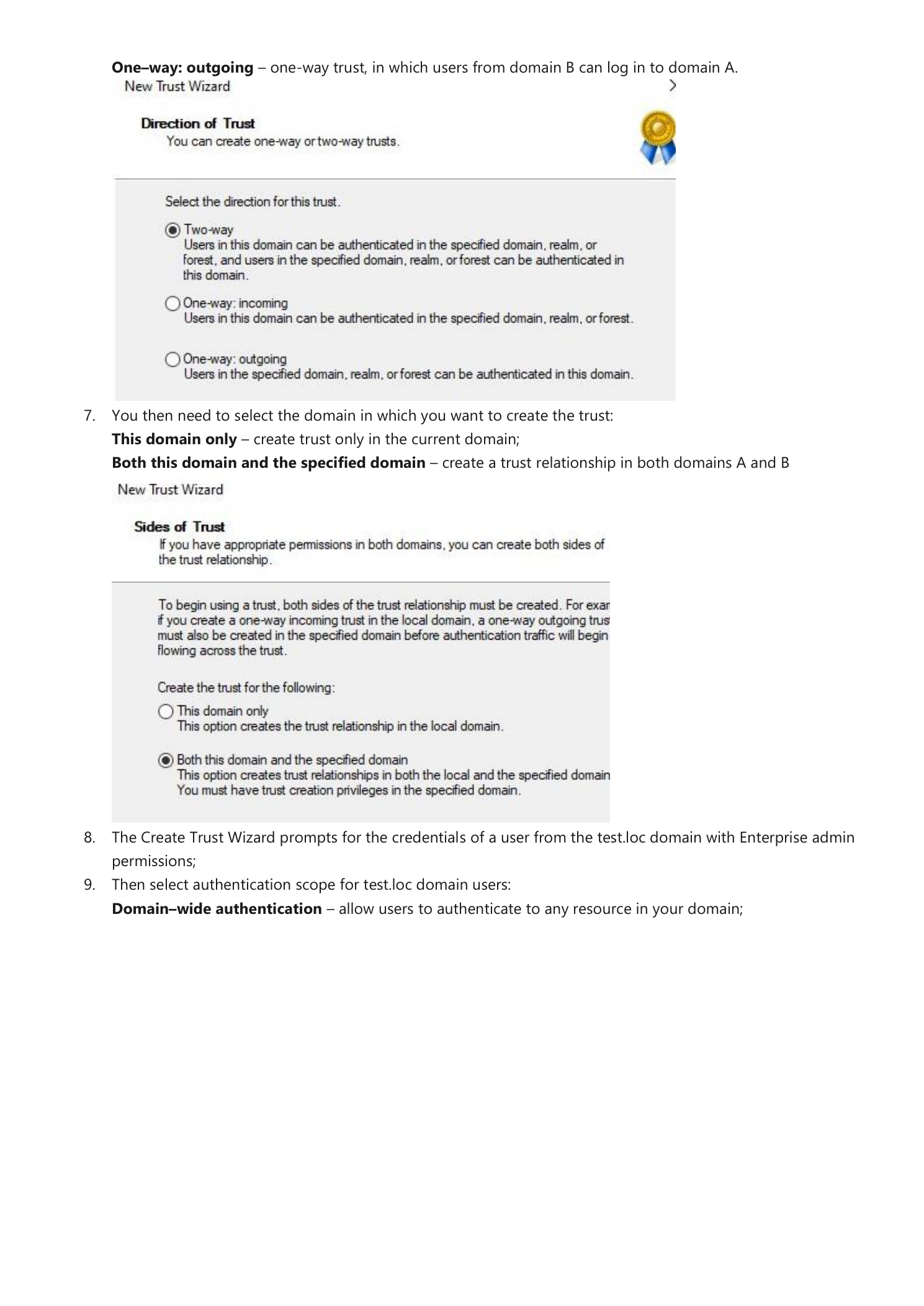
Step 8 — Configure both sides at once
The wizard can either create just the local half of the trust (you’d run the wizard again on the partner DC to create the matching half) or build both halves in one shot:
- This domain only — creates the trust object locally; you must repeat the wizard on the partner side later
- Both this domain and the specified domain — the wizard reaches into the partner forest and creates the matching trust object there too. Requires Enterprise Admin credentials in the partner forest.
If you have the partner credentials handy, pick Both this domain and the specified domain — one trip through the wizard instead of two. Click Next.
Step 9 — Authenticate to the partner forest
Because you chose to build both sides at once, the wizard prompts for an Enterprise Admin account in test.loc. Enter those credentials so the wizard can create the matching trust object in the partner forest’s configuration partition.
Step 10 — Choose authentication scope
The last meaningful choice decides who from the trusted forest gets automatic access to resources in this one:
- Domain-wide authentication — anyone in test.loc can authenticate against any resource in contoso.loc that explicitly grants them access. Use this when both forests are part of the same organization and you trust the partner forest’s users by default.
- Selective authentication — nobody from test.loc gets automatic access. Instead you grant the “Allowed to authenticate” permission per server, per user. Use this for cross-organization trusts (vendor partnerships, M&A holding patterns) where you want explicit control over which servers are reachable.
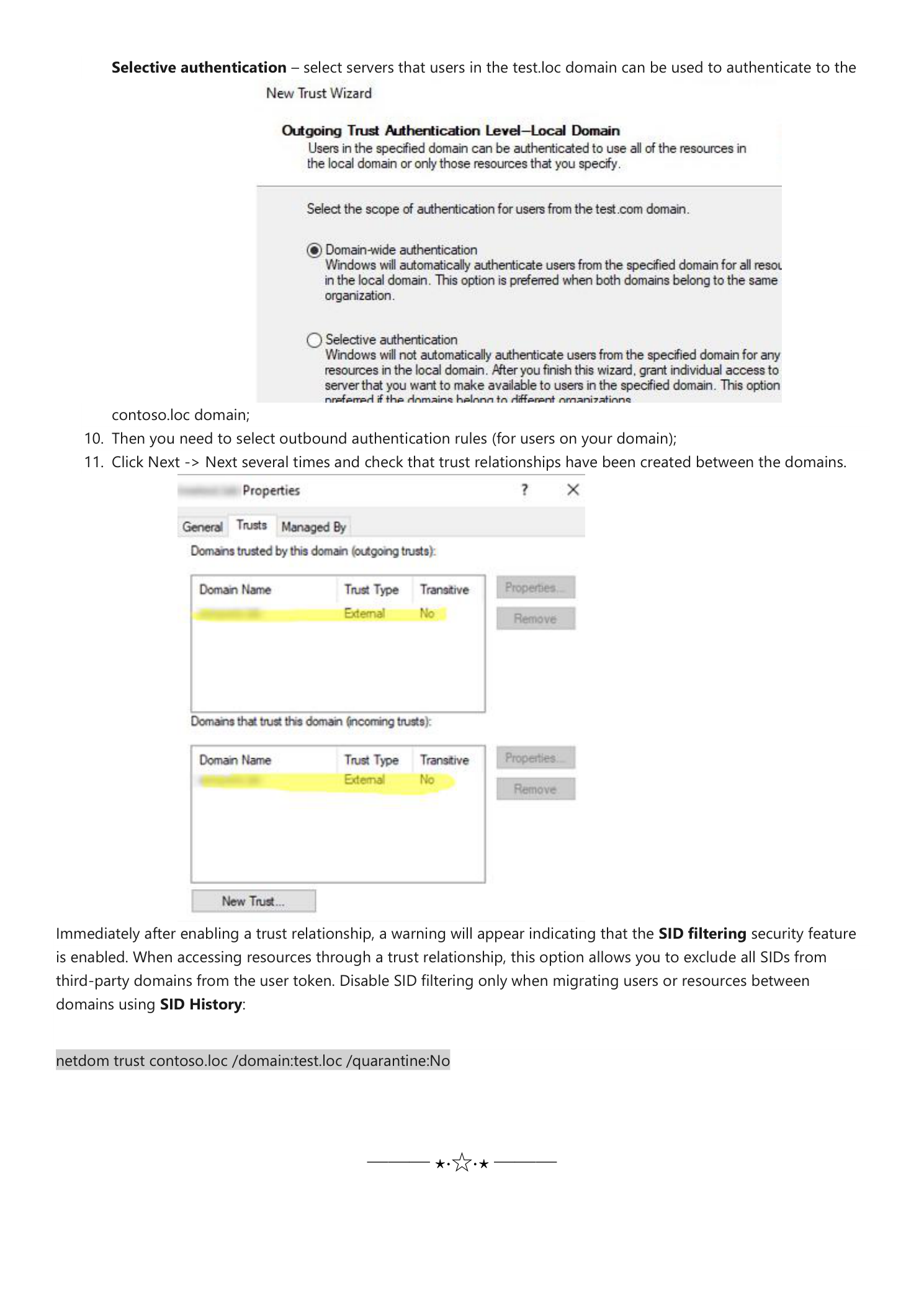
Click through the remaining confirmation pages. The wizard creates the trust objects on both sides, then offers to verify both incoming and outgoing trust — let it. A successful verification means Kerberos referrals and DNS resolution are both working end-to-end.
SID filtering — only touch this during a migration
Windows enables SID filtering on every new trust by default. SID filtering strips any SIDs from the user’s access token that don’t belong to the trusted forest’s primary domain — that’s the security boundary that prevents an attacker who compromises the partner forest from injecting SIDs into a token to escalate privilege in your forest. Leave it on.
The one legitimate reason to disable it is an active migration that uses SID History (e.g. ADMT moving users from test.loc to contoso.loc and you need their pre-migration SIDs to keep working until ACLs are rewritten). On a contoso.loc DC, run:
netdom trust contoso.loc /domain:test.loc /quarantine:NoThe instant the migration is complete and ACLs are clean, re-enable SID filtering with /quarantine:Yes. Leaving it off in steady state is a serious security regression — the cross-forest privilege-escalation path is well understood by red teams and trivial to exploit if SID History is still being honored.
Where this fits
The trust is the plumbing — access happens through the usual ACL mechanism. Add cross-forest users (or, better, Universal groups containing them) to local groups on the resources they need to reach, and Kerberos referrals do the rest. For long-term hygiene see Active Directory Sites and Services (so cross-forest authentication picks the right DC), group-managed service accounts (for cross-forest service identities), and the Group Policy pathway (because trust direction interacts with Selective Authentication in non-obvious ways at policy-application time).