
Every Active Directory domain ships with a single Default Domain Policy — one password ruleset applied to every user account regardless of role. For most organizations that worked fine early on, but it creates a real problem: your Domain Admins and your standard helpdesk accounts end up under the same password requirements.
Fine-Grained Password Policies (FGPP) solve this. Introduced in Windows Server 2008, they let you create separate Password Settings Objects (PSOs) and apply them to specific users or groups — without touching the Default Domain Policy or Group Policy at all. Domain Admins get 20-character minimums with strict lockout. Service accounts get long, complex passwords that never expire. Standard users get reasonable requirements. Each group gets exactly what their risk profile demands.
This guide covers both methods: the GUI approach using Active Directory Administrative Center (ADAC), and PowerShell for environments where scripting or automation is preferred.
What Are Fine-Grained Password Policies?
Under the hood, FGPP works through a special container in Active Directory called the Password Settings Container (PSC), located at:
CN=Password Settings Container,CN=System,DC=yourdomain,DC=comEach policy you create is stored as a Password Settings Object (PSO) — an AD object with attributes that mirror the password settings in the Default Domain Policy: minimum length, complexity, lockout threshold, lockout duration, and more. PSOs are then linked directly to user accounts or security groups.
When a user logs in, Active Directory evaluates all PSOs that apply to them. If multiple PSOs apply, the one with the lowest precedence number wins. The Default Domain Policy only applies if no PSO is linked to the user or any of their groups.
Why This Matters
- Privileged account hardening: Domain Admins, Enterprise Admins, and service accounts are the highest-value targets in your environment. FGPP enforces significantly stronger requirements for these accounts without burdening standard users.
- Compliance: Frameworks like PCI-DSS, HIPAA, and SOX often require stricter controls for accounts handling sensitive data. FGPP lets you scope those controls to exactly the accounts that need them.
- Service account management: Service accounts often require passwords that never expire but must be extremely long and complex. FGPP enforces this per-account without a domain-wide change.
For the full technical reference, see Microsoft’s Fine-Grained Password Policy documentation.
Prerequisites
- Windows Server 2008 or later with Active Directory Domain Services installed
- Domain functional level of Windows Server 2008 or higher
- Membership in Domain Admins or equivalent
- Active Directory Administrative Center (ADAC) — included with RSAT on Windows Server and available as an optional feature on Windows 10/11
Method 1 — Using Active Directory Administrative Center (GUI)
Step 1 — Open Active Directory Administrative Center
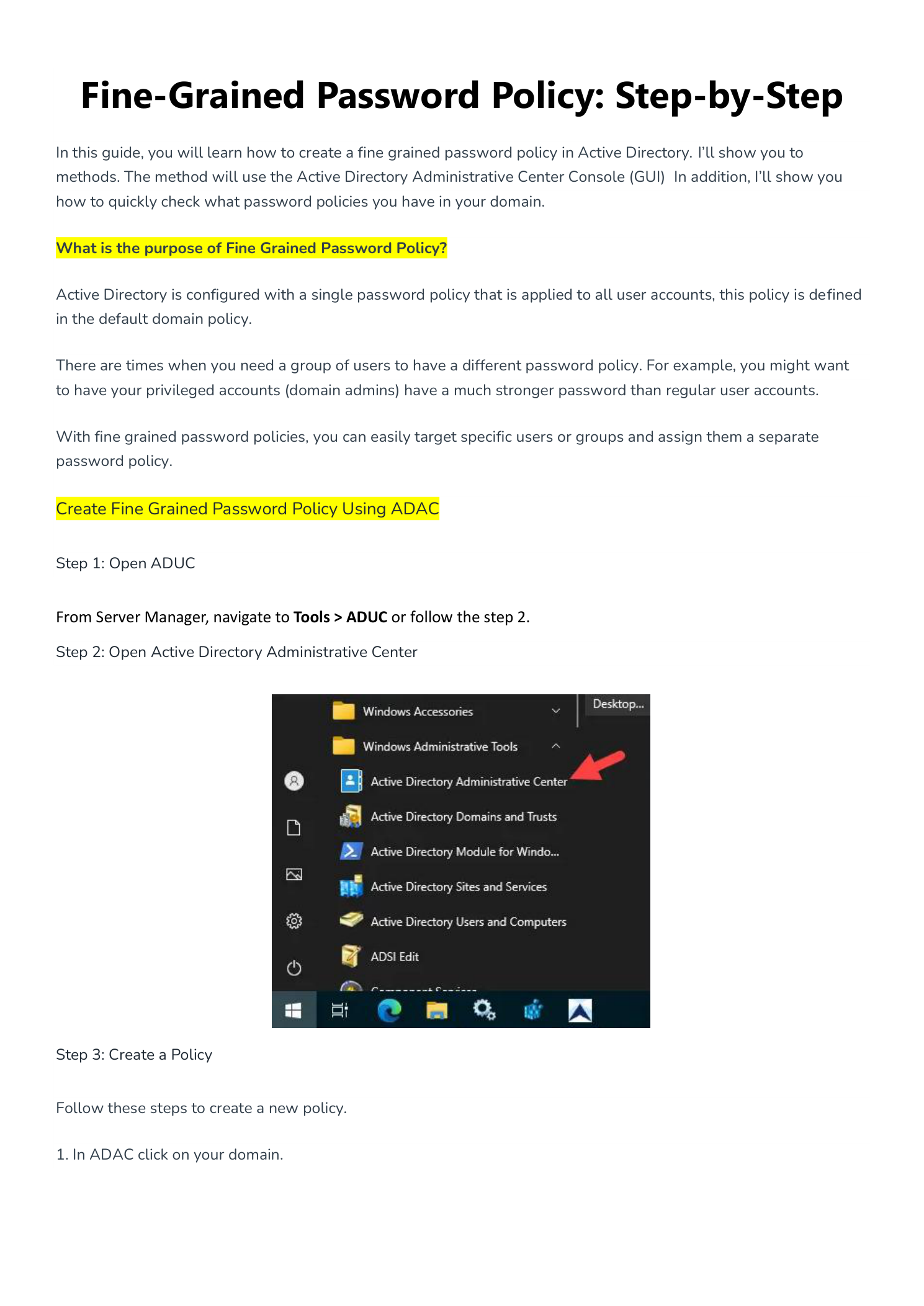
From Server Manager, click Tools and select Active Directory Administrative Center. Alternatively, open it from the Windows Administrative Tools folder in the Start menu.
ADAC is required for GUI-based FGPP management. The older Active Directory Users and Computers (ADUC) console does not expose the Password Settings Container.
Step 2 — Navigate to the Password Settings Container
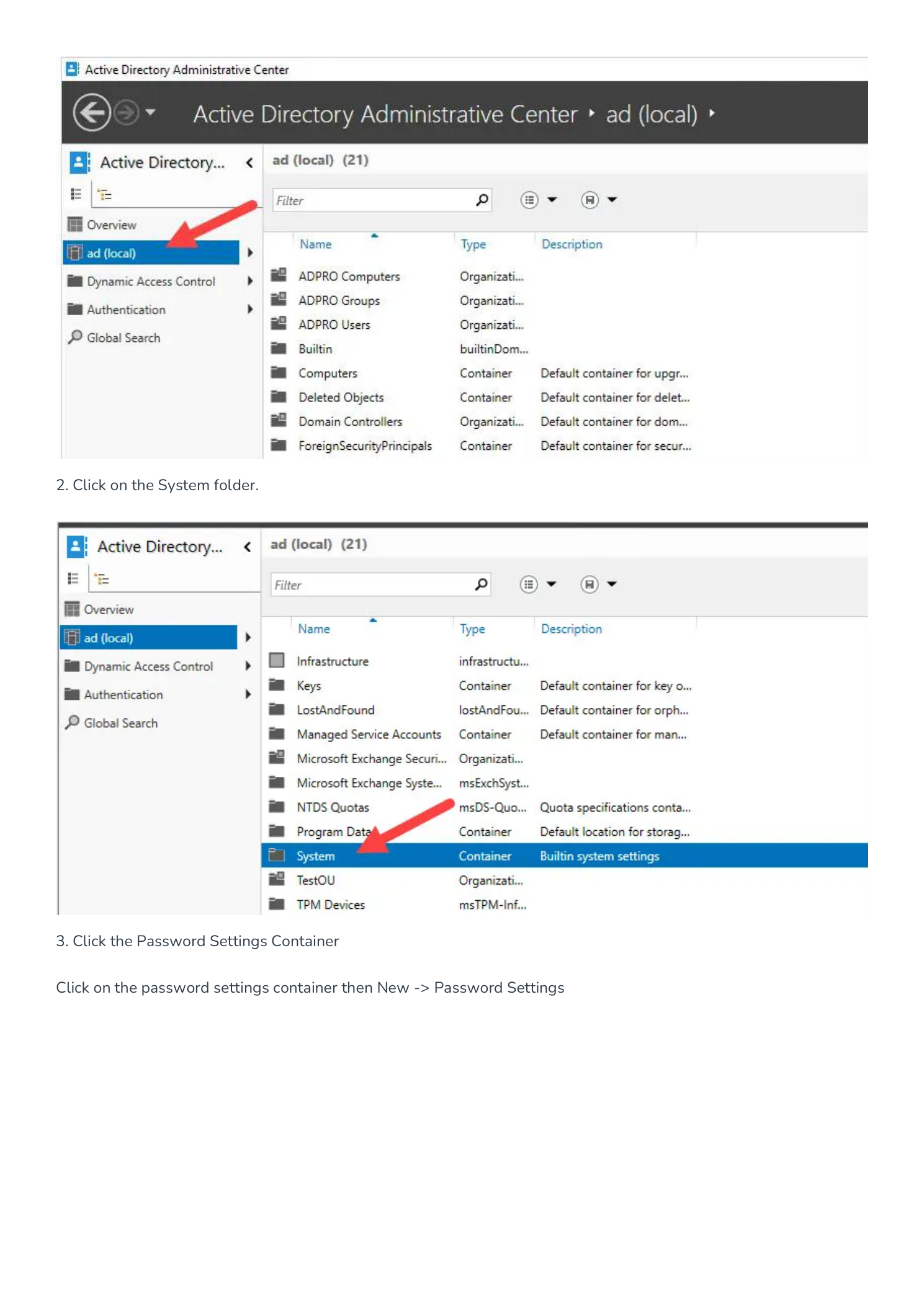
In the ADAC left pane, click your domain name (e.g., ad (local)). In the main pane, double-click the System folder. Inside System, click Password Settings Container.
This container holds all PSOs in your domain. If you have never created an FGPP before, it will be empty — the Default Domain Policy lives in Group Policy, not here.
Step 3 — Create a New Password Settings Object
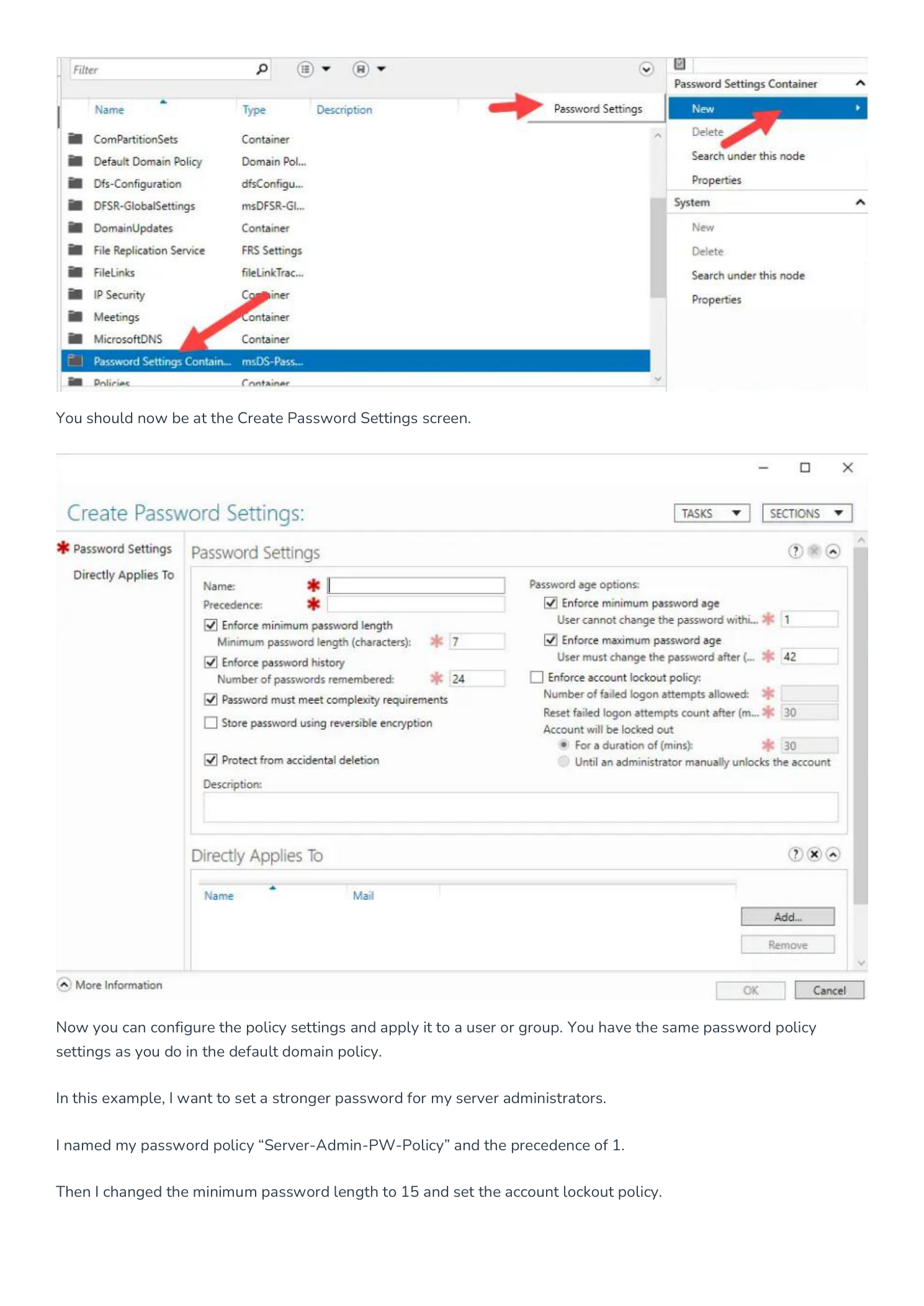
With the Password Settings Container selected, right-click in the main pane and select New → Password Settings. This opens the Create Password Settings dialog.
Step 4 — Configure the Policy Settings
Fill in the policy details:
- Name: Descriptive and role-based (e.g.,
Server-Admin-PW-Policy). - Precedence: Lower number = higher priority. Use 1 for your strictest policy. Always use unique numbers — ties are broken non-deterministically by AD.
- Minimum password length: 15+ for privileged accounts; 20+ for Domain Admins is a reasonable baseline.
- Password history: 24 is the standard maximum.
- Complexity: Keep this enforced for all privileged account policies.
- Account lockout: 3–5 failed attempts for privileged accounts. Consider requiring manual admin unlock for Domain Admin accounts.
Step 5 — Apply the Policy to a Group
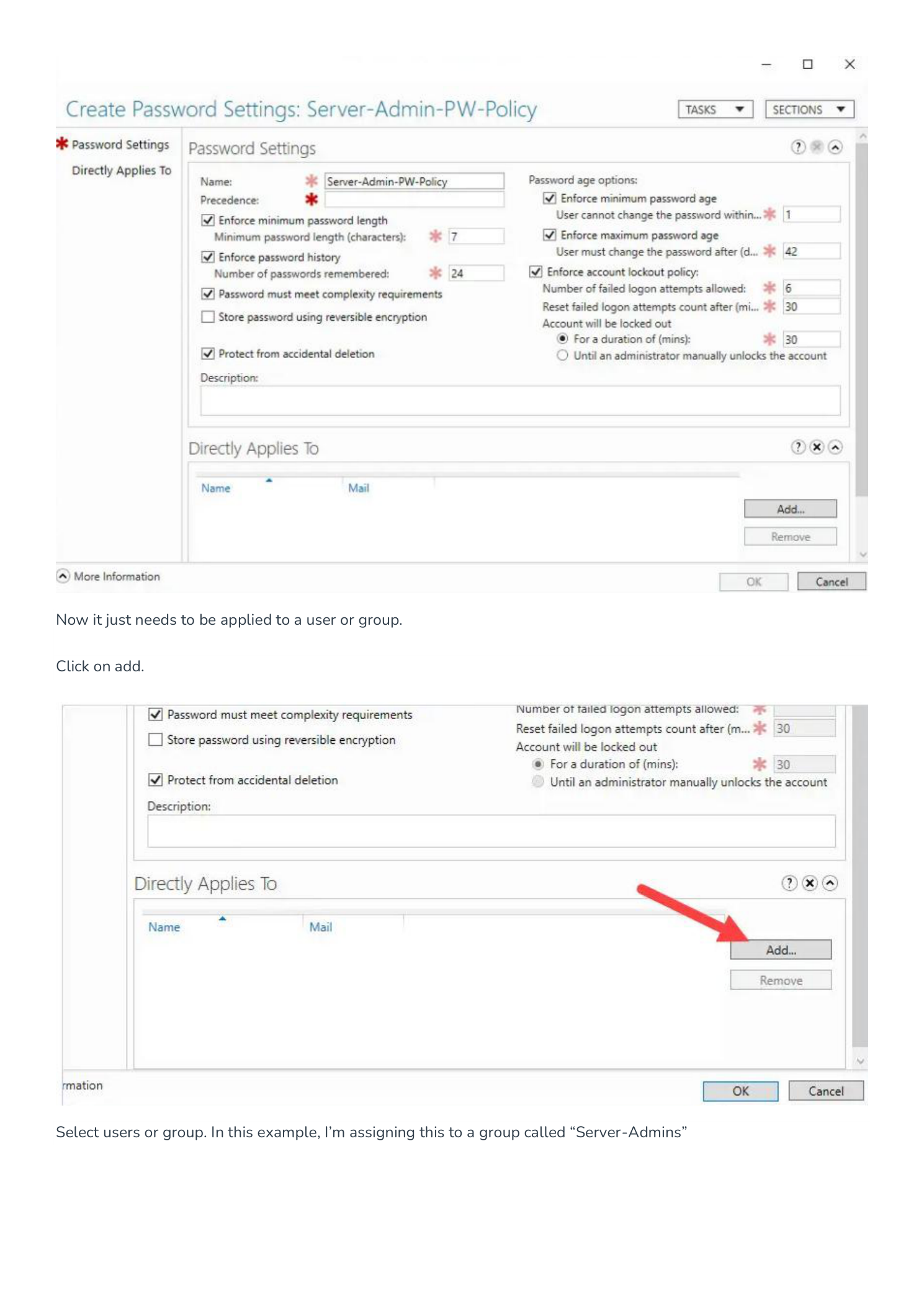
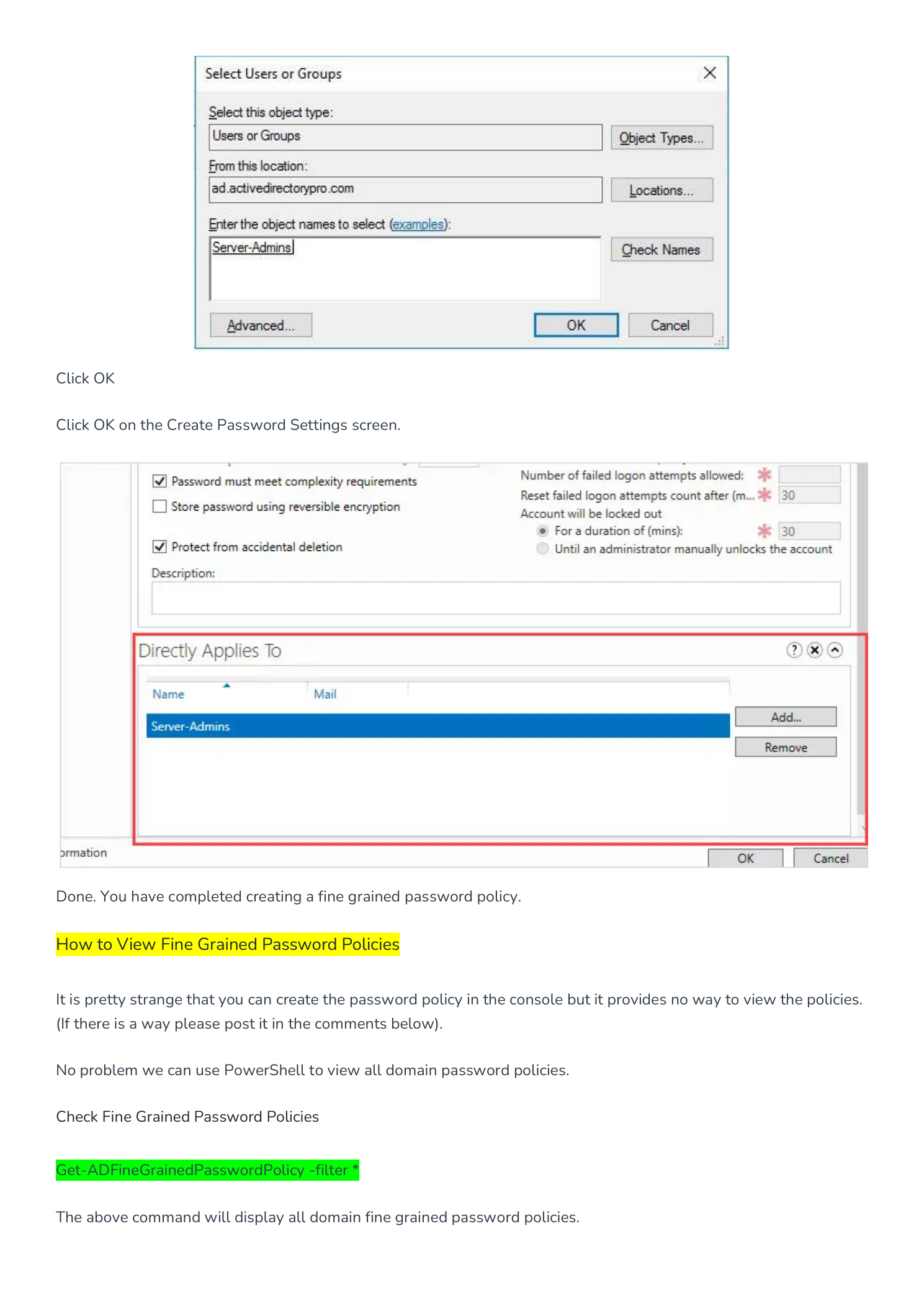
In the Directly Applies To section, click Add. Enter the security group name (e.g., Server-Admins), click Check Names, then OK. Click OK on the Create Password Settings screen to save.
The PSO is active immediately — no Group Policy update or domain controller restart needed.
Best practice: Apply PSOs to groups, not individual users. Adding a user to Server-Admins automatically applies the policy — no additional configuration required.
Method 2 — Using PowerShell
PowerShell gives you repeatable, scriptable FGPP management — ideal for multiple policies or automating policy creation as part of a server build process.
Create a New FGPP
New-ADFineGrainedPasswordPolicy
    -Name "Server-Admin-PW-Policy"
    -Precedence 2
    -MinPasswordLength 15
    -PasswordHistoryCount 24
    -ComplexityEnabled $true
    -ReversibleEncryptionEnabled $false
    -LockoutThreshold 5
    -LockoutDuration "00:30:00"
    -LockoutObservationWindow "00:30:00"
    -MaxPasswordAge "60.00:00:00"
    -MinPasswordAge "1.00:00:00"
Apply to a Group
Add-ADFineGrainedPasswordPolicySubject
    -Identity "Server-Admin-PW-Policy"
    -Subjects "Server-Admins"
Viewing and Verifying Policies
View All FGPPs in the Domain
Get-ADFineGrainedPasswordPolicy -Filter *Check the Effective Policy for a Specific User
Get-ADUserResultantPasswordPolicy -Identity usernameThis returns the PSO with the lowest precedence that applies to the user, or the Default Domain Policy if no PSO applies. Use this to verify that a new policy is reaching the intended accounts.
View the Default Domain Password Policy
Get-ADDefaultDomainPasswordPolicy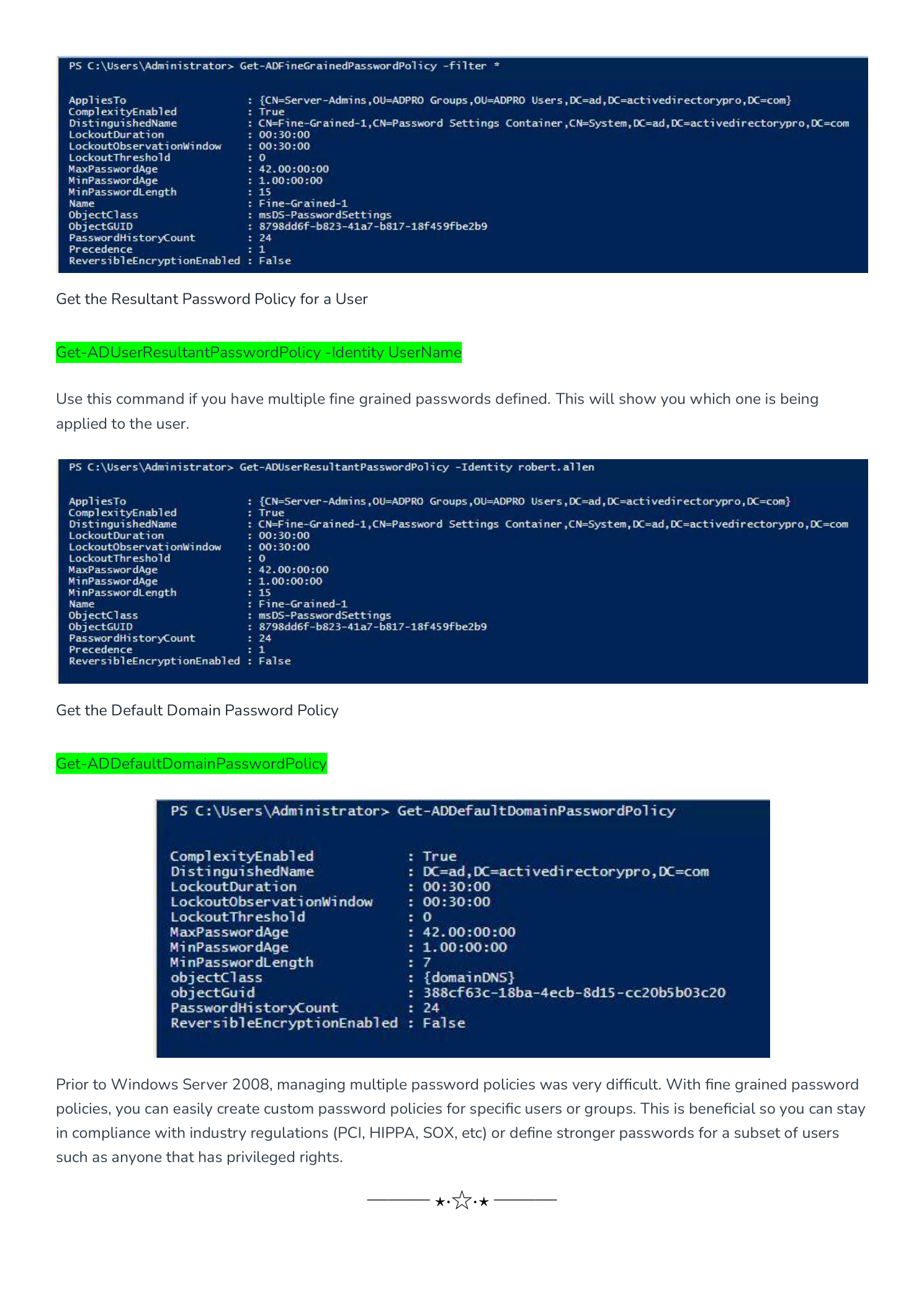
Precedence — How Conflicts Are Resolved
- A PSO linked directly to a user account always wins over any group PSO.
- Among group PSOs, the one with the lowest precedence number applies.
- If two PSOs share the same precedence number, AD uses the object GUID as a tiebreaker — non-deterministic. Always use unique precedence numbers.
- If no PSO applies at all, the Default Domain Policy is used.
Design tip: Reserve precedence 1 for your most sensitive accounts (Domain Admins, Schema Admins), then increment from there. Document your plan before creating PSOs.
Troubleshooting
PSO created but not applying to users
- Confirm the PSO is linked to a global or universal security group — FGPP does not work with distribution groups or domain local groups.
- Verify group membership:
Get-ADGroupMember "Server-Admins" - Run
Get-ADUserResultantPasswordPolicy -Identity username— if it returns nothing, no PSO is reaching them.
Users can still set short passwords after PSO is created
- The policy only enforces on the next password change. Existing passwords are not immediately invalidated.
- To force an immediate change:
Set-ADUser -Identity username -ChangePasswordAtLogon $true
Cannot see Password Settings Container in ADAC
- Check domain functional level:
Get-ADDomain | Select-Object DomainMode— must be Windows Server 2008 or higher. - Confirm you are running ADAC with Domain Admin credentials.
Summary
Fine-Grained Password Policies give you precise, group-level control over password requirements without touching the Default Domain Policy or Group Policy infrastructure. Set clear precedence numbers, apply PSOs to security groups rather than individual accounts, and the policy follows users wherever they move in the directory.