
Introduction
Every Active Directory administrator has lived this nightmare at least once: a user account, a Group Policy Object, an entire Organizational Unit — gone. Maybe it was a clumsy click in Active Directory Users and Computers, maybe it was a script that ran with the wrong filter, maybe it was a junior admin learning the hard way that AD does not have an “are you sure?” prompt for everything.
The Active Directory Recycle Bin is the safety net that turns those incidents from a multi-hour authoritative restore into a 30-second right-click. But here is the catch: it is not enabled by default. When you install AD DS and promote your first Domain Controller, the Recycle Bin sits there waiting, switched off. Until an admin explicitly enables it, every deletion is a tombstone-and-cleanup operation with no easy undo.
In this guide you will enable the AD Recycle Bin for the entire forest using the Active Directory Administrative Center. The whole operation takes about a minute — but it is one of the highest-value 60 seconds you will ever spend on a Domain Controller.
What is the AD Recycle Bin?
Before AD Recycle Bin (introduced with the Windows Server 2008 R2 forest functional level), deleted objects in Active Directory went through two phases:
- Tombstone phase — the object was marked deleted, most of its attributes were stripped, and only a stub remained for replication purposes
- Garbage collection — after the tombstone lifetime (default 180 days), the stub was permanently removed
Recovery from this state required an authoritative restore from a System State backup, which is intrusive, slow, and easy to get wrong.
With the Recycle Bin enabled, AD adds a phase before tombstoning:
- Deleted Objects container — for the first 180 days (the
msDS-deletedObjectLifetimeattribute), deleted objects are kept with all their attributes intact, including group memberships, passwords, ACLs, and linked attributes - Restoring an object is a single right-click in ADAC or a one-line PowerShell command (
Restore-ADObject) - The original DN, SID, and every group membership come back exactly as they were
Important — This is a One-Way Trip
Before you click Enable, understand: once the AD Recycle Bin is enabled, you cannot disable it. Microsoft removed the disable path on purpose — turning it off would require the directory to walk every deleted object and strip extended attributes mid-replication, which is too dangerous to support. There is no Disable-ADOptionalFeature for this feature.
This is fine in practice. The Recycle Bin adds a small amount of database growth (each soft-deleted object keeps its attributes for 180 days) and zero ongoing administrative overhead. There is no scenario where a healthy forest is better off without it. Just go in knowing that “enable” here means “enable forever.”
Prerequisites
- Forest functional level of Windows Server 2008 R2 or higher — any modern AD environment running Windows Server 2012 R2, 2016, 2019, 2022, or 2025 already meets this
- Sign in to a Domain Controller as a member of the Enterprise Admins group (the operation is scoped to the forest, not a single domain)
- One DC is enough. If you have multiple Domain Controllers, you only enable the Recycle Bin on a single DC — the change replicates automatically to every DC in every domain in the forest
- All Domain Controllers should be online and replicating when you enable the feature, so the configuration converges quickly forest-wide
Step 1 — Open Active Directory Administrative Center
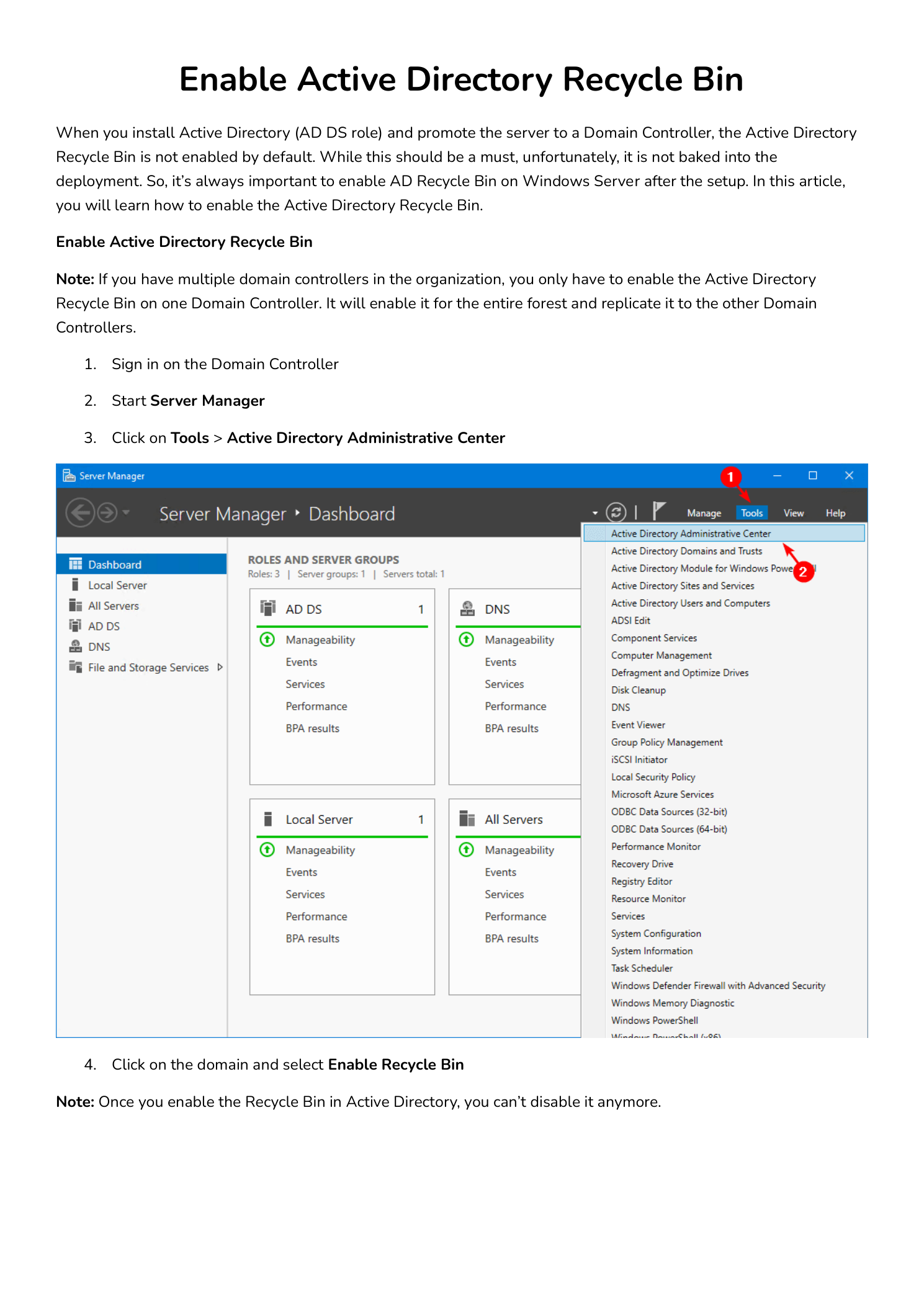
Sign in to a Domain Controller (in this lab: DC01-2019 in the infotechninja.local forest) with an Enterprise Admin account. Open Server Manager, then click Tools in the top-right menu and choose Active Directory Administrative Center.
ADAC is the modern successor to the older Active Directory Users and Computers snap-in. It is built on PowerShell under the hood — every action in the GUI runs an equivalent Active Directory module cmdlet, which you can see in the Windows PowerShell History pane at the bottom of the ADAC window.
Step 2 — Enable the Recycle Bin
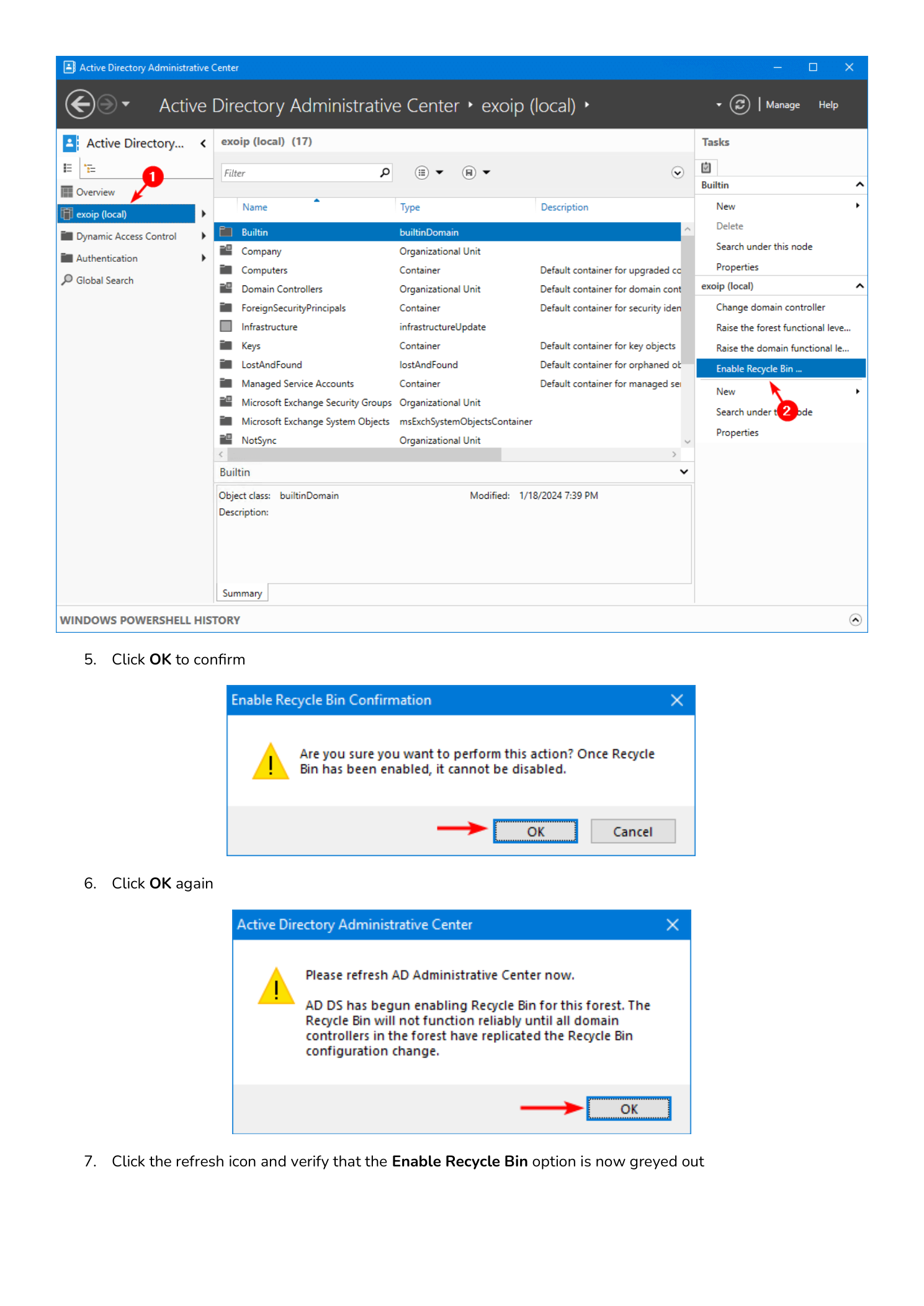
In the left navigation pane of ADAC, click on your domain — in this example infotechninja (local). The middle pane lists the top-level containers (Builtin, Computers, Users, Domain Controllers, etc.). The right-side Tasks pane lists actions scoped to whatever you have selected; with the domain root selected, you should see Enable Recycle Bin… as one of the available tasks.
Click Enable Recycle Bin….
A confirmation dialog appears with the warning: “Are you sure you want to perform this action? Once Recycle Bin has been enabled, it cannot be disabled.” Click OK.
A second informational dialog appears: “AD DS has begun enabling Recycle Bin for this forest. The Recycle Bin will not function reliably until all domain controllers in the forest have replicated the Recycle Bin configuration change. Please refresh AD Administrative Center now.” Click OK.
Step 3 — Verify the Feature is Active
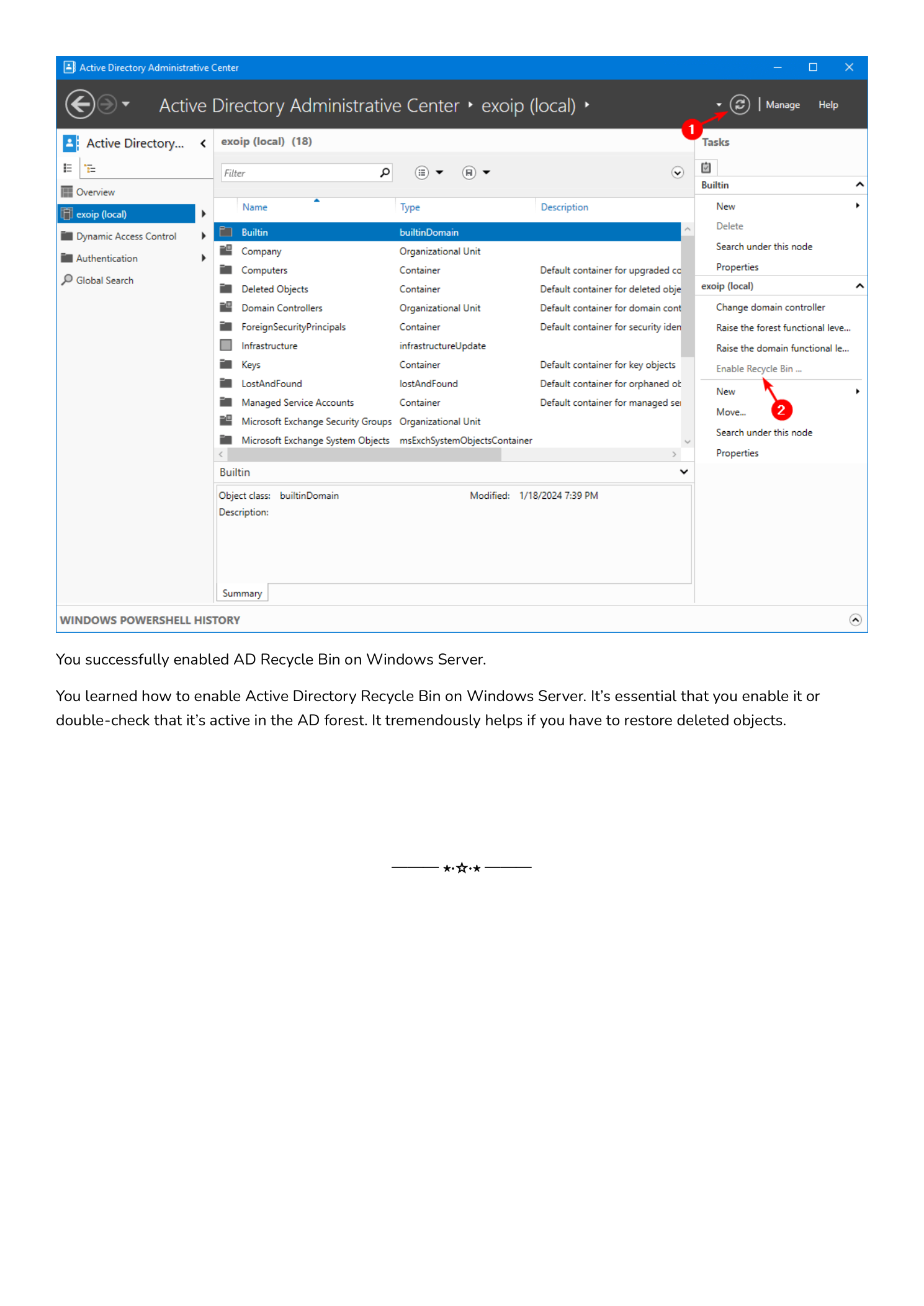
Click the refresh icon at the top of ADAC (or press F5). Select the domain root again and look at the Tasks pane.
The Enable Recycle Bin… entry is now greyed out. That is your visual confirmation: the feature is active forest-wide. New deleted objects from this point forward will land in the Deleted Objects container, fully recoverable for 180 days.
Verifying with PowerShell
For a definitive check, open an elevated PowerShell prompt on any DC and run:
Get-ADOptionalFeature -Filter {Name -eq 'Recycle Bin Feature'}The key field to look at is EnabledScopes. If the Recycle Bin is enabled, it will list every directory partition where the feature is active (typically CN=Partitions,CN=Configuration,DC=infotechninja,DC=local and CN=NTDS Settings,...). If the array is empty, the feature is not yet enabled.
For a quick verification across all DCs:
(Get-ADOptionalFeature 'Recycle Bin Feature').EnabledScopesAn empty result means the feature is off. A non-empty result means it is enabled.
Restoring a Deleted Object
With the Recycle Bin enabled, recovering an accidentally deleted object is now trivial. In ADAC, expand your domain and look for the Deleted Objects container. Every soft-deleted object lives here for 180 days with all its attributes preserved.
To restore via the GUI: right-click the object and choose Restore (puts it back to its original location) or Restore To… (puts it into a different OU). To restore via PowerShell:
# Find a deleted user
Get-ADObject -Filter {Name -like 'jdoe*'} -IncludeDeletedObjects

# Restore by ObjectGUID
Restore-ADObject -Identity '12345678-90ab-cdef-1234-567890abcdef'
The restored object comes back with its original DN, SID, group memberships, and every other attribute exactly as it was at the moment of deletion. No password resets, no re-permissioning, no manual group re-adds.
What Else Should I Configure?
Enabling the Recycle Bin is step one. To get the most out of AD recoverability, also consider:
- Tune the Deleted Object Lifetime. The default 180 days is reasonable for most environments. If you need longer retention, modify
msDS-deletedObjectLifetimeon theCN=Directory Serviceobject — but be aware this also controls tombstone lifetime and affects backup retention math. - Protect critical OUs from accidental deletion. Right-click an OU > Properties > check Protect object from accidental deletion. This is a separate safeguard from the Recycle Bin and prevents the deletion from happening in the first place.
- Take regular AD System State backups. The Recycle Bin handles object-level recovery within 180 days. For database corruption, schema disasters, or recovery beyond the deleted-object lifetime, you still need offline backups.
- Audit deletion events. Configure object access auditing on critical containers so you can see who deleted what. Combine with a centralized event log collector for forensic visibility.
- Document the recovery runbook. When a panicked manager calls at 4 PM on a Friday, you do not want to be googling
Restore-ADObjectsyntax. Have a one-pager ready.
Troubleshooting
The Enable Recycle Bin Option Is Missing
If the Enable Recycle Bin task does not appear in ADAC, your forest functional level is below Windows Server 2008 R2. Run Get-ADForest | Select ForestMode to confirm. Raise the forest functional level (Set-ADForestMode) before enabling — this requires every DC in the forest to be running a supported OS version.
The Feature Looks Enabled but Restore Does Not Work on Other DCs
Replication has not converged yet. Run repadmin /replsummary and repadmin /showrepl to check replication health. The Recycle Bin will not work reliably on a given DC until that DC has replicated the configuration change from the originating DC.
I Need to Disable the Recycle Bin
You cannot. There is no supported path to disable the Recycle Bin once it is on. The only way to “remove” it is to demote and rebuild the entire forest — which is functionally equivalent to a disaster recovery and is never the right answer.
Conclusion
The Active Directory Recycle Bin is one of those features where the cost-benefit math is so lopsided that “should I enable it?” is the wrong question. The right question is “why has it not been enabled yet?” The cost is a small confirmation dialog and a permanent commitment. The benefit is that the next accidental deletion — and there will be a next one — is recovered with a single right-click instead of an authoritative restore at 2 AM.
If you have just stood up a new forest, enable the Recycle Bin today, before the first user is created. If you inherited a forest where it is not enabled, audit it on Monday and turn it on Tuesday. Your future self will thank you.