
Some devices need a stable, predictable IP address — printers everyone has bookmarked, file servers that ten applications hard-code by address, the IP camera the security software talks to over an exact port. The traditional answer is “configure the IP statically on the device.” That works, but it scatters address assignments across dozens of device admin panels and leaves the DHCP server with no record of what’s assigned where. DHCP reservations are the better answer: the device runs DHCP normally, but the server always hands it the same address based on its MAC. You get the centralized record-keeping of DHCP with the predictability of a static IP.
This walkthrough covers creating reservations in the DHCP console, the four fields that matter, the exclusion-vs-reservation interaction that catches everyone the first time, and the operational pattern for keeping reservations correct when hardware gets swapped.
What you need before starting
- A working DHCP server with at least one active scope (covered in creating DHCP scopes)
- The MAC address of every device you intend to reserve for — from a label on the device, the device’s admin UI, or
arp -aafter the device is online - The intended IP address for each reservation — usually outside the dynamic range but inside the scope (more on this below)
- DHCP Administrators rights on the server (or membership in the DHCP Administrators group created during role install)
Why reservations beat both static IPs and dynamic leases
The pain reservations solve: shared printers whose IP randomly changes after a long power outage, file servers that lose their lease while the IT team is in a meeting and come back on a different address, security cameras whose feed disappears from the monitoring software because the camera renewed onto a new IP. All of these are solvable with static IPs, but static IPs:
- Hide from DHCP — the DHCP console doesn’t know they exist; address conflicts surface as mysteries
- Require per-device admin — you have to log into each device to change anything
- Bypass scope options — static devices don’t pick up updated DNS or gateway changes you make centrally
Reservations sidestep all three. The device uses DHCP, picks up scope options like any other client, and always gets the same IP because the DHCP server is enforcing it.
Step 1 — Open the DHCP console and find the scope
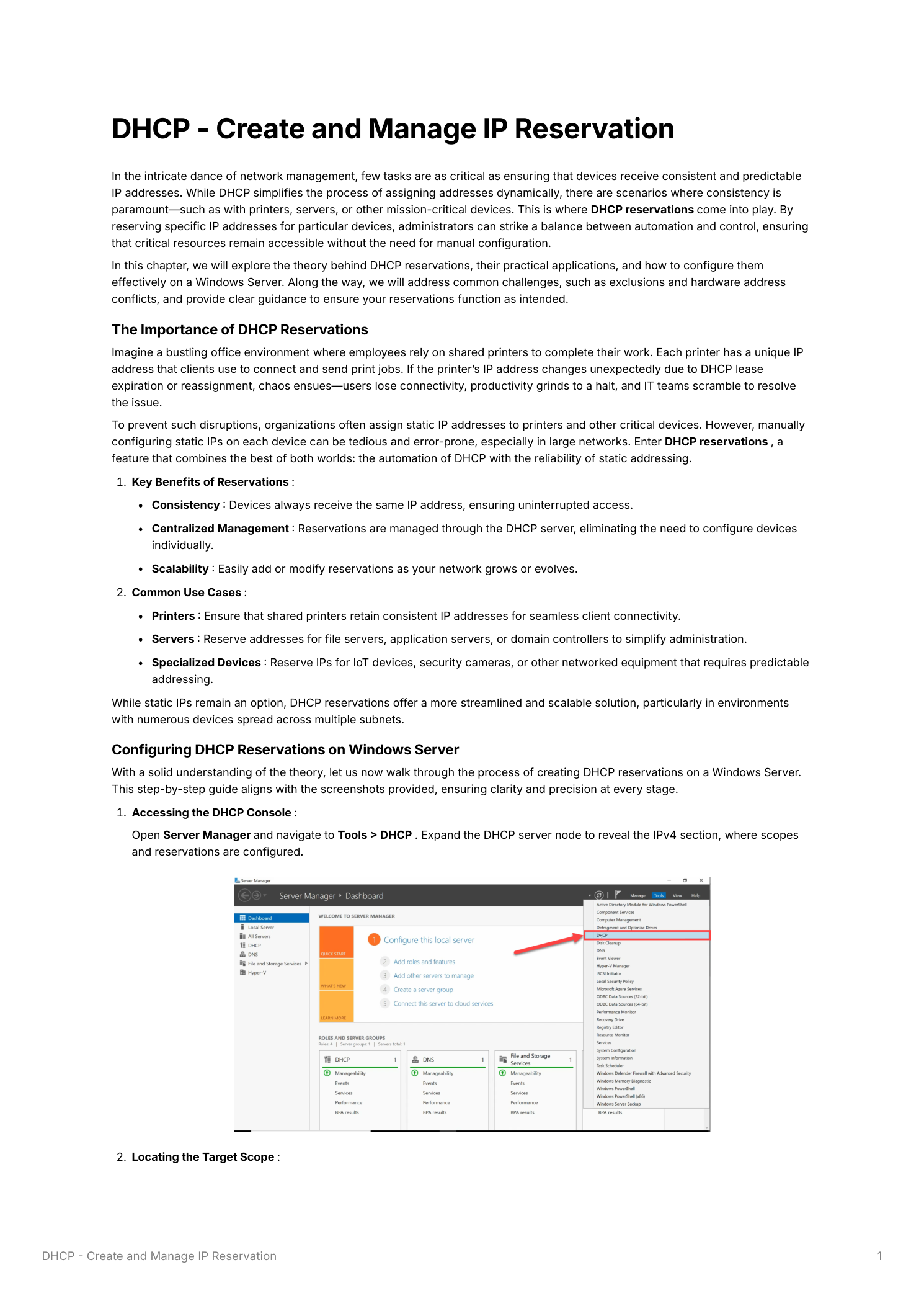
From Server Manager > Tools > DHCP, expand the server node and the IPv4 branch. Each configured scope appears with sub-nodes for Address Pool, Address Leases, Reservations, and Scope Options. Pick the scope that serves the subnet your target device is on — the printer at 192.168.1.50 needs a reservation in the 192.168.1.0/24 scope, not in any other.
Step 2 — Create the reservation
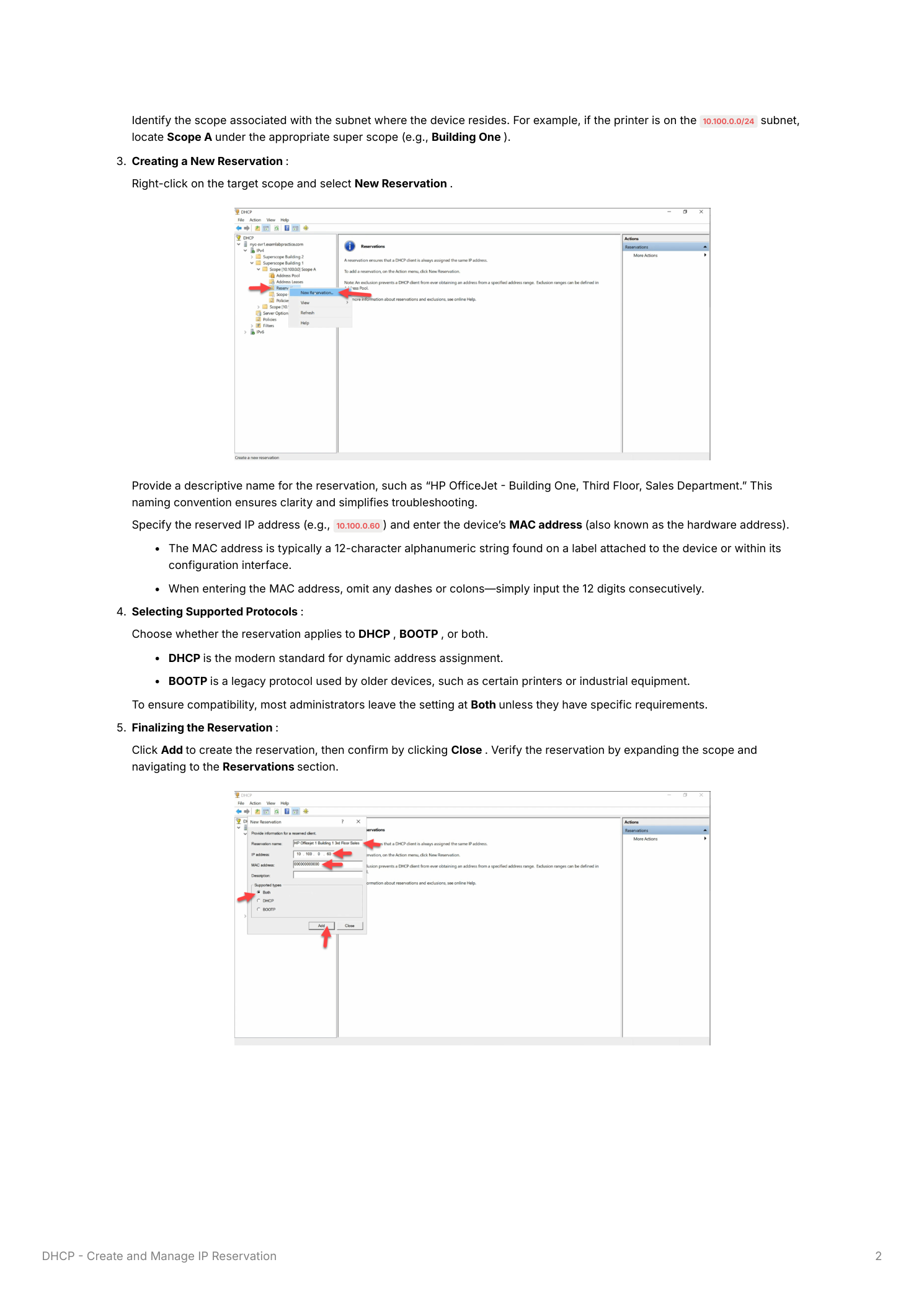
Right-click Reservations > New Reservation. Four fields:
- Reservation Name — descriptive enough to identify the device under stress at 2am. “HP OfficeJet – FL3 Sales” tells you what, where, and whose. “Printer-1” tells you nothing.
- IP Address — the address to reserve. Must be within the scope’s range. Can technically be inside an exclusion range, but reservations and exclusions interact in non-obvious ways — see the gotcha section below.
- MAC Address — the 12-character hex string from the device’s NIC, no separators (e.g.
A1B2C3D4E5F6). The DHCP console accepts dashes and colons too, but most environments standardize on bare hex for consistency. - Supported Types — DHCP, BOOTP, or Both. DHCP is what 99% of devices use; BOOTP is a legacy protocol used by some older PXE boot ROMs and a handful of specialized embedded devices. Pick Both as the safe default unless you have a specific reason not to.
Click Add, then Close. The new reservation shows up immediately in the Reservations list under the scope.
Things that bite people in production
Exclusions vs. reservations — understand the interaction
Exclusions and reservations sound similar but do different things. Exclusions remove a range from the dynamic pool entirely — the DHCP server will never hand those addresses to anyone. Reservations bind a specific address to a specific MAC. The complication: you can reserve an address that’s also inside an exclusion range, but the exclusion takes precedence and the reservation silently does nothing. The safest pattern: keep reserved addresses outside any exclusion range. If you need to reserve an address that’s currently excluded, narrow the exclusion to make a hole for it first.
Duplicate MACs are a real problem with VMs
No two active devices on the same network should share a MAC. Physical hardware almost never duplicates — MACs are factory-assigned and globally unique. Virtual machines are a different story: VMs cloned from a template can come up with the template’s MAC unless explicitly regenerated, and two VMs trying to claim the same reservation cause IP conflicts and unpredictable connectivity for both. Always regenerate MACs after VM cloning. Most hypervisors have a “regenerate” option in the network adapter settings.
Reservations don’t expire — that’s the point, but…
A reserved address stays bound to the MAC indefinitely. The device can be off for a year and the address won’t be reassigned to anything else. The flip side: if the device’s NIC is replaced (and the MAC changes), the existing reservation no longer matches. The replacement NIC will get a dynamic lease from the pool, and applications that hard-coded the old IP will silently break. Update the reservation’s MAC address whenever you swap network hardware — or, better, document “update DHCP reservation” as part of your hardware-replacement runbook so it doesn’t get forgotten.
Don’t reserve from the active dynamic pool
If your scope dynamic range is .100–.200 and you reserve .150 for a printer, the reservation works — but if the printer is offline when a busy day exhausts .100–.149 and .151–.200, no client gets .150 (it’s reserved) and the new client requesting fails. The cleaner pattern: reserve from a slice of the scope you don’t use for dynamic assignment. Many environments use the low end of the scope for reservations and the upper portion for dynamic.
Real-world use cases
- Multi-floor printers — one reservation per shared printer (
.50,.51,.52…). Print queues bookmark the IPs once and never need re-pointing. - Servers in a small environment — for sub-DC tier servers (file shares, application servers, monitoring), reservations give you the central record-keeping of DHCP with the stability of static. DCs themselves typically use static IPs because they need to come up before DHCP itself is reachable.
- Cameras, IoT, building automation — security cameras, smart thermostats, lighting controllers, sensors. Predictable addressing means automation rules and monitoring configs can reference devices by IP and not break on every reboot.
- Network equipment — access points (so the controller can reach them), small switches with web management, anything you need to find at a known address.
Operational best practices
- Descriptive reservation names — the cost is one extra minute at create time; the benefit is months of saved confusion later. Include device type, location, and owner where applicable.
- Capture MACs before deployment — from the box label, the device’s admin UI, or by powering it on once and checking the dynamic lease. Building a reservation around a MAC you don’t actually have is a common time-waster.
- Prefer reservations over device-side static — for any DHCP-capable device, the reservation is centrally visible. Static IPs configured directly on the device are invisible to DHCP and hide from your inventory.
- Update reservations when NICs are replaced — bake this into the hardware-replacement runbook. Otherwise you end up with stale reservations bound to MACs that no longer exist on the network and devices using dynamic addresses they shouldn’t be.
- Audit reservations periodically — when devices are decommissioned, the reservation lingers. A quarterly cleanup removes stale entries before they collide with new deployments.
Where this fits
Reservations are the per-device companion to scopes themselves. See creating and managing DHCP scopes for the underlying scope structure, implementing the DHCP server role for setting up DHCP from scratch, DHCP high availability so reservations stay valid through server failover, and the DNS, DHCP & Networking pathway for the broader picture. For environments managing reservations across many DHCP servers, IPAM aggregates them all into one console.