
Active Directory does not audit security-relevant events out of the box. Default Domain Controllers Policy ships with a partial baseline, but it is the legacy nine-category basic audit policy — high-volume, low-resolution, prone to flooding the security log with events nobody can act on. The right tool for “tell me when an OU is created” or “log every change to a sensitive group” is the Advanced Audit Policy Configuration branch under Group Policy, which splits the same coverage into ~60 subcategories so you audit only what matters and skip the rest.
This walkthrough builds a working AD audit policy end to end: create a dedicated GPO, enable two representative subcategories under Advanced Audit Policy Configuration (DS Access › Audit Directory Service Changes; Object Access › Audit File System), link the GPO to the Domain Controllers OU, push it with gpupdate, and verify by creating a test GPO and confirming Event ID 5137 fires on the DC’s security log with the matching GUID.
Why Auditing Matters — and Why Less Is More
Security auditing exists so that every relevant change — logon, account modification, file access, AD change — is logged for forensics, compliance, and intrusion detection. The two practical considerations:
- Tracking successful events shows who is using which resources. Useful for usage patterns, capacity planning, and confirming policies (“the new file share is being accessed by the right people”).
- Tracking failed events shows attempted access that was denied. The first signal of intrusion or misconfiguration. Repeated failed logons against one account is the canonical “brute force in progress” pattern.
The trap is auditing too much. Every successful file open, every successful logon, every successful directory query — the security log fills with megabytes per minute on a busy DC, and signal disappears under noise. Auditing should be deliberate: a written list of “these are the events we need, here is why, here is who acts on them.” Anything not on that list is not audited.
Basic Audit Policy vs Advanced Audit Policy Configuration
The two locations under Computer Configuration › Windows Settings › Security Settings serve the same coverage with different granularity:
- Local Policies › Audit Policy (the legacy “basic” settings): 9 categories — Account Logon, Account Management, Directory Service Access, Logon Events, Object Access, Policy Change, Privilege Use, Process Tracking, System Events. One toggle per category.
- Advanced Audit Policy Configuration › Audit Policies: ~60 subcategories across 10 top-level categories. The same coverage as the legacy nine, but split into smaller groups.
Concrete example: enabling the legacy DS Access category audits Directory Service Access, Directory Service Changes, Directory Service Replication, and Detailed Directory Service Replication — eight events for a single change because each subcategory fires its own event. Enabling just the advanced subcategory Audit Directory Service Changes produces one event for the same change.
Do not mix the two. When both basic and advanced audit policy settings are configured in a single GPO, Windows is supposed to honour SCENoApplyLegacyAuditPolicy (set automatically by GPMC) and ignore the basic settings — but historically this has had edge cases. Pick one, stick to it. The advanced policy is the right answer for any new deployment.
Step 1: Create the Audit Policy GPO
From a domain controller, open Server Manager › Tools › Group Policy Management. Right-click Group Policy Objects and pick New. Name it descriptively — the example uses C_Advanced Audit Policy (the C_ prefix marks it as Computer Configuration so admins know not to dump User Configuration settings into it). Click OK:
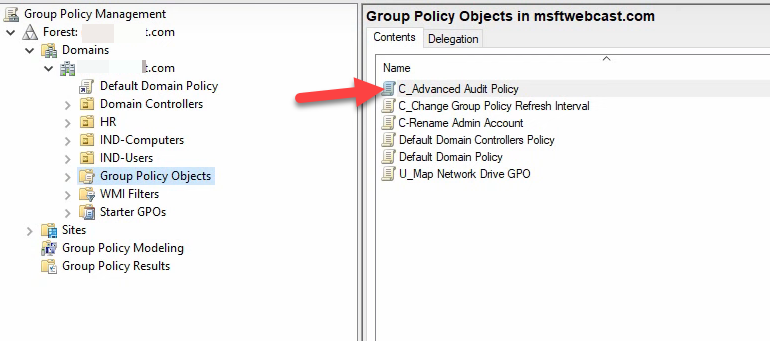
C_ prefix here marks it as a Computer Configuration GPO), and click OK. Then right-click the new GPO → Edit to open the editor.Right-click the new GPO and pick Edit to open the editor.
Step 2: Find the Advanced Audit Policy Configuration Branch
The legacy and advanced settings sit one above the other in the editor:
Computer Configuration
  Policies
    Windows Settings
      Security Settings
        Local Policies
          Audit Policy           ← legacy 9-category basic
        Advanced Audit Policy Configuration
          Audit Policies         ← granular ~60-subcategory advanced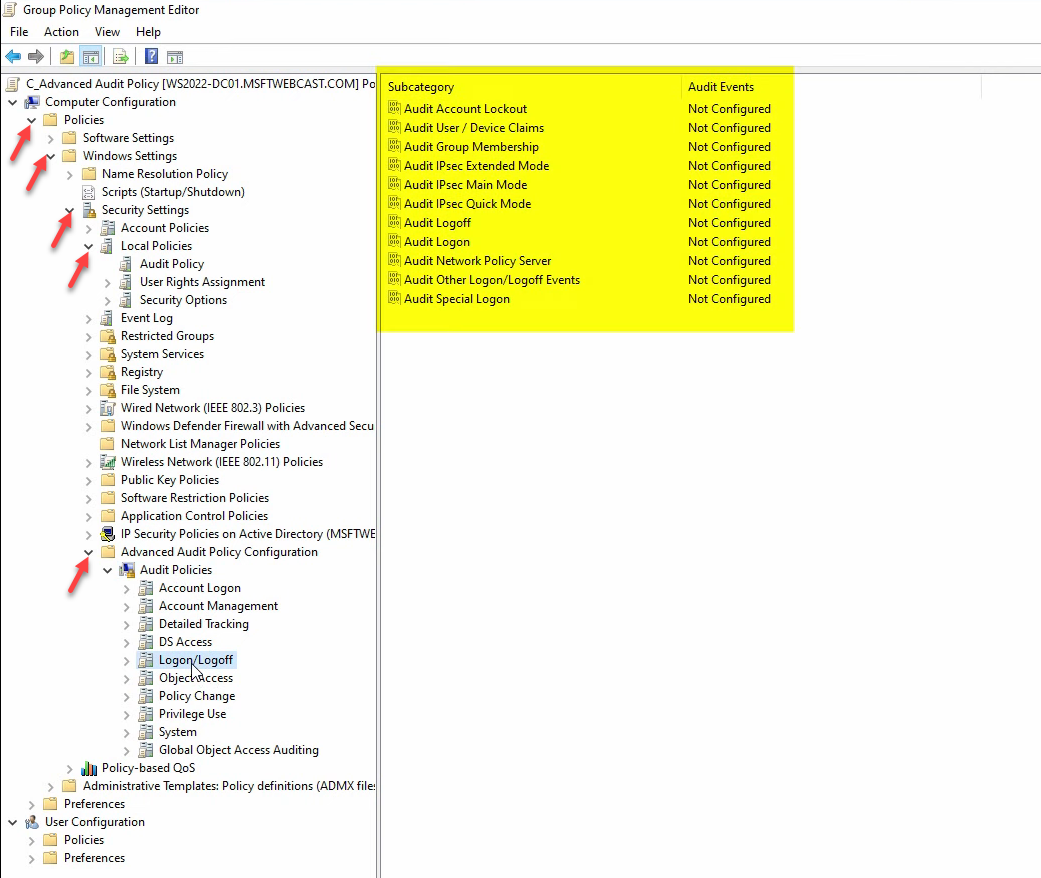
The Advanced Audit Policy Configuration branch is divided into ten top-level categories: Account Logon, Account Management, Detailed Tracking, DS Access, Logon/Logoff, Object Access, Policy Change, Privilege Use, System, and Global Object Access Auditing. Each holds 4–13 subcategories.
Step 3: Configure DS Access › Audit Directory Service Changes
This is the subcategory that fires when an AD object is created, modified, deleted, moved, or undeleted — the right level for tracking GPO creation, OU restructuring, sensitive-group changes, and similar AD admin actions.
Click DS Access, double-click Audit Directory Service Changes, check Configure the following audit events, then tick both Success and Failure. Click Apply + OK:
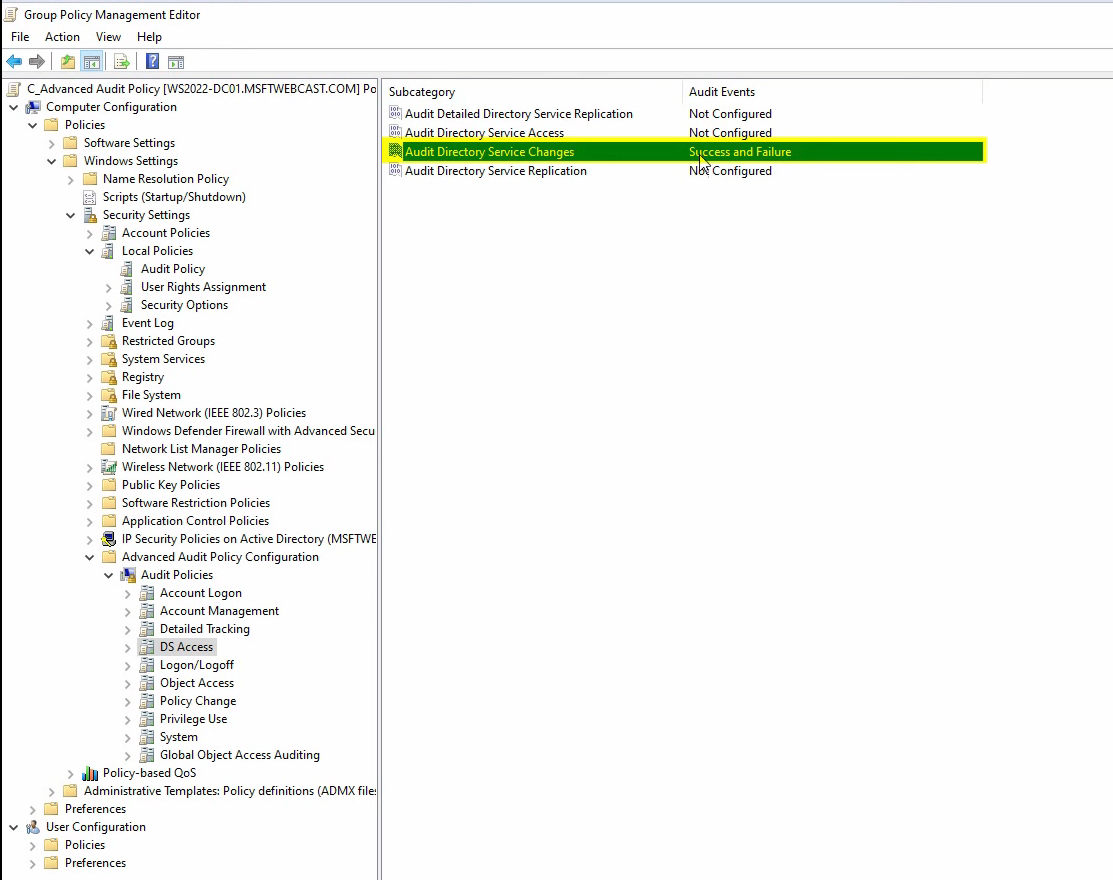
Read the Explain tab while you are in the dialog — it gives a one-paragraph summary of exactly what triggers an event for that subcategory. The Explain text is the most reliable reference for “will this catch the thing I care about?”
Step 4: Configure Object Access › Audit File System
For tracking file and folder access on audited paths. Audit File System on its own captures everything; pair it with SACLs on the folder you actually want audited so you do not generate events for the entire C: drive.
Click Object Access, double-click Audit File System, tick Success and Failure, click Apply + OK:
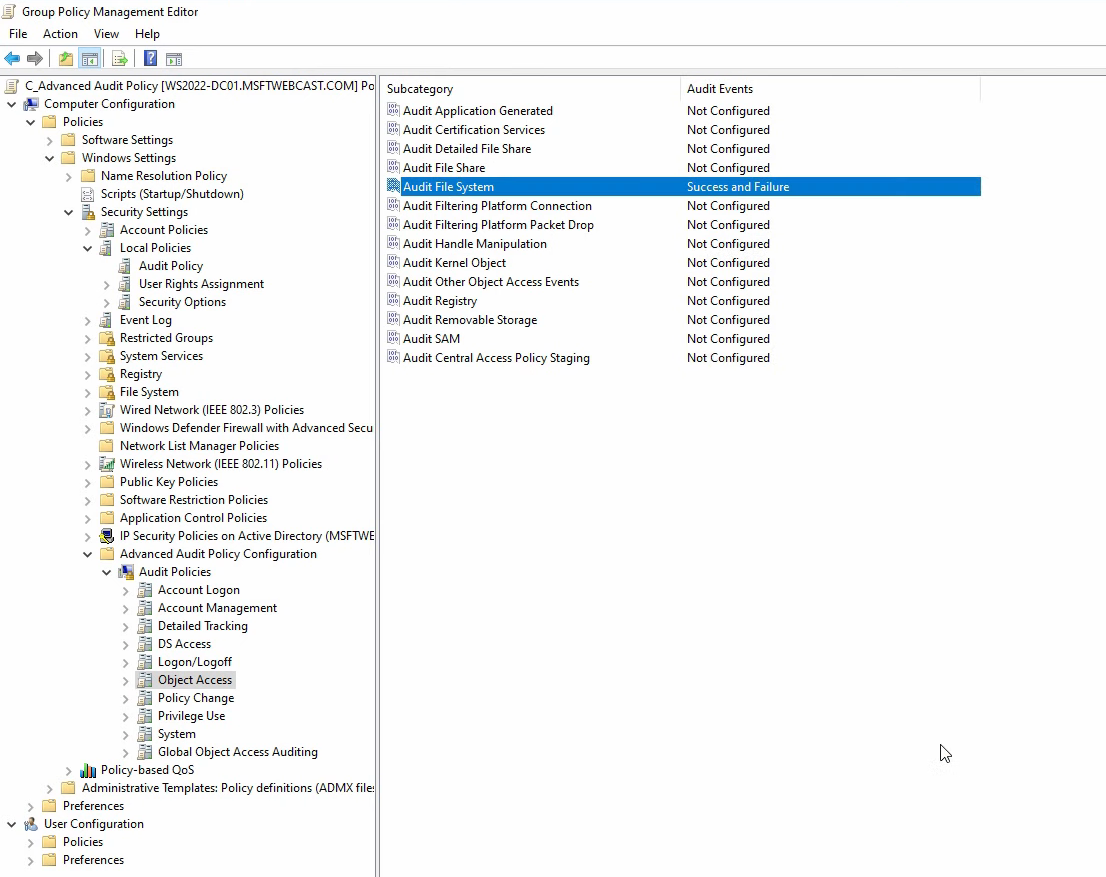
Other useful subcategories under Object Access depending on what you need to track:
- Audit Registry — registry SACLs (configure carefully, registry events generate fast).
- Audit Kernel Object — named pipes, mutexes, etc. Mostly noise unless you have a specific use case.
- Audit SAM — access to the local SAM database.
- Audit Removable Storage — USB drive plug-in events. Useful for DLP.
Step 5: Link the GPO and Force a Refresh
Close the editor. In GPMC, right-click the OU you want the audit policy to apply to and pick Link an Existing GPO…. For AD-audit events, the right OU is Domain Controllers — only DCs serve AD changes. Pick the new audit GPO and click OK:
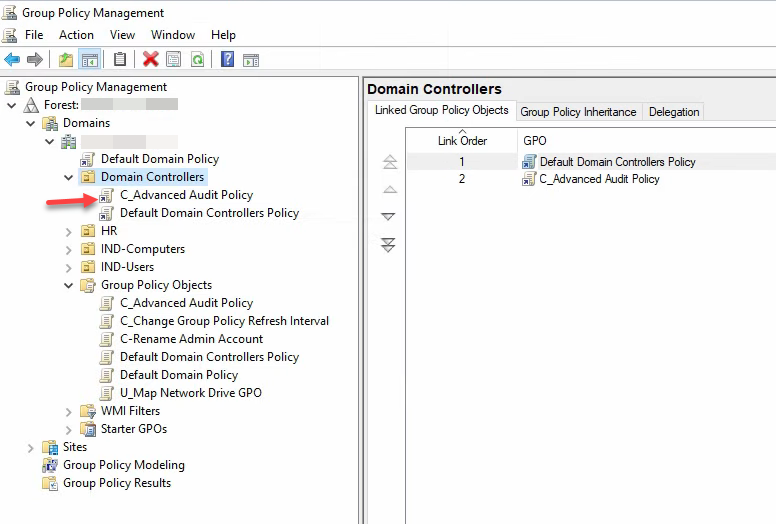
gpupdate /force on each DC.Right-click the OU again and pick Group Policy Update. Click Yes at the prompt — this pushes gpupdate /force to every machine in the OU rather than waiting for the 90-minute scheduled refresh. Or run gpupdate /force manually on each DC from an elevated prompt.
Step 6: Verify with a Test Action
The audit policy is only useful if events actually appear in the security log. The simplest end-to-end test: create another GPO and watch for the corresponding event.
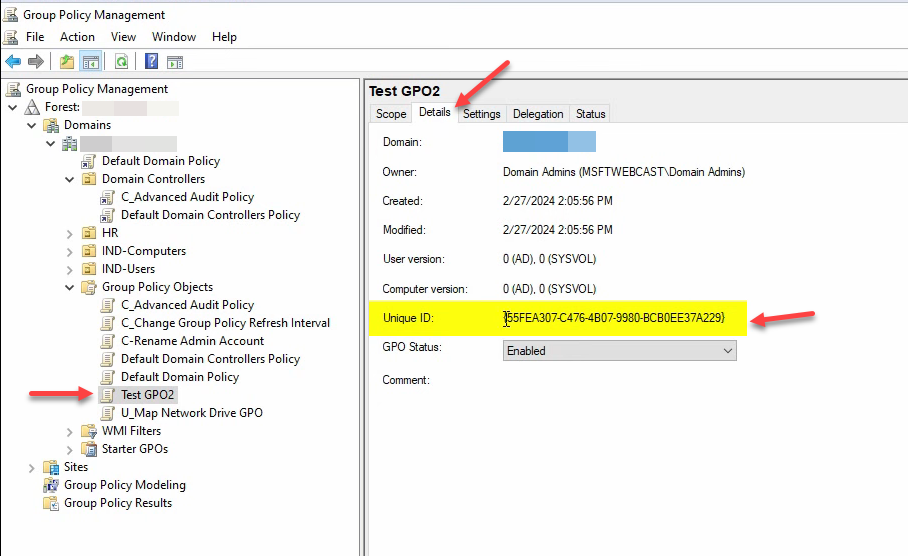
Right-click Group Policy Objects → New. Name it Test GPO 2. Click OK. Select the new GPO and click the Details tab — capture the Unique ID (GUID):
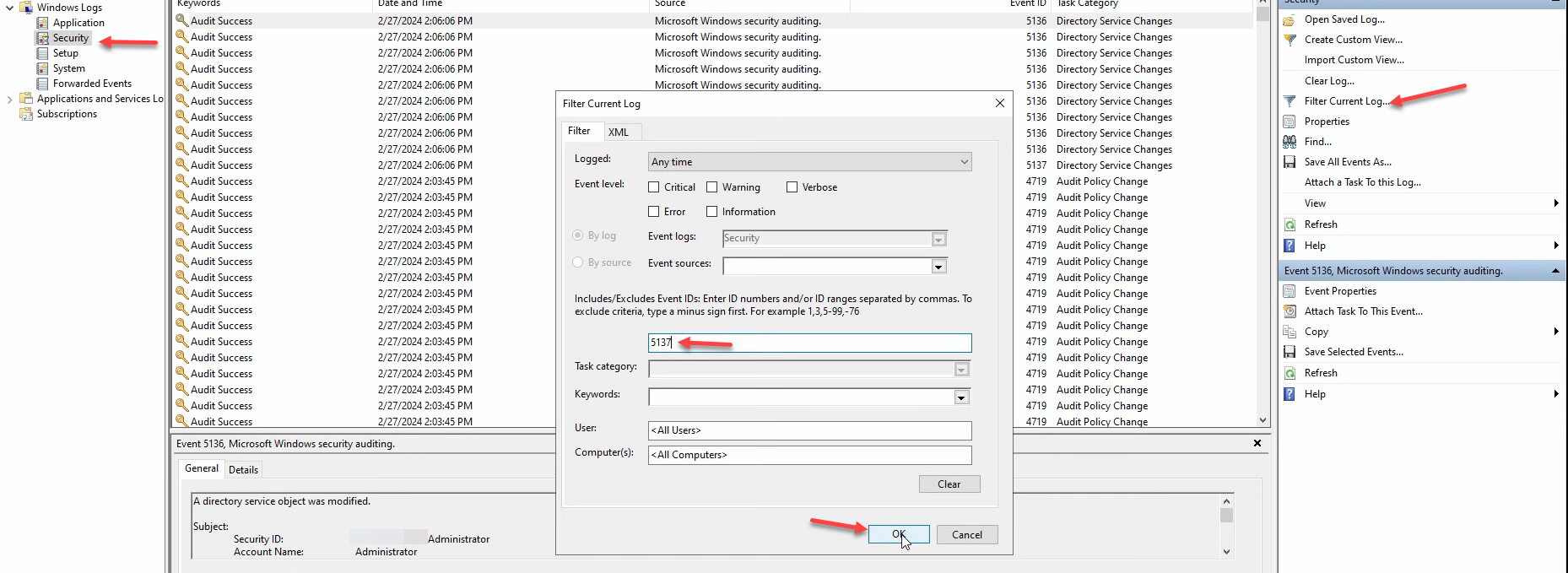
Open Server Manager › Tools › Event Viewer on the same DC. Navigate to Windows Logs › Security. Right-click → Filter Current Log…. In the <All Event IDs> field type 5137 and click OK:
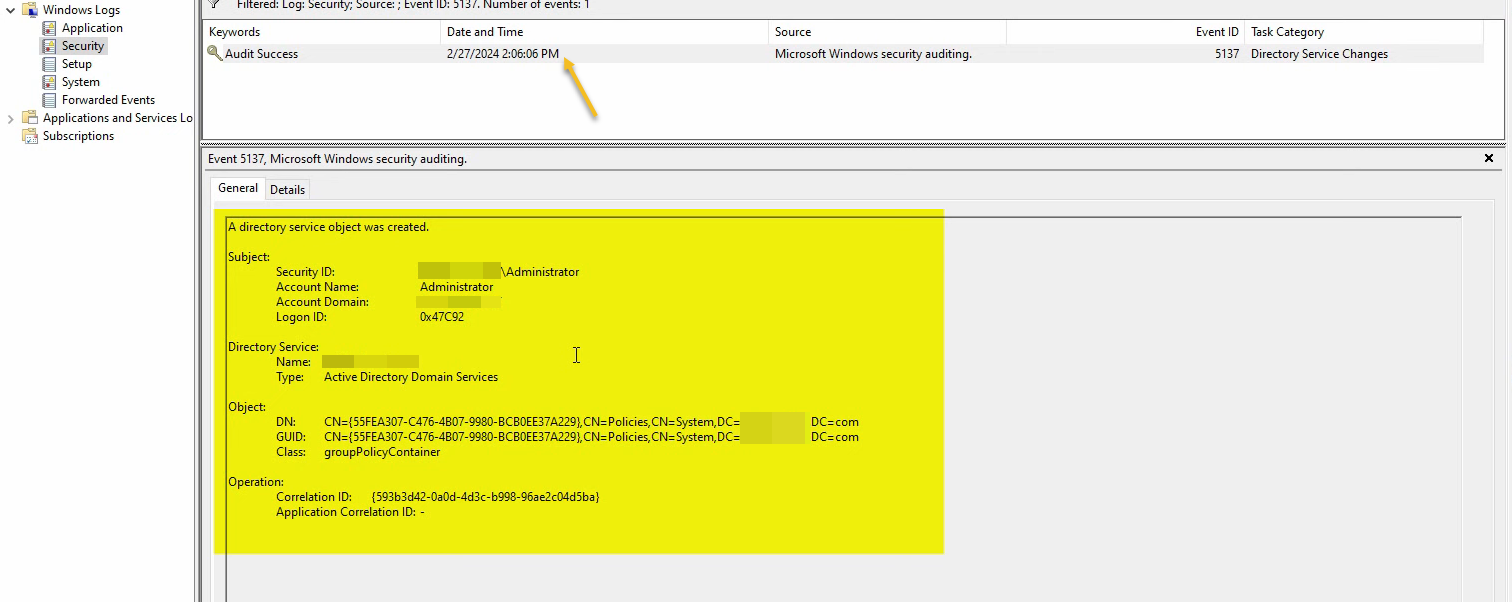
Event 5137 fires when a directory service object is created. Open the matching event — the Object › GUID field will match the GUID you captured from the Details tab, and Class: groupPolicyContainer confirms the event is for our test GPO. The audit pipeline is end-to-end working:
If no Event 5137 appears, troubleshoot in this order:
- Confirm the audit GPO actually applied:
gpresult /scope:computer /h C:\temp\rsop.htmlon the DC, search for the GPO name. - Confirm the link is enabled: Domain Controllers OU → the audit GPO link should not have Link Enabled turned off.
- Confirm the right subcategory was enabled:
auditpol /get /category:"DS Access"from the DC’s elevated prompt should show Audit Directory Service Changes: Success and Failure.
Useful Event IDs to Filter For
A short reference for the event IDs you will encounter most often:
| Event ID | Subcategory | What it means |
|---|---|---|
| 4624 / 4625 | Logon | Successful / failed logon |
| 4720 / 4726 | Account Management | User account created / deleted |
| 4727 / 4729 | Account Management | Security group created / member removed |
| 4732 / 4733 | Account Management | Member added to / removed from security-enabled group |
| 4738 | Account Management | User account changed |
| 5136 | Directory Service Changes | Directory service object modified |
| 5137 | Directory Service Changes | Directory service object created |
| 5138 | Directory Service Changes | Directory service object undeleted |
| 5139 | Directory Service Changes | Directory service object moved |
| 5141 | Directory Service Changes | Directory service object deleted |
| 4663 | File System | An attempt was made to access a file/folder |
Beyond Event Viewer: Forwarding and Analysis
Configuring the audit policy is half the work. Reading 50 event-log entries by eye is fine; reading 50,000 is not. Two patterns for handling volume:
- Windows Event Forwarding (WEF). Built-in. DCs and member servers forward selected events to a central collector via WinRM. Pair with subscriptions tuned to the event IDs above. Free, ships with Windows, covers most environments.
- SIEM ingestion. Splunk, Azure Sentinel, Elastic, Wazuh, etc. The agent pulls security log events, normalizes them, and lets you write detection rules. The Elastic + Wazuh tutorial covers a self-hosted option for this.
Either way, the policy on the DC is the same; the analysis layer changes.
Common Pitfalls
- Auditing too much. Enable Success+Failure on every subcategory and the security log fills in hours. Start with a written list of events you need; add subcategories deliberately.
- Mixing basic and advanced audit policy in the same GPO. Pick one. The advanced policy is the right answer for any new GPO; the basic policy is documentation legacy.
- Forgetting SACLs. Audit File System only generates events for files/folders that have a SACL configured. Without SACLs on the audited paths, the subcategory is enabled but does nothing.
- Linking the audit GPO at the domain root. AD audit events come from DCs — linking at the domain root applies the GPO to every machine, which means workstations also start auditing things they cannot meaningfully audit. Link to Domain Controllers OU for AD events; link to a specific OU of file servers for file-access auditing; etc.
- Default 16 MB security log size. The default is small; busy DCs roll the log over in hours. Increase the maximum size in Computer Configuration › Policies › Windows Settings › Security Settings › Event Log › Security Log Maximum Size — 1 GB or larger is normal for production DCs — or forward events to a SIEM and let the central system retain history.
- Not testing the audit before a real incident. Validate every subcategory you enable with a known action (the GPO-creation test in this article is the standard one for DS Access). If the test event does not appear, the audit was not actually working — and finding that out during an incident is the wrong moment.
Conclusion
Advanced Audit Policy Configuration is the right tool for AD security auditing — granular, low-noise, the supported path for any new deployment. The pattern is consistent: dedicated GPO, enable specific subcategories with Success / Failure as appropriate, link to the right OU (Domain Controllers for AD events; file servers for file events), force gpupdate, validate end to end with a known action and the matching event ID. Anchor the audit list in a written threat model rather than “turn everything on,” size the security log to match your retention needs, and forward to a SIEM if you have one. The next time someone asks “who created that OU last week?”, the answer is event ID 5137 with a matching GUID, not “I do not know.”