
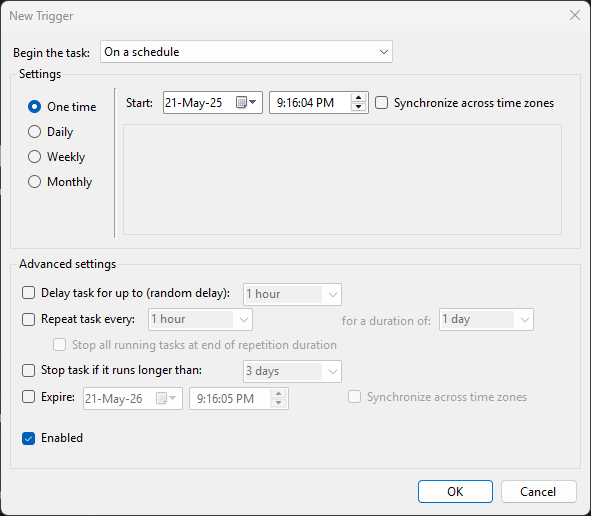
Once the task has a name and a security context (covered in the General tab walkthrough), the next decision is when it should fire. Task Scheduler exposes twelve different fire conditions on the Triggers tab — some calendar-driven, some event-driven, some session-state-driven, several with their own sub-options that change the rest of the dialog when selected. This post walks all twelve, the schedule sub-options for the calendar trigger, the advanced settings that modify how the task repeats and expires, and the production gotchas that make the difference between a task that fires when you expect it and one that silently misses every other run.
What you need before starting
- The General tab already configured — the trigger settings depend on whether the task is set to run only when a user is logged on (some triggers grey out) or run whether logged on or not (all triggers available)
- For event-driven triggers, knowledge of the source log channel and event ID you want to react to —
wevtutil qe System /c:5 /f:textfrom an admin shell is the fast way to confirm an event is being written before you wire up a trigger to it - For schedule triggers in distributed environments, awareness of whether the task should follow the local time zone or a fixed UTC offset (the “Synchronize across time zones” checkbox covers this)
- Local administrator rights, if the trigger requires Task Scheduler to subscribe to system events (event-log triggers) or to a session state (lock/unlock/connect/disconnect)
The twelve trigger types
Each trigger answers a different version of the same question: what real-world signal should cause this task to run? They split into four groups by the kind of signal they listen for — clock, session state, system event, and idle behaviour.
Clock-driven: On a schedule
The most common trigger. Task fires at a specific time on a recurring calendar pattern. Selecting it exposes four sub-options — One time, Daily, Weekly, Monthly — covered in the next section. This is the trigger you want for any “run this every night at 2 AM” or “run on the first of every month” pattern.
Session-state-driven: At log on
Fires when a user signs in. Two sub-modes: trigger on any user logging on (useful for bootstrap scripts that should run for everyone — corporate login banners, drive mapping, branch-office customisations) or trigger on a specific user (per-user automation that shouldn’t run for other accounts that share the machine). Combine with a 30-second to 2-minute delay (set under Advanced settings) so the task doesn’t race the user’s shell while the desktop is still loading.
Boot-driven: One time at startup
Fires once per boot, before any user logs on, in the SYSTEM context. Right for services that need to run early in the boot cycle but don’t justify writing as a real Windows service: cleanup of stale lock files, mounting of network drives in non-interactive contexts, kicking a backup daemon, posting a “machine is up” ping to a monitoring system. The classic alternative is converting the script into a Windows service via NSSM or sc.exe, which is more correct but considerably more setup.
Idle-driven: On idle
Fires when the machine has been idle (no keyboard, mouse, CPU, or disk activity above a configurable threshold) for the period set in the Conditions tab. Right for low-priority maintenance work that should yield to active use: reindexing, defragmentation on traditional disks, batch transcoding, low-priority backup jobs. Watch the cost: the idle definition is strict; on a machine that’s never truly idle (servers, kiosks, monitoring stations), the trigger may never fire.
Event-driven: On an event
The most flexible trigger. Subscribes Task Scheduler to a specific event-log channel and fires the task whenever a matching event is written. Two configuration modes: basic (channel + source + event ID) and custom (a full XPath query against the event log, including XML-property filters). The custom mode is the supported way to build sophisticated reactive automation: fire on logon failure event 4625 with a specific status code, fire on application crash event 1000 from a specific source, fire on Defender alert event 1116 with a particular severity. The trigger fires once per matching event, including bursts — throttle in the script if needed.
At task creation/modification
An unusual trigger that fires immediately when the task is saved (and again whenever it’s edited and saved). Use cases are narrow: a one-shot bootstrap that you want to test by simply saving the task, or an installer pattern where the act of registering the task should kick off the work it represents. Most administrators never use this trigger; it’s included for completeness.
On connection to user session
Fires when a user’s session connects to the desktop — either a fresh sign-in (slightly different from “at log on”: this also fires for RDP reconnects to a disconnected session) or an RDP reconnect from another endpoint. Right for: scripts that need to refresh resources every time the user actually engages the machine, irrespective of whether the underlying logon happened minutes or days ago. Two scope sub-modes: any session connection or only the specified user.
On disconnect from user session
The mirror image. Fires when a user disconnects from a session — closing the RDP window without signing out, the network connection dropping during an RDP session, or any other event that puts the session into the disconnected state. Useful for cleanup work that should run while the user is gone but before they reconnect: clearing temp files, tearing down test environments, releasing licences.
On workstation lock
Fires when the workstation is locked (Win+L, Ctrl+Alt+Delete → Lock, or after the screen-saver lock kicks in). Useful for: starting a screen-recording session for compliance, beginning an idle-time backup, dimming external monitors, kicking off a security scan that shouldn’t run while the user is actively typing.
On workstation unlock
The mirror — fires when the user unlocks. Pair with “On workstation lock” to bracket a window of time when the user is away (lock starts the window, unlock closes it). Useful for showing a “welcome back, here’s what happened while you were away” notification or for restoring a UI state that the lock-time task tore down.
The remaining two
Older Task Scheduler builds split “On connection” and “On disconnect” into separate “remote” and “local” variants for backwards compatibility, which is where the twelfth and thirteenth entries in the picker often come from. They fire under the same conditions as their unified counterparts; the split is mostly historical and the unified versions are the right pick on any modern OS.
Schedule sub-options when “On a schedule” is picked
Choosing the schedule trigger expands the dialog to expose four calendar patterns:
- One time — runs exactly once at a specific date and time. Right for one-shot operations: a planned reboot, a one-off backup before a migration, a deferred change.
- Daily — runs every N days at the configured time. The N defaults to 1 (every day) but can be set to 2, 3, or higher for less-frequent patterns. Right for backups, log rotation, daily health checks.
- Weekly — runs every N weeks on selected days of the week. Pick the days with the checkboxes (Mon/Tue/…/Sun); the task fires at the configured time on each picked day. Right for weekly maintenance windows, batch reports, certificate-expiry monitors.
- Monthly — runs on either specific calendar days (1st, 15th, last day of month) or specific days-of-week within selected weeks (e.g. “the second Tuesday of every month”). Right for monthly reports, billing-cycle automation, patch-Tuesday-aligned tasks.
Advanced settings — modifying how the trigger fires
Below the trigger-specific configuration, a collapsible “Advanced settings” group exposes five modifiers that work with most trigger types:
Delay task for / random delay
Inserts a fixed or randomised wait between the trigger firing and the task actually starting. Random delay (“up to 1 hour”) is the right choice when many machines run the same task on the same trigger — staggering them avoids thundering-herd load on the shared backend (file server, SQL backup target, monitoring API). For per-machine tasks, fixed delays are useful when the trigger fires before the system is fully ready (logon trigger + 30-second delay so the desktop loads first).
Repeat task every / for a duration
After the initial fire, repeats the task every N (minutes / hours / days) for a configurable total duration. Useful for monitoring patterns: “fire at 8 AM, then every 15 minutes until 6 PM” for an active-day health check. The repetition runs even if the trigger condition is no longer true at the repeat time — setting it under a logon trigger means the task keeps repeating even after the user logs off (unless you also configure stop-on-end-of-repetition; see next).
Stop all running tasks at end of repetition duration
Forces termination of any in-progress invocation when the repetition window closes. Without it, an invocation that started near the end of the window can run for hours past the “until” time. With it, the “until” time is a real boundary — whatever’s running gets killed (with the same TerminateProcess semantics as Stop-Process).
Stop task if it runs longer than
A separate kill-switch that applies to single invocations regardless of repetition. Set it to 1 hour for any task you don’t expect to run longer than that — if it does, something is wrong (script hung, network share unavailable, lock contention) and silent termination is better than a phantom long-runner clogging the scheduler.
Activate / Expire
The two date-bounds for when the trigger is even eligible to fire. Activate (start date) defaults to the moment the task is saved. Expire (end date) is blank by default; set it for tasks that have a known end of life — a 90-day rollout that should auto-disable when the project completes, a one-quarter monitoring task that shouldn’t outlast the quarter. Past the expire date, Task Scheduler quietly stops firing the trigger; the task itself stays in the Library.
The two “Other settings”
Enabled
Checkbox at the bottom of the trigger dialog. Default is on. Unchecking it leaves the trigger configured but inactive — useful for temporarily disabling a trigger during maintenance without losing the configuration. Multiple triggers can attach to the same task; disabling one leaves the others active.
Synchronize across time zones
By default, schedule times are local-time relative to the machine running the task. Tick this and the time is interpreted as UTC instead, which keeps the fire moment consistent across machines in different time zones (useful for federated environments where a single “global 02:00 backup” should fire at the same physical instant everywhere, not at each location’s own 02:00). The downside is the task may fire at unexpected local times (a UTC 02:00 schedule fires at 21:00 the prior day in Eastern US). Pick deliberately.
A worked example: weekly compliance scan
Goal: a script that runs a compliance check every Monday at 09:00, then re-runs hourly through the day, but stops after 3 days if something has it stuck. The trigger configuration:
- Trigger: On a schedule
- Schedule: Weekly
- Days: Monday
- Start: next Monday, 09:00
- Repeat task every: 1 hour
- For a duration of: Indefinitely (or 8 hours if it should stop at end of business day)
- Stop task if it runs longer than: 3 days
- Expire: 21-May-26 (project end date)
Reads as: every Monday at 9 AM the task fires, repeats every hour through the day (or for the configured duration), any single invocation that runs more than three days gets killed, and after 21 May 2026 the trigger stops firing entirely.
Things that bite people in production
The “On idle” trigger never fires on busy machines
Idle is defined strictly — CPU below threshold, no keyboard/mouse, no disk activity. On a server (constant background activity), or on a kiosk / monitoring station (network listeners running), the idle condition may never be met. If the goal is “run during quiet hours,” use a schedule trigger pointed at the actual quiet window, not an idle trigger.
Event triggers fire per matching event — throttle in the script
If the trigger is event ID 4625 (failed logon) and an attacker hits the box with credential-stuffing, the task can fire hundreds of times per minute. Either set the script to be cheap and idempotent, or wrap it in a per-process throttle (mutex + cooldown timestamp) so only the first invocation runs and subsequent firings skip. Task Scheduler does not deduplicate events for you.
Logon-triggered tasks race the desktop — add a delay
Without a configured delay, a logon-triggered task starts immediately when winlogon fires the logon event. The user’s shell, mapped drives, and profile-load scripts may not be ready yet. A 30 to 120-second delay is almost always the right move for logon triggers that depend on the user’s desktop being usable.
Time-zone synchronisation interacts surprisingly with daylight saving
A schedule time in local mode (synchronise OFF) shifts when DST starts/ends — the task that fires at 02:00 local during winter still fires at 02:00 local in summer, but the absolute UTC moment shifts. A schedule time in UTC mode (synchronise ON) holds the absolute moment and the local fire time shifts. Pick the one that matches the semantics you actually want. For most maintenance windows where “2 AM” means “the middle of the night locally,” leave synchronise OFF. For globally coordinated tasks where the moment matters more than the local clock, turn it ON.
Multiple triggers OR together — pick or scope deliberately
A task can have several triggers attached (a schedule trigger AND an event trigger AND a logon trigger). They’re independent — the task fires when ANY of them fires. There’s no AND-combination in the GUI. If you need “fire only when the schedule hits AND the event has occurred,” build the conditional logic into the script itself rather than trying to compose triggers.
Repeat duration counts from the trigger time, not the previous run end
“Repeat every 1 hour for 8 hours” starting at 09:00 means: fires at 09:00, 10:00, 11:00, …, 17:00 — nine total invocations bounded by the original trigger time plus 8 hours. If the 09:00 invocation runs for 90 minutes, the 10:00 fire still happens (overlapping with the still-running first one) unless the task is configured for “Do not start a new instance” behaviour on the Settings tab. Multiple-instance handling lives on the Settings tab, not here — covered in the next post.
Where this fits
The Triggers tab answers the “when” question. The next post in the series walks the Actions tab — the “do what” question. Combined with the General-tab identity work and the Conditions and Settings tabs that follow, the five tabs together describe a complete scheduled task. For broader sysadmin context, the Windows Server administration pathway covers the rest of the surface area.