
Active Directory works the same on a one-office network as it does on a fifty-location global enterprise — until the “the WAN link to the headquarters DC went down” ticket arrives, and suddenly nobody at the branch office can log in or reach a file share. The fix is to push domain controllers out to where the users actually are: each physical location gets its own DC, the DCs replicate between themselves, and the AD subsystem learns enough about the network to schedule cross-location traffic intelligently. This is multi-location AD, and it’s the difference between an AD that scales gracefully and one that breaks the moment the company opens a second office. This first post in a five-part series covers the why, the topology terminology, and the lab build that the rest of the series will configure.
What you need before starting (the whole series)
- A working understanding of single-location AD — users, groups, OUs, group policy, DNS hosted on the DC. The series builds on that, doesn’t re-cover it. See the Active Directory pathway for the foundation.
- A virtualisation host with at least 16 GB RAM and 200 GB free disk — the lab uses four VMs (one router, three DCs). Hyper-V, VMware Workstation, or VirtualBox all work; this series uses Hyper-V terminology where it matters.
- An ISO of Windows Server 2022 (Standard or Datacenter) to install the four VMs from. Evaluation editions work fine for the 180-day lab life.
- For the lab IP plan: two private subnets (we’ll use 172.18.72.0/24 for the “Surat” HQ and 172.31.72.0/24 for the “Delhi” branch) and a router VM with one virtual NIC on each.
- Optional: a separate workstation VM for testing client logon and group-policy resolution against each location’s DC. Useful for the verification phase but not required for the build.
Why a multi-location AD exists
Imagine a company with offices in three cities — pick any three; the example in this lab uses Surat (headquarters) and Delhi (branch), but it could just as well be New York / London / Tokyo, or three branches of a regional bank. Each office has local users, local workstations, local file servers, and local printers. If every authentication request has to cross the WAN to a single domain controller in the headquarters office, three things happen:
- Logons get slow. Every credential check is a Kerberos round-trip across the WAN. Kerberos handshakes are chatty (multiple AS-REQ / AS-REP / TGS-REQ / TGS-REP exchanges per session); on a high-latency link those round-trips add up to a noticeably sluggish desktop experience for the user.
- AD writes propagate slowly. A password reset, a group-membership change, or a new user account at the HQ doesn’t reach the branch immediately — the branch has no DC of its own to replicate to, so the write has to be looked up live from HQ every time. Cached credentials mask this until the cache expires; then the user notices.
- WAN-down means AD-down at the branch. The most operationally serious failure mode. If the link between the branch and HQ goes down (cable cut, ISP outage, BGP misconfiguration), the branch loses authentication entirely — no logons, no file-share access, no printer queue, no DNS resolution if the local DNS resolver is also pointed at HQ.
The fix is to put a domain controller in every location that has enough users to justify it (roughly: more than ~20 users, or any office whose business would stop if AD went away for a few hours). Local clients authenticate locally; the DCs replicate between themselves on a schedule the administrator controls. The WAN link still matters for the once-per-cycle replication traffic, but it’s no longer in the critical path of every user logon.
The two AD topologies: logical vs physical
Active Directory describes itself in two parallel ways and the distinction is the entire reason the rest of this series exists.
Logical topology — how AD organises objects
The logical topology is the abstract shape of the directory that administrators see in tools like ADUC. It has four levels:
- Forest — the outermost container. One forest per organisation in most cases. Defines the schema (object classes and attributes) and the global security boundary; trusts inside the forest are automatic and transitive, trusts to other forests are manual.
- Tree — a contiguous DNS namespace within a forest.
infotechninja.com+europe.infotechninja.com+asia.infotechninja.comis one tree;infotechninja.com+fabrikam.comin the same forest is two trees. Most environments use a single tree. - Domain — the partition unit. Users, computers, and groups live inside a domain. Replication of the “domain partition” (covered in the repadmin /showrepl post) only happens between DCs of the same domain.
- Organizational Units (OUs) — sub-containers within a domain. Used to scope group policy and delegate administration without splitting the domain.
The logical topology is independent of where the DCs physically sit. Two DCs in the same domain may live on the same desk or on opposite sides of the planet — from the logical view they’re identical.
Physical topology — how AD describes the network
The physical topology tells AD how the underlying network is laid out so it can make smart decisions about replication schedules and which DC each client should talk to. It also has four levels:
- Site — an AD object representing a physical location. A “Surat site” might contain the two HQ DCs; a “Delhi site” the one branch DC.
- Subnet — an IP range associated with a location. AD uses the subnet to figure out which location a client is in, and therefore which DC the client should authenticate against. The Surat location might own
172.18.72.0/24; Delhi172.31.72.0/24. - Site link — an AD object representing the WAN connection between two locations, with a configurable cost (lower = preferred) and replication schedule. Site links are how the administrator tells AD “replicate Surat to Delhi every 180 minutes between midnight and 06:00,” not “every 15 minutes constantly.”
- Domain controller — the actual server. Each DC belongs to one location and uses the location’s subnet to advertise itself to local clients via DNS SRV records.
The physical topology has to match reality. If Surat and Delhi are actually on different subnets connected by a slow VPN tunnel, the physical topology should say so. If you skip the physical-topology configuration, AD assumes everything is in one giant location, replicates aggressively, and routes clients to whichever DC happens to respond first — which is often the wrong one.
What AD locations actually buy you
Configuring the physical topology unlocks two distinct benefits, both of which are critical at scale.
1. Service localisation
Clients in a particular subnet are directed to the DC associated with that subnet, instead of randomly picking one. The mechanism is DNS: when a client looks up _kerberos._tcp.dc._msdcs.<domain>, the DCs in the client’s location return their SRV records first (with priority and weight that favour them), so the client preferentially binds to a local DC for authentication, group-policy retrieval, and DFS namespace resolution. Result: branch users authenticate to the branch DC, HQ users to an HQ DC, and the WAN link doesn’t carry any of that user-facing traffic.
2. Managed replication
By default, the Knowledge Consistency Checker (KCC) on every DC builds a replication topology that assumes “everything is local, replicate as often as possible.” That means continuous, low-latency replication, which works fine on a single LAN and saturates a WAN link. Once the physical topology is configured, the KCC sees that Surat-DC and Delhi-DC are in different locations connected by a site link, and builds an inter-location replication schedule that respects the site link’s configured cost and timing — replicating, say, every 3 hours during business hours and every 15 minutes overnight, instead of every 15 minutes constantly. The result is dramatically less WAN bandwidth used for replication, paid for by a slightly longer convergence time for changes (acceptable in nearly every multi-location scenario).
The KCC is the unsung hero of multi-location AD. It runs every 15 minutes on every DC, evaluates the topology graph, and adjusts the replication connections automatically when DCs come and go or when site links change. Manual replication-topology configuration via the AD Sites and Services snap-in is supported but rarely needed unless you’re hand-tuning a complex hub-and-spoke deployment.
The lab build — what we’re actually constructing
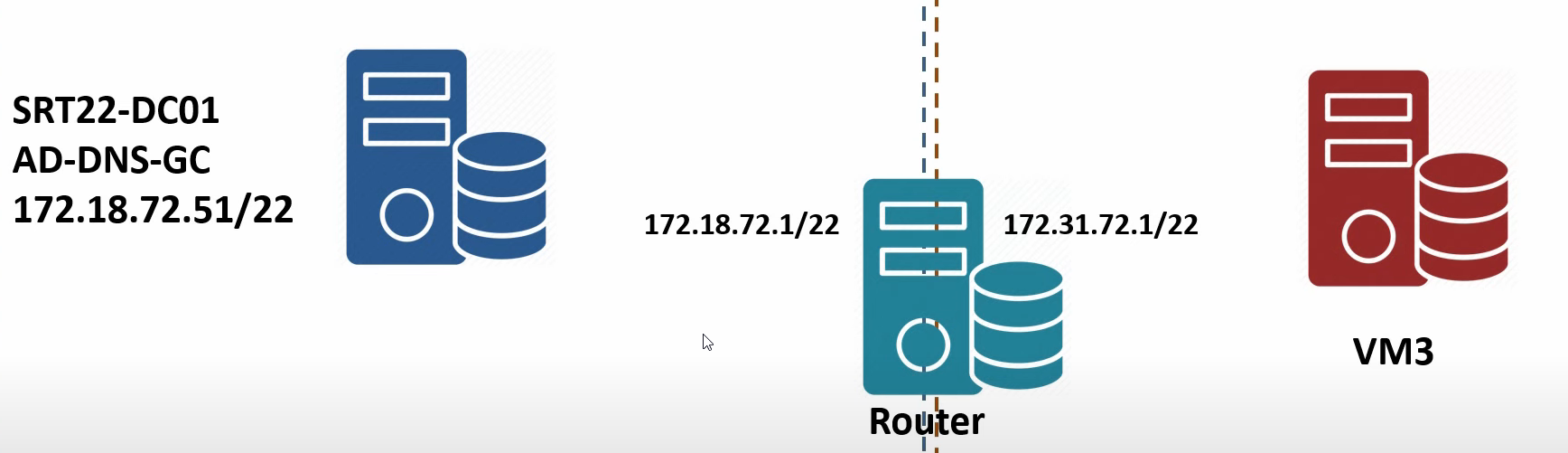
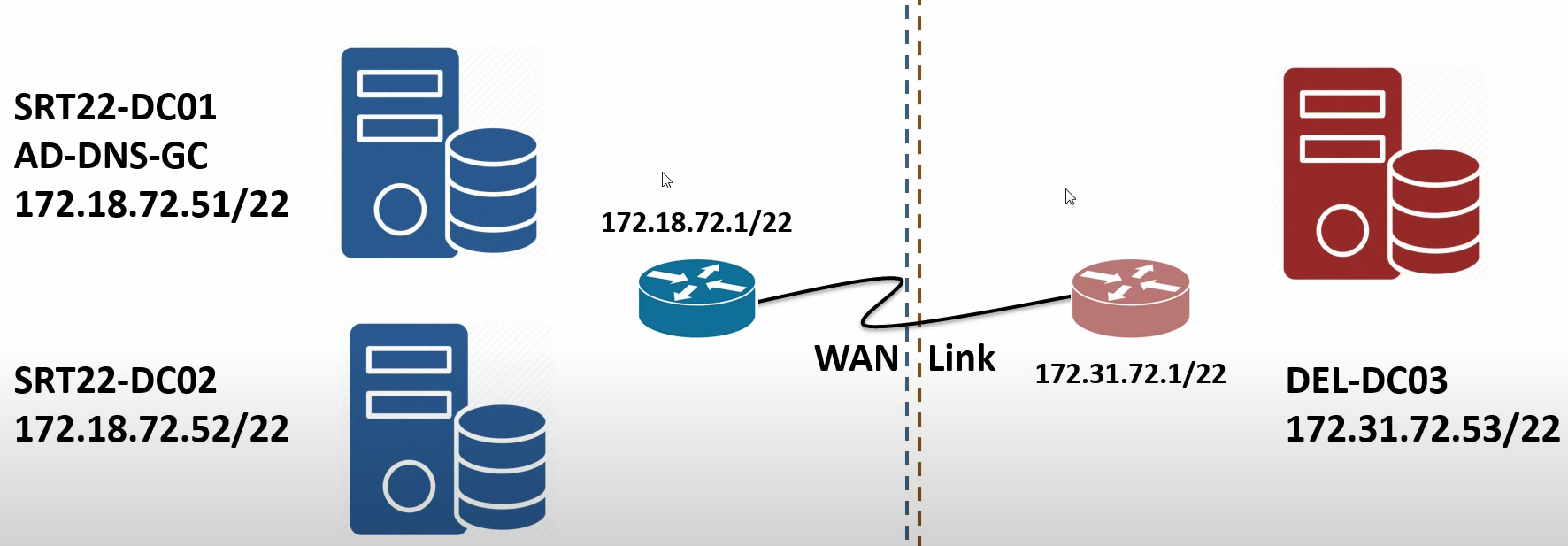
The series uses a four-VM lab to exercise the full workflow. The fictitious organisation has two offices: Surat (the headquarters) and Delhi (a branch). One AD forest with one domain (msfwebcast.com), three domain controllers spread across the two locations, and one router VM standing in for the WAN link between them.
Server inventory
- SRT22-DC01 — the root domain controller in Surat. Promoted first, holds all five FSMO roles, also the Global Catalog server. FQDN
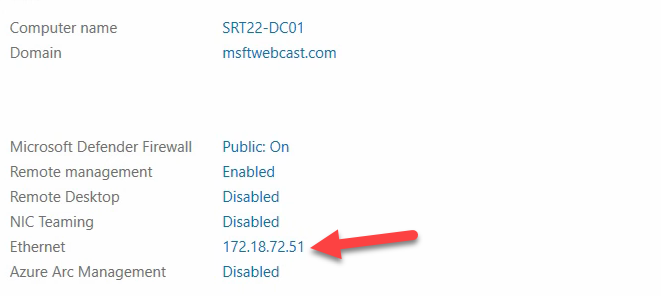
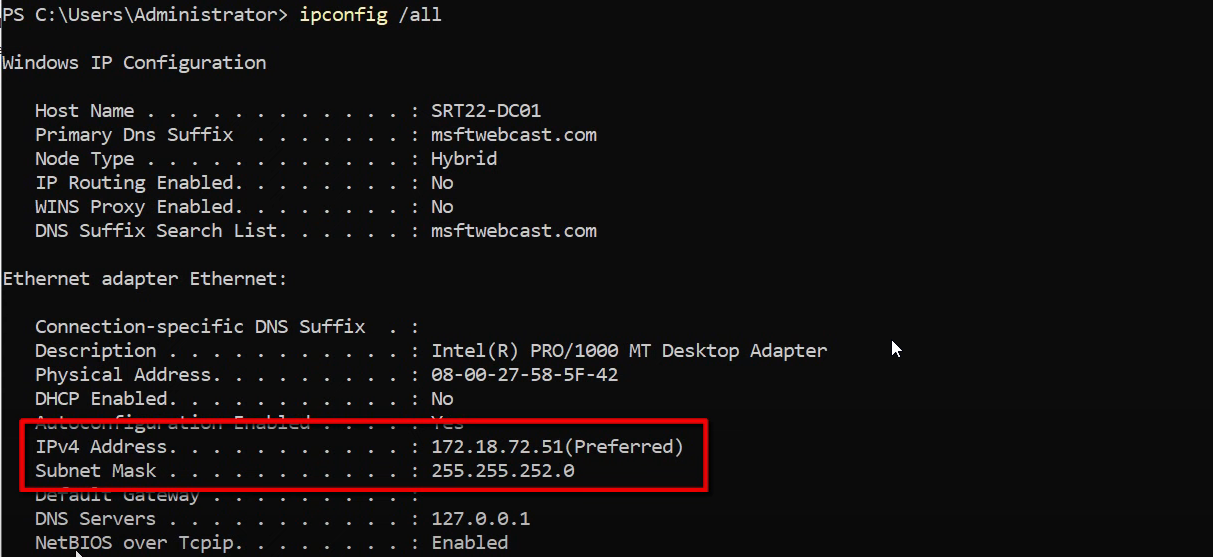
SRT22-DC01.msfwebcast.com, IP 172.18.72.51, subnet mask 255.255.252.0, DNS pointing at itself (127.0.0.1) because it’s also the DNS Server. - SRT22-DC02 — second DC in the Surat location. Promoted later in the series for HA — the recommendation is two DCs per location so that a single DC failure doesn’t take the location offline.
- DEL22-DC03 — the branch DC in Delhi. Promoted later in the series after the AD Sites and Services configuration is in place. IP 172.31.72.53, subnet mask 255.255.252.0.
- Router VM — a Windows Server 2022 VM with two network adapters, one on each subnet (172.18.72.1 in Surat, 172.31.72.1 in Delhi). With IP forwarding enabled, it routes packets between the two subnets the way a real WAN device would. It’s not running RRAS or anything elaborate — just the registry-flag IP forwarding that ships with every Windows installation.
Initial state of SRT22-DC01
The Surat root DC is already promoted (this series picks up after the basic single-location AD is in place; for the promotion walkthrough see deploy a domain controller via IFM). It currently has no default gateway because it’s sitting on a single subnet with nothing to talk to off-link. As the series proceeds, the gateway will be set to the router VM’s Surat-side IP (172.18.72.1), which gives it a route to the Delhi subnet.
Per-location best practices — what the series will configure
The technical configuration that the series builds out maps to a small set of standing recommendations:
- One AD location per physical office with enough users to justify it. The threshold is judgement: an office with three salespeople probably routes to the nearest hub location instead of getting its own. An office with thirty users and a file server gets its own location.
- At least one DC per location, ideally two for high availability. The two-DC recommendation matters because the value of the location-aware DC selection is destroyed if the single local DC is offline (clients fall back to a remote DC and you’re back to the WAN-bound logon scenario).
- At least one Global Catalog per location. Universal-group lookups during logon hit a GC; without a local GC, every logon does a slow GC query across the WAN. The GC role is cheap to add (a checkbox on the NTDSDSA object) and free to run.
- Subnet-to-location mapping for every subnet that hosts AD-domain-joined clients. Clients on an unmapped subnet authenticate randomly — sometimes to the nearest DC, sometimes to the farthest, depending on which one wins the DNS race.
- Local DNS resolvers. Clients should have the local-location DC(s) as their primary and secondary DNS servers, not a remote-location DC. The DNS lookup happens before the Kerberos round trip; a slow DNS lookup poisons every subsequent operation.
The network design for the lab
The lab uses two private /24 subnets to simulate two offices on different IP networks — a setup that reproduces the routing problem (the two networks can’t talk directly) and the AD problem (clients in one need to find DCs in the other) in a contained environment.
- Surat subnet: 172.18.72.0/24, with the router VM at 172.18.72.1 (default gateway for everything in Surat) and the DCs at 172.18.72.51 / 172.18.72.52.
- Delhi subnet: 172.31.72.0/24, with the router VM at 172.31.72.1 (default gateway for everything in Delhi) and the DC at 172.31.72.53.
- Router VM: two NICs, one on each subnet, IP forwarding enabled at the OS level. The OS-level IP-forwarding flag is set via the registry value
HKLM\SYSTEM\CurrentControlSet\Services\Tcpip\Parameters\IPEnableRouter = 1(then reboot or restart the IP Helper service). On Windows Server 2022 the flag also needs Windows Firewall to permit inbound ICMP echo for verification pings to work.
In a real deployment the router VM would be a hardware router, a firewall, or the cloud provider’s VPC routing fabric. The lab uses a Windows VM because it’s the cheapest way to demonstrate the concept without dragging in vendor-specific configuration.
Things that bite people in production
Skipping the AD Sites configuration leads to silent over-replication
If you stand up DCs in multiple locations but never configure AD Sites and Services, the KCC builds a fully-meshed replication topology that pummels the WAN link. The symptom is “our internet is slow during business hours,” traced eventually to AD replication traffic running at full bore between locations every 15 minutes. The fix is the rest of this series.
Subnet-to-location mapping is a one-way street
A subnet can be associated with exactly one location at a time. Get the mapping wrong (subnet assigned to Surat but the actual machines are in Delhi) and clients will route to the wrong DC. Worse, the DNS resolution will succeed — it’ll just point them at a far-away server. The diagnostic is nltest /dsgetdc:<domain> on a client, which prints the DC it’s talking to and the AD location AD thinks it’s in.
Adding a location after the fact requires re-replicating from scratch
If you stand up a second location and only THEN configure AD Sites and Services, the existing inter-DC replication topology has to be torn down and rebuilt, and every cross-location relationship re-synchronises. On large environments this can take hours. Configure the locations BEFORE adding the second location’s DCs — the KCC will then build the topology correctly the first time.
The router VM lab pattern is not a real WAN simulator
A Windows Server VM with two NICs and IP forwarding enabled gives you LAN-quality bandwidth and latency between the two subnets — not a real WAN. For testing replication scheduling and bandwidth caps, either use a hardware traffic-shaping appliance or a Linux VM with tc qdisc rules to introduce realistic latency. The lab as configured is for demonstrating the topology, not for benchmarking replication tuning.
FSMO role placement matters more in multi-location
The five FSMO roles can technically run on any DC in the forest/domain, but in a multi-location setup the PDC Emulator role in particular is in the critical path for password changes — clients that need to validate “is this password actually correct on the freshest copy?” reach out to the PDC. Keep the PDC Emulator on a DC in the most-used location with reliable WAN reachability to the others. The remaining four FSMO roles are less performance-sensitive but should still live in the same location for operational simplicity.
Where this fits in the series
Part 1 (this post) covered the why, the topology terminology, and the lab build. Part 2 walks the router VM configuration and the gateway changes on the existing DC. Part 3 promotes the second Surat DC and the Delhi DC. Part 4 walks the AD Sites and Services configuration — locations, subnets, links. Part 5 tunes the replication schedule and verifies cross-location convergence. For the broader replication context, see read repadmin /showrepl output and the Active Directory pathway.