Systems Admin

Migrate Entra Connect to a New Server: Export-Import + Staging Swap

Old EC server is on Server 2016 with Server 2025 due imminent. Different hardware approaching end-of-life. The OS in-place upgrade path Microsoft doesn’t support for the EC role. Whatever the trigger, sometimes you can’t in-place upgrade Entra Connect — you need to MIGRATE to a different server. The supported approach: install Entra Connect on the new server in IMPORT mode using the exported config from the old server. Bring the new server up in Staging Mode (parallel sync, but no exports to cloud). Verify it’s healthy. Then SWAP — old goes to staging, new becomes active. Zero data loss; sync continuity preserved; the only downtime users see is whatever brief gap occurs at the swap. This post walks the procedure end-to-end across seven phases.

The migration model in one paragraph

Two servers run Entra Connect SIDE BY SIDE briefly. Both have identical configuration (because the new one was built from the same exported JSON). Both read AD, both prepare exports. The difference: one is in active mode (actually exporting changes to the cloud); the other is in staging mode (going through the motions but suppressing the exports). At the swap, you flip the modes — old becomes staging, new becomes active. The cloud sees one continuous sync stream, just from a different source server now.

The Staging Mode mechanic is what makes this safe. You can leave the new server in staging for days while you verify it; the old server keeps doing real work the whole time. When you’re ready, the swap is a single wizard click on each side.

Phase 1 — prepare the new server (TLS 1.2)

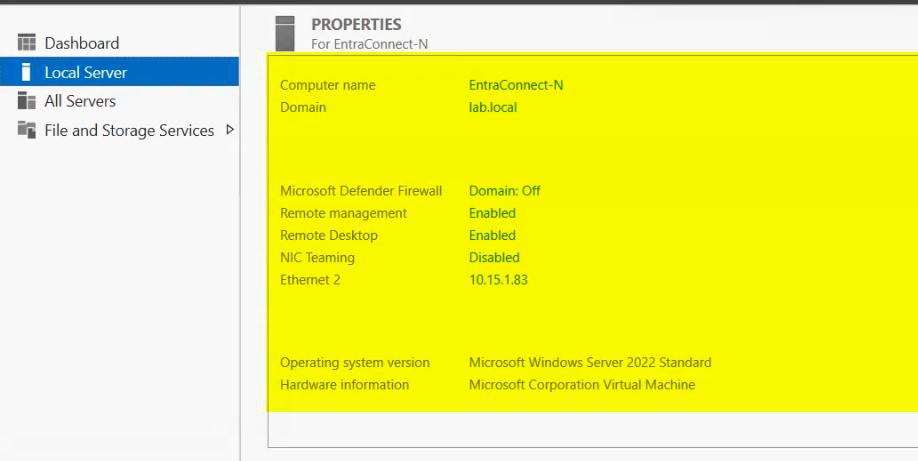
Build a fresh Server 2022 (or 2019) VM. Domain-join it. Apply the prereqs from Part 1. Then enable TLS 1.2 per Part 3 — this catches the most common installer-fails-immediately cause.
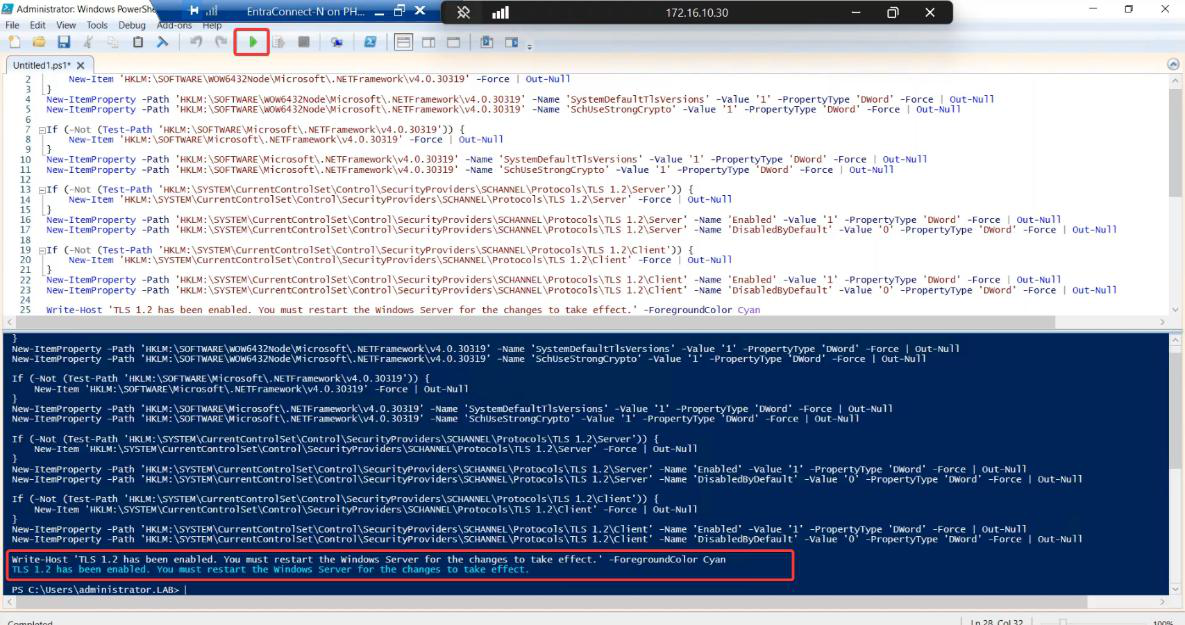
Migration screenshot 2 of 65 from the Entra Connect new-server migration walkthrough showing the wizard, sync service manager, AD console, or admin centre at the corresponding stage of the procedure
Migration step screenshot — reference image from the source PDF showing the wizard / console state at this point in the procedure.
Migration screenshot 4 of 65 from the Entra Connect new-server migration walkthrough showing the wizard, sync service manager, AD console, or admin centre at the corresponding stage of the procedure
Migration step screenshot — reference image from the source PDF showing the wizard / console state at this point in the procedure.
Migration screenshot 6 of 65 from the Entra Connect new-server migration walkthrough showing the wizard, sync service manager, AD console, or admin centre at the corresponding stage of the procedure
Migration step screenshot — reference image from the source PDF showing the wizard / console state at this point in the procedure.

Phase 2 — export the configuration on the old server

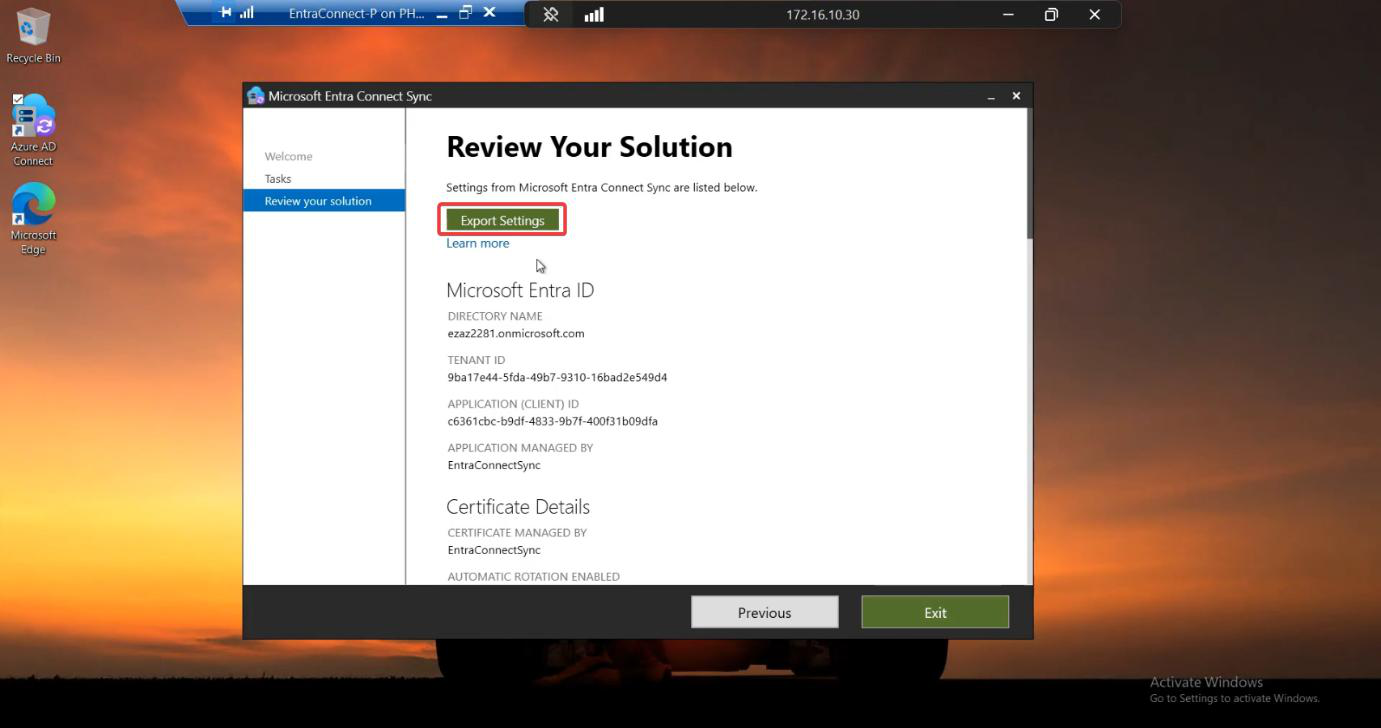
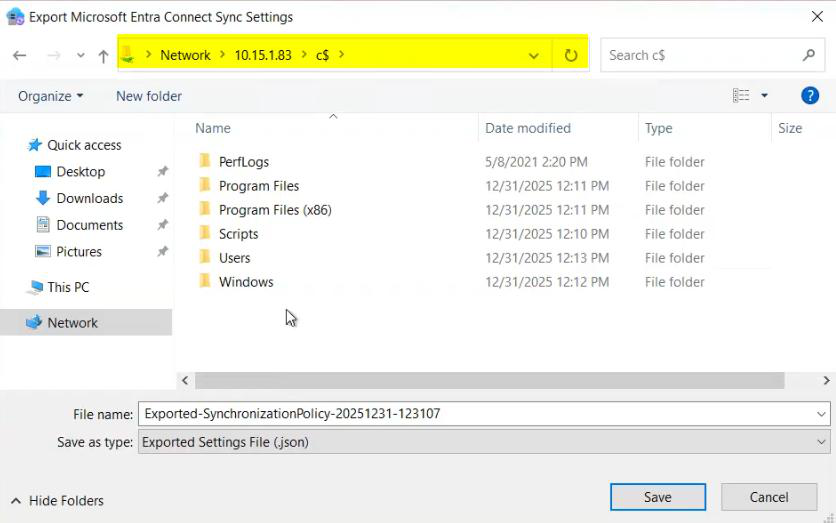
On the OLD server, launch the EC wizard and export the current configuration to JSON. This is the same export operation from Part 11 (in-place upgrade) Phase 2 — same wizard path, same JSON output. Save to a path the new server can reach, or copy the file across afterwards.
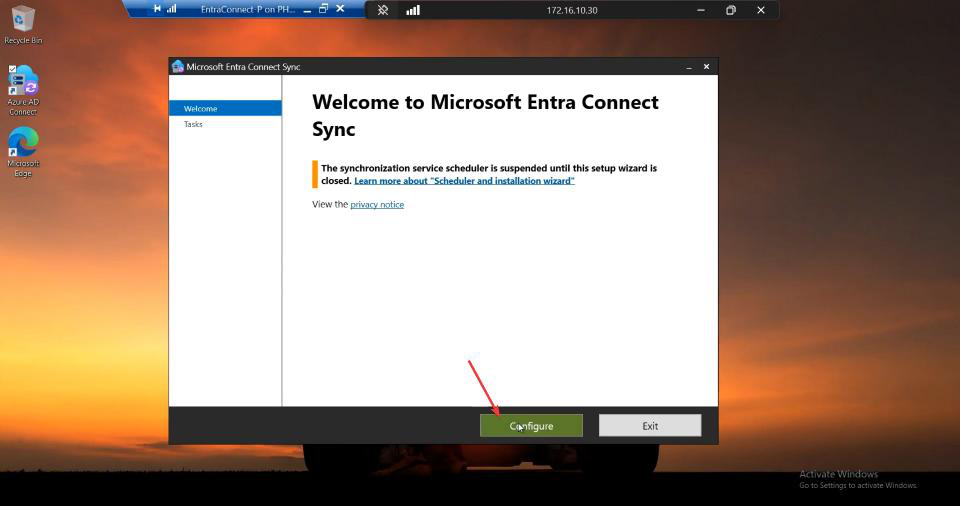
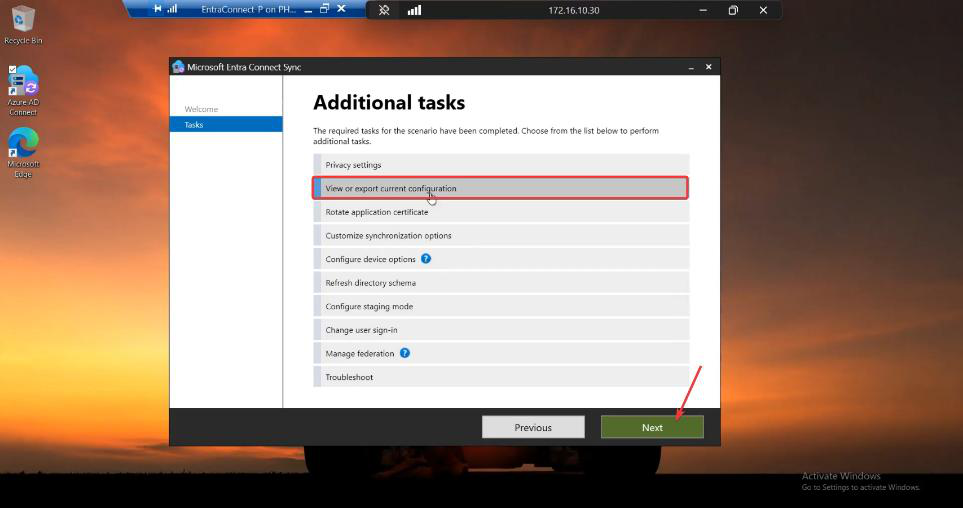
Migration screenshot 8 of 65 from the Entra Connect new-server migration walkthrough showing the wizard, sync service manager, AD console, or admin centre at the corresponding stage of the procedure
Migration step screenshot — reference image from the source PDF showing the wizard / console state at this point in the procedure.
Migration screenshot 10 of 65 from the Entra Connect new-server migration walkthrough showing the wizard, sync service manager, AD console, or admin centre at the corresponding stage of the procedure
Migration step screenshot — reference image from the source PDF showing the wizard / console state at this point in the procedure.
Migration screenshot 12 of 65 from the Entra Connect new-server migration walkthrough showing the wizard, sync service manager, AD console, or admin centre at the corresponding stage of the procedure
Migration step screenshot — reference image from the source PDF showing the wizard / console state at this point in the procedure.
Migration screenshot 14 of 65 from the Entra Connect new-server migration walkthrough showing the wizard, sync service manager, AD console, or admin centre at the corresponding stage of the procedure
Migration step screenshot — reference image from the source PDF showing the wizard / console state at this point in the procedure.

The JSON contains: sync rules, OU filters, attribute mappings, optional features, source anchor, sign-in method preferences. It does NOT contain: passwords, the cloud-side service principal, or the AD service account credentials. Those have to be re-supplied during the new install.

Phase 3 — document the settings JSON does NOT capture

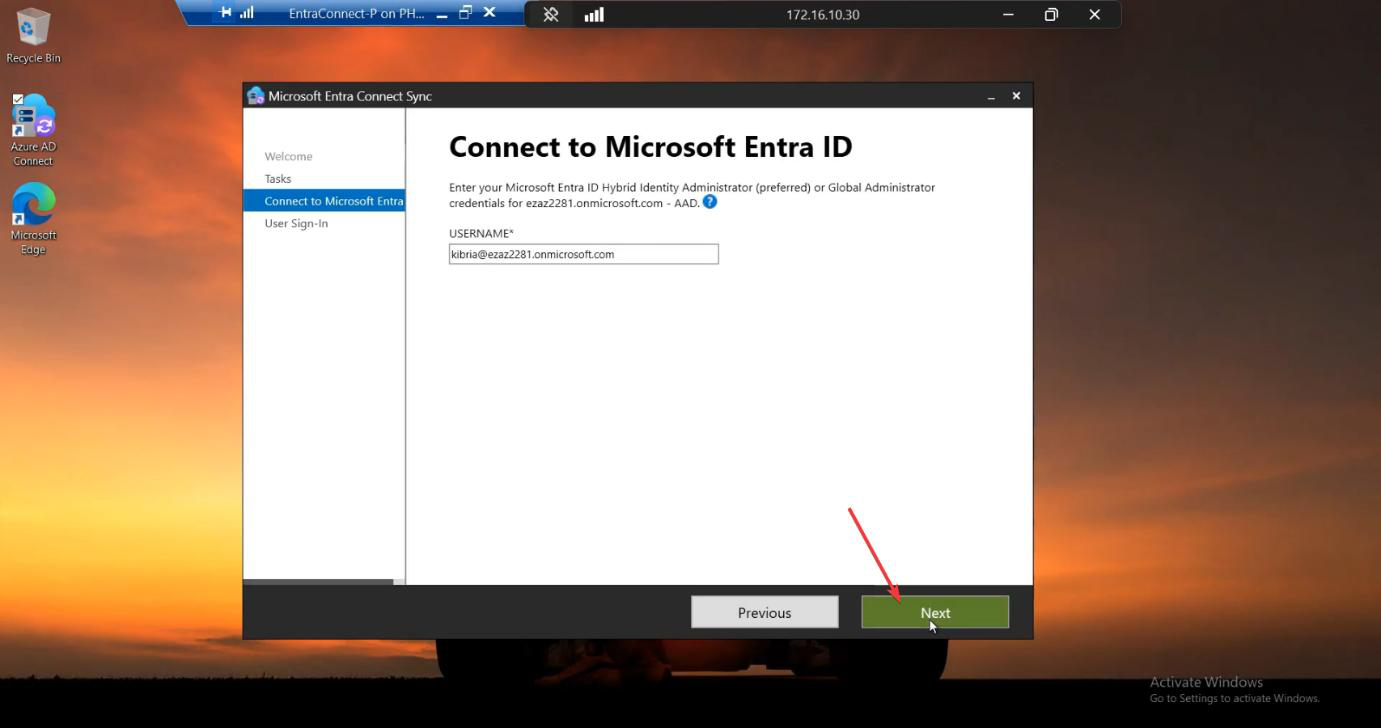
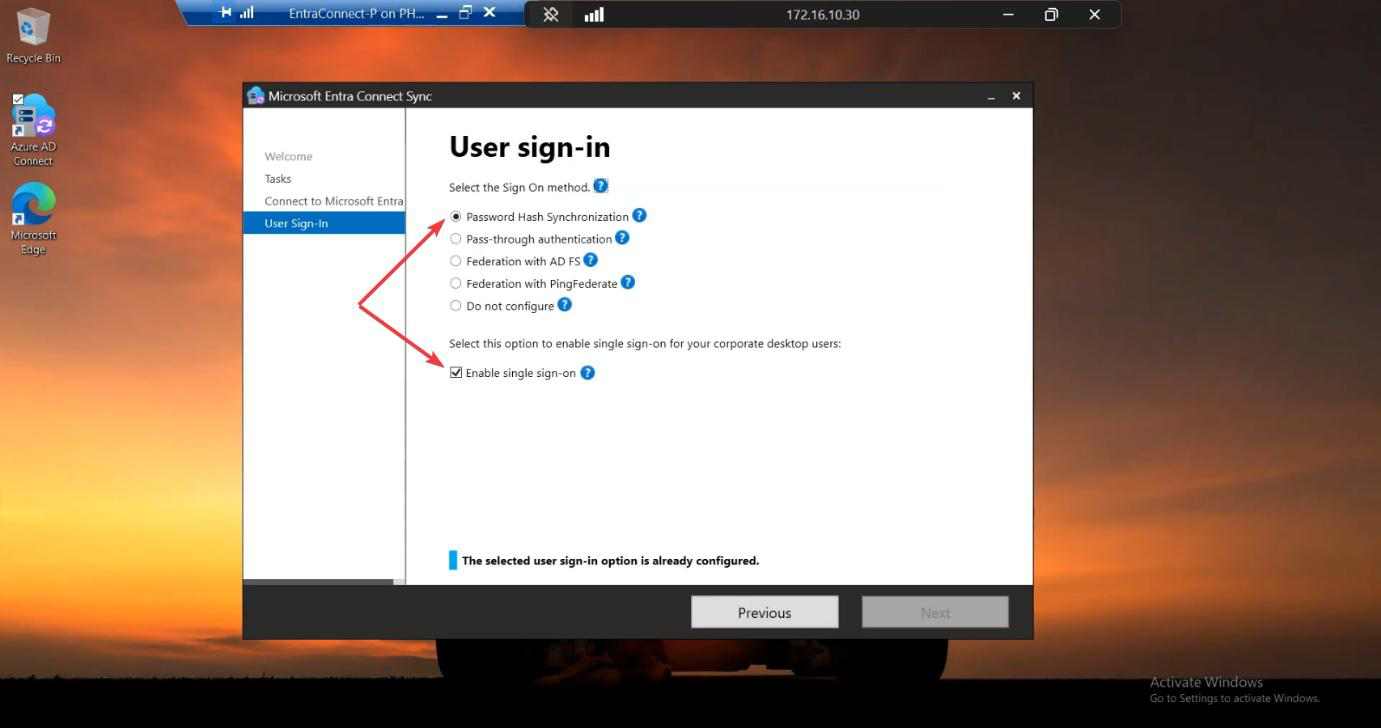
Walk the wizard one more time on the OLD server — without changing anything — and SCREENSHOT each settings page. Specifically:

  • Change user sign-in page: which method (PHS / PTA / Federation), is Seamless SSO ticked.
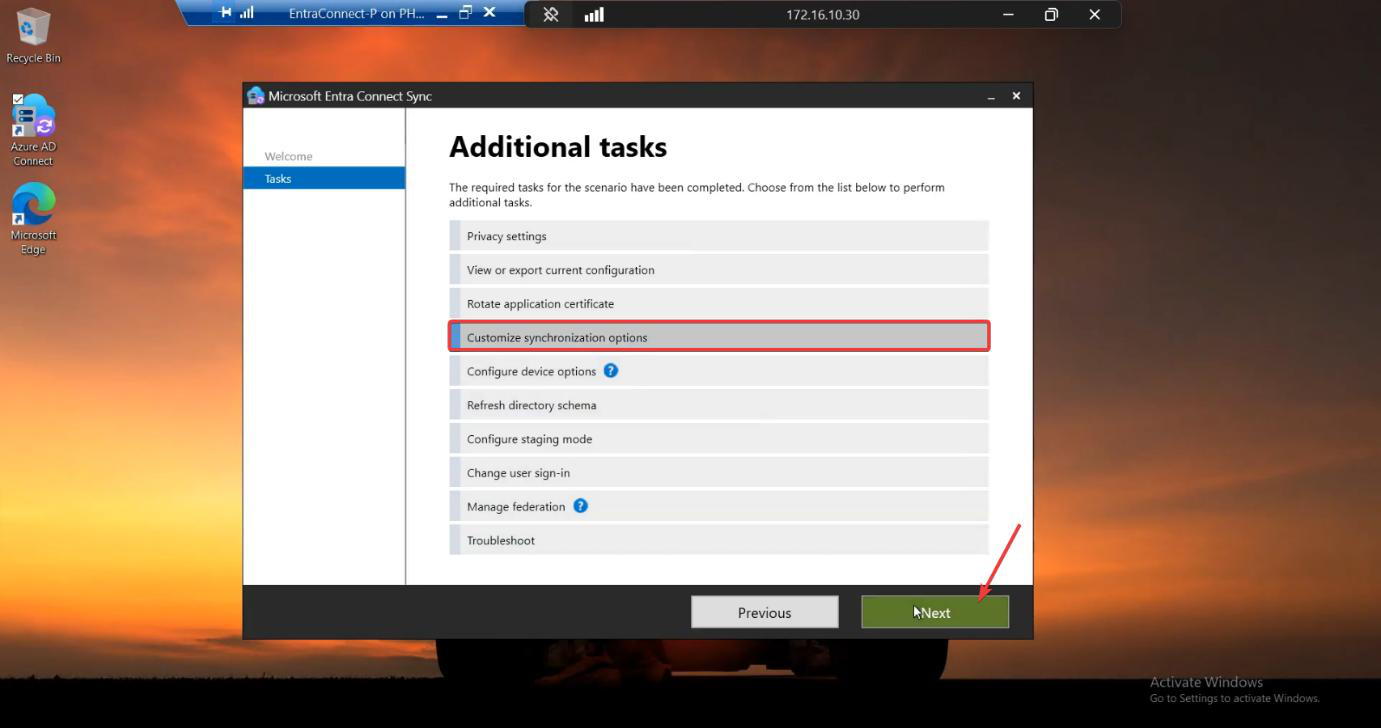
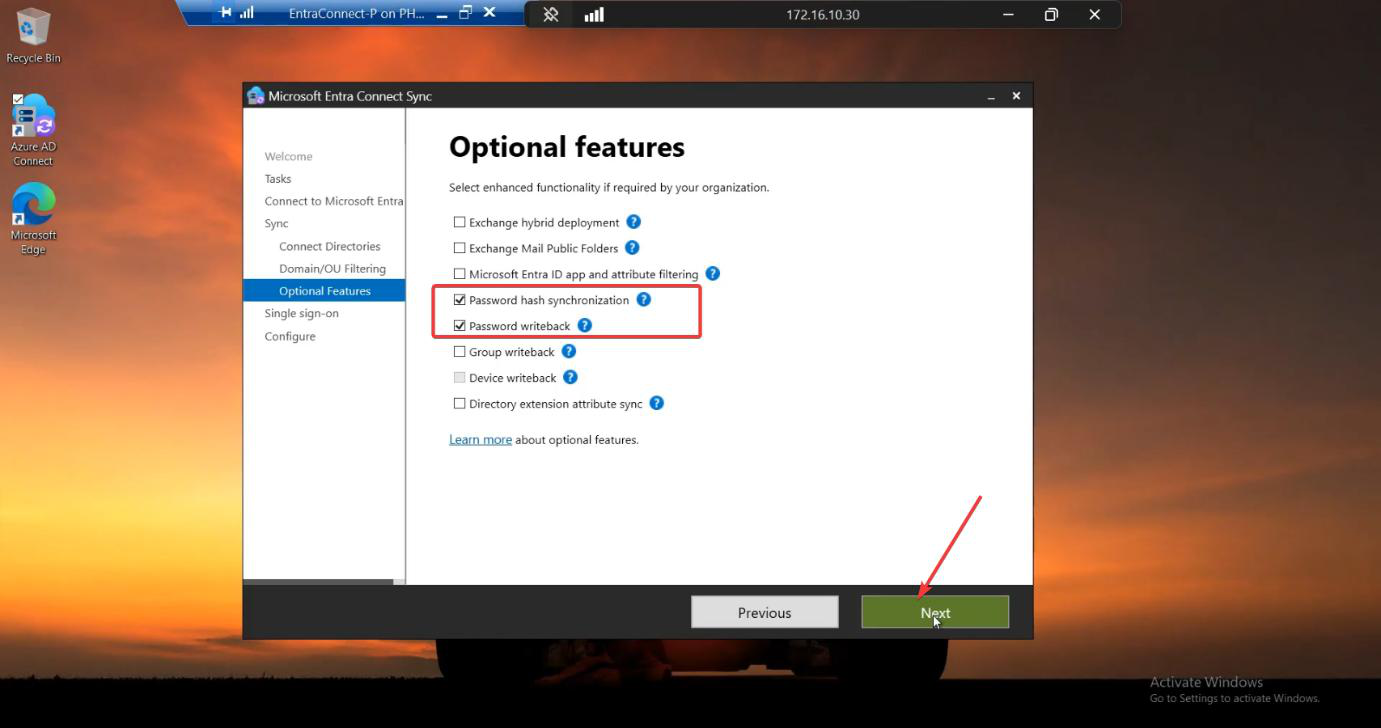
  • Customize synchronization options > Optional Features page: which boxes are ticked (Password Writeback, Group Writeback, etc.).

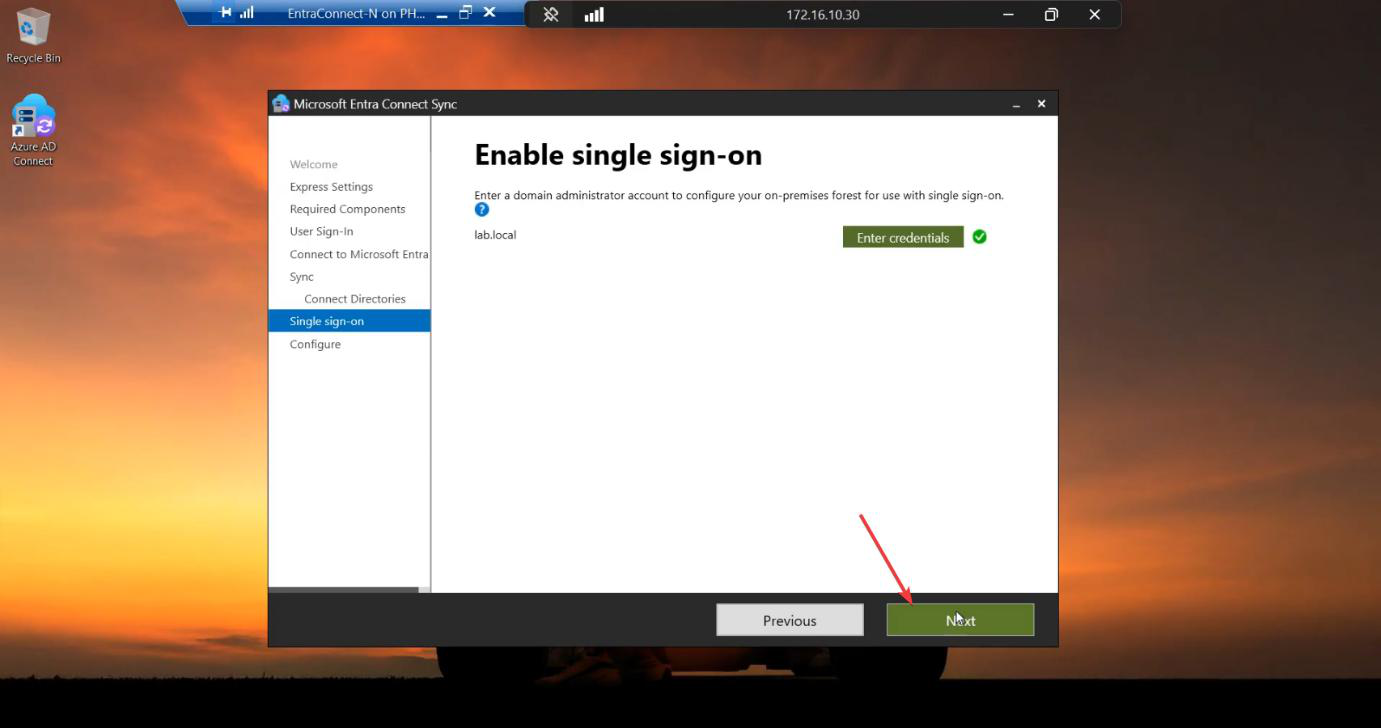
You’ll re-create these manually in Phase 4 because the JSON import doesn’t cover them.
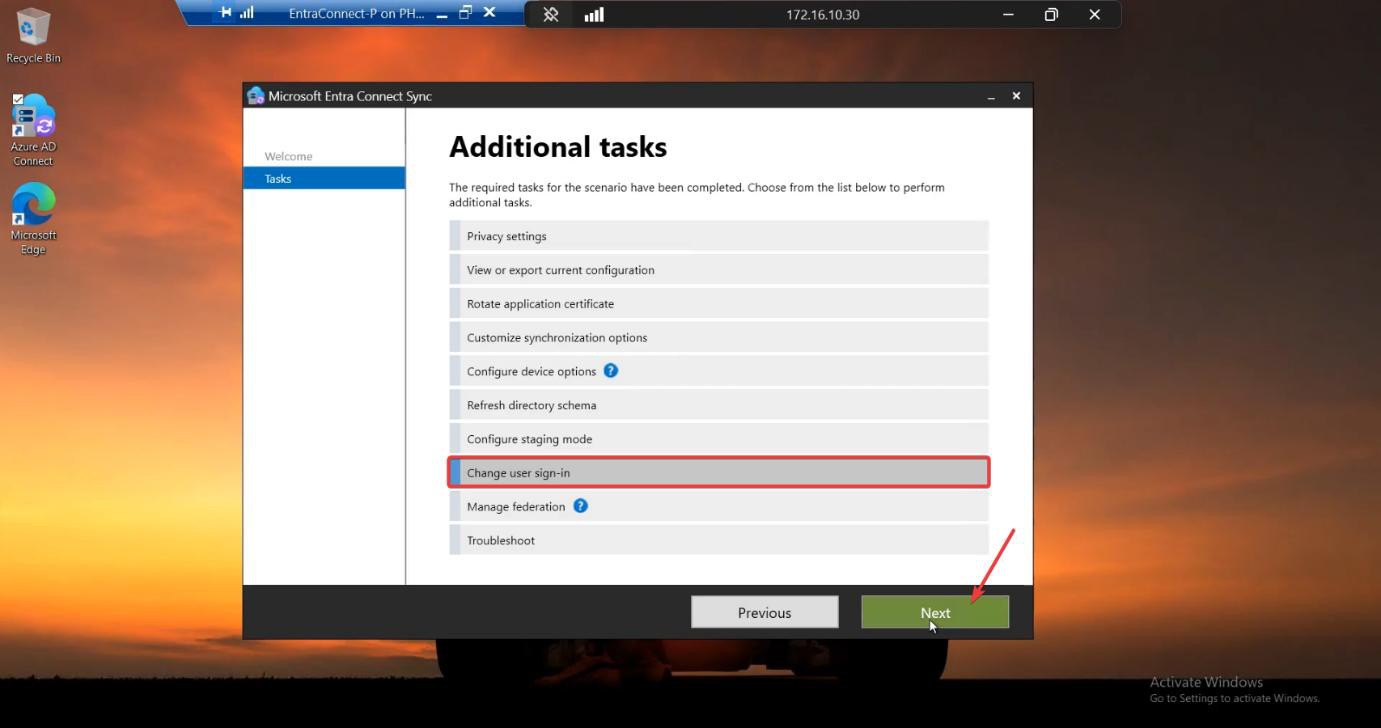
Migration screenshot 15 of 65 from the Entra Connect new-server migration walkthrough showing the wizard, sync service manager, AD console, or admin centre at the corresponding stage of the procedure
Migration step screenshot — reference image from the source PDF showing the wizard / console state at this point in the procedure.
Migration screenshot 16 of 65 from the Entra Connect new-server migration walkthrough showing the wizard, sync service manager, AD console, or admin centre at the corresponding stage of the procedure
Migration step screenshot — reference image from the source PDF showing the wizard / console state at this point in the procedure.
Migration screenshot 17 of 65 from the Entra Connect new-server migration walkthrough showing the wizard, sync service manager, AD console, or admin centre at the corresponding stage of the procedure
Migration step screenshot — reference image from the source PDF showing the wizard / console state at this point in the procedure.
Migration screenshot 18 of 65 from the Entra Connect new-server migration walkthrough showing the wizard, sync service manager, AD console, or admin centre at the corresponding stage of the procedure
Migration step screenshot — reference image from the source PDF showing the wizard / console state at this point in the procedure.
Migration screenshot 19 of 65 from the Entra Connect new-server migration walkthrough showing the wizard, sync service manager, AD console, or admin centre at the corresponding stage of the procedure
Migration step screenshot — reference image from the source PDF showing the wizard / console state at this point in the procedure.

Phase 4 — install on the new server in IMPORT mode

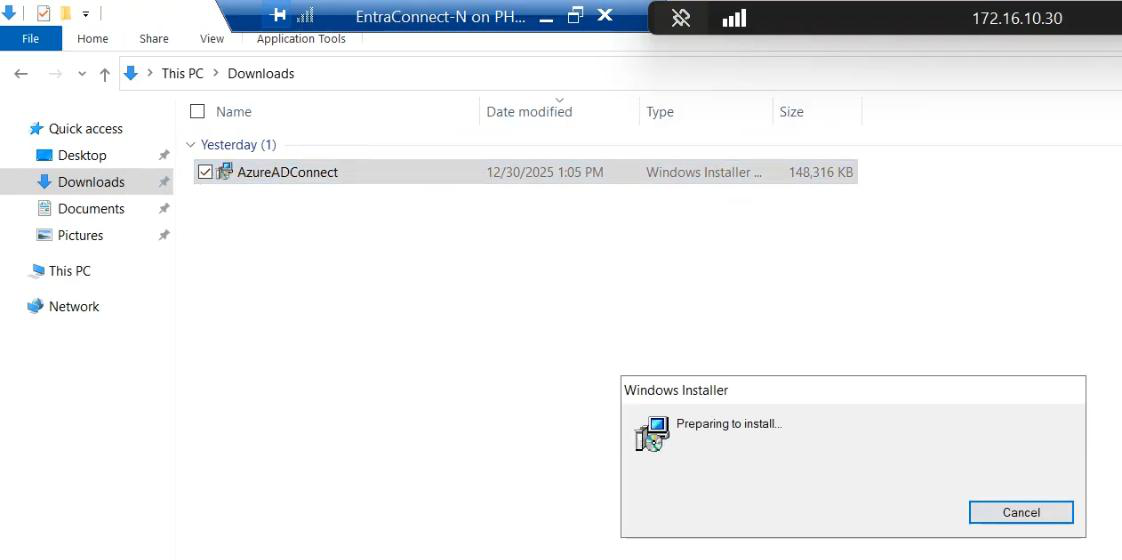
On the NEW server, run the latest Entra Connect installer. Same .msi as Part 7; just a different mode at one specific page.

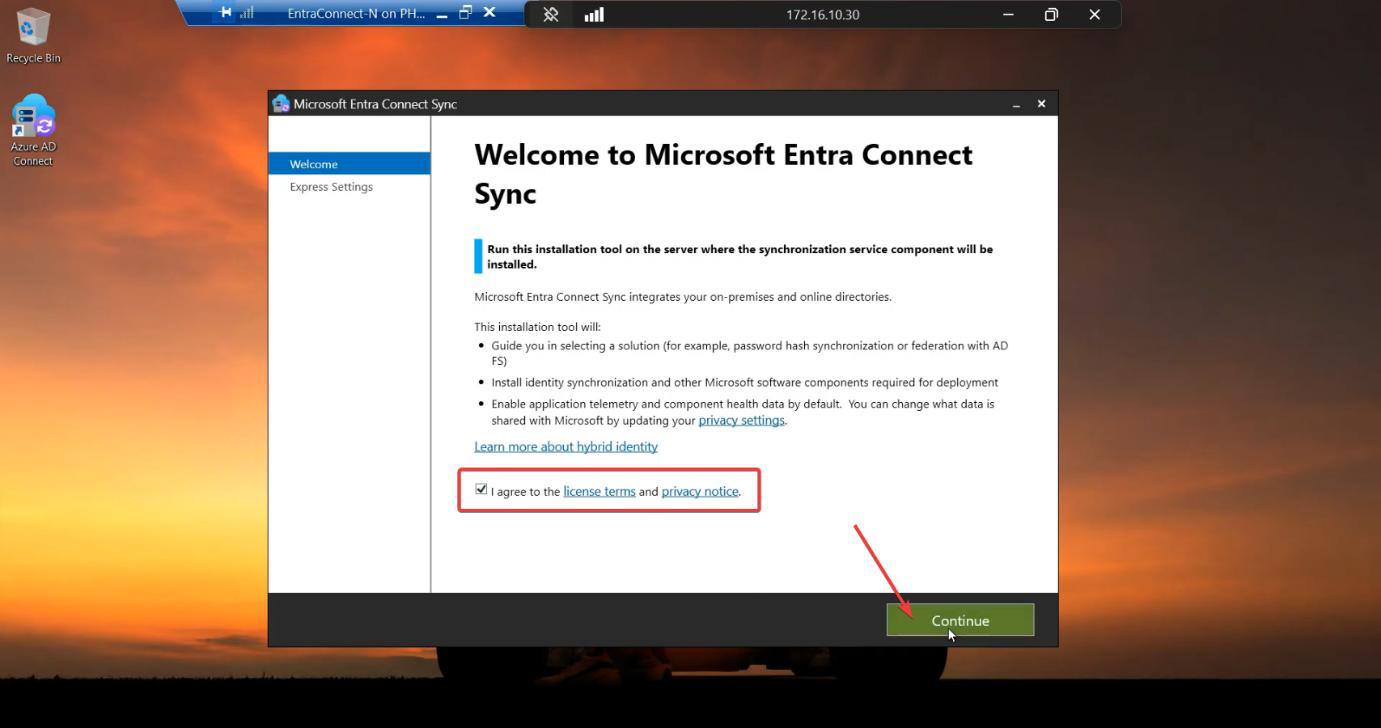
  1. Run as Administrator. Accept license.
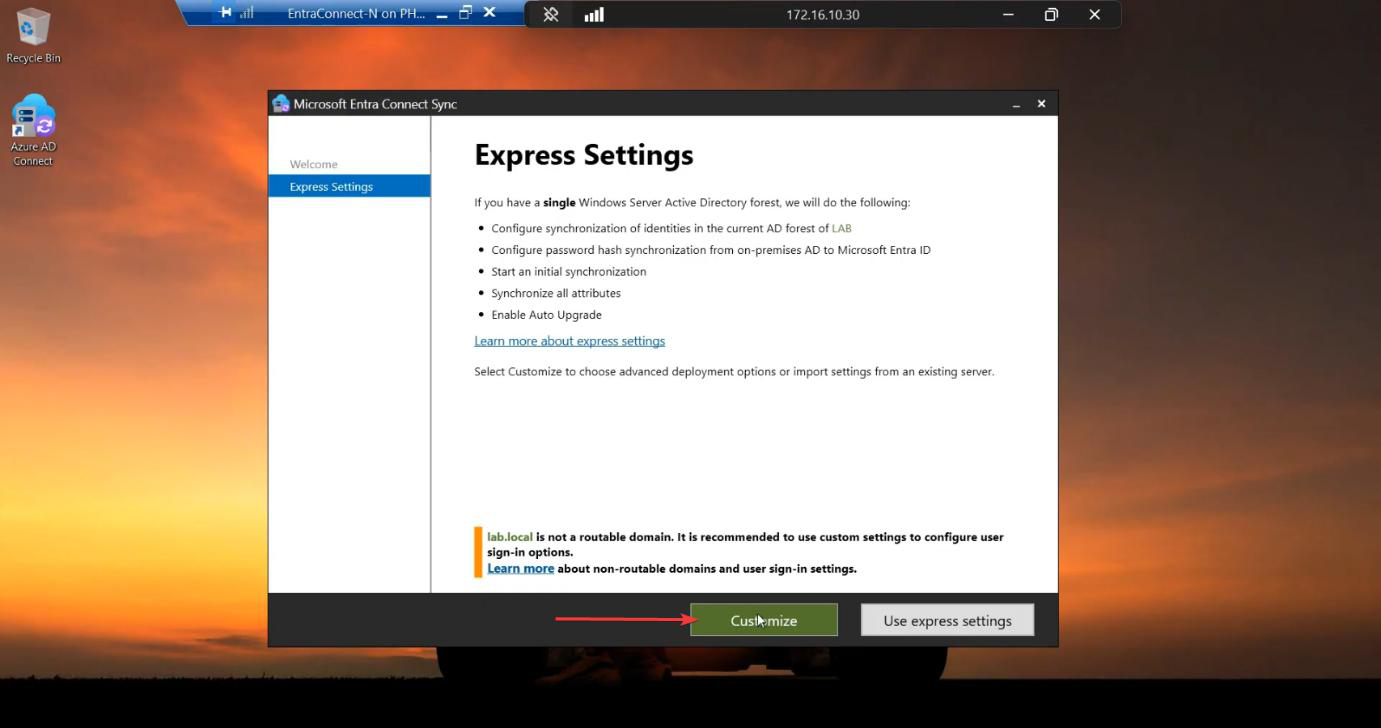
  2. On the Express Settings screen, click Customize.
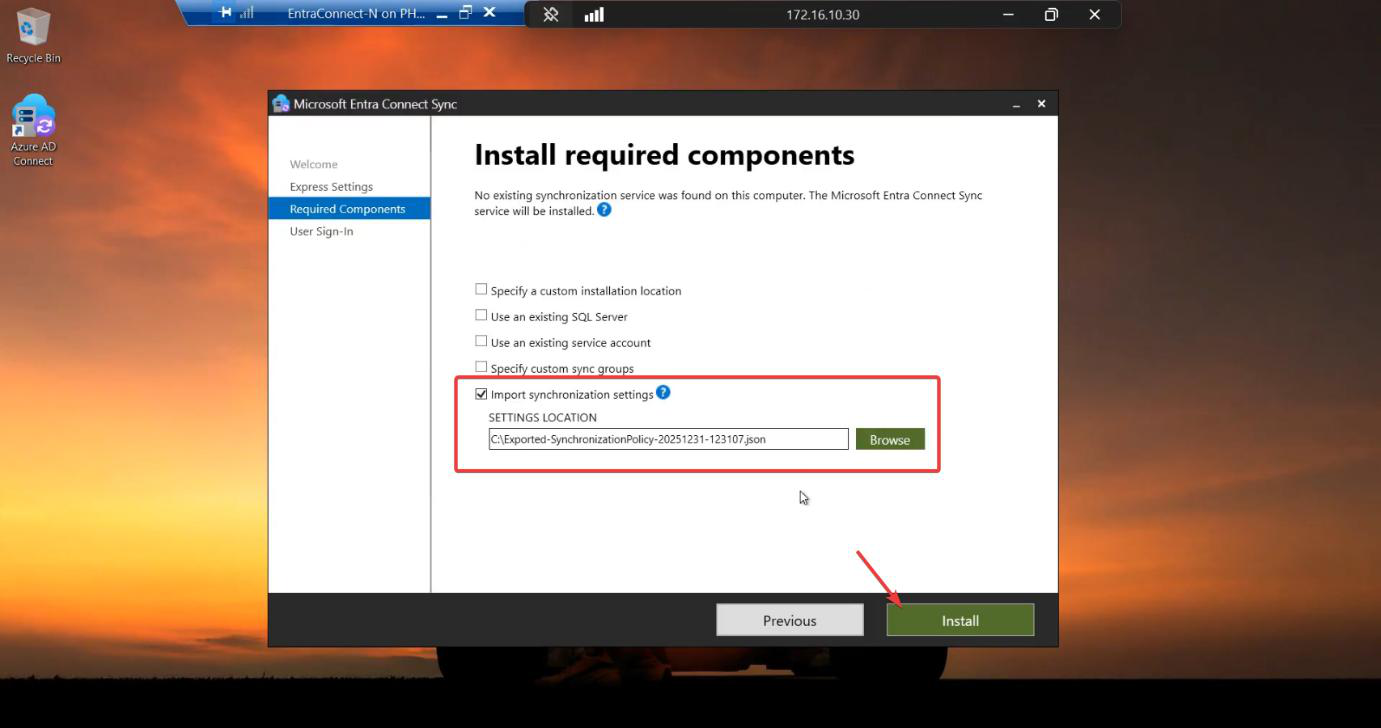
  3. Critical step: tick Import synchronization settings. Browse to the JSON you copied across. Click Install.
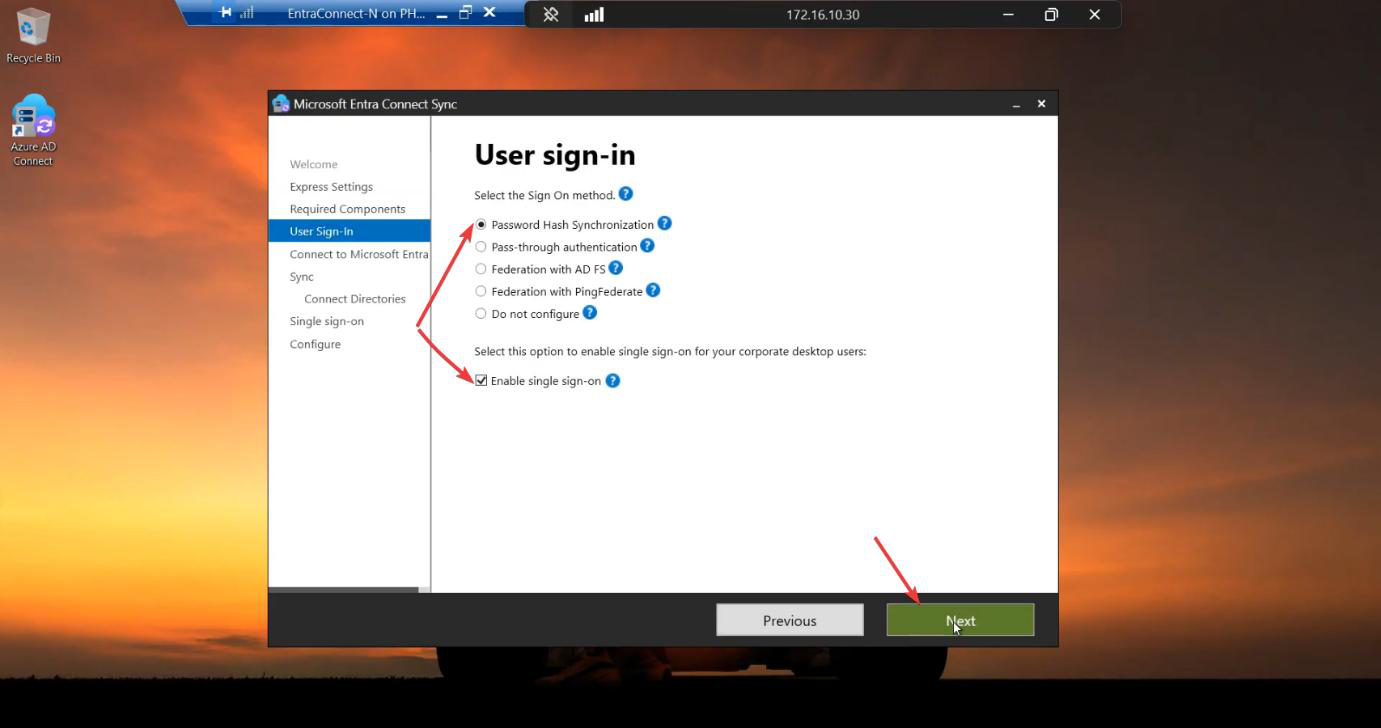
  4. Configure Sign-In: pick PHS (or whatever you screenshotted in Phase 3) plus Enable Single Sign-On if applicable.
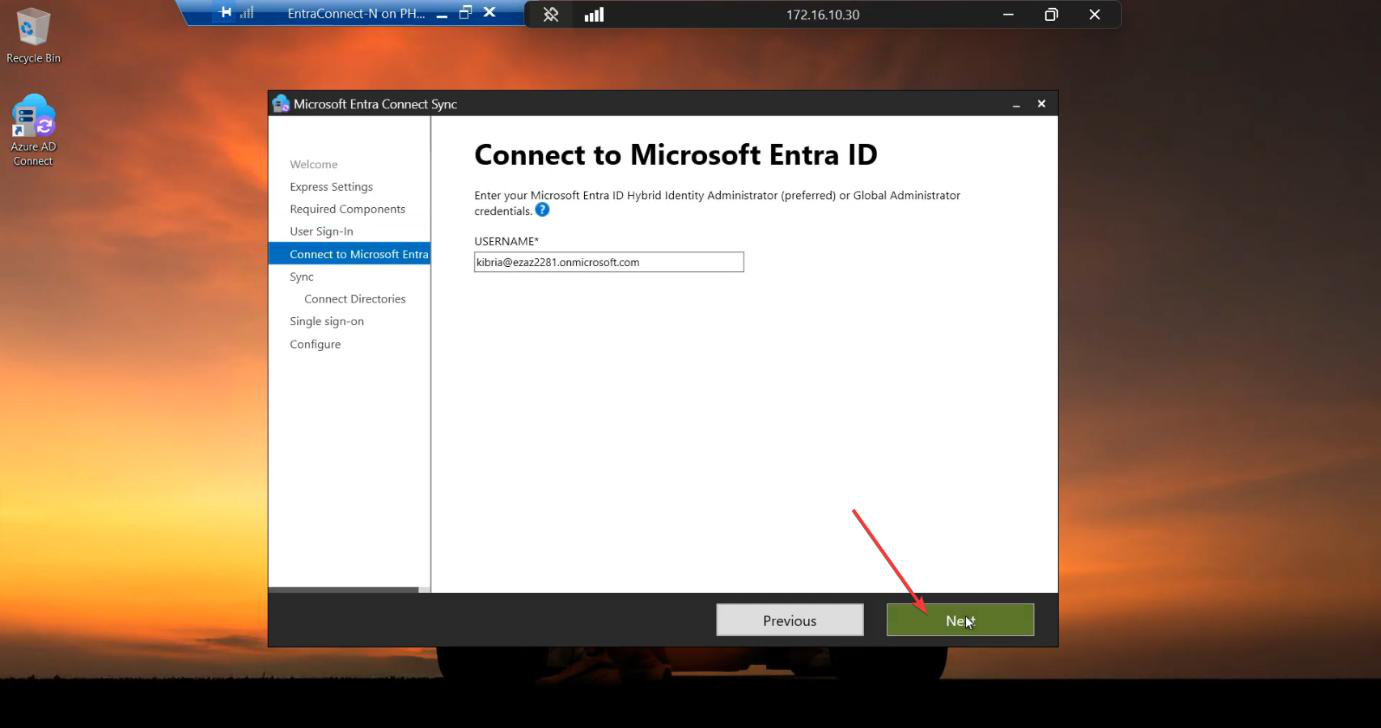
  5. Connect to Cloud: Global Admin credentials.
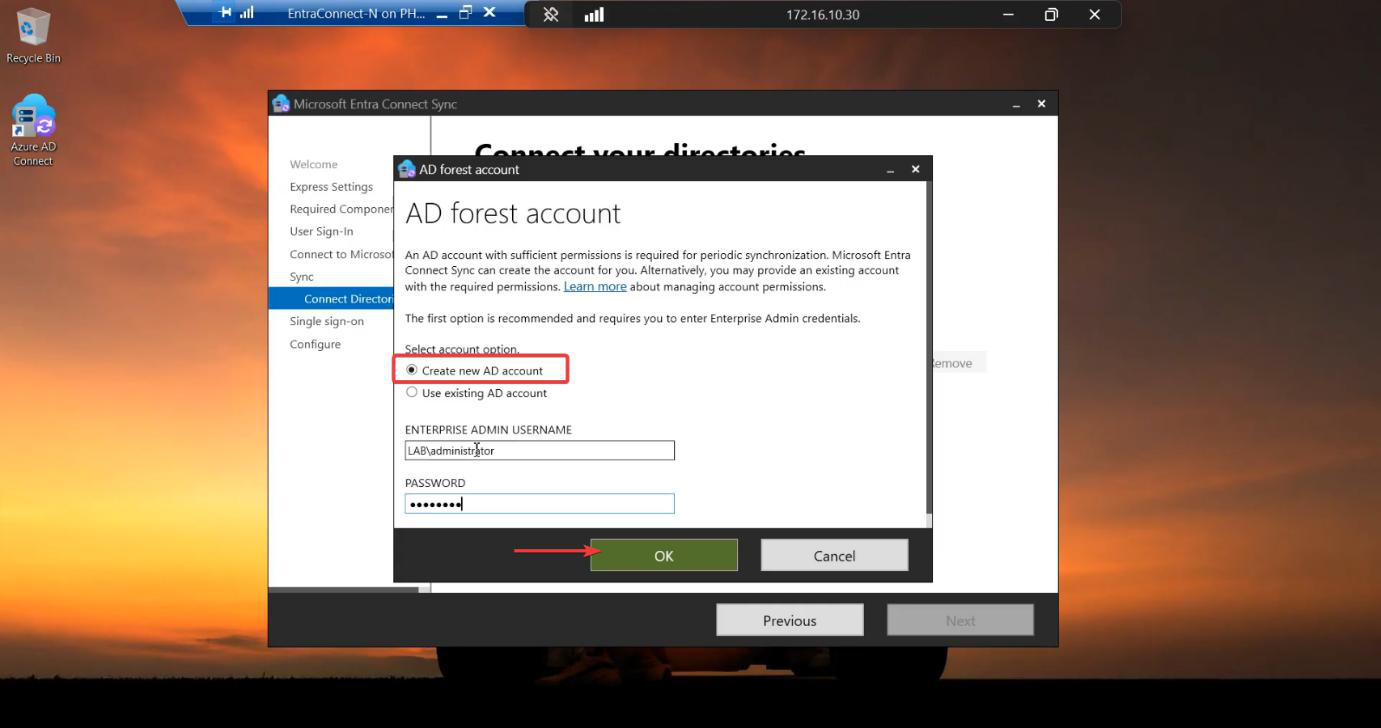
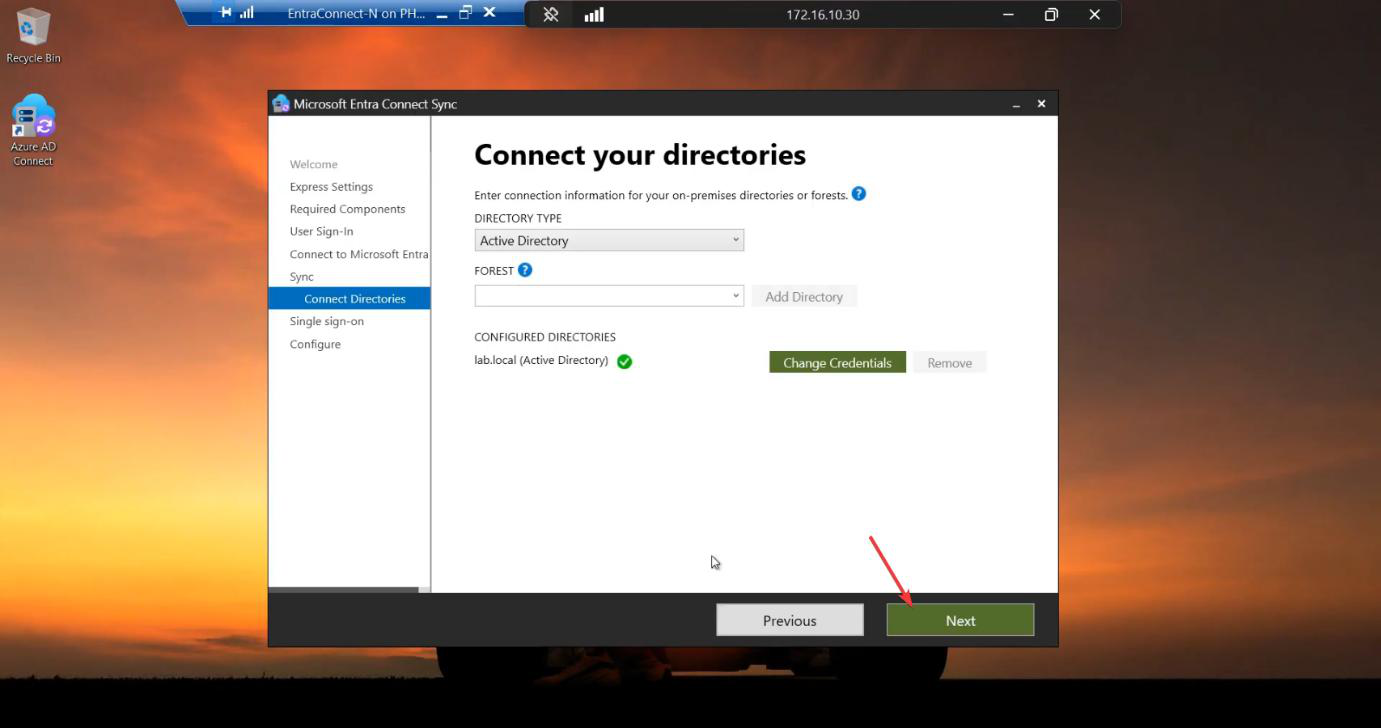
  6. Connect to On-Prem AD: Create new AD account (it’ll auto-create a new MSOL_xxxx service account; the new server gets its own service identity, separate from the old one).
  7. Optional Features: tick the boxes from your Phase 3 screenshots.
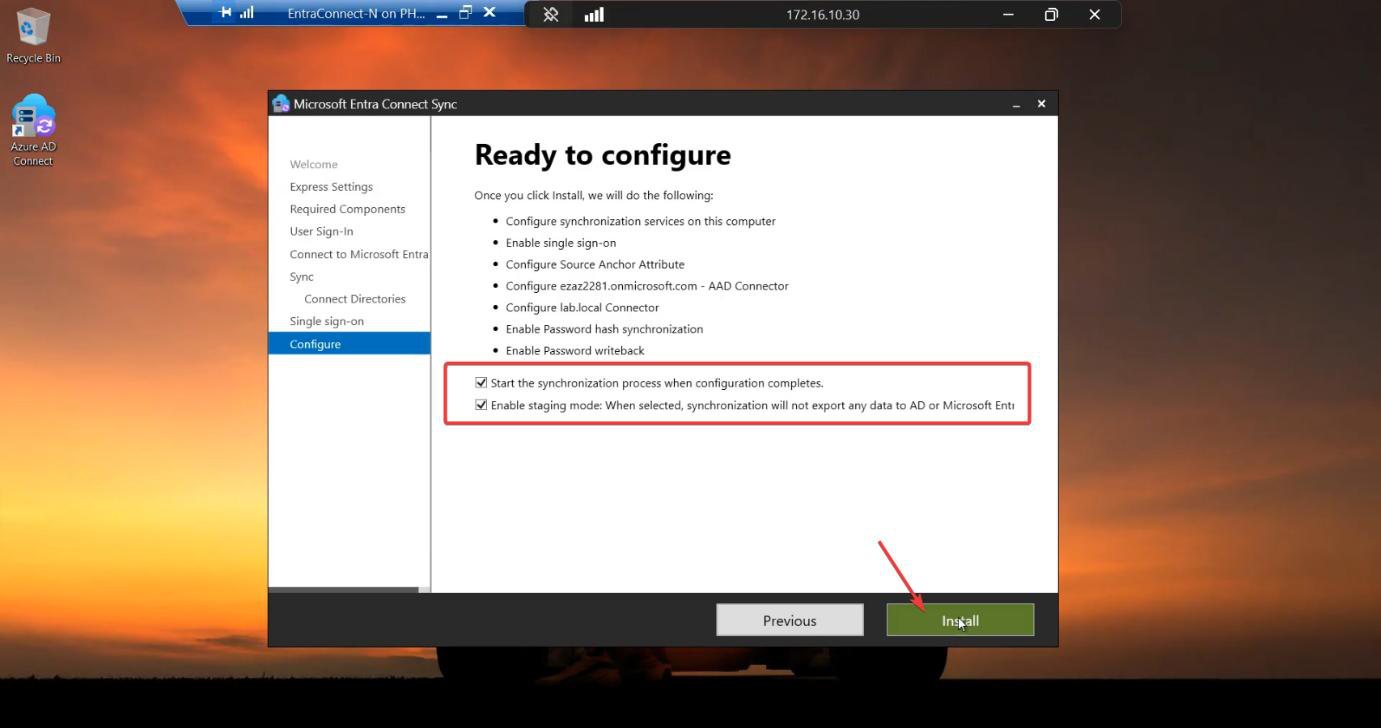
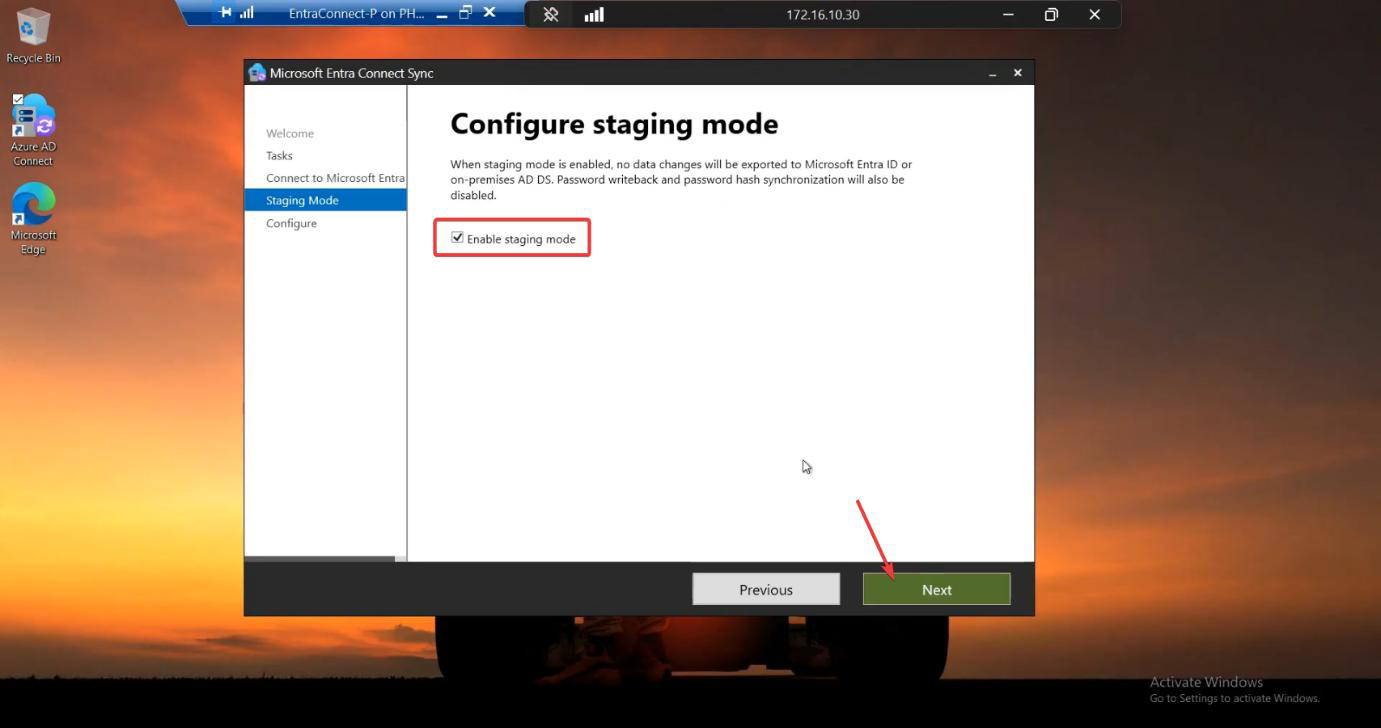
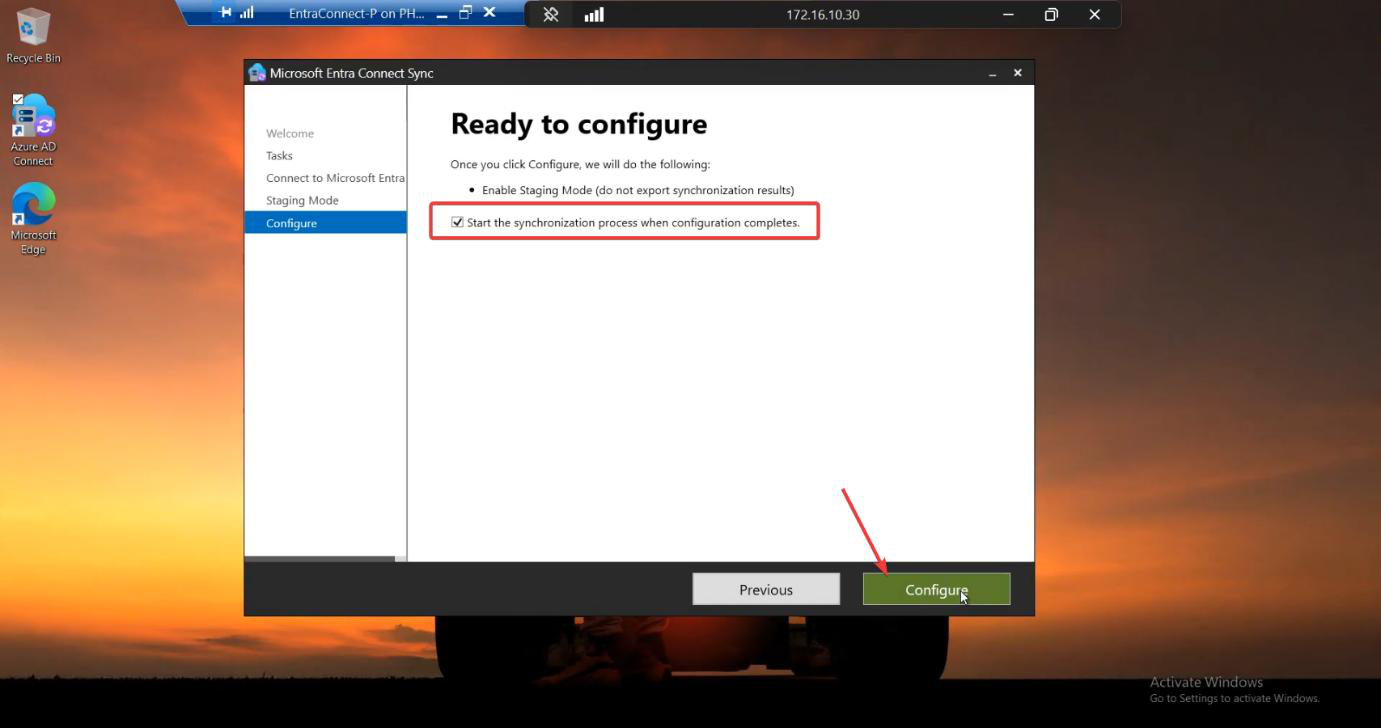
  8. Critical: on the “Ready to Configure” screen, ensure Enable Staging Mode is ticked. The Import wizard often pre-ticks this; do NOT untick. Staging Mode is what makes this safe.
  9. Tick “Start the synchronization process when configuration completes.”
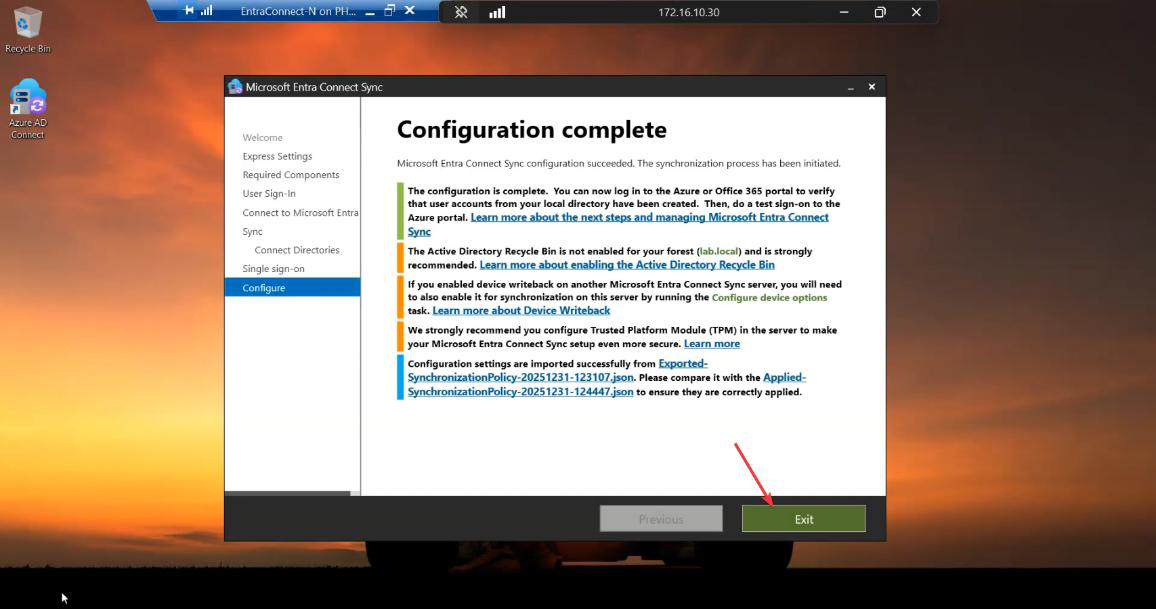
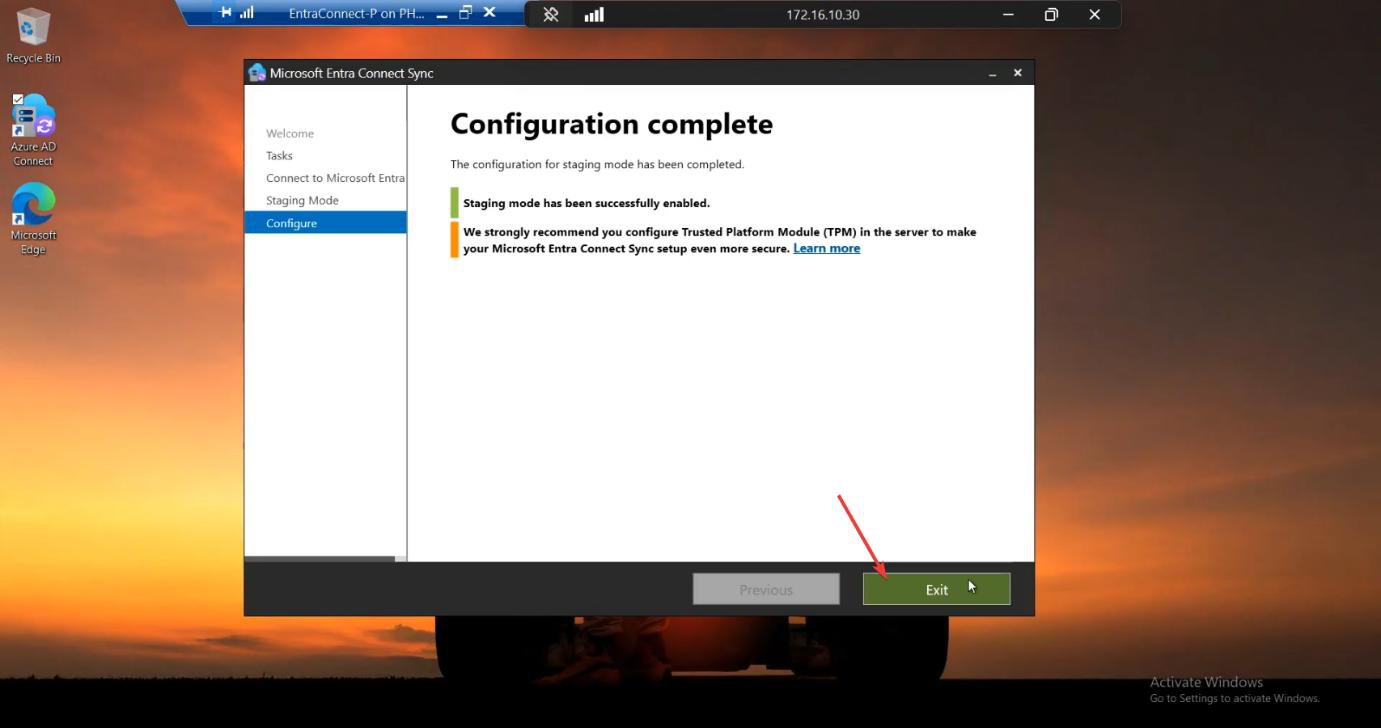
  10. Click Install. Wait. Click Exit.
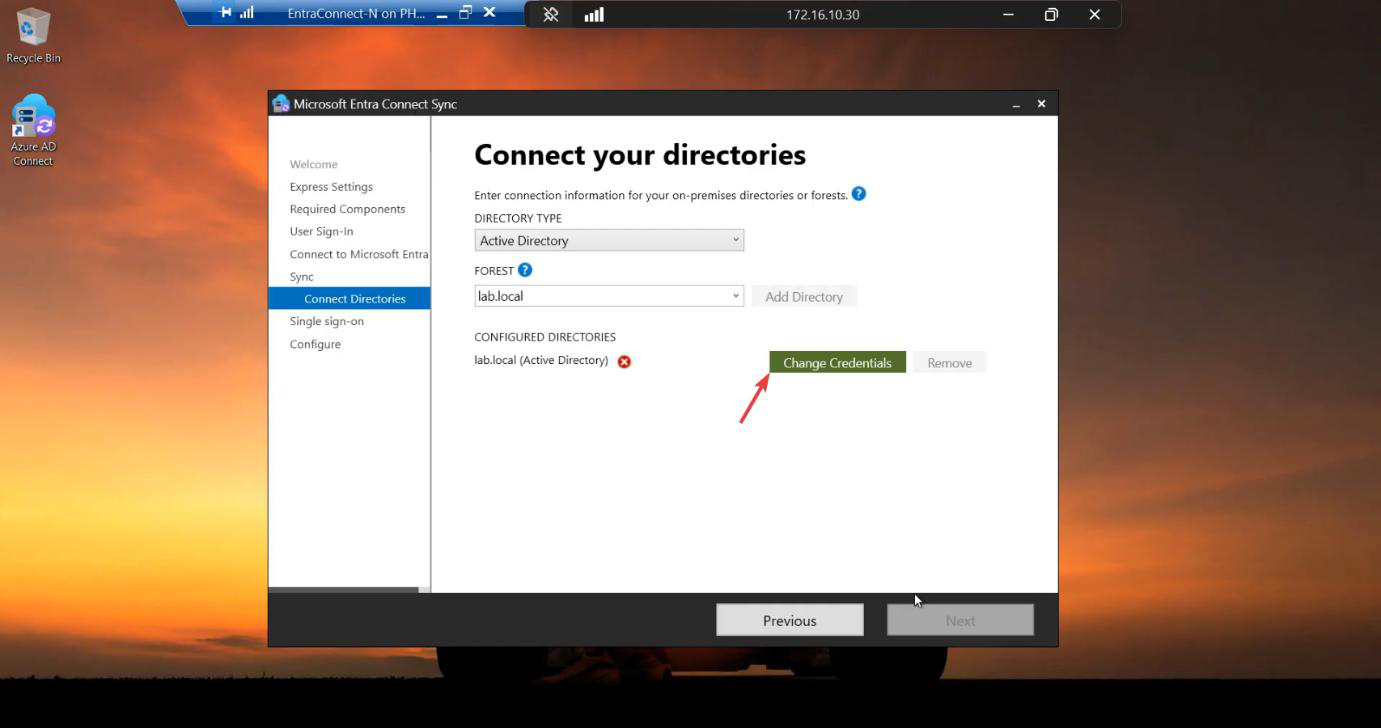
Migration screenshot 21 of 65 from the Entra Connect new-server migration walkthrough showing the wizard, sync service manager, AD console, or admin centre at the corresponding stage of the procedure
Migration step screenshot — reference image from the source PDF showing the wizard / console state at this point in the procedure.
Migration screenshot 22 of 65 from the Entra Connect new-server migration walkthrough showing the wizard, sync service manager, AD console, or admin centre at the corresponding stage of the procedure
Migration step screenshot — reference image from the source PDF showing the wizard / console state at this point in the procedure.
Migration screenshot 24 of 65 from the Entra Connect new-server migration walkthrough showing the wizard, sync service manager, AD console, or admin centre at the corresponding stage of the procedure
Migration step screenshot — reference image from the source PDF showing the wizard / console state at this point in the procedure.
Migration screenshot 25 of 65 from the Entra Connect new-server migration walkthrough showing the wizard, sync service manager, AD console, or admin centre at the corresponding stage of the procedure
Migration step screenshot — reference image from the source PDF showing the wizard / console state at this point in the procedure.
Migration screenshot 27 of 65 from the Entra Connect new-server migration walkthrough showing the wizard, sync service manager, AD console, or admin centre at the corresponding stage of the procedure
Migration step screenshot — reference image from the source PDF showing the wizard / console state at this point in the procedure.
Migration screenshot 28 of 65 from the Entra Connect new-server migration walkthrough showing the wizard, sync service manager, AD console, or admin centre at the corresponding stage of the procedure
Migration step screenshot — reference image from the source PDF showing the wizard / console state at this point in the procedure.
Migration screenshot 29 of 65 from the Entra Connect new-server migration walkthrough showing the wizard, sync service manager, AD console, or admin centre at the corresponding stage of the procedure
Migration step screenshot — reference image from the source PDF showing the wizard / console state at this point in the procedure.
Migration screenshot 30 of 65 from the Entra Connect new-server migration walkthrough showing the wizard, sync service manager, AD console, or admin centre at the corresponding stage of the procedure
Migration step screenshot — reference image from the source PDF showing the wizard / console state at this point in the procedure.
Migration screenshot 32 of 65 from the Entra Connect new-server migration walkthrough showing the wizard, sync service manager, AD console, or admin centre at the corresponding stage of the procedure
Migration step screenshot — reference image from the source PDF showing the wizard / console state at this point in the procedure.
Migration screenshot 33 of 65 from the Entra Connect new-server migration walkthrough showing the wizard, sync service manager, AD console, or admin centre at the corresponding stage of the procedure
Migration step screenshot — reference image from the source PDF showing the wizard / console state at this point in the procedure.
Migration screenshot 34 of 65 from the Entra Connect new-server migration walkthrough showing the wizard, sync service manager, AD console, or admin centre at the corresponding stage of the procedure
Migration step screenshot — reference image from the source PDF showing the wizard / console state at this point in the procedure.
Migration screenshot 36 of 65 from the Entra Connect new-server migration walkthrough showing the wizard, sync service manager, AD console, or admin centre at the corresponding stage of the procedure
Migration step screenshot — reference image from the source PDF showing the wizard / console state at this point in the procedure.

The new server is now installed and running — in Staging Mode. It’ll read AD, build its connector spaces, but won’t export to the cloud. Both servers are running side-by-side; the cloud only sees changes from the old server.

Phase 5 — verify the new server is healthy

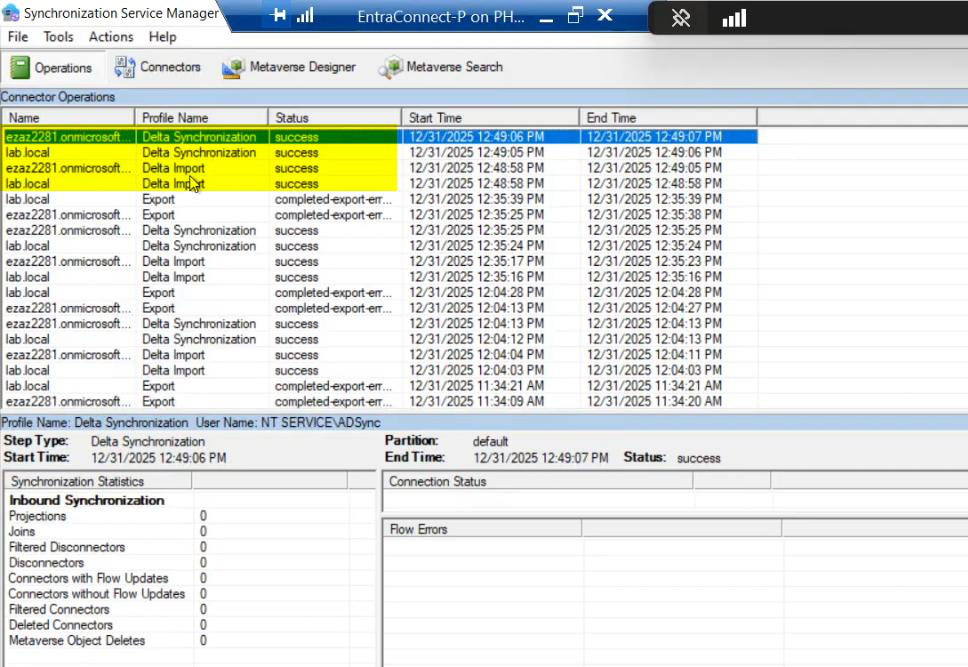
Before the swap, prove the new server is working. Open Synchronization Service Manager on the new server. Operations tab.

Look for:

  • Successful Full Import from AD (the initial pull of all objects).
  • Successful Delta Sync entries (ongoing 30-min cycles).
  • NO errors. Status = Success across the board.

Browse the connector space contents (Connectors tab > pick connector > Search Connector Space). The user count should match the old server’s. Spot-check specific users.
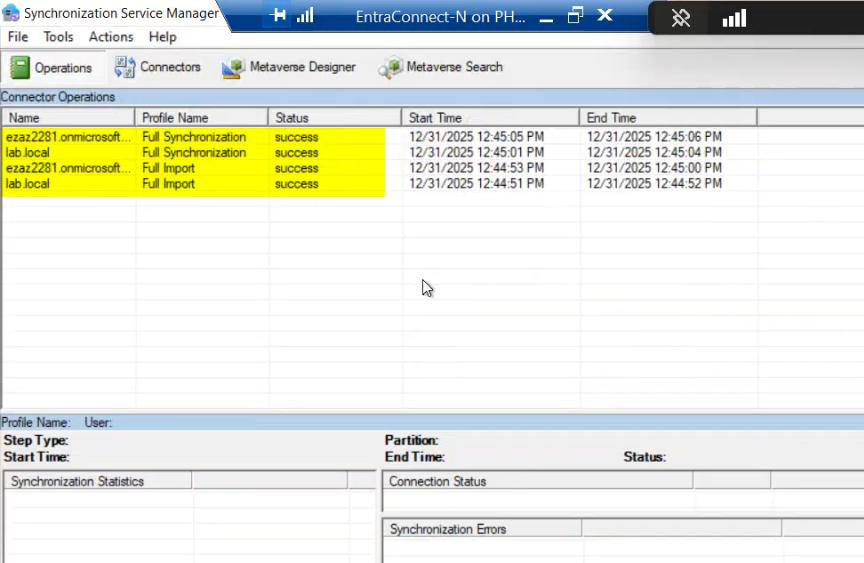
Migration screenshot 38 of 65 from the Entra Connect new-server migration walkthrough showing the wizard, sync service manager, AD console, or admin centre at the corresponding stage of the procedure
Migration step screenshot — reference image from the source PDF showing the wizard / console state at this point in the procedure.

If anything looks wrong, fix it BEFORE the swap. The new server in staging is harmless; the old server is still doing the real work. Take time here.

Phase 6 — the swing (swap roles)

The swap itself is two wizard runs — one on each server.

Step A — old server to staging

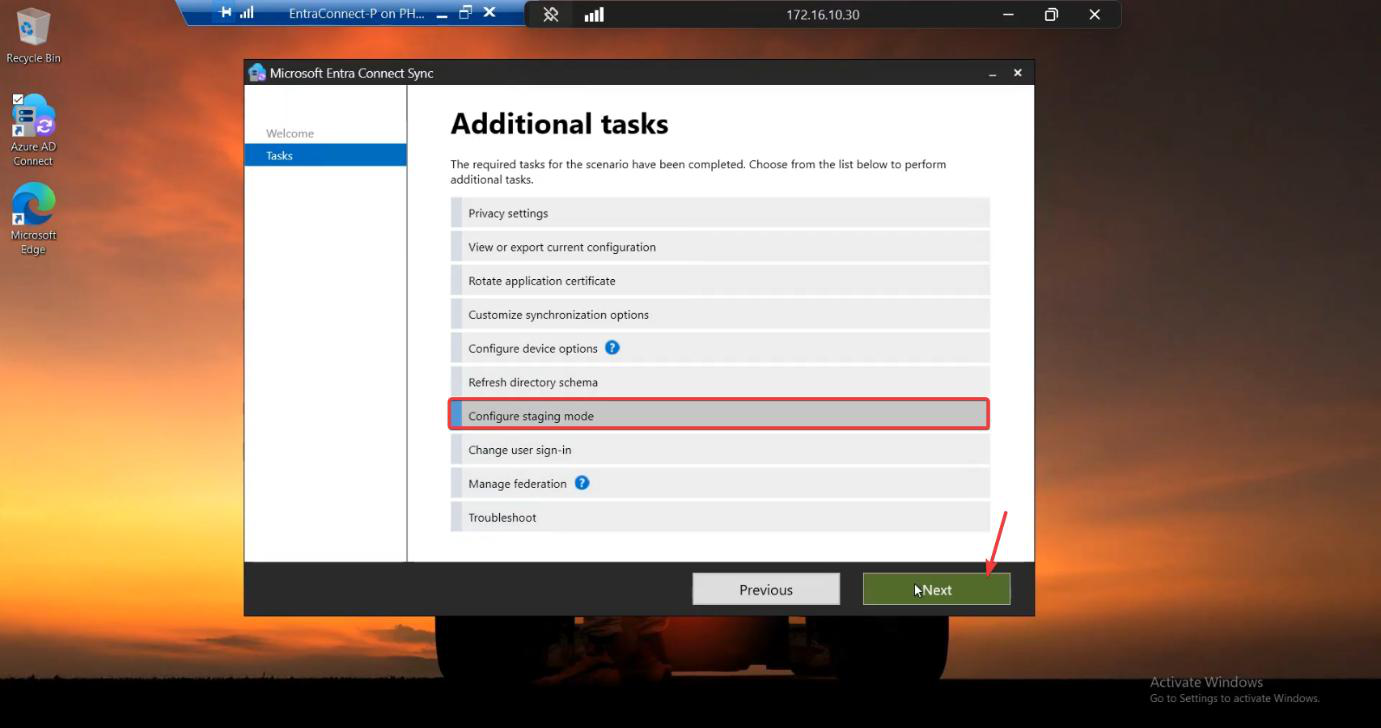
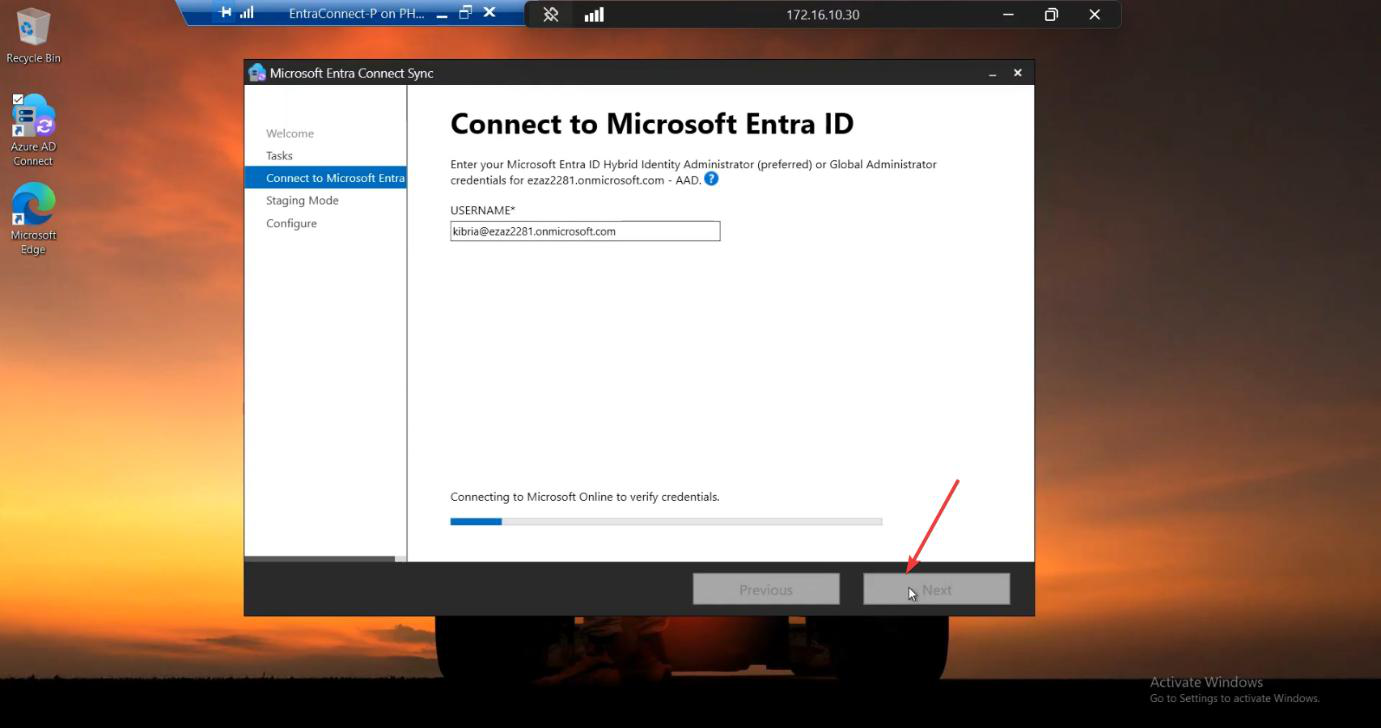
On the OLD server: wizard > Configure > Configure staging mode > Next. Sign in with Global Admin. Tick Enable staging mode. Tick “Start the synchronization process…”. Click Configure. Exit.

Result: the old server stops exporting to the cloud. It still reads AD; it’s now a hot standby.
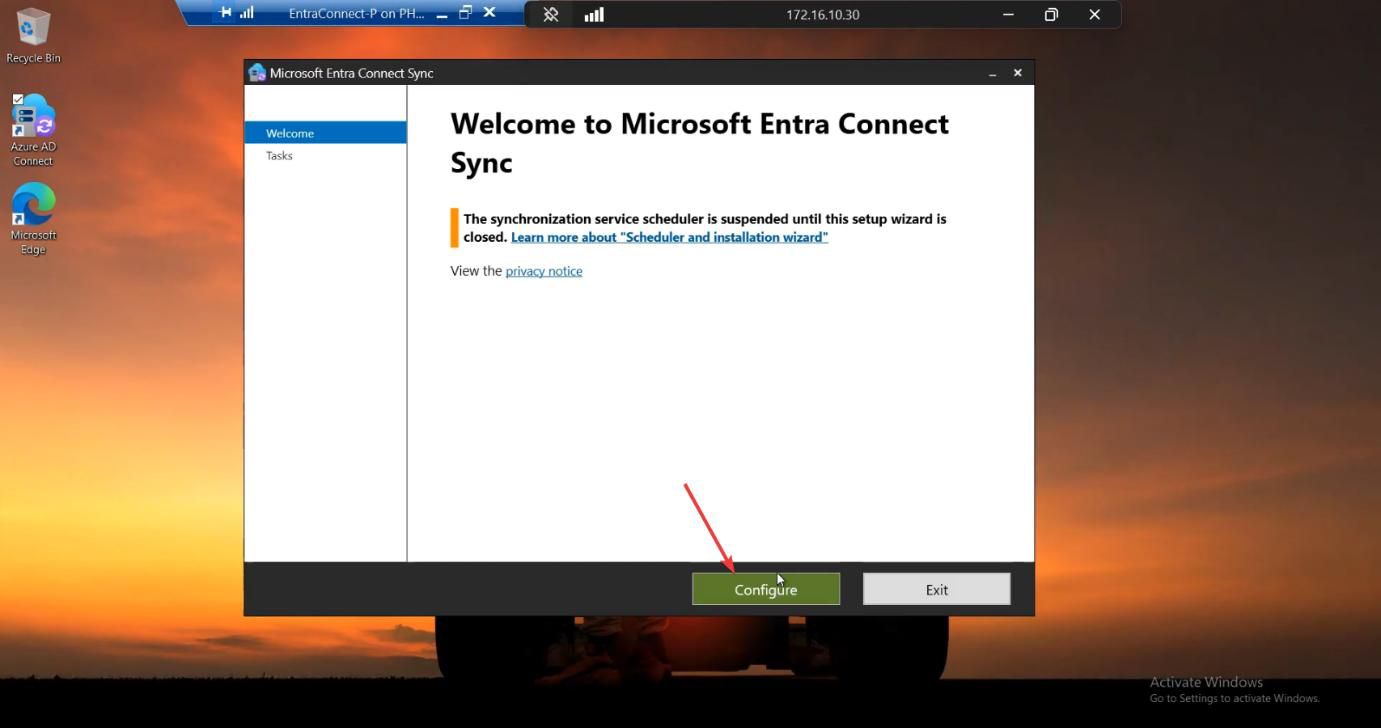
Migration screenshot 39 of 65 from the Entra Connect new-server migration walkthrough showing the wizard, sync service manager, AD console, or admin centre at the corresponding stage of the procedure
Migration step screenshot — reference image from the source PDF showing the wizard / console state at this point in the procedure.
Migration screenshot 40 of 65 from the Entra Connect new-server migration walkthrough showing the wizard, sync service manager, AD console, or admin centre at the corresponding stage of the procedure
Migration step screenshot — reference image from the source PDF showing the wizard / console state at this point in the procedure.
Migration screenshot 41 of 65 from the Entra Connect new-server migration walkthrough showing the wizard, sync service manager, AD console, or admin centre at the corresponding stage of the procedure
Migration step screenshot — reference image from the source PDF showing the wizard / console state at this point in the procedure.
Migration screenshot 42 of 65 from the Entra Connect new-server migration walkthrough showing the wizard, sync service manager, AD console, or admin centre at the corresponding stage of the procedure
Migration step screenshot — reference image from the source PDF showing the wizard / console state at this point in the procedure.
Migration screenshot 43 of 65 from the Entra Connect new-server migration walkthrough showing the wizard, sync service manager, AD console, or admin centre at the corresponding stage of the procedure
Migration step screenshot — reference image from the source PDF showing the wizard / console state at this point in the procedure.
Migration screenshot 44 of 65 from the Entra Connect new-server migration walkthrough showing the wizard, sync service manager, AD console, or admin centre at the corresponding stage of the procedure
Migration step screenshot — reference image from the source PDF showing the wizard / console state at this point in the procedure.
Migration screenshot 46 of 65 from the Entra Connect new-server migration walkthrough showing the wizard, sync service manager, AD console, or admin centre at the corresponding stage of the procedure
Migration step screenshot — reference image from the source PDF showing the wizard / console state at this point in the procedure.

Step B — new server to active

On the NEW server: wizard > Configure > Configure staging mode > Next. Sign in with Global Admin. UNTICK Enable staging mode. Tick “Start the synchronization process…”. Click Configure. Exit.

Result: the new server is now the active sync source. It exports changes to the cloud on the next sync cycle.
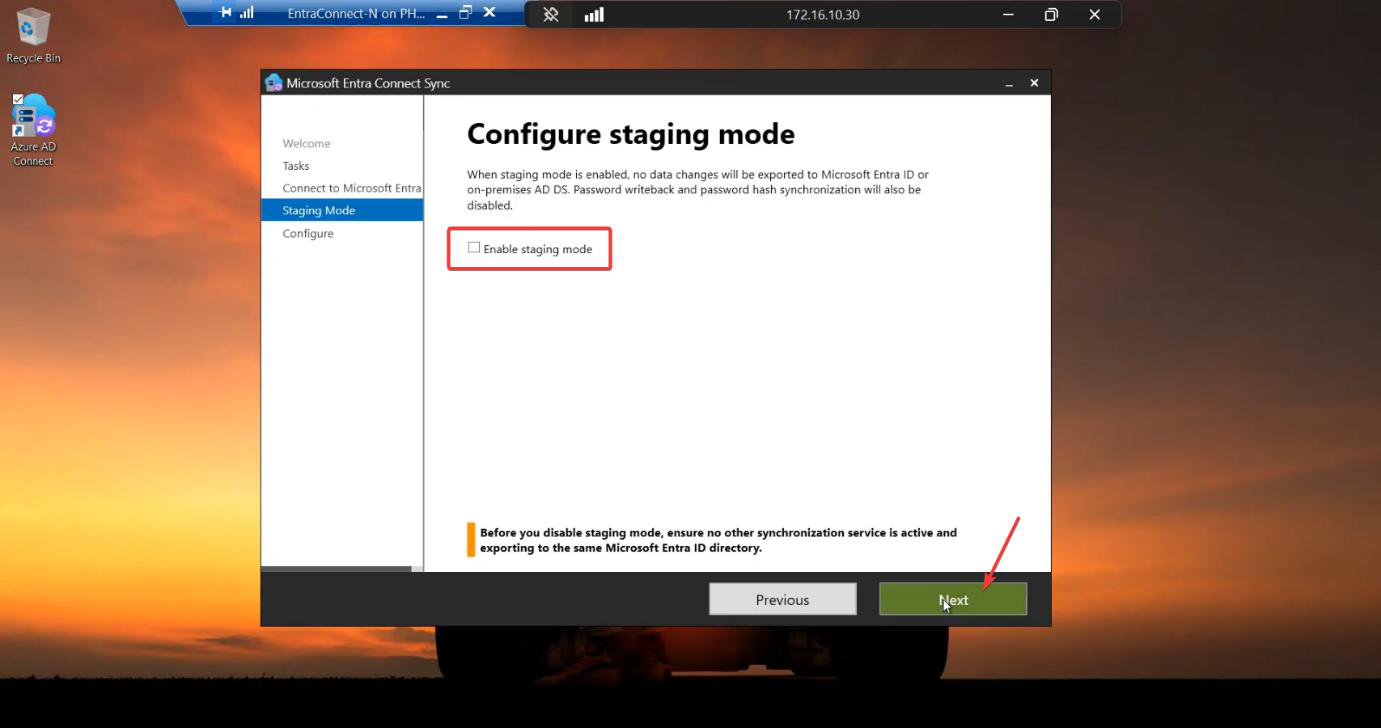
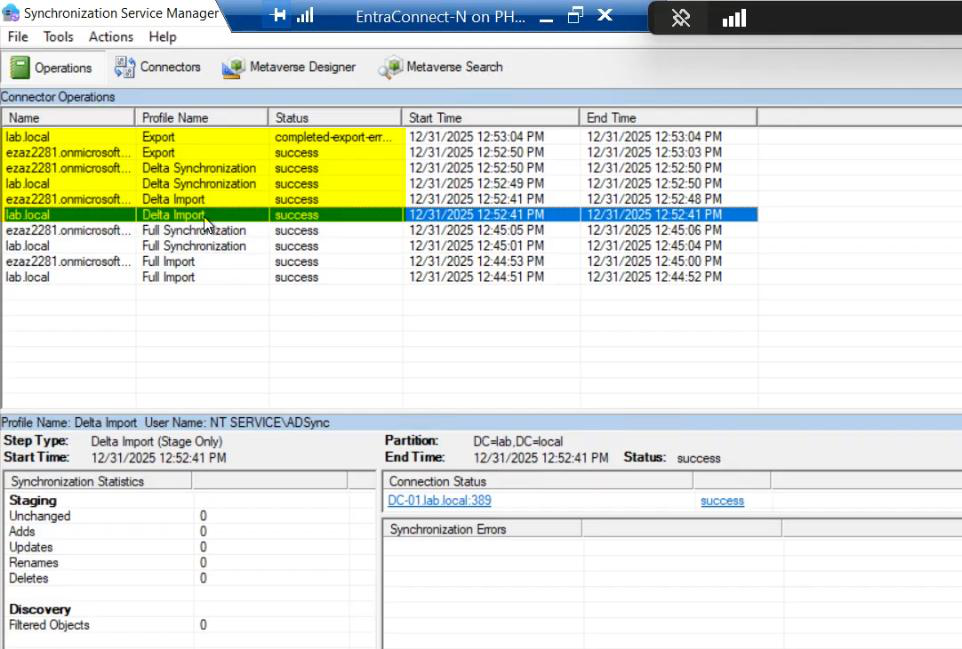
Migration screenshot 47 of 65 from the Entra Connect new-server migration walkthrough showing the wizard, sync service manager, AD console, or admin centre at the corresponding stage of the procedure
Migration step screenshot — reference image from the source PDF showing the wizard / console state at this point in the procedure.
Migration screenshot 49 of 65 from the Entra Connect new-server migration walkthrough showing the wizard, sync service manager, AD console, or admin centre at the corresponding stage of the procedure
Migration step screenshot — reference image from the source PDF showing the wizard / console state at this point in the procedure.

The swap is done. Cloud sees a continuous sync stream; the source server is just different now.

Phase 7 — final verification + test

Check 1 — permission errors

The most common post-migration issue: the new MSOL_xxxx service account on the new server doesn’t have all the AD permissions the old one had. Symptom: completed-export-errors in Sync Service Manager Operations tab.

Fix: ensure inheritance is enabled on the affected user objects in AD, or delegate the same permissions to the new MSOL_ account that the old one had. Microsoft documents the exact permissions needed.
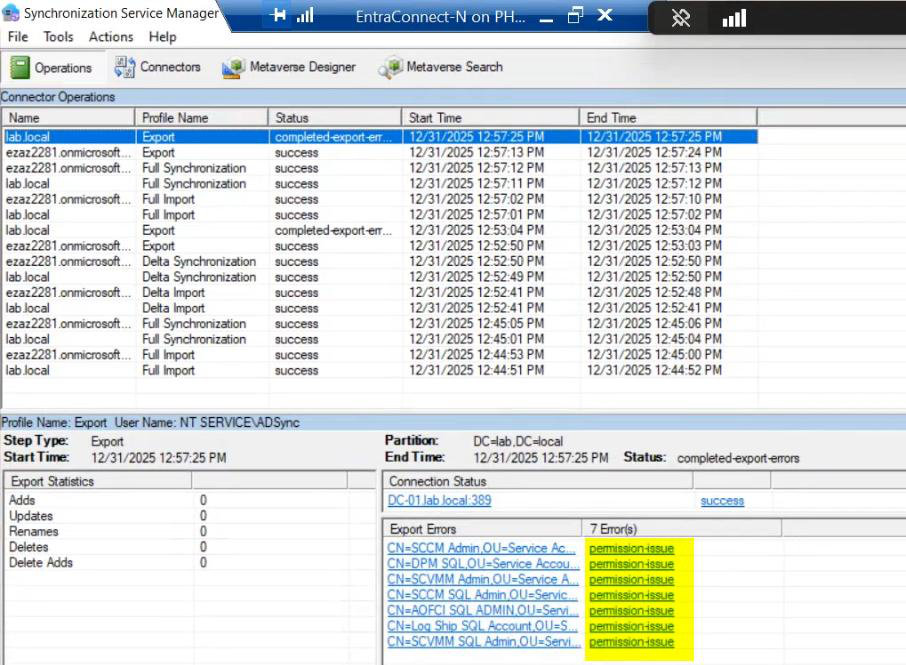

Migration screenshot 51 of 65 from the Entra Connect new-server migration walkthrough showing the wizard, sync service manager, AD console, or admin centre at the corresponding stage of the procedure
Migration step screenshot — reference image from the source PDF showing the wizard / console state at this point in the procedure.
Migration screenshot 53 of 65 from the Entra Connect new-server migration walkthrough showing the wizard, sync service manager, AD console, or admin centre at the corresponding stage of the procedure
Migration step screenshot — reference image from the source PDF showing the wizard / console state at this point in the procedure.
Migration screenshot 55 of 65 from the Entra Connect new-server migration walkthrough showing the wizard, sync service manager, AD console, or admin centre at the corresponding stage of the procedure
Migration step screenshot — reference image from the source PDF showing the wizard / console state at this point in the procedure.

Check 2 — the new-user test

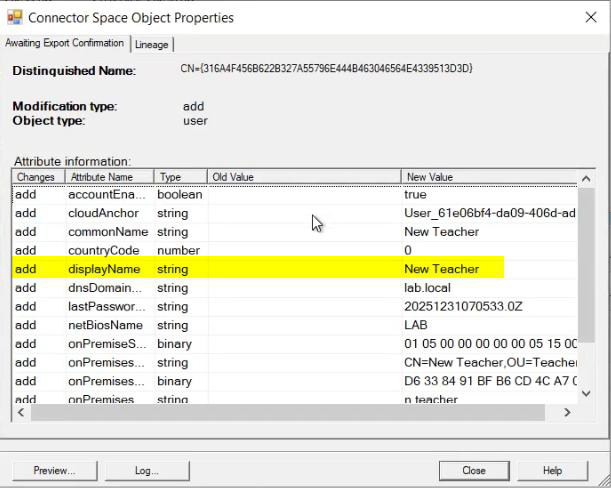
Create a fresh test user in AD (in a synced OU). On the new server, force a sync:

Start-ADSyncSyncCycle -PolicyType Delta

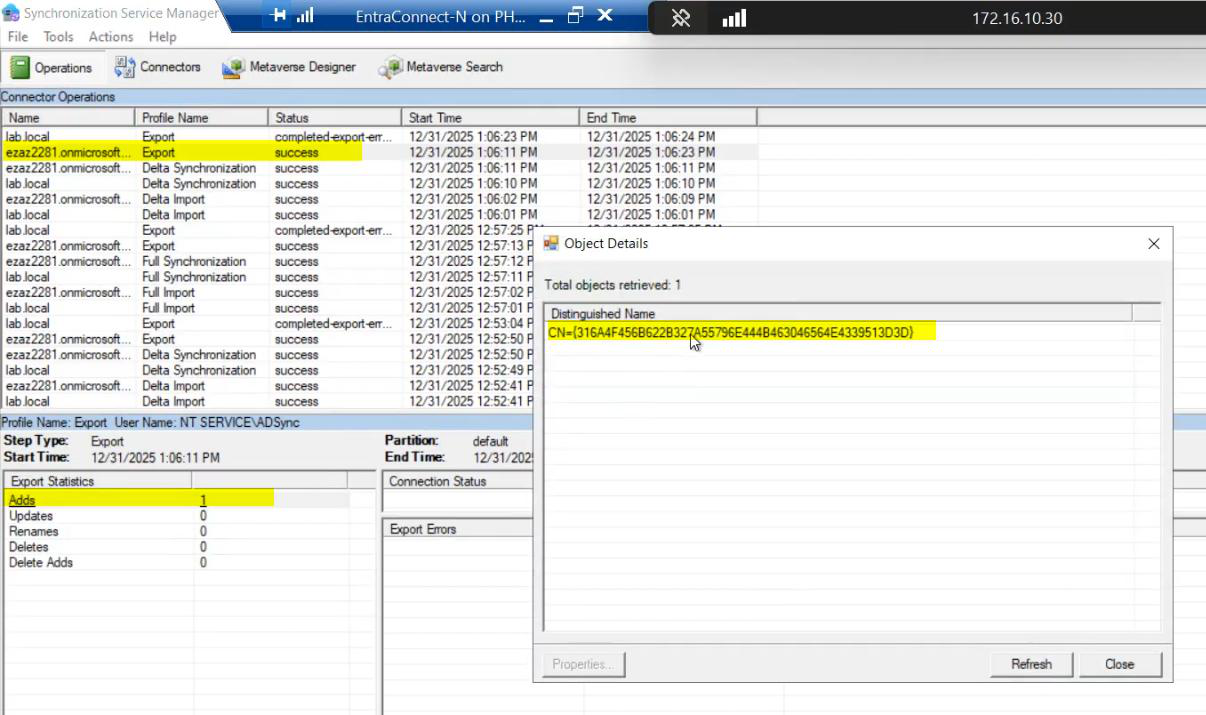
Wait for the cycle to complete. Open Sync Service Manager on the new server. Operations tab. Look for an Export run with Adds = 1.

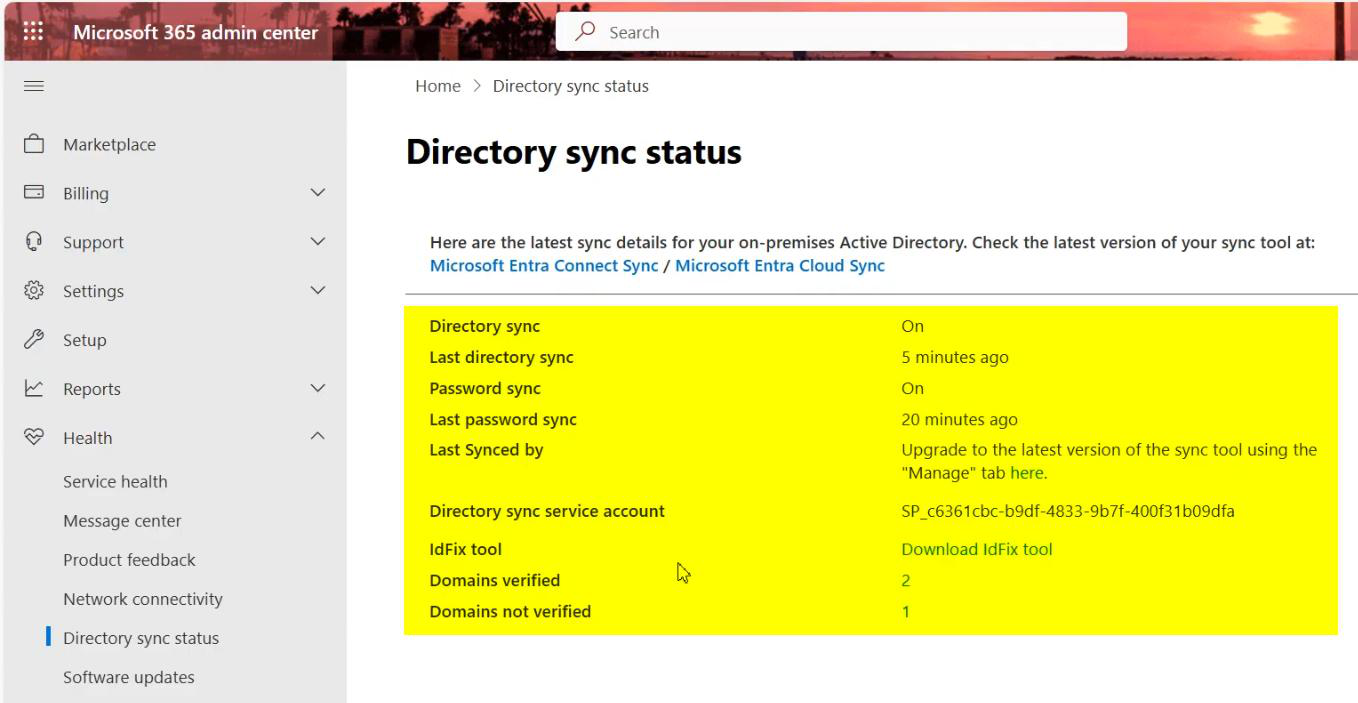
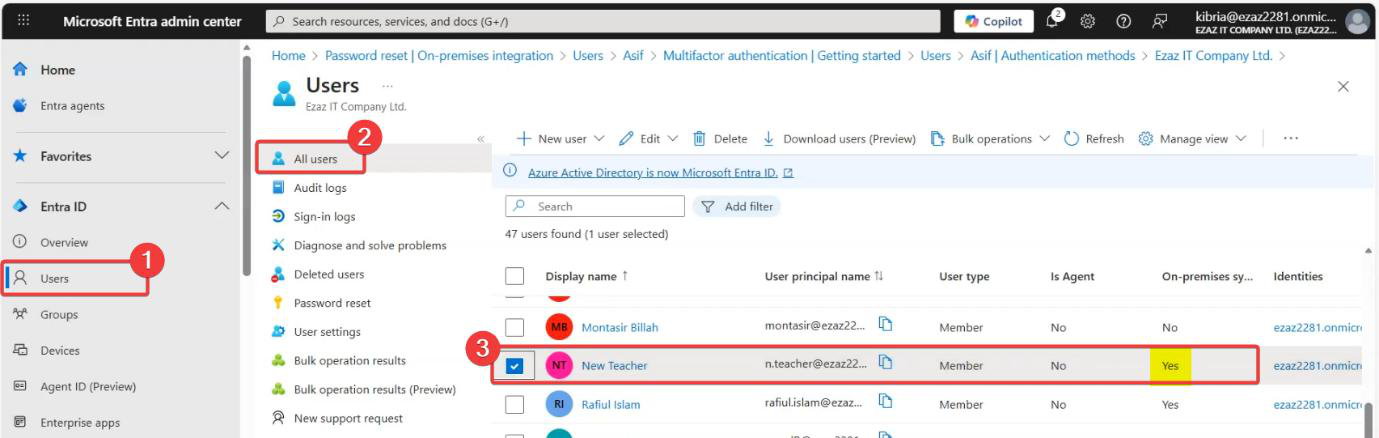
Check M365 admin centre > Active Users. The new user should appear within minutes of the export. If yes, the migration is fully working.
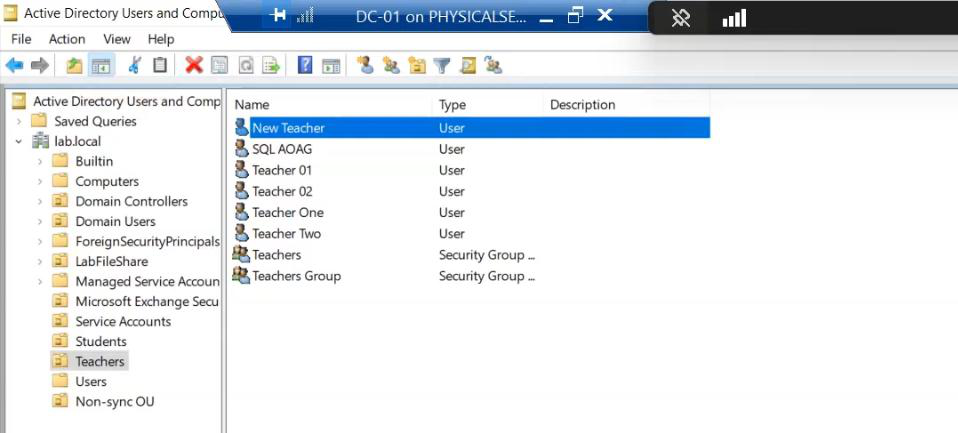
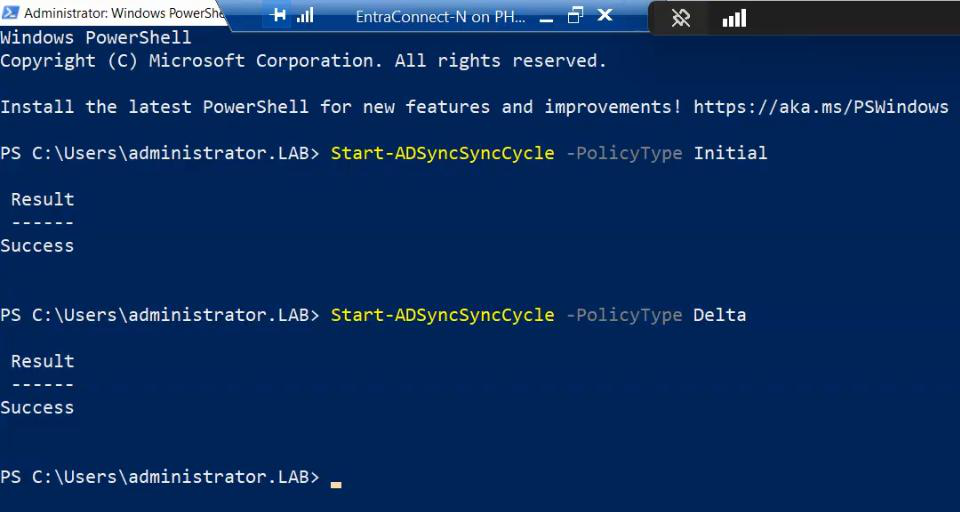
Migration screenshot 57 of 65 from the Entra Connect new-server migration walkthrough showing the wizard, sync service manager, AD console, or admin centre at the corresponding stage of the procedure
Migration step screenshot — reference image from the source PDF showing the wizard / console state at this point in the procedure.
Migration screenshot 59 of 65 from the Entra Connect new-server migration walkthrough showing the wizard, sync service manager, AD console, or admin centre at the corresponding stage of the procedure
Migration step screenshot — reference image from the source PDF showing the wizard / console state at this point in the procedure.
Migration screenshot 61 of 65 from the Entra Connect new-server migration walkthrough showing the wizard, sync service manager, AD console, or admin centre at the corresponding stage of the procedure
Migration step screenshot — reference image from the source PDF showing the wizard / console state at this point in the procedure.
Migration screenshot 63 of 65 from the Entra Connect new-server migration walkthrough showing the wizard, sync service manager, AD console, or admin centre at the corresponding stage of the procedure
Migration step screenshot — reference image from the source PDF showing the wizard / console state at this point in the procedure.
Migration screenshot 65 of 65 from the Entra Connect new-server migration walkthrough showing the wizard, sync service manager, AD console, or admin centre at the corresponding stage of the procedure
Migration step screenshot — reference image from the source PDF showing the wizard / console state at this point in the procedure.

Things that bite people

Forgot to tick Import synchronization settings

You ran the installer in default mode and it’s now setting up a fresh Entra Connect from scratch. Cancel the wizard, uninstall, restart the installer with Customize > Import. You haven’t broken anything (sync is still on the old server) but you’ll have to redo the new-server setup.

Unticked Staging Mode by accident

Both servers are now ACTIVE. They’re both exporting to the cloud. You can have brief inconsistency or duplicate writes. Quickly: on one of them, re-run wizard > Configure staging mode > tick Enable staging. The other one wins. Then do the proper swap.

New MSOL_ account permissions different from old

The old MSOL_ account was created years ago and may have accumulated permissions or had explicit delegations. The new MSOL_ account is fresh and only has the default permissions. Symptom: specific users can’t sync (export errors). Compare permissions between old and new accounts in ADUC; copy missing delegations to the new account.

Ran an Initial sync prematurely on new server

You forced a Start-ADSyncSyncCycle -PolicyType Initial on the new server while it was in staging mode. Mostly harmless — an Initial sync in staging just re-builds the connector spaces against AD. But it’s slow and unnecessary. Stick with default (let staging run its own cycles) until the swap.

Old server kept in staging too long

You leave the old server in staging mode “just in case” for months. Eventually it falls behind on Microsoft updates, the Health Agent stops reporting, the Server OS hits end of support. Plan a decommission timeline: 30-60 days in staging is plenty of safety margin; after that, uninstall EC from the old server and decommission the VM.

JSON import doesn’t cover sign-in method

You imported the JSON, didn’t screenshot the sign-in method, and ended up with PHS instead of PTA on the new server (or vice versa). Run wizard > Change user sign-in > pick the right method > Configure. The change applies; users see no impact.

Test user doesn’t appear in cloud

Sync ran successfully according to Sync Service Manager but the test user is missing from M365 Active Users. Possible causes: (a) user is in an OU that’s NOT in the OU filter (re-check the filter from the imported JSON); (b) export ran but the cloud is taking a few minutes to surface the new user (wait 5 more minutes); (c) the user has an attribute that violates Entra ID rules (run IdFix per Part 5).

The new server’s clock is off

Kerberos and TLS handshakes both fail if the new server’s time is more than ~5 min off from a domain controller’s. Sync inexplicably fails. Fix: w32tm /resync, or join the new server to the domain’s NTP source via group policy. Always check time skew when troubleshooting strange new-server issues.

What’s next

The migration is complete; the new server is running production sync. The next post in the series covers HA — running TWO active-but-staged servers as a permanent pair so you can lose either one without sync interruption. Series in the Hybrid Identity pathway.

Leave a Reply