
Single-server Entra Connect is a single point of failure. The server dies, sync stops; password changes can’t flow to the cloud; new users don’t appear in M365. For most environments that’s a few hours of degraded service while you rebuild — manageable but unpleasant. For environments where any sync interruption is unacceptable, build it as an HA pair: two EC servers running side by side, one active and one in permanent staging mode as a hot standby. When the active dies, you flip the standby’s switch and it takes over in minutes. This post walks the HA build — which is structurally identical to the migration in Part 13, but the framing differs: instead of swapping then decommissioning, you keep both servers permanently and only swap roles in failover.
What “HA” means for Entra Connect specifically
Entra Connect does NOT support active-active clustering. The cloud doesn’t accept sync writes from two servers simultaneously. So “HA” here means active-PASSIVE:
- Server A (Active): runs sync, exports changes to the cloud. Doing the real work.
- Server B (Hot Standby, in Staging Mode): runs sync, builds connector spaces, processes the metaverse — but its export to the cloud is suppressed by the Staging Mode switch. It’s ALWAYS up to date with everything that’s happened in AD; it just doesn’t commit anything to the cloud.
Why the staging side counts as HA:
- Database is current. The staging server runs the same Import + Sync rule passes that the active server does. Its understanding of who-is-who and what-passwords-look-like is identical.
- Failover is a single switch. One wizard click on the standby (untick “Enable Staging Mode”) makes it the new active. No re-install, no full sync, no waiting hours for AD discovery — the data is already there.
- RTO measured in minutes. From “the active server died” to “sync is back” is the time to RDP to the standby + run the wizard. Typically <5 min.
The catch: failover is manual. Entra Connect doesn’t have heartbeat detection between servers. The standby doesn’t know when the active dies; you (the admin) have to notice and act. So you need monitoring on the active server (Connect Health, your usual server-monitoring stack) to alert when it goes down.
Build procedure (identical to migration)
The 7-phase build is exactly the same as the migration walkthrough — same TLS prep, same export-import pattern, same staging mode setup. The DIFFERENCE is at the end: in the migration you swap (old to staging, new to active, then decommission old); in HA you don’t swap. Server A stays active permanently; Server B stays in staging permanently.
Reading these phases assumes you’ve already gone through the migration post — the steps are 1:1 the same. This post documents them again with the HA-specific framing.
Phase 1 — prepare Server B (TLS 1.2)
Build a fresh Server 2022 VM. Domain-join. Enable TLS 1.2 per Part 3.
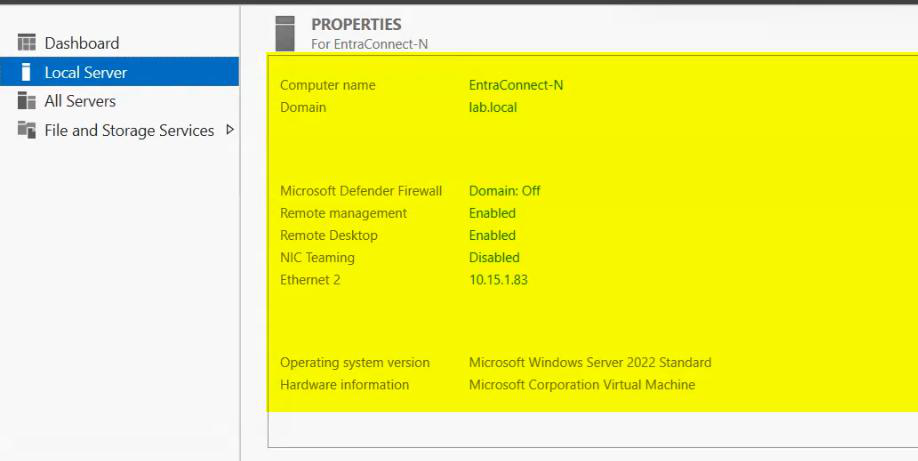
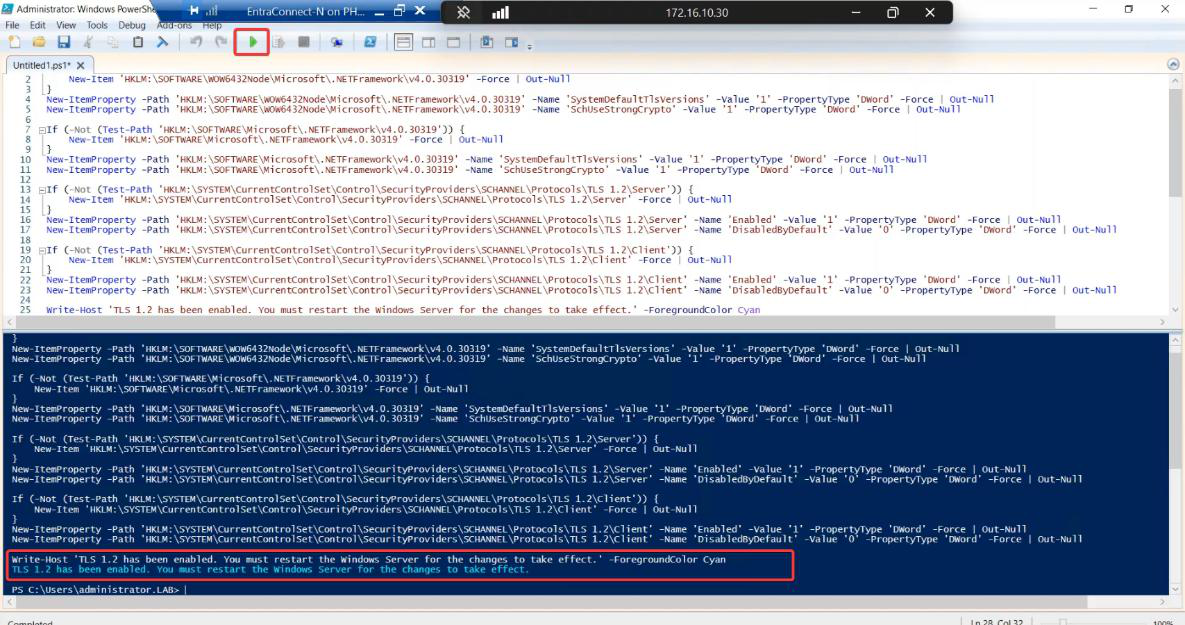

Phase 2 — export configuration from Server A
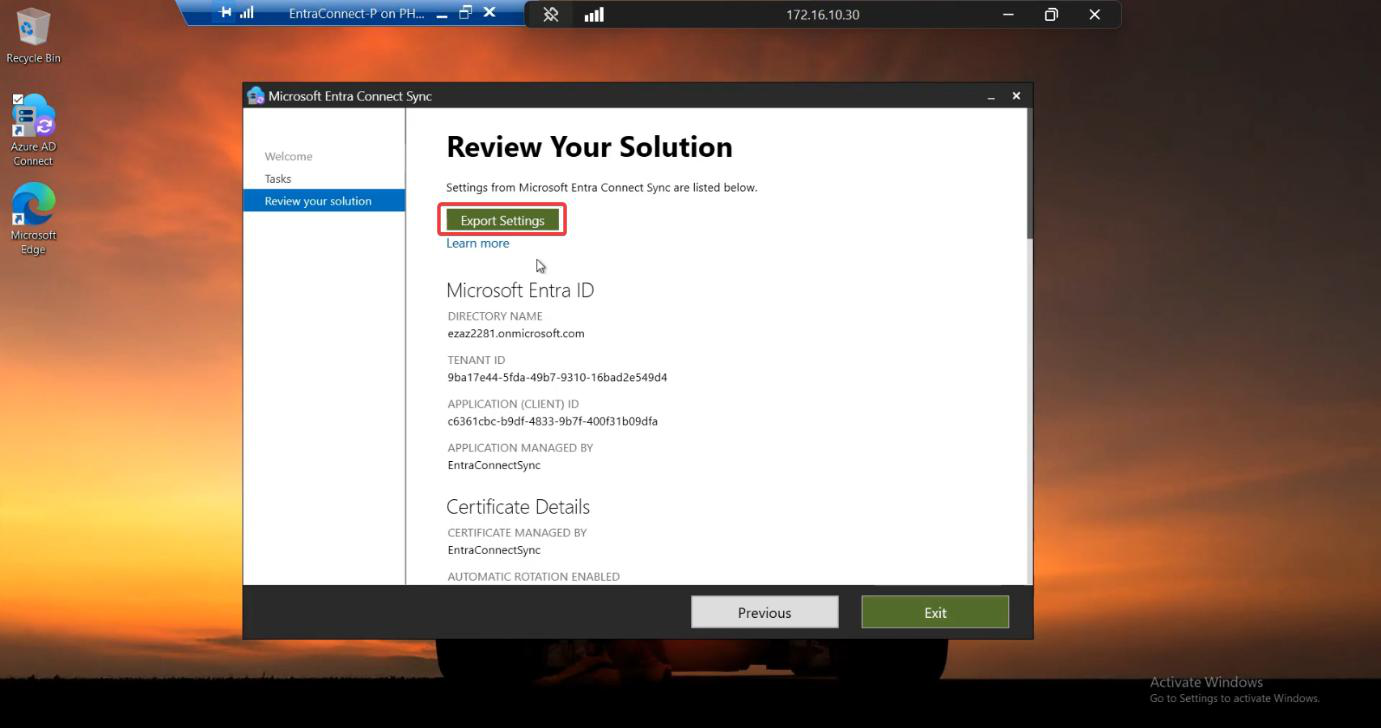
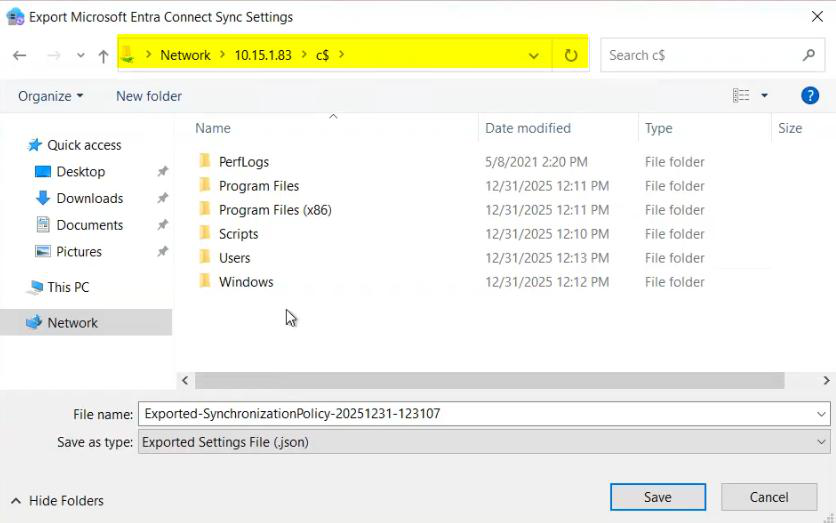
Server A is your existing active EC server. Export its config to JSON.
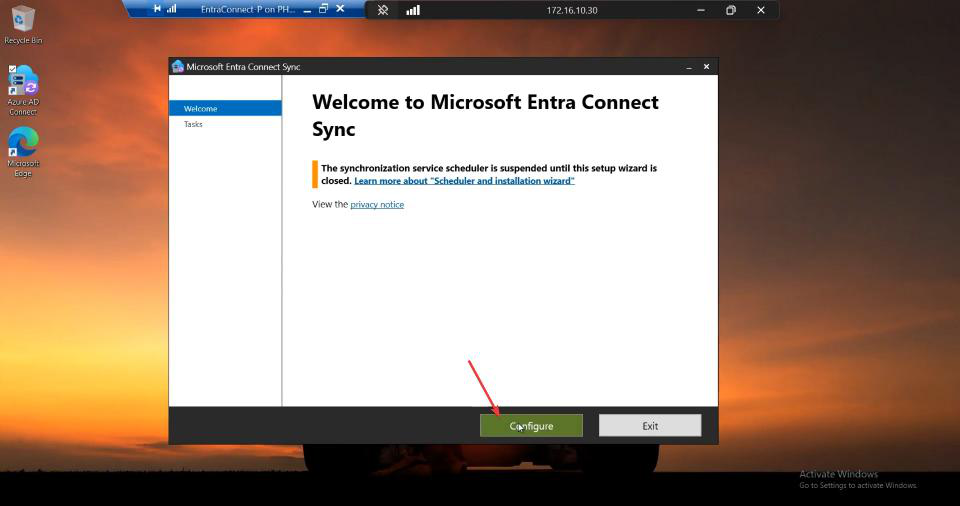
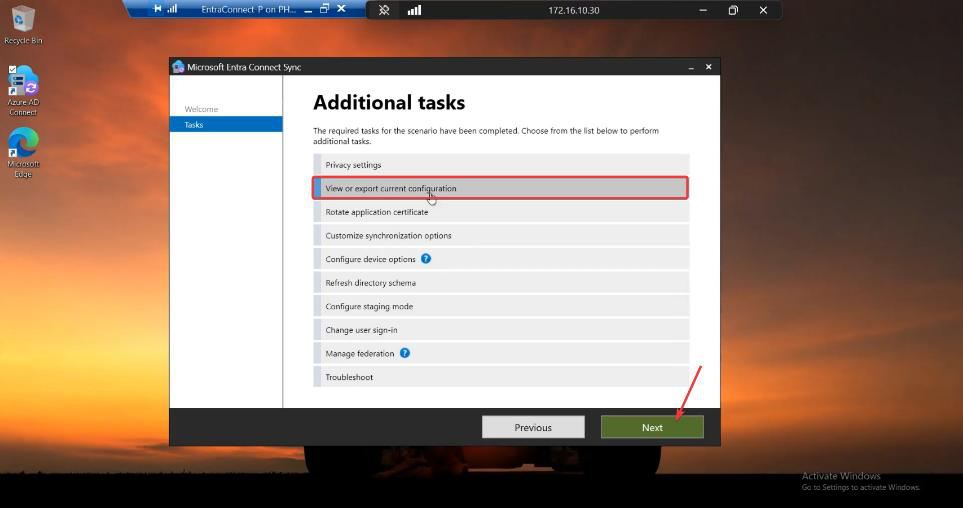
Phase 3 — document the settings JSON doesn’t capture
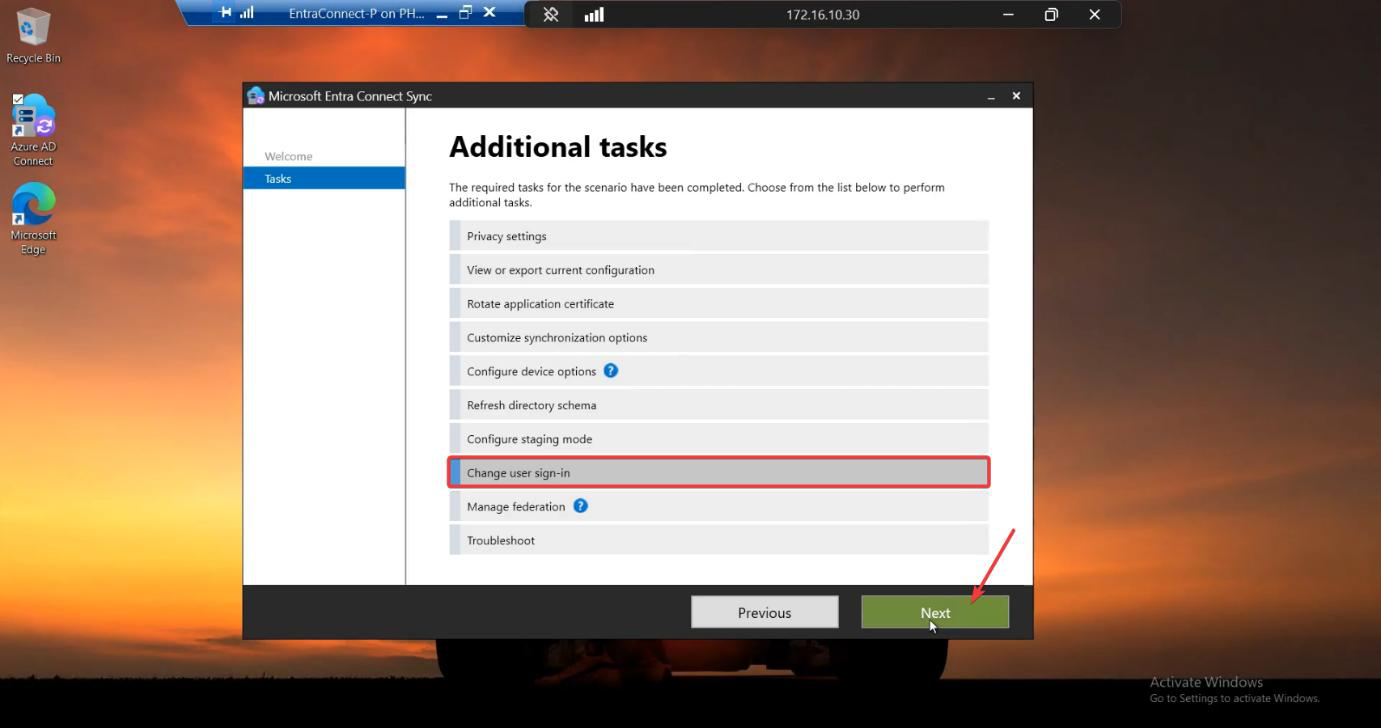
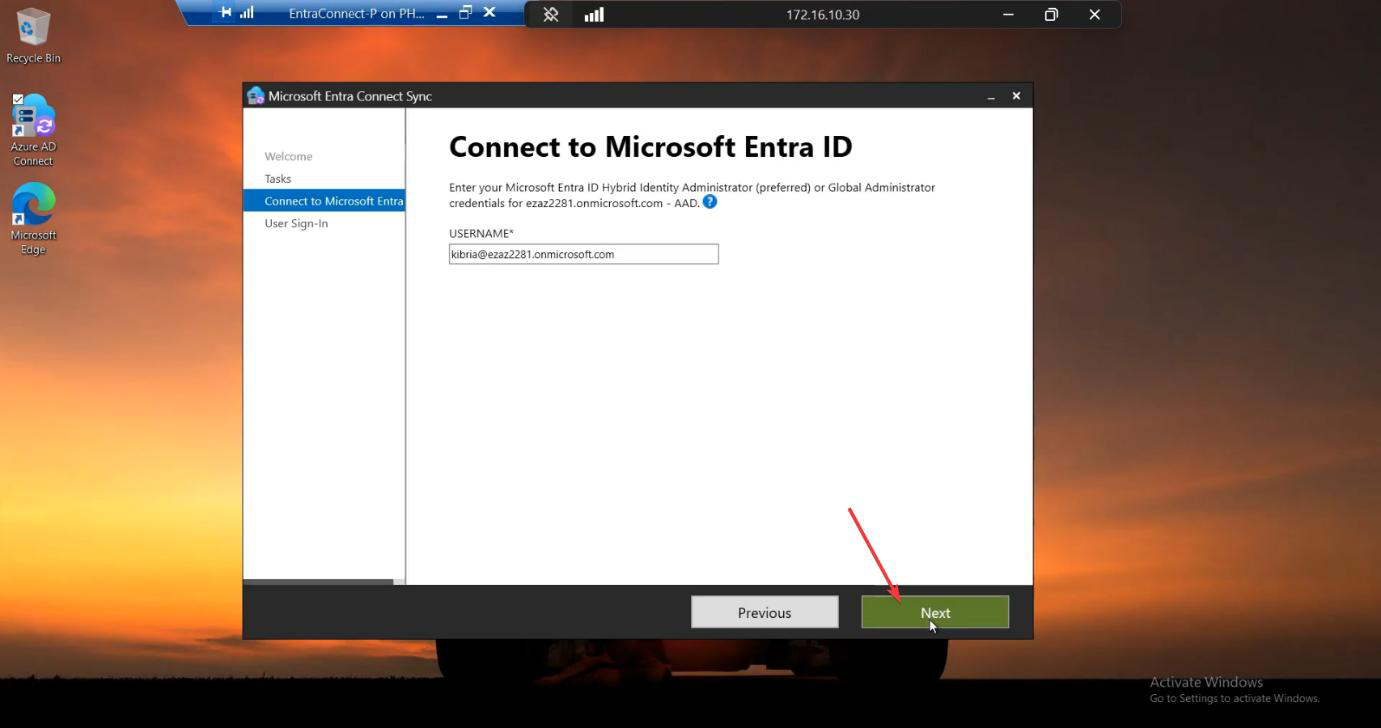
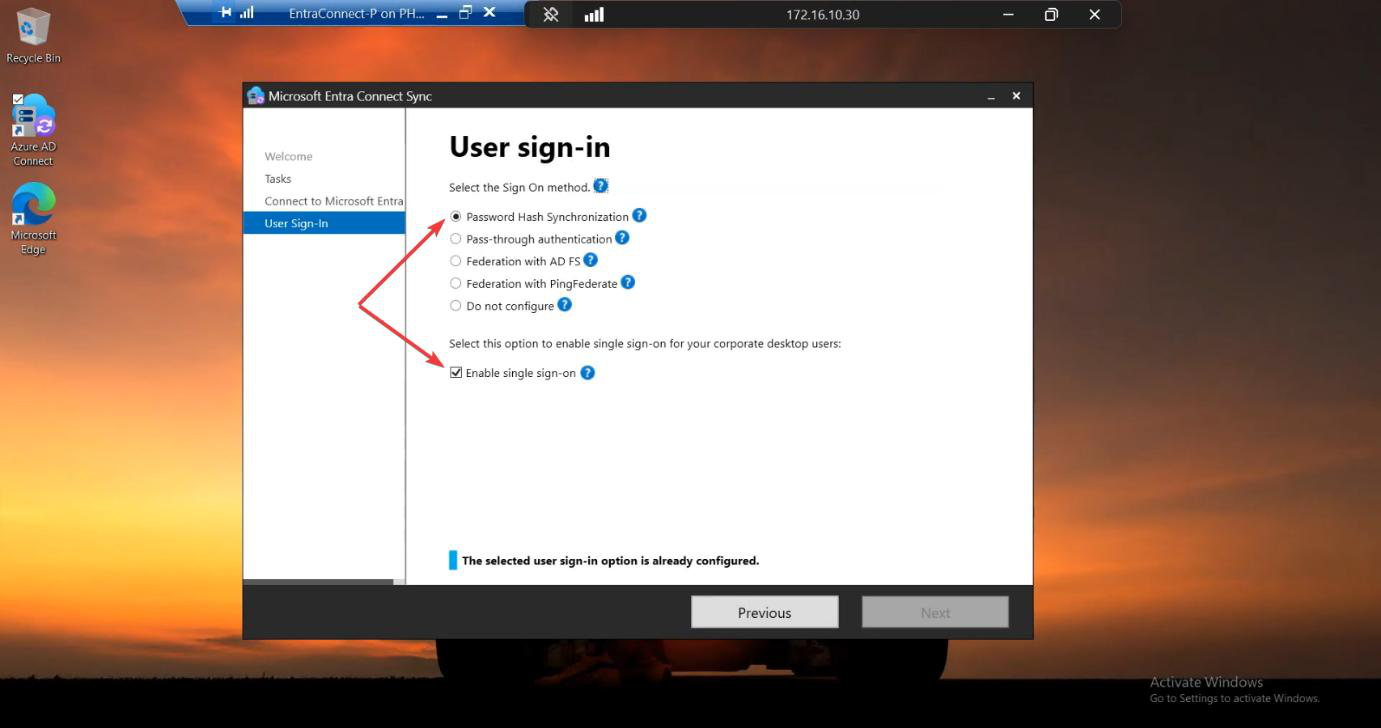
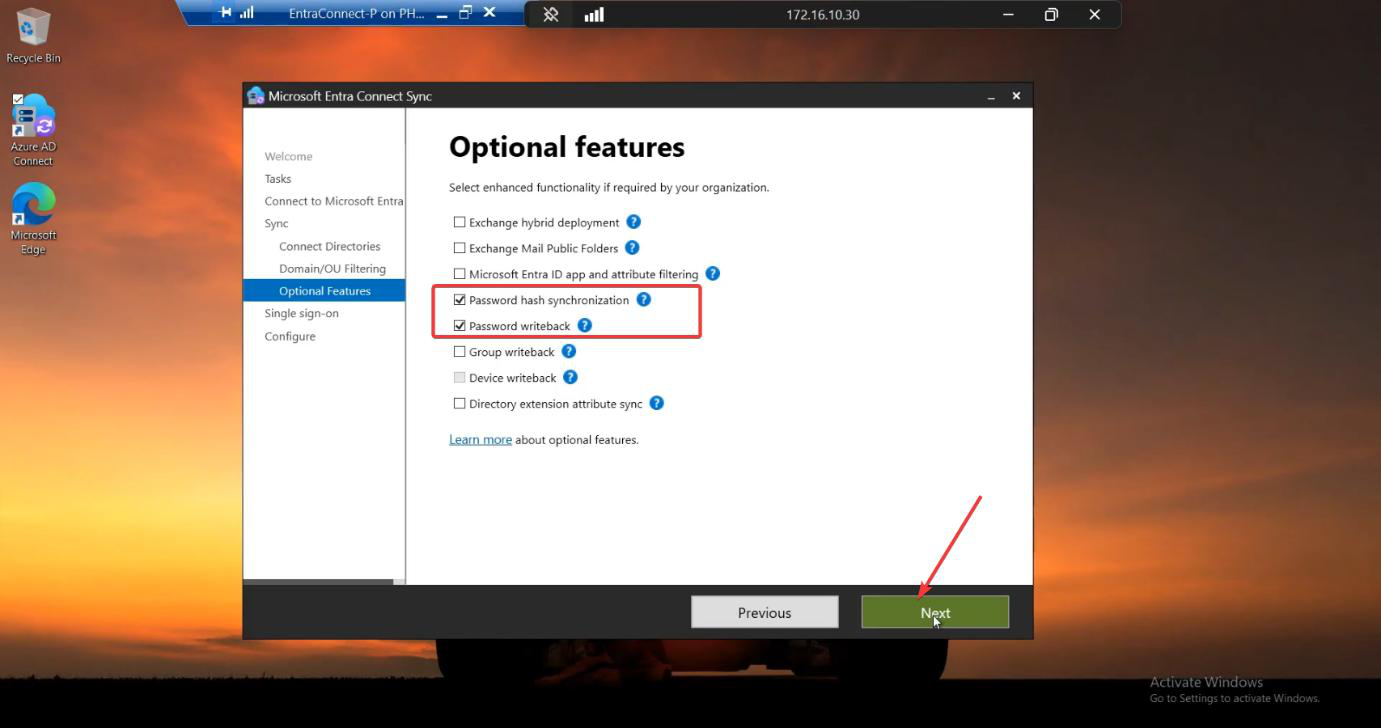
Screenshot Server A’s sign-in method and Optional Features pages.
Phase 4 — install Server B in IMPORT mode
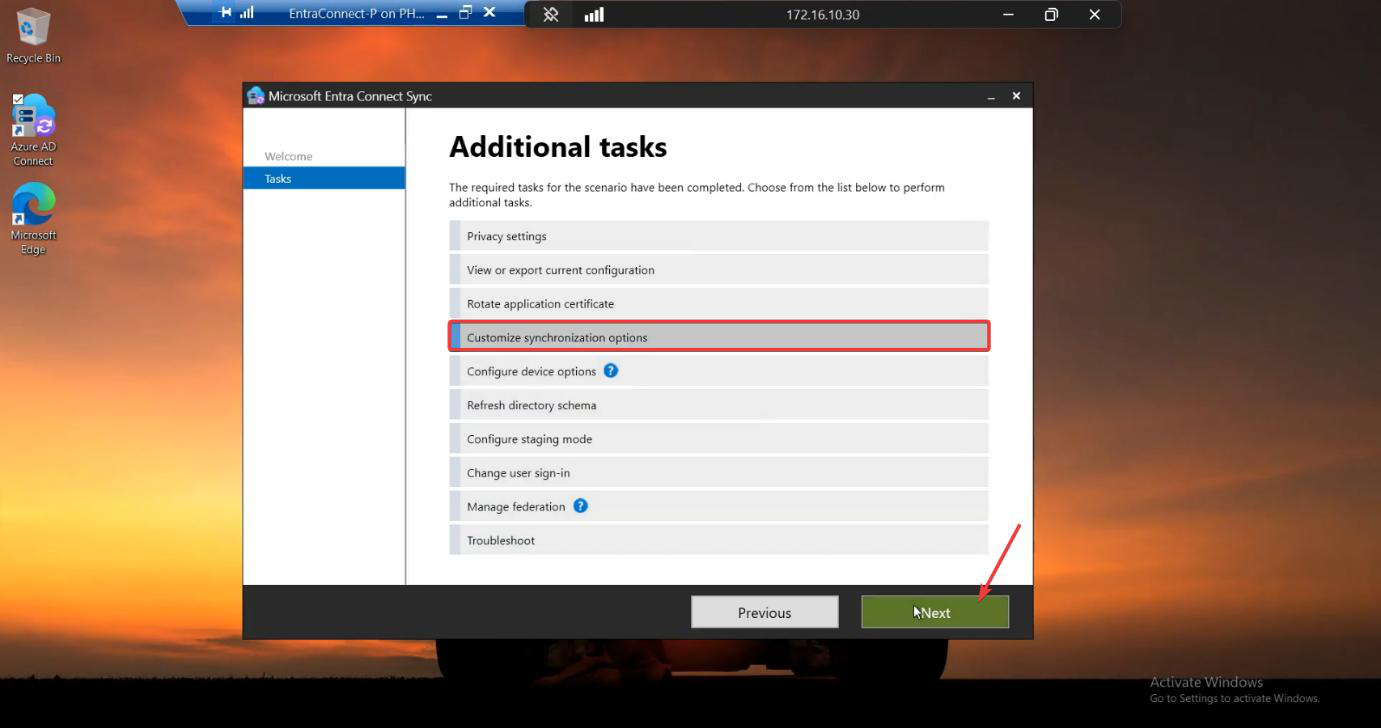
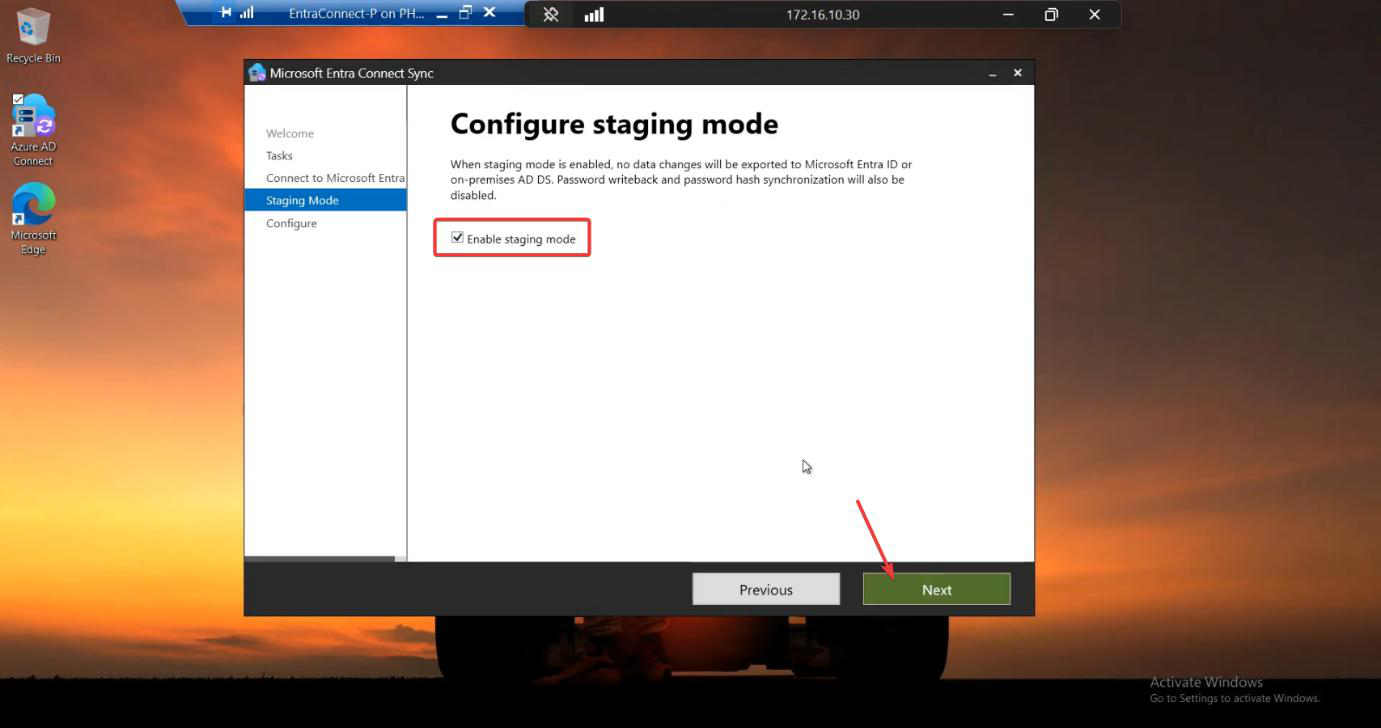
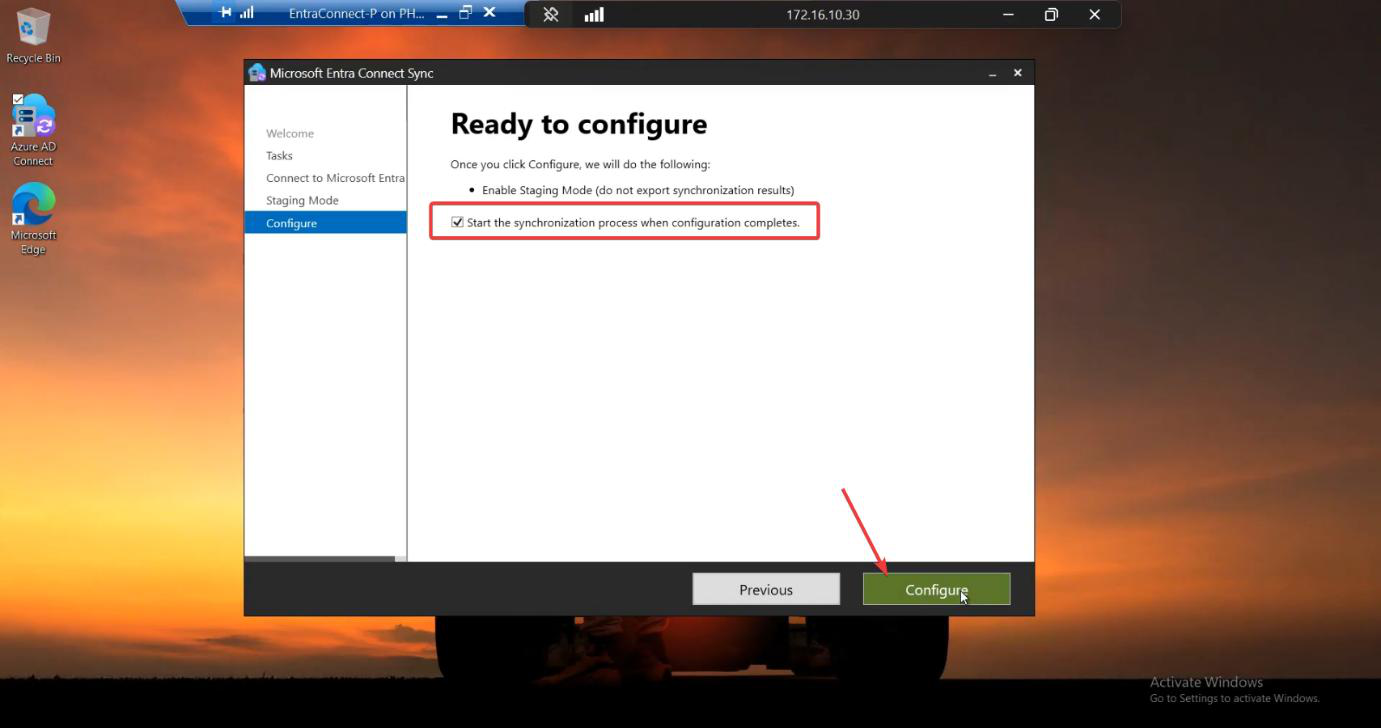
Run the EC installer on Server B. Customize > tick Import synchronization settings > browse to the JSON. Sign-in method per Phase 3 screenshots. Cloud + AD credentials. Tick Enable Staging Mode on the Ready to Configure screen and KEEP IT TICKED. (For HA, you never untick it.)
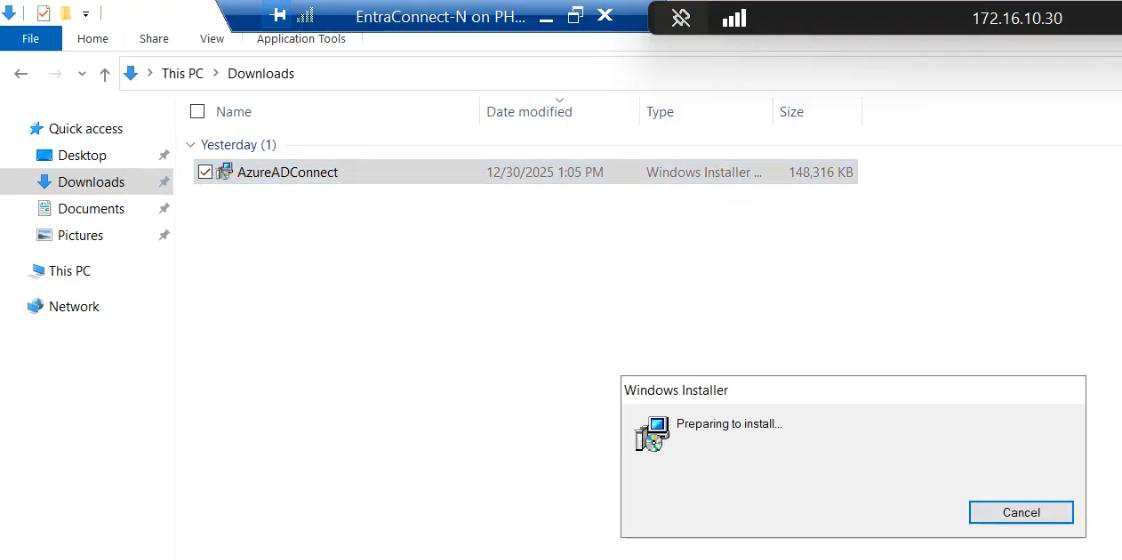
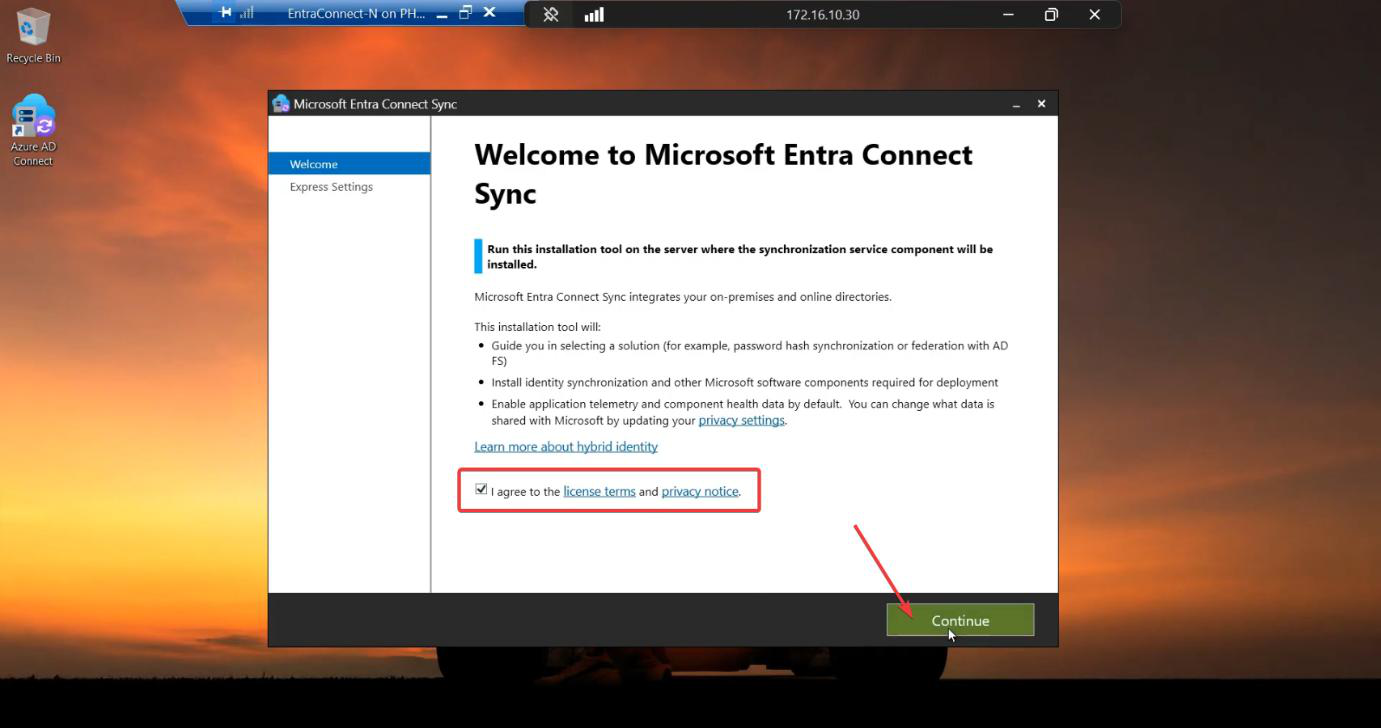
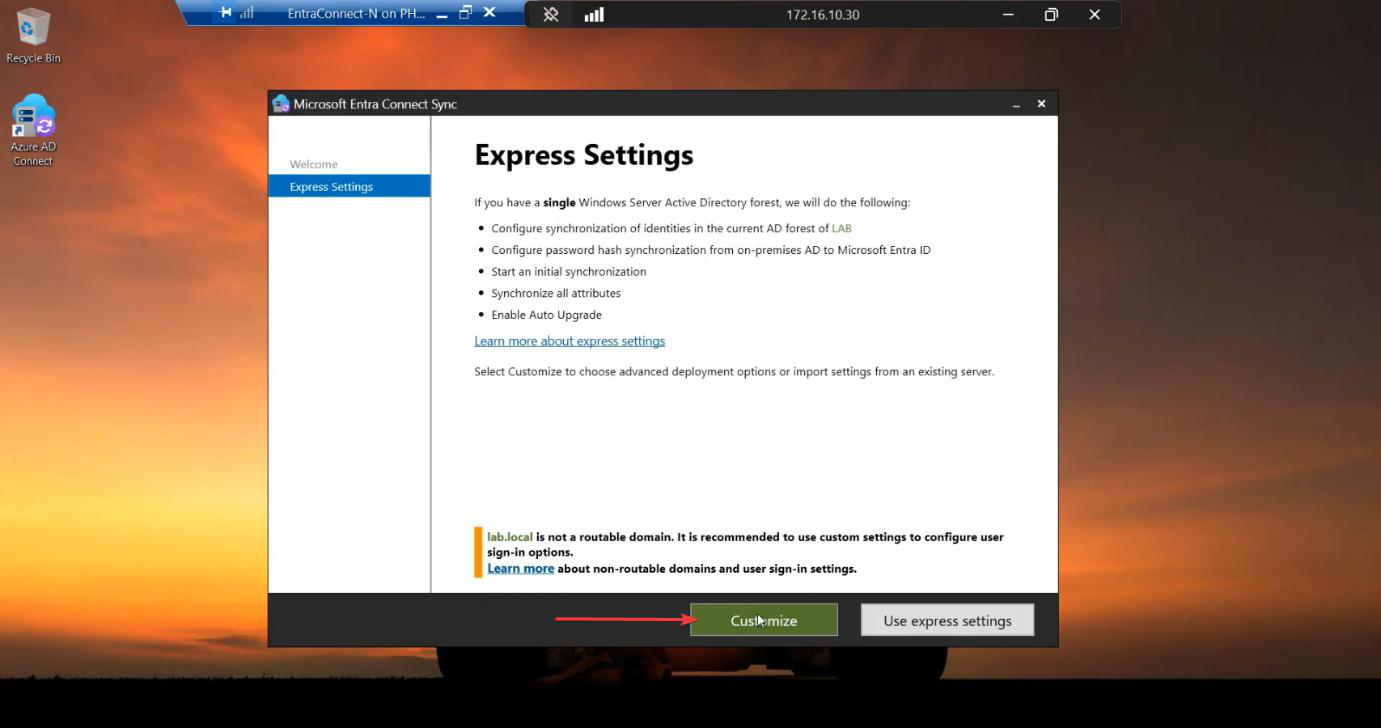
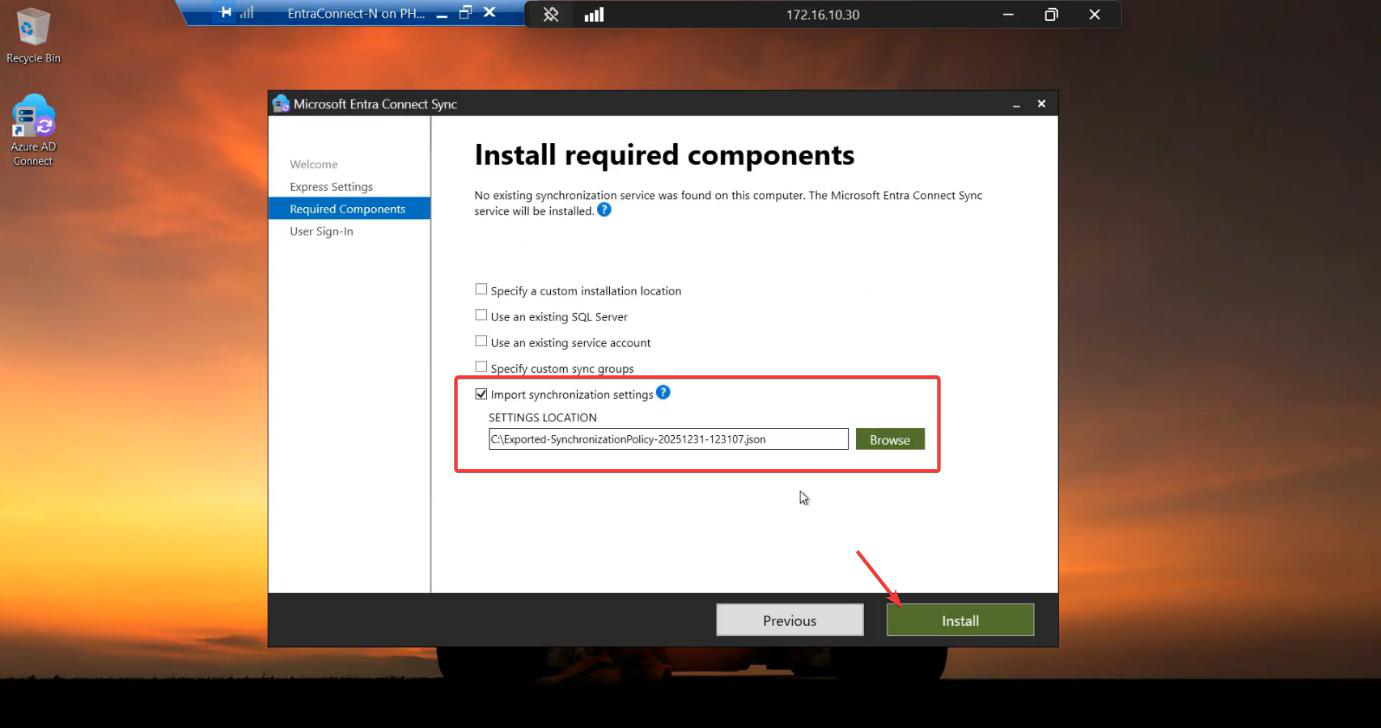
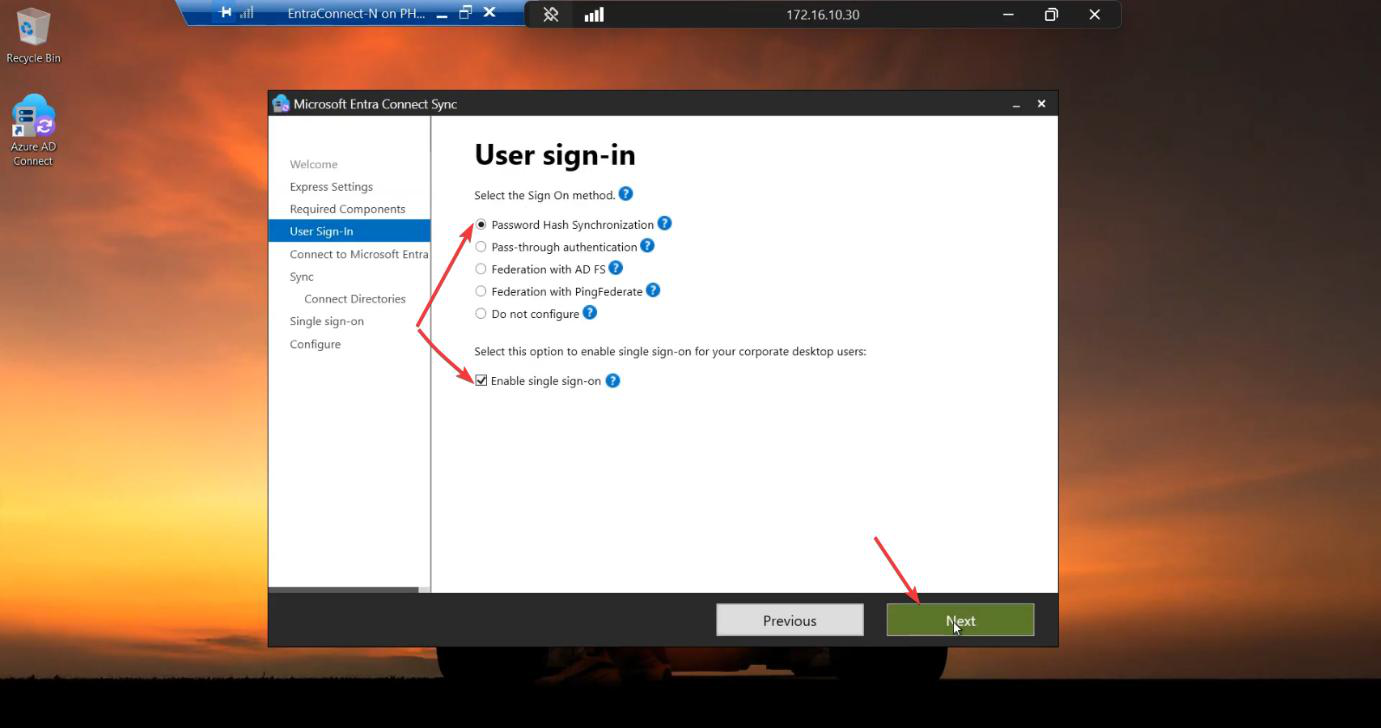
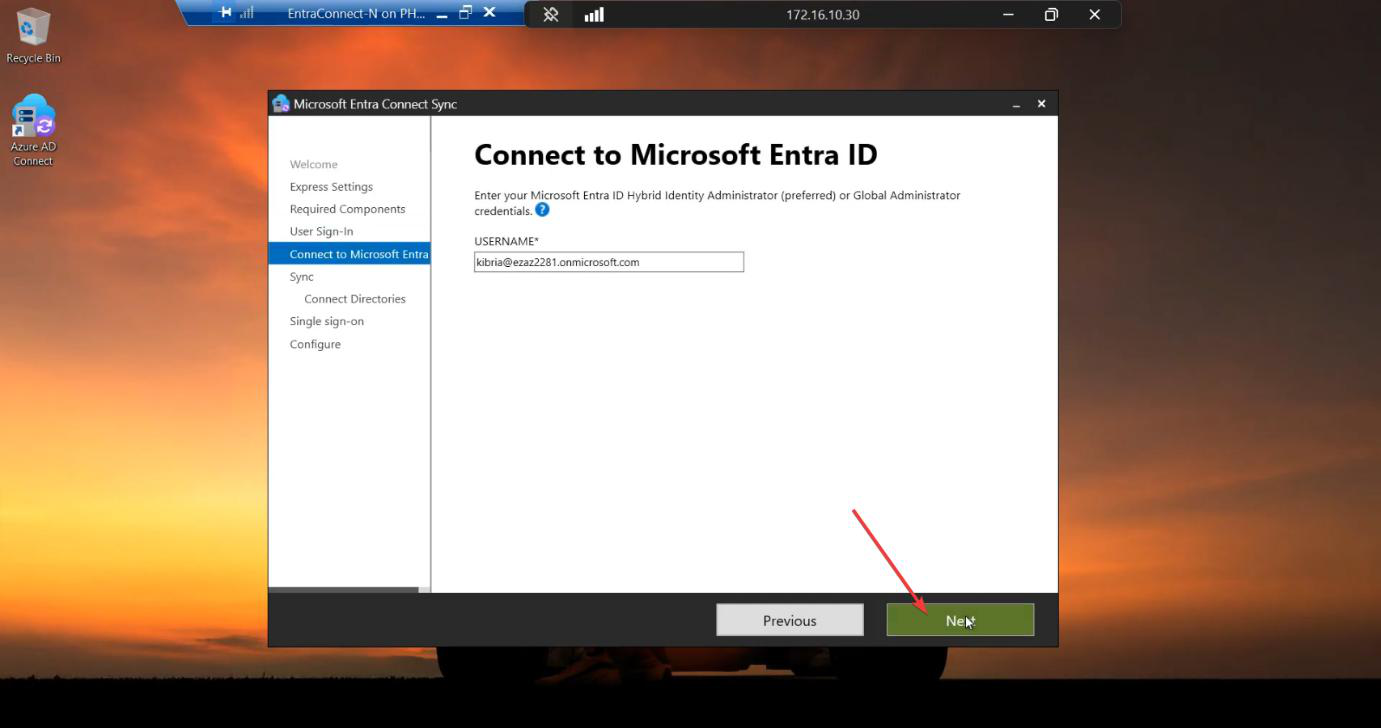
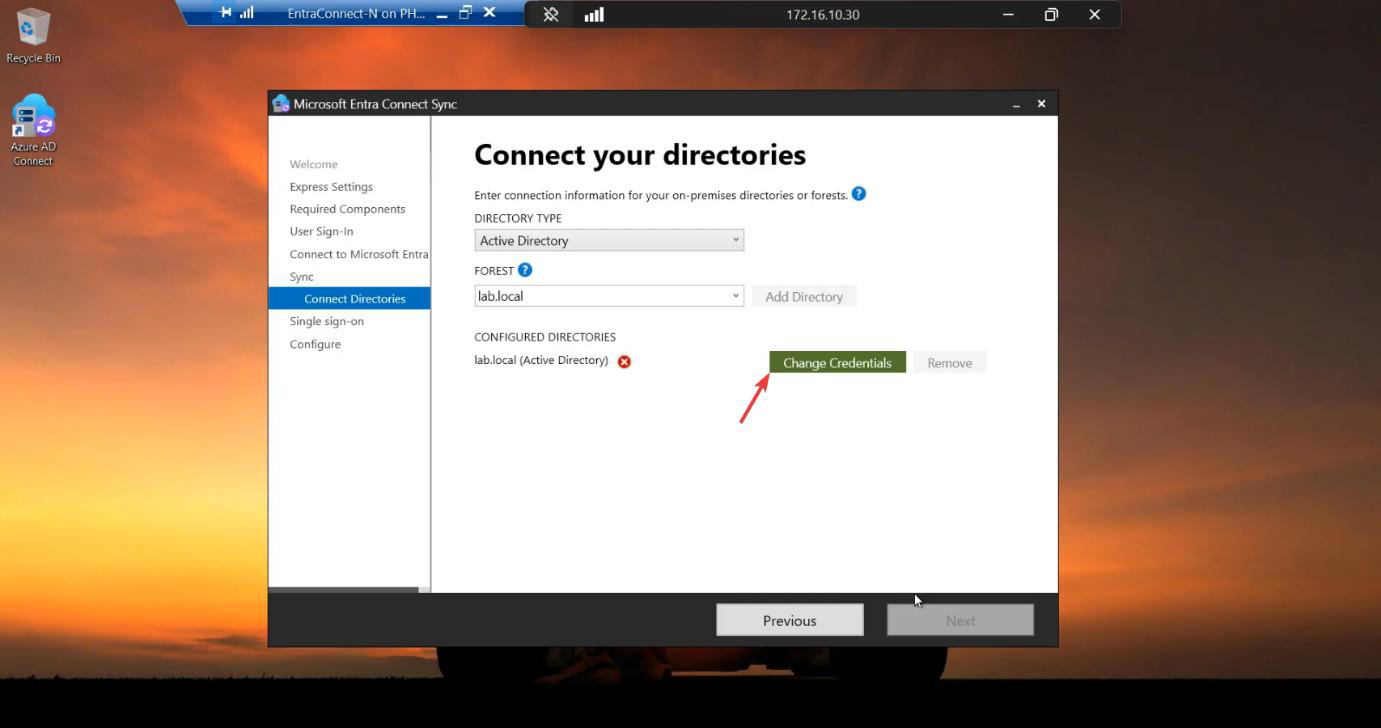
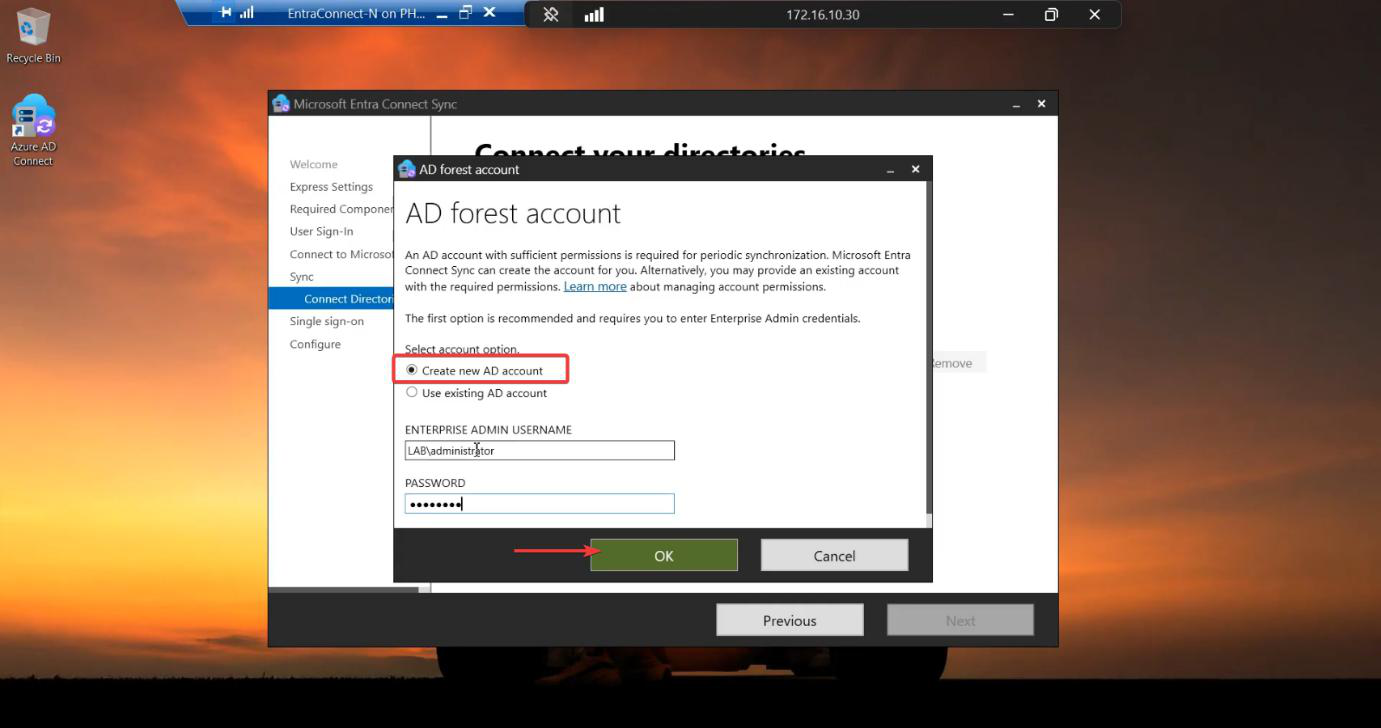
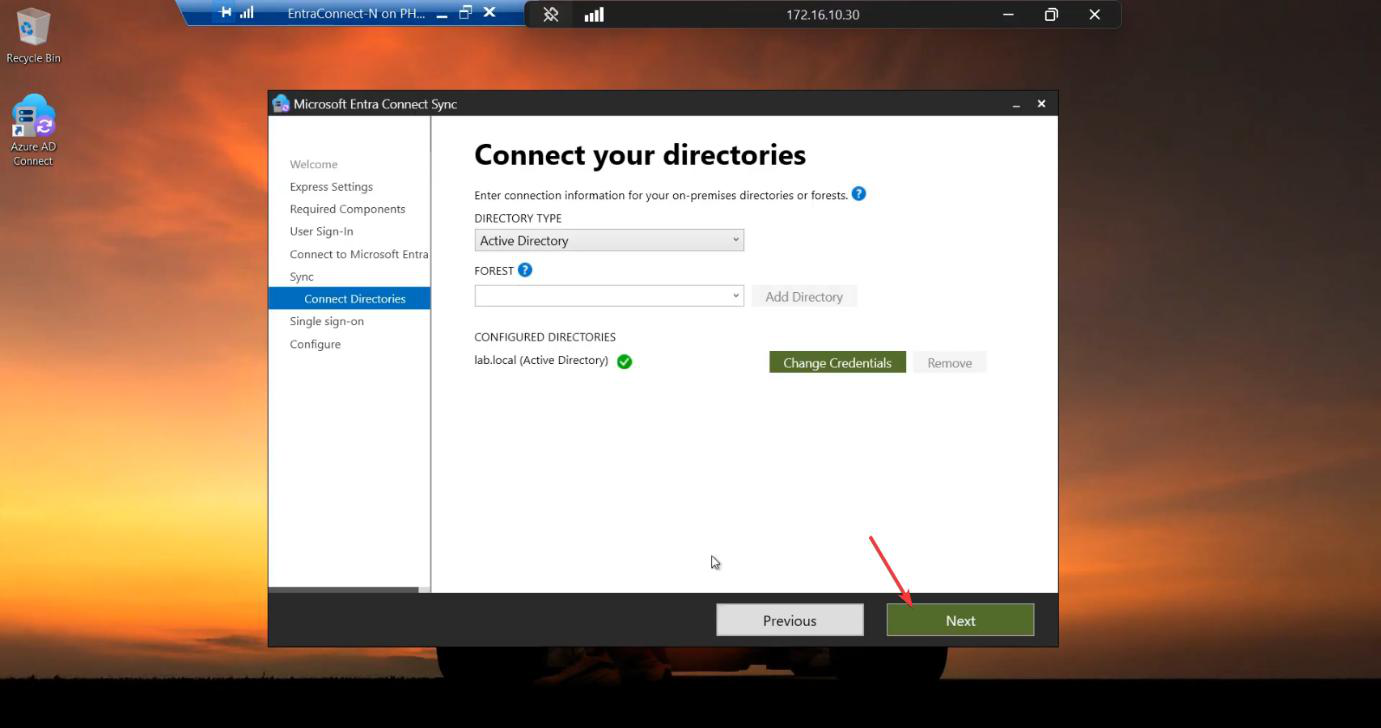
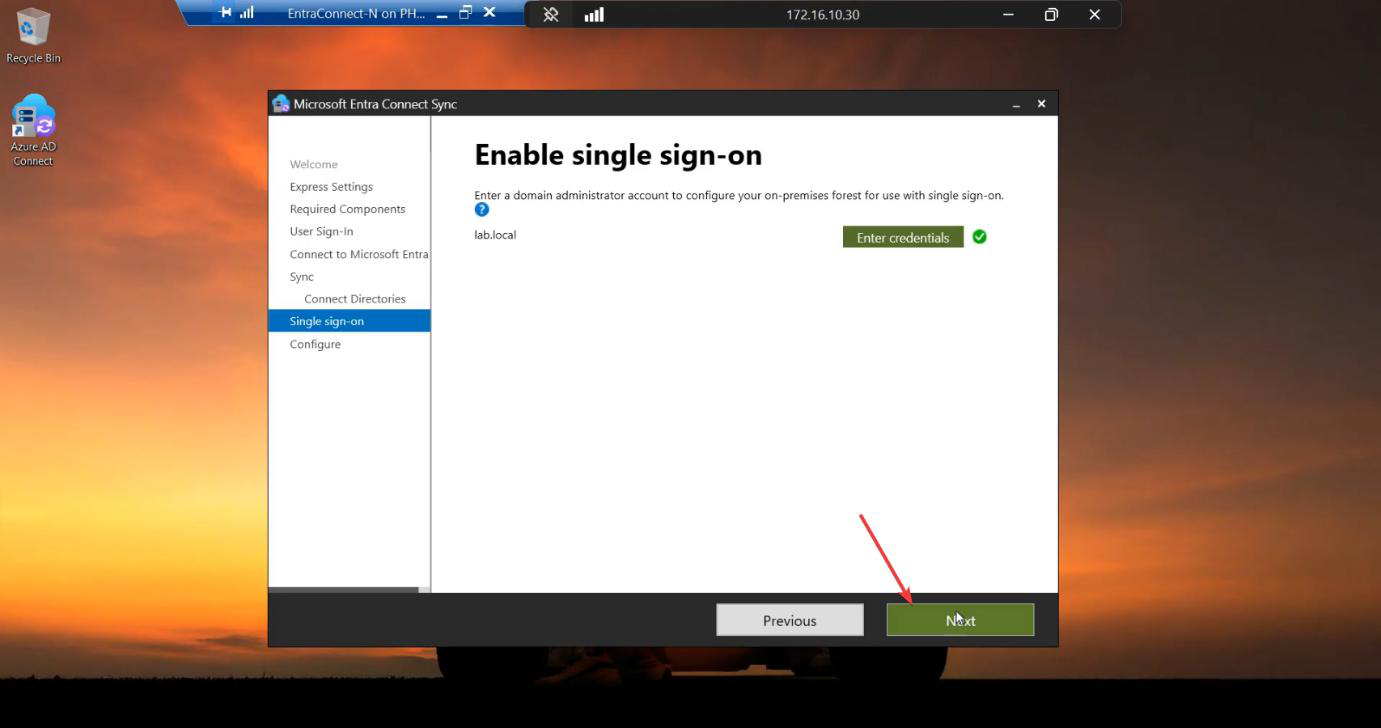
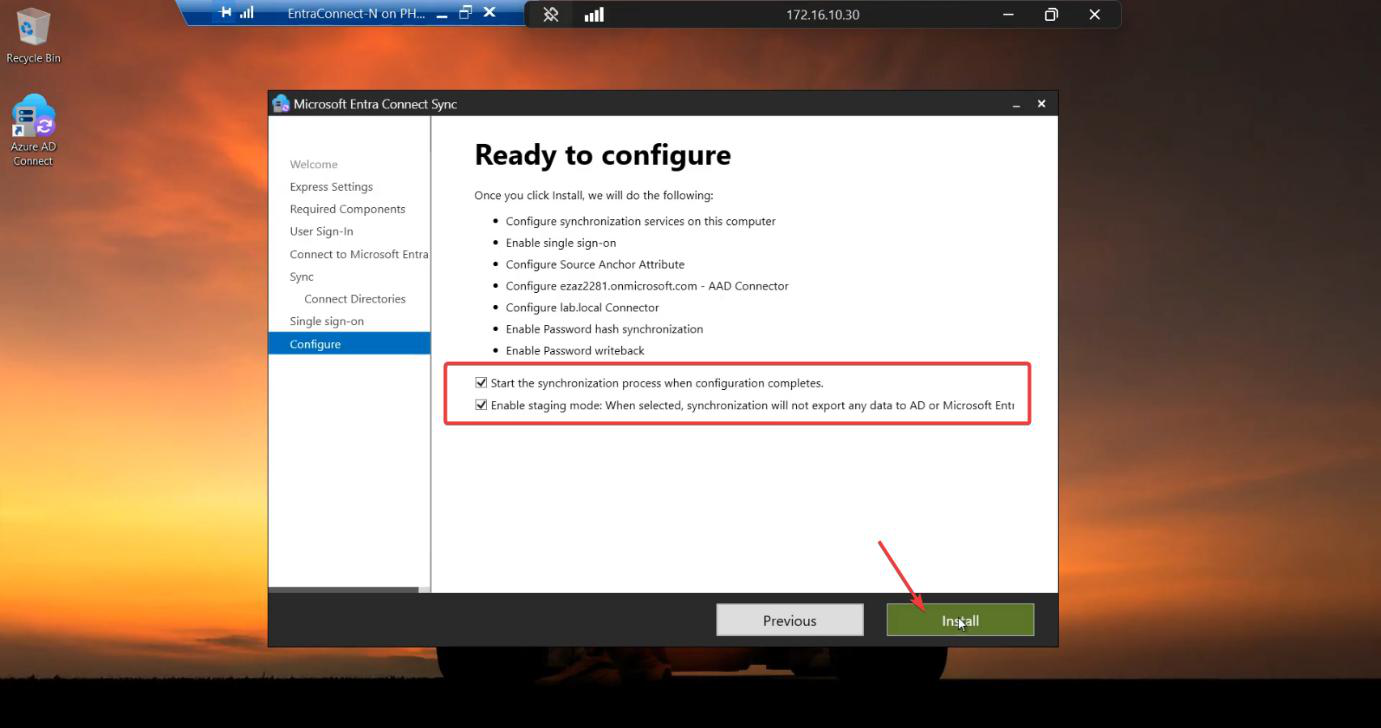
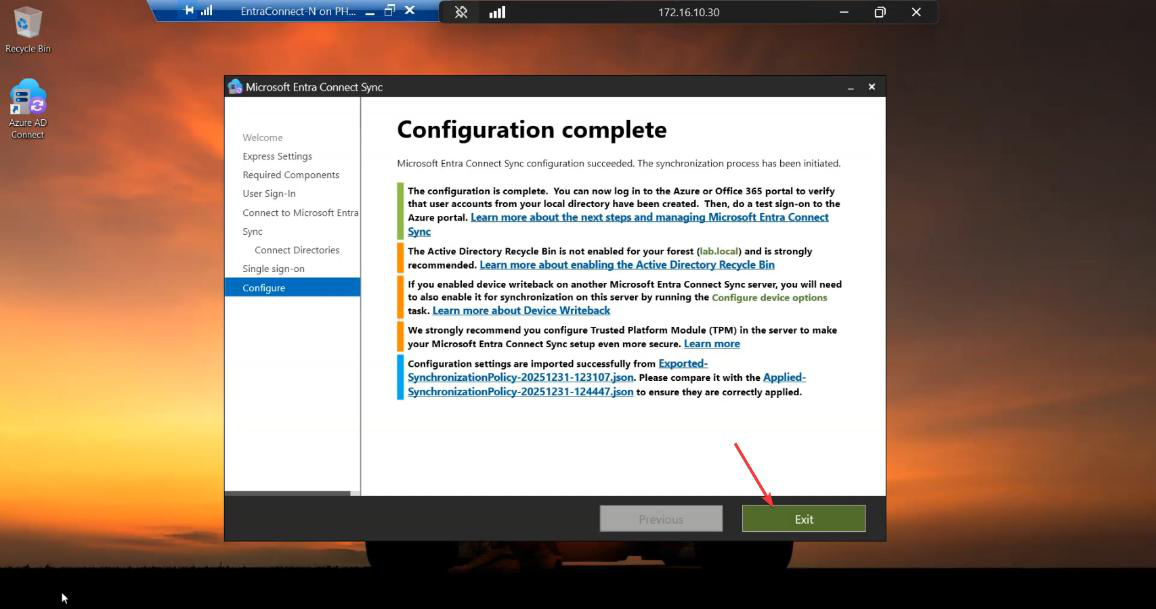
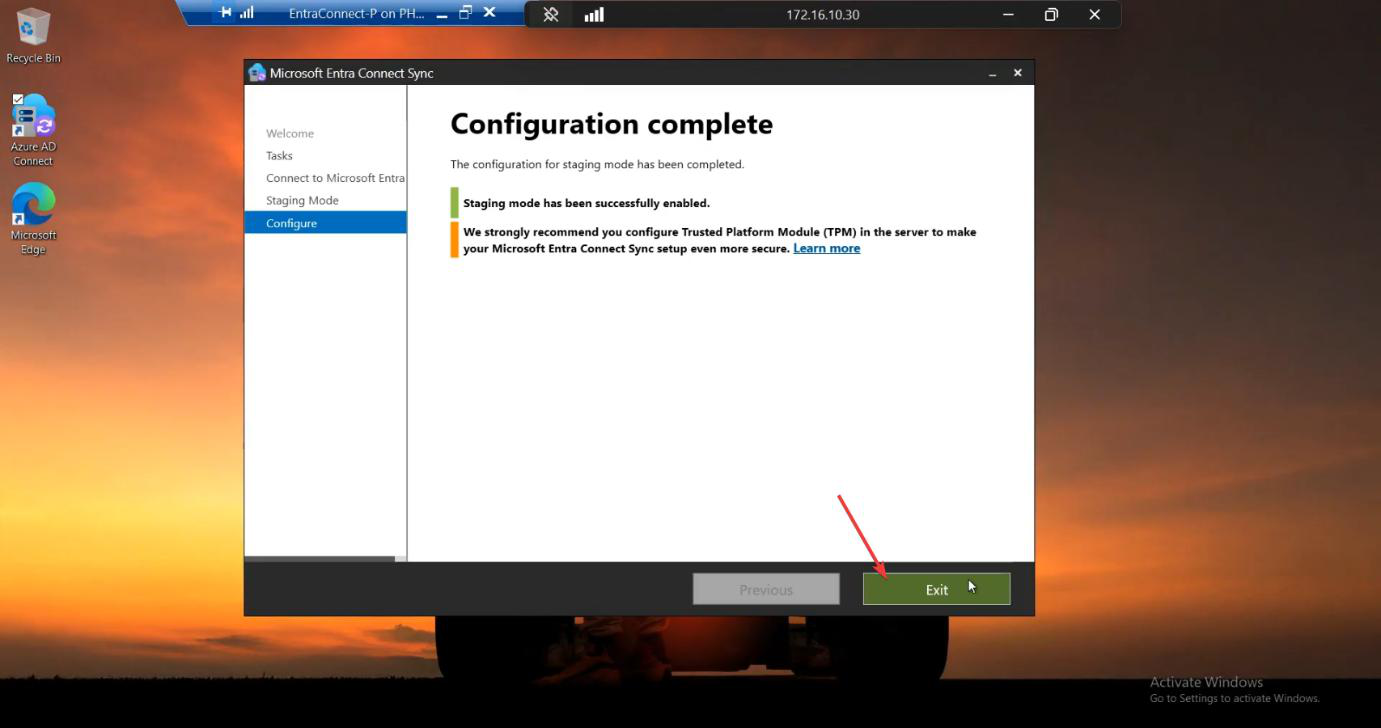
After install completes, Server B is up and in Staging Mode. It’s ALREADY in HA configuration — you’re done with the build. Phases 5-7 are verification.
Phase 5 — verify Server B is healthy
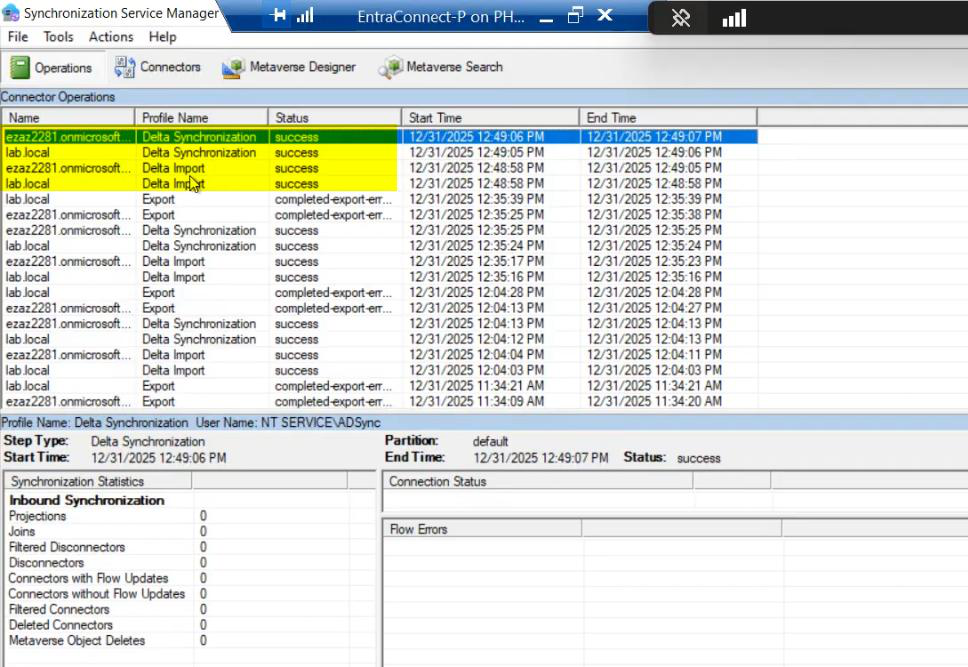
Server B should be running successful Imports and Delta Syncs in Sync Service Manager. Connector space contents should match Server A’s. No errors.
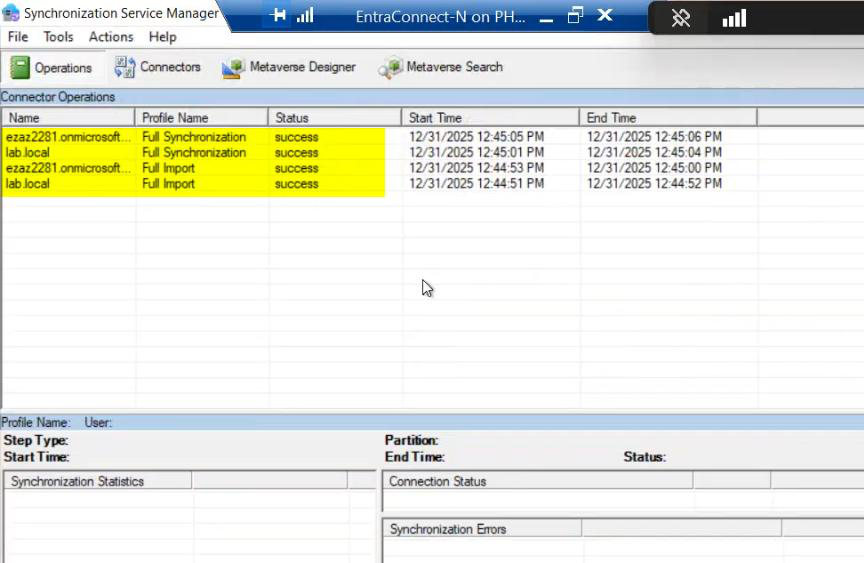
Phase 6 — (optional) practice failover
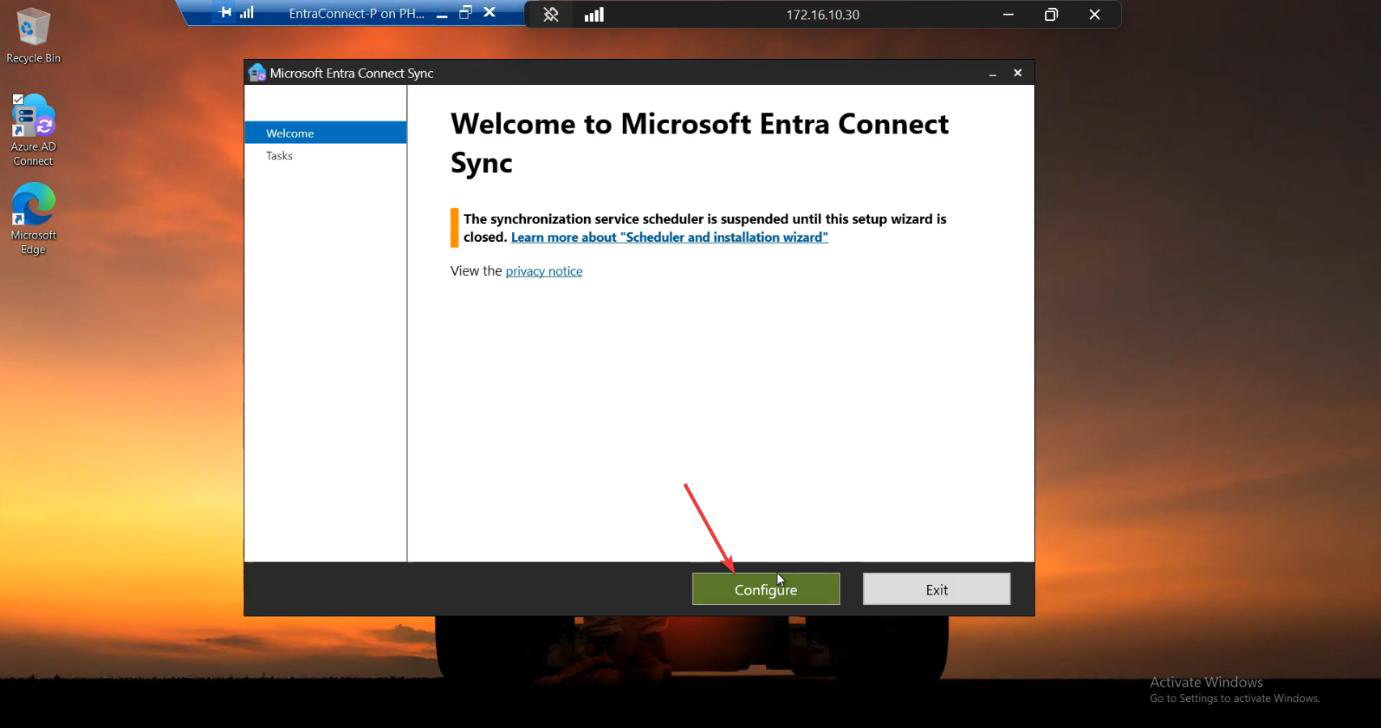
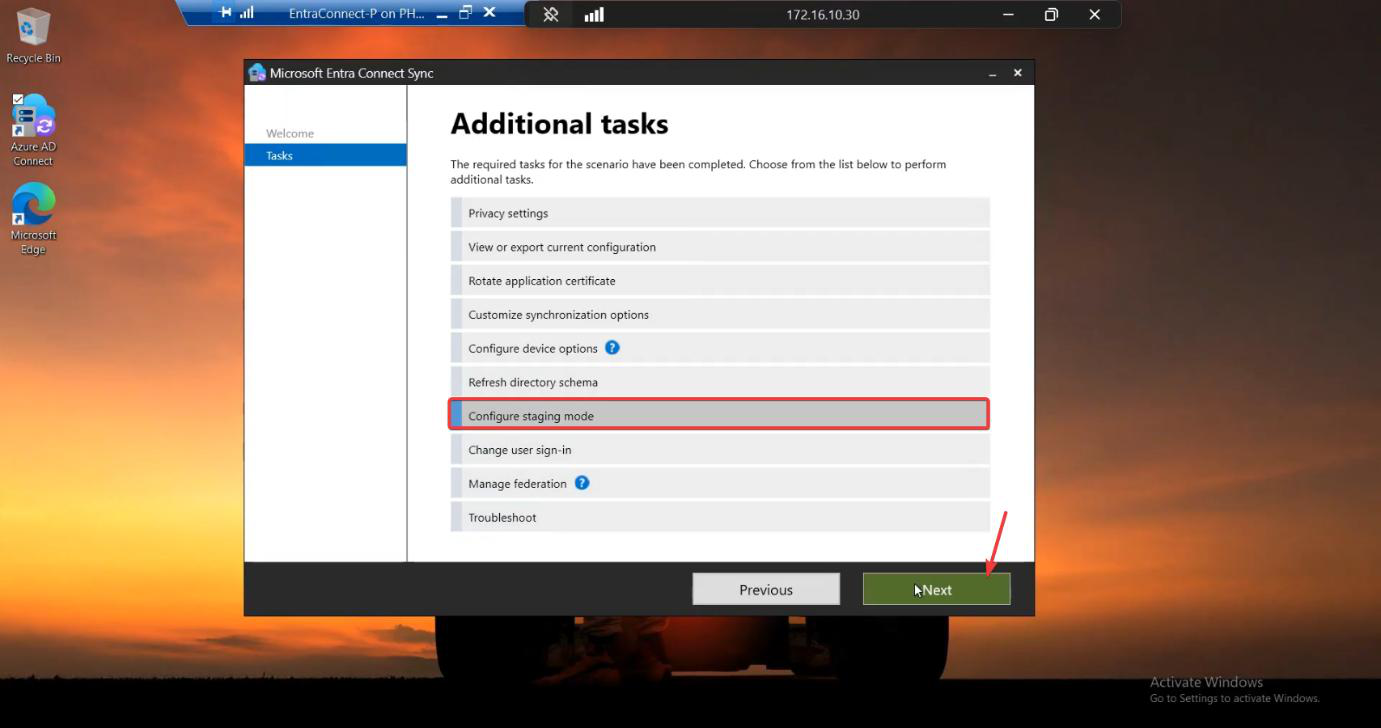
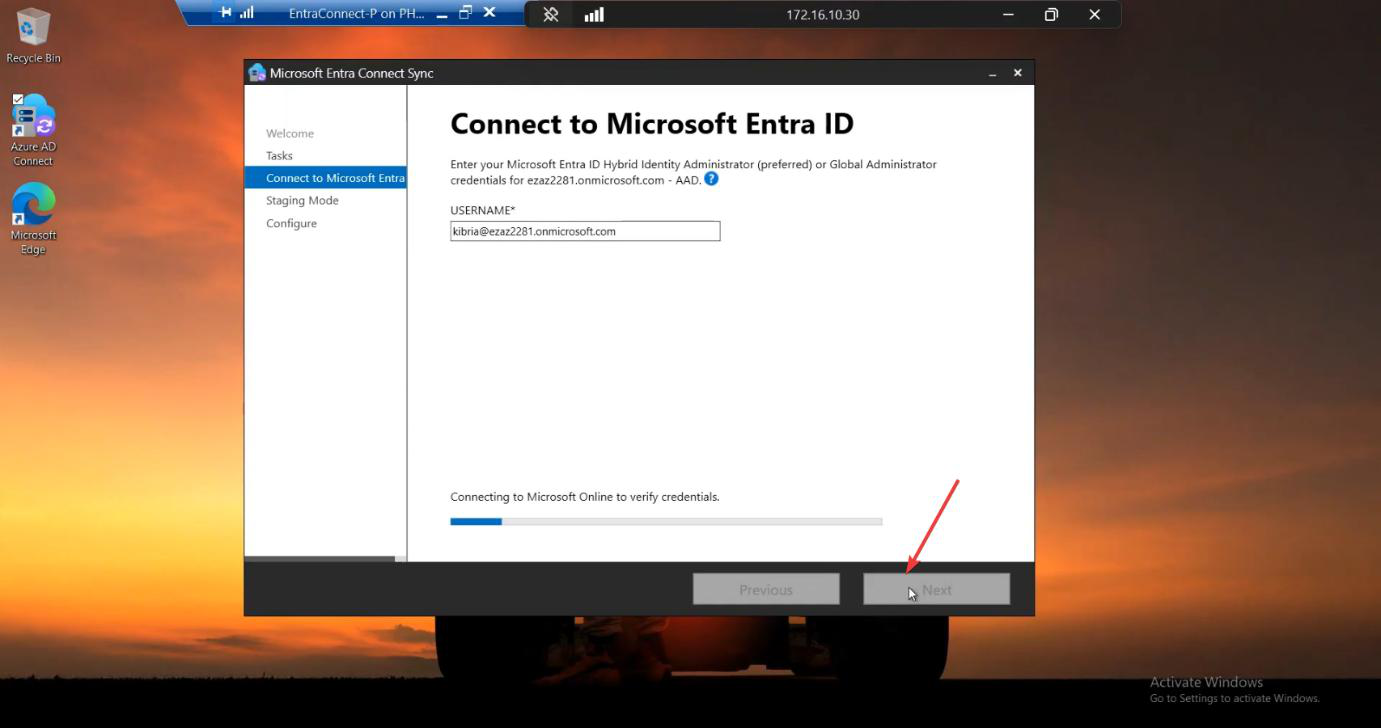
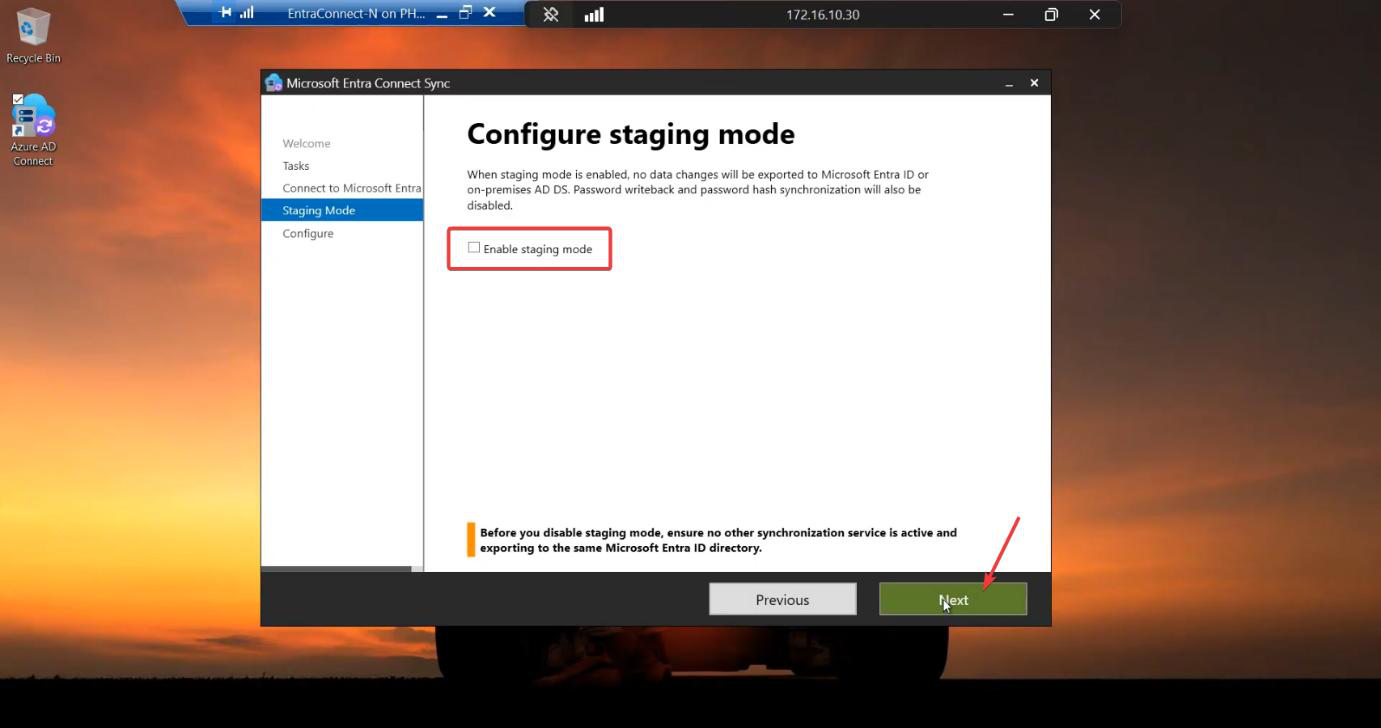
For HA, you typically don’t actually swap roles — Server A stays active. But practising the failover is wise so you know the procedure when you actually need it. The procedure: on Server B, wizard > Configure > Configure staging mode > UNTICK Enable staging > Configure. Server B is now active. Server A should be put into staging at the same time (so you don’t end up with both active). To return to the original arrangement, repeat in reverse.
For an HA practice, do this during a maintenance window with users notified. Verify sync continues; verify a test user creation propagates from the new-active server. Then swap back. The wizard work takes 10 min total.
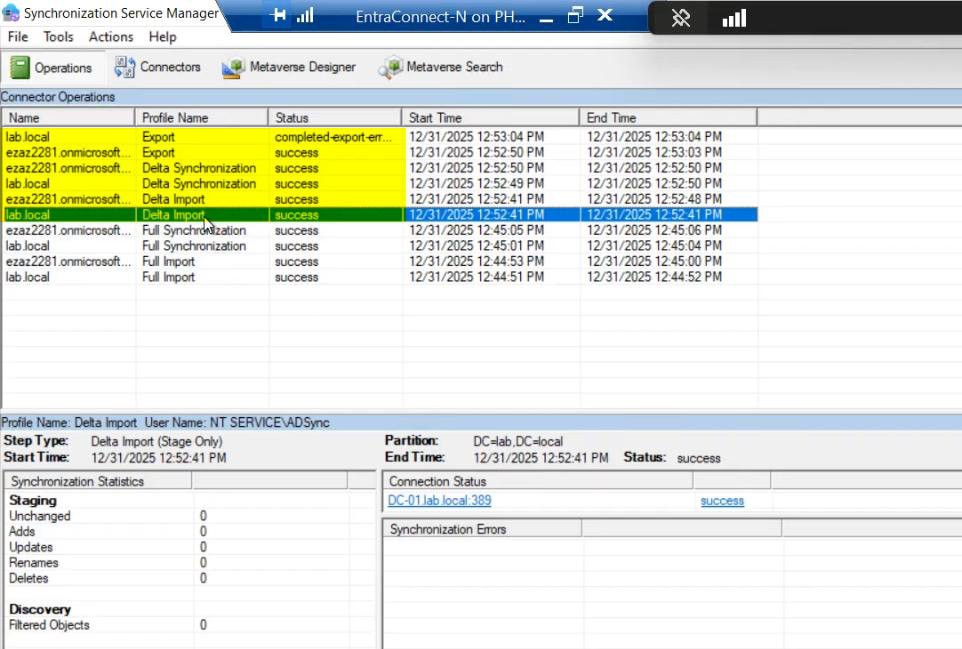
Phase 7 — final verification + monitoring
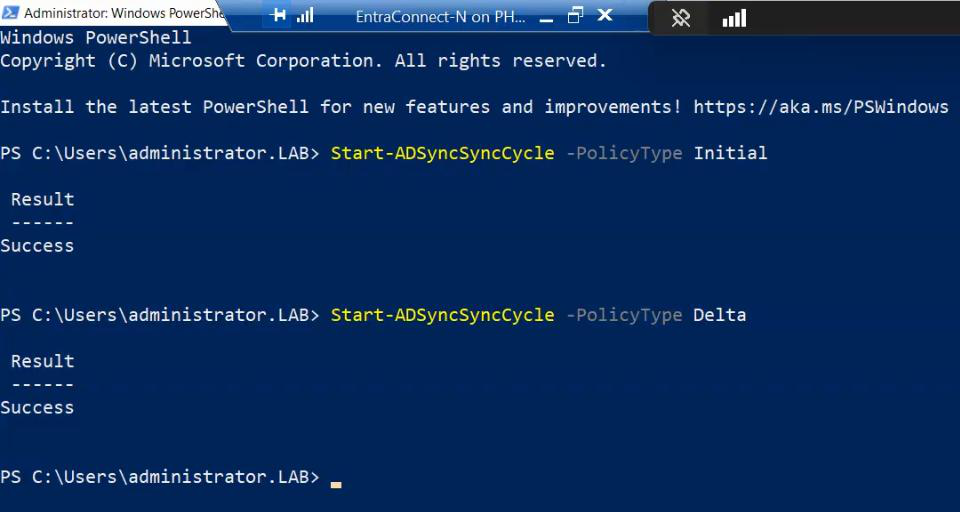
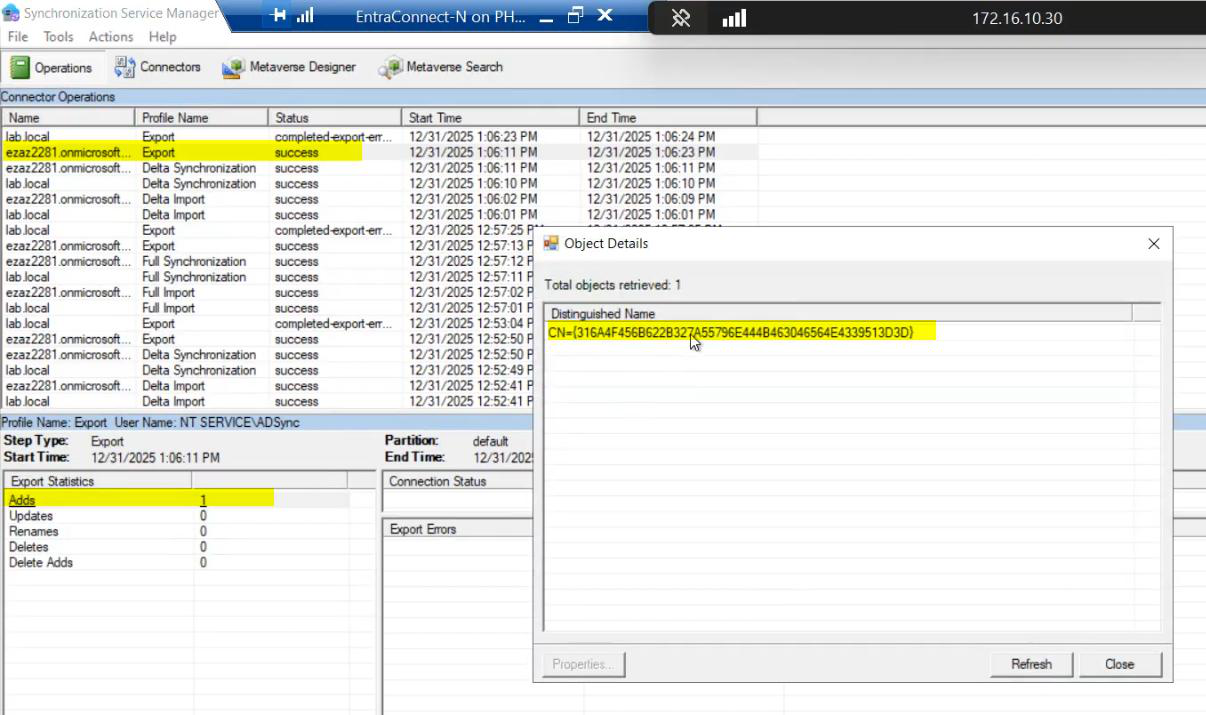
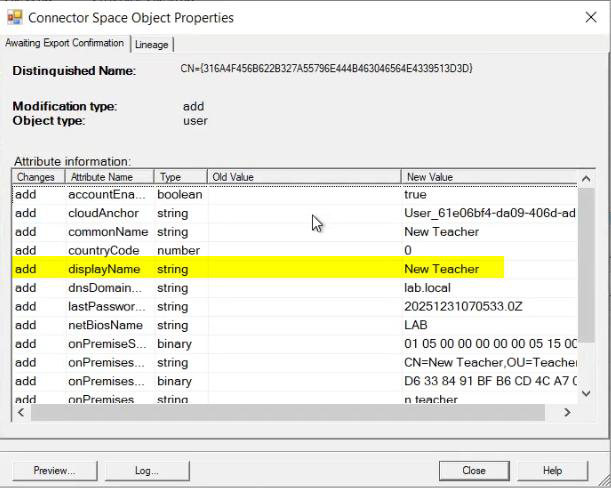
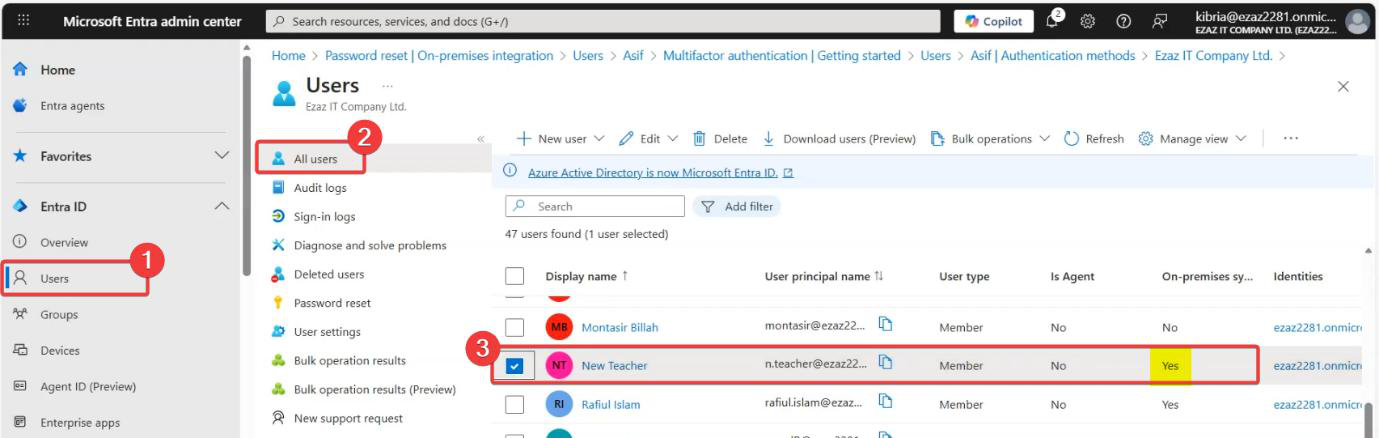
Permission errors fix-up + new-user test, same as the migration walkthrough.
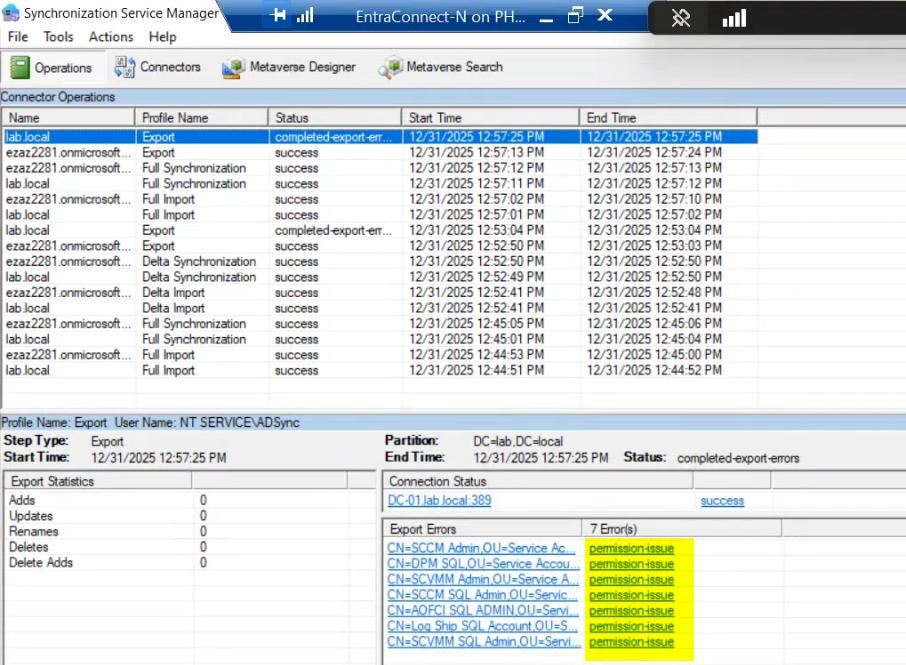

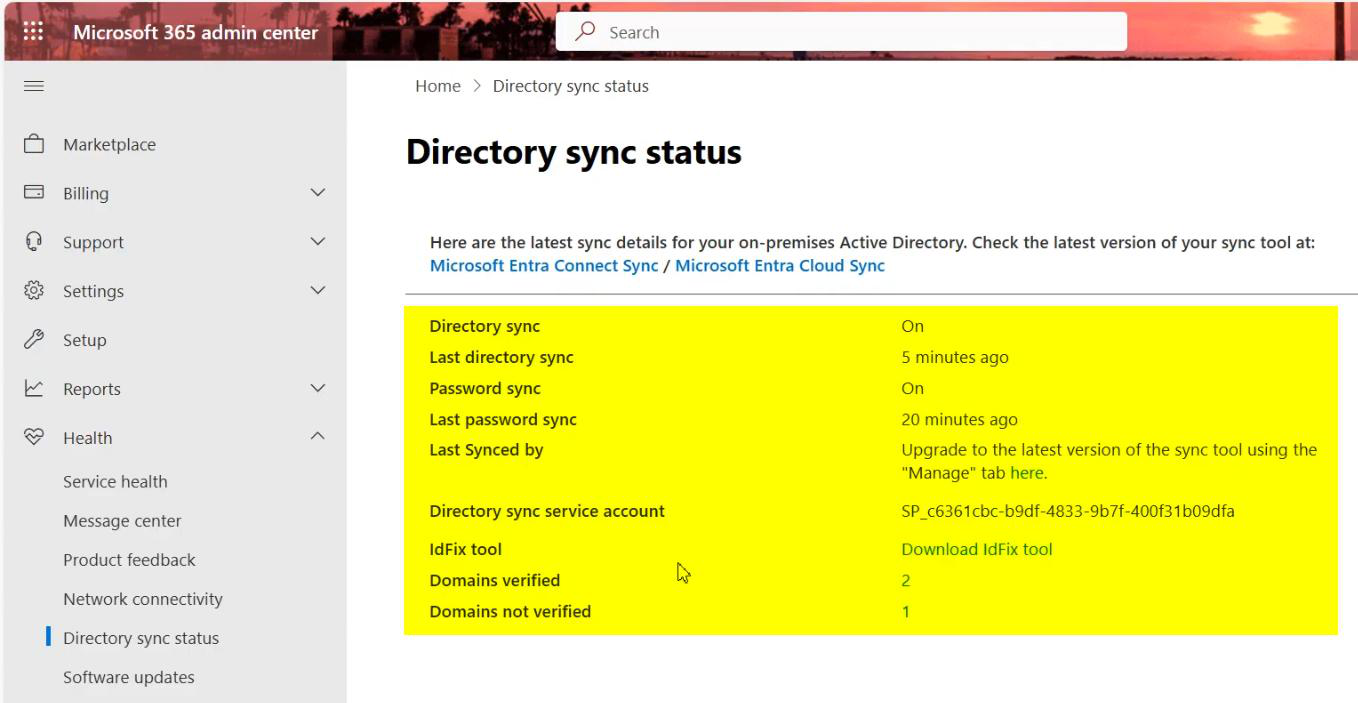
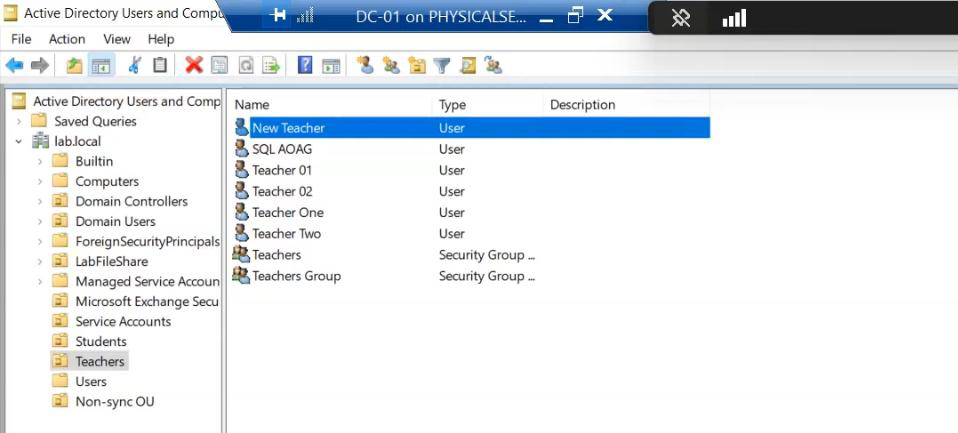
Critical for HA: set up monitoring on Server A. Without monitoring, you don’t know when the active server dies, and the standby waits in vain. Options:
- Entra Connect Health alerts. Configurable in the Entra admin centre > Connect Health. Email alerts on sync errors or server unreachable.
- Your standard server-monitoring stack. If the EC server is in your inventory, it should already be monitored for OS-level health, service availability, etc.
- Sync-cycle staleness alert. A custom check that queries the Connect Health API and alerts if Last Sync > some threshold (e.g. 1 hour).
Without monitoring, HA is theatre — you bought the standby but won’t use it because you won’t know to.
Things that bite people
Both servers running active accidentally
You unticked Staging Mode on B but forgot to tick it on A. Both are now exporting to the cloud. The cloud handles this OK most of the time (last write wins per attribute, basically) but you can get inconsistency or duplicate updates. Monitor for this; if you see it, immediately tick Staging on one of them.
Standby drifts because nobody watches
Standby installed years ago; nobody’s touched it; OS is unpatched; .NET version is ancient; cert trust chain is stale. When the active server dies and you fail over, the standby is broken too. Treat the standby as a first-class production server: patch it, update its Entra Connect version when you update the active (in-place upgrade per Part 11 works on standbys), monitor its sync status.
Failover took longer than “minutes”
Theoretical RTO is <5 minutes; reality is often 15-30 minutes by the time you’ve diagnosed the failure, RDP’d in, run the wizard, verified, updated DNS/health monitors. Practice (Phase 6) reduces this dramatically; document the runbook so anyone on-call can execute it.
Asymmetric configuration drift
You change the OU filter on Server A. You forgot to do it on Server B. Months later, you fail over to B and discover B has the OLD filter. Fix: when you make config changes, ALWAYS make them on both servers. Or treat A as authoritative and re-export-then-import to B periodically.
Standby’s MSOL_ account permissions different
Same gotcha as the migration post. Server B has its own MSOL_xxxx service account; if Server A’s account had explicit delegations, those don’t carry over. Failover surfaces this as completed-export-errors.
HA doesn’t protect against AD outages
HA on Entra Connect protects against EC SERVER outages. If on-prem AD itself is down, both EC servers are equally useless — they can’t read what isn’t there. EC HA is one layer; AD-level HA (multiple DCs) is a separate concern.
Manual failover is the ENTIRE failover plan
Don’t expect Microsoft to add automatic failover — the architecture doesn’t support it. Plan around manual: monitoring + paging + a runbook + practice runs. If you need true automatic failover for identity sync, the cloud-side Entra Cloud Sync (different product) is the modern alternative — lighter, supports active-active, fewer features but covers most M365 use cases.
Where this fits
HA is the operational ceiling for Entra Connect — it’s the highest-availability config the product supports. Subsequent posts cover identity-management changes that aren’t about HA: converting synced users to cloud-only, restricting admin centre access, disabling directory sync. Series in the Hybrid Identity pathway.