
You have a synced user in M365. Their on-prem AD account is going away (employee left, contractor finished, account being decommissioned). You want to keep the cloud account — mailbox, OneDrive, license — but break the sync link so further changes happen cloud-only. Microsoft doesn’t expose a “convert synced to cloud-only” button in the admin centre. The supported workaround is the delete-and-restore trick: move the user out of EC’s sync scope (which causes a cloud-side soft-delete), then restore them from the cloud Recycle Bin. Restored users with no matching on-prem account become cloud-only automatically.
Why “just edit the user” doesn’t work
In a hybrid environment, the on-prem AD is the Source of Authority for any synced user. The cloud copy is REPLICATED, not authoritative — you can read attributes there but not write them. Try to reset a password in the M365 admin centre on a synced user and you get a “this user is synced from on-prem; manage there” error.
The Source of Authority is sticky — as long as EC sees a matching on-prem user, the cloud defers to on-prem. The trick to flipping it: make EC stop seeing the on-prem user. Then the cloud has no on-prem to defer to, and ownership transfers.
How the delete-and-restore trick works
- Move the user out of synced OUs. Their AD account still exists; just somewhere EC isn’t looking.
- Force a sync. EC sees the user is missing from its scope and tells the cloud “jdoe is gone”. Cloud soft-deletes.
- Restore from the cloud Recycle Bin. The cloud restores the user; checks for an on-prem match; finds none (the user is hidden); concludes the user is now cloud-only.
The user’s data — mailbox, OneDrive, group memberships, license assignments — survives the soft-delete window (30 days). As long as you complete the restore inside that window, nothing is lost.
Step 1 — verify starting state
Sign in to entra.microsoft.com. Find the user (jdoe in this example). The On-premises sync enabled column reads Yes.
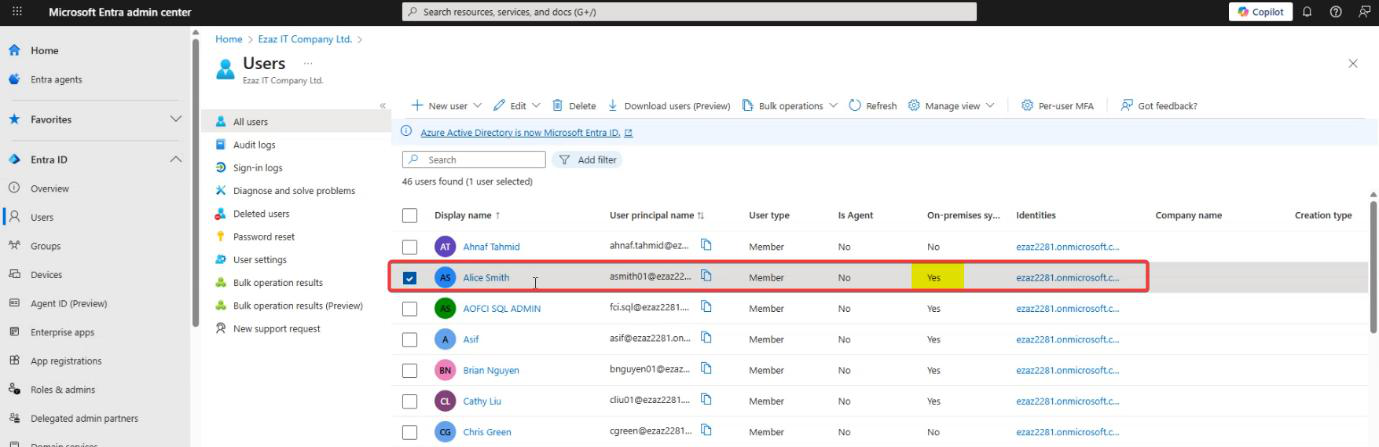
Snapshot the user’s key properties (UPN, display name, license, group memberships) so you have a baseline to compare against post-restore.
Step 2 — move out of synced OU
Open ADUC on a domain controller. Locate jdoe.
Right-click jdoe > Move.
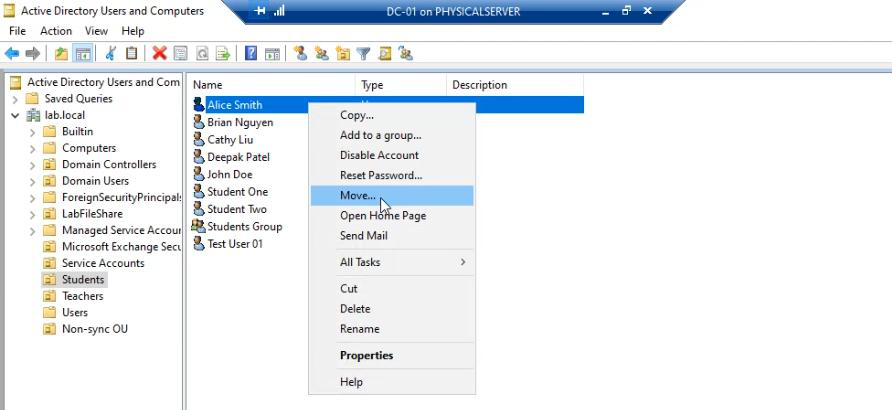
Pick the destination — a Non-Sync OU. This needs to be an OU that is NOT ticked in your EC filter (per Part 12). Common pattern: create an OU named NonSyncedAccounts specifically for this purpose; never tick it in the EC filter.
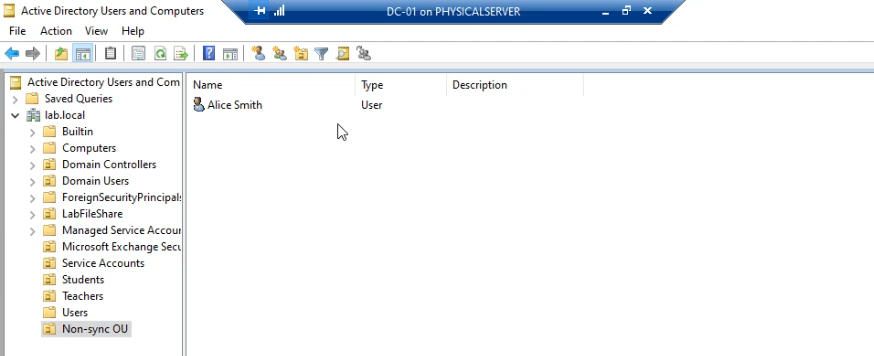
jdoe is now in the Non-Sync OU.
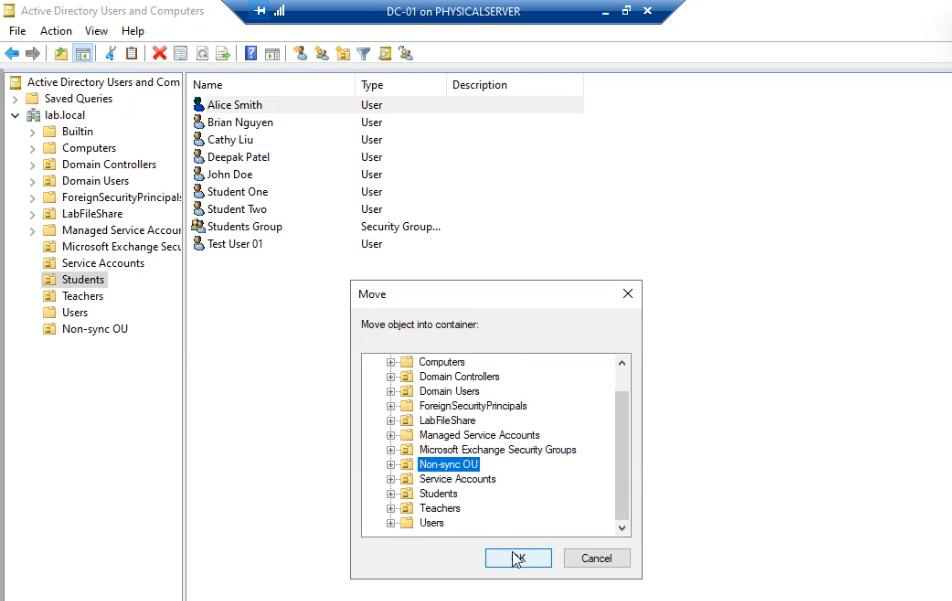
Verify by opening the user’s properties — same SID, same group memberships, just a different distinguished name.
Why this works: EC’s OU filter only watches OUs you explicitly tick. Users in ticked OUs sync; users in unticked OUs are invisible to EC.
Step 3 — force a sync
On the EC server, open elevated PowerShell:
Start-ADSyncSyncCycle -PolicyType DeltaDelta is correct here (NOT Initial). The OU filter scope didn’t change — only the user’s location within AD. Delta picks that up.
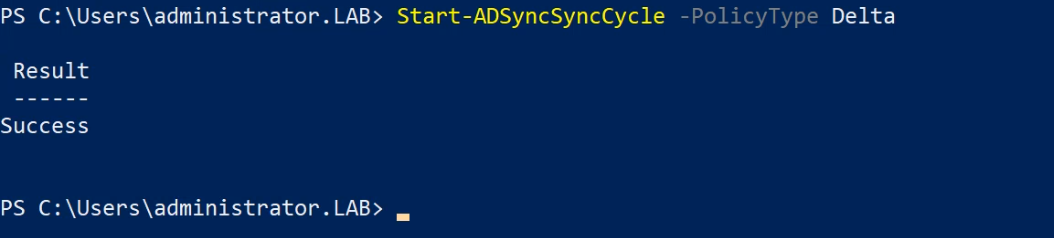
Wait for the cycle to complete (~30 seconds for small environments).
In Sync Service Manager, the export run shows Deletes = 1.
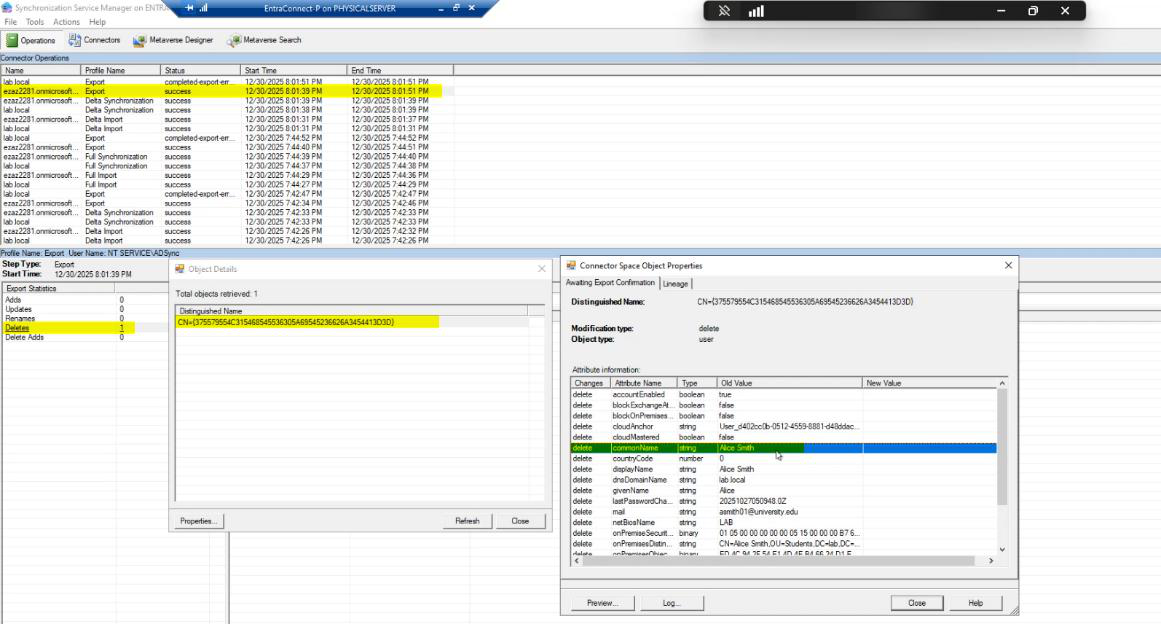
jdoe is the deleted user. The cloud has soft-deleted them; the data is intact in the Recycle Bin.
Step 4 — restore from the Recycle Bin
Back in the admin centre, navigate to Users > Deleted Users.
jdoe is in the list. Select them.
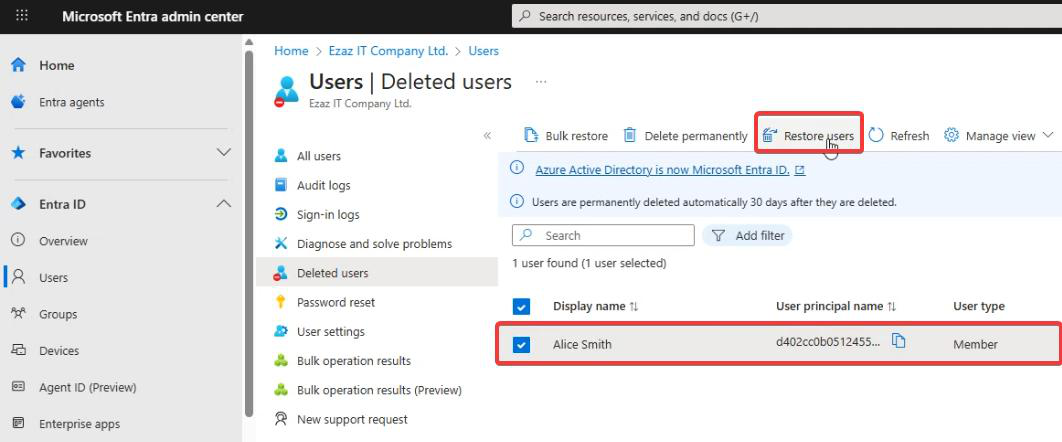
Click Restore User. Confirm.
What the cloud does internally: restores the user object, runs its standard new-user processing including a check for matching on-prem user (via the source anchor / immutableId attribute). The on-prem jdoe is in the Non-Sync OU; EC doesn’t see them; the source-anchor check fails. The cloud concludes: this is a cloud-only user. On-premises sync enabled = No.
Step 5 — verify the conversion
Back in Active Users. jdoe is here. On-premises sync enabled column reads No.
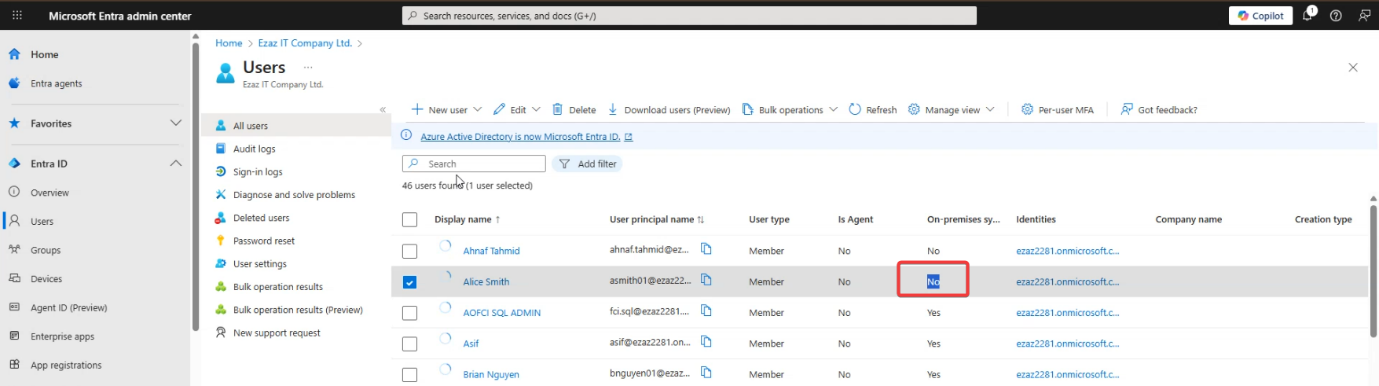
Click into the user. All attributes are now editable. Reset password, change UPN, modify attributes — all from the cloud admin centre. The on-prem jdoe in the Non-Sync OU still exists but is now fully independent of the cloud copy.
Things that bite people
Forgot to wait for the sync to actually run
You moved the user, ran Start-ADSyncSyncCycle, immediately checked Deleted Users — user isn’t there. Either the cycle hasn’t completed yet (give it 1-2 min) or the cycle failed for some reason (check Sync Service Manager Operations). Don’t skip the wait.
30-day Recycle Bin window expired
You moved the user weeks ago and never came back to restore. The soft-delete window has expired; the cloud has hard-deleted the user. Data is gone (mailbox, OneDrive, license history). Recovery requires backups if you have them; otherwise the user is permanently lost. Always do the conversion in one sitting.
UPN collision on restore
While the user was soft-deleted, somebody created a new cloud user with the same UPN. The restore fails because the UPN is taken. Cloud uses userPrincipalName as a unique constraint. Coordinate with whoever might create users while you’re mid-conversion.
The user re-syncs because of OU mistake
You moved jdoe to an OU that you THOUGHT was non-sync but is actually inside a synced parent (sub-OU inheritance per Part 12). Next sync re-imports them. Symptom: after the restore step, On-premises sync flips back to Yes. Fix: move the user to a CONFIRMED non-sync OU and repeat the procedure.
Source anchor reuse
The source anchor (mS-DS-ConsistencyGuid by default) is what links on-prem AD to cloud accounts. If you ever re-introduce the same on-prem user (e.g. delete then re-create with the same name), the new user gets a new source anchor and won’t link to the old cloud user. Usually fine; just be aware that a delete-and-recreate on-prem doesn’t restore the cloud link, even if the names match.
Doing this in bulk
The procedure works one-at-a-time but doesn’t scale. For converting hundreds of users to cloud-only, the better path is to disable directory sync entirely (covered in a later post) and then re-create the synced users as cloud-only. Whole-tenant operation; doesn’t apply to a few specific users.
Group memberships on the wrong side
If jdoe was in a synced security group, removing them from sync removes them from that group. The group itself is still synced; jdoe is just no longer in it. To put jdoe back in a synced group, the group has to be cloud-managed (M365 Group, security group created in cloud). Or jdoe needs to be re-added to the on-prem group via a different person who’s still synced.
Licensing reassignment
Synced users typically inherit licenses via group-based assignment from on-prem. After conversion, jdoe is no longer in those on-prem groups. License assignment may revert or fall away. Verify after restore; assign directly in the cloud if needed.
What’s next
The convert-synced-to-cloud-only trick is one of those Microsoft-doesn’t-have-a-button operations — useful when you need it but rarely. Subsequent posts cover restricting admin centre access (post-conversion the cloud is now the SoA; you may want to lock it down) and fully disabling directory sync (the nuclear option for environments going fully cloud-only). Series in the Hybrid Identity pathway.