Systems Admin

SQL Server FCI Part 3 of 13: Configuring the iSCSI Target VM (Build the SAN)

Networks done in Part 2; now we build the SAN. The iSCSI-Target VM gets the iSCSI Target Server role, the iSCSI service gets bound to the storage NIC ONLY, and we carve two LUNs — 100 GB SQL-Data and 2 GB Quorum-Witness — onto a single target so they present together to both cluster nodes. Initiator ACL by IP, CHAP off for the lab.

Step 1 — install the iSCSI Target Server role
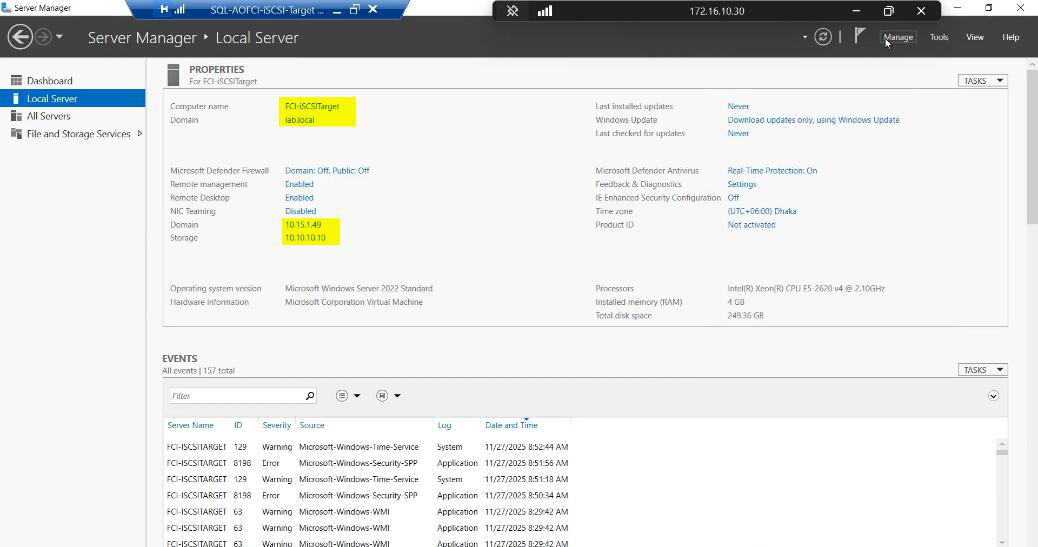
Windows Server logged-in desktop on the iSCSI-Target VM at 10.15.1.49 with Server Manager open in the background, the starting point for installing the iSCSI Target Server role
Sign in to the iSCSI-Target VM. 10.15.1.49 on the public LAN, 10.10.10.10 on the storage subnet.

Sign in to the iSCSI-Target VM (the SAN emulator). Open Server Manager.
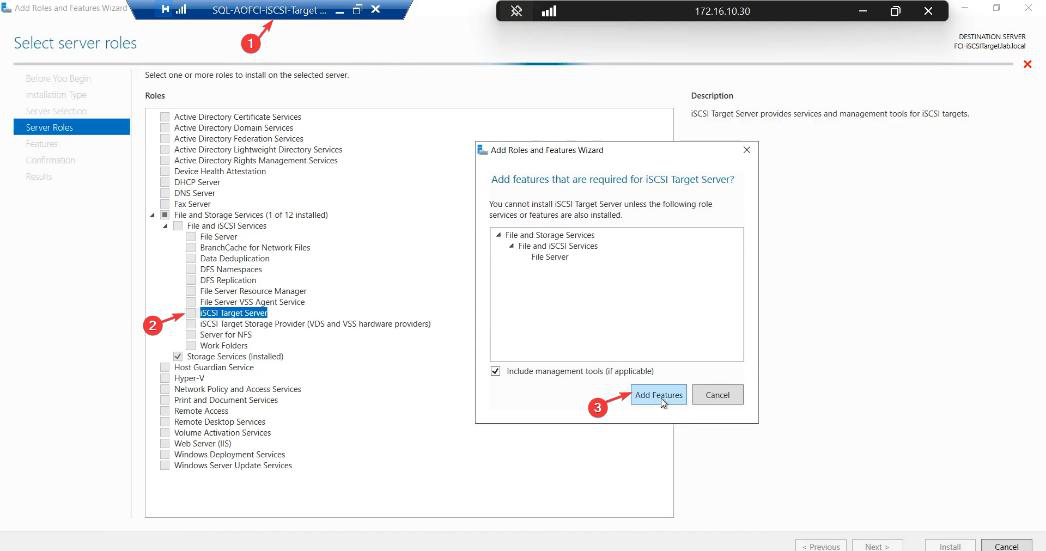
Add Roles and Features wizard on the Server Roles step with File and Storage Services > File and iSCSI Services expanded and the iSCSI Target Server role checkbox ticked” /><figcaption>Server Manager > Manage > Add Roles and Features > File and Storage Services > File and iSCSI Services > <strong>iSCSI Target Server</strong>. Tick, Next, Install. No reboot needed.</figcaption></figure>
<p>Manage > Add Roles and Features. Walk to <strong>Server Roles</strong>. Expand <strong>File and Storage Services</strong> > <strong>File and iSCSI Services</strong>. Tick <strong>iSCSI Target Server</strong>. Next, Next, Install. No reboot needed.</p>
<h2>Step 2 — bind iSCSI to the storage NIC ONLY</h2>
<p>This is the step most lab guides skip. Without it, iSCSI listens on every NIC including the public one — backup traffic, client traffic, and storage traffic all fight for the same wire and you get unpredictable latency spikes.</p>
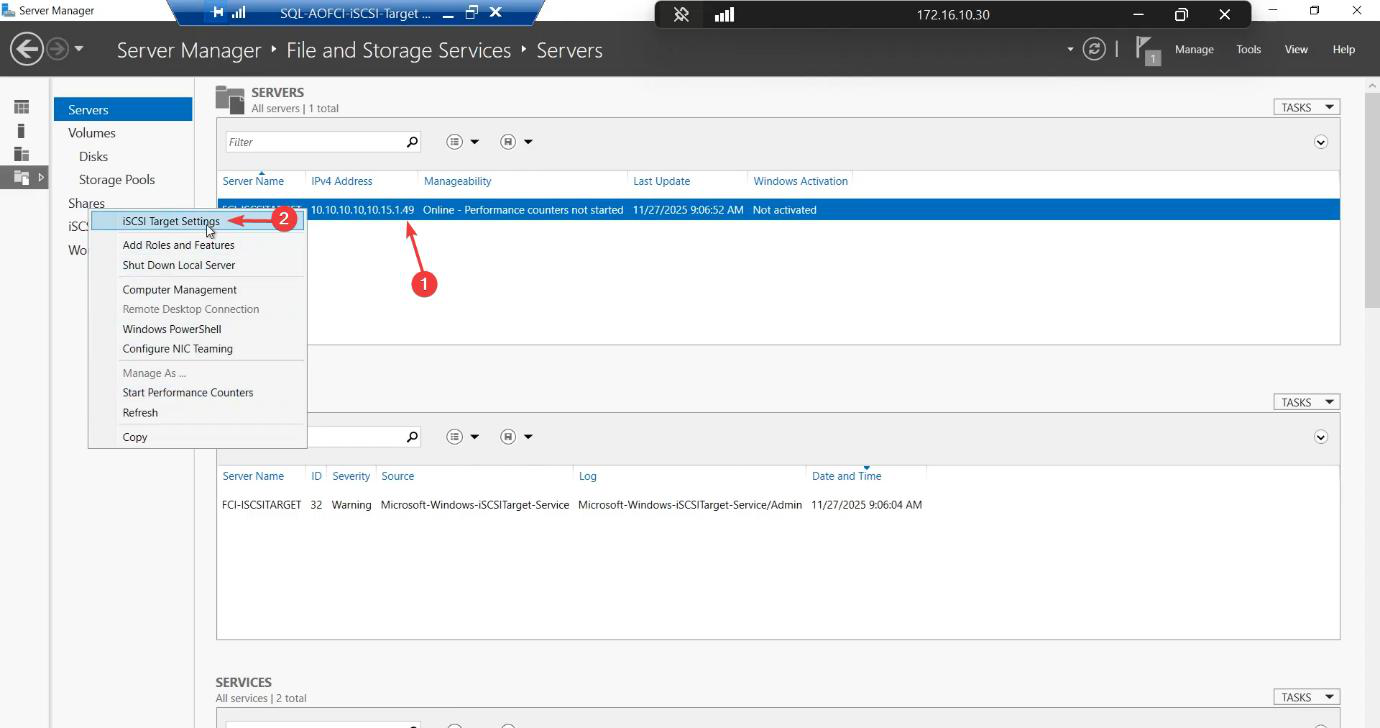
<figure class=Server Manager File and Storage Services > Servers pane with the local server right-clicked showing the iSCSI Target Settings context menu item that opens the network-binding dialog” /><figcaption>Right-click the server name > <strong>iSCSI Target Settings</strong>. This is where you bind iSCSI to specific NICs.</figcaption></figure>
<p>File and Storage Services > Servers > right-click your server > <strong>iSCSI Target Settings</strong>.</p>
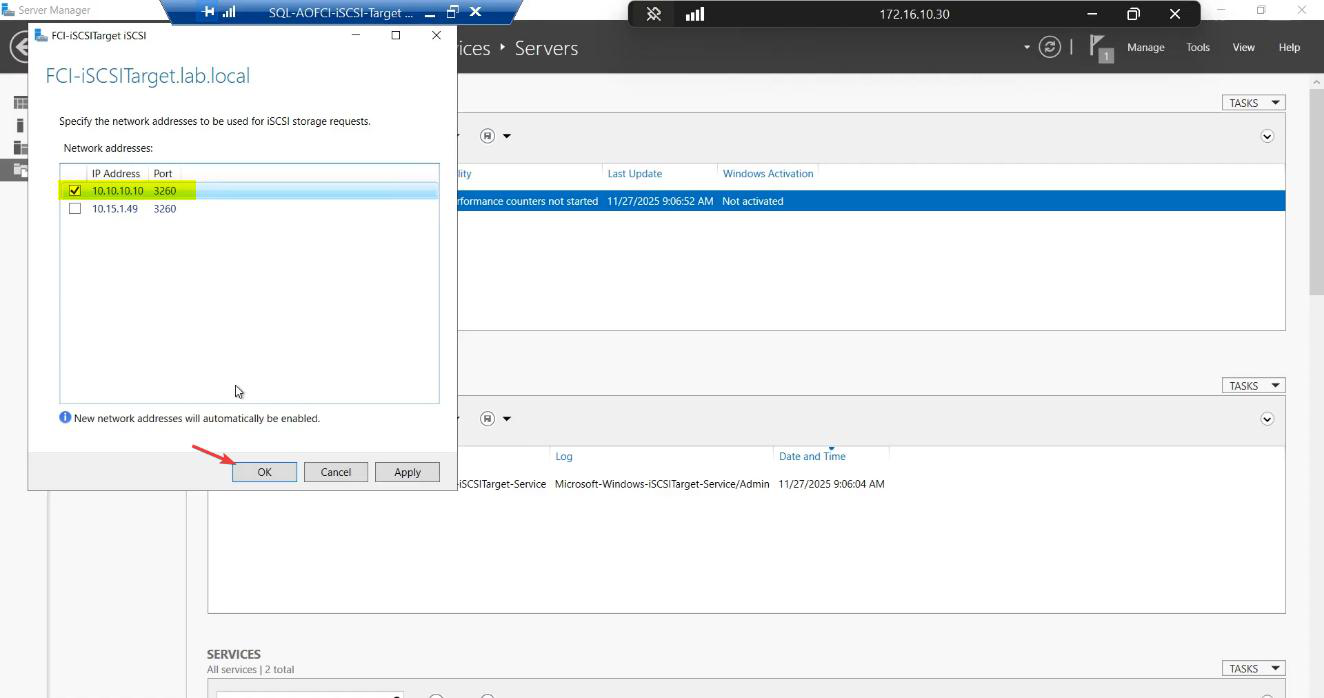
<figure class=iSCSI Target Settings dialog showing two IPs — 10.10.10.10 (Storage) ticked and 10.15.1.49 (Public/Domain) unticked, ensuring iSCSI listens only on the storage subnet and not on the management network
Tick 10.10.10.10. Untick 10.15.1.49. iSCSI must NOT answer on the public NIC — otherwise storage traffic and client traffic share a wire and both suffer.

Tick the storage IP (10.10.10.10). Untick the public IP (10.15.1.49). OK.

Now iscsiadm connections from initiators only succeed on the storage subnet. Public NIC won’t respond to iSCSI handshakes — if a node accidentally tries to log in over the public NIC, it gets a clean refusal instead of working “by accident.”

Step 3 — create the SQL-Data LUN (100 GB)
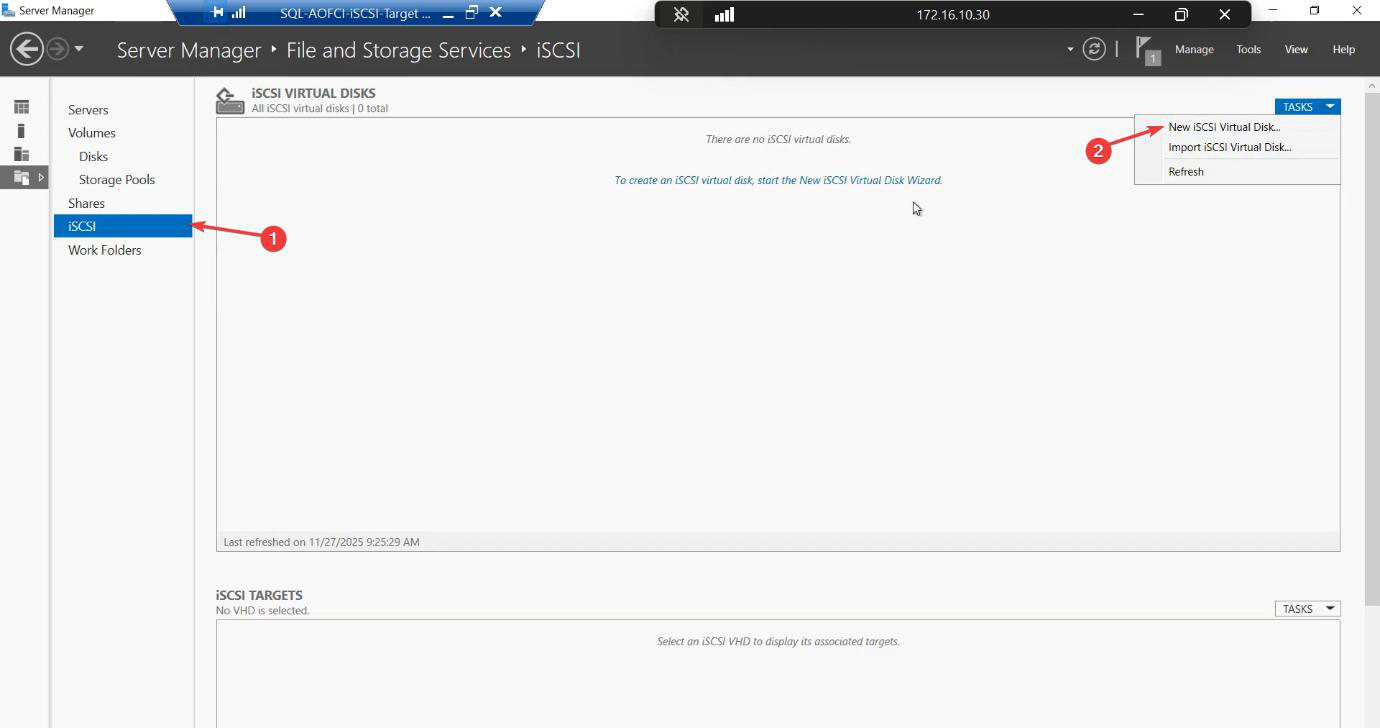
iSCSI section of File and Storage Services with the Tasks dropdown open showing New iSCSI Virtual Disk option being selected to create the SQL data LUN
iSCSI section > Tasks > New iSCSI Virtual Disk. Build the SQL data LUN first.
iSCSI section > Tasks > New iSCSI Virtual Disk.

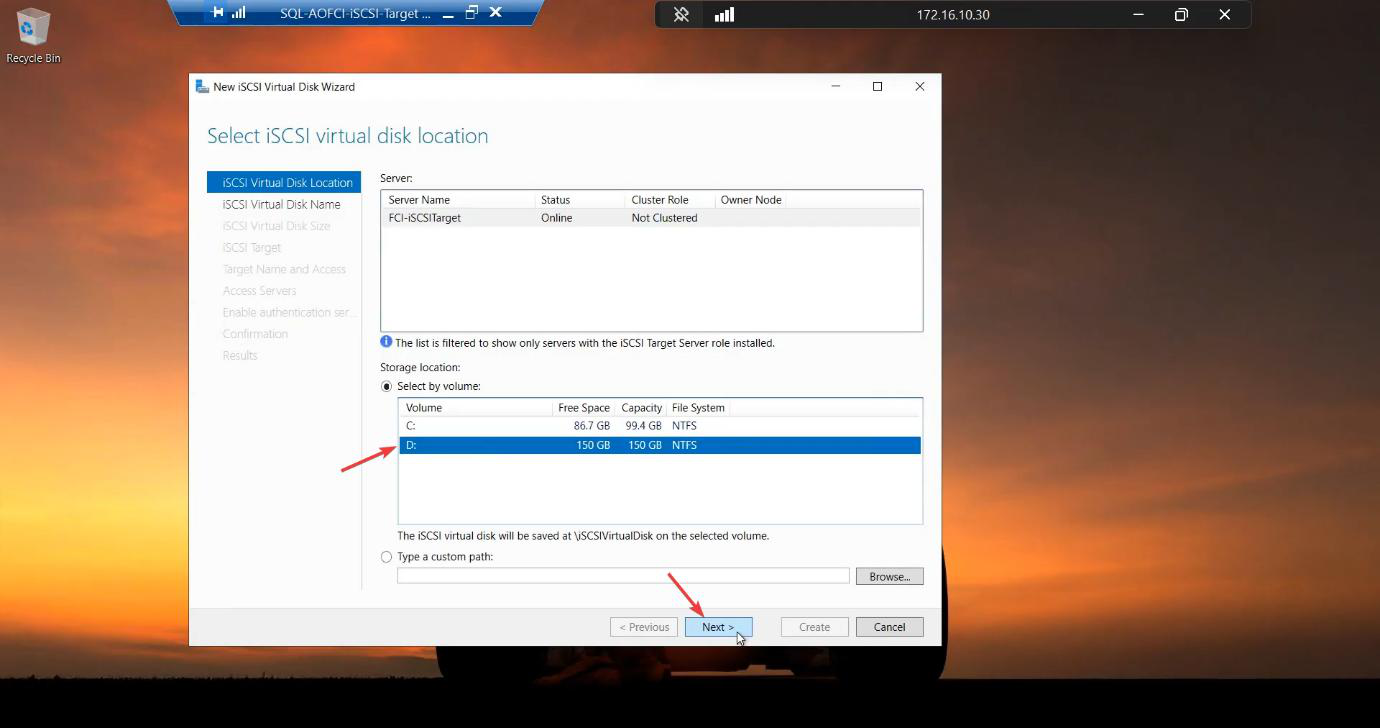
New iSCSI Virtual Disk wizard step 1 selecting the D: volume (the 150 GB raw disk attached in Part 2) as the location for the new VHDX file
Location: D: drive (the 150 GB raw disk attached in Part 2). The wizard creates a D:\iSCSIVirtualDisks folder if it doesn’t exist.

Location: D: volume (the 150 GB raw disk).
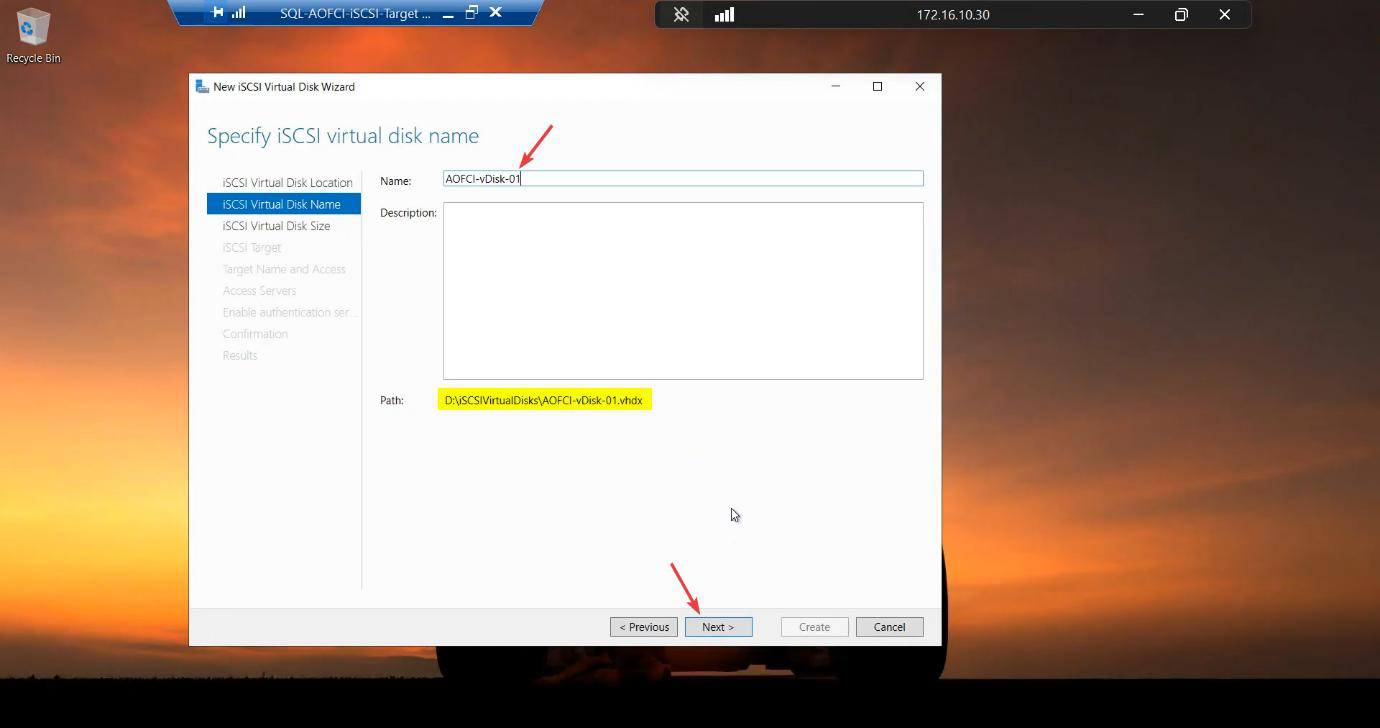
Wizard step 2 entering the descriptive name SQL-Data for the new virtual disk that will host all SQL data files for the cluster
Name: SQL-Data. Use a descriptive name — you’ll see it in cluster Disk Properties later.

Name: SQL-Data.

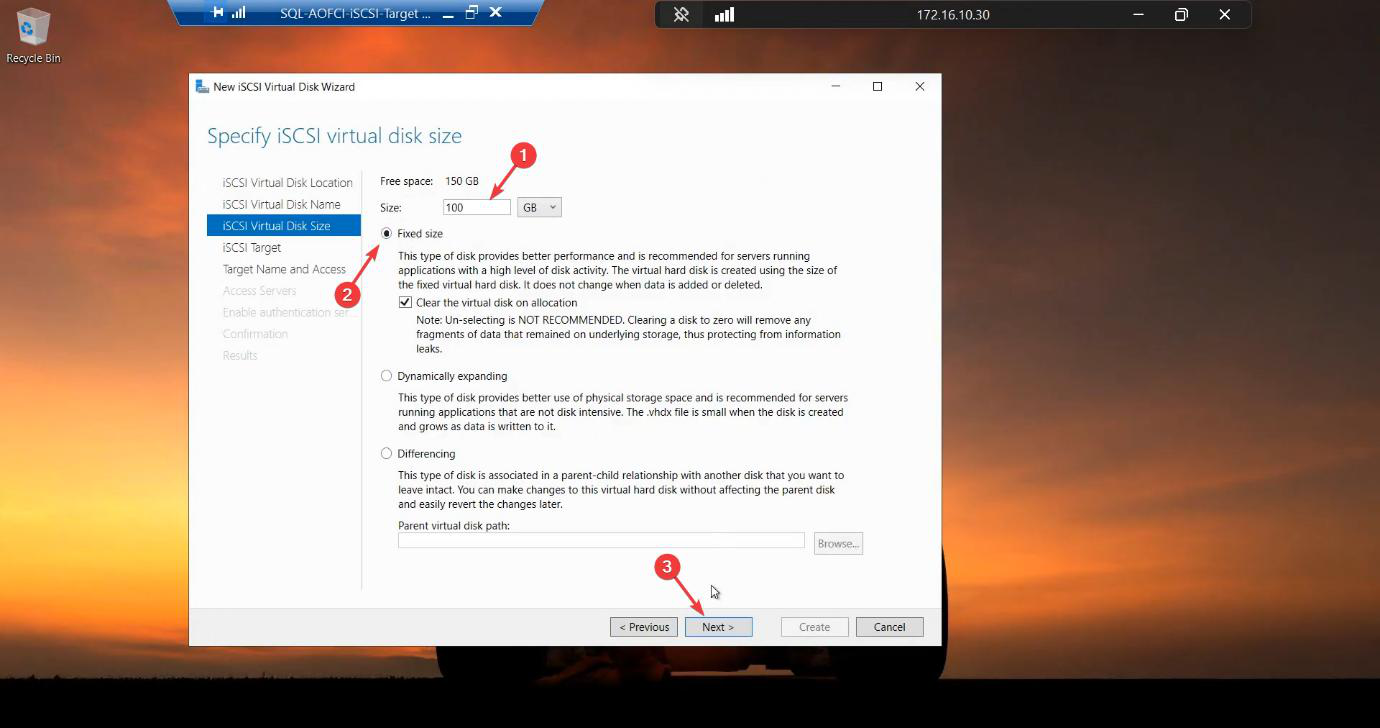
Wizard step 3 sizing the disk at 100 GB with Fixed Size selected (recommended for production performance because the file is fully allocated up-front rather than expanded on demand)
Size: 100 GB Fixed. Fixed pre-allocates the file — takes minutes to create but no on-demand expansion pauses during workload. Dynamic is fine for lab but never prod for SQL data.

Size: 100 GB. Fixed Size. Fixed pre-allocates the entire file — takes minutes to create but no expand-pauses later. Never use dynamic for production SQL data files. Lab is fine either way.
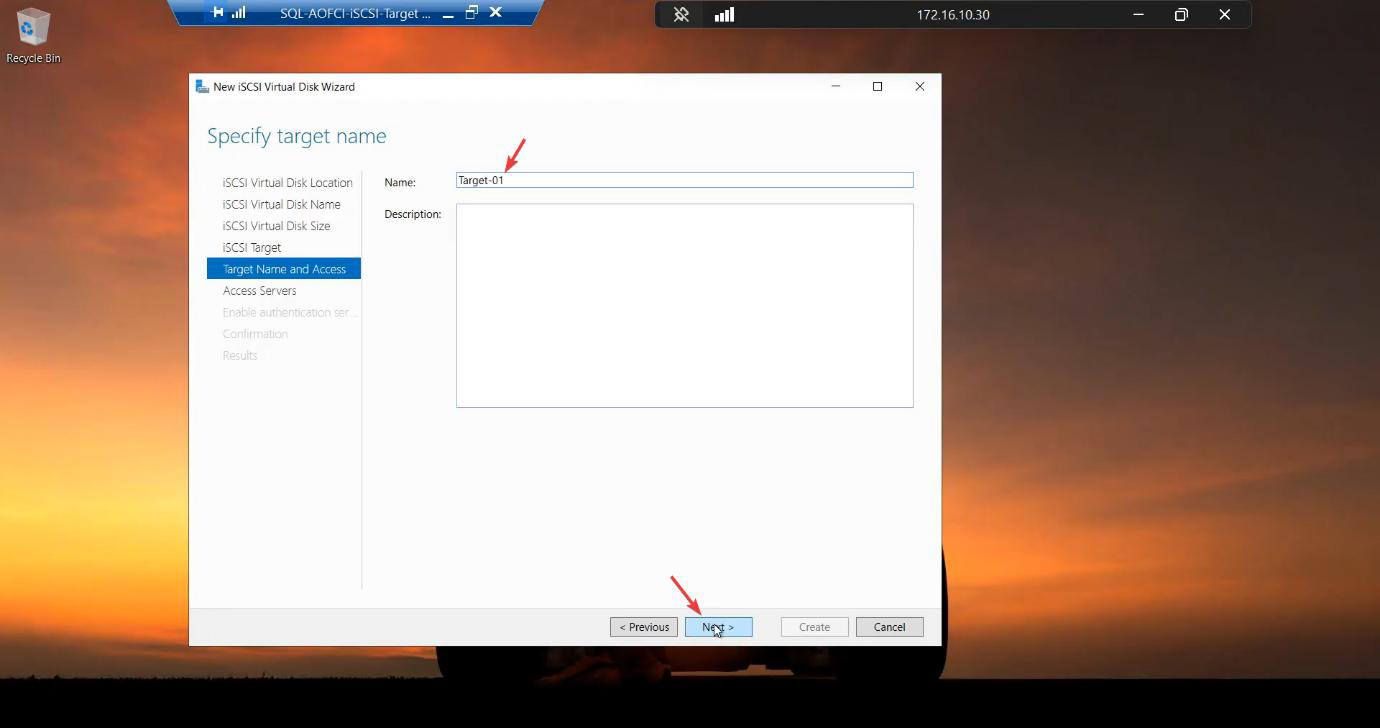
Wizard step 4 with New iSCSI target selected and target name Target-01 entered, the logical group that both data and quorum disks will live under
Target: New iSCSI TargetTarget-01. A target is a logical group of LUNs presented together to the same initiators.

Target: New iSCSI Target. Name: Target-01. A target is a logical group of LUNs presented together — both data and quorum will go on this same target.

Add the initiator ACL
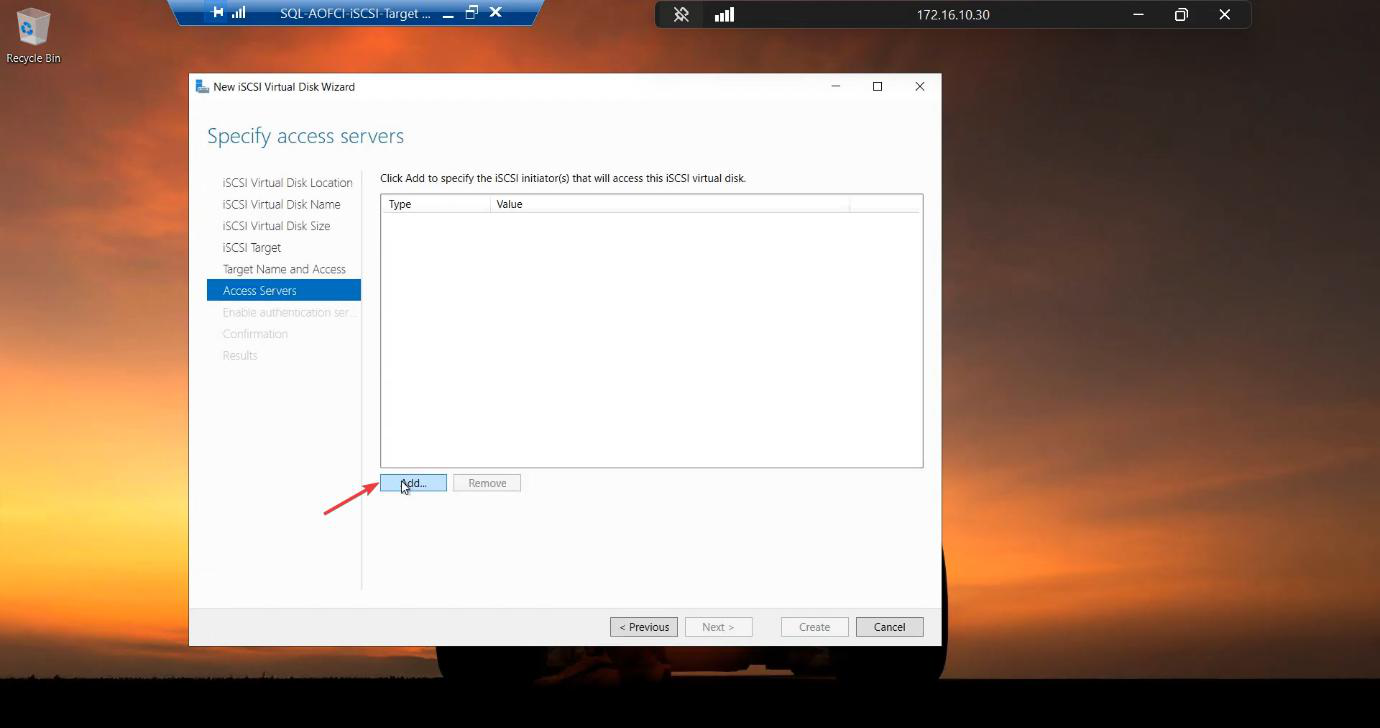
Access Servers step with the Add Initiator dialog open and IP Address selected as the initiator type
Access Servers > Add > IP Address as initiator type.
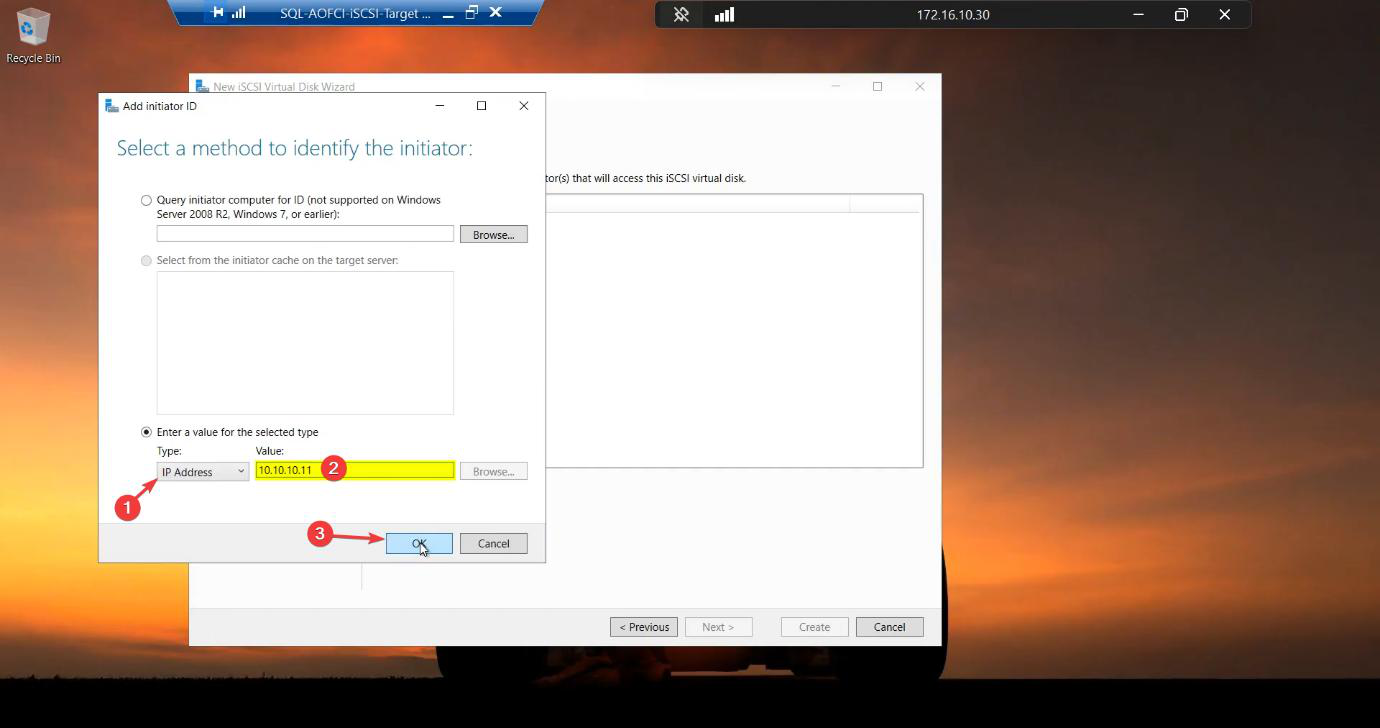
Same Add Initiator dialog with the Storage IP of Node-01 (10.10.10.11) entered as the value, granting Node-01 access to the LUN
10.10.10.11 — Node-01’s storage IP. This whitelists Node-01.

Access Servers > Add. Type: IP Address. Value: 10.10.10.11 (Node-01 storage IP).
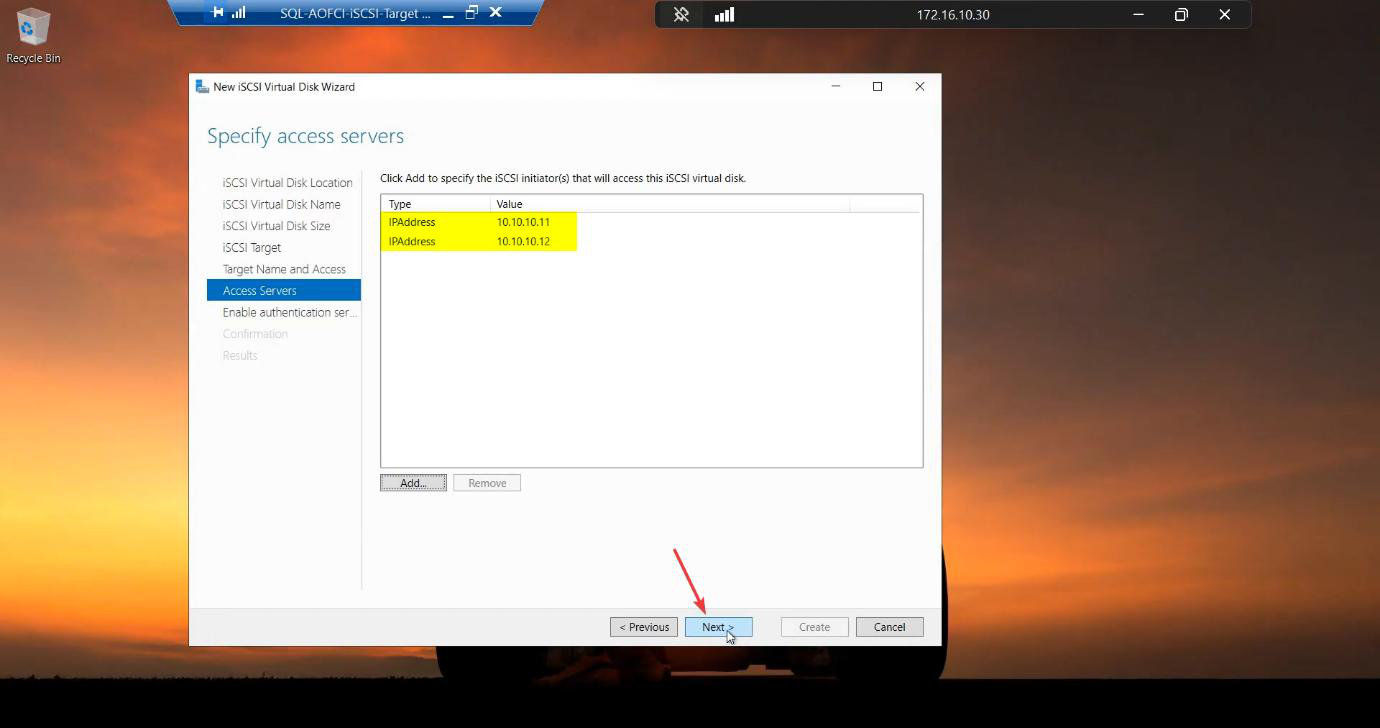
Access Servers list now showing both Node-01 (10.10.10.11) and Node-02 (10.10.10.12) added as authorised initiators on the storage subnet
Add again with 10.10.10.12 for Node-02. Both nodes can now mount this target.

Repeat with 10.10.10.12 for Node-02. Both nodes are now in the ACL.
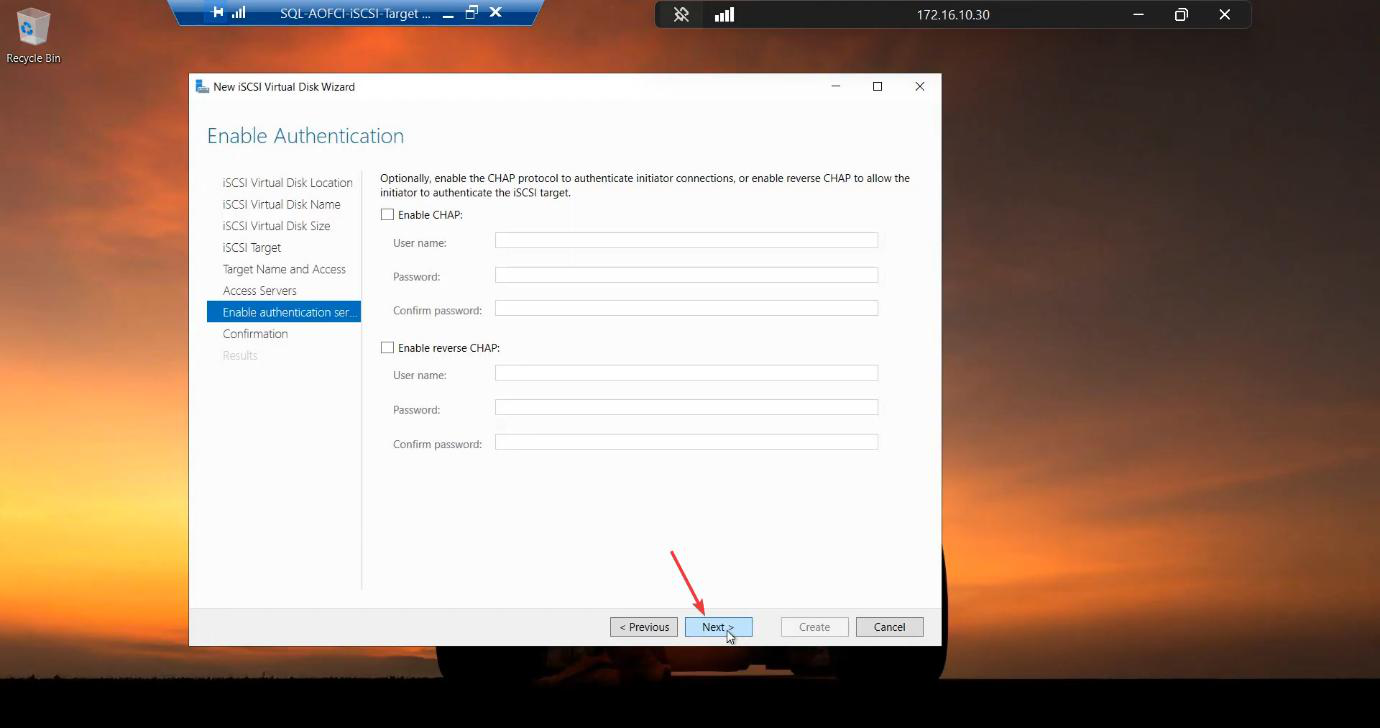
Authentication step with CHAP disabled (acceptable for an isolated lab; production should enable CHAP or scope by IQN with mutual auth)
CHAP authentication: disabled in lab. In production, enable CHAP with mutual auth, OR scope by IQN.

CHAP authentication: disabled for the lab. Production: enable CHAP with mutual auth, OR scope by IQN (more durable across IP renumbering).
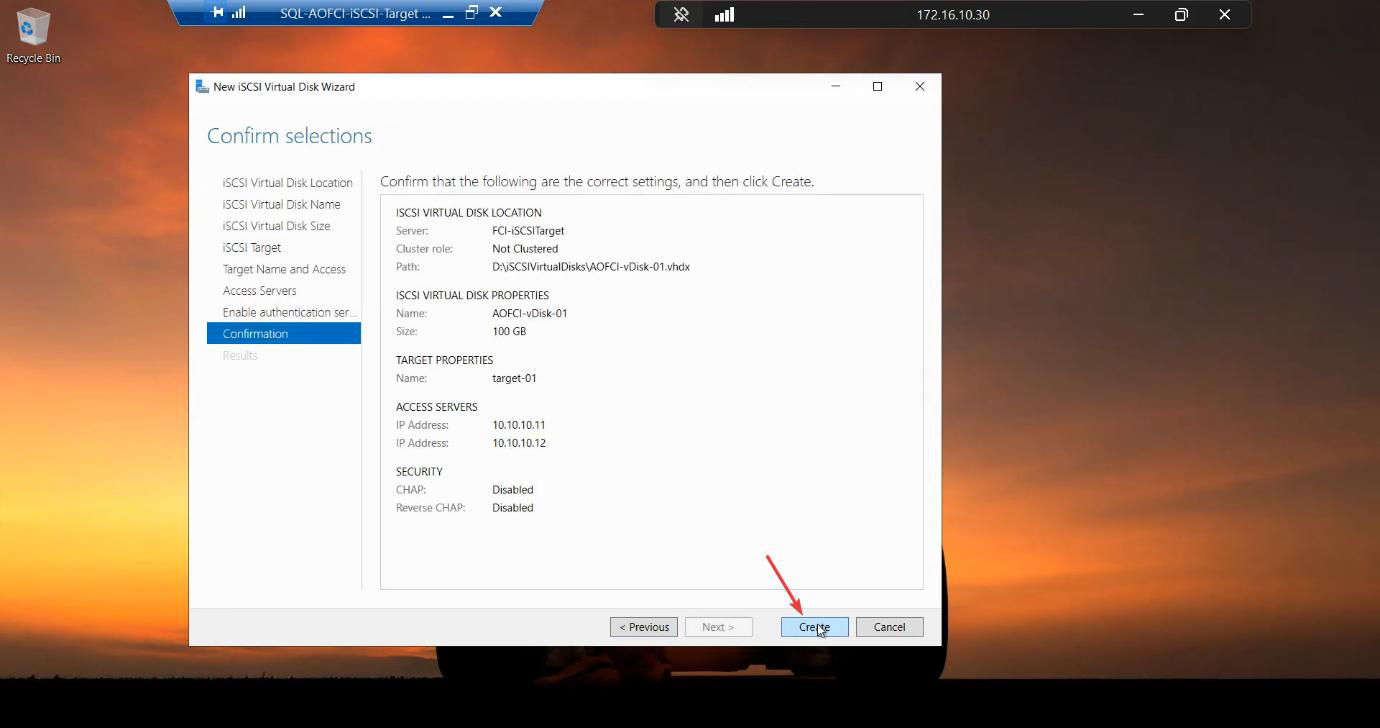
Confirmation step reviewing all settings: location, size, target name, initiator IPs, no auth — ready to click Create
Review and Create.

Review.

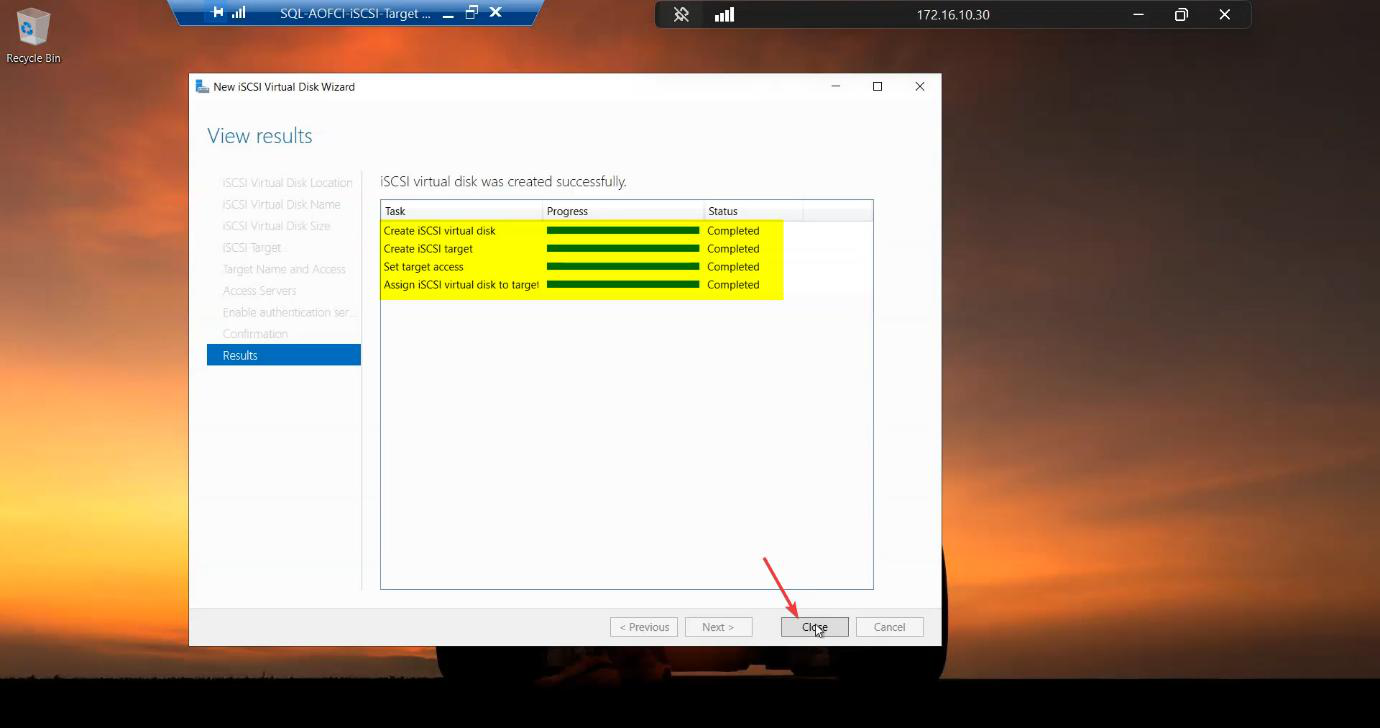
Results step showing the disk creation completing with green check marks for each step
Disk creation finished. SQL-Data.vhdx now exists on D:.
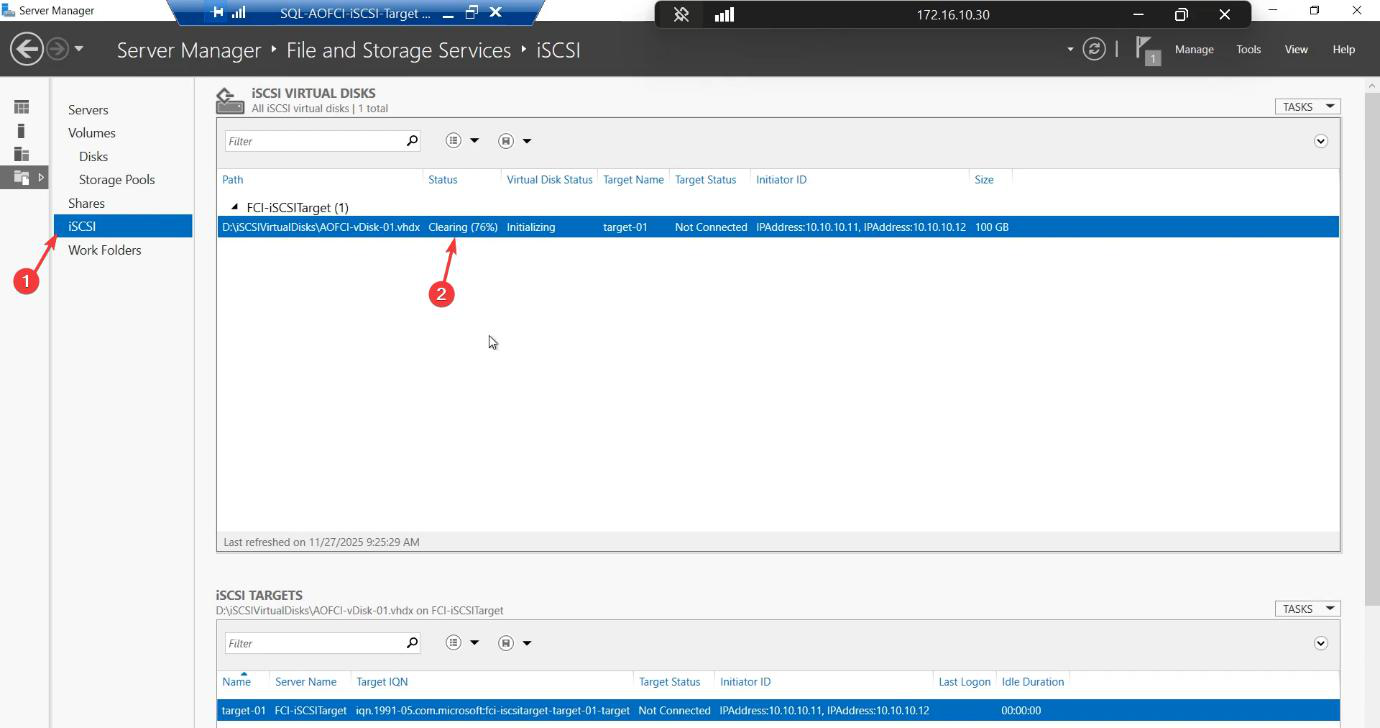
iSCSI Virtual Disks pane after creation showing the new SQL-Data disk listed with status Not Connected (initiators have not yet logged in — that happens in Part 4)
iSCSI Virtual Disks pane showing the new SQL-Data with status Not Connected — expected. Initiators connect from the nodes in Part 4.

Created. SQL-Data.vhdx now lives on D:. Status Not Connected until initiators log in (Part 4).

Step 4 — create the Quorum-Witness LUN (2 GB)

The Quorum is the cluster’s tie-breaker. In a 2-node cluster, if heartbeat fails between nodes but both can still reach storage, BOTH nodes might try to take ownership of the disks — the dreaded split-brain. The Quorum (witness) is a third “vote” that prevents this.
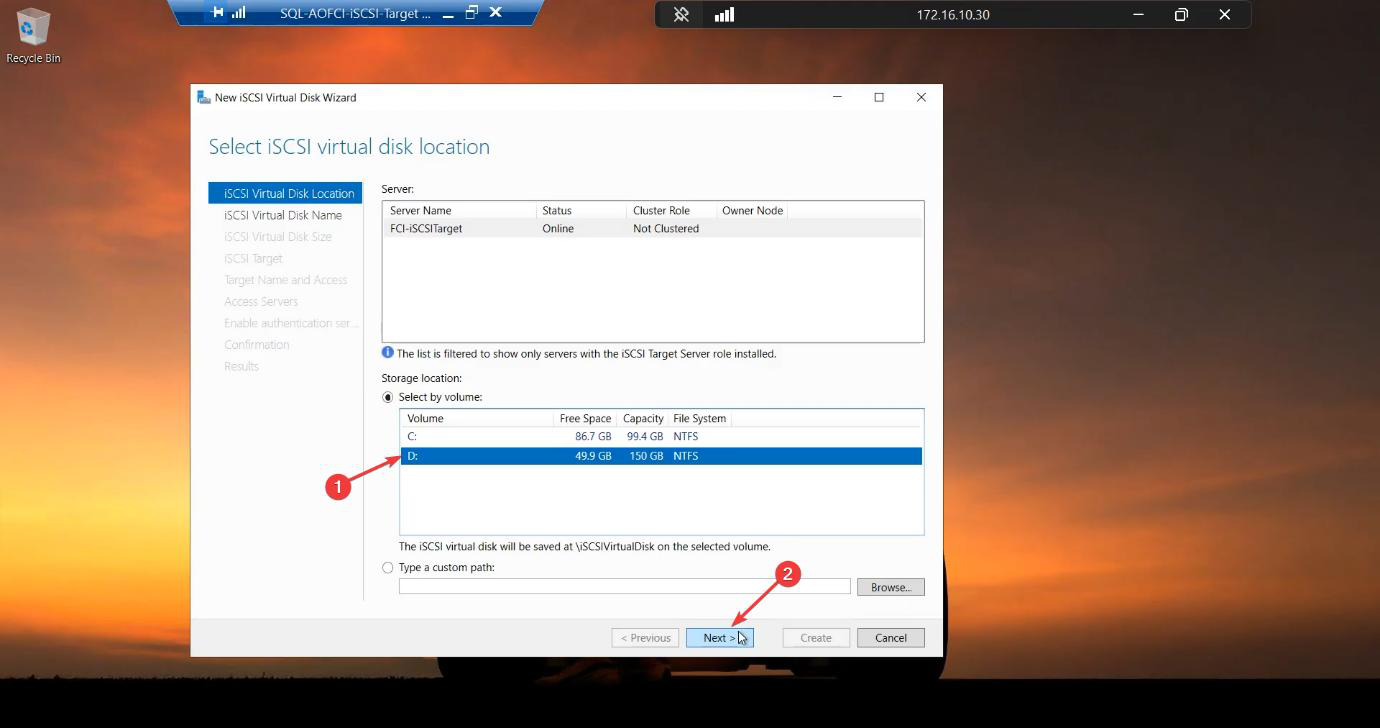
New iSCSI Virtual Disk wizard restarted to add the second disk: location D: volume again
Now the second disk: New iSCSI Virtual Disk → D: volume.

New iSCSI Virtual Disk > D: volume.

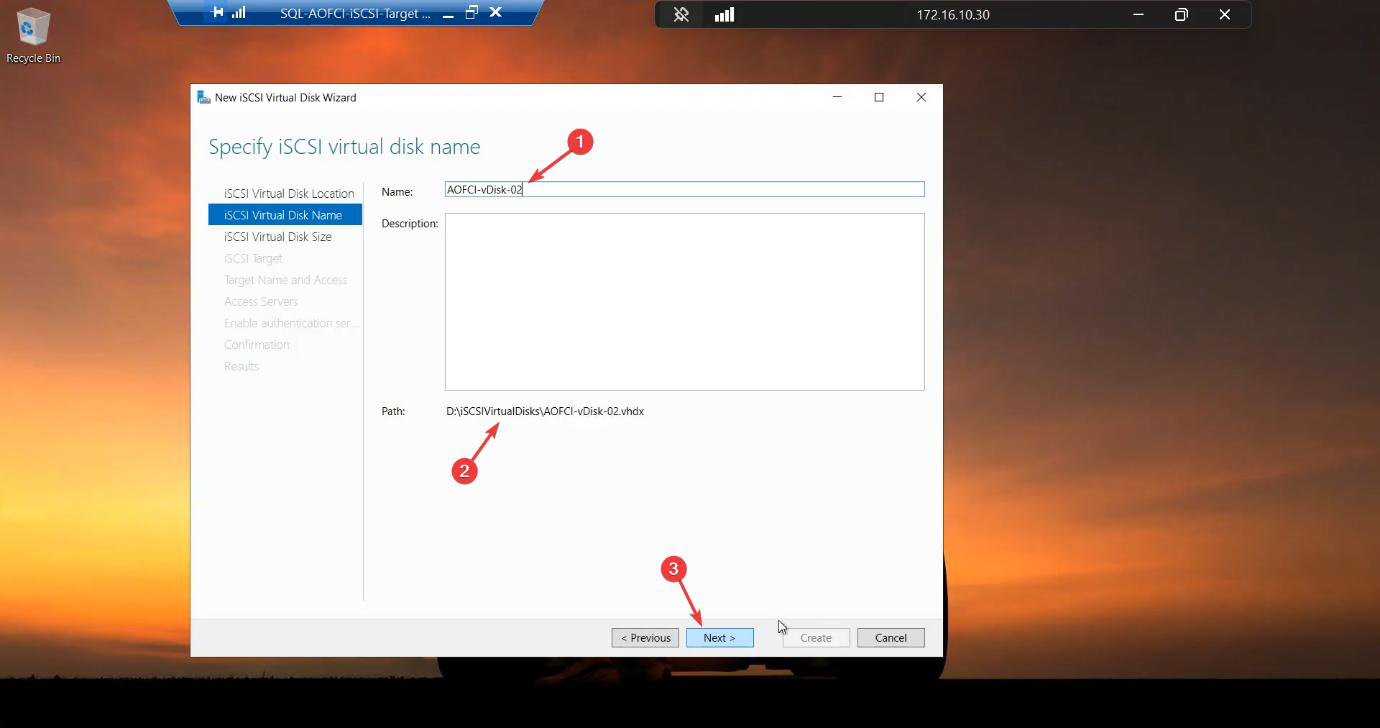
Step 2 of second wizard naming the disk Quorum-Witness for the cluster vote tie-breaker function
Name: Quorum-Witness. The cluster tie-breaker LUN.

Name: Quorum-Witness.

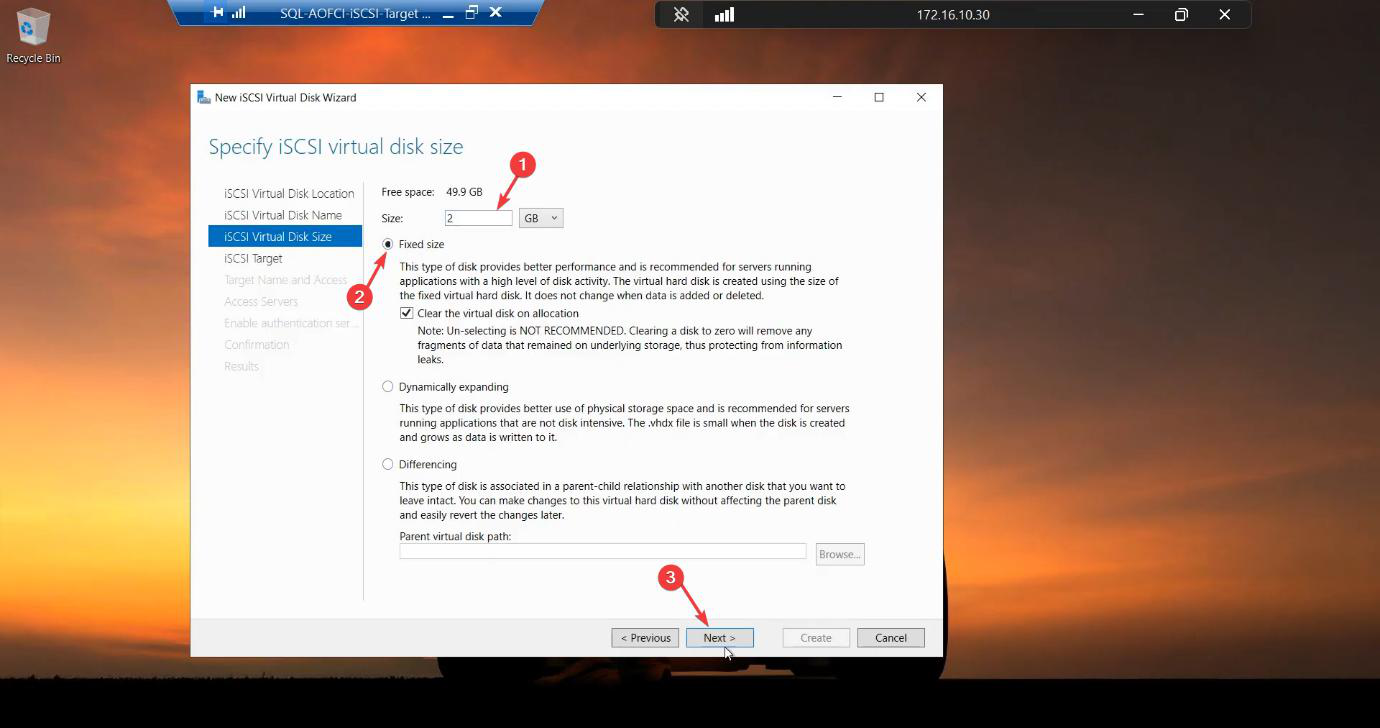
Step 3 sizing Quorum-Witness at 2 GB Fixed (small but plenty — the witness only stores cluster metadata, not data)
Size: 2 GB Fixed. Tiny. The witness stores only cluster metadata.

Size: 2 GB Fixed. Tiny. The witness stores cluster metadata only, no data.
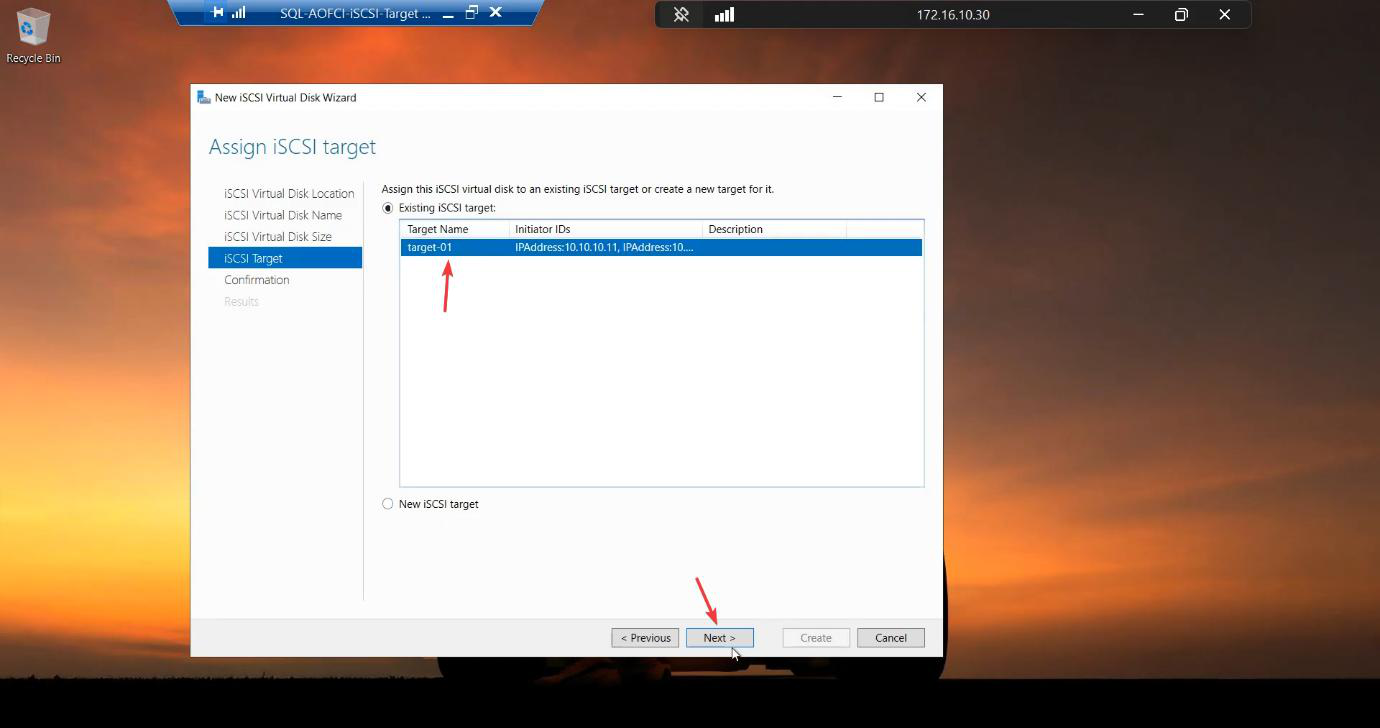
iSCSI Target step now selecting the EXISTING Target-01 instead of creating a new one, ensuring both Data and Quorum disks are presented as a single unit to the cluster
Target: Existing iSCSI TargetTarget-01. Critical: do NOT create a new target. Both disks must be on the same target so they present together.

Critical: on the iSCSI Target step, select Existing iSCSI TargetTarget-01. Do NOT create a new target. Both disks must present together to the same initiators — otherwise the cluster sees them as separate storage groups and configuration gets messy.
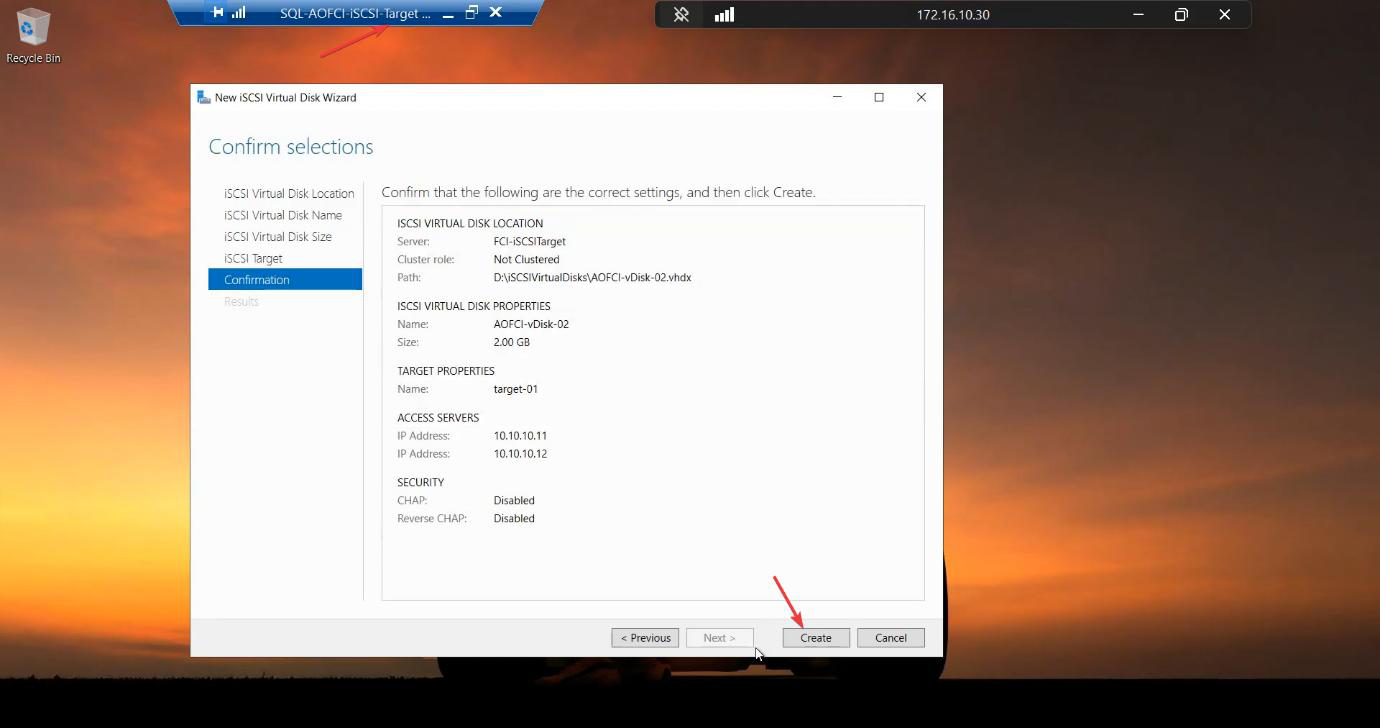
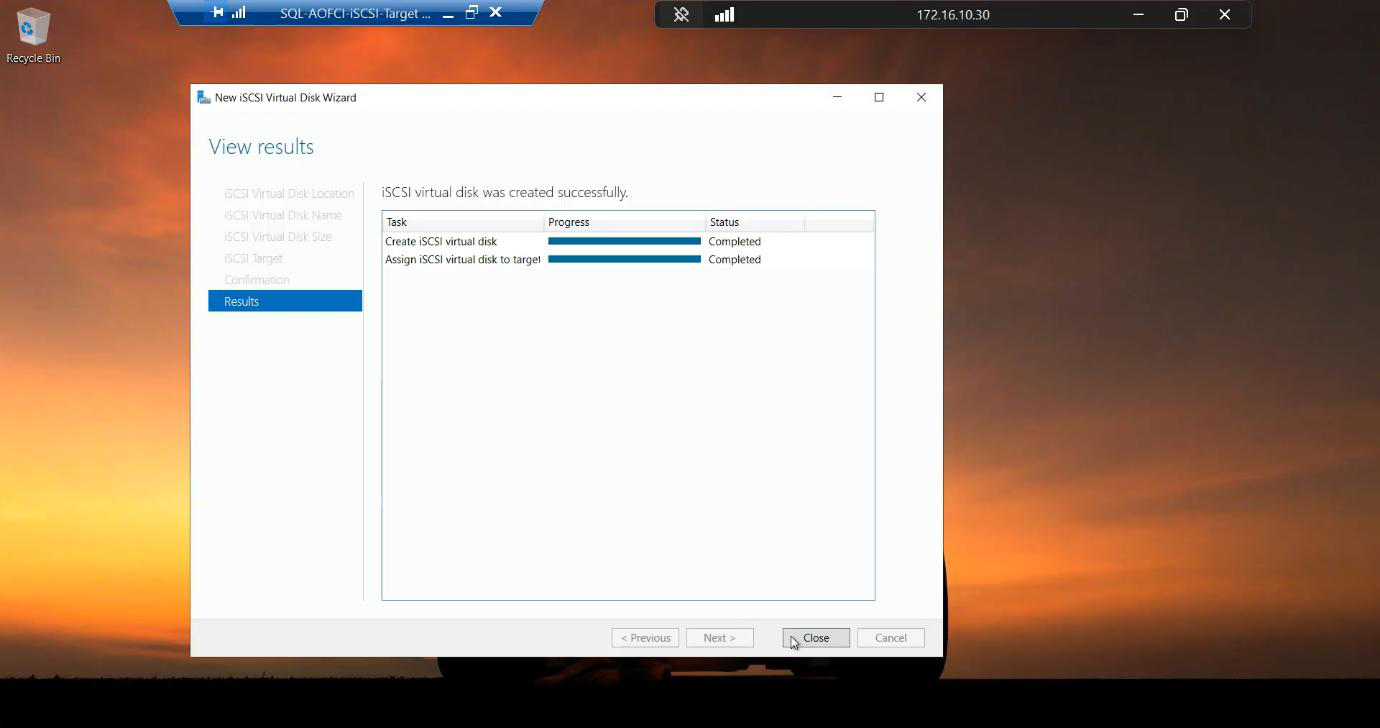
Confirmation showing the Quorum-Witness disk will be added to the existing Target-01 alongside the SQL-Data disk
Confirmation: Quorum-Witness will be added to Target-01 alongside SQL-Data.
Results page completing the Quorum-Witness disk creation with green check marks
Created. Two LUNs on Target-01.

Created.

Step 5 — verify both disks exist
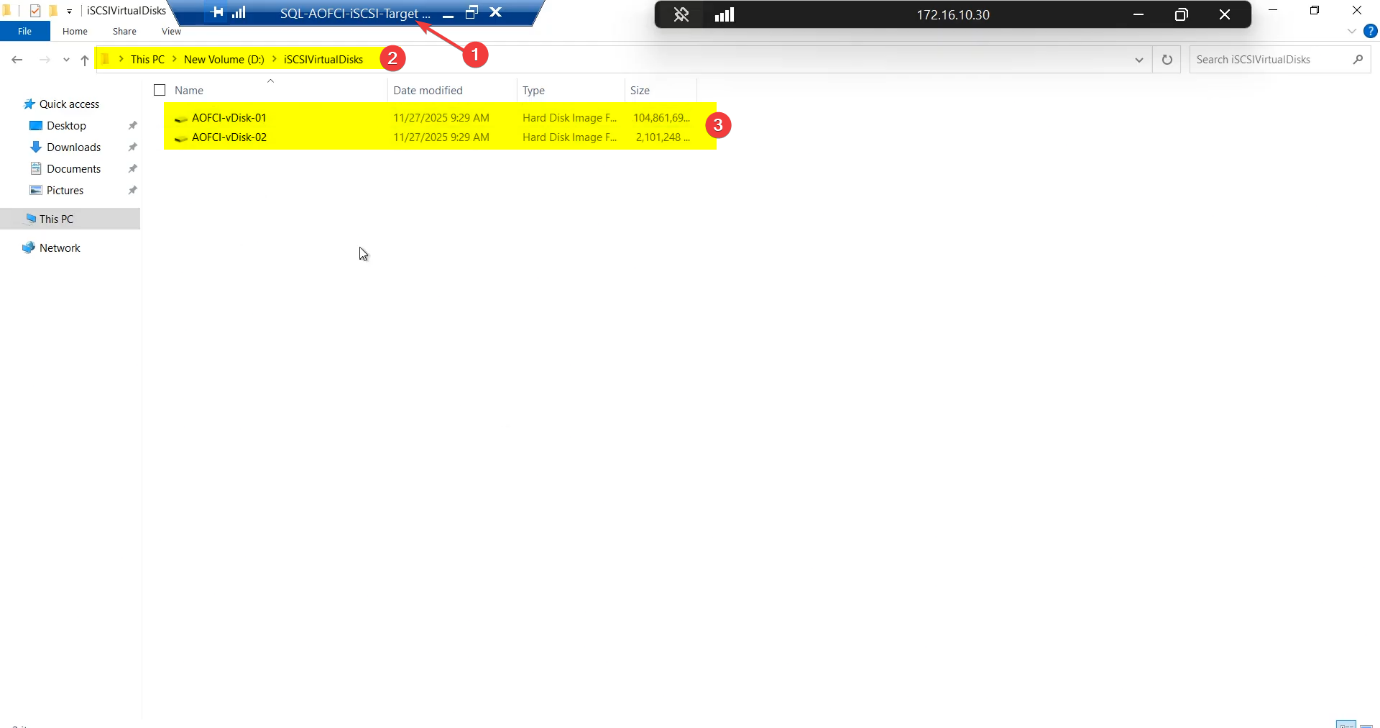
File Explorer view of the iSCSI-Target VM’s D:\\iSCSIVirtualDisks\\ folder showing the two created VHDX files: SQL-Data.vhdx and Quorum-Witness.vhdx, both fixed-size and ready to be served
D:\iSCSIVirtualDisks\SQL-Data.vhdx and Quorum-Witness.vhdx. SAN side complete.

File Explorer > D:\iSCSIVirtualDisks\

  • SQL-Data.vhdx (~100 GB)
  • Quorum-Witness.vhdx (~2 GB)

Both fixed-size, both on Target-01, both whitelisted to Node-01 and Node-02. SAN side is complete.

Things that bite people in this part

Forgetting the network binding

Easiest mistake. iSCSI listens on all NICs by default. Without the binding step, your storage traffic competes with backup, monitoring, AD replication, etc. on the public NIC. Every weird latency spike traces back to this. Bind to storage NIC only.

Two targets instead of one

If you create Quorum-Witness on a separate target, the cluster sees Data and Quorum as two unrelated storage groups. Cluster validation passes, but configuration is fragile and adding more disks later requires duplicate ACL setup.

Dynamic size in production

Dynamic VHDX files expand on first write. SQL Server doing a heavy write into an unallocated region experiences a multi-second pause while the host expands the file. Lab: dynamic is fine. Production: always Fixed.

CHAP forgotten

Lab: CHAP off is fine. Real environment: enable CHAP with mutual authentication. Without it, anyone on the storage subnet who knows the target IQN can connect.

Disk size sprawl

The 150 GB raw disk holds 100 GB Data + 2 GB Quorum + headroom. Plan ahead — SQL data files want to grow. In production, monitor LUN free space and grow the underlying disk before SQL hits a write failure.

Storage IP changes

If you ever renumber the storage subnet (e.g., 10.10.10.x → 192.168.50.x), the IP-based initiator ACL breaks. Production tip: scope by IQN instead, then nodes can change IPs without storage drama.

What’s next

SAN side built. Part 4 jumps to Node-01 and Node-02 and configures the iSCSI Initiators — discovering the target, logging in, formatting and mounting the LUNs. See the full series at SQL Server Clustering pathway.

Leave a Reply